Aug 22, 2026
Answer Your Agent Without Leaving the Chat
When a running agent asks a multiple-choice question, Conversation now shows it as an interactive card above the composer — pick an option, check several, or type your own, without switching back to the terminal.
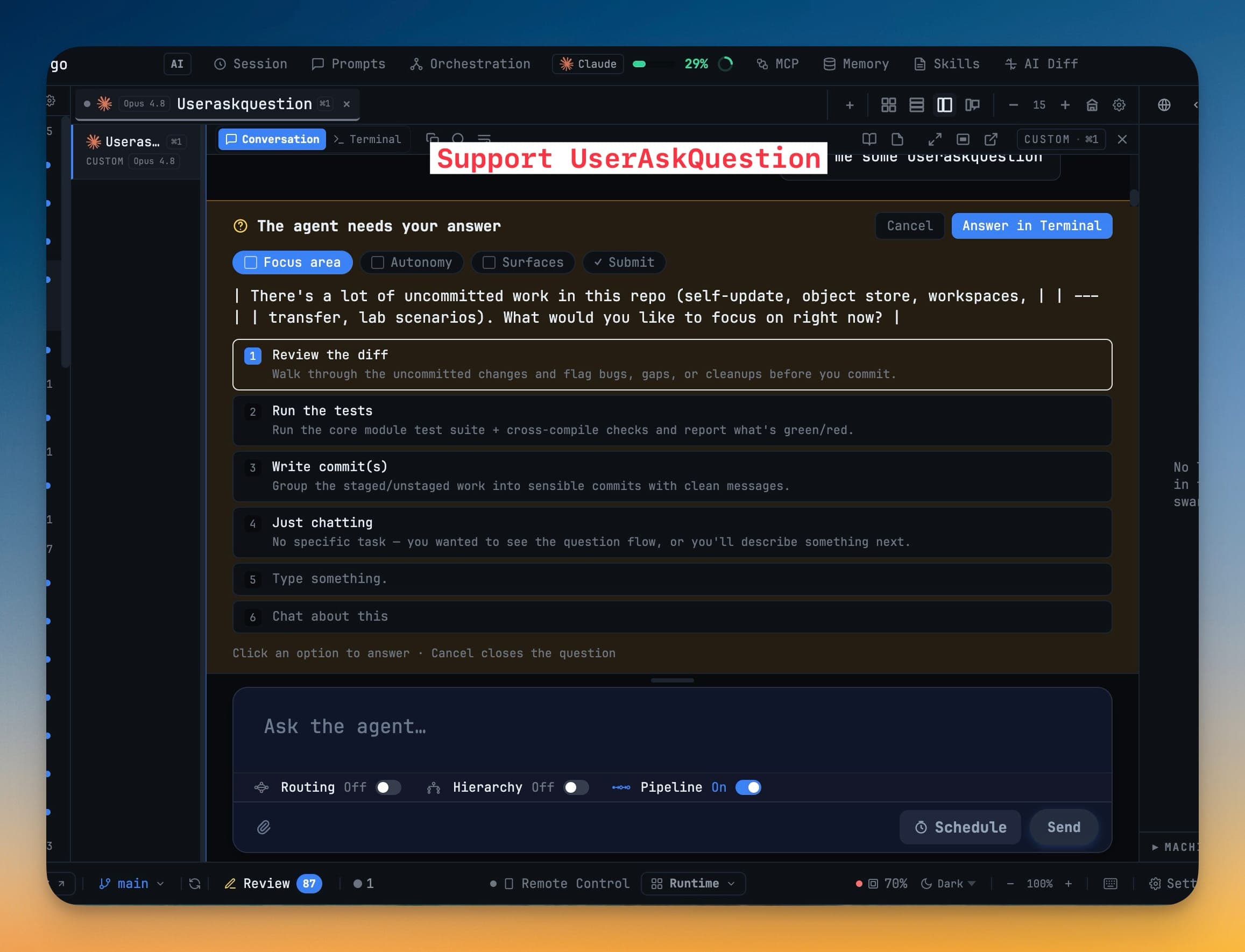
You switched a pane to Conversation because reading your agent as a clean chat beats squinting at a raw terminal. The prompts are "You" bubbles, the replies render as markdown, and the tool calls fold away until you want them. Then the agent hits a decision point and asks one of those numbered questions — "There's a lot of uncommitted work here. What would you like to focus on?" — and the chat you came for tells you to go back to the Terminal to answer.
So you switch panes, hunt for the prompt in the scrollback, count the options, type a number, and switch back. The one moment where the agent actually needs you is the one moment the chat hands you off. That's exactly backwards.
The agent's question now lives in the chat
In 1.66.0, when a running agent asks a multiple-choice question, Conversation shows it as an interactive card that sits right above the composer. You read the question, you answer it, and you never leave the chat. Behind the scenes every click is turned into the exact keystrokes the agent expects, so the terminal stays the source of truth — you just don't have to look at it.
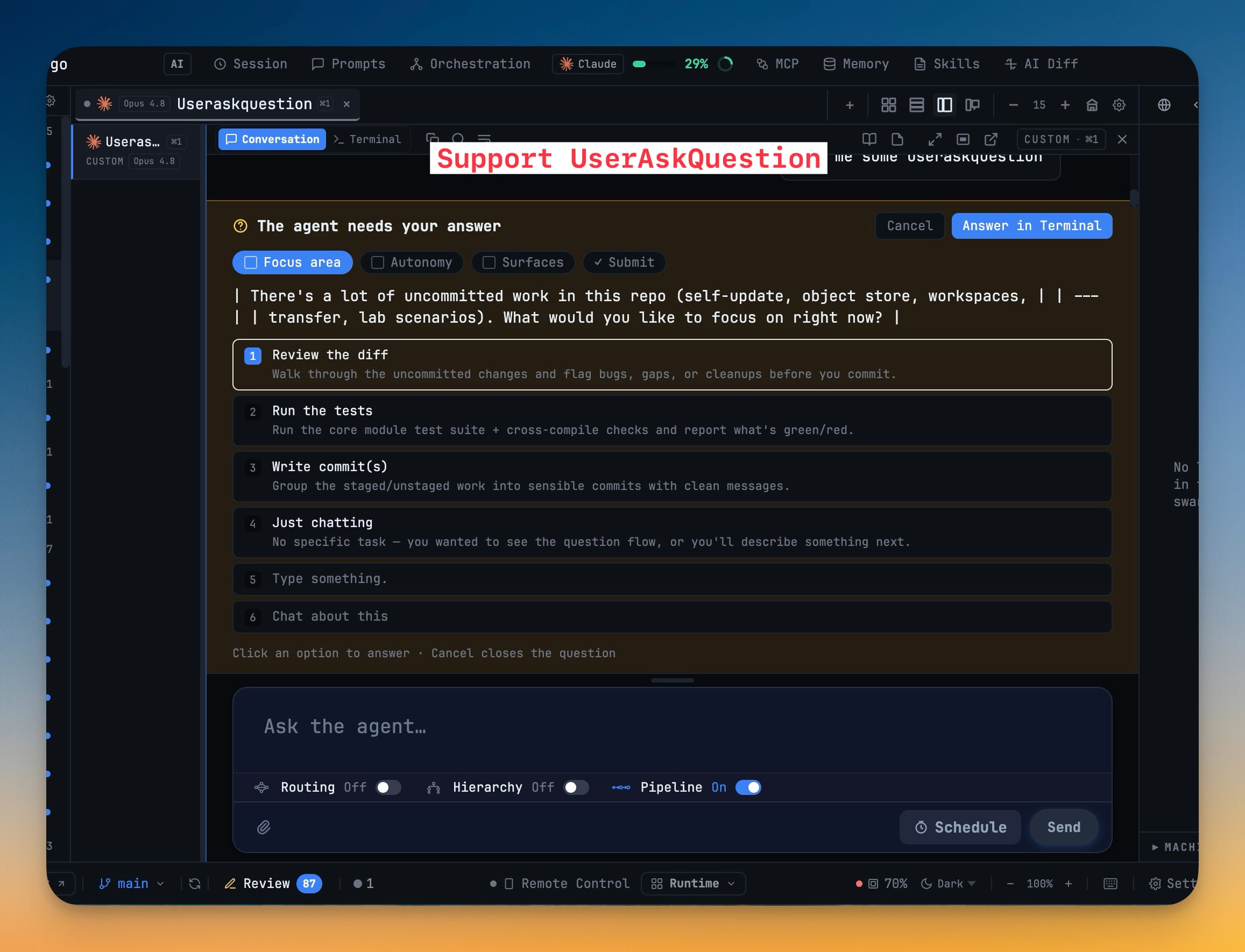
How it works in practice
Pick an option, or type your own
The card lays the choices out as numbered rows, each with its one-line description, so you're choosing between Review the diff and Run the tests on their own merits instead of decoding a wall of terminal text. Click the row and the answer goes back to the agent. Prefer to say something the agent didn't list? The Type something row lets you write a free-text answer to the same question — no need to cancel and start a new prompt.
If you'd rather handle it the old way for one particular question, Answer in Terminal is right there on the card. Nothing is taken away; the shortcut is just added.
Check several at once
Some questions aren't one-of-many — they're which of these. When the agent asks something like "which surfaces matter most for this session?", the card switches to checkboxes. Toggle every option that applies, then press Next to move on instead of being forced into a single pick.
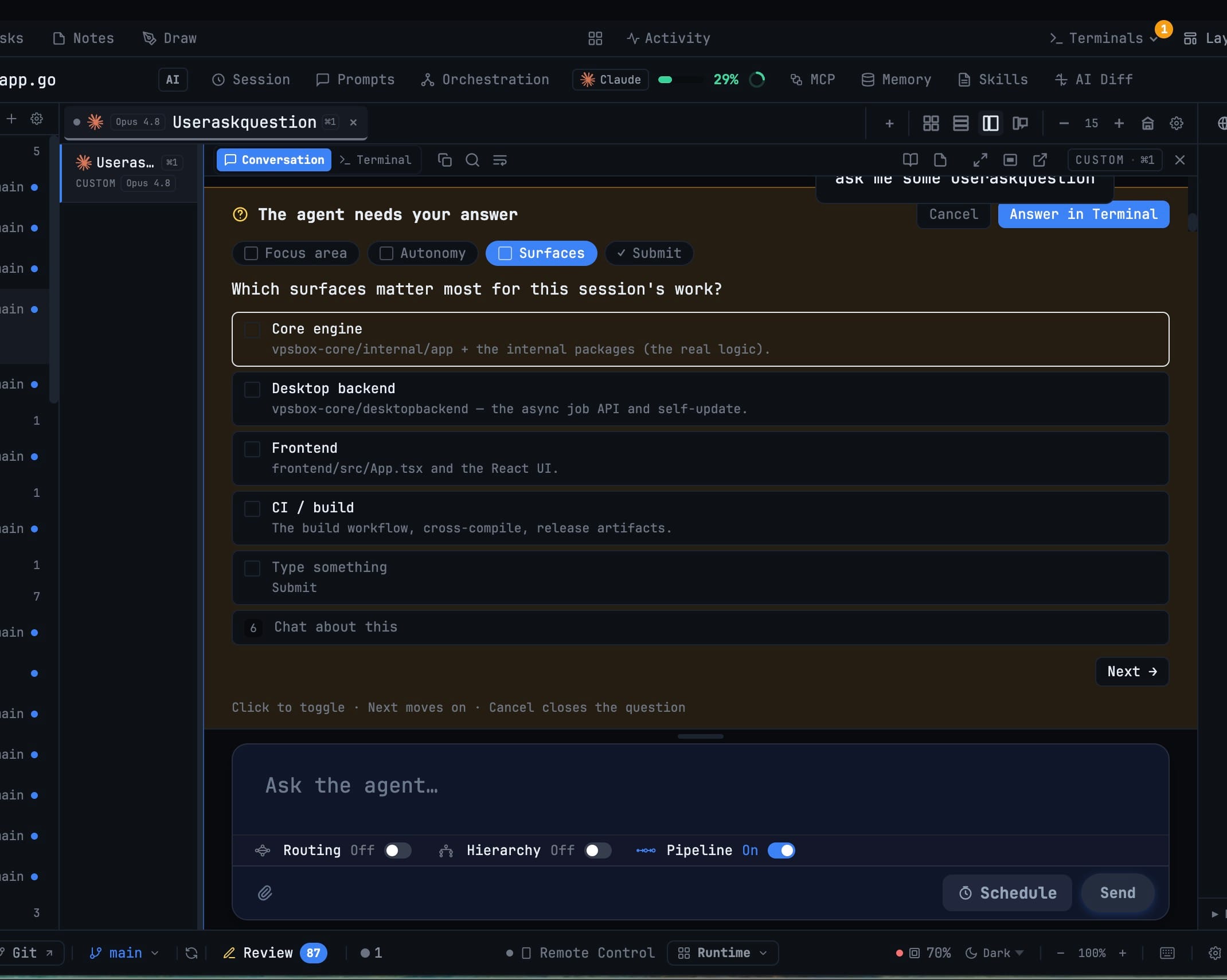
Review before you commit to it
For multi-part questions, the card walks you through one tab at a time and ends on a summary tab that lists exactly what you chose. You get one last look before you press Submit answers — or Cancel to close the question without sending anything. No more sending a half-formed answer because you miscounted a menu.
Your team's chatter finally reads like a conversation
If you run agents in a team, a hierarchy, or a pipeline, they talk to each other constantly — and until now that cross-talk showed up in the chat as the raw [1devtool] command wrapper the agents used to reach one another. Useful to a machine, noise to you.
Now each hand-off is a tidy row. A link message becomes a card that names who sent it and who it's for, shows both agents' logos, and folds the reply instructions away until you ask for them. The small stuff — Linked to Codex, You are Backend lead — reads as a quiet notice row. And every outbound message tells you where it stands: Delivered · awaiting reply, Reply received, Waiting for your approval, or Delivery failed, with a line that animates while a message is still in flight.
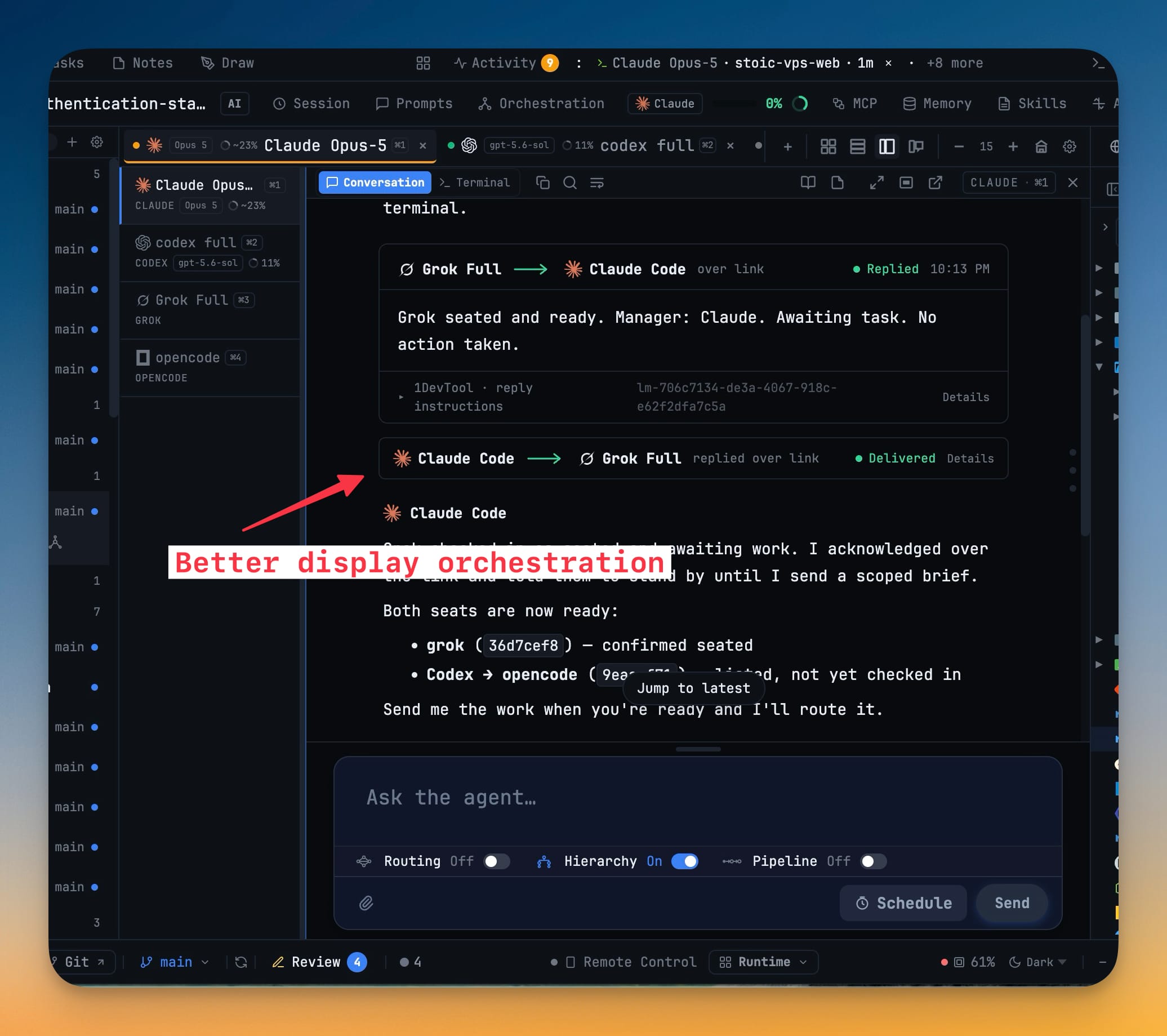
You can finally watch a swarm coordinate and actually follow who's waiting on whom.
Get back in from your phone with a passcode
Remote Control lets you drive your workspace from your phone — until the pairing expires, you clear your browser data, you open a different browser, or you revoke the wrong device by accident. Before, getting back in meant walking to your desk to scan a fresh QR code.
Now a disconnected phone can sign in again with a passcode. Let 1DevTool generate a short one-time code (shown once, so copy it then) or set your own, and decide up front what permission a passcode-paired phone gets. It's off by default and lives in Settings → Remote, where you can turn it on, change it, or clear it any time — even while the Remote server is stopped.
Before vs after
| Answering an agent's question | Before 1.66.0 | Now |
|---|---|---|
| Where you answer | Switch back to the raw Terminal | Right in the Conversation chat |
| Reading the choices | Count numbered lines in scrollback | Labeled rows with descriptions |
| Multiple valid answers | One pick, or retype the whole prompt | Check several, then Next |
| Confidence before sending | Hope you typed the right number | A summary tab lists your choices |
| Watching a team coordinate | Raw [1devtool] command lines | Clean hand-off rows with live status |
| Reconnecting a phone | Walk to your desk, rescan a QR | Sign in with a passcode |
Who gets the most out of it
If you run long agent sessions in Conversation, you no longer pay a context-switch tax at the exact moment the agent stops to ask you something — the decision happens where you're already reading.
If you orchestrate teams and swarms, the message rows turn a firehose of inter-agent commands into a readable timeline, so you can supervise a hand-off chain without decoding CLI syntax.
If you drive 1DevTool from your phone, a dropped connection is a passcode away from fixed instead of a trip back to your machine.
Try it
Update to 1.66.0, flip any AI pane to Conversation, and let your agent ask you something. The next multiple-choice question shows up as a card you can answer on the spot — pick one, check several, or type your own — without ever touching the terminal.
This release also polishes the orchestration Builder so a draft chart carries a real name and clear saved / applied chips, redraws graph diagrams in a softer hand-drawn Mermaid style, and makes the Agent Input setup switches show their progress instead of looking inert. But the headline is simple: when your agent needs you, you're already there.