Jul 27, 2026
Assign a task to an AI agent and it starts working
Tasks is now a board your agents work directly — assigning a task spawns the terminal, sends the work and binds the run, with plan and done approval gates you can answer from your phone and tasks stored as markdown in your repo.
You have three agents running. One is halfway through a refactor, one is waiting on a question you never saw, and one finished twenty minutes ago and is sitting idle because nothing told it what to do next. You know roughly what needs doing — you described it out loud twice today — but the only place that work exists is in your head and in a scrollback buffer.
So you do the thing you always do. You pick a terminal, retype the task, watch it start, then go check on the other two. By the time you come back, the first one has stopped to ask whether it should touch the migration file. It has been waiting four minutes. You answer, and go check the other two again.
The work was never the problem. Knowing what each agent is doing, and being reachable when one of them needs you, is the problem.
What changed
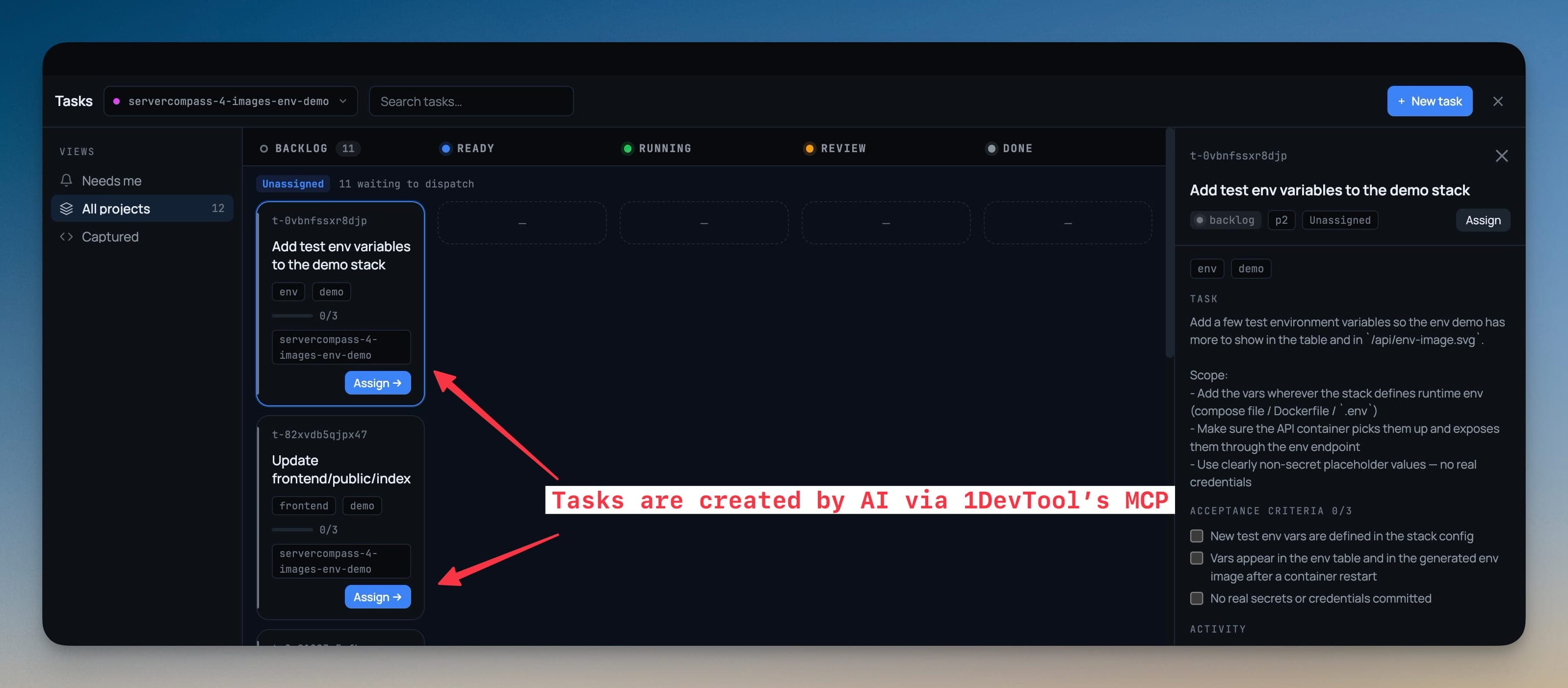
Tasks is now a board your agents work directly. Assigning a task is dispatch: picking a target spawns the terminal, sends the task, and binds the run to it — so the board and Mission Control are describing the same work instead of two versions of it.
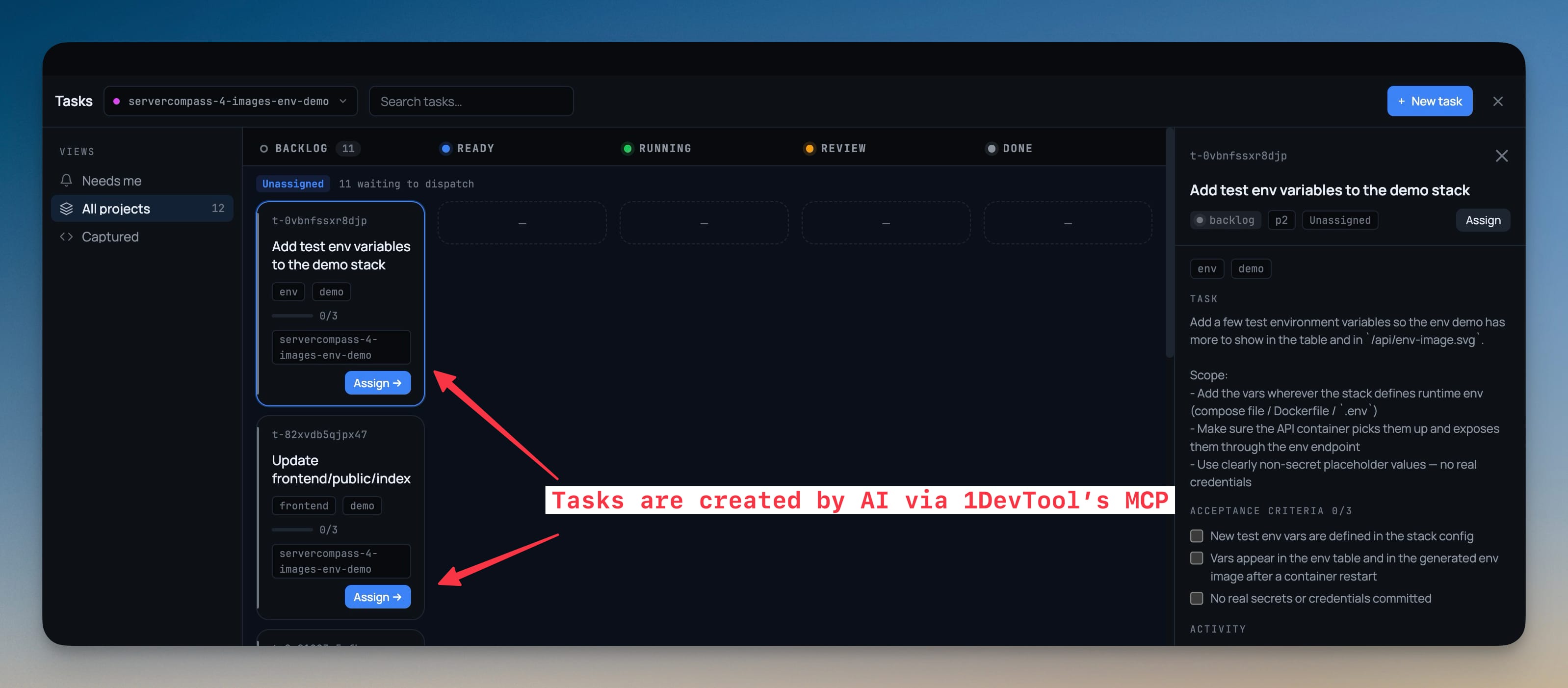
It opens as its own full window — like the Git client — with status columns across the top, one swimlane per agent, and a detail pane wide enough to actually read a plan in. The views rail on the left switches between Needs me, All projects, and Captured, each carrying its own count.
How it works in practice
Create tasks without leaving the terminal you are in
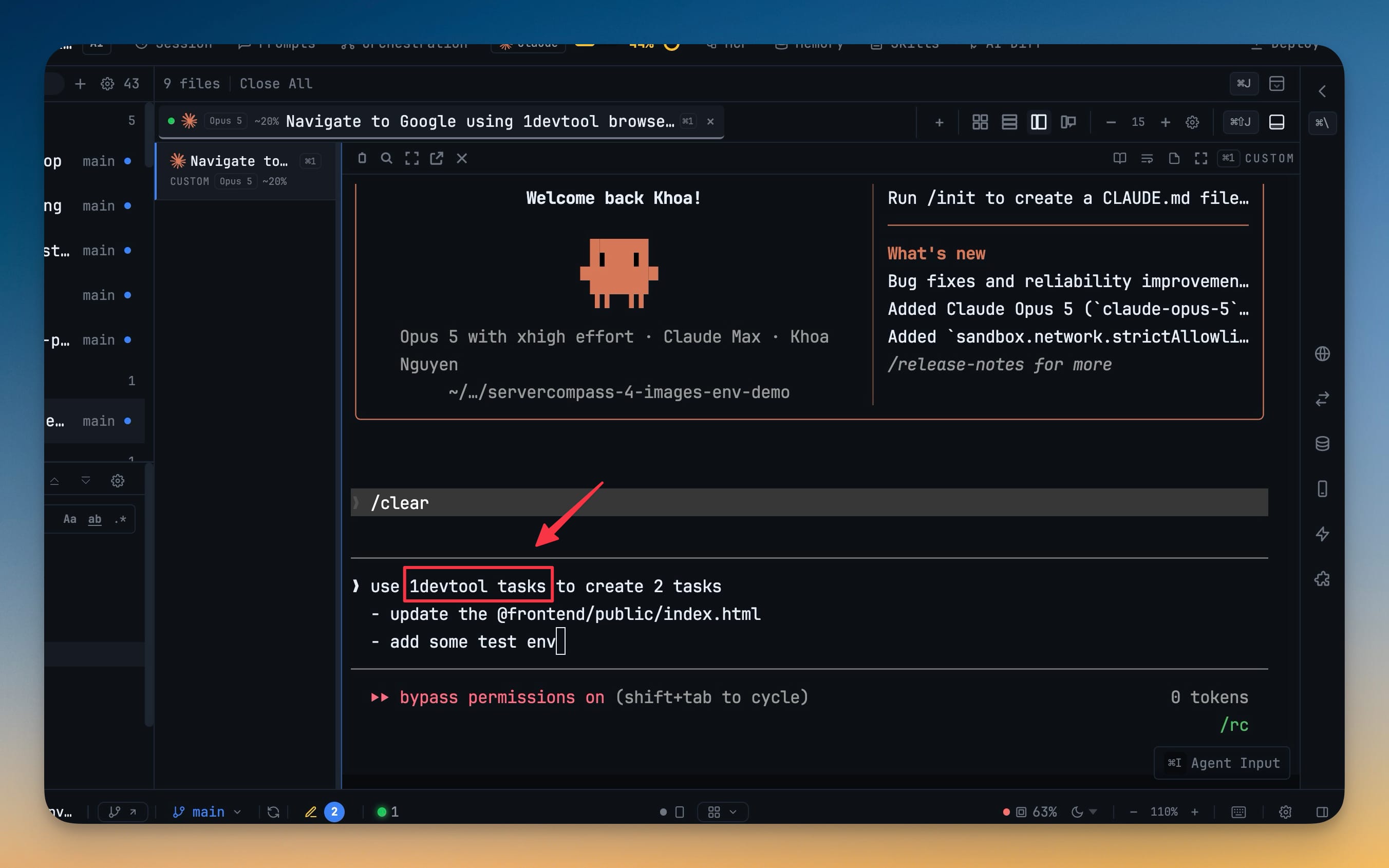
The fastest way to fill the board is to describe the work where you are already typing. Ten MCP
tools cover the whole loop — tasks_create, tasks_list, tasks_get, tasks_update,
tasks_comment, tasks_link, tasks_next, tasks_request_approval, tasks_wait, and
tasks_complete — so an agent can read and write the board as part of its normal work.
One rule is built into the tool layer rather than left to good behaviour: an agent cannot assign
itself work. tasks_create creates UNASSIGNED, because creating work is not the same as taking it.
An agent that could file and claim its own tasks would drift for hours without anyone deciding it
should.
When problems appear somewhere else, you can capture them in place — select a stack trace in a terminal or a few lines in the editor and right-click → Add task. Or start from a goal: describe an outcome, and an agent proposes a task set for you to edit and accept. Nothing is written to your repo until you accept it.
Assign a task and the agent starts working it
There is no separate "now go run it" step. Assign and run opens the terminal, delivers the task, and binds the run — and the agent knows what it has been handed.
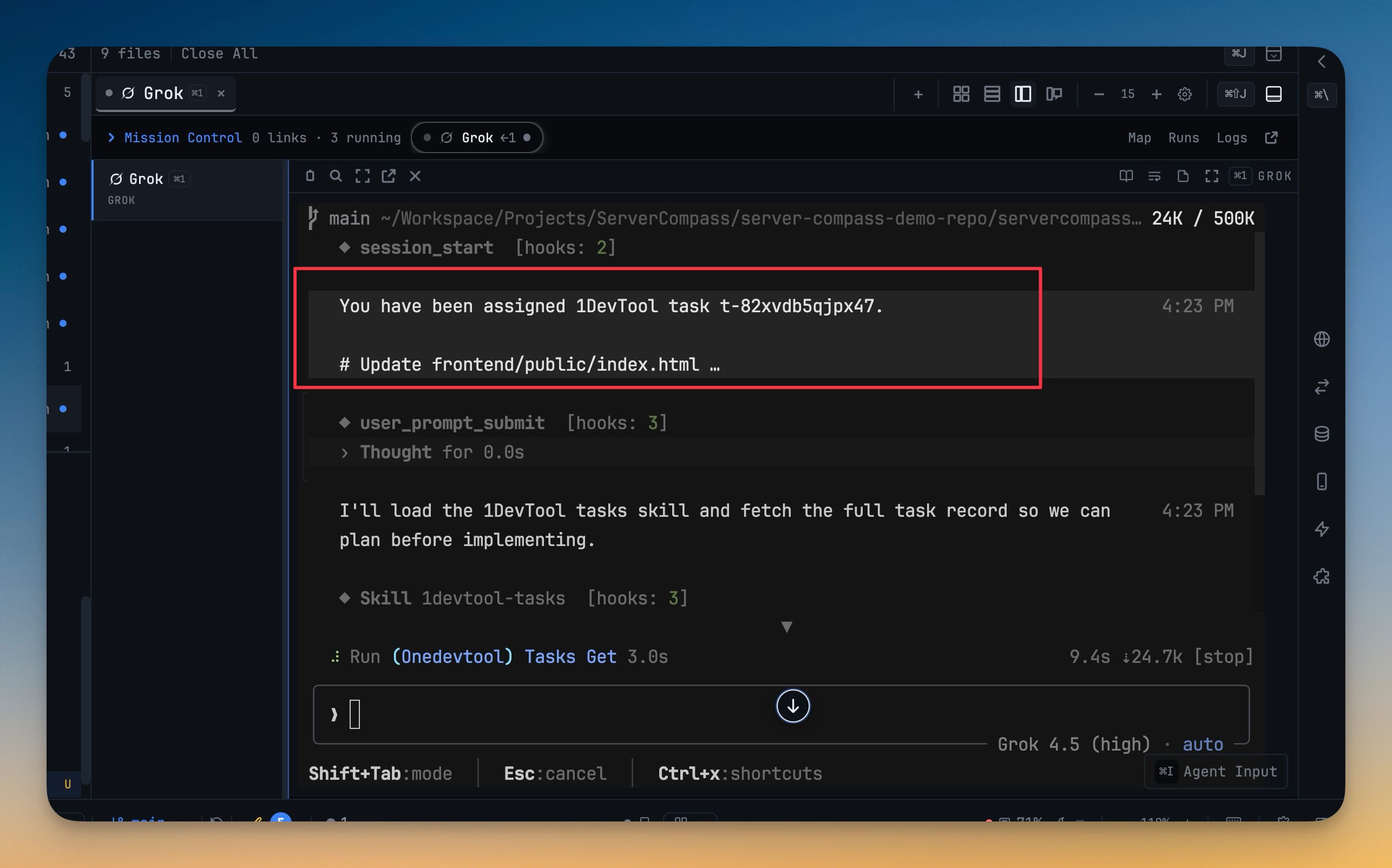
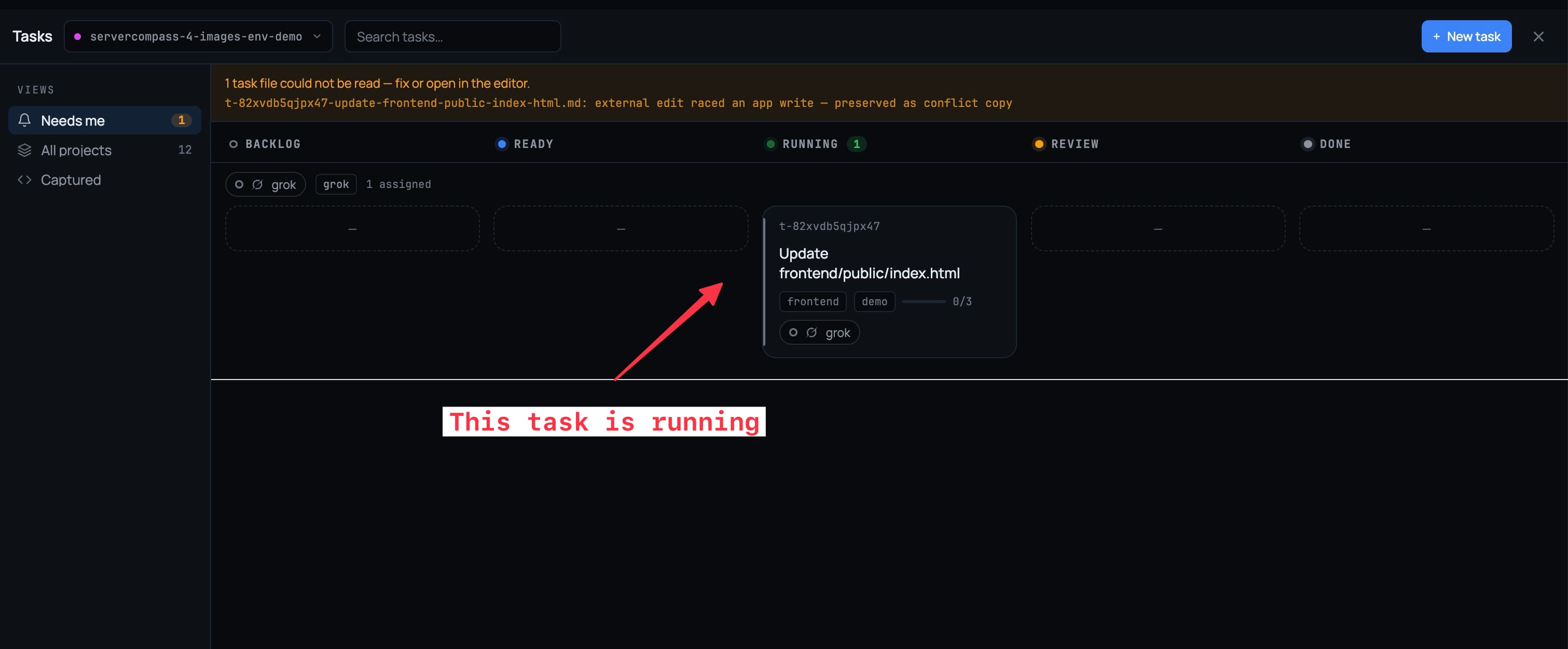
Back on the board, every card shows who is working it and what that terminal is doing right now — live, waiting on you, idle, or lost. Not "assigned to grok" as a label you have to go verify, but the actual state of the actual process.
Answer approval gates from wherever you are
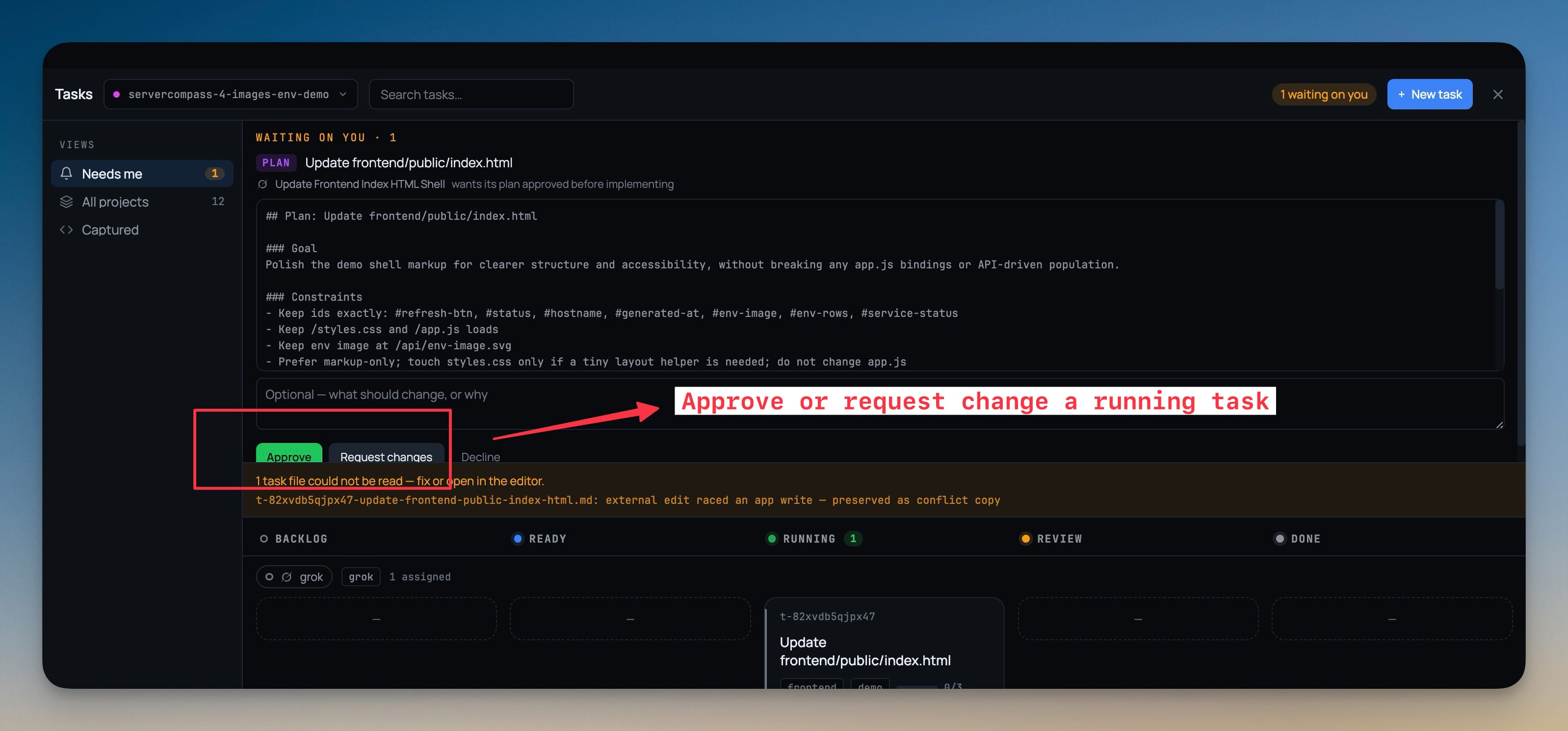
An agent asks twice: before it implements a plan, and before it closes a task. The plan gate gives the plan a full reading surface, with Approve and Request changes as equals and the feedback box always open — because "approve" being the big green button and "request changes" being a link is a design that talks you into approving.
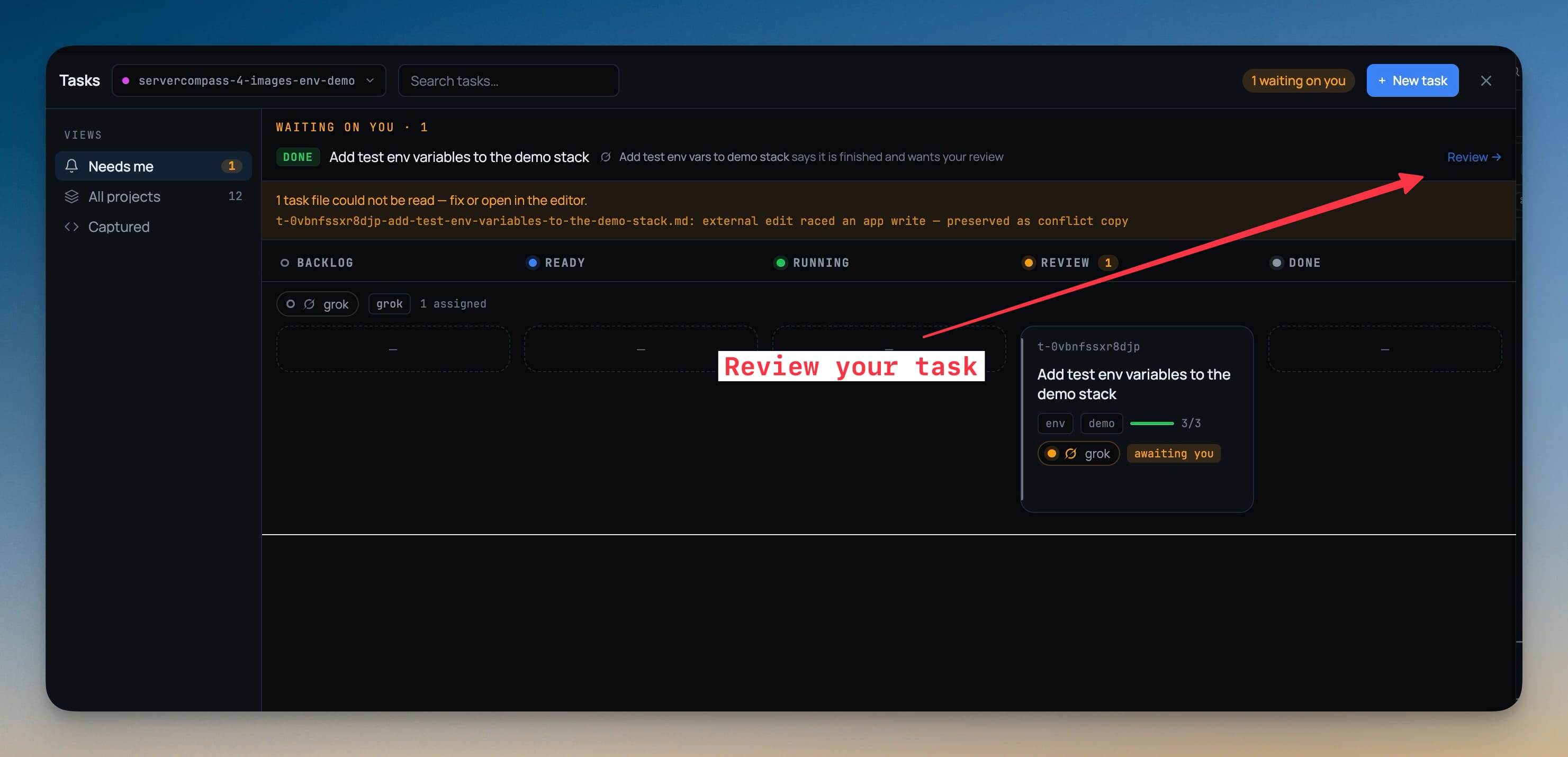
The done gate works the same way, and the card tells you it is waiting: acceptance criteria at 3/3
and an awaiting you chip on the assignee.
Open it and you get the agent's own account of what it did and how it checked — then you decide.
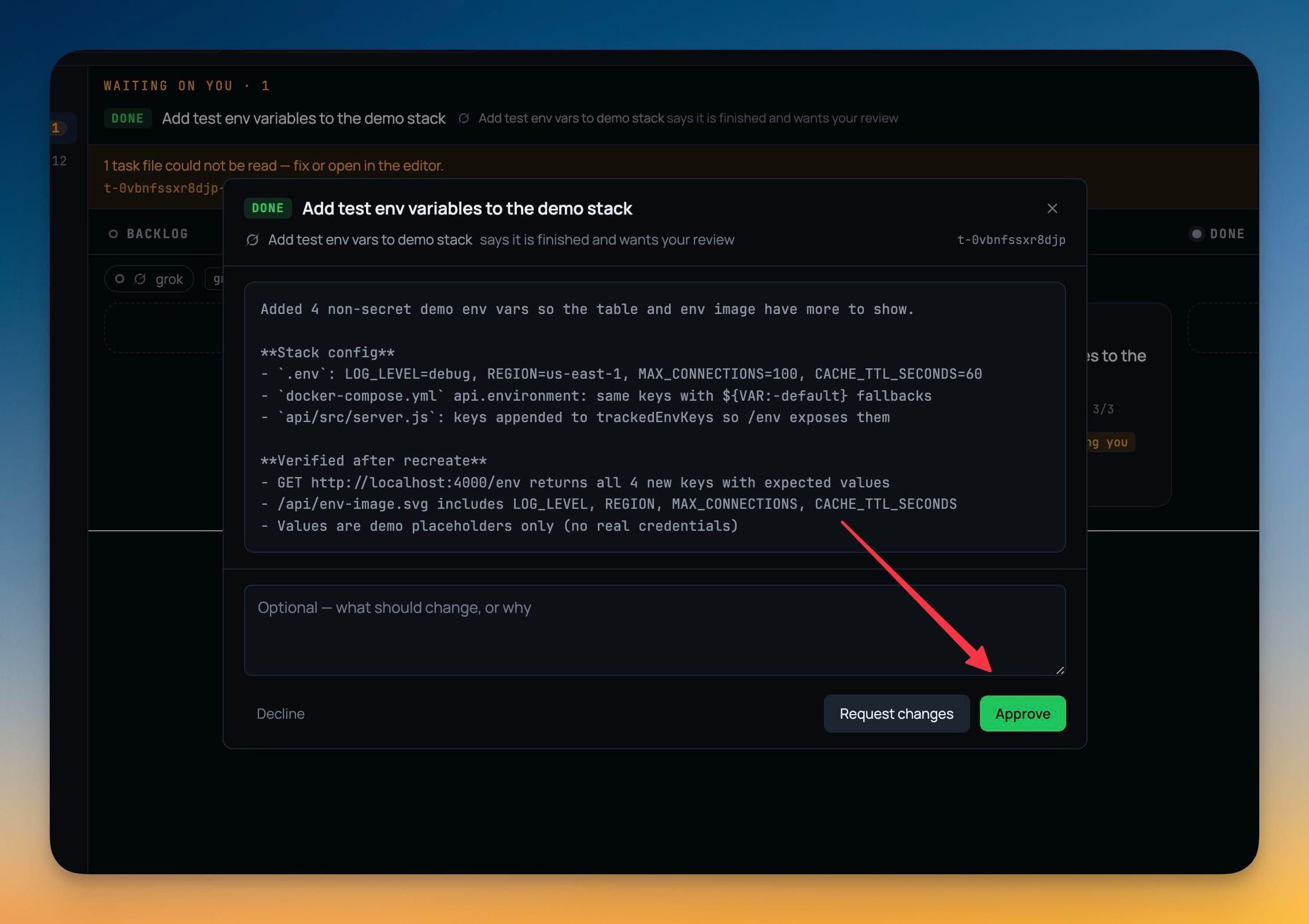
Your words travel to the agent verbatim, and verdicts reach it wherever it is — there is a review queue, a status-bar badge, and a phone page, so you can approve a plan from the kitchen.
Nothing auto-approves. If nobody answers in time the task blocks, because silence is not consent. An agent that treats a timeout as a yes is an agent that ships your unreviewed plan at 2am.
Tasks live in your repo, not in a database
Tasks are markdown files under .1devtool/tasks/. They diff, they show up in review, and they travel
with a branch like anything else in your project. A task written on a feature branch does not haunt
main.
If you merge duplicates, one survives and the rest become tombstones whose ids still resolve — so an agent holding an old id is never sent down a dead end.
See every tool your agents can reach
The other half of this release is about the opposite question: not what your agents should do, but what they are allowed to touch. An MCP button in the top bar shows every tool reachable through 1DevTool, grouped by what it touches — Browser, Database, HTTP Client, Tasks, and Core.
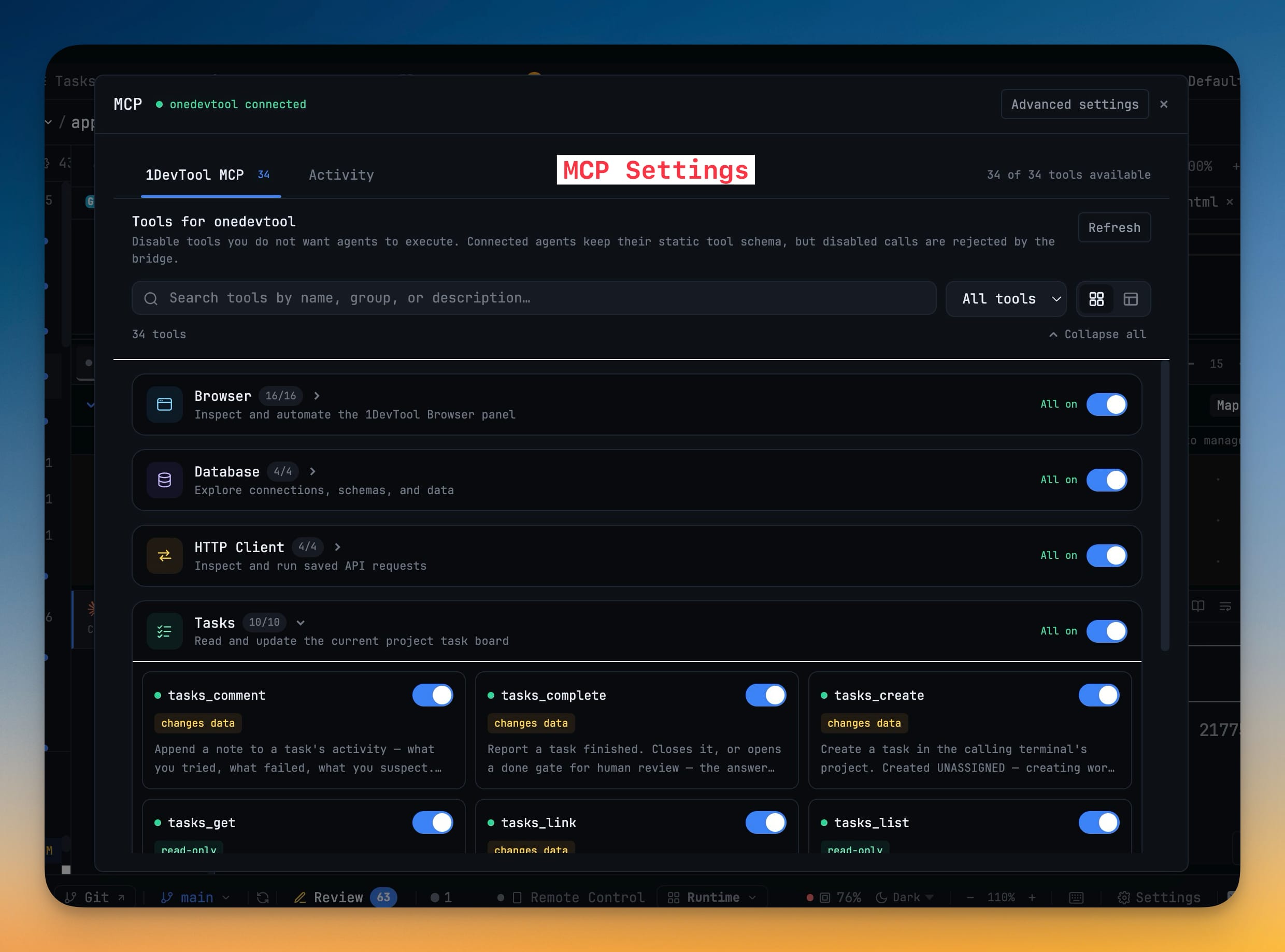
Each tool has its own switch, filterable by enabled or disabled, viewable as cards or a dense table. An Activity tab logs every call an agent actually made and what came back, groupable by agent or by project.
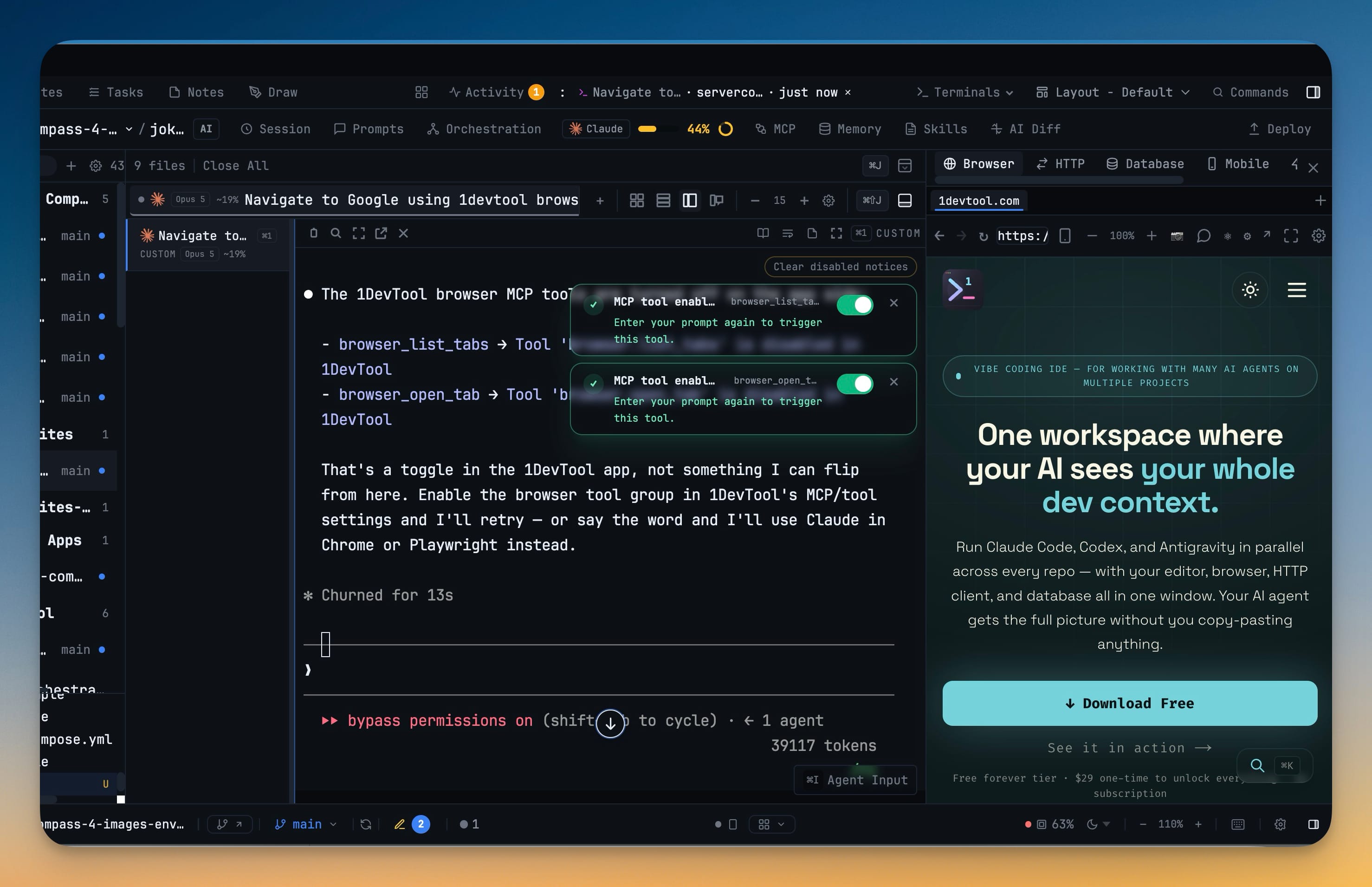
The part that saves the most time is what happens when an agent hits a wall. Instead of the agent guessing, improvising, or quietly giving up, a badge appears on that terminal naming the tool it was denied.
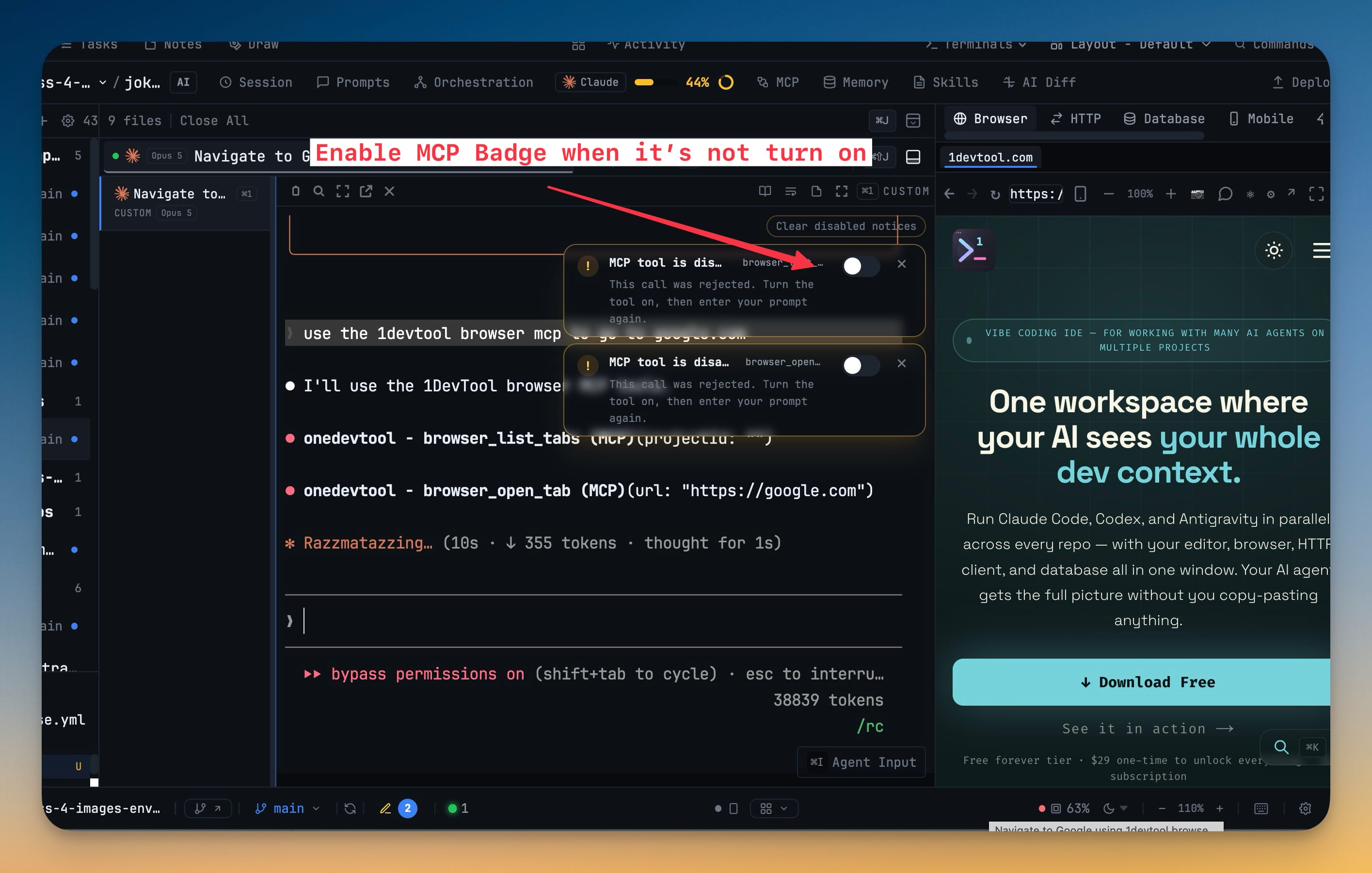
One click enables it, and the badge turns green and tells the agent to try again.
Read your orchestration by team, not by lone agent
When several agents work together, per-agent numbers stop meaning much. The Usage tab now groups by
team, and a team is named after its members — opus 5 + fable + codex — so a row tells you something
before you open it.
Tokens and cost are attributed through captured session ids only. A member with nothing readable says
not tracked rather than showing a fabricated zero, and sessions no live team claims stay visible as
Not in a team, so the rows always add up to what your machine really spent. Busy (agent time,
which can exceed the clock when agents run in parallel) and Active (wall clock since the team
formed) are shown as the two different facts they are.
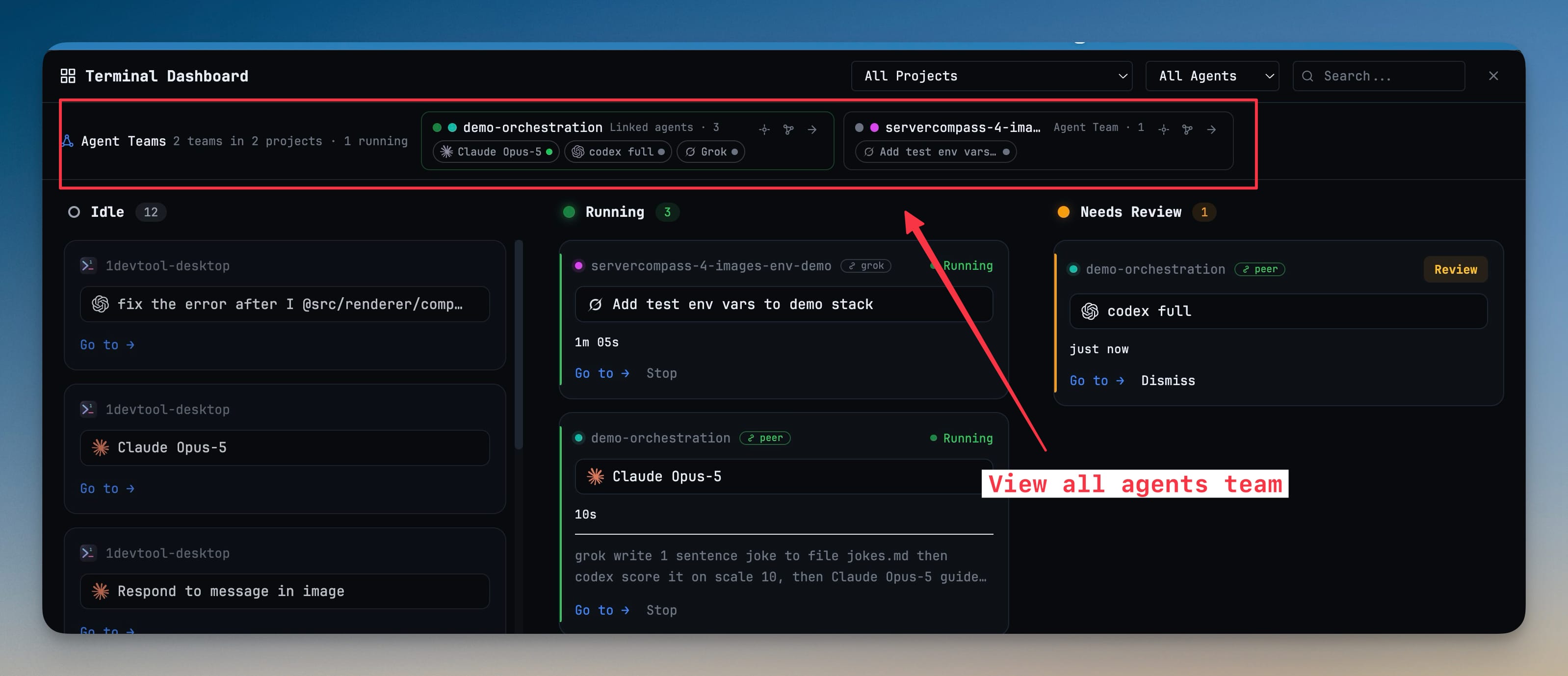
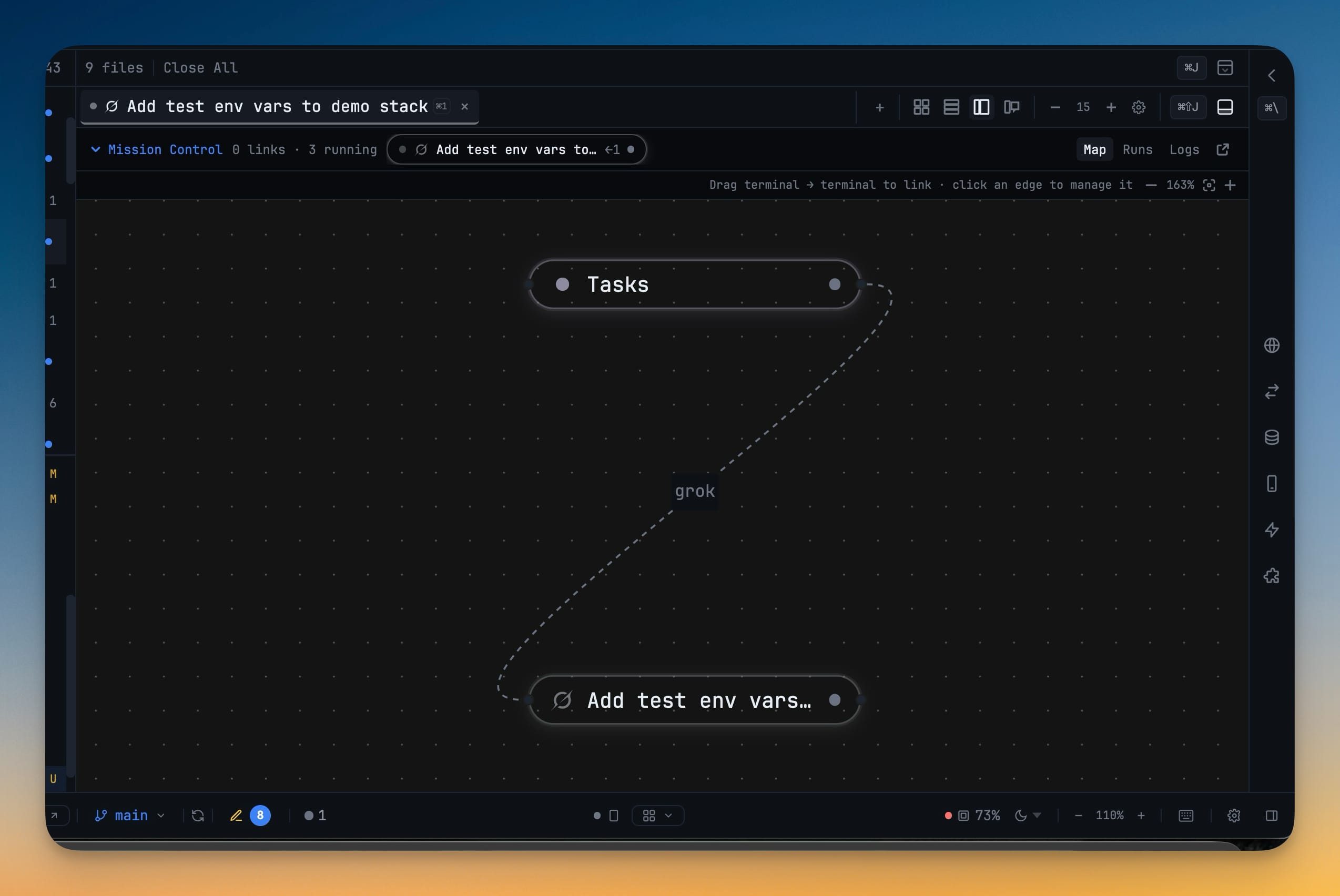
Logs group by team too — runs nest under the team that produced them, and selecting a team header opens a merged stream that interleaves run starts, output, and the messages that travelled between members into one readable conversation. And the Team Map shows the board itself as a participant:
Before vs After
| Before | After | |
|---|---|---|
| Recording work | In your head, or a scrollback buffer | Markdown files in .1devtool/tasks/, diffed and reviewed |
| Starting a task | Pick terminal, retype task, watch it boot | Assign — the terminal spawns and receives the task |
| Knowing an agent's state | Open its pane and read the transcript | Card shows live / waiting on you / idle / lost |
| Being asked a question | Notice it, eventually | Review queue, status-bar badge, phone page |
| An unanswered question | Agent stalls or guesses | Task blocks — nothing auto-approves |
| A denied tool call | Agent improvises or gives up silently | Badge names the tool, one click enables it |
| Cost of a 3-agent run | Three separate agent rows | One team row, not tracked where unreadable |
Who benefits most
If you run more than two agents at once, the board is the difference between orchestration and supervision. You stop being the message bus between agents that cannot see each other's work.
If you step away from your desk, the approval gates are what make that safe. A plan waiting on you is a task that blocks, not an agent that invents an answer — and you can clear the queue from your phone.
If you review what agents produce, tasks-as-markdown puts the plan, the acceptance criteria, and the outcome in the same diff as the code. The reasoning arrives with the change instead of being reconstructed afterwards from a chat log.
One removal worth reading
The Tasks button used to scan your code for TODO/FIXME comments. It does not any more — it opens
this board instead. That is a removal, not an upgrade, and if you used the panel that way the
replacements are decomposition (describe a goal, get a task set) and right-click capture from a
terminal or the editor.
Your manual tasks are migrated, not lost. On first open of a project, .1devtool/manual-tasks.json
becomes one markdown task per entry — description becomes the title, priority is mapped, the tag is
kept as a label, and the file and line are kept as a reference. The old files are renamed *.v1.bak
and never deleted. Tasks that only ever came from scanning are not migrated: they were re-derived on
every open and were never durable.
Try it
Update to 1.53.0, open Tasks on any project, and describe one thing you want done. Assign it and watch the terminal come up already holding the work. The first time an agent stops and asks you something while you are three rooms away — and you answer it from your phone, and it keeps going — is the moment the board stops being a list and starts being the thing that runs your day.