Aug 26, 2026
Every Chart in One Library — and a Backup When a Run Fails
Charts puts every org chart and pipeline in one library under Set up, and Defaults now carries fallback chains — an ordered list of backups that takes over when a run hits a rate limit instead of ending it.
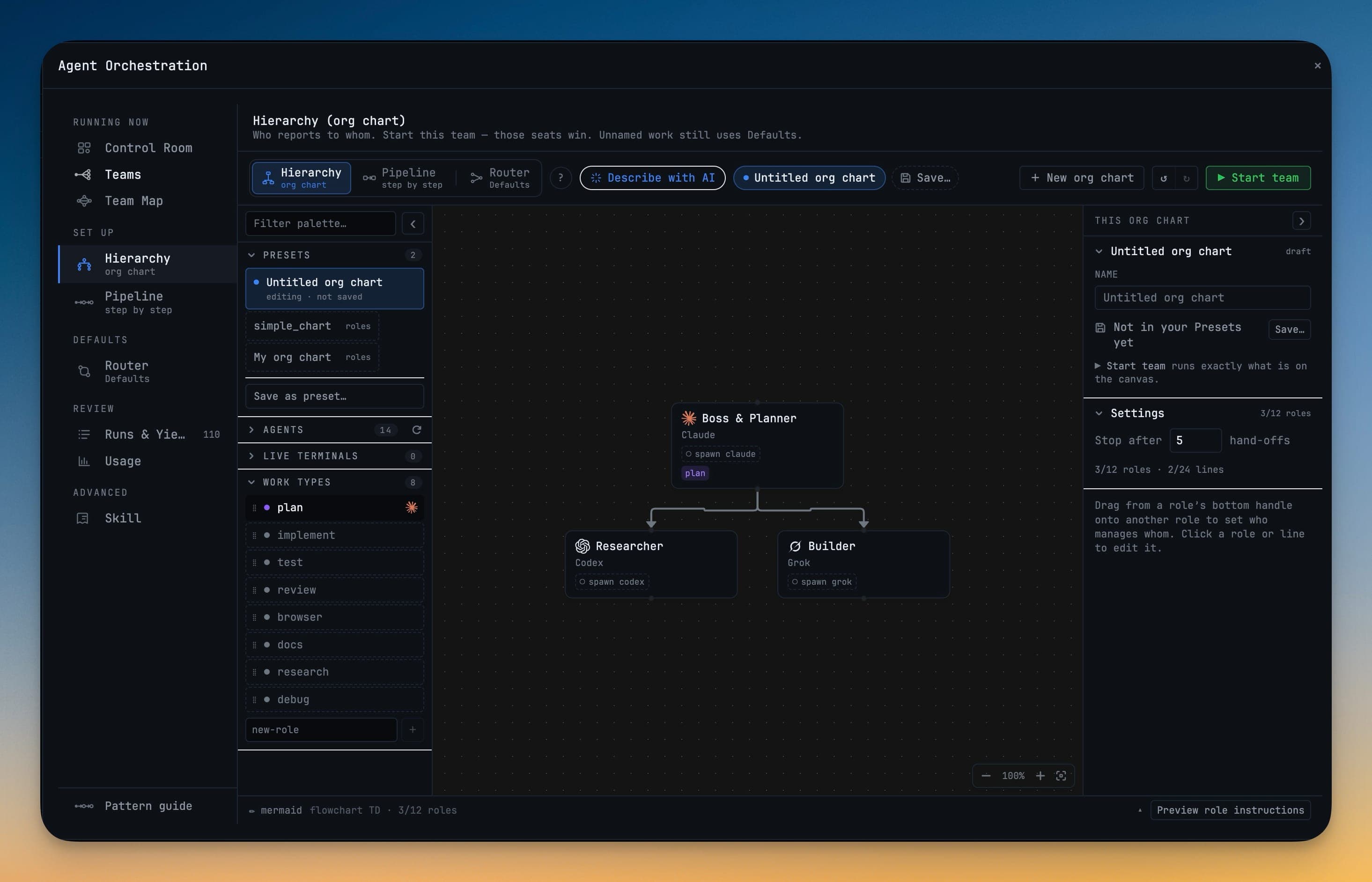
You have three AI terminals open and a rough idea of how they should work together: Claude plans, Codex researches, Grok builds. Getting that idea into 1DevTool used to mean remembering where it lives. Was the org chart in the Builder, or the routing table? Did the Router already claim implement, and would that override the seat you just drew? You would draw something, press a mode switch to check, and watch the canvas convert your pipeline into a hierarchy because the switch was also a gate.
And once a team was running, a rate limit on one provider ended the run. Not paused it — ended it. You found out when nothing came back, went to look at the logs, and started the whole thing again on a different engine.
Charts is one library, and Defaults is separate from it
1.67.0 splits those two jobs apart and gives each one home.
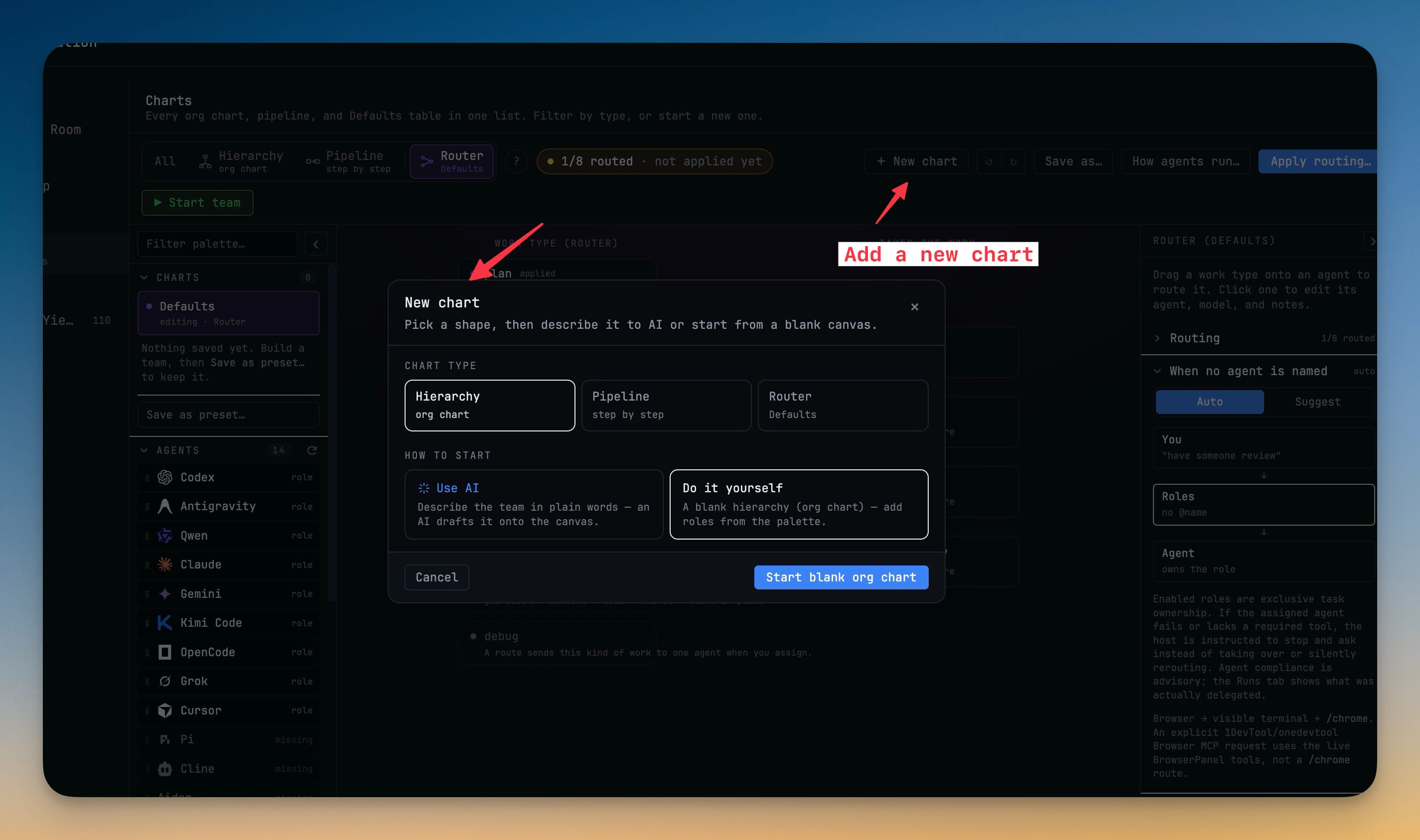
Charts lives under Set up in the orchestration dashboard and does exactly one thing: draw the relationships between your terminals — who reports to whom, who hands work to whom. Every org chart and every pipeline you have saved is in that one list.
Defaults — the old Router — moved to Advanced, because it is consulted at exactly two moments: work you never named an agent for, and a run that failed. Naming an agent always wins. And that second moment is new: Defaults now carries fallback chains, an ordered list of backups for any type of work.
How it works in practice
Start from the terminals you already have open
The fastest chart is the one you don't have to assign. With two or more AI terminals running, Agent Input offers "Draw how these N terminals work together", and Charts' Chain my open terminals card drops exactly those terminals into a pipeline with their seats already filled in.
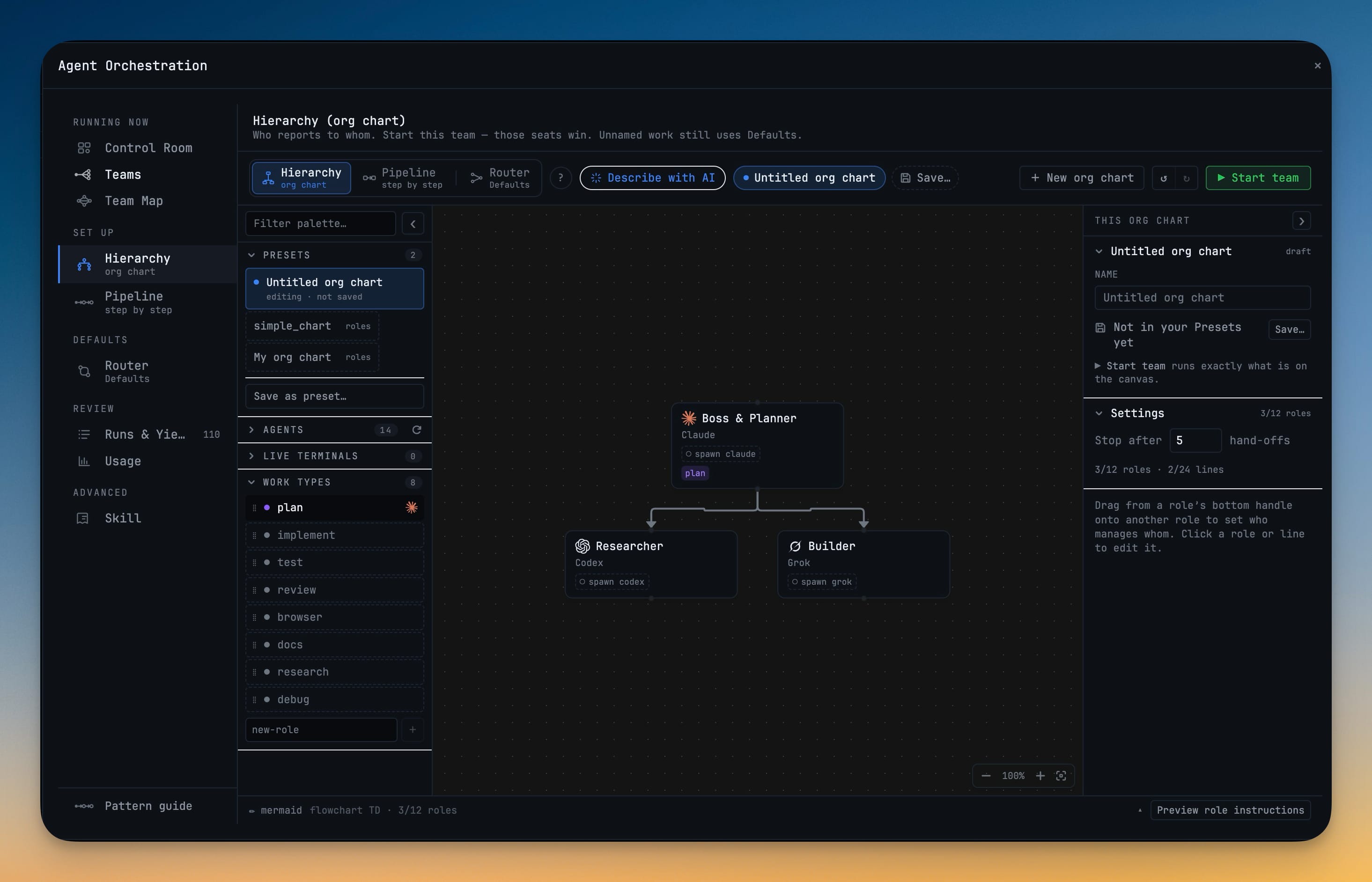
From there it is a canvas. Drag a role's bottom handle onto another role to set who manages whom; click a role or a line to edit it. The inspector on the right names the chart, tells you whether it is saved and whether it is what ▶ Start team would run, and counts the roles you have used.
Or describe the team in plain words
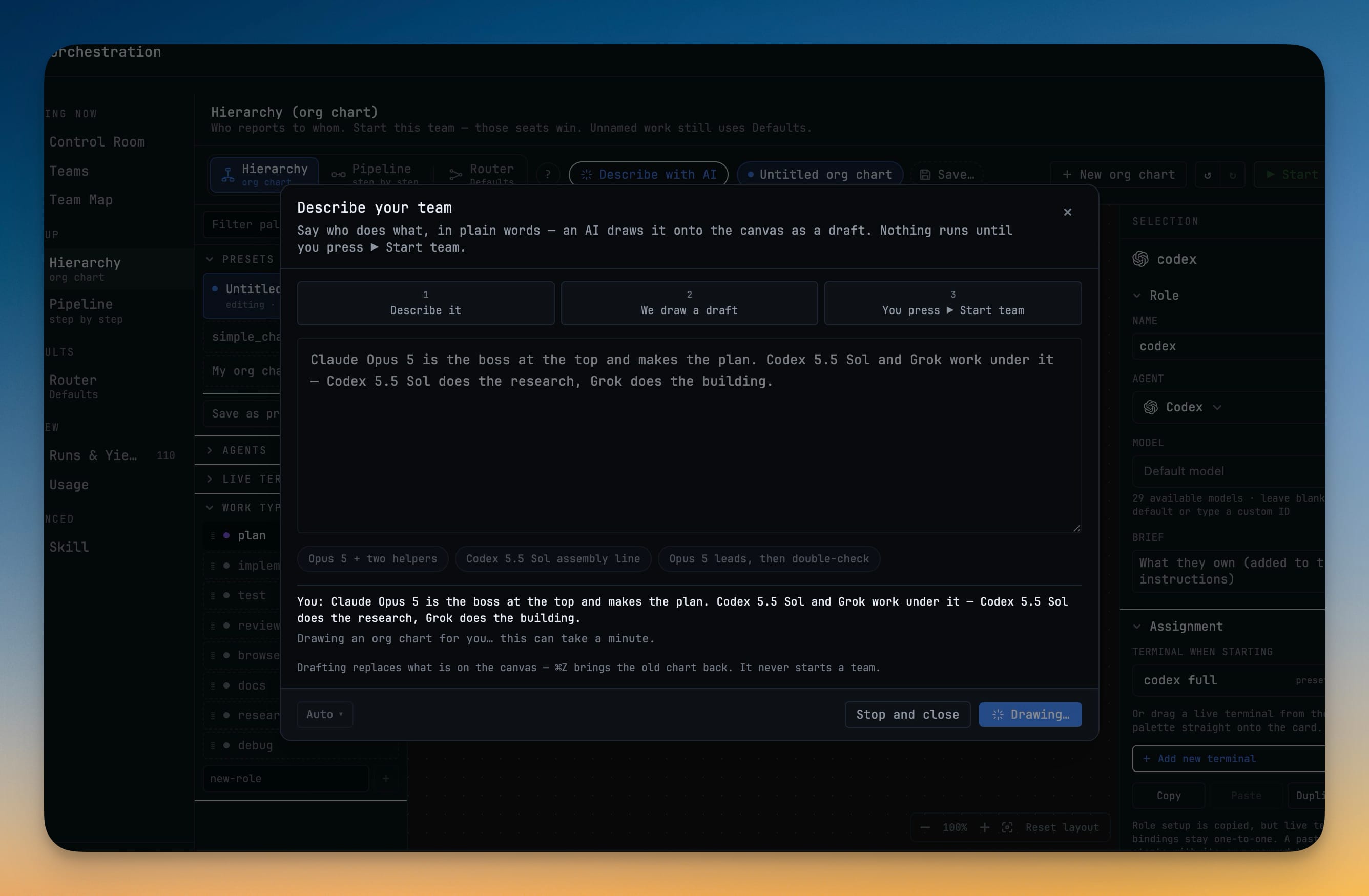
Click ✨ Describe with AI and type what you want: "Claude Opus 5 is the boss at the top and makes the plan. Codex 5.5 Sol and Grok work under it — Codex does the research, Grok does the building." A three-step strip across the top says exactly what will happen — Describe it → We draw a draft → You press ▶ Start team — so there is no question about whether typing a sentence just launched something. It didn't.
A Generate with chip picks which of your installed AI CLIs does the drafting, and it shares one preference with the Draw canvas, so you set it once. Drafting replaces what is on the canvas and nothing else: ⌘Z brings the old chart straight back, and saved presets are never touched.
Nothing converts, replaces, or starts without you saying so
The old gates are gone, replaced by choices you can see. Converting a pipeline into an org chart is its own Convert my pipeline card on the start screen, not a side effect of pressing a mode switch — and each shape keeps its own draft, so switching to look at the other one costs you nothing.
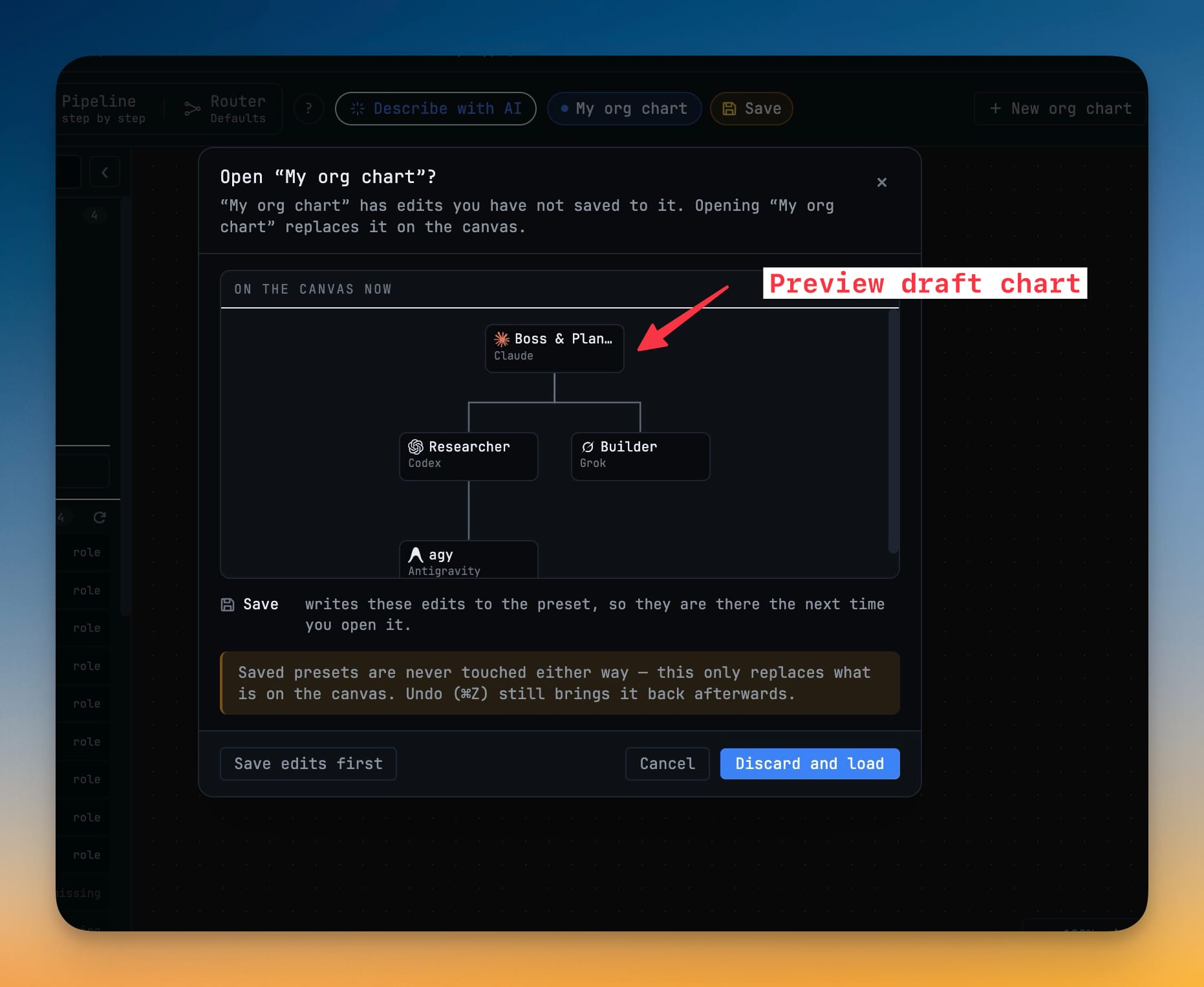
Opening a saved chart while you have unsaved edits now shows you what is on the canvas first, in a live preview, and offers three plainly-labelled ways out: Save edits first, Cancel, or Discard and load. Undo still works afterwards either way.
Give the failure a plan
Fallback chains are the part you set up once and hope to never watch work. For any type of work — implement, review, research — you give Defaults an ordered list of backups and choose which failures trigger them: launch error, provider unavailable, rate limit, quota exhausted, or no response. Then you decide whether the chain advances on its own or waits for your say-so.
When it fires, the team tells you what happened rather than quietly producing different output: an active team shows the hop it actually took — Codex rate-limited → Claude. And on first run Defaults seeds its table from the AI CLIs you really have installed, so you are correcting a starting point instead of filling in an empty grid.
See what all of it is costing your machine
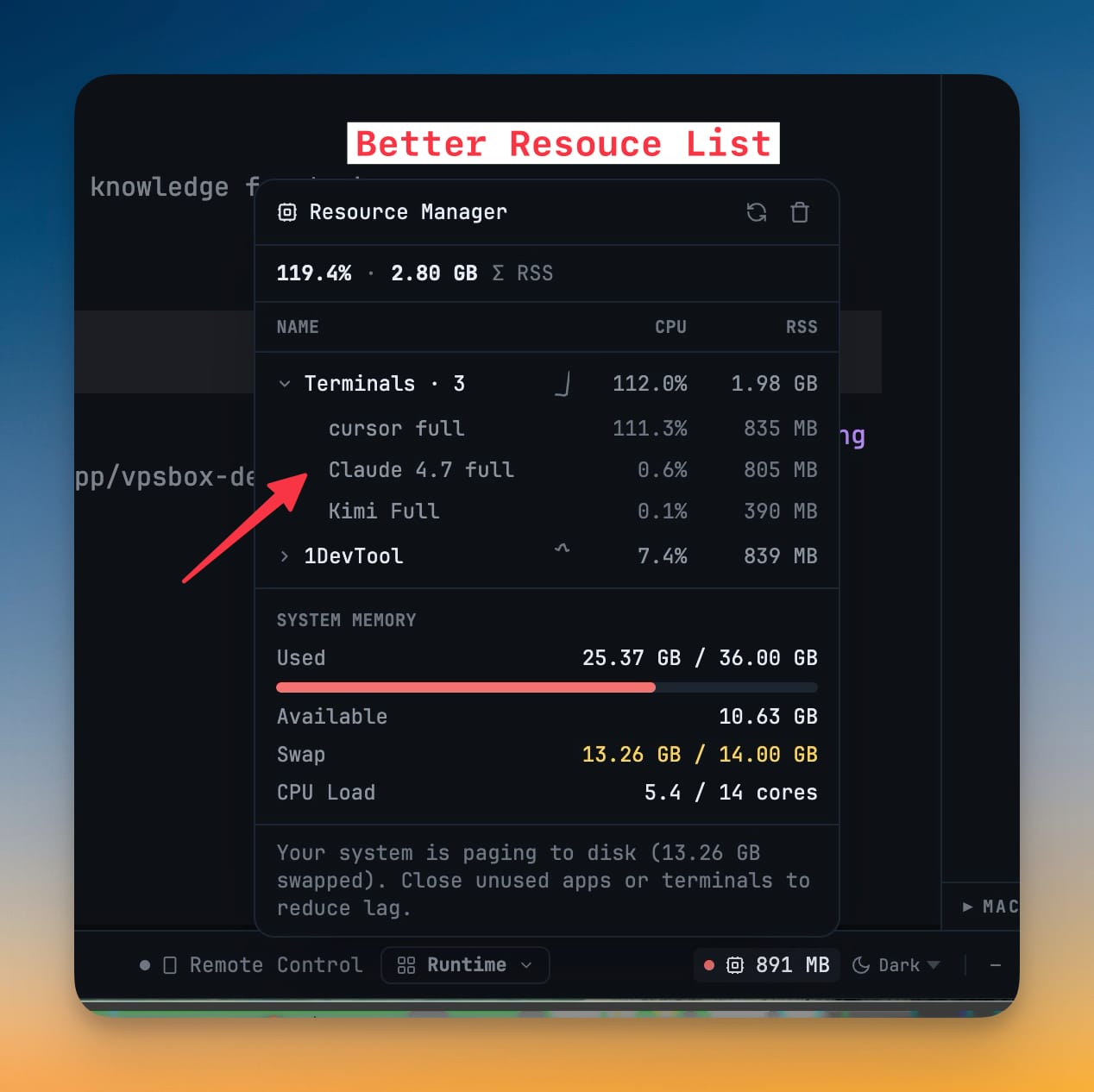
Running four agents at once is expensive in ways the app never used to show you. Click the memory reading in the status bar and the Resource Manager opens a per-process breakdown: 1DevTool's own Main, Renderer and GPU processes, and every terminal named the way its tab is — so cursor full at 111% CPU is immediately identifiable as the thing making your fans spin. Live CPU sparklines run on each row while the panel is open, system memory, swap and CPU load sit underneath, and Clear terminal buffers releases cached scrollback so you can watch the number come down.
Before and after
| Setting up a team | Before 1.67.0 | Now |
|---|---|---|
| Find your charts | Split between the Builder and the routing table | One Charts library under Set up |
| Use terminals you have open | Re-pick each agent by hand | Chain my open terminals fills the seats |
| Change shape | A mode switch that converted your draft | An explicit Convert card; each shape keeps its own draft |
| Open a saved chart | Unsaved edits silently at risk | Preview first, then Save / Cancel / Discard |
| An agent hits a rate limit | The run ends; you restart it elsewhere | The fallback chain hops, and the team records the hop |
| Unnamed work | Competed with your chart for authority | Defaults handles it; a named agent always wins |
Who this helps most
If you run the same team shape every week, the library is the win — the chart you built in March is one click from the canvas, and opening it can't cost you the edits you made this morning.
If you run long jobs on provider plans with limits, fallback chains are. A quota that runs out at 2am no longer means a dead run and a lost night; the chain moves to the next engine and writes down that it did.
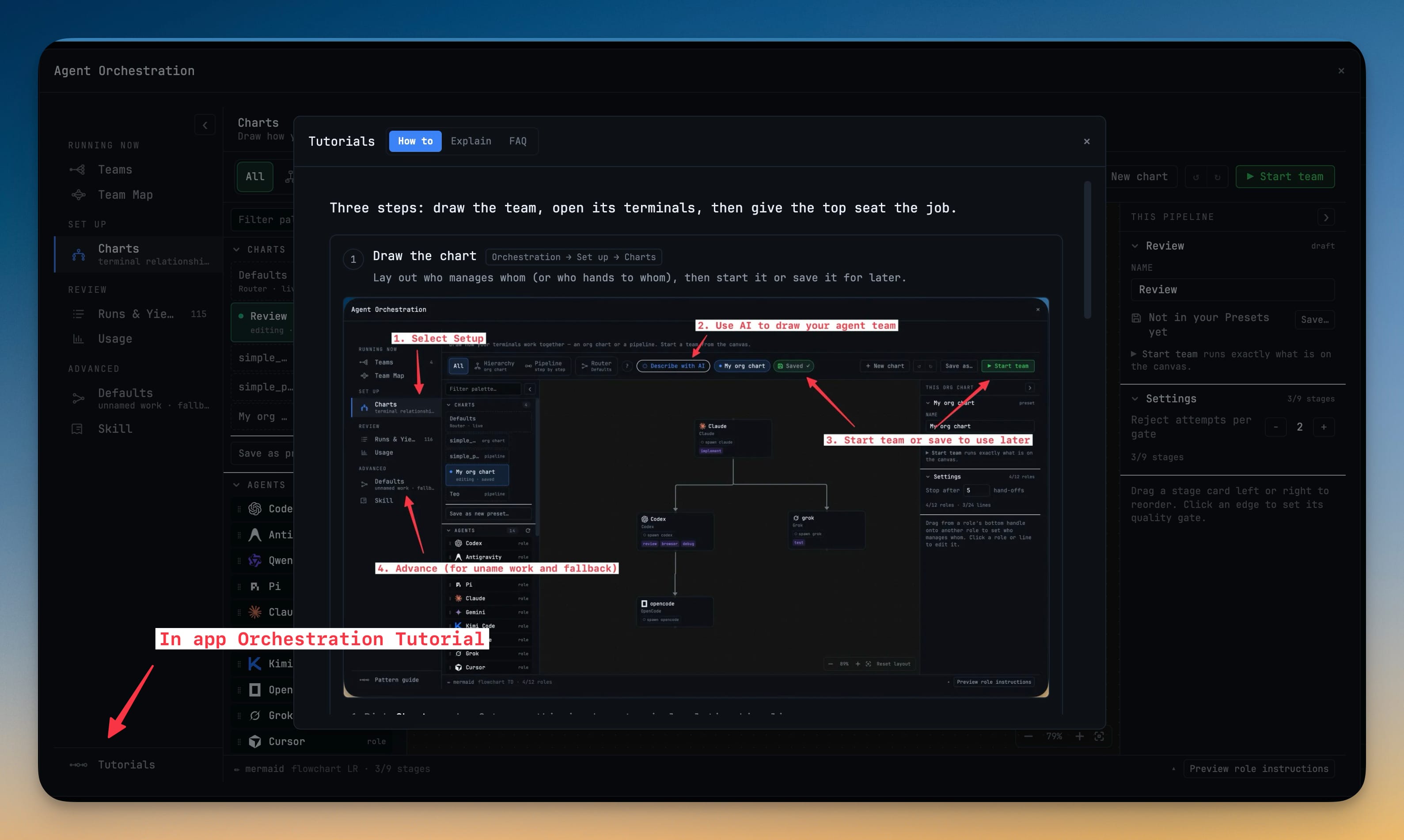
If you're new to orchestration, the start screens are. Every option — blank, ready-made, saved, converted — is a card you can read, and the in-app Tutorials panel walks the whole thing in three steps.
Try it
Open Orchestration → Set up → Charts with a couple of AI terminals already running, and take the Chain my open terminals card. You'll have a pipeline of the agents you're already using, in about the time it takes to read this paragraph — and the only thing that starts a team is you pressing ▶ Start team.