Oct 3, 2026
Command Code and Kilo Code are now built-in agents
Run Command Code and Kilo Code from Add Terminal with safe prompt delivery, session resume, model and permission pickers, delegation from other agents and one-click MCP setup.
You can already run any command-line agent in a 1DevTool terminal. Type command-code or kilo into a shell tab and it starts. The trouble begins a minute later. You send a prompt from Agent Input and it lands while the agent is still mid-turn. A teammate agent tries to hand it work and has no way to address it. You restart the app and the tab comes back as a fresh, empty session, while the conversation you were halfway through sits in a folder you would have to open by hand.
That is the gap between an agent that merely runs in a terminal and one the workspace actually understands. For Command Code and Kilo Code, that gap is now closed.
What changed
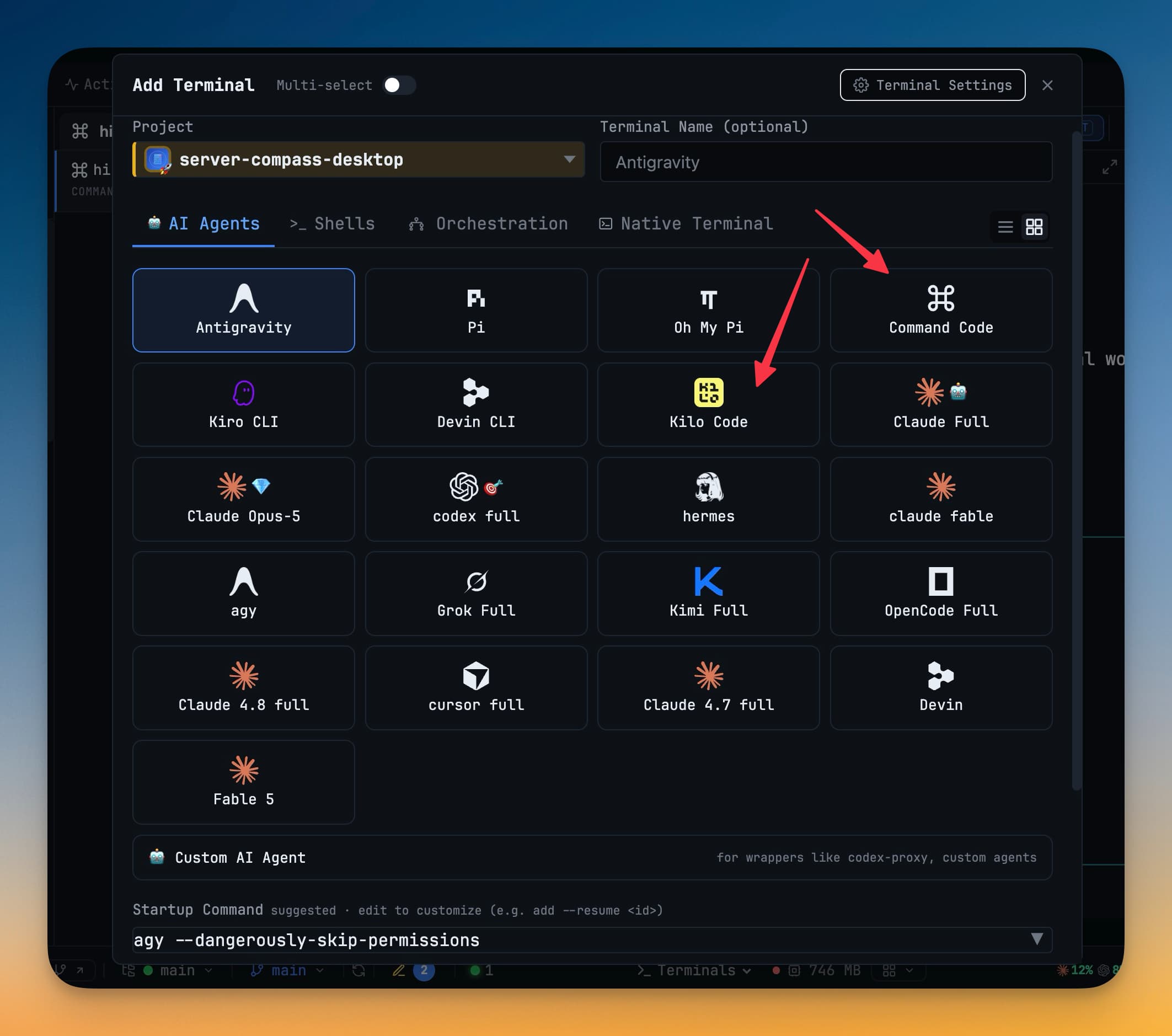
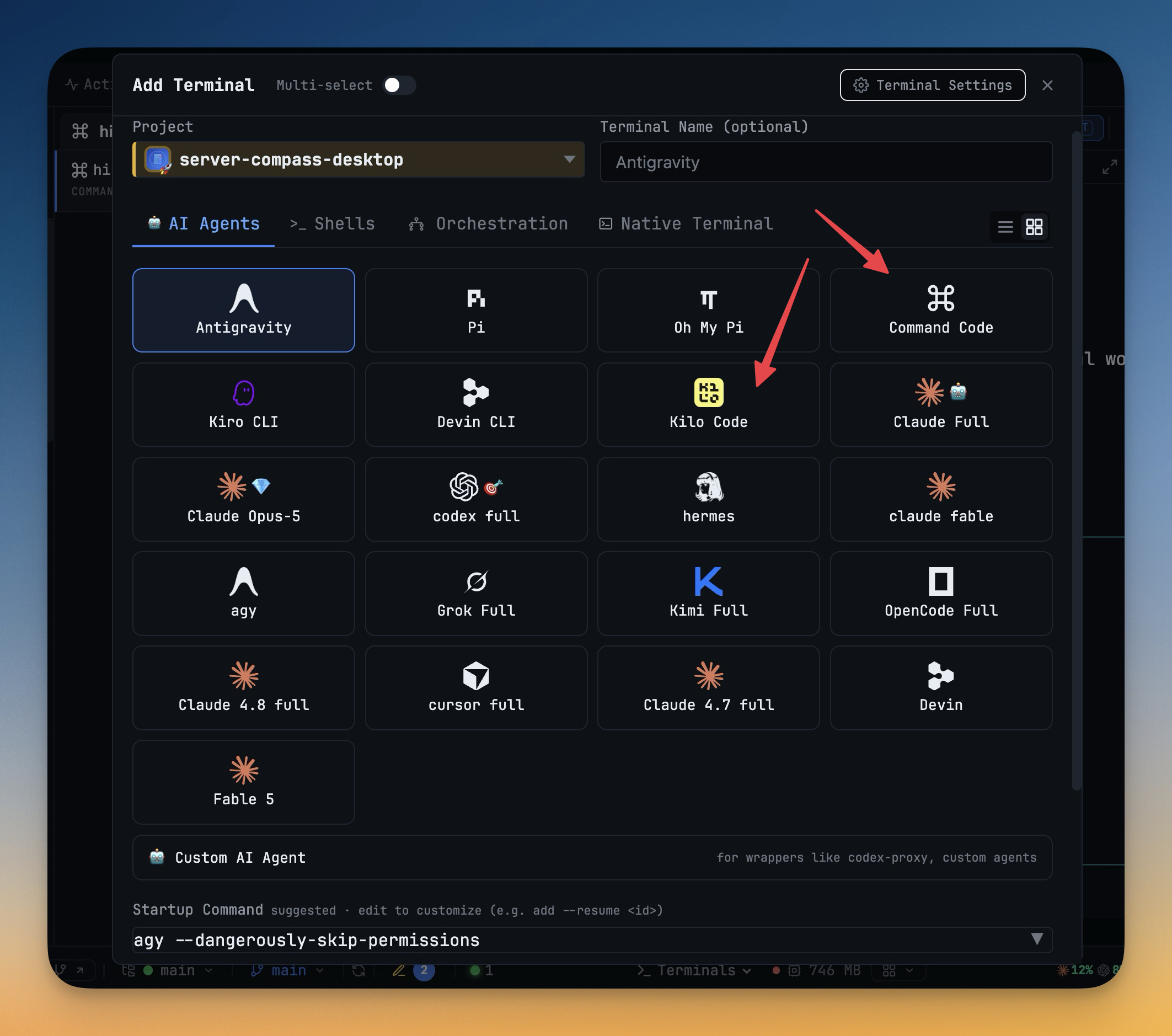
Command Code and Kilo Code are now built-in agents in 1DevTool v1.76.7. Open Add Terminal, and both sit in the AI Agents grid next to Claude, Codex, Devin, Kiro and the rest, each with its own logo on the desktop and on the phone. You no longer babysit them in plain shell tabs. They resume, take delegated work and receive prompts as safely as every other built-in.
How it works in practice
Prompts wait until the agent is ready
The most important change is one you never see. When you send a prompt from Agent Input, Send to AI or another agent, 1DevTool now reads each agent's screen to decide whether it is safe to type.
For Command Code, delivery waits for the composer to show its empty placeholder, and holds back while a turn is running (esc to interrupt is on screen), while you have a half-typed draft, or while the slash menu or model picker is open. For Kilo Code, it waits for the composer to be empty and the footer to stop showing a running turn. It also knows that Kilo collapses a pasted block into [Pasted ~N lines] at a different size than OpenCode does, so a long paste is waited on until Kilo has taken it in, and only then submitted.
The result: a prompt you queue from another terminal never interrupts a turn and never overwrites your draft.
Sessions you can find again
Both agents now show up in Resume, prompt history and the Conversation view, next to your Claude and Codex sessions.
- Command Code sessions are read from
~/.commandcode/projects, and a terminal you restart reopens withcommand-code --resume <id>, so you continue the same conversation instead of starting over. - Kilo Code sessions are read from Kilo's own
kilo.db, listed with their folder and model, and reopened withkilo -s <id>.
Renaming works both ways. Give a Command Code session a better title and it is written into Command Code's own session metadata. Rename a Kilo session and kilo session list shows the new name too.
Pick a model and a permission mode up front
Command Code's model picker lists the models its own --list-models reports, and full-permission, plan and accept-edits modes are one click away. Kilo Code launches full-permission terminals with --auto, its documented approval flag, and its model picker lists every model kilo models returns. The startup command stays editable, so you can still add a resume id or a flag of your own before you launch.
Hand them work from other agents
Because both are registered agents, the rest of 1DevTool can address them. Another agent can delegate a task with --to=commandcode or --to=kilocode. Either one can take a seat in an agent team, and both are available to Draw, commit-message generation and Task AI. If you already run a Claude lead with a few helpers, you can now add Command Code or Kilo Code as one more seat instead of a separate window you check on by hand.
MCP servers and skills from Settings
Settings installs 1DevTool's MCP servers into each agent's own config, just like the others. For Command Code that is ~/.commandcode/mcp.json, and the orchestration skill installs alongside it. For Kilo Code, servers go into kilo.json. If you keep your own servers in a commented kilo.jsonc, 1DevTool leaves that file alone and refuses to rewrite a config that is not strict JSON, so nothing you wrote by hand gets replaced.
The right kilo, not a text editor
kilo is also the name of a well-known terminal text editor. 1DevTool only accepts a kilo binary that reports a version number or lives in a Kilo Code install, so the editor of the same name is never picked up as an agent.
Before vs After
| Task | Before (plain shell tab) | After (built-in agent) |
|---|---|---|
| Start the agent | Open a shell, type the command, remember the flags | Pick it in Add Terminal, choose model and mode |
| Send a prompt from elsewhere | Might land mid-turn or on top of a draft | Waits for an idle, empty composer |
| Come back after a restart | Fresh session, old one in a folder | Same session reopens automatically |
| Find an old conversation | Dig through ~/.commandcode or query kilo.db | Listed in Resume with folder and model |
| Rename a session | Only in 1DevTool's tab title | Written back to the agent's own store |
| Give it MCP servers | Edit the agent's config by hand | One click in Settings |
| Let another agent delegate to it | Not possible | --to=commandcode / --to=kilocode |
Who benefits most
People who already use Command Code or Kilo Code. You keep the agent you like and get the workspace around it: resume, history, safe prompt delivery and MCP setup, without wrapping it as a custom agent yourself.
Anyone running agent teams. Two more agents can take a seat in a team or receive delegated work, so you can compare how different agents handle the same task, or route a job to the one you trust for it.
Kilo Code users who came from OpenCode. Kilo started as an OpenCode fork but now uses its own database, config file and approval flag. 1DevTool handles Kilo directly instead of treating it as OpenCode, so resume and MCP install point at the right files.
Try it
Install the CLI you want: npm install -g command-code (Node 22 or newer) or npm install -g @kilocode/cli. Then update to 1DevTool v1.76.7, open Add Terminal and pick Command Code or Kilo Code from the AI Agents tab. Prompts wait until the agent is ready, sessions come back after a restart, and the rest of your agents can send it work.