Mar 22, 2026
Customizable Workspace Layouts & Presets: Make 1DevTool Truly Yours
Every developer works differently. Drag panels between sidebars, save named layout presets, toggle UI elements on and off, and switch between workspace configurations with one click.
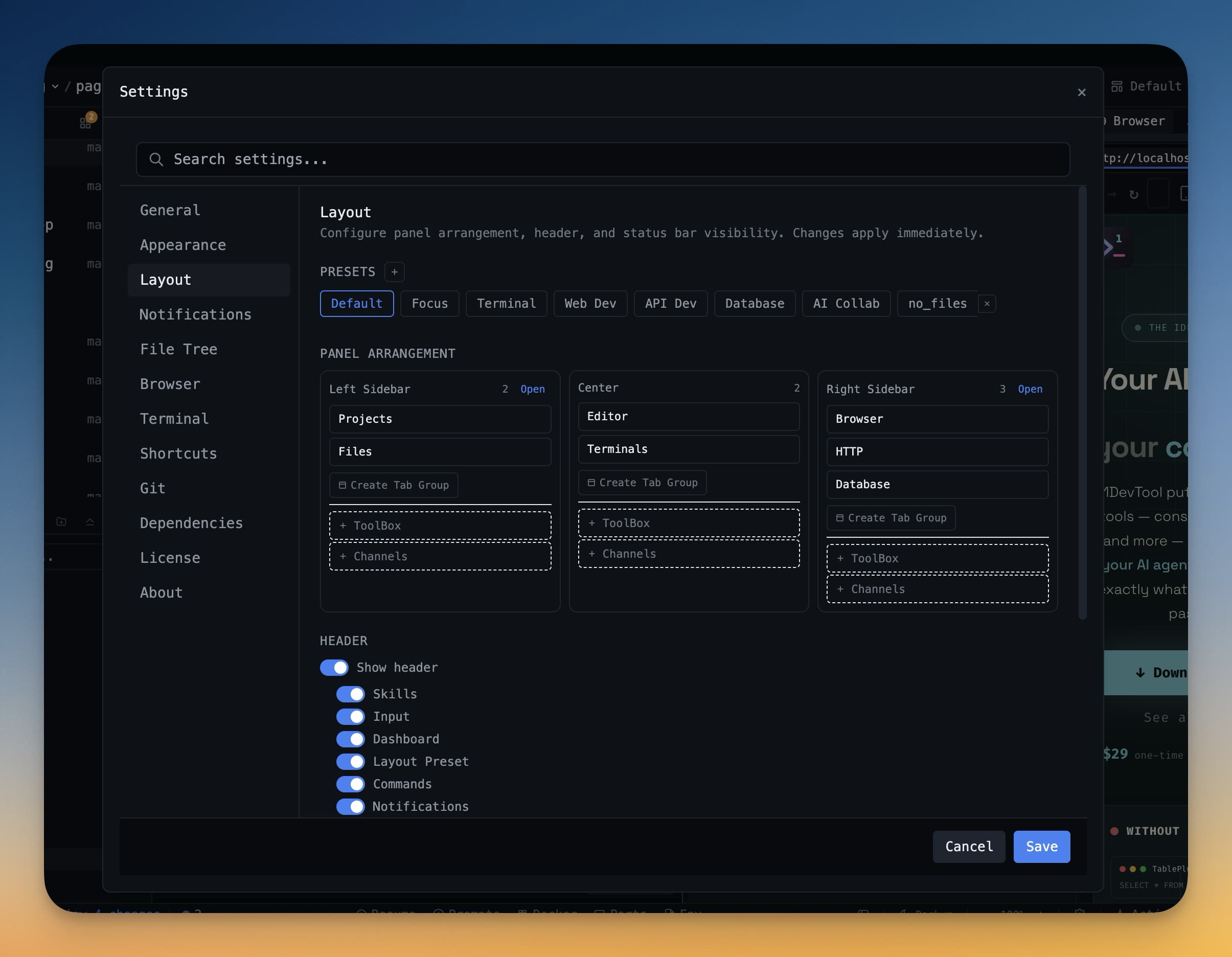
Every developer works differently. Some want terminals front and center with the browser panel on the right. Others want a code editor with a narrow sidebar. When you're switching between frontend work, API debugging, and database queries throughout the day, a fixed layout slows you down.
1DevTool v1.8.1 introduces fully customizable workspace layouts — drag panels anywhere, save presets, and switch between configurations instantly.
Why Layout Customization Matters
AI-powered coding involves more tools running simultaneously than traditional development. You might have terminals, a browser preview, a database client, and a file explorer all visible at once. A one-size-fits-all layout forces you to constantly resize and rearrange panels. With presets, you configure each workflow once and switch with a single click.
Drag-and-Drop Layout Settings
Open Layout Settings and you see three zones: left sidebar, center, and right sidebar. Every panel in 1DevTool — terminals, browser, database, file explorer, git client, HTTP client, and more — can be dragged between these zones.
Want the browser panel on the left instead of the right? Drag it. Want to hide the file explorer entirely? Remove it. The layout saves automatically and persists across sessions.
Show or Hide Any UI Element
Beyond panel placement, you can toggle individual items in the header and status bar. Don't use Docker? Hide it. Don't need the port manager in the status bar? Remove it. The controls cover Skills, Dashboard, Docker, Ports, Theme Picker, and more — so you see only what you actually use.
Save and Manage Layout Presets
Once you've arranged your workspace, save it as a named preset. 1DevTool includes built-in presets for common workflows, and you can create unlimited custom ones.
Switching presets is instant — click the preset name and your entire workspace reconfigures. This is powerful when your work shifts throughout the day:
- Morning: "Terminal Focus" preset — terminals maximized, browser minimized
- Afternoon: "Web Dev" preset — browser on the right, terminals on the left
- Debugging: "API Dev" preset — HTTP client prominent, database panel visible
Each preset can be updated (save current layout over it) or deleted. Your presets persist across app restarts.
Auto-Recovery After Crashes
v1.8.1 also adds automatic crash recovery. If the app crashes due to a GPU issue or system service failure, 1DevTool detects it on restart and automatically reloads — no manual intervention required. Your layout, terminals, and workspace state are restored to where you were before the crash.
Before vs After
Task
Before
After
Rearrange workspace
Resize panels manually each time
Drag panels in Layout Settings
Switch between workflows
Manually rearrange every panel
One-click preset switching
Hide unused UI elements
Not possible
Toggle individual header/status bar items
Recover from crash
Manual restart, layout lost
Auto-recovery with state preserved
Try It Today
Customizable layouts and presets are available in 1DevTool v1.8.1. Set up your workspace once, save it as a preset, and never drag a panel again.
Your workflow. Your layout. Saved and ready.