Jul 25, 2026
Your AI Agents Can Now Hand Work to Each Other — A Walkthrough
Mention a terminal you already have open and your prompt is delivered into that live agent — with the answer routed back to you. A step-by-step tutorial for linked terminals, Mission Control, and the Team Map in 1DevTool 1.52.0.
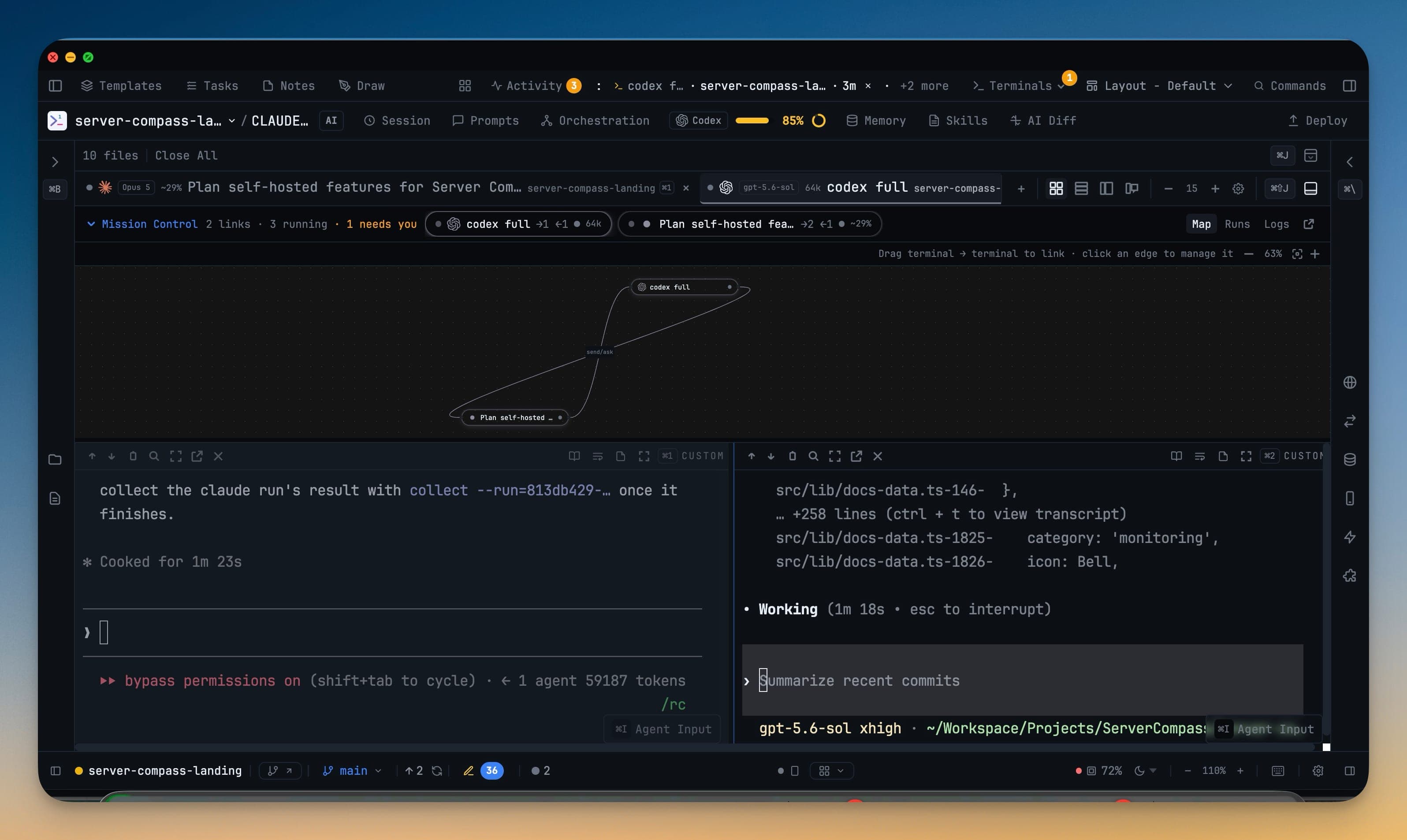
You have three AI agents open. Claude is holding the spec you spent an hour explaining. Codex has read the whole repo and knows where the state machine lives. A third terminal is running a shell you keep going back to.
And when you want the one that read the repo to review what the one that read the spec just wrote, you copy the output out of one pane and paste it into the other. Then you paste the reply back. You are the message bus, and you are the slowest part of your own setup.
1DevTool 1.52.0 removes you from that loop. Agents now hand work to each other in terminals you can watch, and — the part that actually matters — the answers come back.
This is a walkthrough of the whole thing: linking two terminals, watching the handoff, and repairing it when a collaboration goes quiet.
What changed
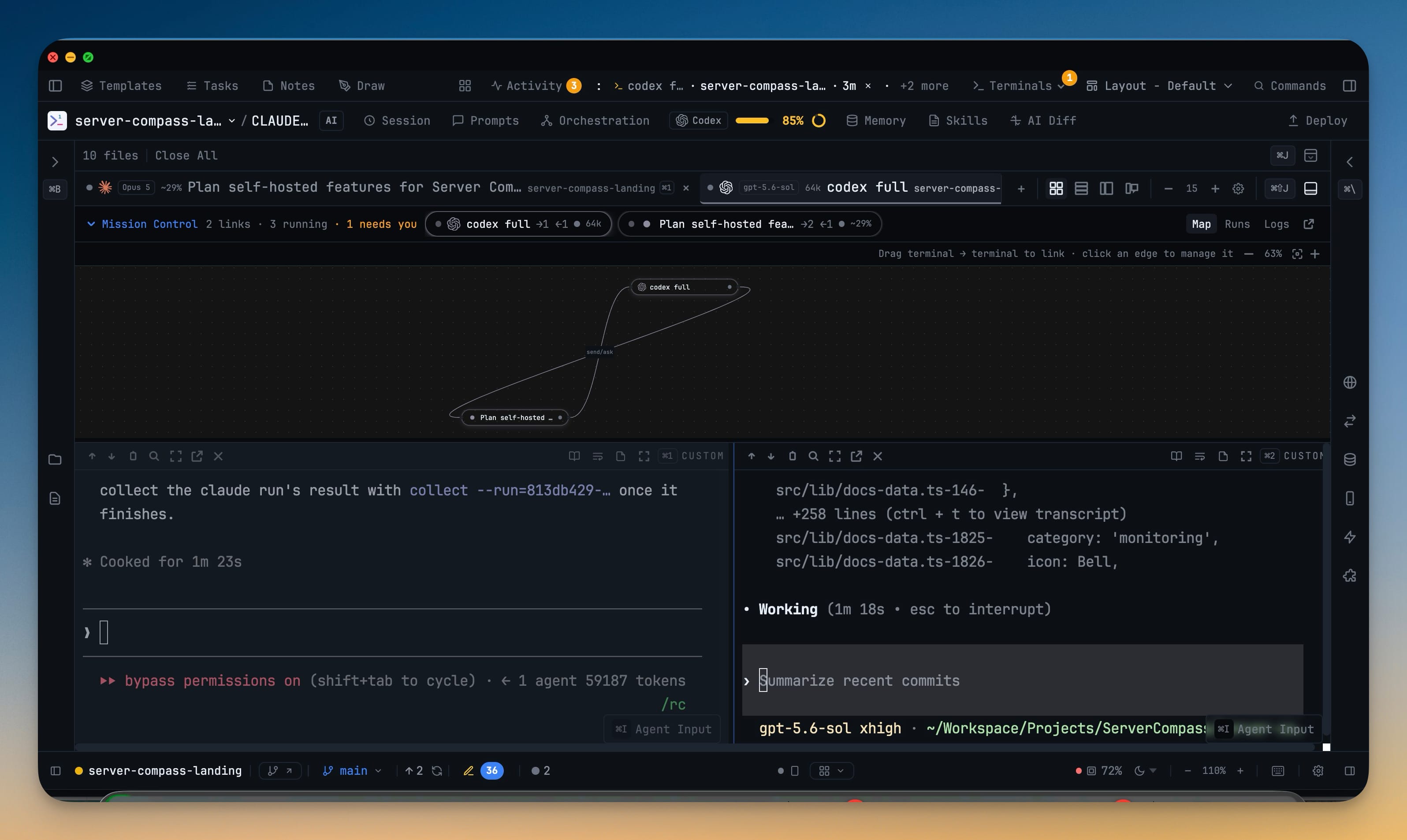
You can now mention a terminal that is already open, and your prompt is delivered into that live agent instead of spawning a new one. A Mission Control section sits above your terminal grid showing who is linked to whom, who owes an answer, and who is stuck — and a Team Map draws the whole collaboration as a graph that pulses when a message moves.
Step 1 — Open the terminals you want to work as a team
Orchestration works best when the agents are already warmed up, so start by opening the line-up you actually use.
Open Add Terminal and flip Multi-select at the top of the dialog. The agent cards become checkboxes: tick any mix across the AI Agents, Shells, and Machine Terminal tabs, pick the worktree they should open in, and open the whole batch at once.
Every agent in the batch boots in the background at the right size. Switching to a tab shows a running agent, not an empty pane waiting for you to poke it.
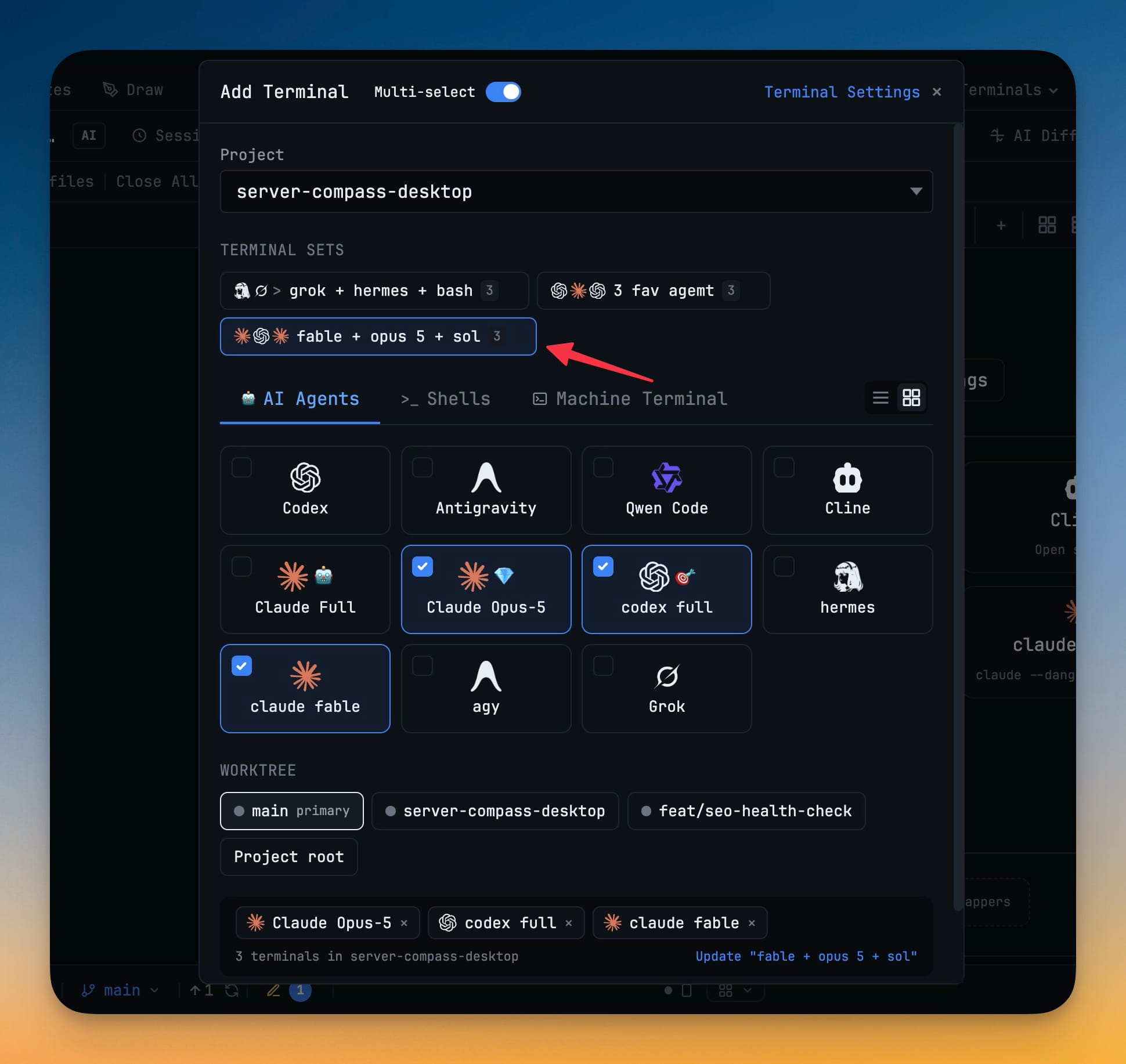
If this is a line-up you use often — a reviewer, a builder, and a shell — save it as a named terminal set. It becomes a chip under TERMINAL SETS in the dialog, and next time it is one click. You can update or delete a set in place from the same row.
One small fix worth knowing: Multi-select used to arrive with Claude Code pre-checked. It now starts empty, and an agent you hid in Terminal Settings is never ticked by default.
Step 2 — Delegate to a terminal instead of an agent
Here is the important distinction. Typing an agent's name used to mean start that kind of agent. Now it means use that agent — and if its terminal is already open, that is the one that gets the work.
In Agent Input, type @. The mention picker opens with a new Terminals tab beside Files, Agents, and Templates. It lists every open AI terminal, grouped by project, searchable by terminal name or project name.
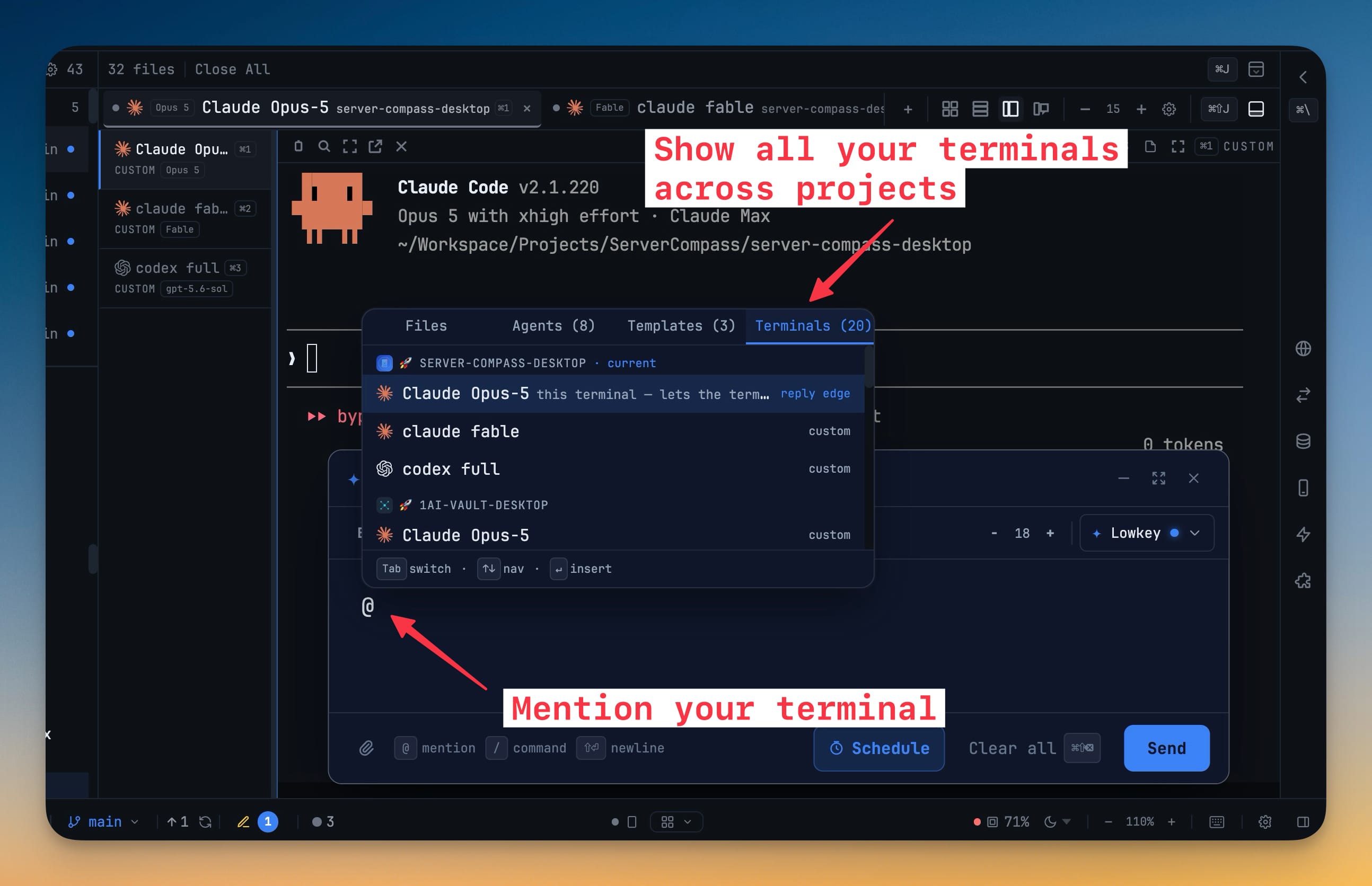
Tab switches tabs, ↑↓ navigates, ↵ inserts. The mention lands inline and highlighted, so the prompt reads like a sentence that names its own collaborators:
use codex full to review the
docs/http_reverse_proxy.mdthen claude fable update the fixes and codex full review again until both claude fable and codex full APPROVE.
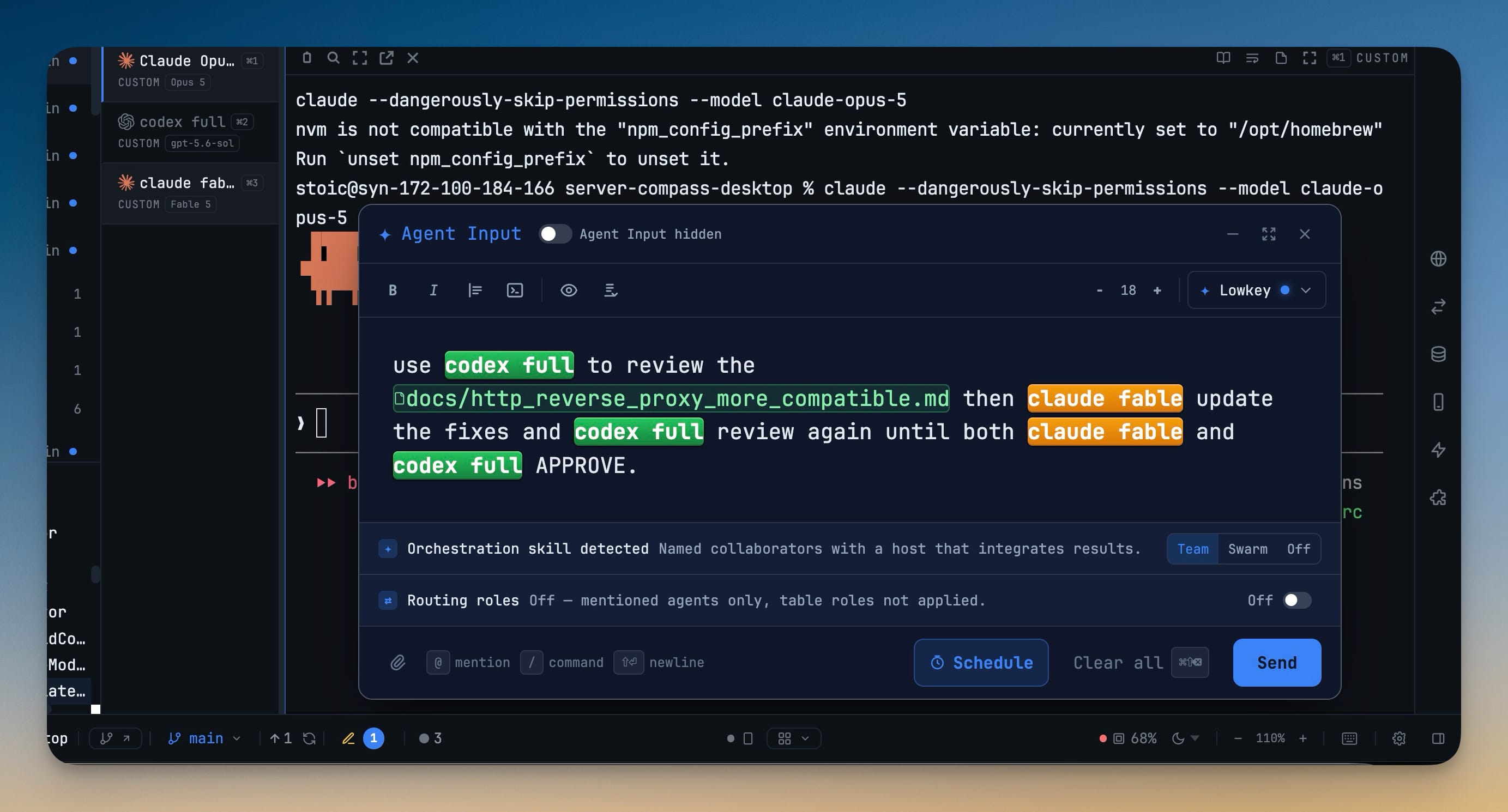
Two details in that screenshot are worth pointing out:
- Orchestration skill detected — 1DevTool recognises that you named collaborators and offers Team (a host that integrates results), Swarm (peers voting, no master), or Off.
- Links cross projects. The terminal you mention does not have to live in this repo. An agent in one project can hand work to an agent in another, and the link stays visible from both ends.
The one thing people get wrong: the reply edge
A link is directional. Mentioning codex full lets you send work to Codex. It does not give Codex a way to send anything back.
So mention this terminal in the same message. That creates the reply channel, and the answer arrives in your terminal instead of being printed in the peer's, where you would never see it.
Every delivered message now carries who sent it and the exact command to answer with — and when the reply lands, the original request is marked answered rather than sitting on delivered forever.
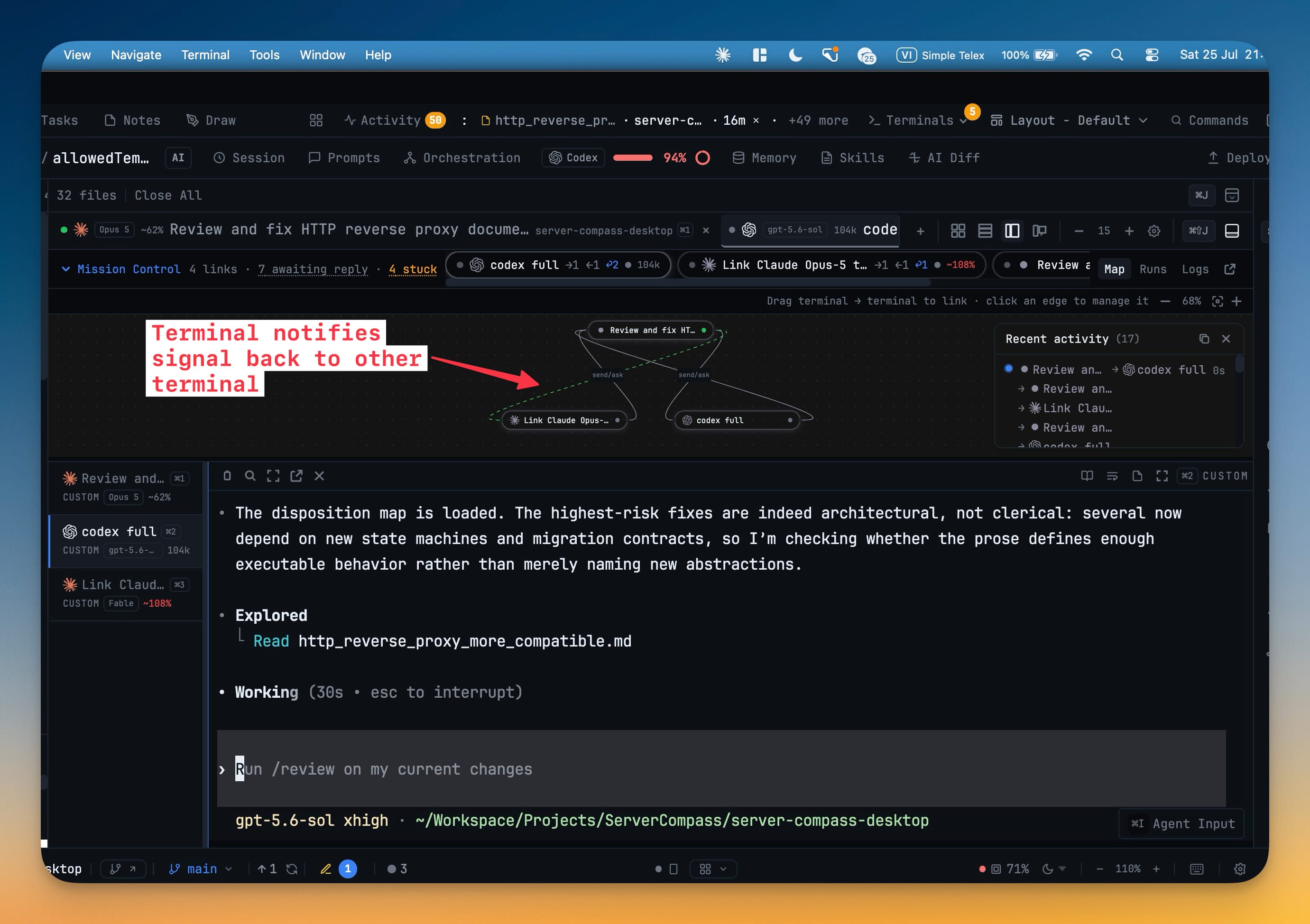
When you send, a project running live orchestration switches to the 2×2 grid so you can watch the participants work. If you change the layout yourself, your choice always wins.
Step 3 — Read Mission Control while it runs
Mission Control appears above the terminal grid the moment a project has a live link or a running orchestration. Nothing to orchestrate means nothing renders and nothing polls.
The header is a row of counts, and every count with something behind it is a button:
| Counter | What it means | What to do |
|---|---|---|
N links | Active links in this project | Open the Map to see their direction |
N running | Live orchestrations | — |
N awaiting reply | Delivered, unanswered, peer can answer | Click it, then Nudge a silent peer |
N stuck | Delivered to a peer with no link back | Click it — these never resolve on their own |
N quarantined | Links whose terminal restarted or closed | Relink, or Clear all |
N needs you | An agent finished or is waiting on you | Click the pill to jump to its terminal |
Beside the counters is the participant rail — one pill per agent showing status, attention, link direction (→2 ←1), and context usage. Click a pill to jump straight to that terminal.
On the right: Map, Runs, Logs. Drag the divider to resize the section, collapse it when you want the panes back. Height, collapse state, and view are remembered per project.
Awaiting reply vs stuck — the distinction that saves you an hour
These look similar and need opposite responses.
Awaiting reply means the peer can answer and has not yet. Usually it is still working. Sometimes it finished, printed its verdict into its own terminal, and never ran the reply command — and the sender will wait forever while every receipt reads delivered. You are the only one who can tell those two apart, which is why each row has a Nudge button that tells the peer to send the answer it is already holding.
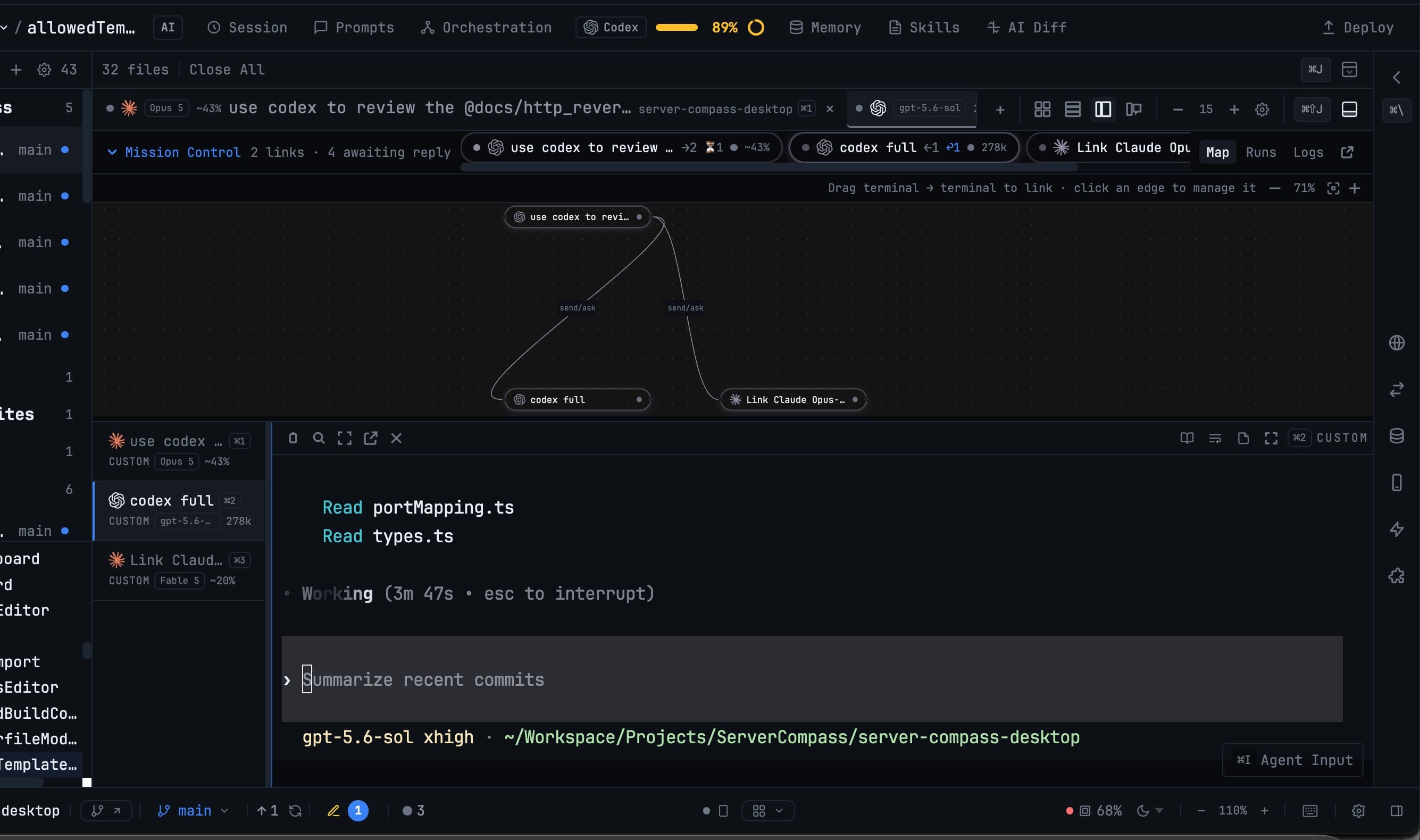
Stuck means the peer was delivered a request with no send-capable edge pointing back. It was told it has no channel, so it did the work and stopped. No amount of patience fixes it — you need the missing edge. That is why it is counted separately instead of being folded into "awaiting reply".
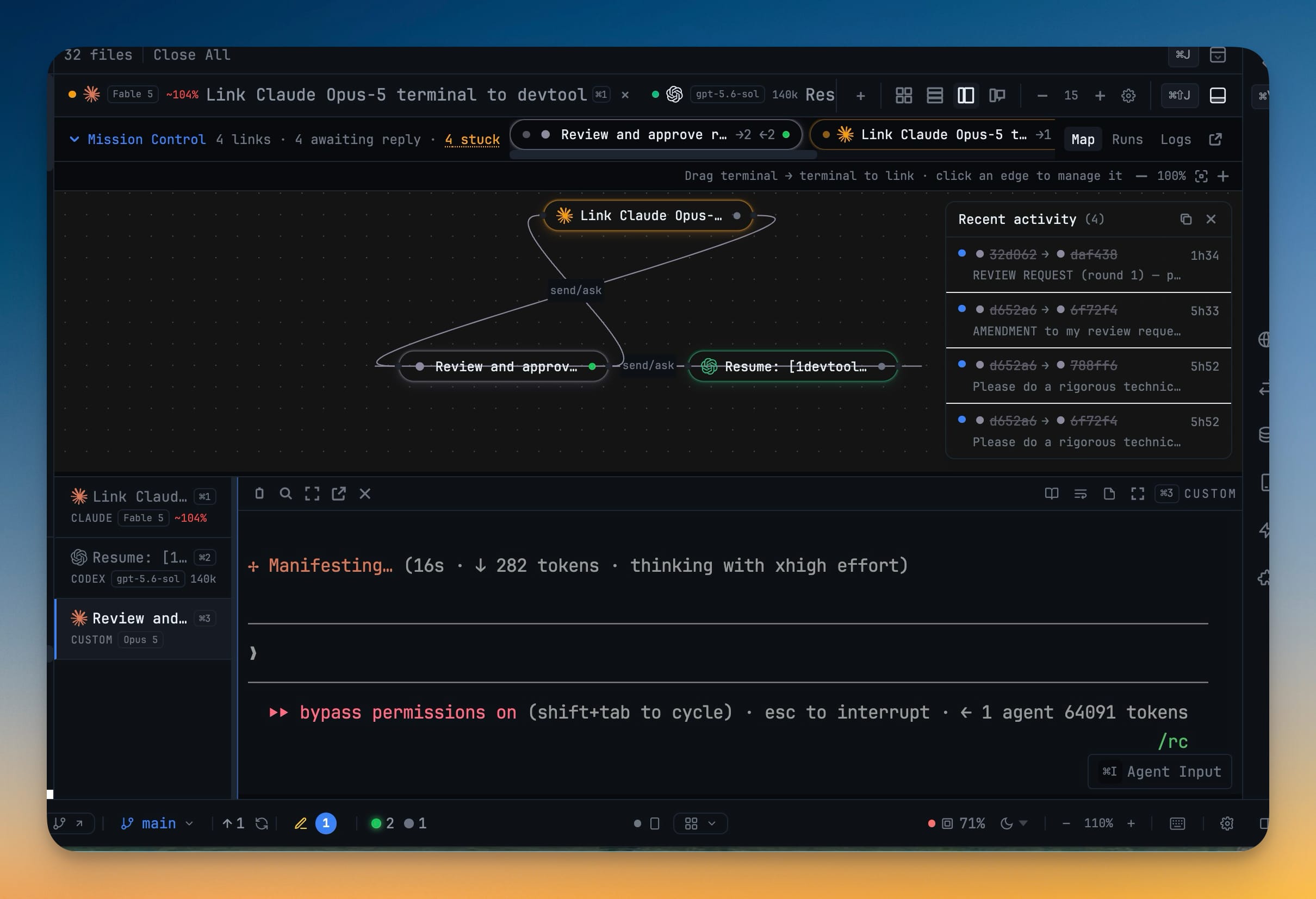
Step 4 — Read the collaboration on the Team Map
The Map is the default Mission Control view, and the same graph is a Team Map tab in the Orchestration Dashboard.
Terminal cards carry the agent logo, live status, context usage, and the latest prompt. Edges show their permissions (send/ask) and pulse green as a message is delivered.
You can also build the graph by hand:
- Drag one terminal card onto another to link them, with a confirmation step.
- Click an edge to manage or unlink it.
- Click a card to jump to that terminal.
- Zoom, re-center, auto-fit — and your manual node positions are remembered per project.
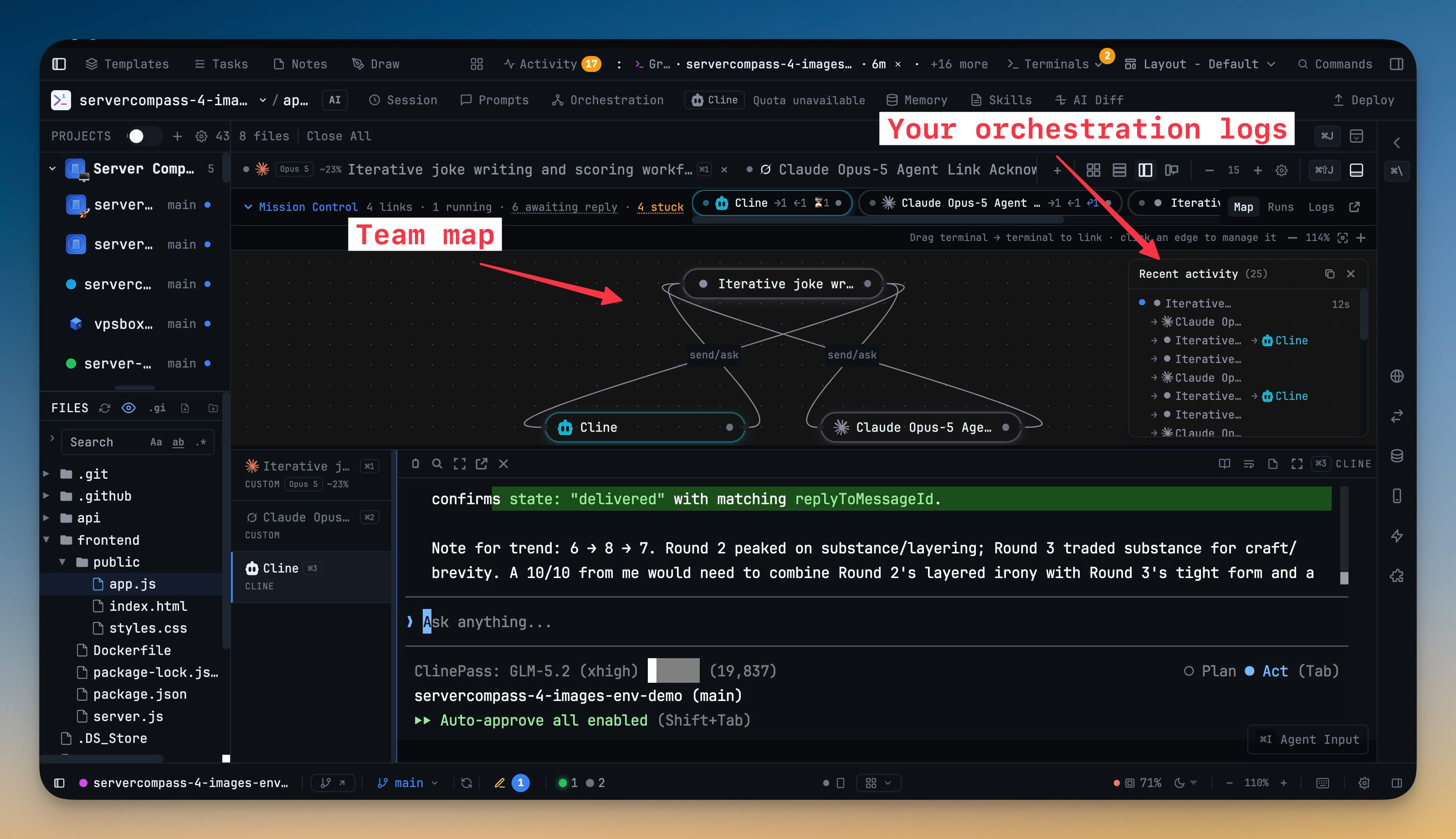
The recent activity rail on the right is the part you will actually live in. It stitches deliveries into chains — claude → codex → fable → claude — pulsing while the newest hop waits. Open a chain for its timeline, or copy it as text to paste into a PR description.
Here is what that looks like when it works. Codex ran a review, flagged 27 issues, four of them blockers. Fable verified every file-and-line claim against the source, fixed all 27, and delivered a disposition report back to the reviewer terminal:
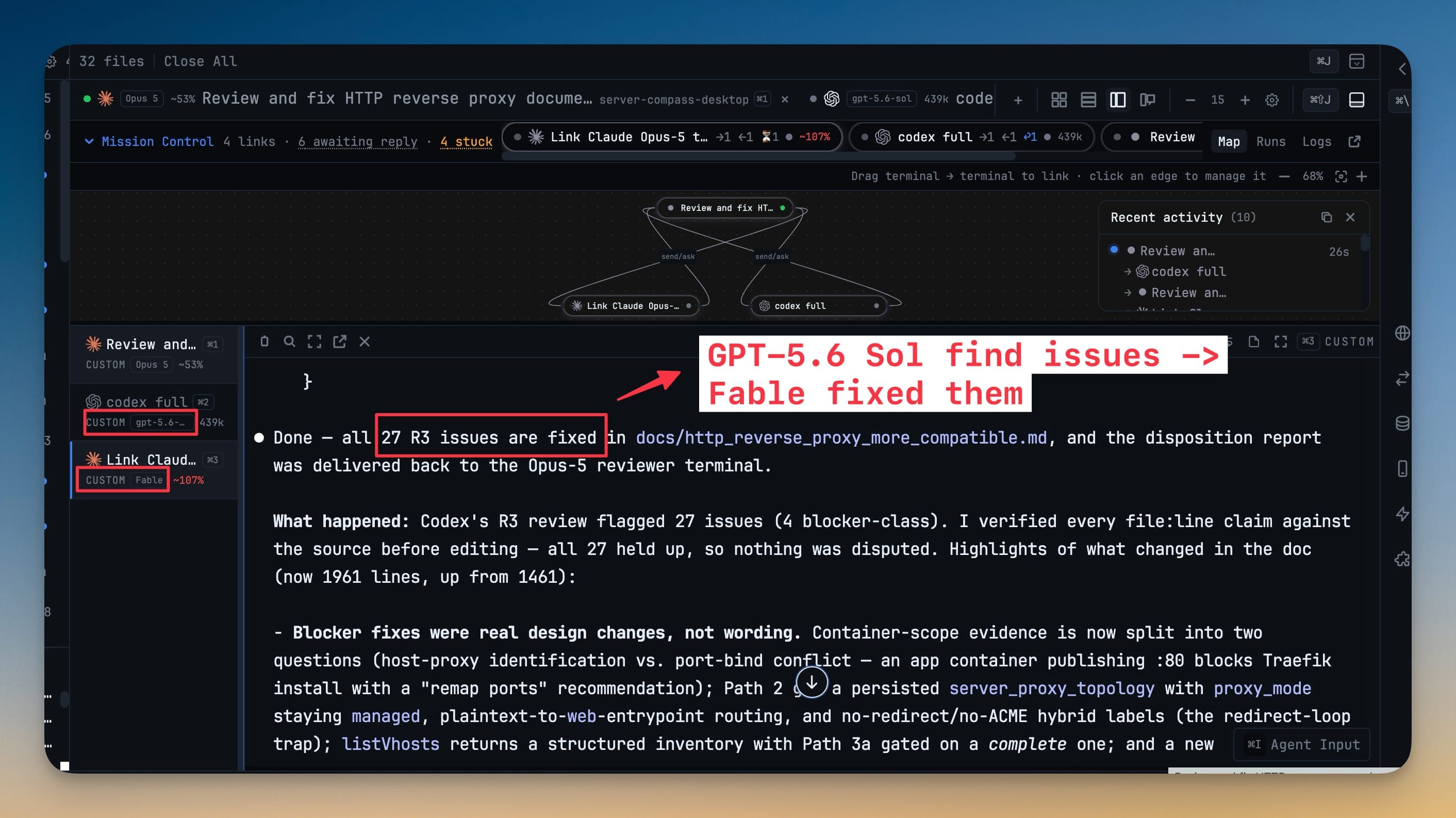
Nothing in that loop was copy-pasted by a human.
Step 5 — Keep an eye on context
Next to the model chip on every terminal tab and pane header there is now a context chip: the share of that agent's context window the last turn used. The same figure rides the Mission Control participant pills and the Team Map cards.
This matters more in a team than it does solo. When you are about to hand off a large review, the pill that reads ~29% is a better target than the one reading ~104%. Context exhaustion is the failure mode that looks like an agent getting dumber rather than an agent erroring, so seeing it coming is most of the fix.
Step 6 — Bring the team back after a restart
Restarting the app quarantines every link, because the terminals they pointed at are gone. Recovery is two steps, and both are one click.
First, restore the sessions. In Resume AI Sessions, sessions that ran as one linked team now appear under an Agent team banner — "2 of these sessions worked together" — with the agent chain and how long ago it ran. Resume this agent team brings every member back in one confirmation. Individual members carry a team chip, so you can tell a collaborative session from a solo one.
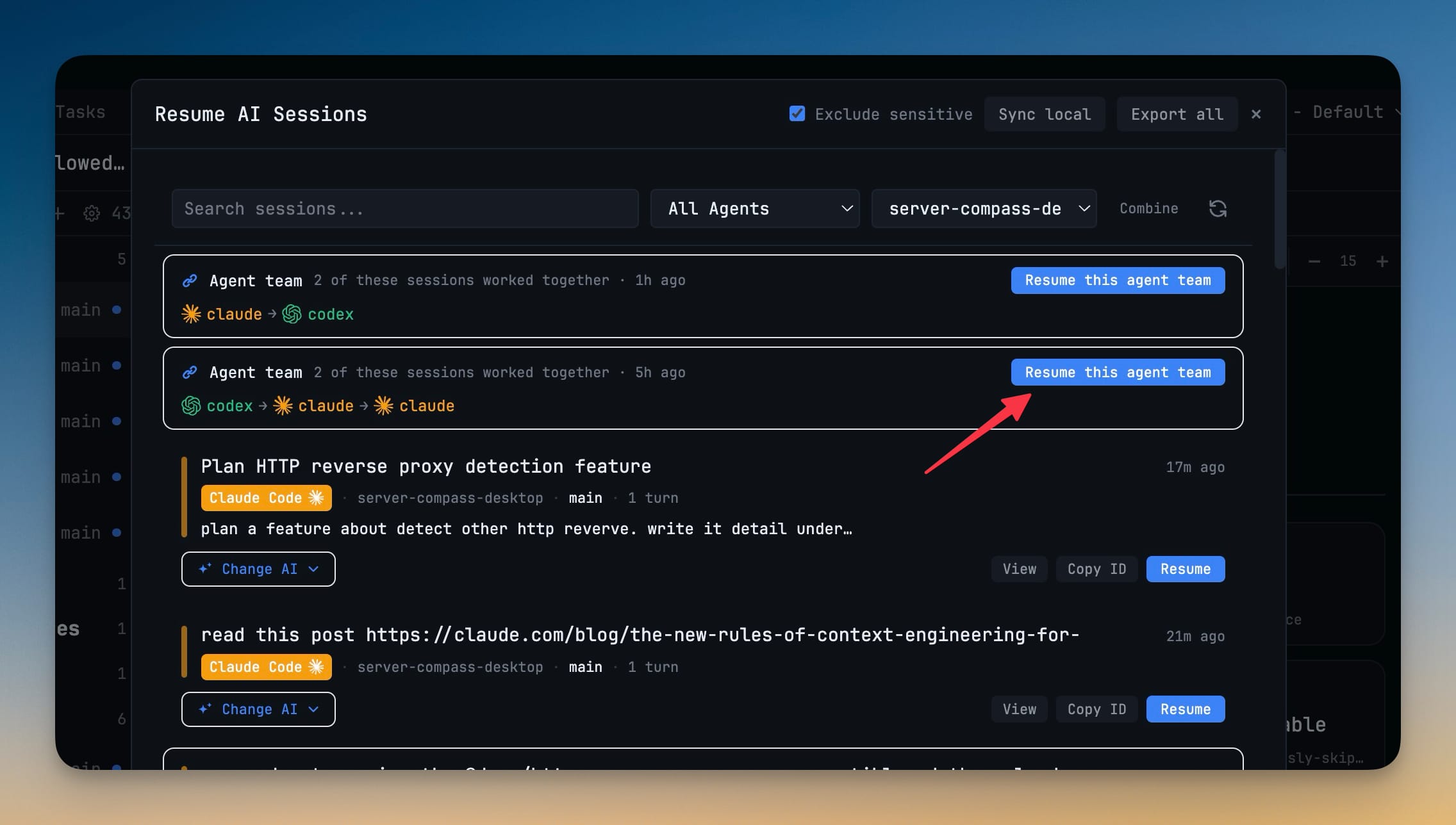
Then, restore the links. With the terminals running, Mission Control shows a Resume team button next to the quarantined count. It relinks every revivable link in the project and wakes each participant with the fact it is blocked on — an owed reply command, a status board, a restored edge. Each terminal gets a single catch-up notice instead of one per link.
Driving it from the command line
If you would rather orchestrate from inside an agent than from the UI, the agent CLI now covers the same ground:
# Who am I, and what am I linked to?
1devtool-agent whoami

# Send work to a linked terminal and wait for the answer
1devtool-agent link send --to=<terminalId> --prompt-stdin --wait

# Reply to a specific request
1devtool-agent link send --to=<terminalId> --prompt-stdin --reply-to=<messageId>

# One board of everything you sent and everything waiting on you
1devtool-agent link status
link status replaced a stream of one-receipt-per-message noise with a single summary you can actually read.
Before vs after
| Handing work between agents | Before 1.52.0 | Now |
|---|---|---|
| Reaching a warm agent | Typing its name spawned a duplicate | The open terminal is used |
| Getting the answer back | Copy from one pane, paste into another | Delivered over the reply edge, marked answered |
| Knowing who is waiting | Read four transcripts | N awaiting reply, with Nudge |
| A delegation that can never answer | Silence, indefinitely | Counted as N stuck |
| After a restart | Resume sessions one by one, links dead | Resume this agent team, then Resume team |
| Opening your usual line-up | Four dialogs, four waits | One terminal set, one click |
| Spotting a full context window | Notice the agent got worse | A percentage on the tab |
Also fixed in this release
A few failures that made orchestration untrustworthy are gone:
- Grok and Cline delegations sat queued forever. Mentioning or linking those agents now delivers the prompt into their terminal.
- A delegated agent would do the work while the answer never came back. Peers now receive the exact reply command, replies mark the request answered, and unanswerable delegations are listed rather than silently waiting.
- Cline replies were rejected as coming from an unknown terminal. Cline can now answer a delegation like every other agent.
- A linked agent could start a hidden background run that stalled on its first file write. The work is routed to the linked terminal you can see and approve.
- Copy Path reported success while the clipboard stayed empty. File preview, tab menus, and the markdown toolbar now only report success when they actually copied.
Watch the walkthrough
If you would rather watch the loop than read about it, the walkthrough opens three terminals — Claude Code, Codex, and Grok — and wires them together with a single plain-language prompt. Codex writes, Grok scores the draft out of 10, and the Orchestrator keeps sending guidance back to Codex until it clears 9/10. It also covers @-mentioning terminals across different projects and running the whole thing in headless mode, without opening the terminals at all.
Watch: Orchestrate Multiple AI Agents from One Prompt
Try it
Open two AI terminals in a project you know well. In one of them, type @, switch to the Terminals tab, mention the other one and this terminal, and ask for a review of something you just wrote.
Then watch the bar above your grid instead of the two transcripts. The moment the edge pulses green and 1 awaiting reply drops back to zero, you will have stopped being the message bus — and that is the whole point.
From across the StoicSoft network
Hand-curated reads on the same topic from sister sites in the StoicSoft family.