Mar 16, 2026
Device Emulation, Image Viewer & Crop Tool: Preview AI-Generated UIs on Any Screen
Preview responsive layouts on iPhone, iPad, and custom sizes in the built-in browser. Crop screenshots with rule-of-thirds guides and send annotated images to your AI agent.
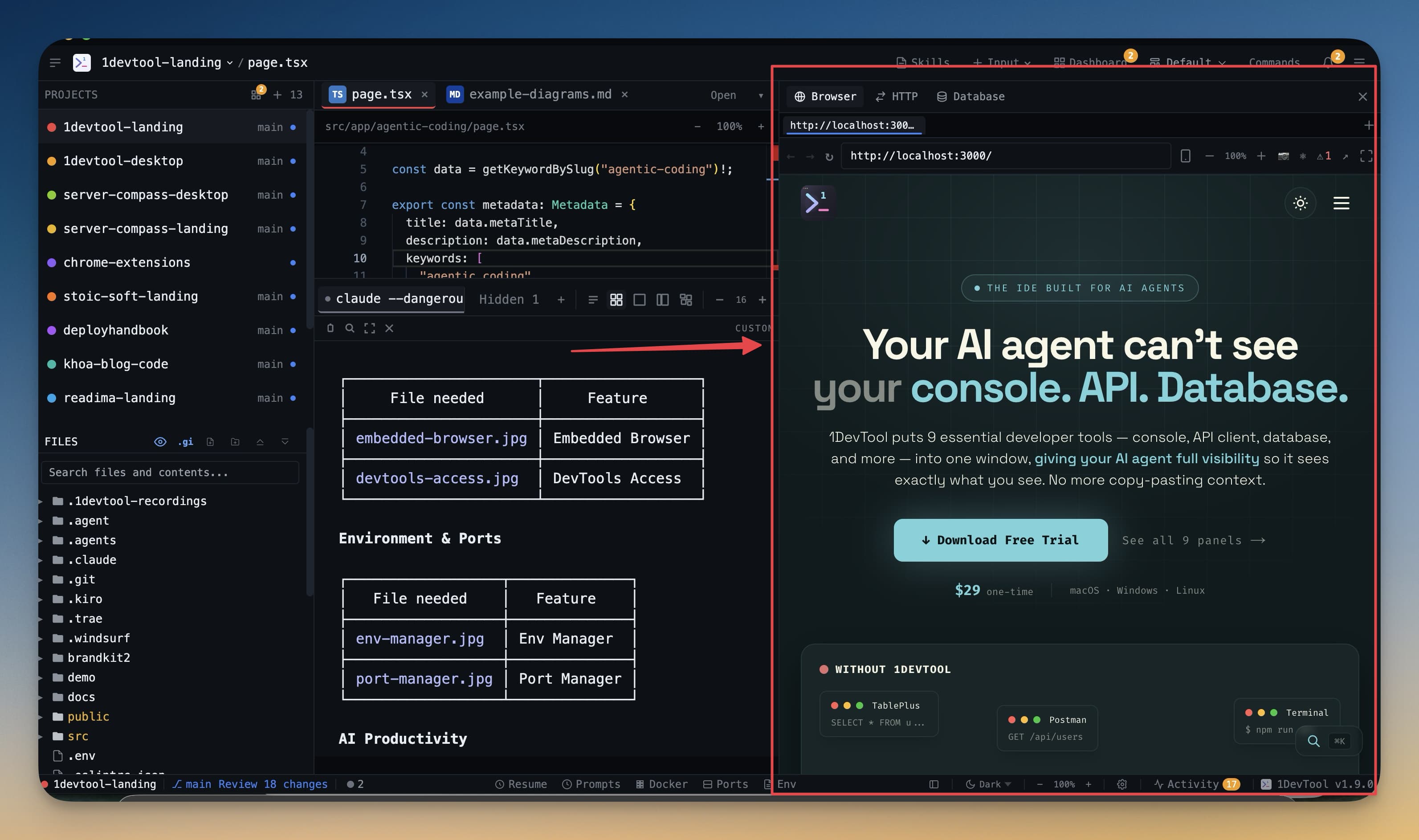
You ask Claude Code to build a responsive landing page. It generates the HTML and CSS, but you need to check how it looks on an iPhone, an iPad, and a desktop — without leaving your editor. You also want to screenshot the result, crop it, and send it back to the agent for adjustments. Previously, that meant Chrome DevTools, a screenshot tool, and an image editor. Now it's all built in.
Device Emulation in the Built-in Browser
The embedded browser now supports device emulation. Preview your site on iPhone, iPad, Samsung Galaxy, or any custom screen size with one click. Rotate between portrait and landscape, and zoom in or out with Cmd+Plus/Minus.
This is especially valuable for AI-assisted web development. Your agent generates responsive code, and you verify it across devices without opening Chrome or Safari DevTools.
Built-in Image Viewer
Click any image file in the file explorer and see it rendered with zoom controls and a transparency checkerboard background. No more opening images in Preview or Finder — inspect AI-generated assets right where you work.
Screenshot Crop Tool
Take a screenshot of the browser panel, then crop it with rule-of-thirds guides. The crop tool remembers your preferences. This workflow is designed for the AI feedback loop: screenshot the result, crop the relevant area, and drag it into the agent input overlay to say "fix this part."
Searchable Settings
1DevTool has a lot of settings. Finding the right one used to mean scrolling through tabs. Now you can type to filter across all settings tabs with keyboard navigation. Start typing "font" and see every font-related setting instantly.
AI Run Timer
Terminal tabs now display elapsed time while an AI agent is processing. You can see at a glance that Claude Code has been running for 2 minutes and 34 seconds — useful for knowing when to check back versus when to wait.
Other Features in v1.5.0
- Drag-and-drop reordering for terminal tabs and sidebar projects
- Resizable canvas cards for terminal layout
- Smarter auto-scroll that only scrolls when at bottom
- Live file tree updates from AI agents, git, or external editors
- New shortcuts: Cmd+Shift+H to hide terminal, Cmd+Shift+X for browser screenshot
Try It Today
Device emulation, image viewer, and crop tools are available in 1DevTool v1.5.0. Preview on any device, crop for feedback, and send it back to your AI agent — all without leaving your workspace.
Preview. Crop. Send to AI. Iterate.