Nov 19, 2026
Talk to your agents: dictate prompts into Agent Input
Agent Input now has voice mode: say your prompt and the words land in your draft at the caret, ready to edit or send. Speech is turned into text on your computer, by the built-in Whisper engine or by 1AudioTool.
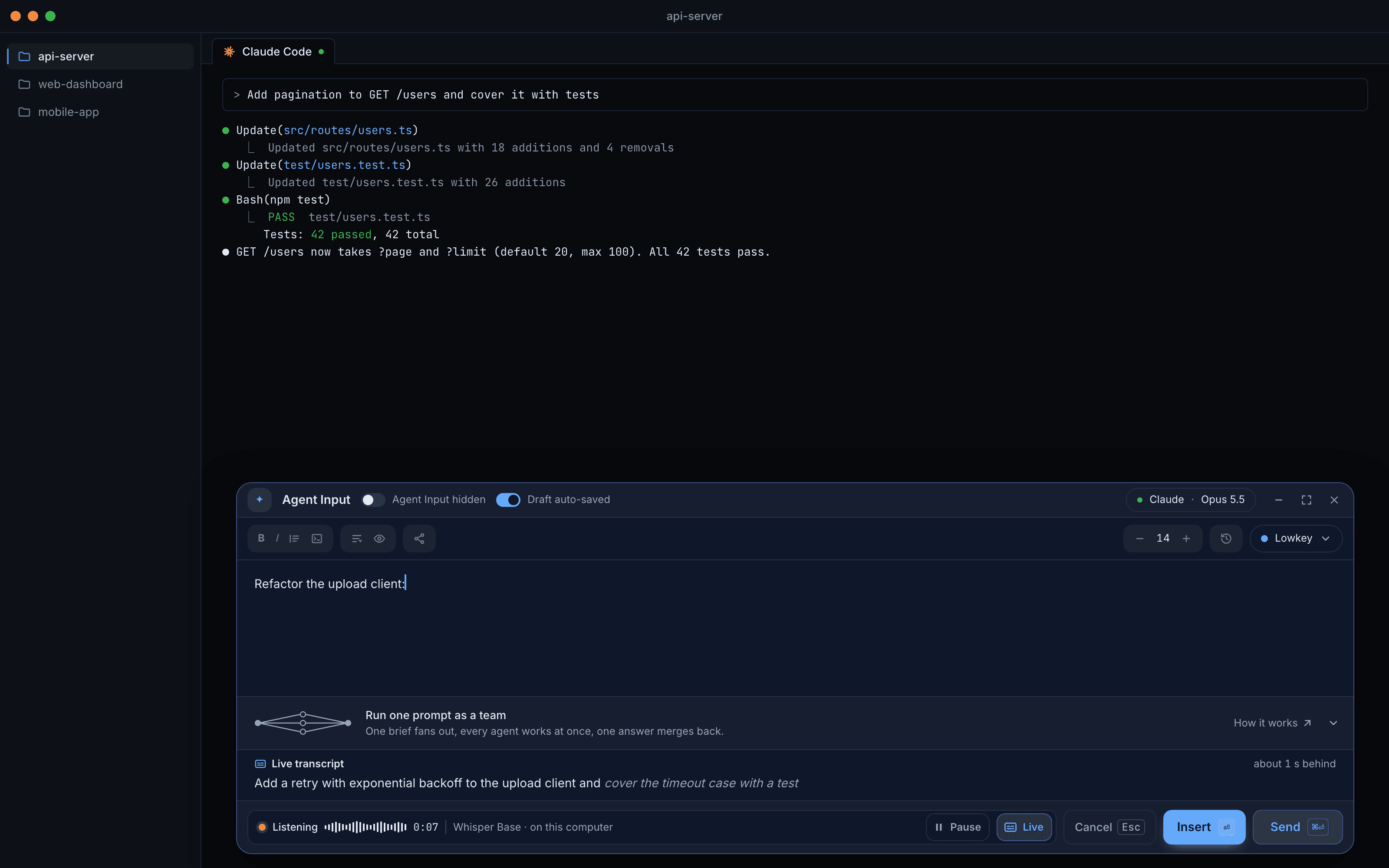
The prompts that get good results from a coding agent are long. "Fix the upload test" gets you a guess. "The upload client retries forever when the server times out; add exponential backoff with a cap, keep the existing error type, and cover the timeout case with a test" gets you the change you wanted. You know all of that before you start typing. Typing it is the slow part, so the prompt gets shorter, and the agent gets less to work with.
Saying it takes a few seconds. Until now, saying it meant a dictation app that pasted into whatever had focus, a cloud service you had to trust with your audio, or both, and none of them knew where your caret was in a half-written prompt.
What changed
1DevTool v1.87.0 adds voice mode to Agent Input. Click the microphone next to the attach button, or press ⌘⇧Space (Ctrl+Shift+Space on Windows and Linux), say what you want, and the words go into your draft at the caret. Speech is turned into text on your computer, by OpenAI Whisper running either inside 1DevTool or in 1AudioTool. Your audio is never uploaded.
Now you can say a long, specific prompt in the time it takes to type a short one, then edit it before it goes to the agent.
How it works in practice
Pick an engine once, with the trade-offs in front of you
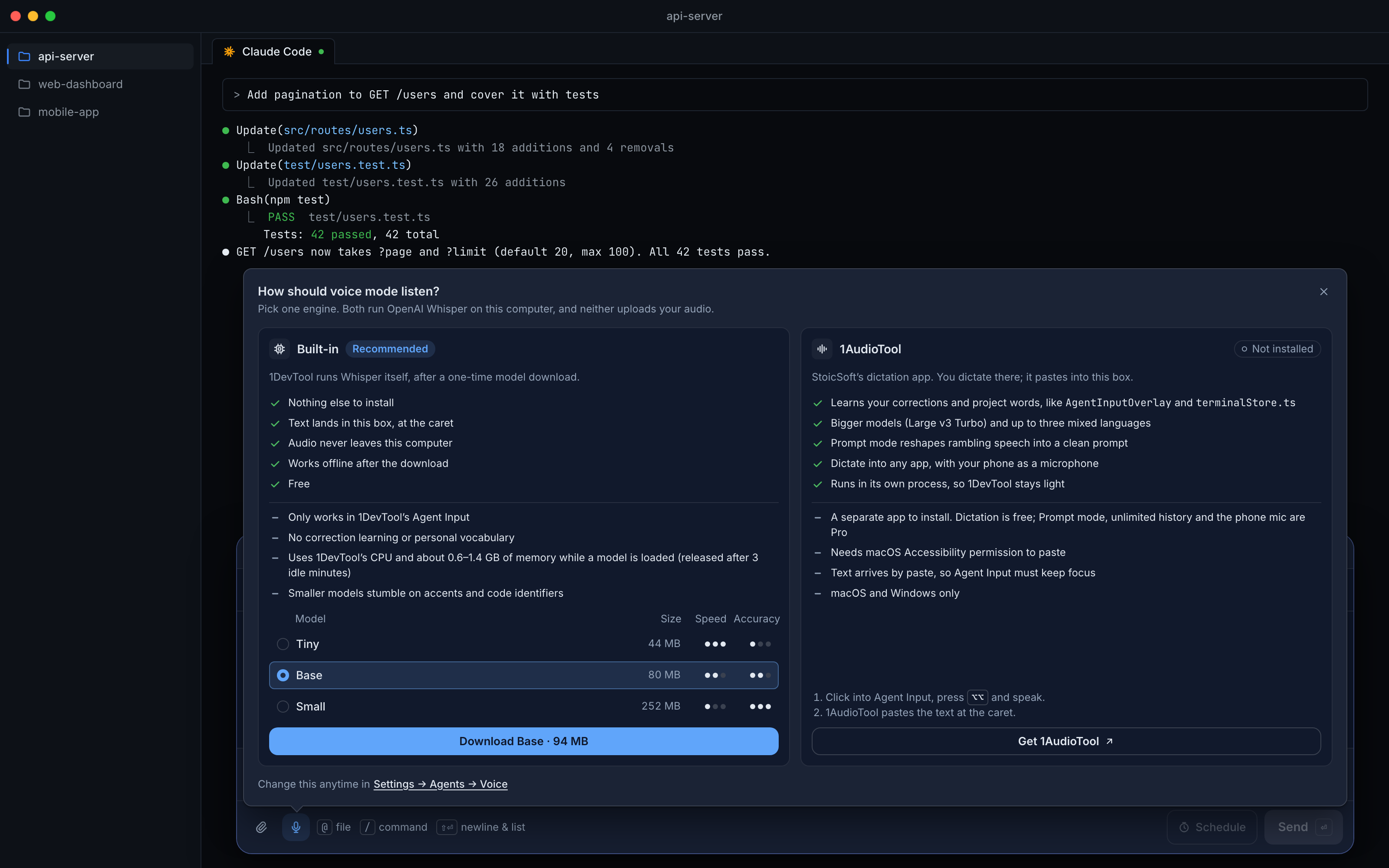
The first time you click the microphone, a panel asks How should voice mode listen? and puts the two engines side by side, each with what it is good at and what it costs you.
Built-in runs Whisper inside 1DevTool after a one-time model download. There is nothing else to install, the text lands in the box you are typing in, and it works offline once the model is there. You choose the model from a small table: Tiny (44 MB) is the fastest and roughest, Base (80 MB) is the balanced one most people should use, and Small (252 MB) is the most accurate on accents and code identifiers but noticeably slower. The cost is said plainly on the card: a loaded model uses 1DevTool's CPU and about 0.6–1.4 GB of memory, and that memory is released after 3 idle minutes.
1AudioTool is StoicSoft's dictation app. It runs in its own process, so 1DevTool stays light, and it does things the built-in engine doesn't: it learns your corrections and project words, offers bigger models and mixed languages, and has a Prompt mode that reshapes rambling speech into a clean prompt (dictation there is free; Prompt mode is part of 1AudioTool Pro). The card also lists what it asks of you: it is a separate app, it needs Accessibility permission on macOS to paste, and Agent Input has to keep focus while the text arrives. If you choose it, the microphone shows the two steps (click into Agent Input, press Option twice on a Mac or Control twice on Windows) and opens 1AudioTool for you, or its download page if it isn't installed.
You can change your mind at any time in Settings → Agents → Voice.
Talk, and watch the words arrive
While you speak, the Agent Input footer turns into a listening strip: a red dot, a level meter so you can see the microphone is hearing you, a clock, and which model is listening. With Live on, a band above it shows the words as they are recognised. Words that have settled are solid; the newest ones are grey and may still change as Whisper hears the rest of the sentence. If your machine falls behind, the band says so, for example about 1 s behind, instead of pretending to be instant.
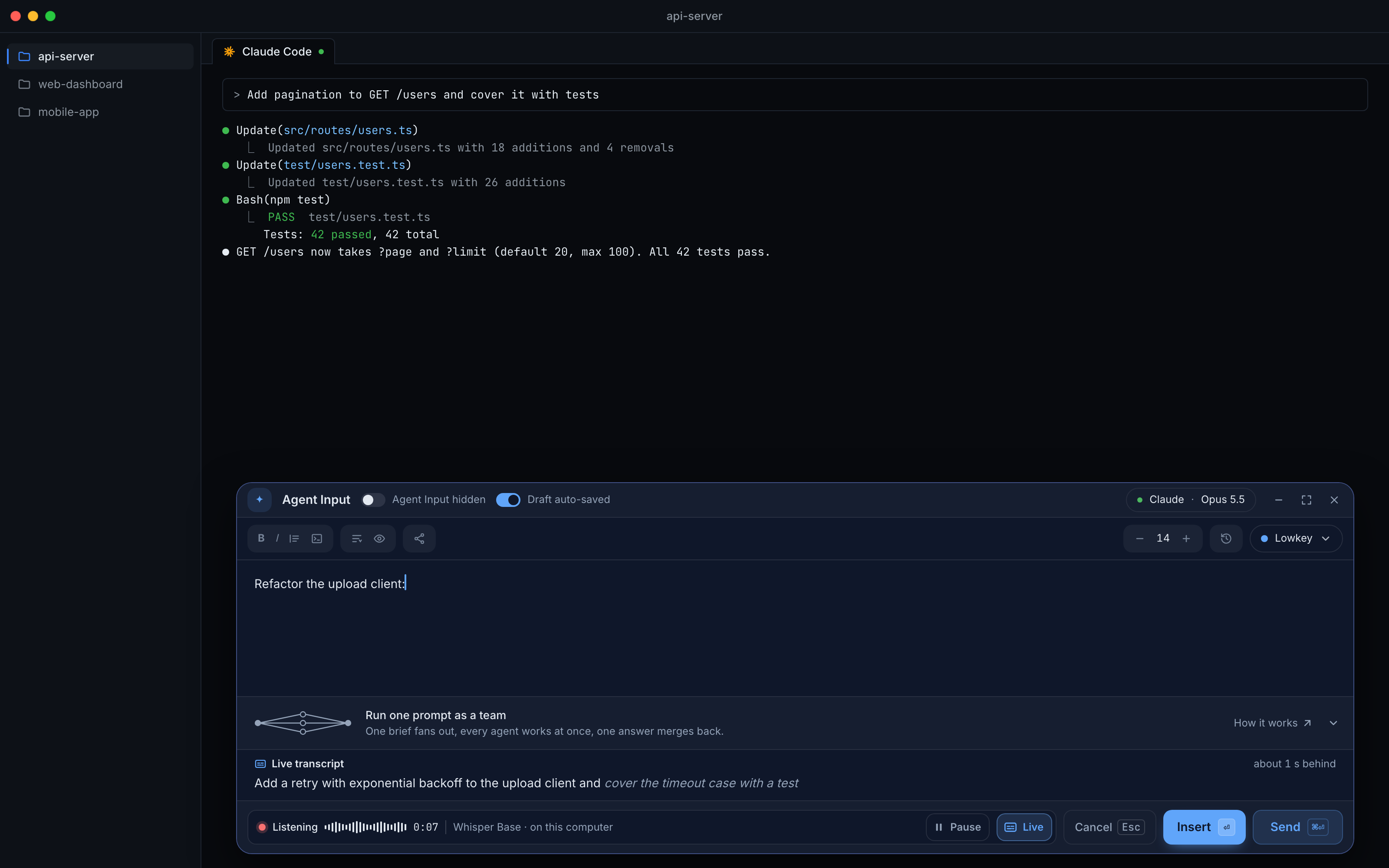
Need to think mid-sentence? Pause closes the microphone and stops the clock, and the live text catches up and reads Paused · up to date. Continue picks up where you left off. Live transcript keeps one CPU core busy while you talk, so it is a switch, both in the strip and in Settings. With it on, pausing a moment before you insert makes the text ready about twice as fast.
Insert, edit, or send in one step
When you are done, you decide what happens to the words:
- Insert (Enter) puts them in your draft at the caret, without sending. The inserted words are briefly highlighted, and an Inserted · Undo chip takes them back out in one click.
- Send (⌘⏎) finishes the take, inserts it and sends the prompt to the agent in one step.
- Cancel (Esc) throws the take away. Nothing is inserted.
Insert is the main button and Send is not, on purpose: pressing Enter during a take never sends a half-heard prompt. And a take that heard nothing, such as a muted mic, leaves your draft exactly as it was.
Set it up the way you work
Settings → Agents → Voice holds everything else. You can download or delete each Built-in model and see which one is in use, pick the language you dictate in or let it auto-detect, choose a microphone and test it with a live meter, and turn the live transcript on or off.
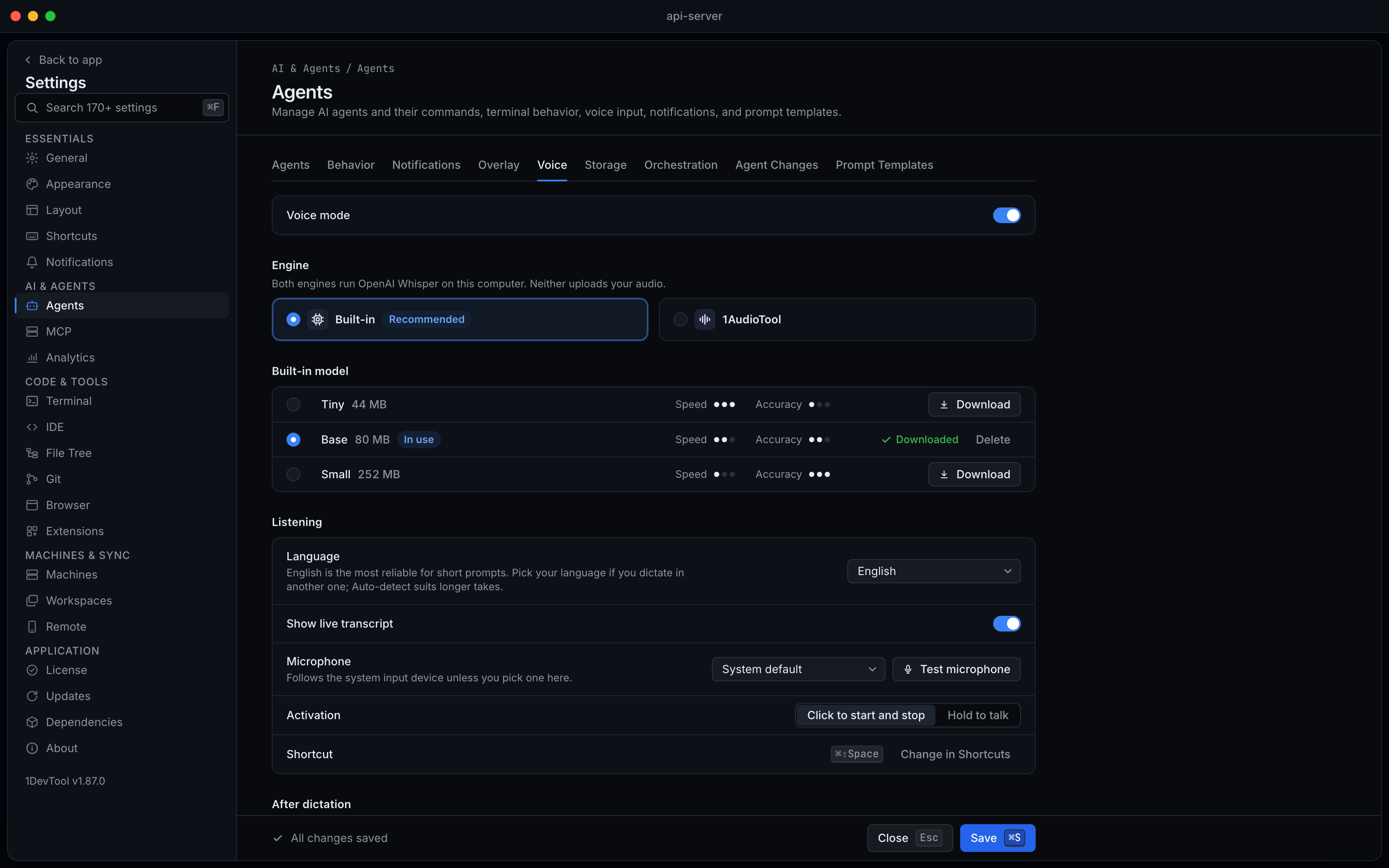
Two choices change how dictation feels. Activation is either Click to start and stop or Hold to talk, which records while you hold the shortcut and inserts when you let go. Where the text goes is Insert at the caret or Append to the end. If you always send what you dictate, Send automatically after dictation skips the extra key. The shortcut itself is Dictate into Agent Input in Settings → Shortcuts.
One more safety net: confirm before ⌘W
1.87.0 also adds a guard for a different kind of accident. ⌘W (Ctrl+W on Windows and Linux) closes the active terminal, and if that terminal is an agent in the middle of a turn, the agent stops. ⌘K wipes its scrollback. Turn on Confirm disruptive shortcuts in Settings → Terminal → Shortcuts and ⌘W and ⌘K ask first. ⇧⌘H, which hides a terminal, can ask too if you tick it.
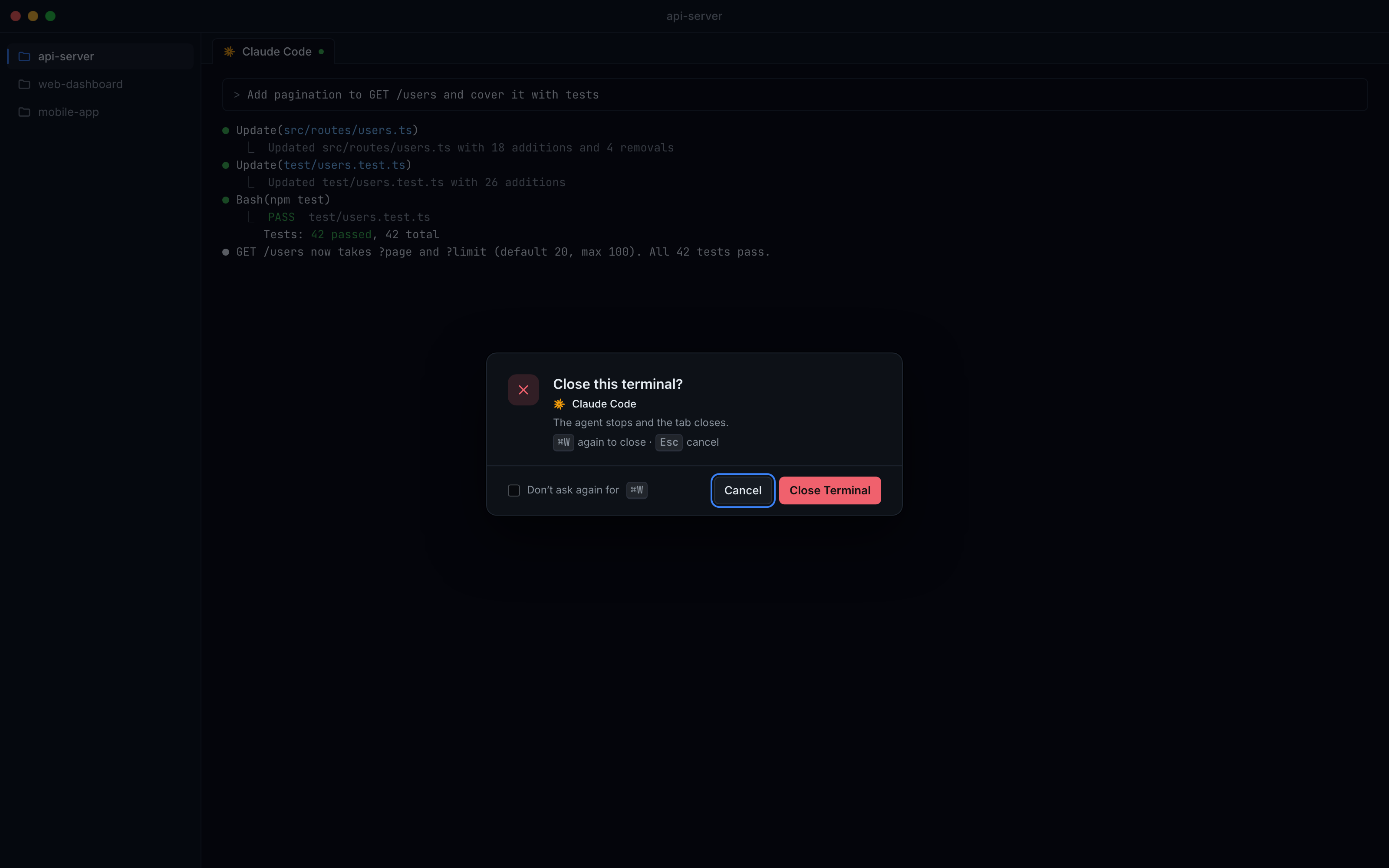
The confirm is built for the keyboard. Focus starts on Cancel, so a stray Enter is safe. Pressing the shortcut again goes ahead, Esc backs out, and Don't ask again turns it off for that one shortcut. The confirm follows your own key bindings, so it still works if you moved Close Terminal to another chord. Clicking a tab's close button or a menu item never asks. It is off until you turn it on.
Before vs After
| Before | After | |
|---|---|---|
| Writing a long prompt | Type every word, or shorten it | Say it, then edit what landed at the caret |
| Using dictation | A separate app pasting into whatever had focus | Built in, or 1AudioTool with the steps shown in Agent Input |
| Where your audio goes | Depends on the service | Stays on your computer with either engine |
| Checking what was heard | Read it after it was pasted | Watch it live, pause, then Insert or Send |
| A mis-heard take | Select and delete by hand | Inserted · Undo, or Esc before inserting |
| A stray ⌘W | The terminal and its agent are gone | Optional confirm, with focus on Cancel |
Who benefits most
Developers who brief agents in detail. If your best results come from prompts with the file, the constraint and the test you want, voice makes those prompts cheap to write.
Anyone who thinks out loud. Pause, think, continue: the take waits for you, and the live text shows what has been heard so far.
People who can't or shouldn't type all day. Dictation that lands where your caret is, with an undo, turns voice into a normal way to work with agents rather than a workaround.
Try it
Update to 1DevTool 1.87.0, click the microphone in Agent Input and pick an engine. Your next long prompt takes a few seconds to say, and you still read it before the agent does.