Aug 14, 2026
Draw your agent team instead of filling in forms
The Builder turns agent orchestration into a canvas: drag agents in, wire them together, and see the team before it runs. Plus a real chain of command, ordered pipeline stages with quality gates, and one-click team presets.
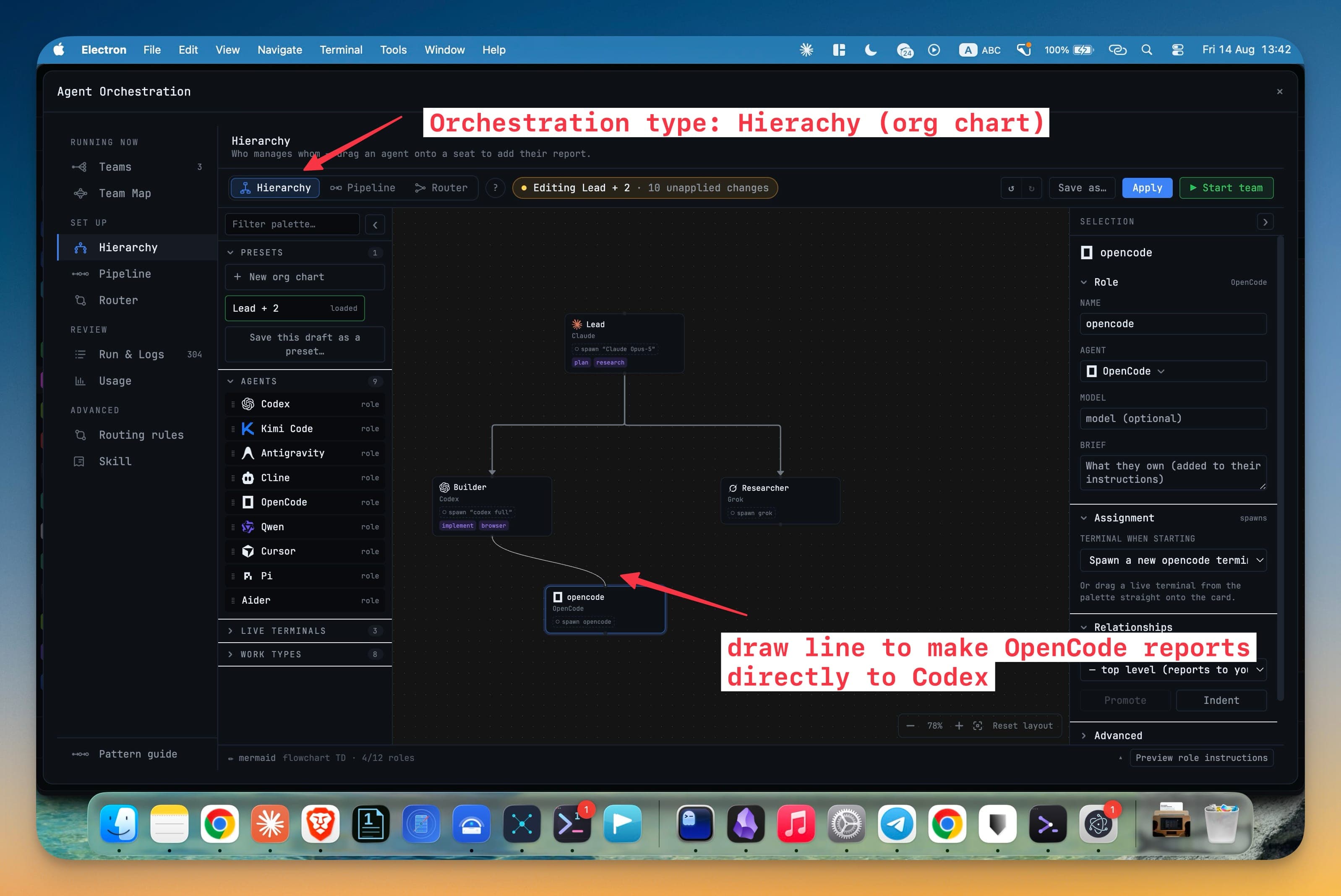
You had three agents open and a clear idea of how they should work together. Claude researches, Codex implements, OpenCode reviews. Simple enough to say out loud in one sentence — and then you opened the set-up panel and started filling in forms. A role here, a dropdown there, a reporting relationship expressed as a select box pointing at a name you had to remember you'd typed two fields ago.
The hard part was never the configuration. It was that you could not see the thing you were configuring. You had a shape in your head, the panel had a list of fields, and nothing on the screen ever showed you the team. You found out what you had actually built when you pressed Start and watched it behave.
What changed
The Builder replaces that flow with a canvas. You drag agents in, wire them together, and the team you are describing is the thing you are looking at — before anything starts.
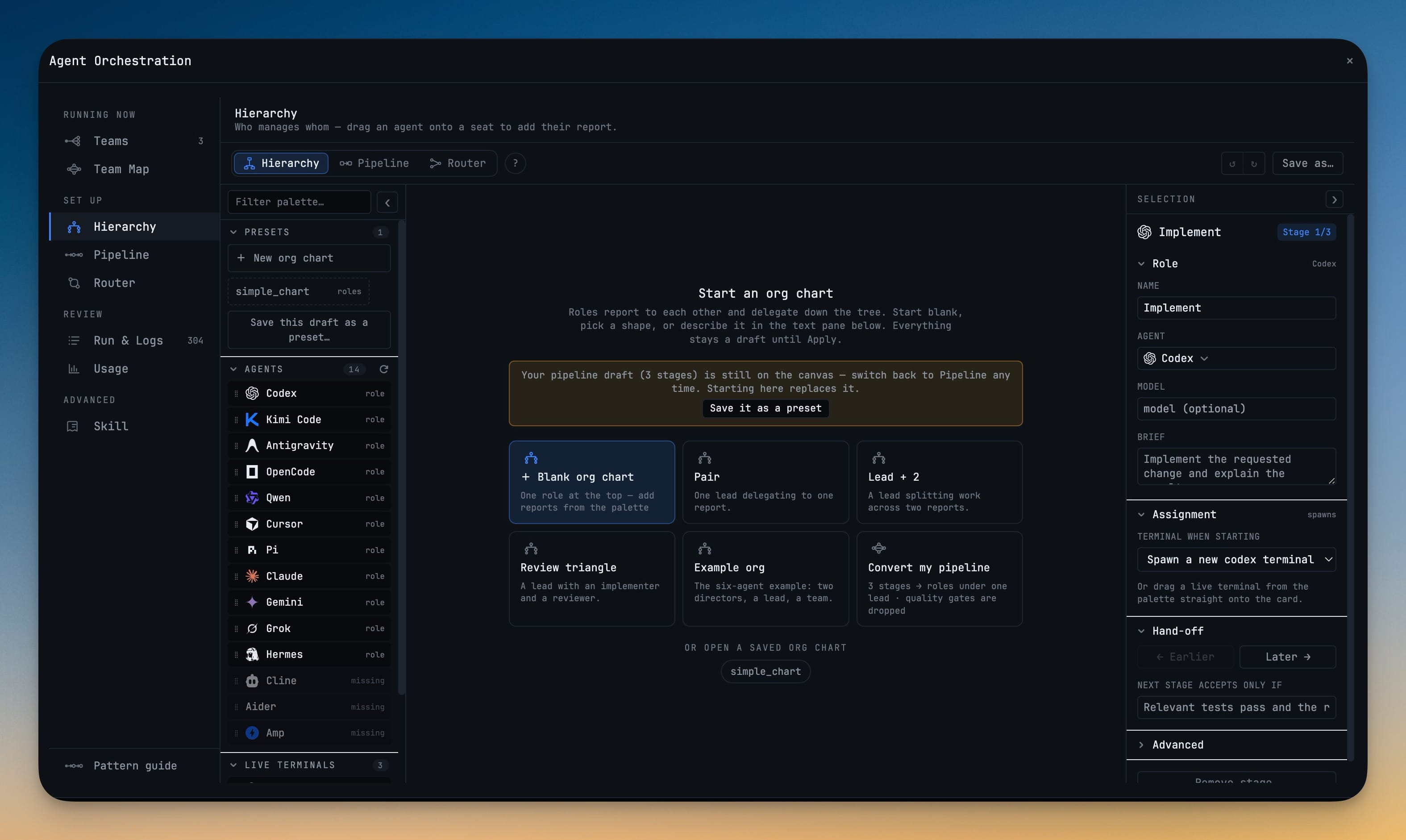
Open the Orchestration dashboard and you land on it. A palette rail down the left holds your agents, the terminals already running, work types, and any team you saved earlier. Start dragging and the canvas raises the places that will accept what you're holding; a seat that can't take it simply dims. You never get a dialog explaining why a drop was refused, because the refusal already happened quietly, in the only place you were looking.
How it works in practice
Draw the shape, then read it back
Drop an agent onto a seat and it takes the role. Click any seat or wire and the inspector opens on the right with its role, its agent, its model and its brief. Nothing is buried: the whole team is one screen, and ⌘Z undoes anything you didn't mean.
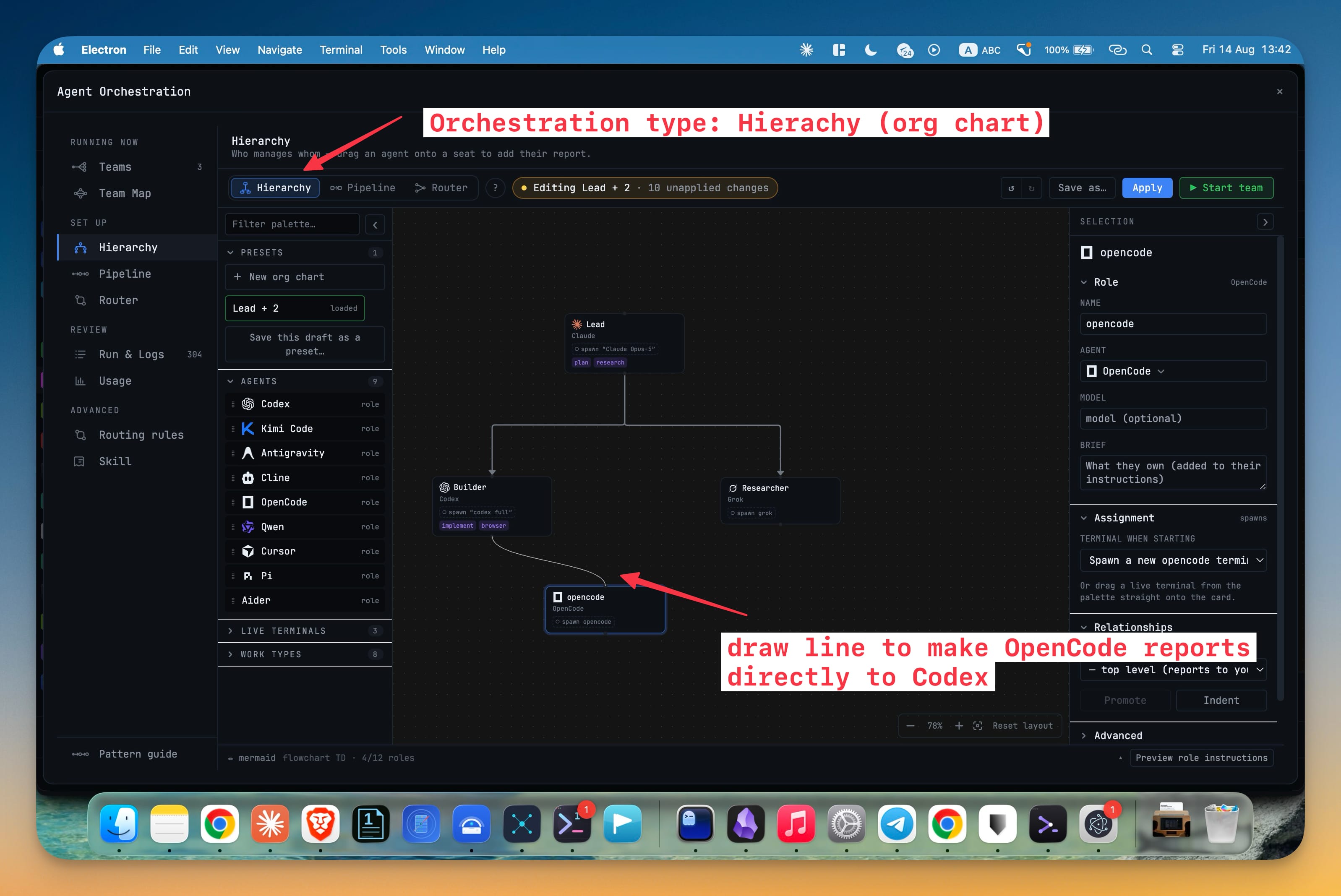
Three modes sit in one segmented control — Hierarchy, Pipeline and Router, on ⌘1, ⌘2 and ⌘3. Switching between them never costs you work. Your org chart stays exactly where you left it while you go and look at Pipeline, and it is still there when you come back. Turning one shape into the other is now a card you deliberately choose, not something that happens to you because you clicked a tab.
Every consequential action tells you what it will do first. Apply shows the difference between your draft and what is currently live. Start opens the seat table so you can see which terminals it is about to use. Removing a role tells you what becomes of everyone reporting to it.
Give the team a real chain of command
A hierarchy here is not decoration. Seats have managers and subordinates, and the chart is enforced at runtime: an agent may task only its own subordinates, and it reports its results upward. Anything else is refused — with a message naming the route it should have taken.
That has consequences worth knowing. A director reports to you. A seat marked "chain ends here" finishes in place instead of reporting up, which is what you want when you write review back to Grok, do not report to me. And because hierarchies resolve by escalation, an agent cannot open a vote to overrule its own manager.
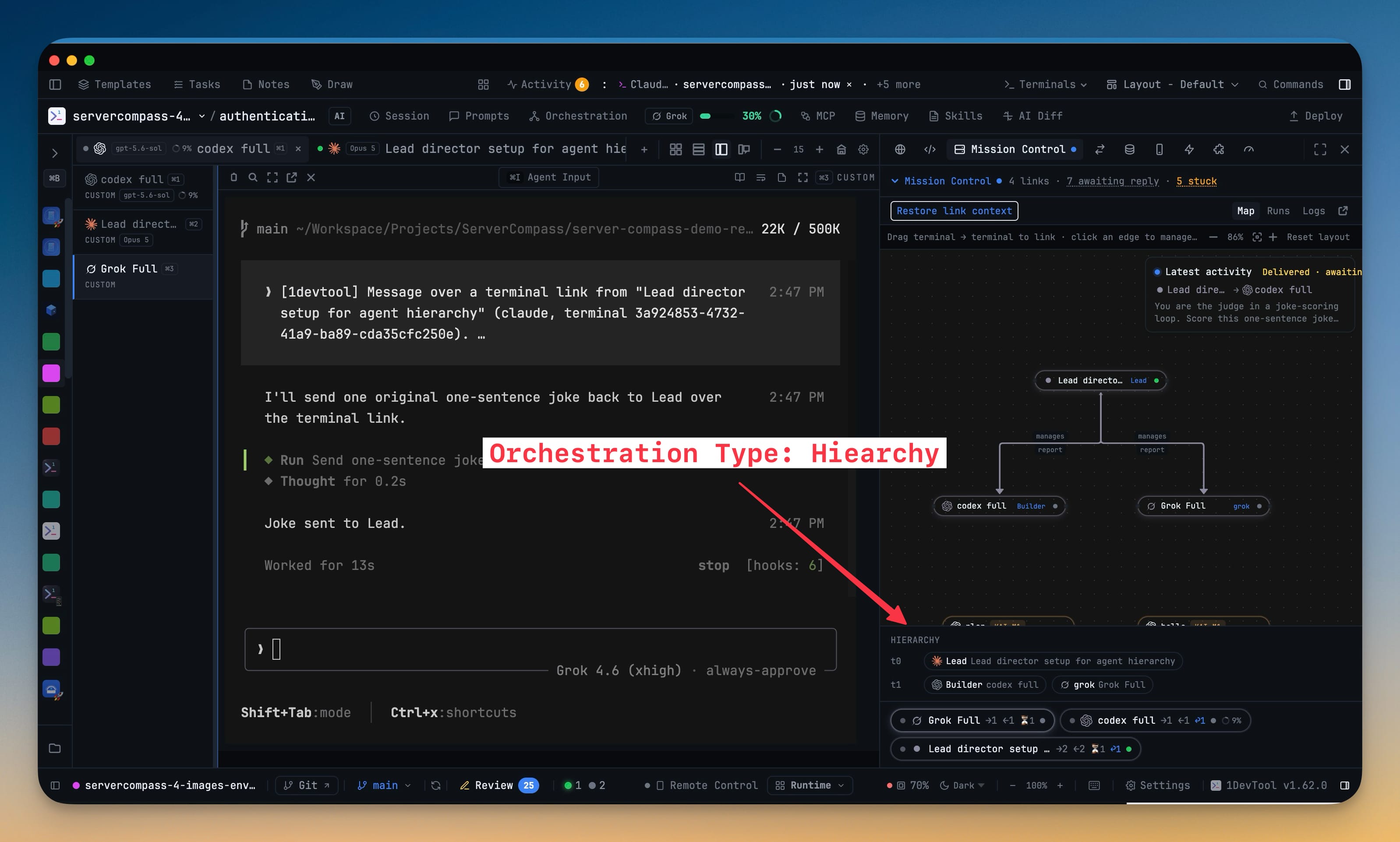
When a team is running, Mission Control groups every seat by level, flags vacancies and orphaned branches, and offers Rebind or Promote on the spot — so a team that lost a terminal gets repaired rather than rebuilt. Blocked escalations aren't silent either: a counter opens a panel showing who tried to reach whom, when, and where the message should have gone.
Or lay it out as ordered stages
Most coding sessions aren't an org chart at all. They're a line: research, then implement, then review, each agent's output becoming the next agent's input. That's Pipeline.
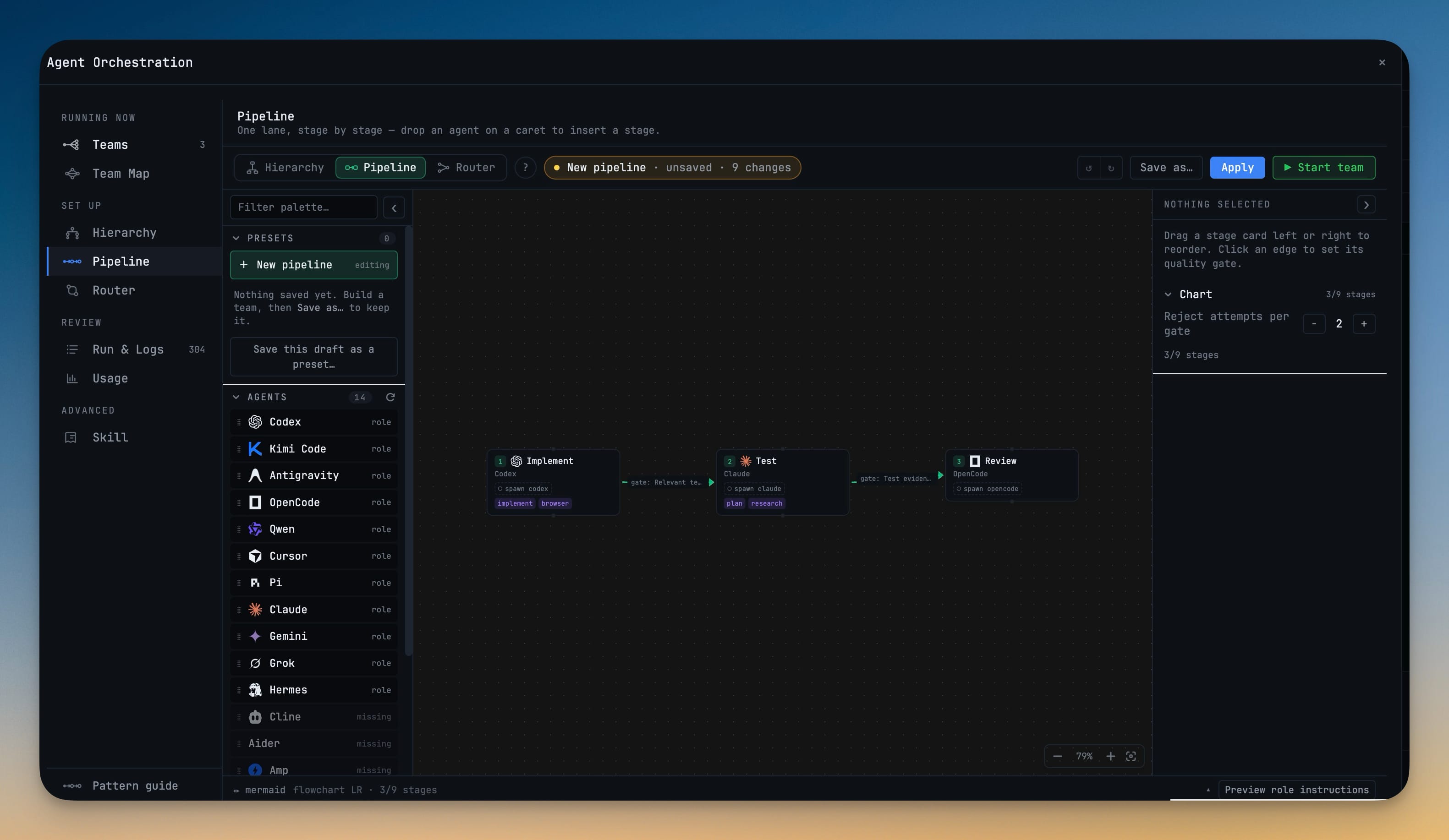
The useful part is the gates. A stage can accept or reject the handoff it receives, which means a careful review of a broken first draft never happens — the draft goes back before anyone spends tokens polishing it. Rejects are capped at two rounds by default, and after that the pipeline escalates to you instead of looping until you notice.
Describe it in a sentence
If you'd rather not draw at all, write it. Type "a lead that reviews two implementers" into the generate bar and an AI agent drafts the chart onto your canvas, with full undo if it misread you.
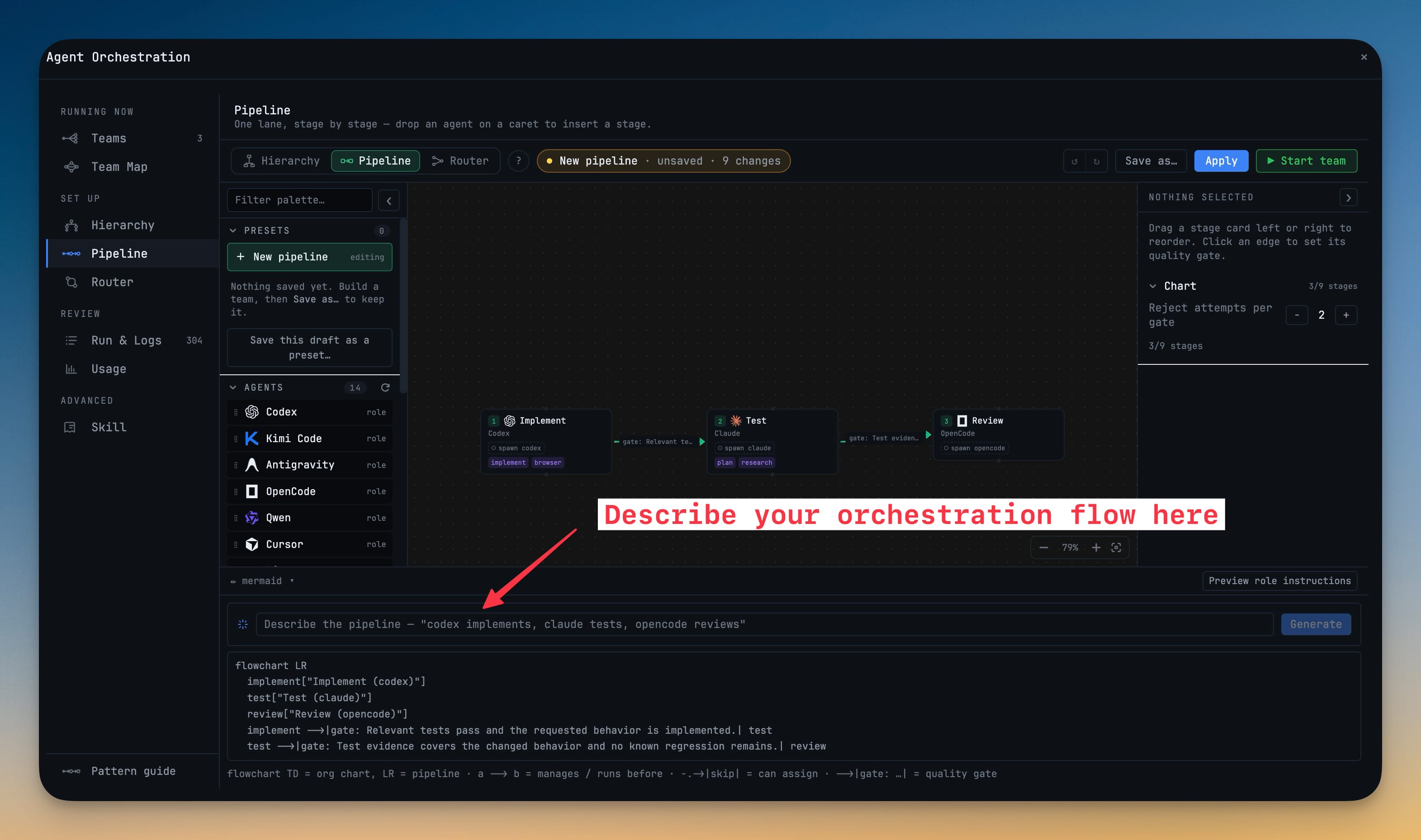
A text pane round-trips the whole chart to a readable diagram syntax and back, live — so you can paste a team in from a colleague, or copy yours out into a doc.
The composer understands the same sentences. Write "research the auth bug, then grok drafts a fix, then opencode reviews it" and it is recognised as a pipeline, with your current terminal as stage 1. Agent Input's mode control is now Auto / Team / Swarm / Pipeline / Off: Auto reads what you typed and tells you why it chose what it chose (Using Pipeline · you wrote "then"). Click any other mode and it becomes a lock that stays put no matter what you type next. When Auto isn't sure, it says so and asks rather than guessing.
Start a whole team in one click
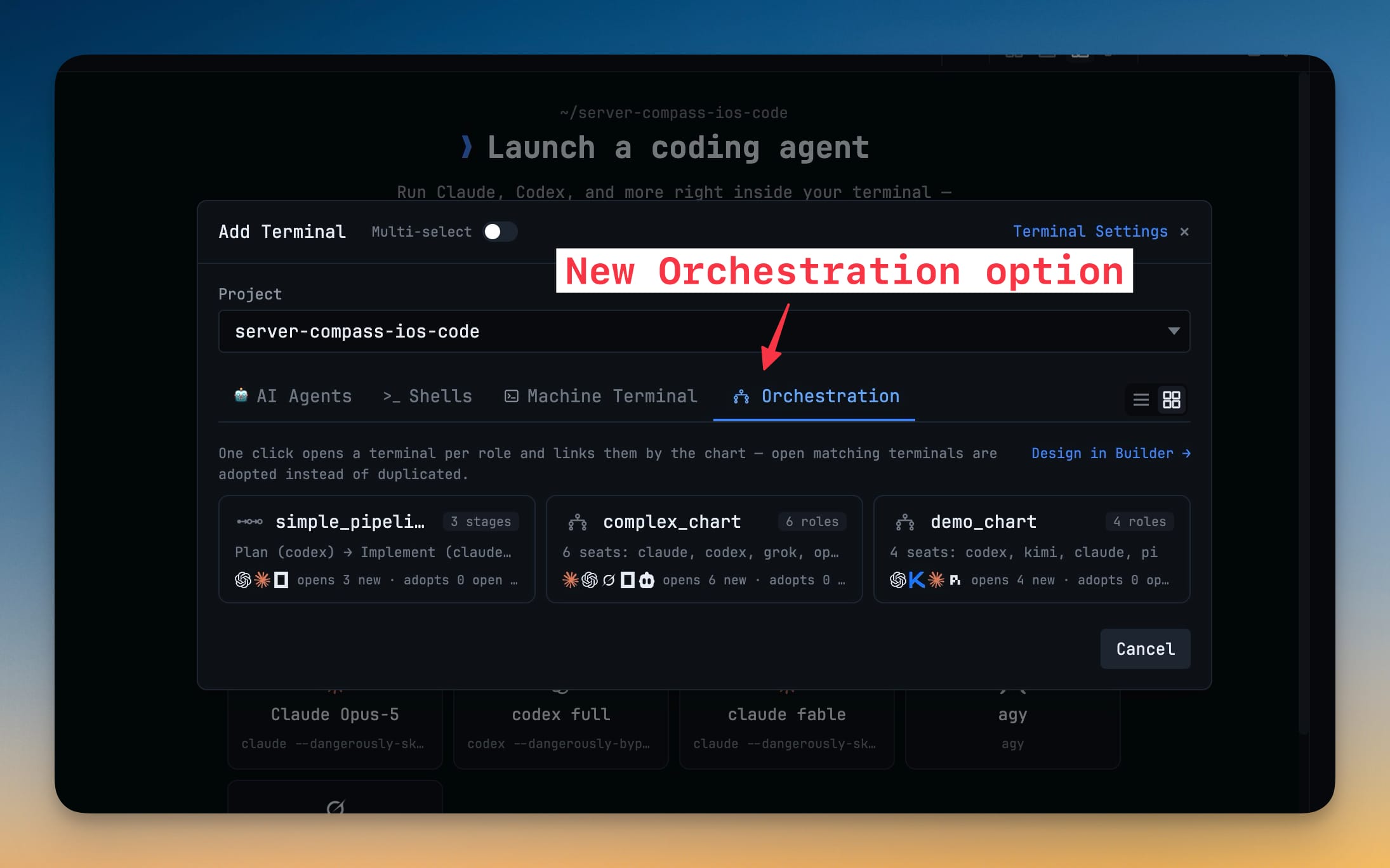
Name a chart and it becomes a preset. Add Terminal grows an Orchestration tab listing your saved charts, pipelines and routing presets — one click opens the terminals, links them, and starts the team.
Before vs after
| Setting up a three-agent review team | Before | Now |
|---|---|---|
| Describe the shape | Fill role, agent and reporting fields one at a time | Drag three agents onto the canvas |
| Check what you built | Press Start and watch what happens | Read the chart; Apply shows the diff first |
| Fix a wrong reporting line | Find the right select box, change it, hope | Drag the wire, or ⌘Z |
| Stop a bad draft reaching review | Not possible | A quality gate rejects the handoff |
| An agent messages the wrong peer | Silently allowed | Refused, with the route it should have taken |
| Reuse the team tomorrow | Rebuild it | Open the preset from Add Terminal |
| A seat's terminal is gone | Rebuild the team | Rebind or Promote in Mission Control |
Who benefits most
If you run more than two agents at once, the chain of command is the point. Team-wide chatter turns into traffic you can reason about, because an agent that tries to reach outside its own branch is stopped and told where to go instead.
If your work is naturally sequential, Pipeline is a better fit than any org chart, and the quality gates are what save you real money — a rejected handoff costs one stage, not four.
If you set up the same team every morning, presets plus the Orchestration tab in Add Terminal collapse the whole ritual into one click.
Try it
Open the Orchestration dashboard, drag two agents onto the canvas, and wire one to the other. That's a team — and you can see it before it runs. When it looks right, Apply shows you exactly what will change, Start shows you which terminals it will use, and Mission Control shows you the work actually moving between them.
The set-up forms are gone. What's left is the shape you had in your head all along, on a canvas where you can point at it.