Mar 22, 2026
File Preview Popups, Send to AI & Drag-and-Drop Projects
Preview files in floating popups instead of tabs, send selected code to AI agents with full context, drag folders from Finder to add projects, and import custom fonts.
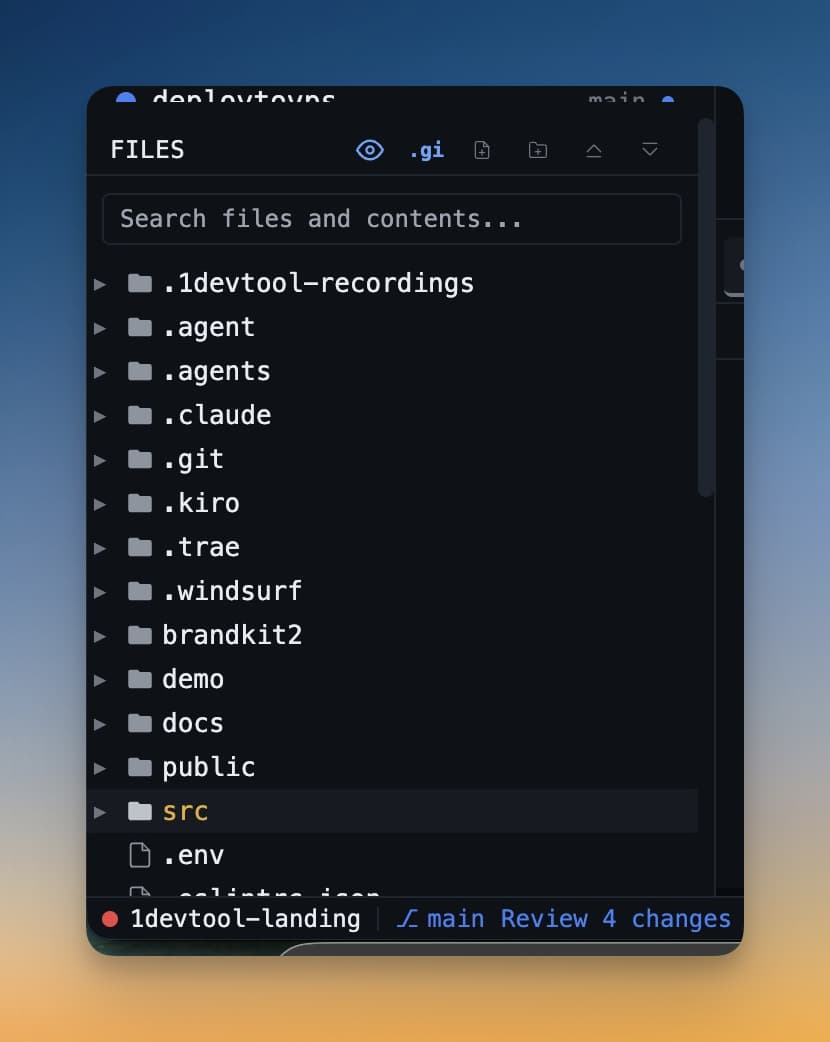
Claude Code just generated three new files. You want to glance at each one without opening them in full tabs that clutter your workspace. In VS Code, every file you peek at becomes a tab. In 1DevTool v1.8.0, files open in floating preview popups — draggable, resizable windows that you can dismiss with one click.
File Preview Popups
Click any file in the explorer and it opens in a floating window instead of a tab. The popup includes syntax highlighting for code files, markdown preview for .md files, and auto-save. Drag it anywhere on screen, resize it, and close it when you're done — no tab clutter.
A new File open mode setting lets you choose between popup and traditional tab behavior, so you can use whichever fits your workflow.
Send Code to AI from Preview and Editor
Select any code in the file preview or markdown editor, click "Send to AI", and choose which terminal receives it. The file path, line numbers, and language are included automatically. This closes the loop between reviewing AI-generated code and sending feedback back to the agent.
Drag-and-Drop Project Management
Adding new projects is now as simple as dragging a folder from Finder onto the project sidebar. 1DevTool detects it as a project folder, adds it to your workspace, and you're ready to go. No more navigating through file dialogs.
Custom Font Import
Want your favorite coding font in 1DevTool? Browse and load .ttf, .otf, or .woff2 font files directly. Imported fonts appear in a dedicated "Imported" group in the font picker, alongside system fonts grouped by "Available" and "Not Installed".
Other Improvements
- Links in the browser panel open in new tabs instead of replacing the current page
- File explorer supports copy, cut, and paste via right-click context menu
- Breadcrumb dropdowns for quick navigation in the header
- Markdown code blocks now use your configured terminal font
- Reset appearance settings to defaults with one click
Try It Today
File preview popups and drag-and-drop projects are available in 1DevTool v1.8.0. Preview files without the tab explosion.
Click to preview. Drag to arrange. Send to AI. Close when done.