Jul 31, 2026
Browse and edit in one workspace
The File Tree and the editor now share a single workspace tab that keeps your expanded folders, open files and scroll position while you work elsewhere — plus Mission Control that reveals itself when work starts, one-click project actions, and a local password generator.
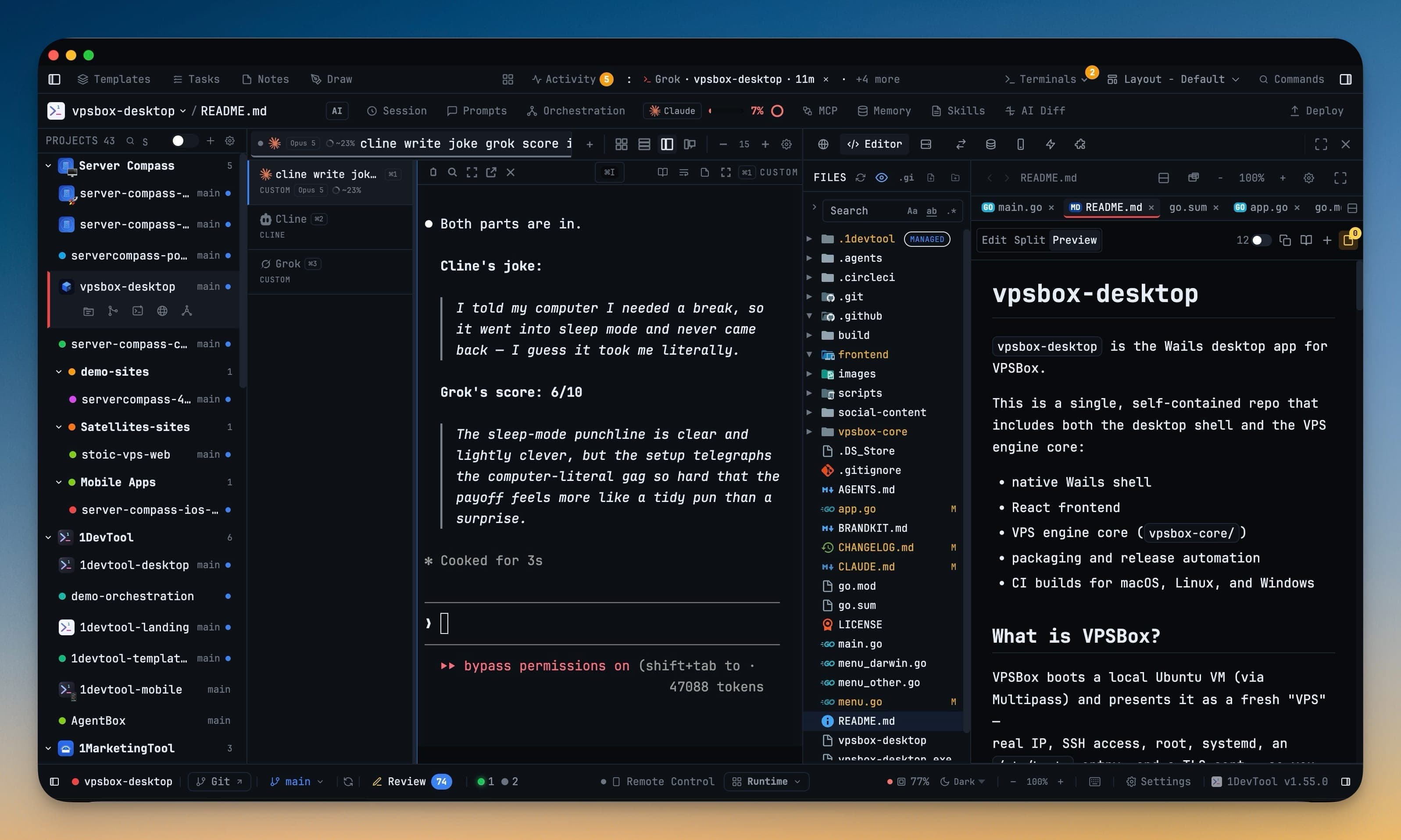
You open a file to check one function. The File Tree is a panel on the right, the editor is a different panel, and getting from one to the other means clicking a tab, losing sight of the tree, reading the function, then clicking back and finding your place in the folder hierarchy again. Do that eight times in an afternoon and you have spent real minutes just re-orienting yourself inside your own project.
It gets worse when you leave. Switch to the Git Client to check a diff, come back, and the tree has collapsed to its default shape. The folders you had expanded are closed. The file you were reading is gone from view. You were not interrupted by anything meaningful — you just visited another tool for ten seconds, and the workspace forgot what you were doing.
What changed
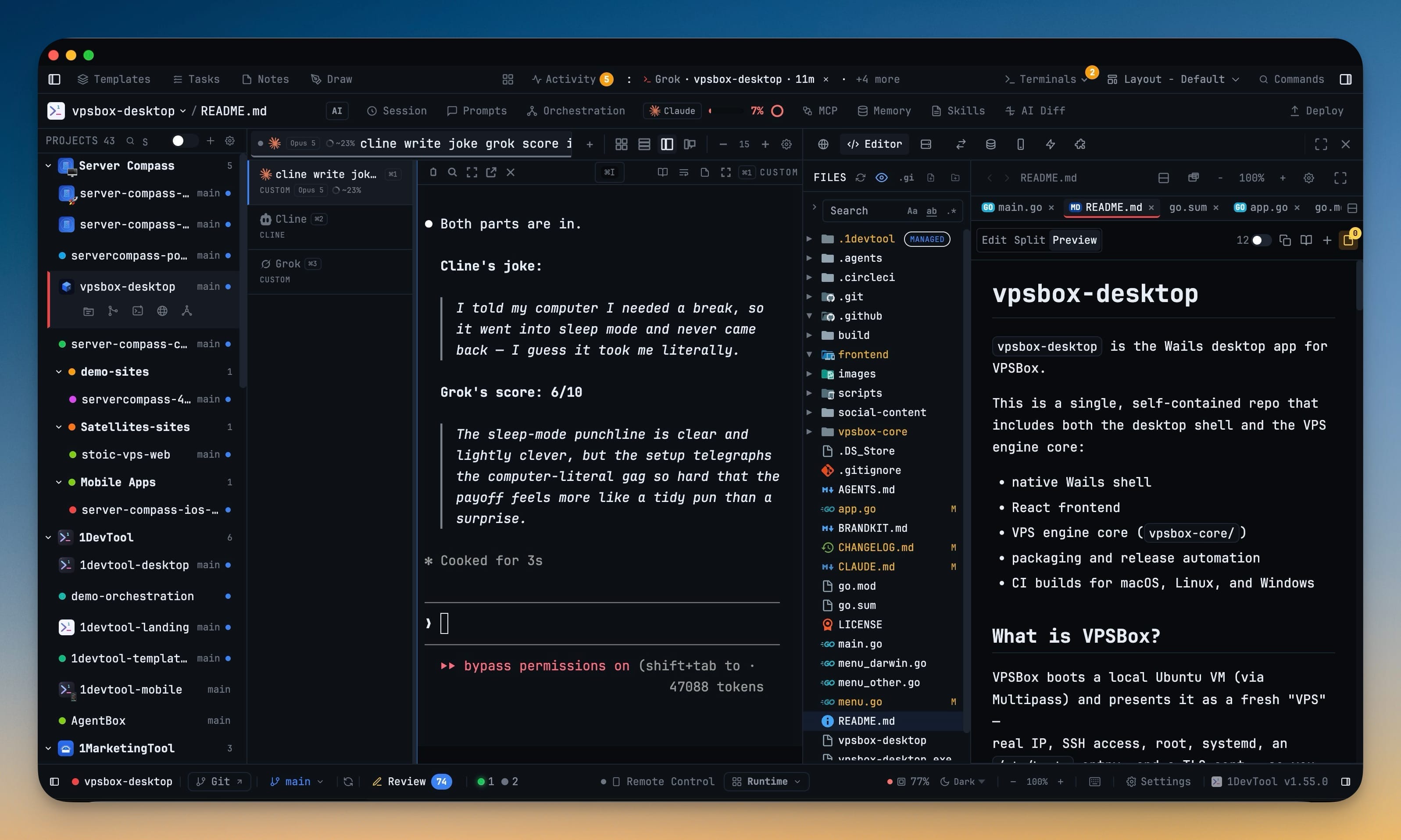
The File Tree and the editor are now one workspace tab. They move together, hide together, and restore together, so opening a file is a glance to the left instead of a trip through the panel bar — and the workspace remembers your expanded folders, your open files, and your scroll position while you go do something else.
How it works in practice
The tree and the editor stop being two places
Every built-in layout now puts navigation and code in the same workspace. If your layout previously had separate File Tree and Editor entries, they were combined for you automatically. If you built a custom layout, the workspace stays in whichever slot you chose — nothing was moved out from under you.
The panel lifecycle is shared, which is the part you actually feel. Move the workspace, focus it, hide it, restore it — both surfaces do the same thing at the same time. There is no longer a state where the tree is visible and the editor is somewhere else, or where restoring one leaves the other behind.
When you want the whole window for navigation and code, there is a fullscreen control in the workspace toolbar. It expands over everything, titles itself with the project name, and returns you with Escape.
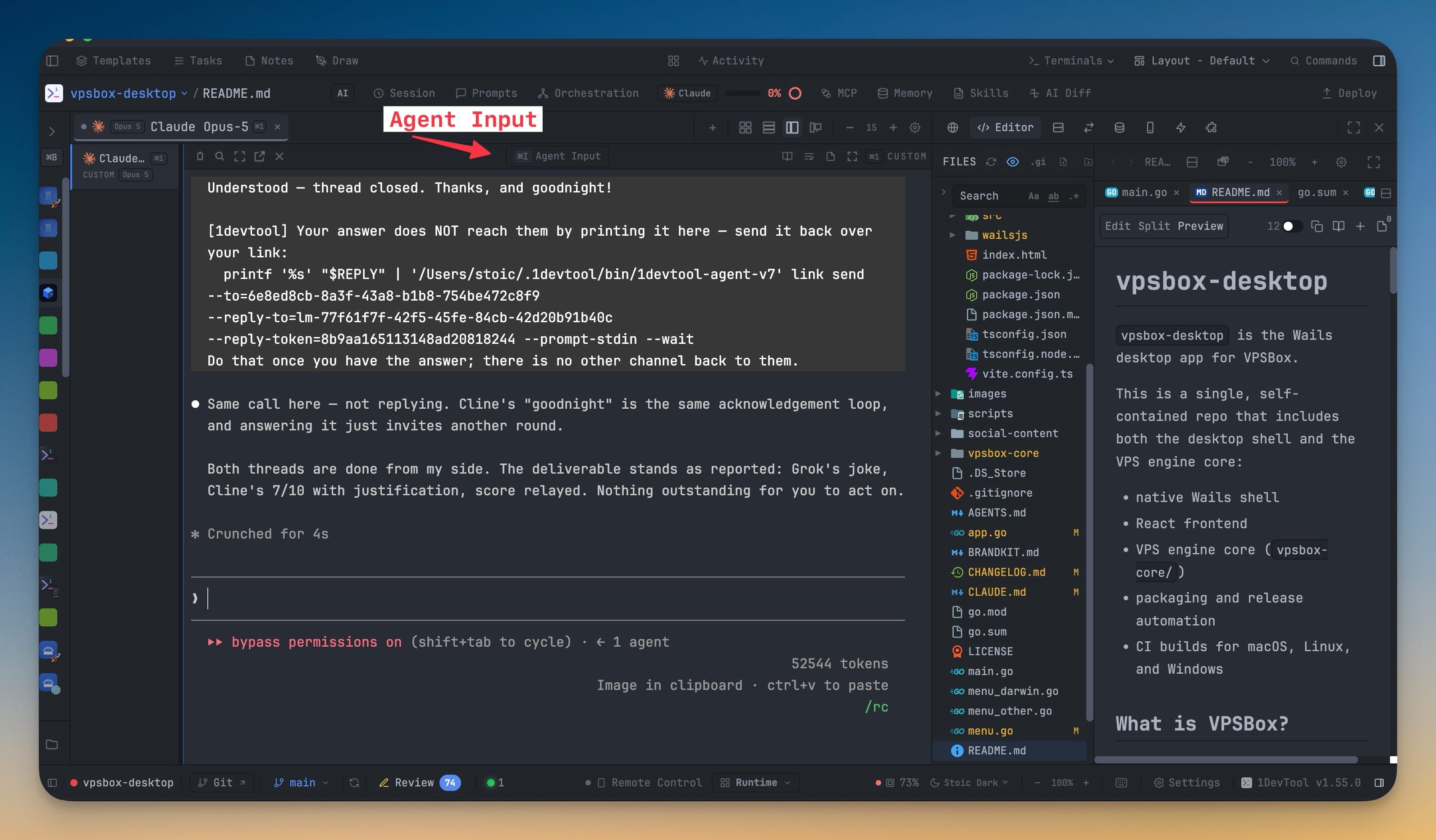
The other half of the improvement is what happens when the workspace is hidden: it stops doing refresh work entirely, then catches up once when you show it again. A hidden tree is no longer quietly scanning your project in the background.
Live work reveals itself once, then leaves you alone
If you run agent teams, swarms, or linked terminals, you have had the experience of work happening in a panel you were not looking at. You find out later, from a result that arrived without you seeing it come together.
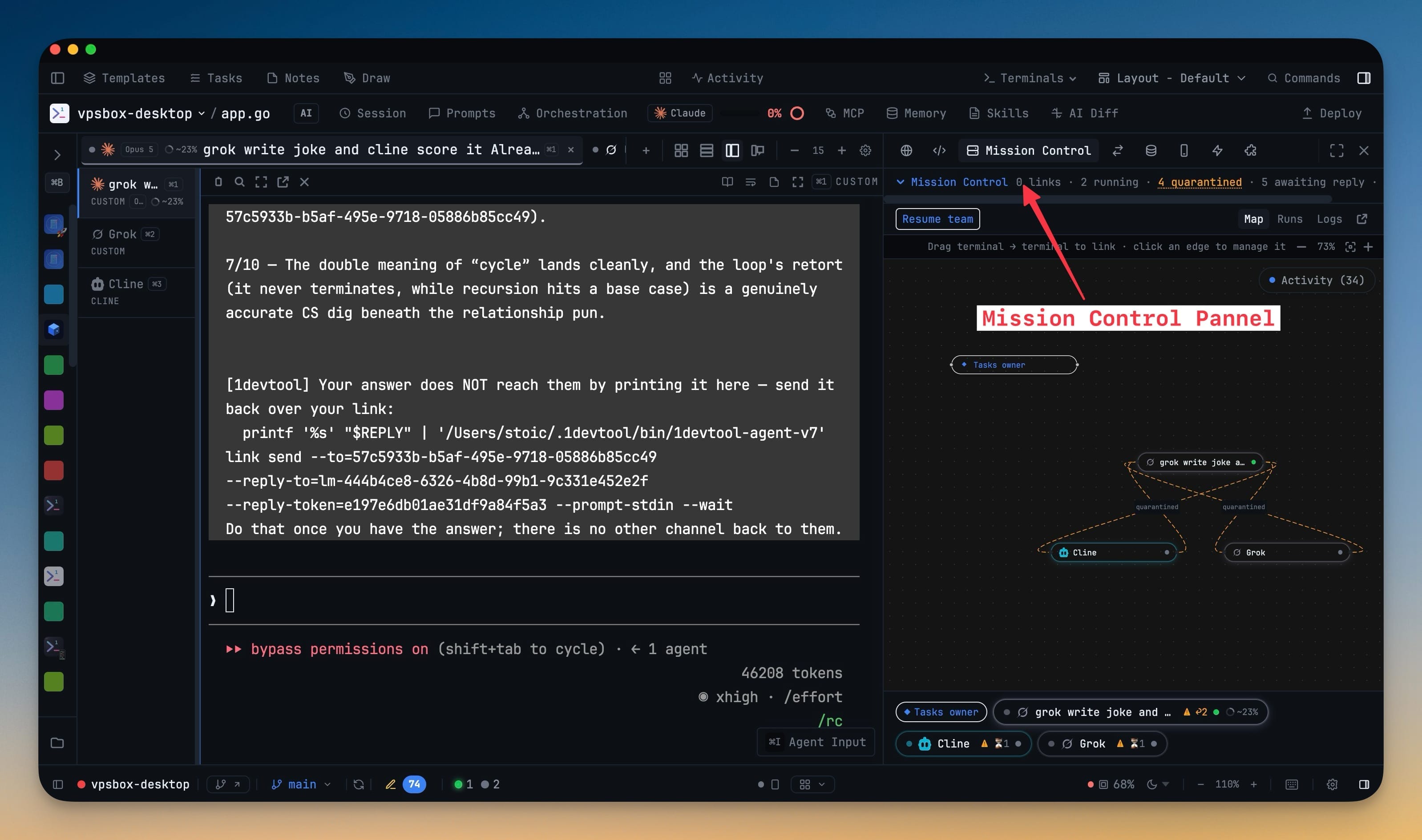
Now, when a team starts, a swarm goes live, or a linked-agent delivery lands, Mission Control reveals itself — once — and carries a live pulse on its tab for as long as work is active.
The restraint here matters more than the reveal. It is a cue, not a focus lock. Switch to another panel and nothing pulls you back. The same run will not steal the panel a second time; only after the project's board fully settles does a new run qualify for another reveal. And work happening in a different project never switches the project you are viewing.
There is a matching cue for delegated edits: when a delegation is tied to a terminal in the project you are already viewing, the Editor opens once so you can watch the file change as it happens.
Mission Control also gained Restore link context, which sits alongside Resume team. When an agent clears its context and forgets how to talk to its peers, you restore the link instructions instead of rebuilding the link.
Every project is one click from the tool you want
Each project row in the sidebar now carries direct actions: File Tree, Git Client, New Terminal, Browser, and Mission Control. Click one and you land in that tool, in that project. Previously this was a two-step move — switch projects, then hunt for the panel you wanted.
The collapsed sidebar caught up too. The 40-pixel rail now shows every project avatar, colour, and emoji in the same order as the full list, so you can keep switching projects without reopening the sidebar just to find the one you want.
One sidebar, several work areas
Tab groups created in Layout settings now render as genuinely separate regions in the right sidebar, and each group remembers its own active tab. You can keep a terminal-adjacent group and a reference group side by side without one stealing the other's selection every time you switch.
Any tool can also be taken fullscreen over the window without losing the rest of its tabs — Escape brings the sidebar back the way it was.
A password generator that never leaves your machine
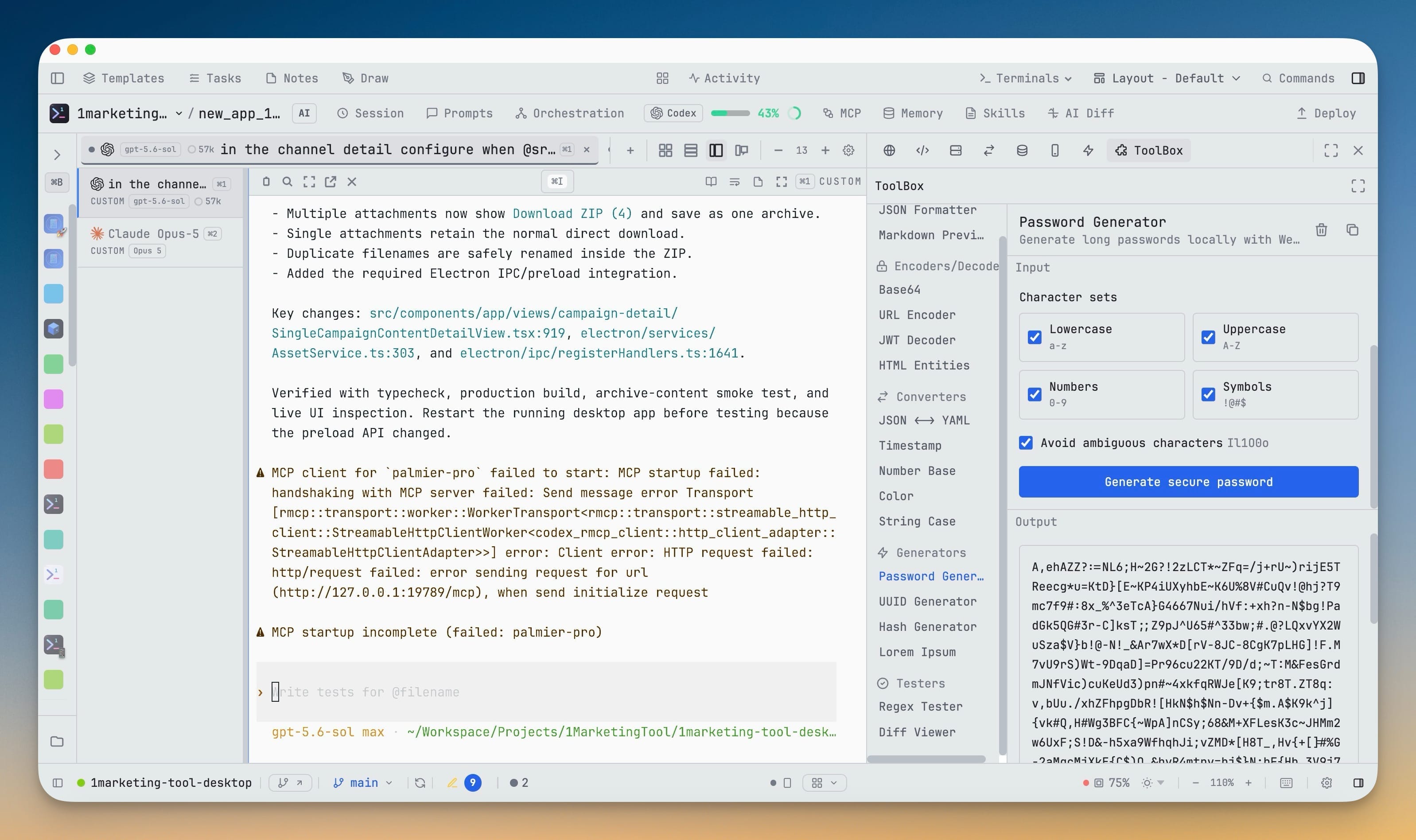
The Toolbox gained a password generator built on Web Crypto. Choose anywhere from 8 to 4,096 characters, mix lowercase, uppercase, numbers and symbols, and tick Avoid ambiguous characters to drop the Il1O0o lookalikes that cause support tickets.
Two details are worth knowing. Every character set you select is guaranteed to appear in the result — you cannot ask for symbols and receive a password without one. And the generated password is never stored by the tool; it exists in the output box and nowhere else.
The parts you notice without reading the notes
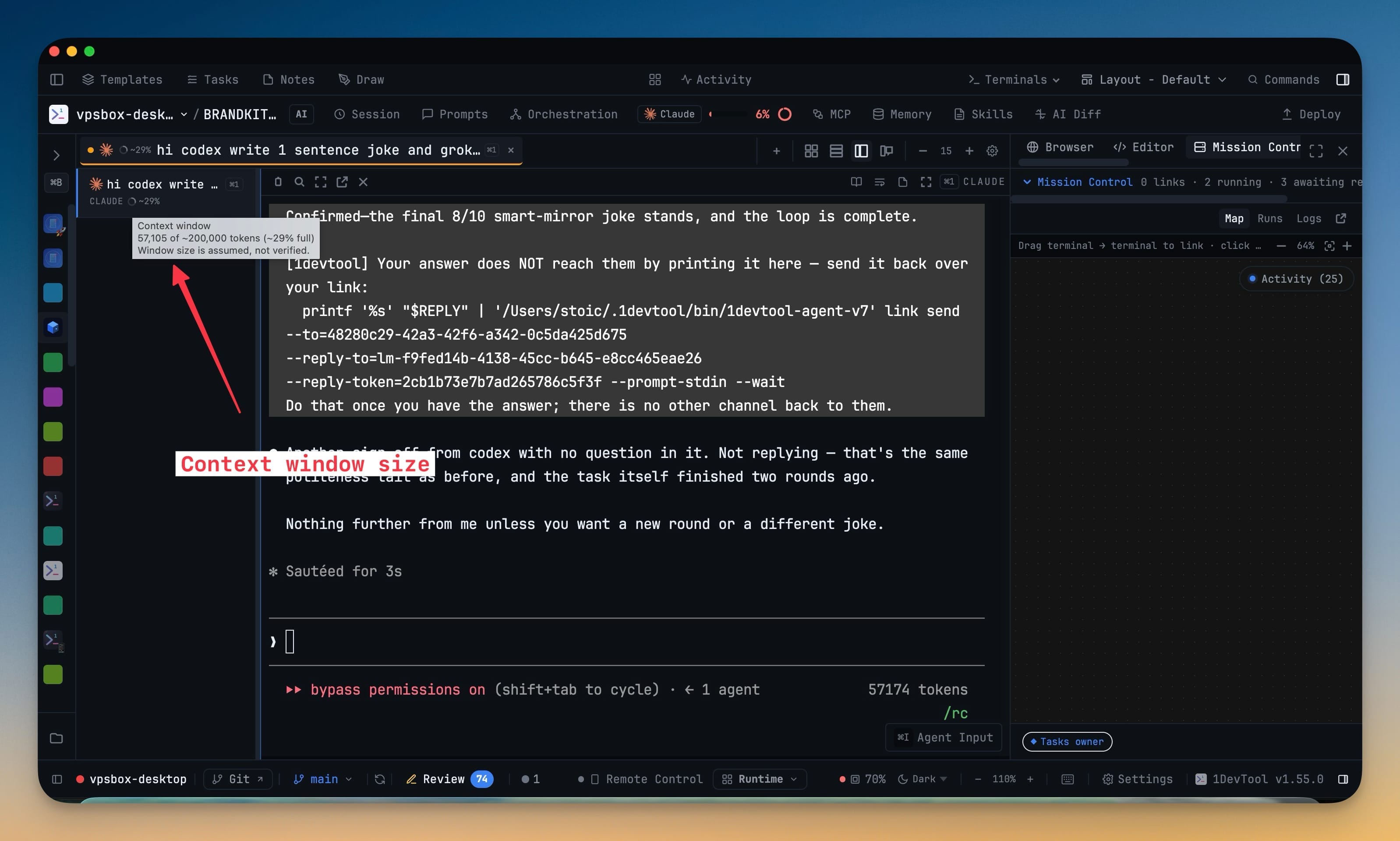
The context meter on each terminal now reads as a progress ring, turns amber at 80% and red at 90%, and names the actual token counts in its tooltip. When the window size cannot be verified, it says so plainly rather than implying a precision it does not have.
Light and Stoic Light were rebuilt to separate navigation, reading surfaces, controls, terminals, and editor chrome with calmer neutral tones — less glare, more depth. The File Tree now uses coloured icons for common languages, frameworks, project files, databases and archives. And the app defers a good deal of startup work: closed dialogs, tool panels, and optional fonts load on first use instead of up front.
Before vs after
| Task | Before | Now |
|---|---|---|
| Open a file from the tree | Click the Editor tab, lose sight of the tree, click back | Both visible in one workspace |
| Return from another tool | Re-expand folders, find your place again | Folders, open files and scroll position intact |
| Notice a team starting | Check Mission Control manually, or find out from the result | Revealed once, live pulse while active |
| Open Git Client in another project | Switch project, then find the panel | One click on the project row |
| Two tool groups in the sidebar | One shared tab strip, one active tab | Separate regions, each with its own active tab |
| Generate a strong password | Leave the app for a web generator | Toolbox, locally, never stored |
Who benefits most
If you read more code than you write, the merged workspace removes the single most repeated action in your day. Navigation and code stop being a context switch.
If you run agents in parallel, the Mission Control reveal closes the gap between work starting and you knowing about it — without the focus stealing that would make it worse than the problem.
If you juggle many projects, the project-row actions and the avatar rail cut the two-step project switch down to one, whether the sidebar is open or collapsed.
Try it
Update to 1.56.0 and open any project. The File Tree and editor will already be sharing a workspace tab — expand a few folders, go check a diff in the Git Client, and come back. Everything will be exactly where you left it, which is the entire point.