May 23, 2026
Find Every TODO, FIXME, and HACK Buried in Your Codebase
Code Tasks scans your entire project for annotation comments and shows them in one organized panel — grouped by tag, file, or priority — so nothing falls through the cracks.
You know they're in there. Scattered across dozens of files, buried under layers of imports and business logic — the TODOs you wrote three months ago, the FIXMEs from that late-night debugging session, the HACKs that were supposed to be temporary. Every developer accumulates them. Few ever go back to find them all.
The problem isn't discipline. It's visibility. grep works, but it dumps raw lines with no structure, no priority, and no way to act on what you find. You end up scrolling terminal output trying to remember which TODO was the urgent one.
What changed
1DevTool v1.20.0 introduces Code Tasks — a built-in panel that scans your entire project for TODO, FIXME, BUG, HACK, XXX, NOTE, and OPTIMIZE annotations and presents them in a structured, filterable view. You can now see every outstanding annotation in one place and jump to any of them in a single click.
How it works in practice
Scan and organize your annotations
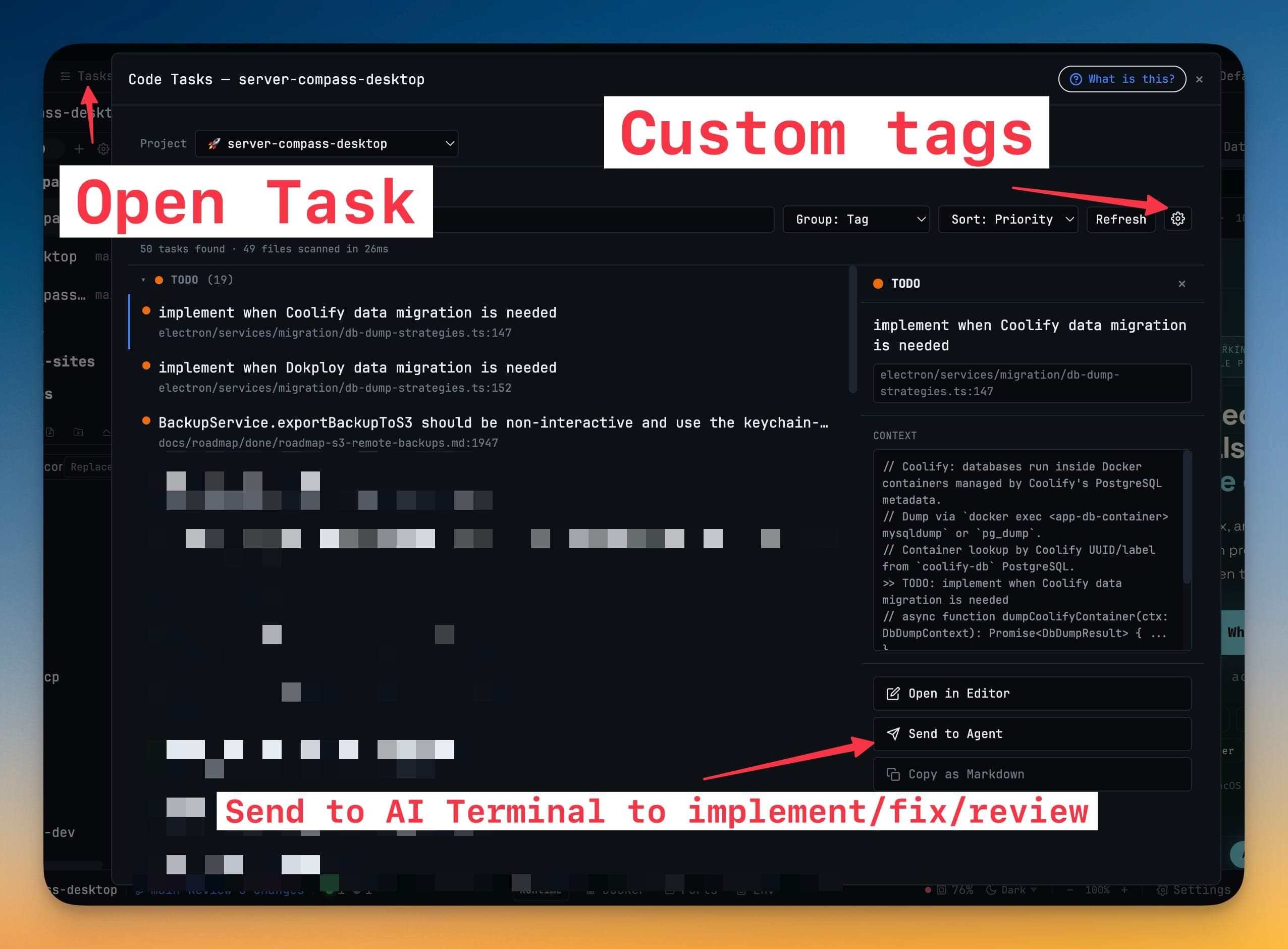
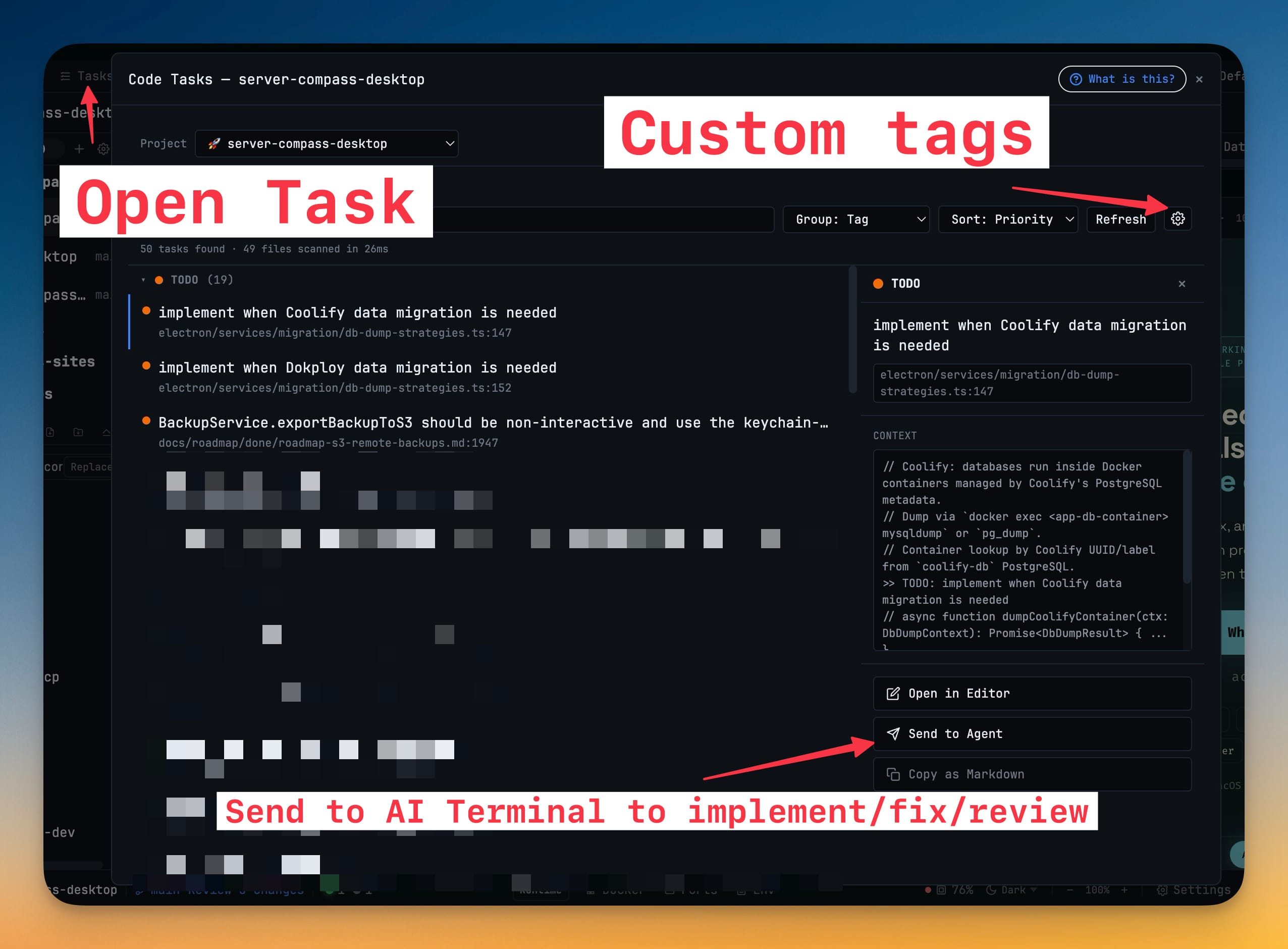
Open the Code Tasks panel from the left sidebar. It scans your project root and returns every annotation it finds, with the tag, file path, line number, and surrounding context. Group the results by tag (all TODOs together, all FIXMEs together), by file (see everything in a single file at once), by author, or by priority. Switch between views instantly — no re-scan needed.
Filter down to what matters right now
Use the tag filter to isolate just FIXMEs, or just BUGs. Set the priority filter to show only critical and high-priority items — anything tagged FIXME, BUG, or marked with ! or !! in the comment. Type a search term to narrow results further. When you have 200 annotations across a monorepo, these filters turn noise into a focused action list.
Jump to the code or send it to an AI agent
Click any task row to see its full context in a detail pane — the surrounding code, the exact line, and the annotation text. Click again to jump straight to that line in the built-in editor. Or hit the "Send to Terminal" button to pipe the annotation as a prompt to your AI terminal — Claude, Codex, or whichever agent you're running — and let it propose a fix.
Configure what gets scanned
Open the Config panel to exclude directories like node_modules, dist, or vendor from scans. Add your own custom tags beyond the built-in set — REVIEW, PERF, DEPRECATED, whatever your team uses — and assign each one a distinct color so they're visually identifiable at a glance.
Beyond Code Tasks: a more flexible workspace
v1.20.0 also reshapes how you arrange your workspace:
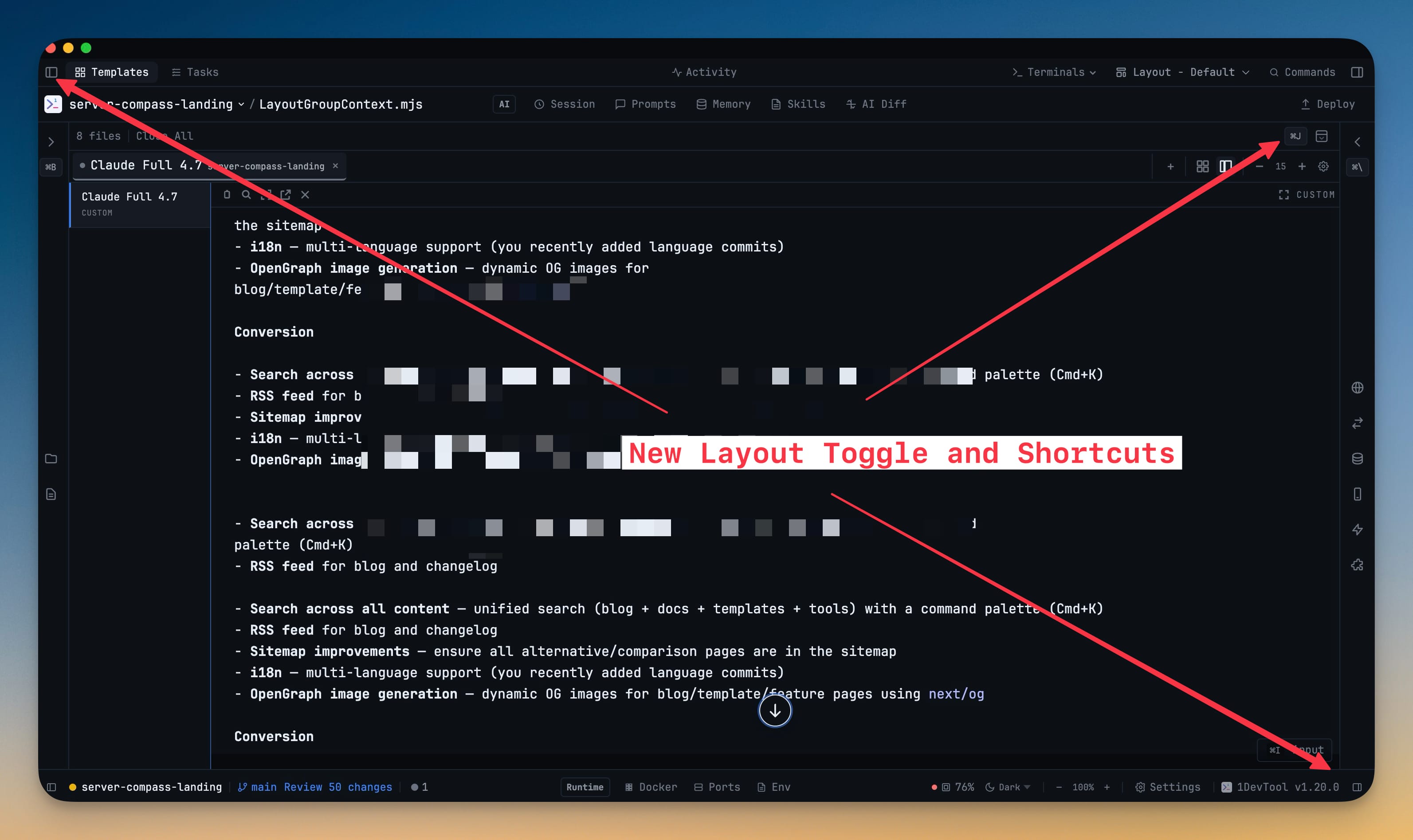
- Collapsible Editor Panel — hide the editor entirely to full-screen your terminals. A slim status bar shows the keyboard shortcut and open file count so you can bring it back instantly.
- Collapsed Sidebar Icon Rail — when the left sidebar is hidden, a thin icon rail appears with one icon per panel. Click any icon to jump to that panel and re-expand.
- Open in External Editor — click any file to launch it in VS Code, Cursor, Zed, Sublime Text, or WebStorm. 1DevTool detects what's installed and remembers your choice per project.
- Customizable Keyboard Shortcuts — remap any shortcut from Settings, organized by category. Modified shortcuts are highlighted so you always know what you've changed.
- Unified Activity Feed — an amber-badged activity button in the toolbar shows recent terminal completions as inline chips. Click one to jump straight to that terminal.
Before vs After
| Before | After |
|---|---|
grep -rn TODO src/ dumps raw lines | Structured panel with grouping, filtering, and priority |
| No way to see priority at a glance | FIXME and BUG auto-flagged as high/critical |
| Copy the file path, open it, find the line | Click the row to jump to the exact line |
| Custom tags invisible to tooling | Define custom tags with colors in the config |
| Terminal and editor compete for screen space | Collapse either panel with a toggle |
| Keyboard shortcuts are fixed | Remap any shortcut from Settings |
Try it
Update to v1.20.0, open a project, and click the Code Tasks icon in the left sidebar. Every TODO you forgot about is waiting for you — organized, prioritized, and one click away from a fix.