Aug 3, 2026
Your sidebar was doing two jobs. Now it only does one.
Horizon moves your projects to a strip of icons across the top of the window, so the file tree gets the whole left sidebar. Classic brings back a standalone File Explorer beside a dedicated Editor. And any layout you can see can be pushed to every project in one click.
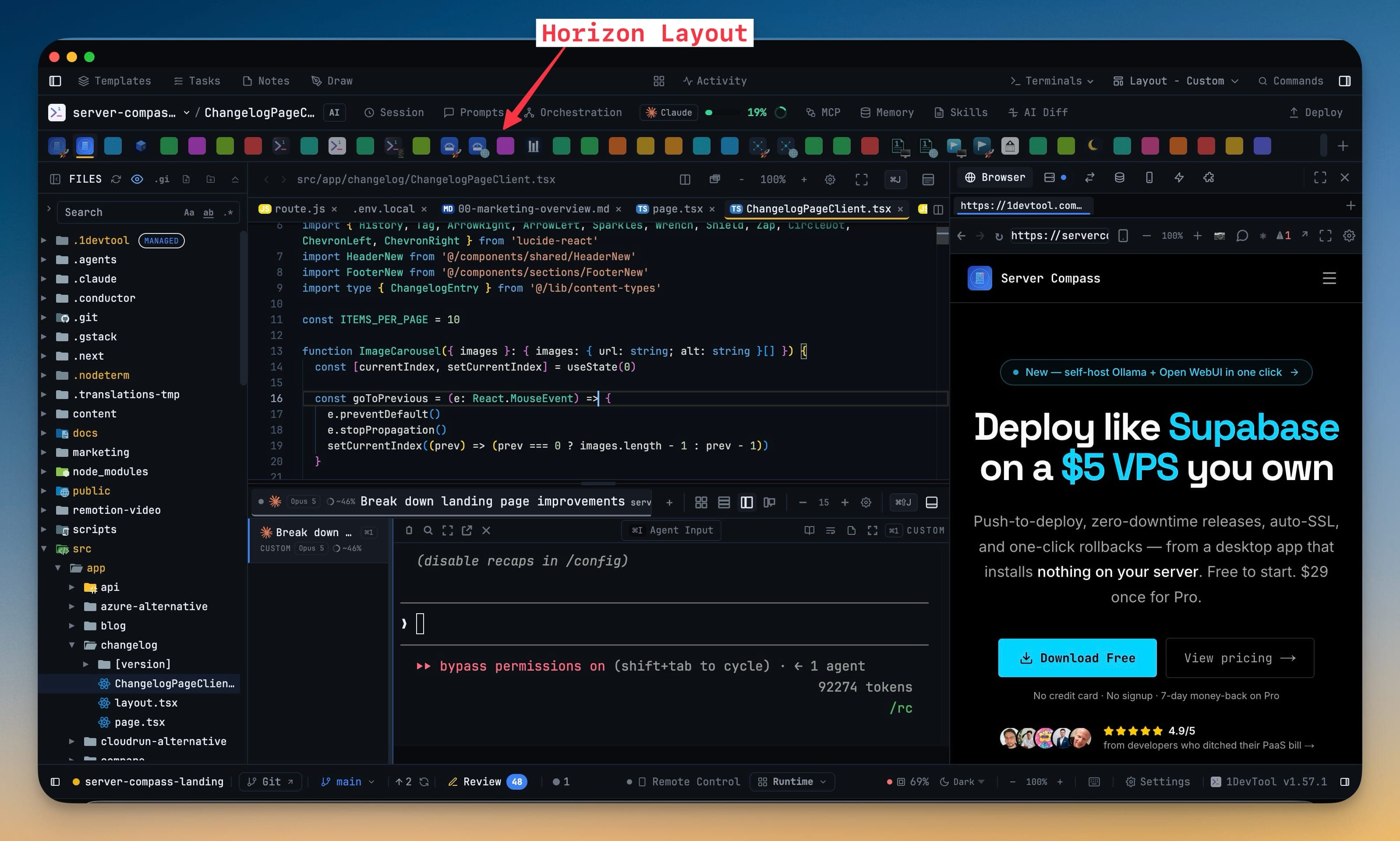
Your left sidebar has been doing two jobs at once. The project list lives there, and so does the file tree — and they have been quietly fighting over the same column since the day you opened your second project. Give the tree the room it needs and your projects scroll off the bottom. Give the projects room and the tree shows you six folders at a time. Collapse one and you have to keep re-opening it, because you actually needed it.
There is no arrangement of a single vertical column that solves this. The column is the problem.
What changed
1DevTool 1.58.0 adds two built-in layouts to the picker in your header. Horizon moves your projects out of the sidebar entirely and turns them into a strip of icons across the top of the window, leaving the full height of the left column to the file tree. Classic brings back the standalone File Explorer beside a dedicated Editor — the split that existed before the File Tree + Editor workspace merged the two — so you can put the tree wherever it actually helps.
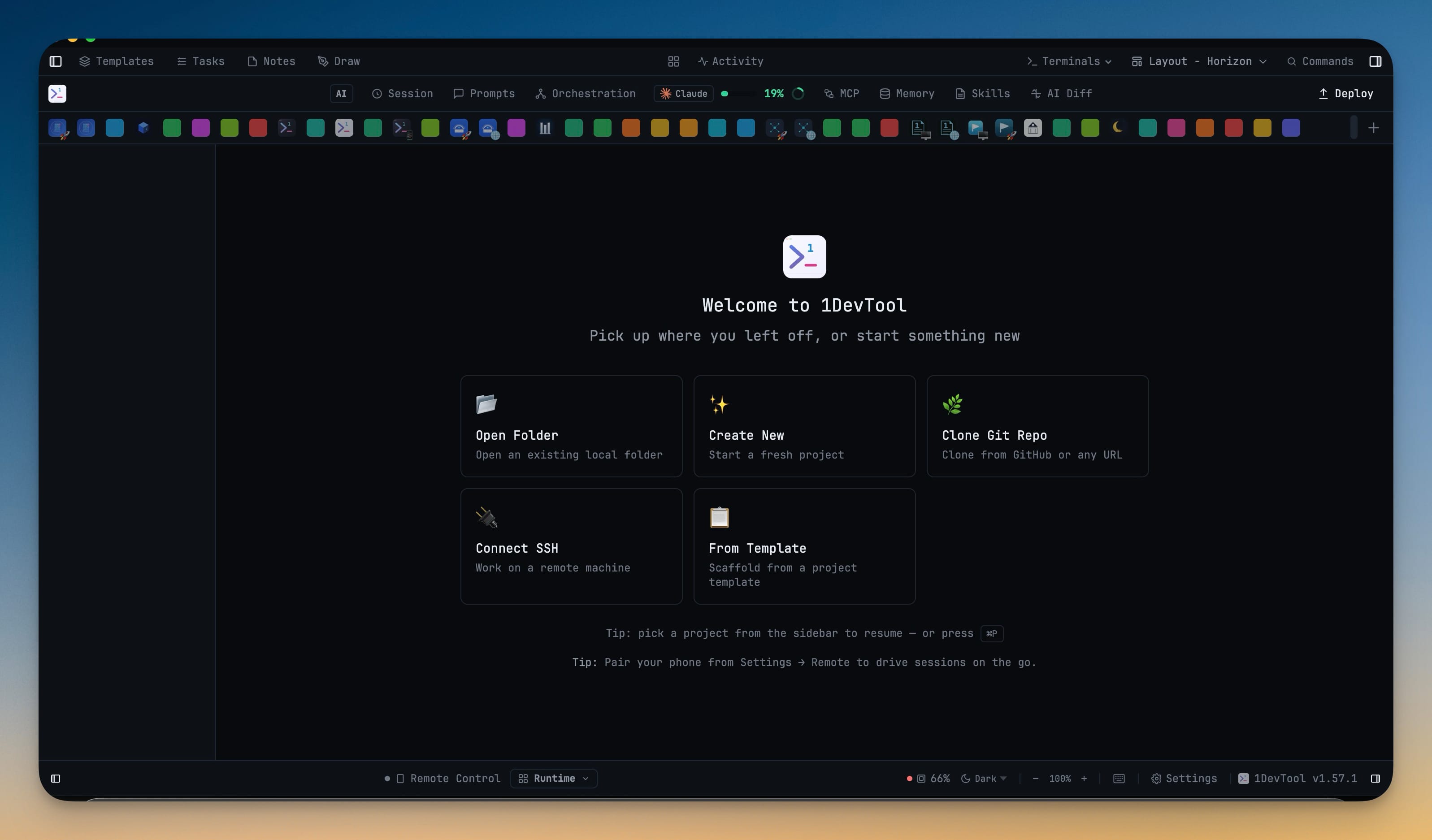
Neither one changes anything unless you pick it. The default merged workspace is untouched.
How it works in practice
Projects become a row you read across, not a list you scroll down
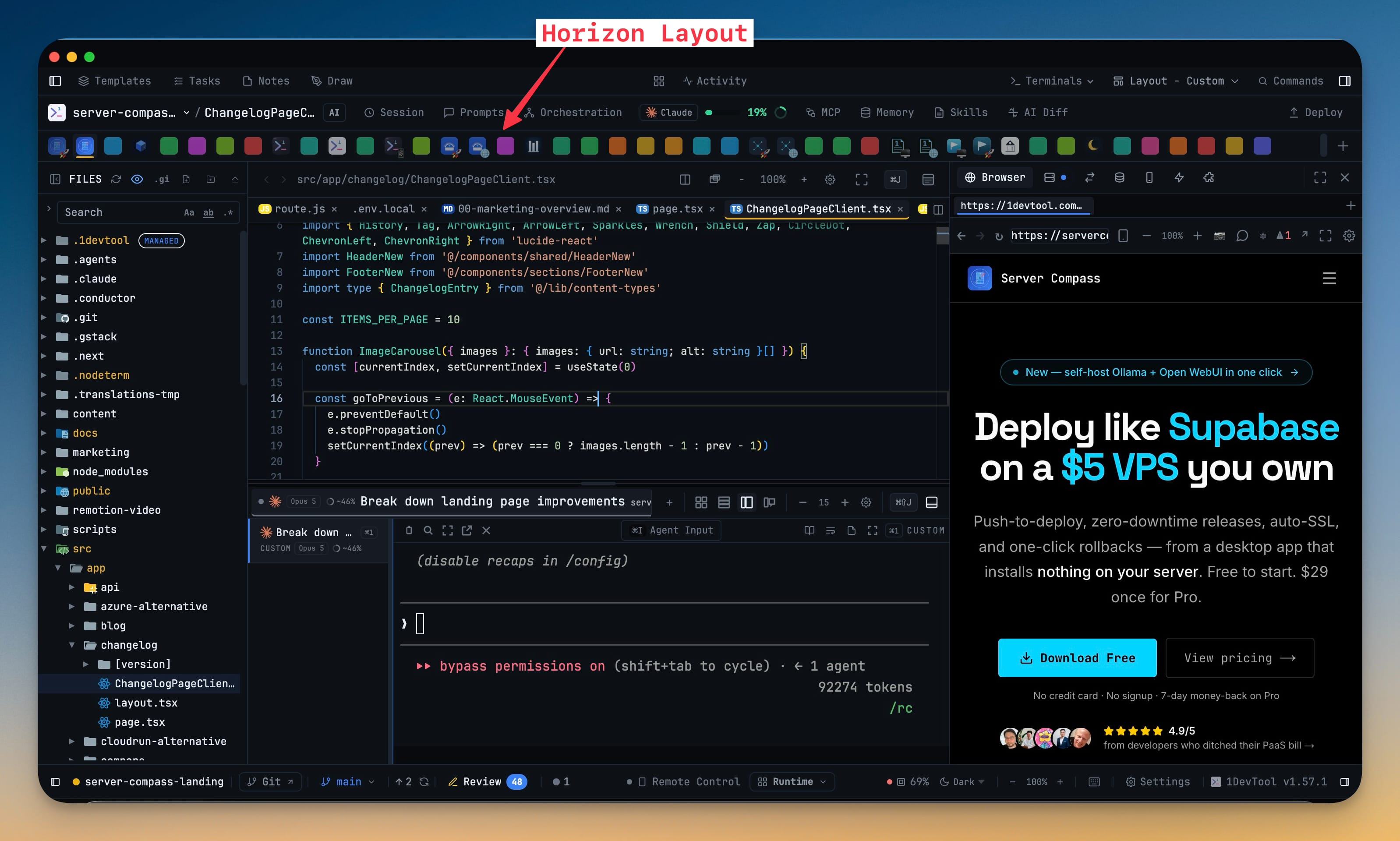
Choose Horizon from the layout picker and your project list lifts out of the sidebar. Each project becomes an icon carrying its own avatar, colour and emoji, laid out left to right along the top of the window. The one you are in is underlined in its own colour. If you keep more projects than fit, the strip scrolls sideways with a normal mouse wheel, and icons under your pointer magnify slightly so a dense row stays clickable. The + at the end adds a project.
Below the strip, the layout reads like Classic: File Explorer on the left at full height, Editor above Terminals in the centre, tools on the right.
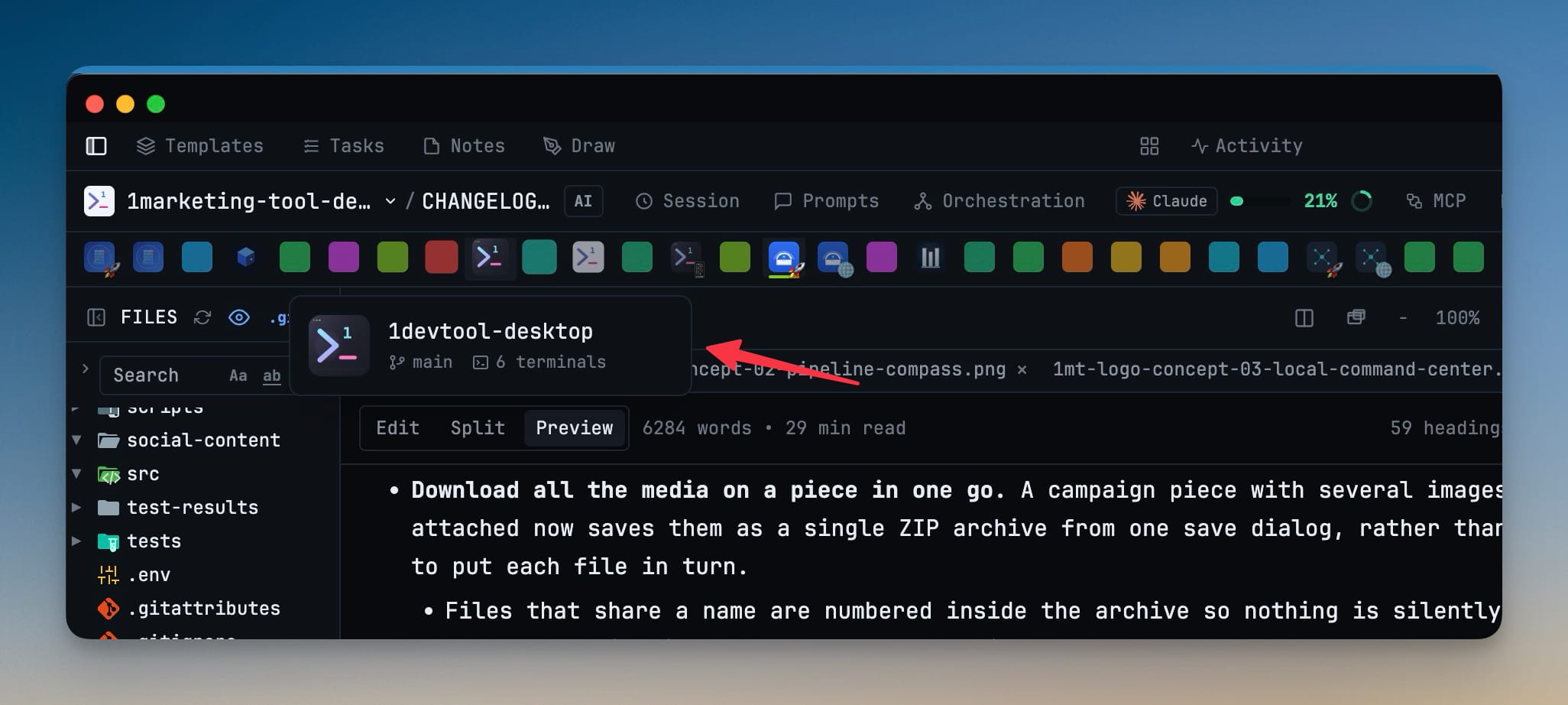
An icon is a smaller target than a row of text, so hovering one opens a card with the things you would otherwise open the project to find out: its name, its current git branch, and how many terminals it has running. That last number is the one that matters when you are deciding whether to switch — a project with six live terminals is a different proposition to one with none.
Right-clicking an icon gives you the same project menu the sidebar always had — rename, project configuration, remove — so nothing you used to do from the list has moved out of reach.
The strip is a consequence, not a mode
Here is the part worth knowing if you build your own layouts: the strip is not a setting you switch on. It appears in any layout that has no Projects panel placed in it. That means a custom arrangement where you deliberately dropped the project panel to reclaim the space no longer loses access to your projects — they surface across the top instead. Put the Projects panel back and the strip steps aside without being asked.
The file tree can stand on its own again
Classic restores the older split: a standalone File Explorer panel and a dedicated Editor, each placeable independently. From Settings → Layout you can put the explorer in the left, centre or right slot, and the Editor drops its embedded tree automatically to match — wherever the explorer lands. Remove the standalone panel and the Editor takes its tree back.
The two coordinate rather than collide, which means you cannot end up staring at two file trees, and you cannot end up with none. As a standalone panel the explorer also gets its own width and its own collapse state, independent of the editor, and carries both across projects like everything else.
One layout, every project, one click
Once an arrangement is right, it used to be right on exactly one project. The old fix was a checkbox at the top of the layout picker — and it had the worst property a destructive setting can have: it stayed switched on. Tick it once, forget about it, change layouts a week later, and every project in your workspace was silently rewritten.
That checkbox is gone. In its place, the layout you are currently looking at carries an Apply to all projects (N) action directly beneath it in the picker. Click once and it becomes "Overwrite N project layouts?". Click again and it is done. Close the dropdown at any point and the confirm resets, so a visit next week can never inherit a half-pressed action from this one.
The important detail is which layout gets broadcast: only one you have already applied and can see. What every project is about to get is on your screen when you decide to send it.
Before vs After
| Doing this | Before 1.58.0 | Now |
|---|---|---|
| Reading a deep file tree | Share the sidebar with the project list | Horizon gives the tree the full column |
| Switching projects | Scroll a vertical list | Click an icon in the top strip |
| Checking a project's branch before switching | Open the project | Hover its icon |
| Dropping the Projects panel from a custom layout | Lose access to your projects | Projects appear as the top strip |
| Putting the file tree in the right-hand column | Not possible — it lived inside the editor | Place the standalone explorer in any slot |
| Using one layout everywhere | Re-pick it per project, or arm a checkbox that stays armed | One action, one confirm, from the layout you can see |
Also in this release
Two other things worth knowing about, both about trusting what the app tells you.
Cursor conversations are readable now. Past cursor-agent chats for the current project show up in Resume AI Sessions with their titles and previews, and picking one resumes it like any other agent. Reader Mode renders Cursor's real parsed transcript rather than scraping whatever was still on screen — so no mid-word line breaks, no literal **markdown**, and no long session reduced to its last few hundred words. A Cursor tab also captures its session, names itself after the conversation, and returns to it after a restart.
A delivered message now means the agent actually took it. When you send over a terminal link, delivery used to be declared the moment the keystrokes reached the terminal — which is not the same thing as the agent accepting them. An agent that quietly dropped your prompt still produced a clean receipt. Delivery is now only reported once the receiving agent is proven to have accepted that exact message, either as a real message in its session or as a composer that visibly held your text and then cleared it. When that cannot be proven, the message is marked delivery-unconfirmed and deliberately left alone — pressing Enter a second time could run the same task twice, so the call stays yours. A reply only closes the request it answers under the same standard, so an unconfirmed reply can no longer make outstanding work look finished.
Who benefits most
If you keep a lot of projects open, Horizon is the bigger change. A list of twenty projects and a file tree cannot share one column usefully; twenty icons across the top and a full-height tree can.
If you spend your day in one deep repository, Classic is probably yours. A tree that stands on its own, at the width you set, in the slot you chose, with the editor beside it rather than wrapped around it.
If you build your own layouts, the change that matters is that dropping the Projects panel no longer costs you your projects — and that broadcasting an arrangement across every project is now a deliberate two-click action rather than a switch that can be left on.
Try it
Open the layout picker in your header and pick Horizon or Classic. Nothing else moves, and switching back is the same two clicks. If the new arrangement sticks, the Apply to all projects action right underneath it will put it on every project you have — after asking you once.
Download 1DevTool or update from inside the app to get 1.58.0.