Oct 16, 2026
Go back to the project or terminal you were just on
A new History button keeps a browser-style trail of the projects and terminals you visit, so one shortcut takes you back to the agent you left. Reader Mode also learns math, file chips and right-click link menus.
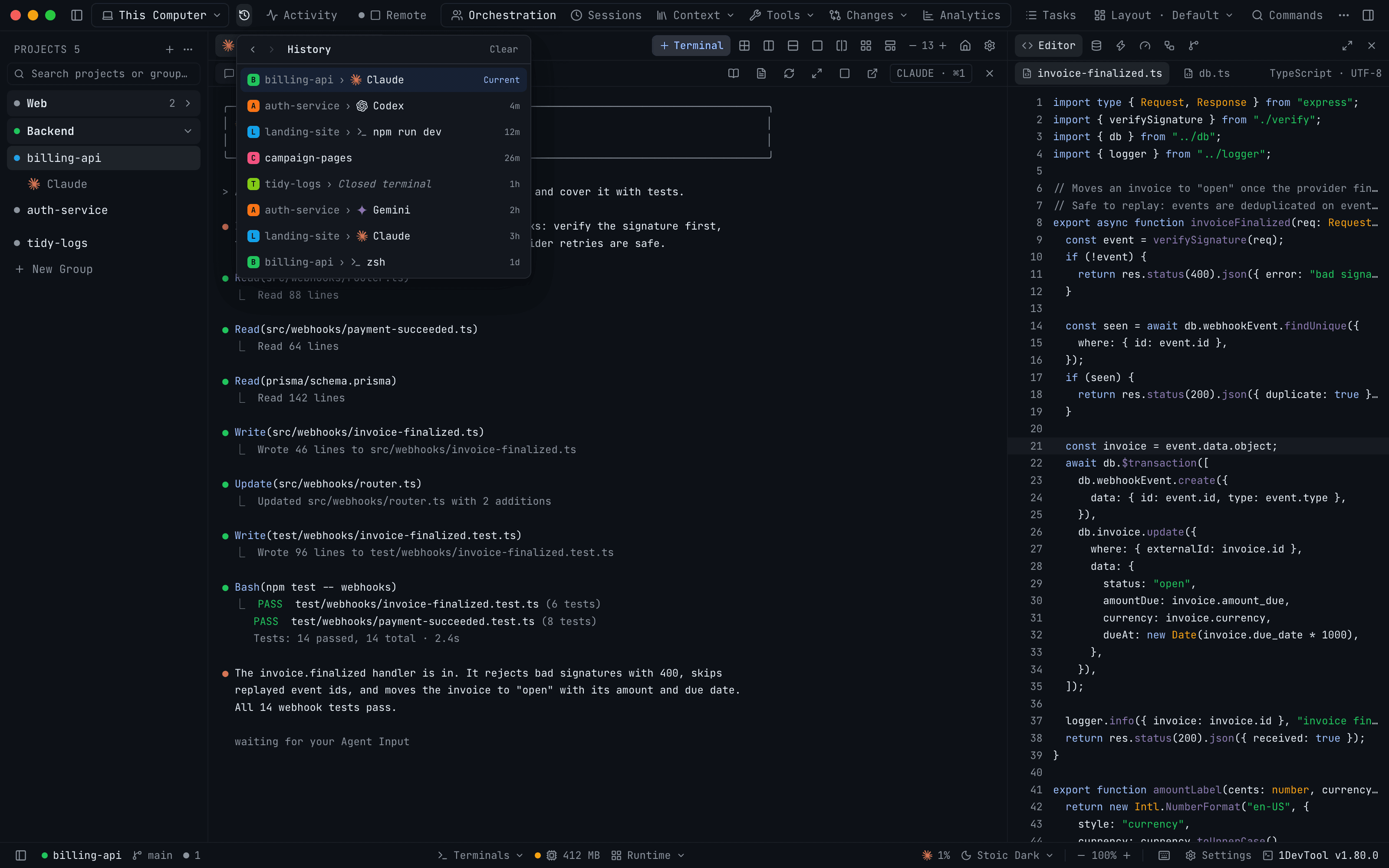
You were reading Claude's answer in billing-api when Codex in auth-service finished. You jumped over, approved its plan, glanced at the dev server in landing-site, then remembered a log you meant to check in tidy-logs. Now you want to get back to the Claude terminal where all this started. You remember it was in billing-api, maybe the second tab, so you open the project and click through tabs until it turns up.
When you run five agents across five repositories, you spend a lot of time looking for a terminal you were on two minutes ago. A browser has solved this for decades with a Back button, and until now 1DevTool didn't have one.
What changed
In 1DevTool 1.80.0, a History button sits at the left of the top bar. It keeps a browser-style trail of the projects and terminals you visit, so you can step back to where you were with one shortcut instead of hunting for it.
How it works in practice
Step back with one shortcut
Press ⌃⌘← on macOS, or Alt+← on Windows and Linux, and you land on the project and terminal you were on before. Press it again to keep going back. ⌃⌘→ or Alt+→ goes forward again. If your mouse has side Back and Forward buttons, they do the same thing. Inside 1DevTool's Browser panel those buttons still move through the web page's own history, so you don't lose that.
It works the way you already expect from a browser. If you go back three stops and then open a different terminal, the stops you skipped over are dropped and the trail continues from where you are. Going back never adds a stop of its own, so pressing Back and Forward a few times doesn't fill the list with copies.
Both shortcuts are listed as Go Back and Go Forward in Settings → Keyboard Shortcuts, so you can change them if they clash with something in your terminal.
See the whole trail and jump straight to a stop
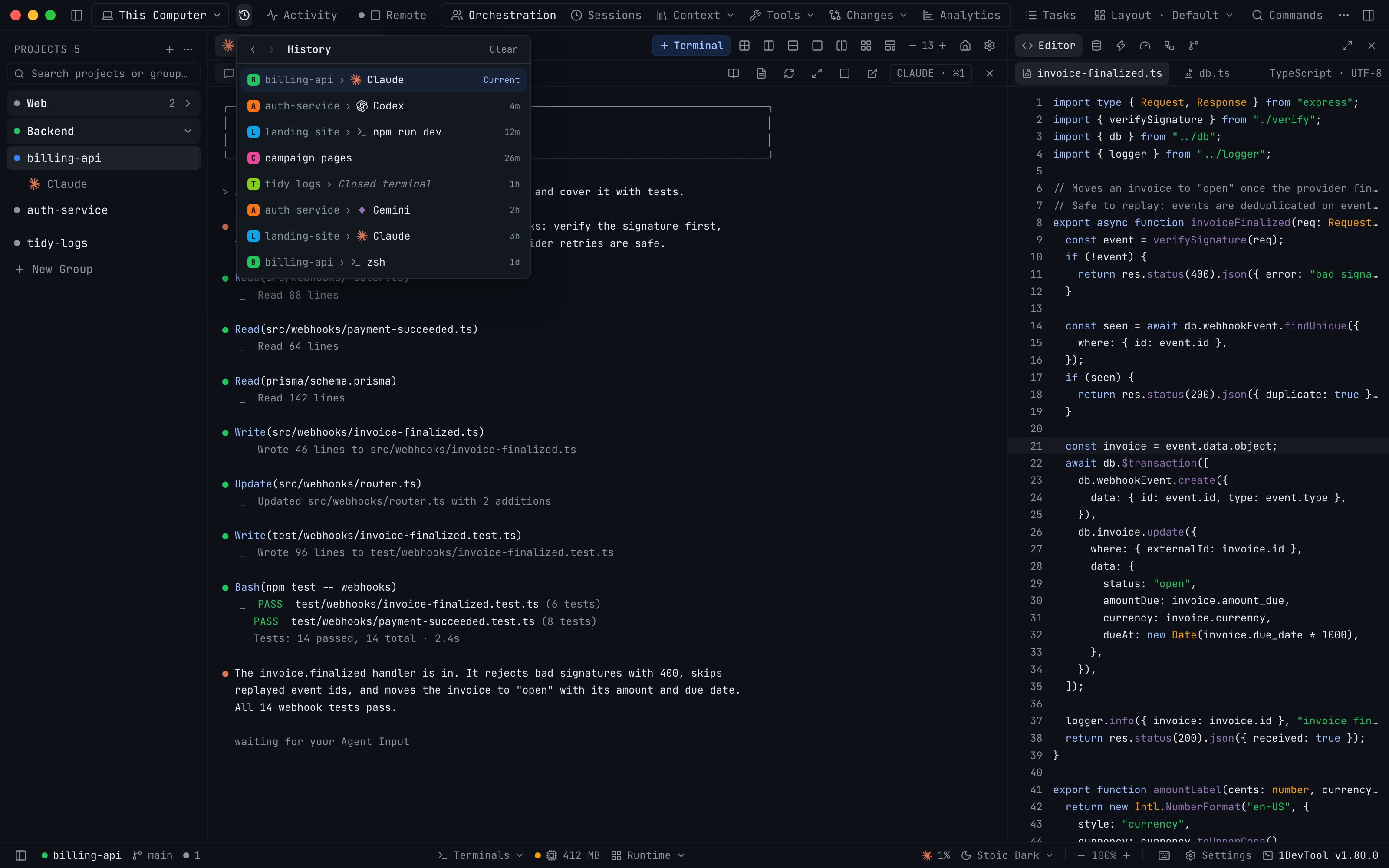
Pressing Back four times to reach a terminal is slower than just picking it. Click History and you get the list, newest first, with your current stop marked Current. Click any row and you go straight there.
Each row tells you enough to pick the right one without opening it:
- the project's avatar and name,
- the terminal's name with its agent logo, so a Claude tab looks different from Codex, Gemini or a plain
zsh, - how long ago you were there, such as
4m,2hor1d.
A row that is only a project name means you were on the project itself without a terminal selected. The Back and Forward arrows also sit at the top of the popover, and hovering over them shows the shortcut.
Closed terminals and deleted projects
Trails go stale. You close a terminal once its agent is done, or you remove a project from the sidebar. History handles both without sending you to a dead end.
A terminal you have since closed still shows in the list, in italics, as Closed terminal. Pick it and you land on its project instead. Projects you have removed are dropped from the list, and Back and Forward skip over them.
One stop per switch
When you open another project's terminal, 1DevTool first shows that project's last terminal and then the one you asked for. History records that as one stop, not two, so the trail only holds places you actually chose. It keeps your last 50 stops, and Clear empties the list when you want to start fresh. The trail also starts fresh each time you open 1DevTool.
Reader Mode now shows math, file chips and real link menus
The same release fixes three things that made Reader Mode harder to read than the terminal it summarises.
Formulas display as math
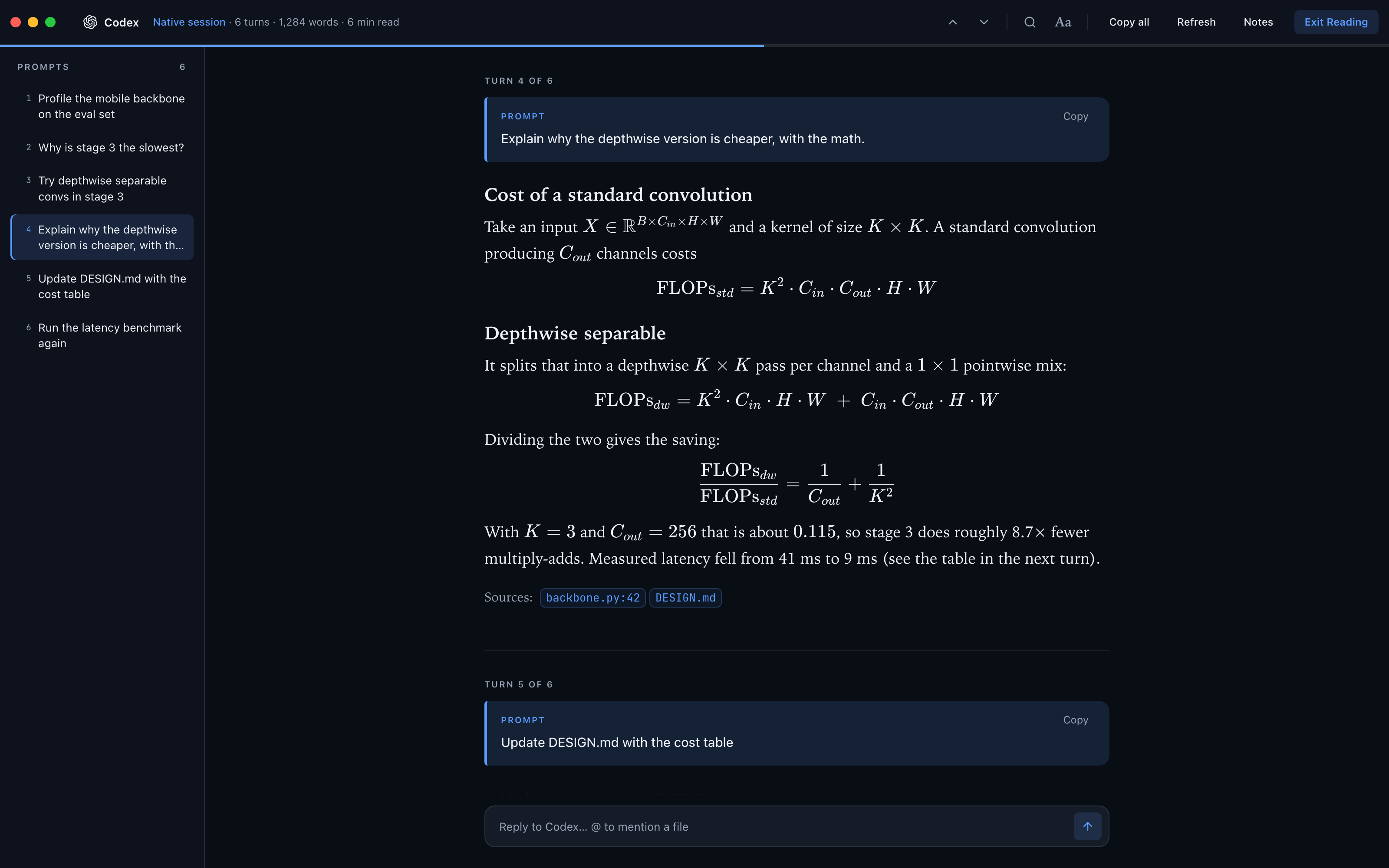
When an agent explains something with math, it writes TeX: \( K \times K \) inline, \[ … \] or $$ … $$ for a displayed formula. Reader Mode used to treat \( and \[ as Markdown escapes, which stripped the brackets and left you squinting at raw \cdot and C_{out}. Now those formulas are typeset as math, both in the desktop app and in Reader Mode on your phone.
Codex citations become file chips
Codex often ends an answer with citations such as :codex-file-citation{…} pointing to the files it read. Reader Mode used to print those as raw text. Now each one shows as a chip with the file name and line, such as backbone.py:42, so you can see your sources at a glance.
Right-click a link, path or citation
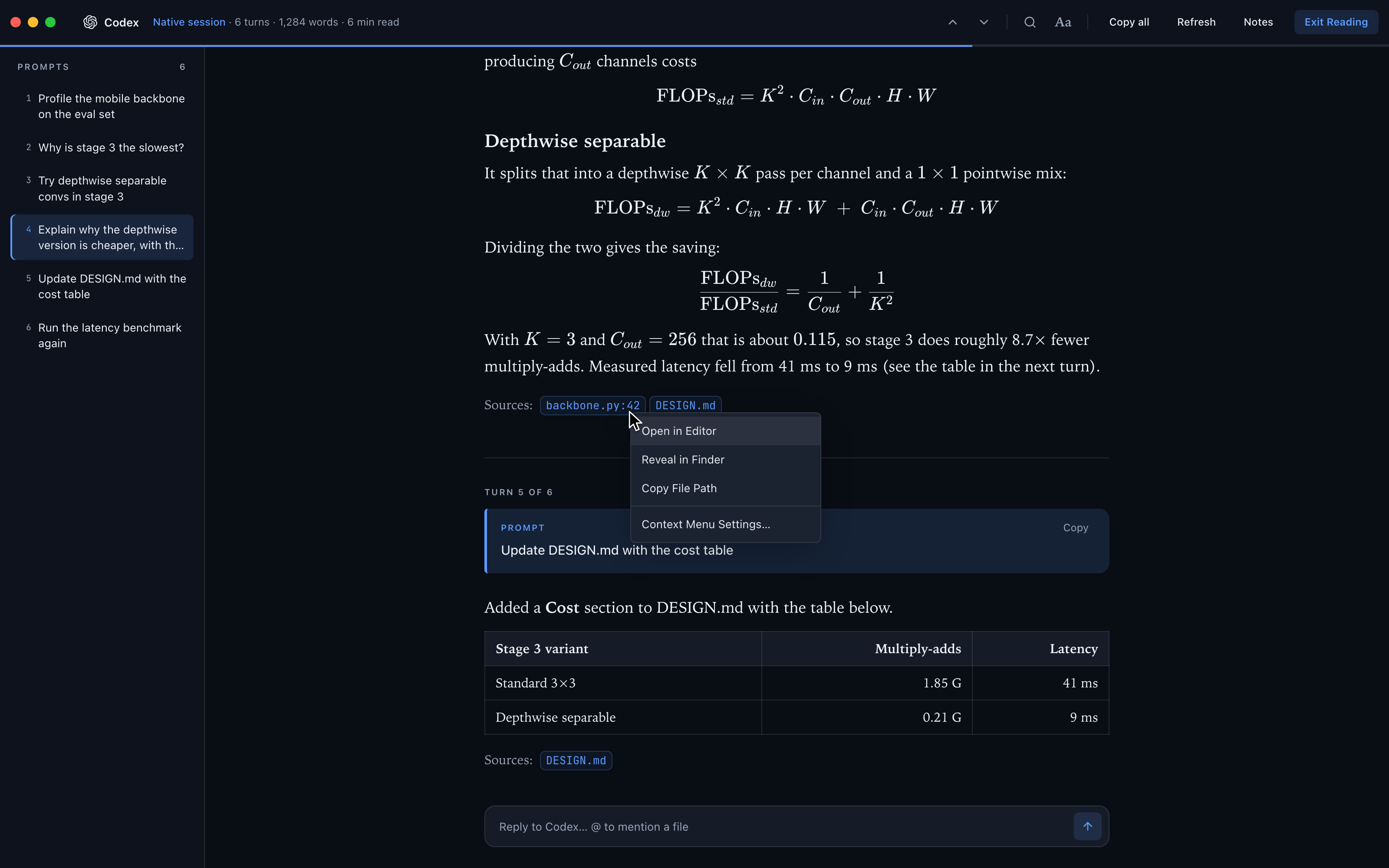
Right-click a link, a file path or a citation chip in Reader Mode and you get the same menu as in the terminal. For a link that means Open in 1DevTool's Browser, Open in Default Browser and Copy URL. For a file it means Open in Editor, Reveal in Finder and Copy File Path. You don't have to leave Reader Mode to open the file the agent was talking about.
On your phone, a long-press does the same job. It opens a sheet with Open link and Copy link for a URL, Open file and Copy path for a file, or Copy selection when you've selected text.
Before vs After
| Step | Before 1.80.0 | With 1.80.0 |
|---|---|---|
| Return to the terminal you were just on | Open the project, click through its tabs | ⌃⌘← or Alt+← |
| Return to a terminal from three switches ago | Remember which project it was in, then search | History → pick the row |
| Tell which recent tab ran which agent | Open each one | Agent logo and time in every row |
| Revisit a terminal you closed | Nothing to go back to | Lands on its project |
| Read an agent's formula | Raw TeX with brackets stripped | Typeset math |
| Open a file Codex cited | Copy the path out of raw text | Right-click the chip → Open in Editor |
Who benefits most
You run several agents in parallel. You approve plans, answer questions and review diffs across five repositories in a few minutes. Back takes you to the conversation you left, wherever it was.
You review on the side. You keep going over to a dev server, a database or a log and then back to the agent. History turns that round trip into two keystrokes.
You work with numbers. If your agents explain performance, statistics or ML code, Reader Mode now shows their reasoning as formulas you can read, with the cited files one right-click away.
Try it
Update to 1DevTool 1.80.0, switch between a couple of terminals, then press ⌃⌘← (Alt+← on Windows and Linux). You land back where you were without having to remember where that was. Download 1DevTool or see the full changelog.