Oct 7, 2026
Hand Your Project to a VPS and Close the Laptop
Send a project to one of your own machines and the agent keeps working with your laptop shut — no push to GitHub first, follow-ups queued on the box, and the whole run watchable from your phone.
The agent is fifteen minutes into a refactor it understands better than you do at this point, and you have to leave. The train is boarding, or the meeting started, or it is simply one in the morning. So you do the thing everyone does: you leave the laptop open on the kitchen table with the lid propped against a book, and you hope the Wi-Fi holds and nothing goes to sleep.
The alternative was worse. Push the branch, SSH into a box, clone it, discover the box has no Node, install Node, discover your .env never left your machine, scp it over in a panic, start the agent in a tmux session you will forget the name of, and then have no idea what it did until you come back and read a wall of scrollback. By the time that is set up, the thing you wanted the agent to do would have been done.
What changed
You can now hand a project to one of your own machines and close the laptop. The agent keeps working on the box, you can follow it from your phone, and when you are back you pull the project home exactly as the agent left it.
How it works in practice
You never push to GitHub first
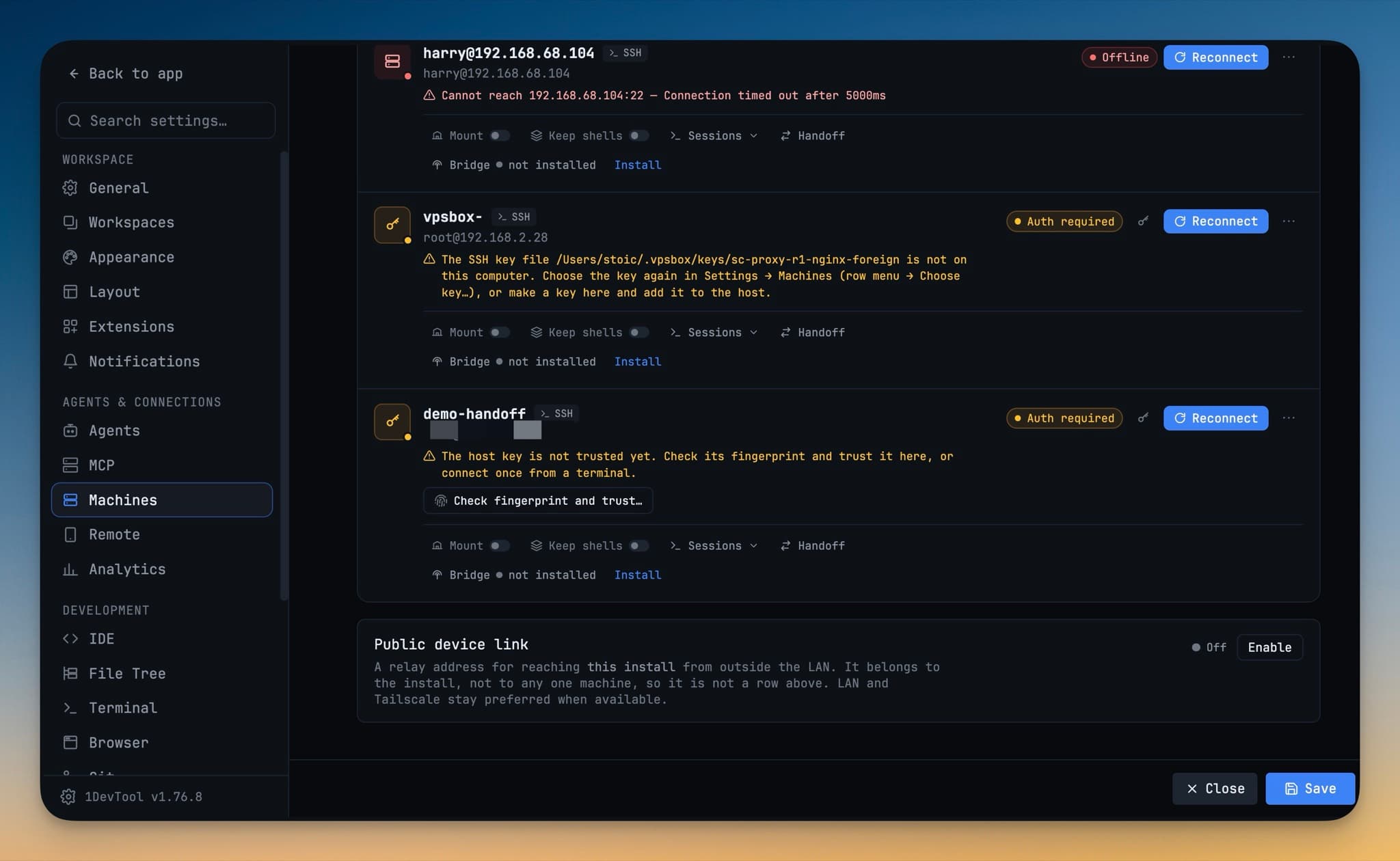
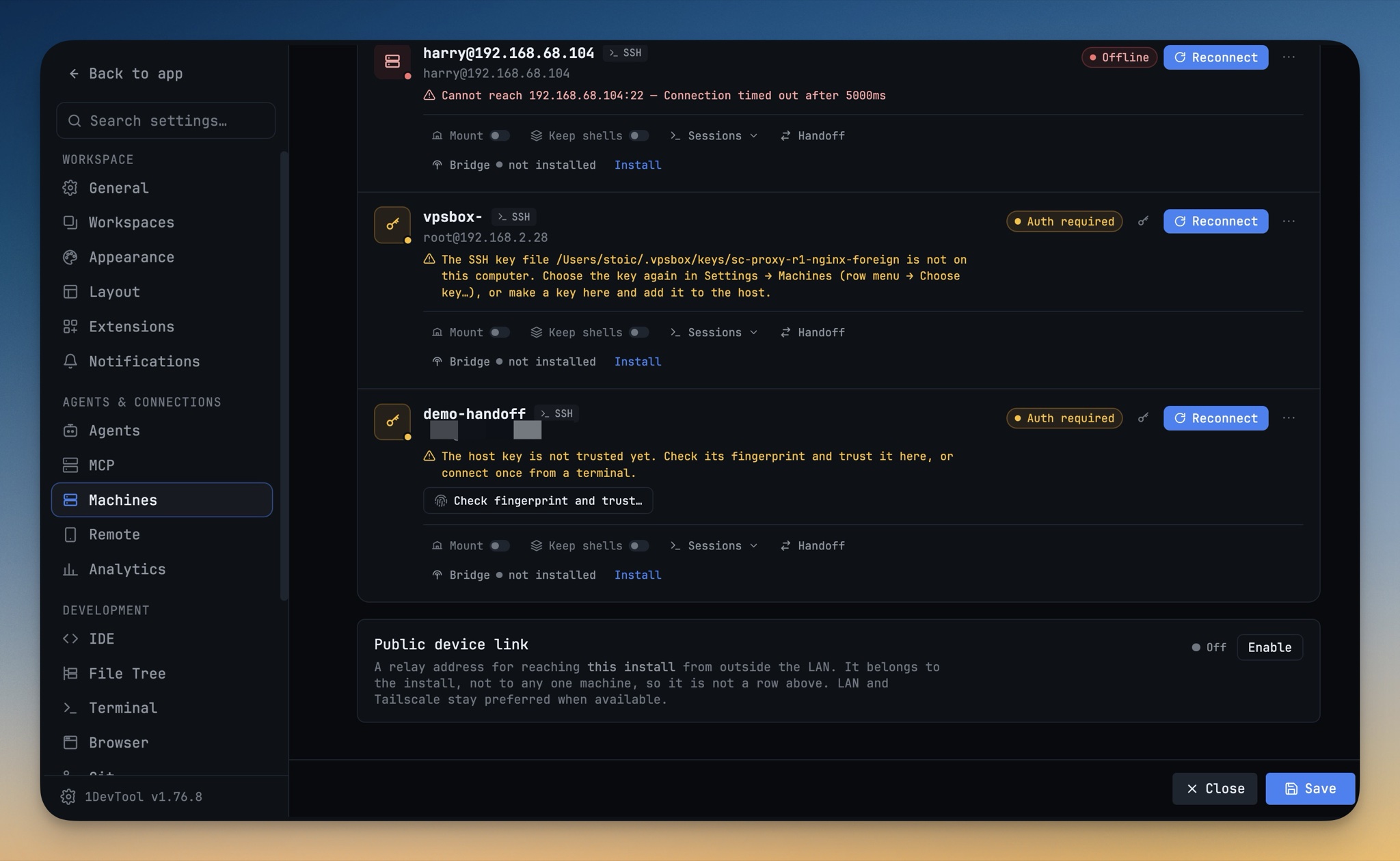
Pick Hand off to a machine… from the project's sidebar menu — it is also on a machine's row in Settings → Machines, and in the handoff task view — and 1DevTool copies the project to the box with rsync. Tracked files and untracked ones. Staged changes and unstaged. Deletions, executable bits, symlinks, and .git itself.
That is the part worth sitting with. There is no "commit this first" step, no stashing, no branch you have to invent a name for. The box starts from exactly what is on your disk right now, half-finished edits and all. Your .env goes too, written over stdin and chmod 600ed in place, with the file and variable names shown to you and the values never written to a log.
Once it lands, 1DevTool starts the agent as a systemd --user unit. That is why the laptop can close: nothing about the run depends on your machine staying awake, or even staying on the same network.
The sheet tells you what is missing before you commit to anything
Opening the handoff sheet measures the box first — free memory, free disk, cores, load — and says plainly when there is not much room: less than about 2 GB of memory is available, you can still hand off, but installs and builds may be slow. No guessing why the build crawled.
Underneath that is a checklist of what the machine still needs, with the fix next to each item. Missing Node shows an Install button. Stay running after logout turned off — which would kill everything the moment your SSH session ends — shows a Turn on button that runs loginctl enable-linger. Install all missing does the lot. Every command is shown in full before it runs, with a Copy button if you would rather paste it yourself.
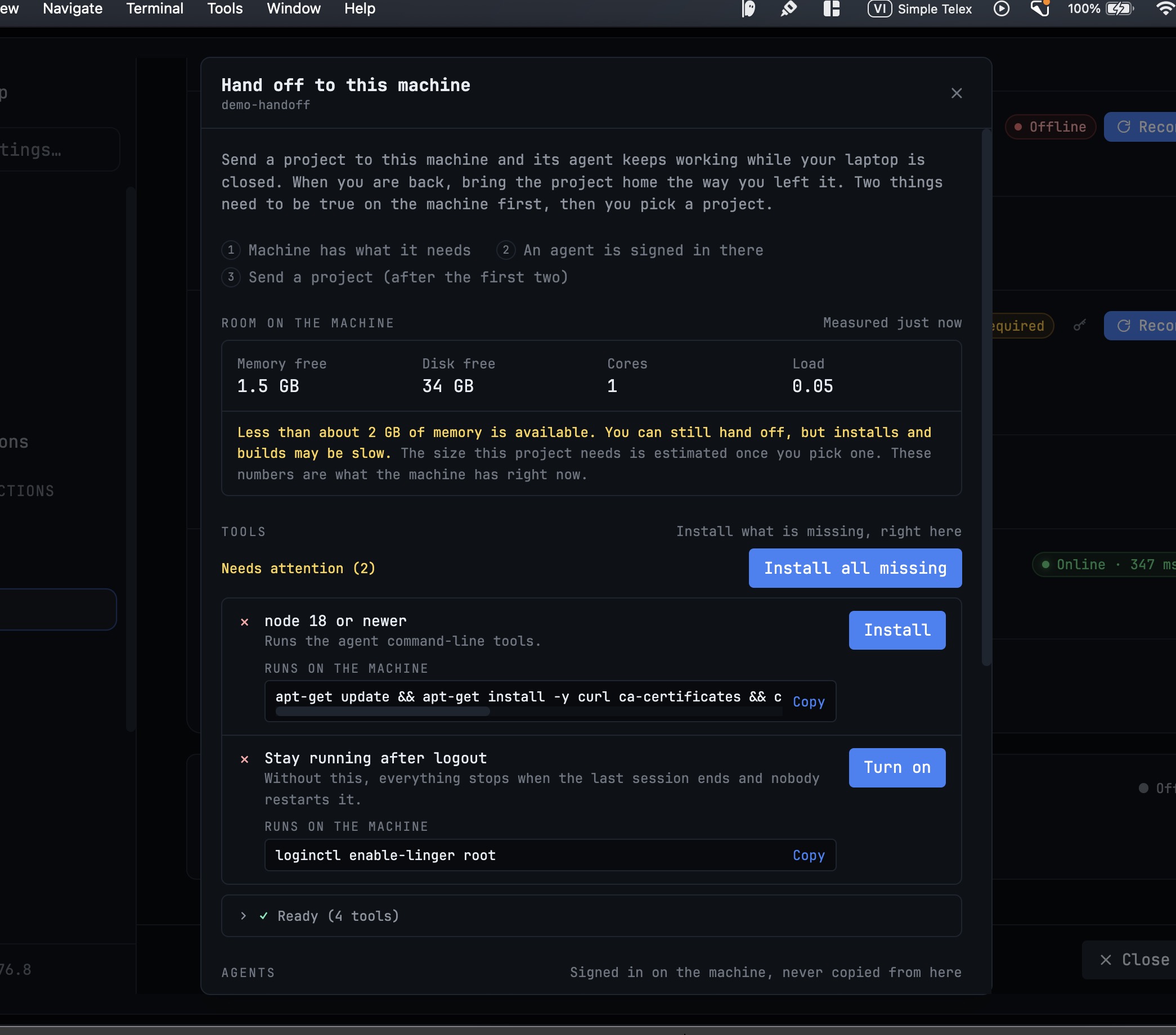
Signing the agent in is deliberately the one thing that is not automated. You log into Claude or Codex on the box, in a real terminal — 1DevTool will not copy a credential from your laptop, and the sheet says so: signed in on the machine, never copied from here.
Queue the next instruction while the current one is still running
Under What should it do next? you can type a follow-up at any time, including while a run is in flight. The box holds it and starts it the moment the current run ends — with your laptop closed, or quit entirely. The queue lives on the machine, not in your app.
The task view streams the box's log back: assistant text, tool calls, results, exit status, with every run numbered so you can tell run 2 from run 5.
Your phone is a full window onto the run
The handoff success screen has an Open on phone button, and so do the task view and the machine row. Scan the QR code and a page opens in Safari or Chrome. There is no app to install, and the page is served by the machine itself over a Cloudflare quick tunnel — so, again, the laptop can be shut.
From that page you can read the live log as it arrives, send the next instruction, and Stop a run that has gone sideways. A 6-digit Admin PIN opens a tmux shell on the box right there in the phone browser; it survives you closing the tab and resizes to the screen. Opt into push notifications and the box tells you when a run ends — "Run 3 finished in 2 min" — and when the queue moves on. That works on Android Chrome today, and on iPhone once you add the page to your Home Screen.
The scan screen lists every signed-in phone with a Sign out all button, and Turn off kills the link entirely. Taking a handoff back turns phone access off on its own, so you are never left with a forgotten tunnel pointing at your box.
Bringing it home is one button
Take back does the sequence in the right order so nothing is lost: it holds the box's queue first, so no new run can start underneath you, stops the current run, rsyncs the project back with the agent's changes, and cleans up the units it created on the machine. You get the project back the way you left it, finished.
Before vs After
| Before | Now | |
|---|---|---|
| Getting code to the box | commit, push, SSH, clone — uncommitted work left behind | rsync, including untracked files and .git |
| Secrets | scp your .env and hope | sent over stdin, chmod 600, values never logged |
| Keeping it alive | tmux session you have to remember | systemd --user unit, survives logout |
| Watching it | SSH back in and read scrollback | live log in the task view, or on your phone |
| Next instruction | wait, then type it yourself | queued on the box, starts itself |
| Getting it back | git pull and hope the box committed | Take back rsyncs it home and cleans up |
Who benefits most
If you work on a laptop that moves. The whole point is that the run is not tied to your lid being open. Hand off, walk to the train, read the log on your phone on the way.
If your agent work is long. Migrations, large refactors, test suites that take forty minutes — these are the jobs where babysitting a terminal is the actual cost, not the compute.
If you already have a VPS sitting there. You do not need a new service or a hosted agent runner. The box you already pay for, your own agent sign-in, your own .env.
Try it
Open Settings → Machines, pick a box, and let the handoff sheet walk you through the one-time setup — it will tell you exactly what is missing and offer to install it. Then hand off a project you would otherwise have babysat, and close the laptop.
Seven fixes ship alongside it, including a disabled Hand off button that still looked clickable, multi-line follow-ups that broke the systemd unit file, and an agent that died mid-task behind a terminal that still looked idle.
Update to v1.76.9 and the next long job can run without you in the room.
From across the StoicSoft network
Hand-curated reads on the same topic from sister sites in the StoicSoft family.
 ServerCompass5 min read
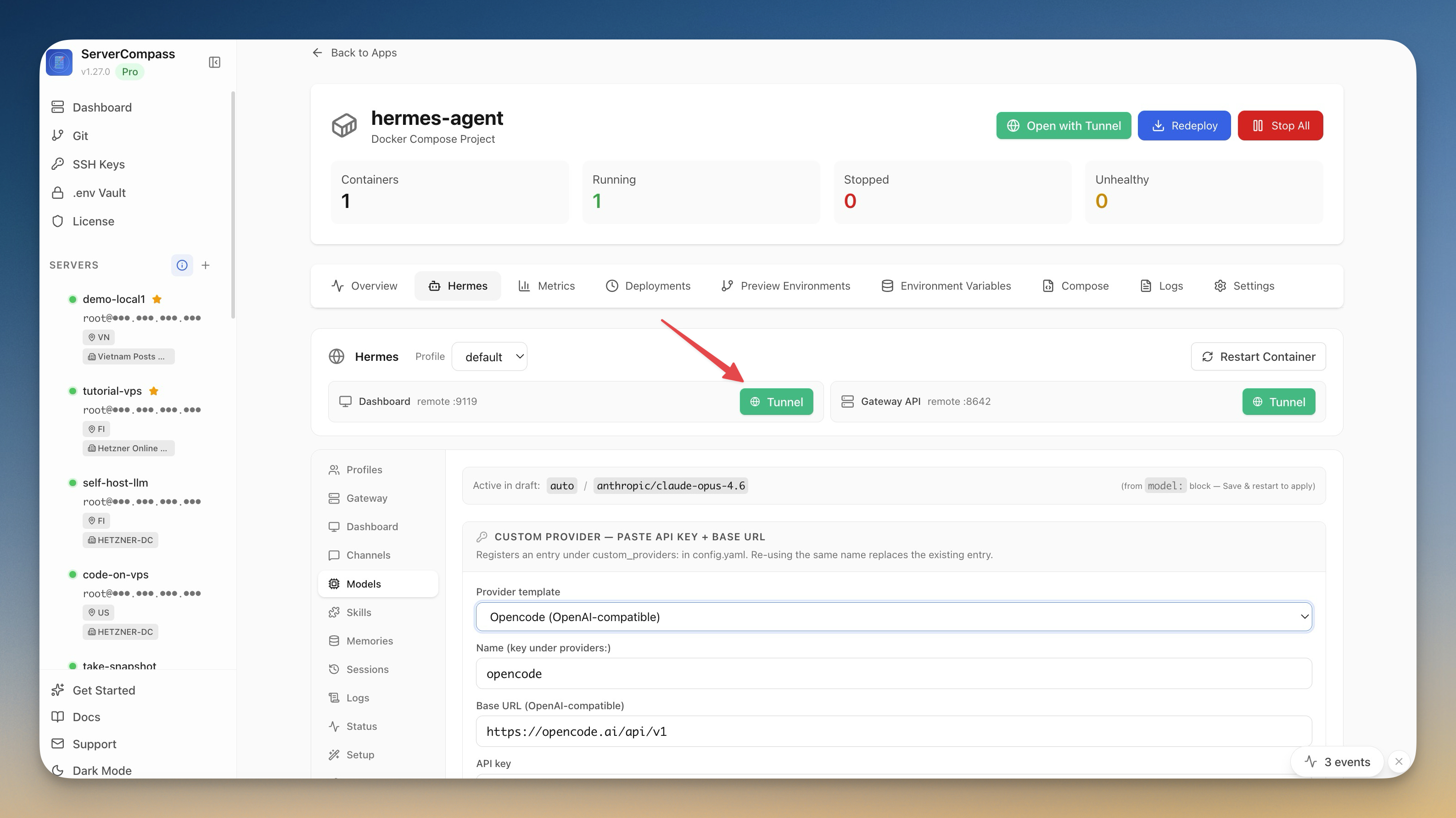
Self-Host an AI Agent on Your VPS in One Click
Server Compass v1.27.0 deploys Hermes Agent to your VPS in one click — your own OpenAI-compatible gateway, a web dashboard reachable through an SSH tunnel, and chat platforms wired in from the same window.
Read on servercompass.app ServerCompass6 min read
Give Coding Agents Scoped Access to Your VPS
Server Compass v1.28.0 adds AI Access, a local token-secured MCP connection that lets coding agents inspect and operate your VPS through scoped permissions instead of raw SSH credentials.
Read on servercompass.app