Sep 21, 2026
Fifteen Terminals, Sixty-Nine Projects: Jump to Any of Them Without Looking
A keyboard shortcut only helps if you already know the number, and nothing on screen ever told you what it was. Hold ⌘ and 1DevTool paints the numbers on your terminals; hold ⌥ and it paints them on your projects.
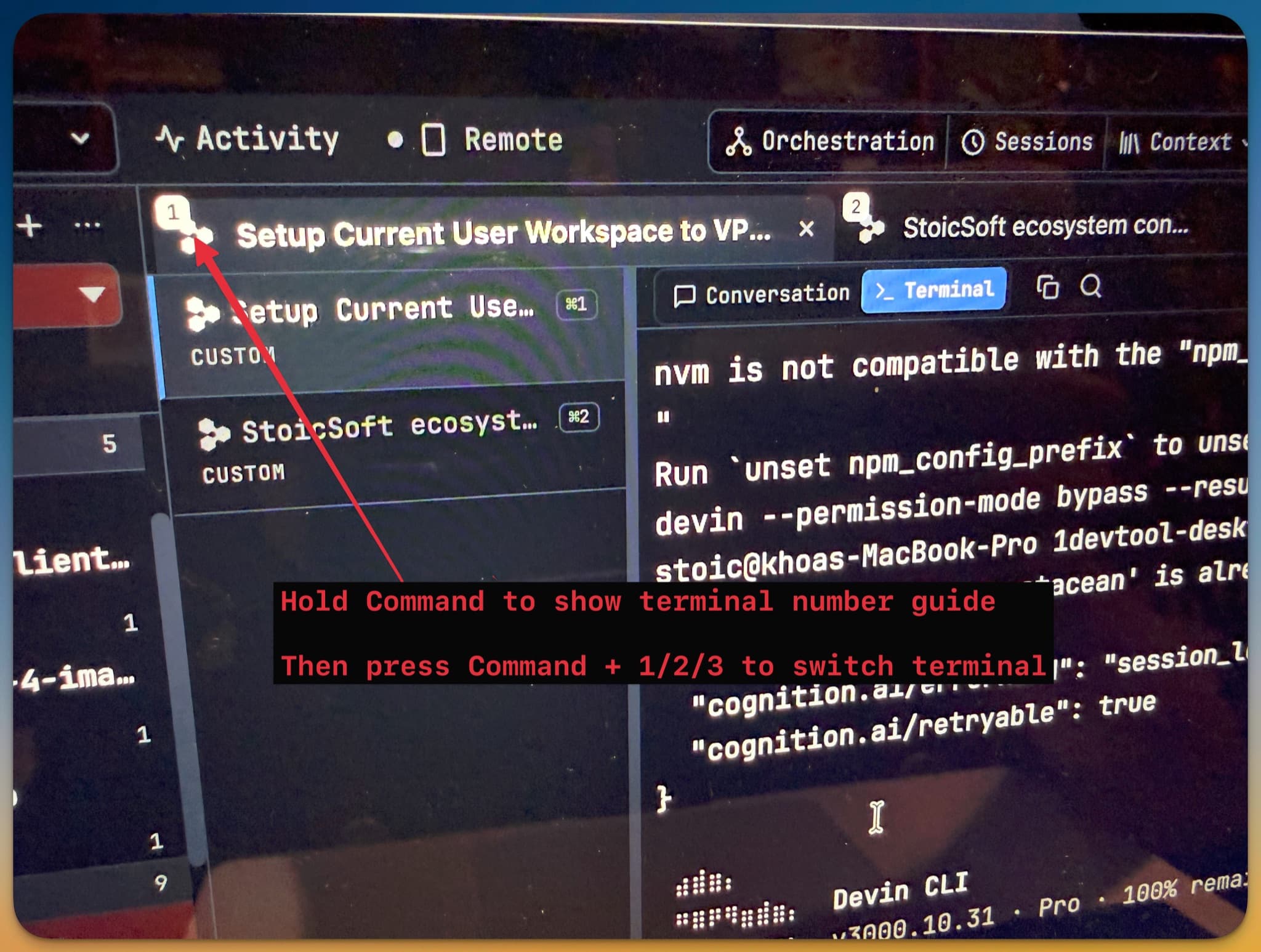
You have fifteen terminals open in this project. Claude is in one of them. A Devin run is in another. The dev server is somewhere in the middle, a tail -f is in a fourth, and the one you actually want — the agent that stopped four minutes ago to ask you a question — is behind a fold in the tab strip with its title truncated to nine characters.
So you do what you always do. You click along the strip. You miss. You squint at a title that reads Setup Current Us… and could be either of two sessions. You open the terminal list, scroll it, close it, and by the time you land on the right one you have forgotten what you were going to type.
Then multiply that by the sidebar. Sixty-nine projects, nested into groups, half of them collapsed. Switching projects is its own little expedition.
The keyboard was supposed to fix this. But a keyboard shortcut only helps if you already know the number — and nothing on screen ever tells you what number anything is.
What changed
1DevTool v1.76.2 adds keyboard planes: hold a modifier and the app paints the numbers on itself. Hold ⌘ and every terminal gets a badge. Hold ⌥ and every project gets one. Press the digit and you are there — no clicking, no scrolling, no memorising.
How it works in practice
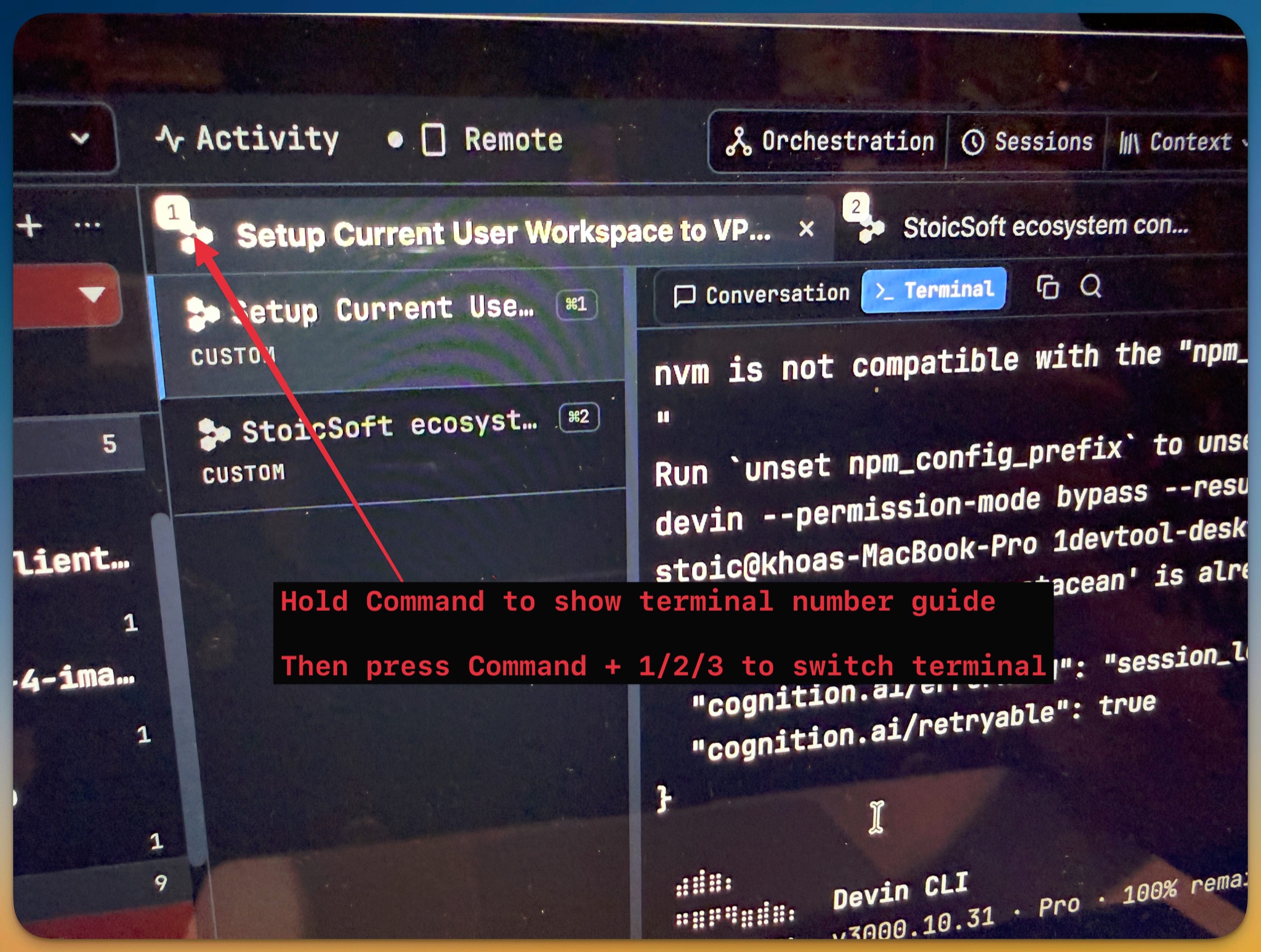
Hold ⌘ and read the numbers off the screen
After a short hold — a quarter of a second, long enough that a normal ⌘-something chord never triggers it — numbered badges appear over the tab strip and over the terminal list beside it. The number you see is the number you press. You are not recalling an ordering, you are reading one.
A quick press and a held press always agree, too. ⌘3 means the third entry whether or not you waited for the badges to show. The hold is there to tell you what you are about to do, not to change what happens.
Add ⌥ without letting go — the plane hands over
The thing that usually breaks a hold-to-reveal overlay is the second modifier. You are holding ⌘, you realise you wanted a project instead, you add ⌥ — and the overlay decides you started a new shortcut and vanishes.
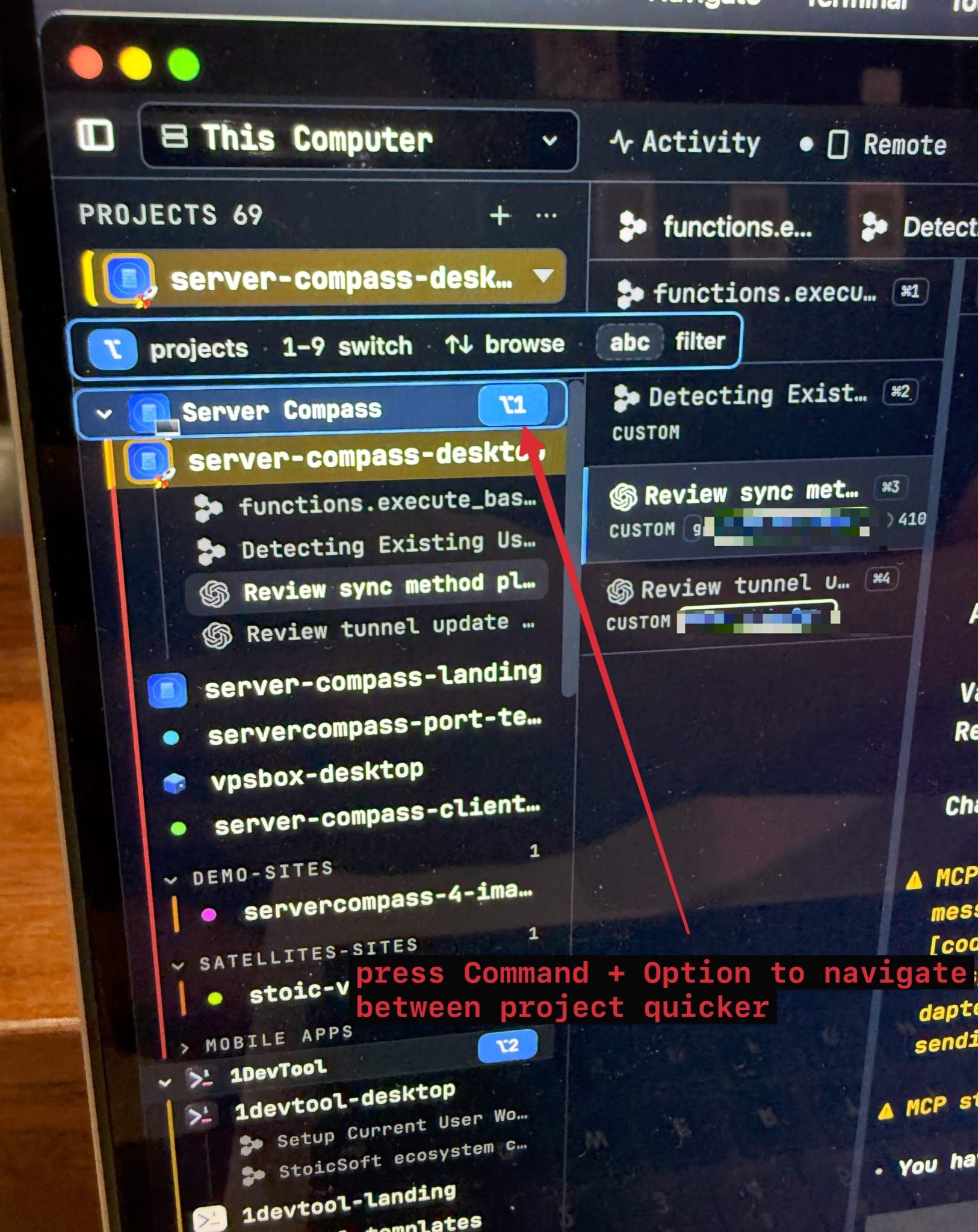
Here the planes hand over to each other instead. While ⌘ is held for terminal numbers, adding ⌥ switches straight to the project badges, and each plane advertises the other's key right where you are already looking. Follow the hint and it works. That sounds obvious; it is the single thing that makes the feature usable at speed.
Project groups are addresses, not walls
A numbered list of nine projects is not much use when you have sixty-nine of them in a dozen groups. So the digits compose.
Press a digit on a group and it opens — a collapsed group expands — and its children renumber for the next digit. ⌥ 2 4 is an address, not two unrelated shortcuts. Backspace steps back out a level when you take a wrong turn, and once part of an address is typed, letting go of ⌥ keeps the plane up rather than throwing your progress away.
Type letters while ⌥ is held to filter
Numbers get you to a group fast. Letters get you to a specific project faster. Type while ⌥ is held and the sidebar's own search narrows the list, with the badges renumbering onto the rows that survive.
That also closes the one hole a digit-only scheme leaves: a project literally named 1devtool-desktop starts with a digit. Filter by letters and it is still reachable.
Arrows browse, ↵ opens, Esc dismisses
↑/↓ walk the current level if you would rather look than aim, ↵ opens what is highlighted, and Esc or a click dismisses the plane. If your layout shows no project list at all, the numbers float instead — a floating numbered list that selects exactly the same projects, painted from the same source the digits read.
⌥1–9 switches projects on every platform now
macOS used to be the odd one out. Projects sat on ⌃1–9 there, which is exactly where Mission Control switches desktops — so the app never saw those keys at all. Projects now live on ⌥1–9 on every platform, and project search moved to ⌥F to match.
To hand the ⌥ digits over, layout presets moved to ⌘⌃1–7 (Ctrl+Shift+1–7 on Windows/Linux). Existing setups are re-keyed once, automatically, and a key you chose yourself is never touched.
Terminal Overview learns the keyboard
⌘⇧O opens the overview with the terminal you came from already selected. ←/→ walk the cards and wrap around the ends, ↑/↓ move by row, Home and End jump to the extremes, and ↵ opens the highlighted card.
Focus also stays where it belongs: the overview keeps the keyboard while it is open — no more keystrokes leaking into the terminal underneath — and hands it back to whatever you were typing in when it closes.
All Terminals knows what's waiting on you
"Needs review" is now a real status rather than something you reconstruct. The ⌘L list marks AI runs that finished since you last looked, in amber, with its own filter pill — the same set the dashboard board and the notification bell report.
Open one of those terminals from the list and the flag clears, so the row, the board and the bell never disagree about what still needs you.
Before vs After
| Getting somewhere | Before | Now |
|---|---|---|
| The right terminal among fifteen | Click along a folded tab strip, read truncated titles, miss, retry | Hold ⌘, read the badge, press the digit |
| A project four groups deep | Expand the sidebar, scroll, click, scroll again | Hold ⌥, press the group's digit, press the child's digit |
| A project you can only half remember | Open search, type, click the result | Hold ⌥ and just start typing — badges follow the matches |
| Switching projects on macOS | ⌃1–9, swallowed by Mission Control | ⌥1–9, which nothing else claims |
| Finding the agent that finished | Scan every tab for a changed state | ⌘L, filter to needs review |
| Moving around Terminal Overview | Mouse only | Arrows, Home, End, ↵ — and focus stays put |
Who benefits most
If you run agents in parallel, the tab strip is permanently full and permanently truncated. The badges turn "which one was Devin again" into a number you can read.
If you keep many projects in one window, the address walk is the real win: two digits reaches a project that used to take an expand, a scroll and a click.
If you work on Windows or Linux, the planes were built to behave the same there — Alt carries the project plane, and tapping it no longer flashes the menu bar the app keeps hidden.
Try it
Open a project with more terminals than fit, then just hold ⌘ for a moment and look at what appears. Keep holding and add ⌥. The app will tell you the rest — that is rather the point.
Update to v1.76.2 from the in-app updater, or grab the latest build from the download page.