Sep 22, 2026
Review and Merge Pull Requests Without Leaving Your Terminals
An agent opened the pull request in the app, on a branch you can already see — and then you left for the browser to merge it. The Repo panel's new Pull requests tab reads, comments, sends to AI and merges, one request or five.
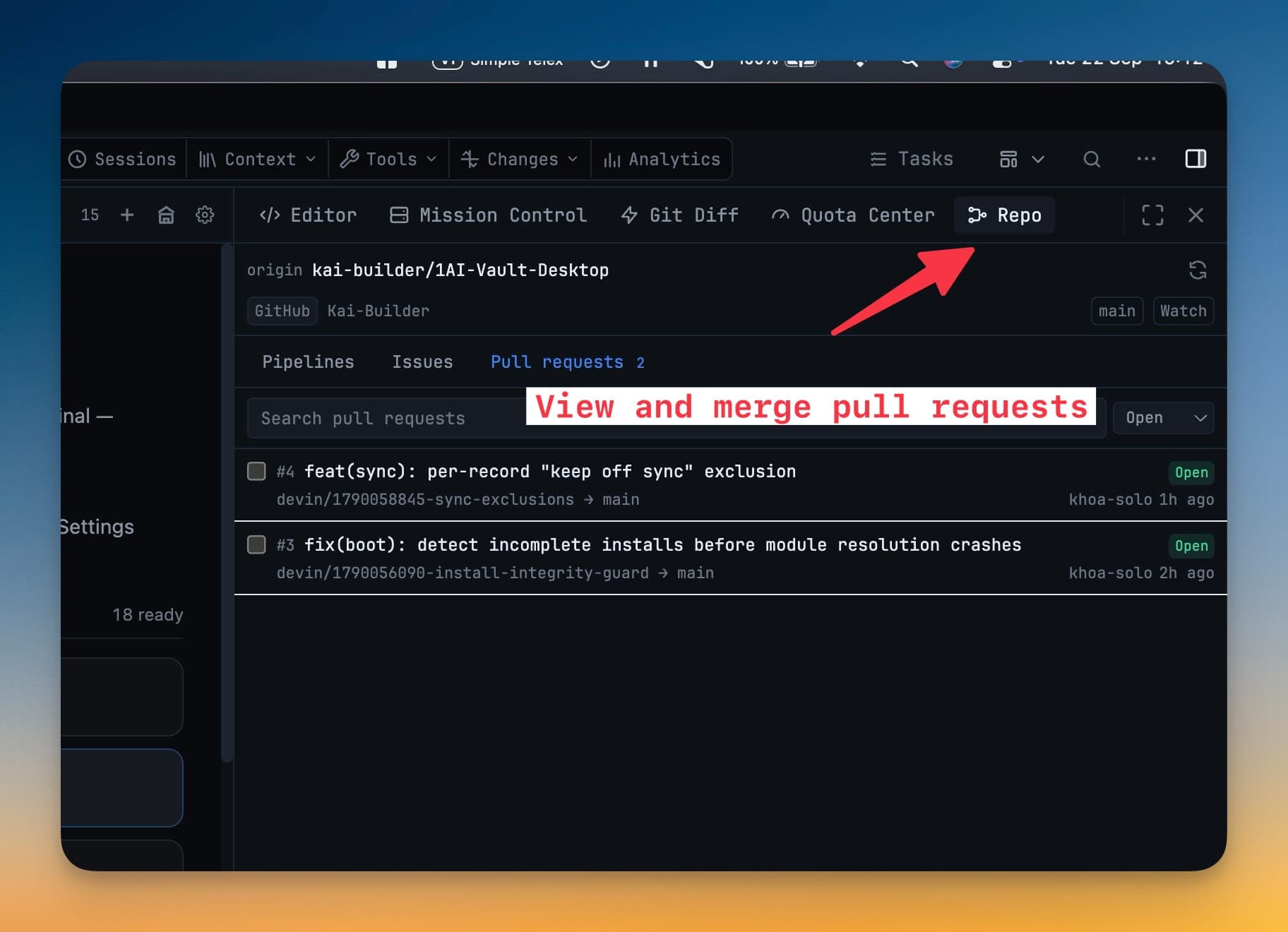
An agent finished a task an hour ago and opened a pull request. You know this because a notification told you, and because the branch is sitting right there in your Git Diff panel. What you do next is leave.
You switch to the browser. You find the tab, or you open a new one and paste the repo URL. You wait for the page. You read the description — which you could have read in the app — scroll the comment thread, check whether CI went green, and click Merge. Then you come back, and the app you never actually needed to leave catches up with the world thirty seconds later.
Do that four times in an afternoon and the browser stops being where you review code and starts being a tollbooth between you and your own branches.
What changed
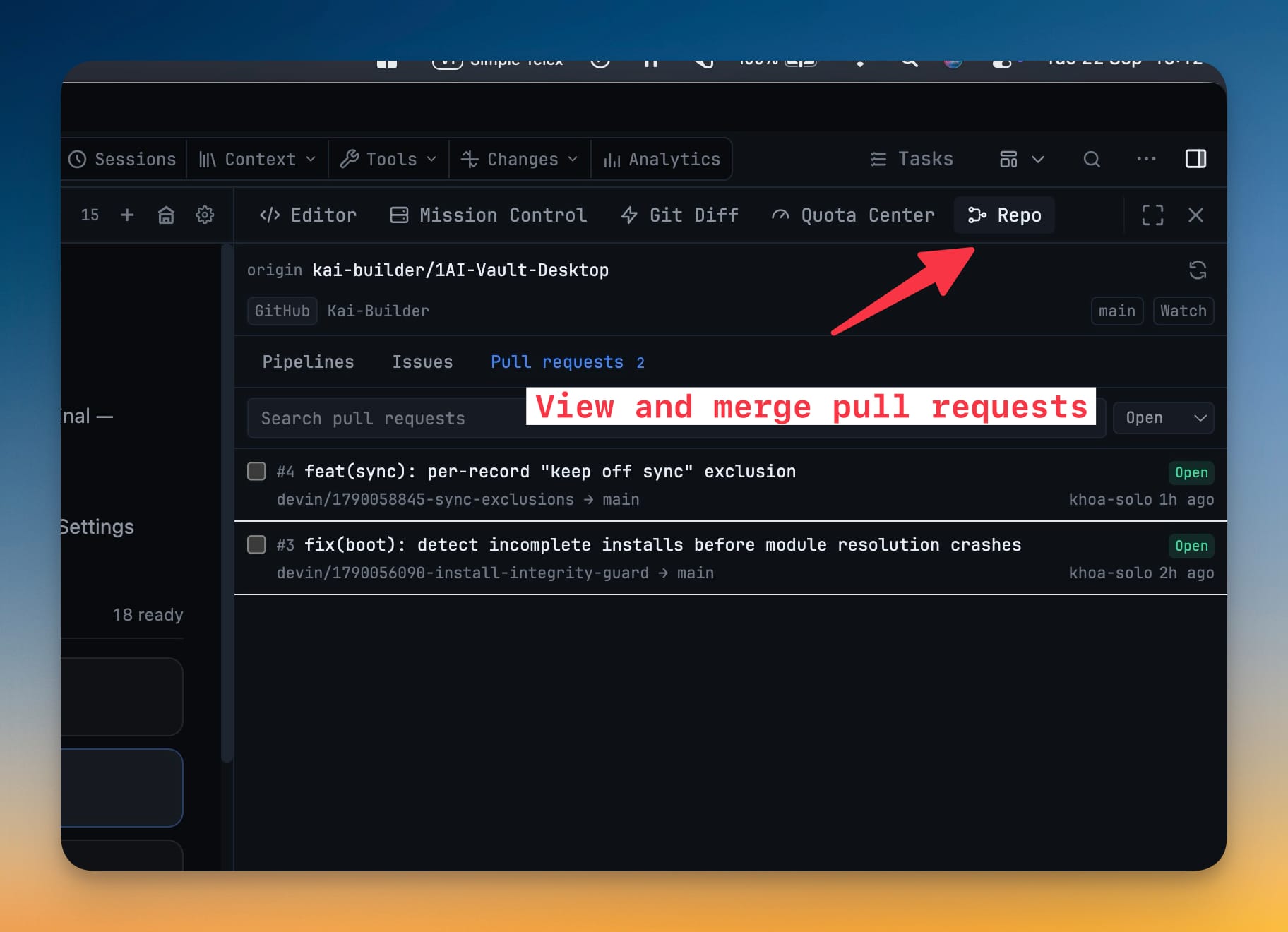
1DevTool v1.76.3 adds a Pull requests tab to the Repo panel — the third tab next to Pipelines and Issues. GitHub pull requests and GitLab merge requests both land there, resolved from the same git remote the rest of the panel already knows about. You read them, comment on them, hand them to an AI terminal, and merge them without opening a browser.
How it works in practice
The open count rides on the tab
You do not have to open the tab to learn whether anything is waiting. A badge on Pull requests shows how many are open, in the same panel that already tells you about pipelines and issues. One glance, not one round trip.
Filter and search before you commit to reading
Open, merged, closed or all, narrowed by title, number or branch. On GitHub the search runs locally over what the panel already has; on GitLab it goes to the provider. Either way it is debounced rather than fired per keystroke, so typing a branch name does not spend your rate limit.
Worth saying plainly: pull requests are not polled. They change on human timescales, and the live request budget belongs to the pipeline poll. The list refreshes when you ask it to.
Open one and actually read it
The detail view gives you what you went to the browser for: source and target branch — forks marked — description, labels, assignees, diff size, and the full comment thread.
Above the actions sits a mergeability line that says the real thing rather than a green tick. Mergeable when it is ready. Conflicting changes, Behind the base branch, Blocked by checks or review policy, or Checks failing or still running when it is not. Draft — mark ready on the host to merge when the request is not asking to be merged yet. And Checking mergeability… when the host has not finished working it out, which is honest about the one state most UIs quietly render as "fine".
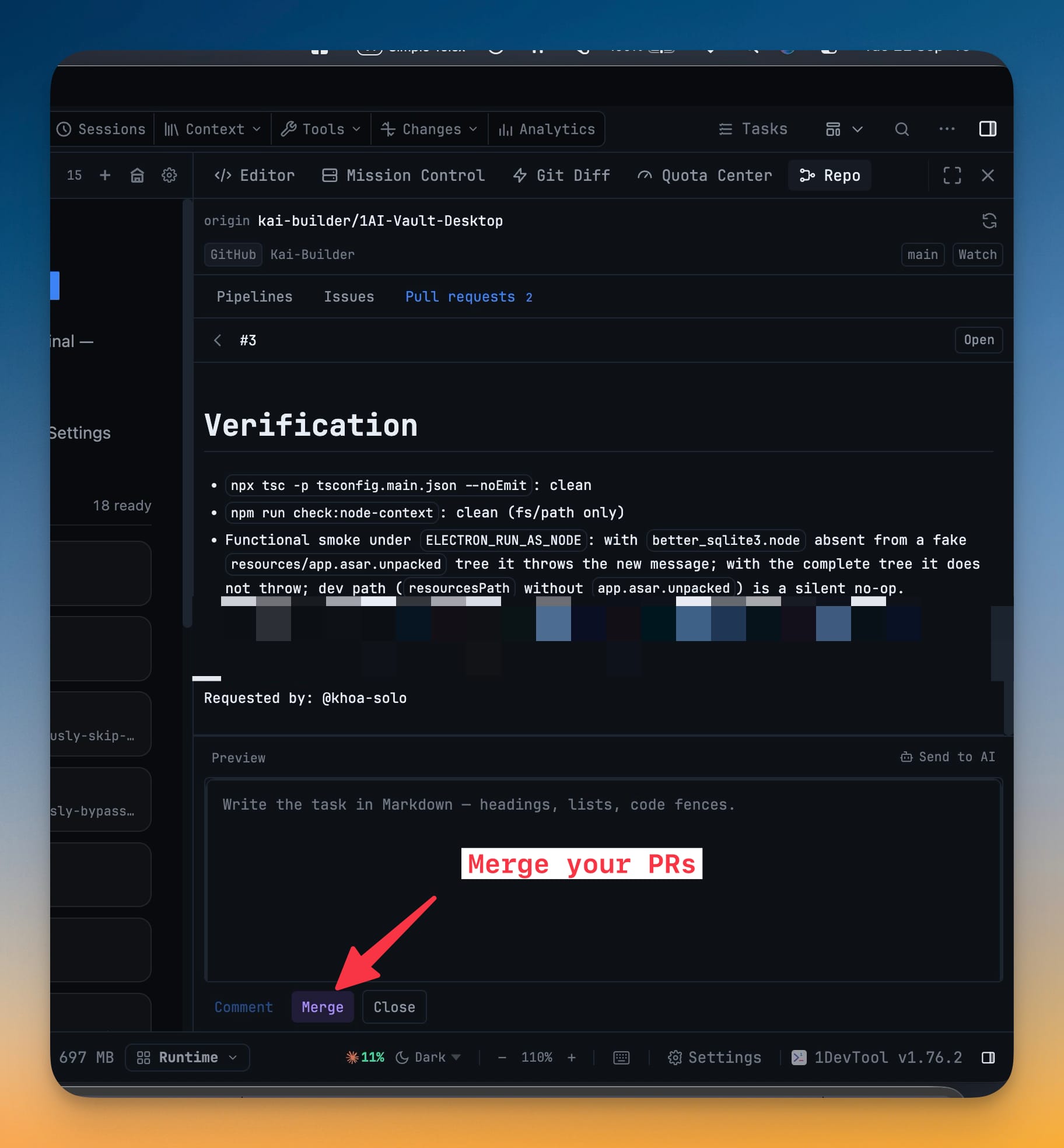
Merge from where you read it
Pick Merge commit, Squash or Rebase on GitHub — GitLab has no rebase-merge verb, so it offers merge or squash — and merge.
The part worth caring about: the app sends the exact revision you reviewed as a condition on the merge. If someone pushed to that branch while you were reading it, the host refuses the merge instead of landing code you never saw. A merge button that can silently merge something other than what is on your screen is a worse tool than no merge button, so this one cannot.
Comment, close, reopen — and Send to AI
The same interactions issues already had are here: write a comment with a Write/Preview toggle, close a request, reopen a closed one.
Send to AI is the one that changes the workflow. One click hands the request — its branches, its URL, and whichever comments you tick — to an AI terminal for review. The thing you were going to paste into an agent by hand is a button.
Merge many at once
Tick any open, non-draft requests in the list, confirm once, and they merge one after another. You get a result per request: what landed, and for the ones that did not, exactly why — each one keeping its own head-revision condition.
Drafts and already-merged requests cannot be ticked at all, so a batch never starts with a member that could not have landed anyway. And if a request merges or closes while your selection is open, it is pruned from the selection rather than silently carried into the run.
The order is the order you see. Selection follows the list, which is sorted by most recently updated — the order you just reviewed them in, not numeric order.
Before vs After
| Task | Before | Now |
|---|---|---|
| Know a PR is waiting | Check the browser, or the email | A count on the Pull requests tab |
| Read the description and thread | Switch apps, find the tab, wait for the page | Open the row in the Repo panel |
| Know whether it can merge | Read a status list and guess | One line: Mergeable, or precisely what is blocking |
| Merge it | Click Merge in the browser | Pick merge / squash / rebase and merge, revision-pinned |
| Merge five of them | Five page loads, five clicks, no record | Tick five, confirm once, read five outcomes |
| Get an agent to review it | Copy the URL, paste into a terminal, describe it | Send to AI, tick the comments to include |
Who benefits most
If agents open your pull requests, this closes the loop. The branch was created in the app, reviewed in the app, and now merges in the app — and Send to AI puts a second agent on the review without a copy-paste step in the middle.
If you maintain several small repos, the batch merge is the hour you get back. Five dependency bumps that each cost a page load now cost one confirmation and give you a per-request answer.
If you work across GitHub and GitLab, both hosts render into the same panel, with each host's quirks handled underneath — merge methods, mergeability vocabulary, search — rather than surfaced at you.
Also in this release
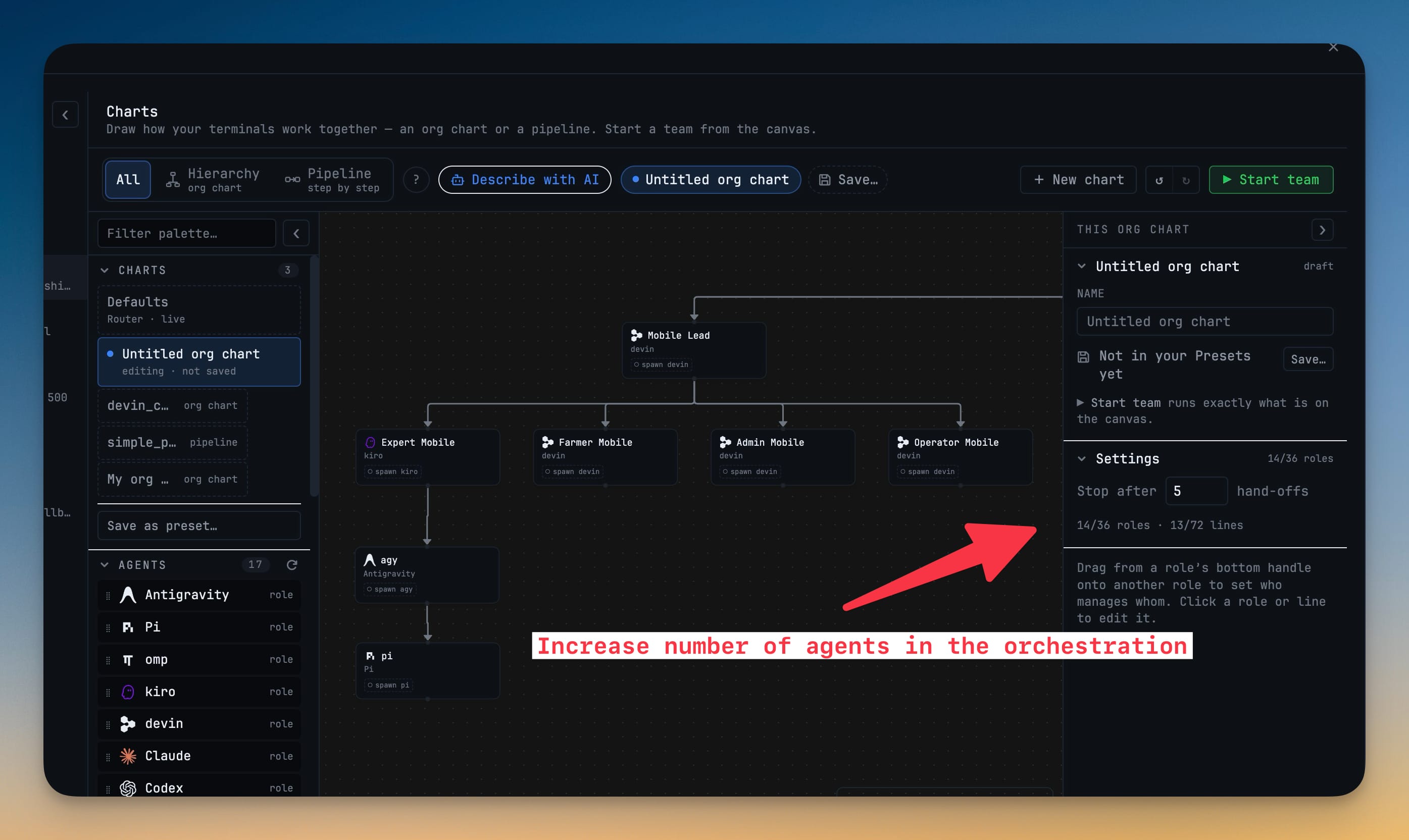
Agent org charts got bigger. A hierarchy chart now holds up to 36 seats and 72 reporting links — up from 12 and 24 — so a department-sized team fits on one chart instead of being split into stubs.
Try it
Open any project with a GitHub or GitLab remote, open the Repo panel, and look at the third tab. If a number is sitting on it, something has been waiting for you — and you can deal with it without opening a browser.
Update to v1.76.3 from the in-app updater, or grab the latest build from the download page.