Oct 24, 2026
Mirror and drive a real Android phone from your workspace
Plug in an Android phone, or connect it over wireless adb, and it shows up in the Mobile panel next to your emulators. Tap, swipe and type on it, send its screen to an agent, and Build & Run straight onto it.
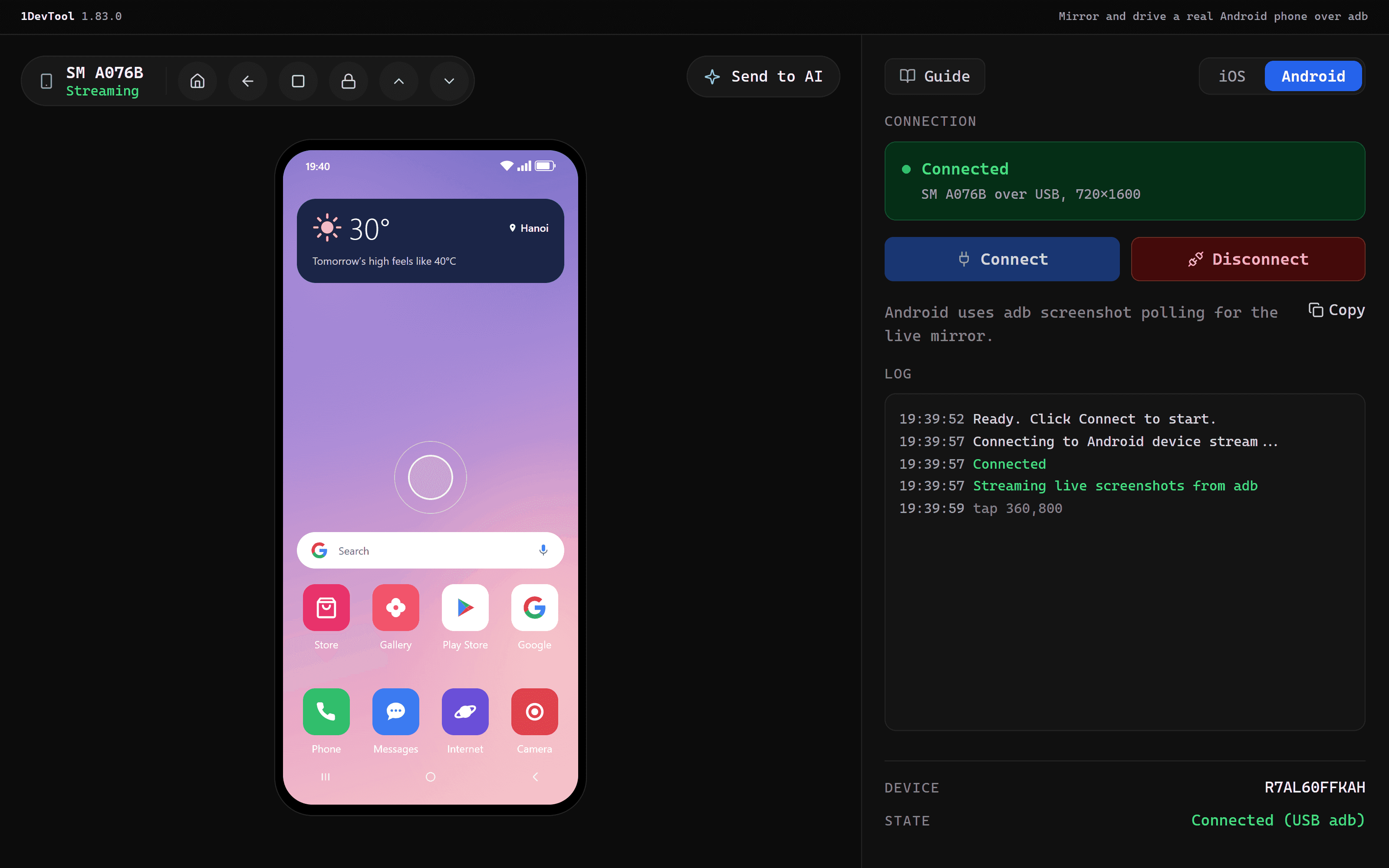
The emulator says your layout is fine. Then you install the build on the cheap Android phone in your drawer and the bottom button sits under the gesture bar, the keyboard covers the input, and a font you never tested wraps onto two lines. The emulator was never going to show you that. Only the real phone does.
So you test on the phone, and your attention splits. The phone is on the desk and the code is on the monitor. An agent in the terminal asks what the screen looks like now, so you pick up the phone, take a screenshot, find a way to get it onto the computer, and drag it into the prompt. If you want to watch the phone on the big screen, you install scrcpy or a vendor mirroring app, and that's one more window outside your workspace.
What changed
1DevTool v1.83.0 puts a real Android phone in the Mobile panel. Plug it in over USB, or connect it with wireless adb, and it shows up next to your emulators. Pick it, click Connect, and the phone's screen appears in the panel, where you can tap, swipe, type and press Home, Back and Overview. Send to AI passes the current screen to an agent, and Build & Run installs your app straight onto the phone.
How it works in practice
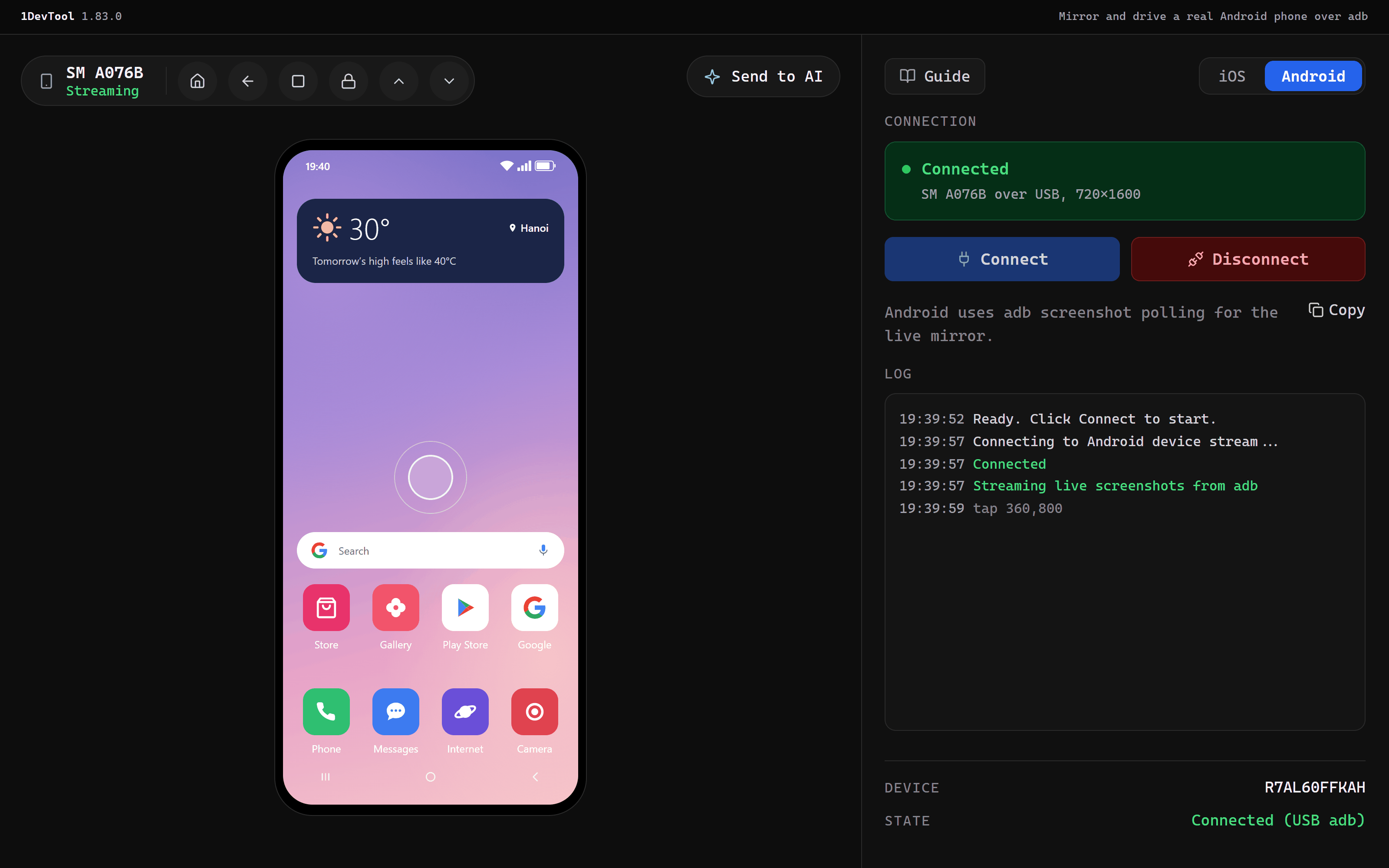
Pick the phone from the same list as your emulators
Open the Mobile panel and switch it to Android. The picker, Select Android emulator or device, now has two groups. Connected devices (adb) lists every phone that adb devices can see, by its model name (a SM_A076B becomes SM A076B), with its serial and whether it is on USB or Wi-Fi. Emulators lists your AVDs, the same as before.
A phone that is ready shows Online in green. Pick it and click Connect. There is nothing to boot, so the panel checks that the phone is reachable and starts mirroring. The sidebar reads Device instead of Emulator, and the state shows Connected (USB adb) or Connected (Wi-Fi adb).
Drive the phone without picking it up
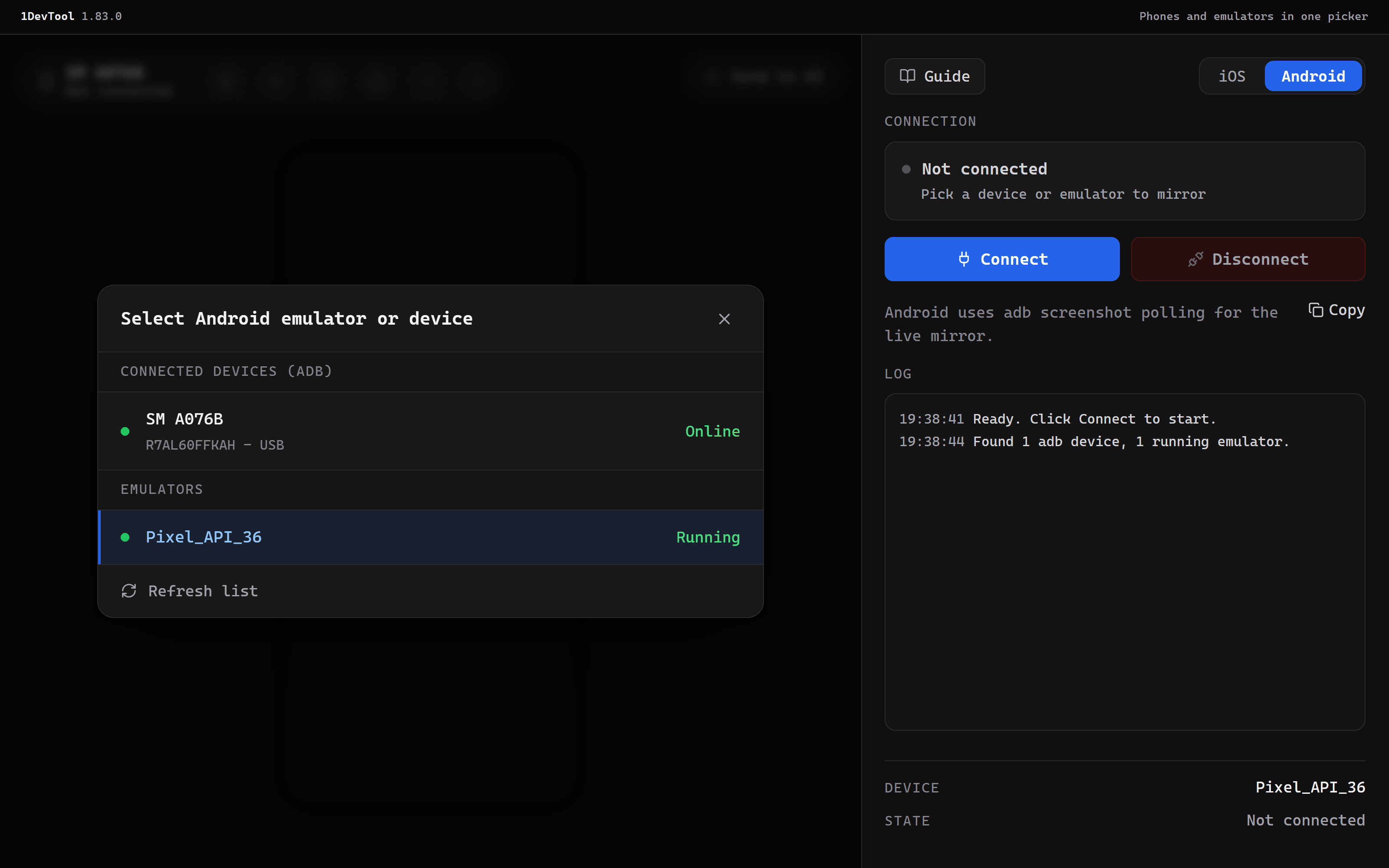
Click on the mirror to tap, drag to swipe, and type on your keyboard while the panel has focus to send text. The toolbar has Home, Back, Overview and Lock, plus scroll up and scroll down. Each action goes to the phone through adb shell input, and the log under the connection card records what was sent, such as tap 360,800. This release also fixes where taps land. Positions are now mapped against the frame you see rather than the padding around it, so a tap near the edge of the screen hits the button you aimed at.
The mirror is a stream of screenshots from adb exec-out screencap, not a video. On a 720×1600 phone that comes to about two or three frames a second, which is plenty for checking a layout, walking through a sign-up flow or reading a crash dialog. It is not the right tool for judging an animation. Multi-touch and pinch are not supported. A secure lock screen, and apps that block screenshots, show up black, because Android blanks them for every capture tool.
Show the agent what the phone shows
Send to AI takes the current screen, opens it in the annotator so you can circle the problem, and sends it to an AI terminal of your choice. The message carries the device context, for example Android physical device - SM A076B (adb serial …, USB), along with the recent interaction log. The agent sees the real phone and knows which phone it is.
That closes the loop that used to need your hands. Ask Claude or Codex to fix the padding, click Build & Run, look at the phone in the panel, and send the new screen back if it's still wrong.
Build and install onto the phone
Build & Run works the same way for a phone as for an emulator. It runs your Gradle debug build, installs it onto the selected phone by its serial, and launches the app. You don't need to switch to Android Studio or remember the right adb -s serial.
A phone that isn't ready tells you why
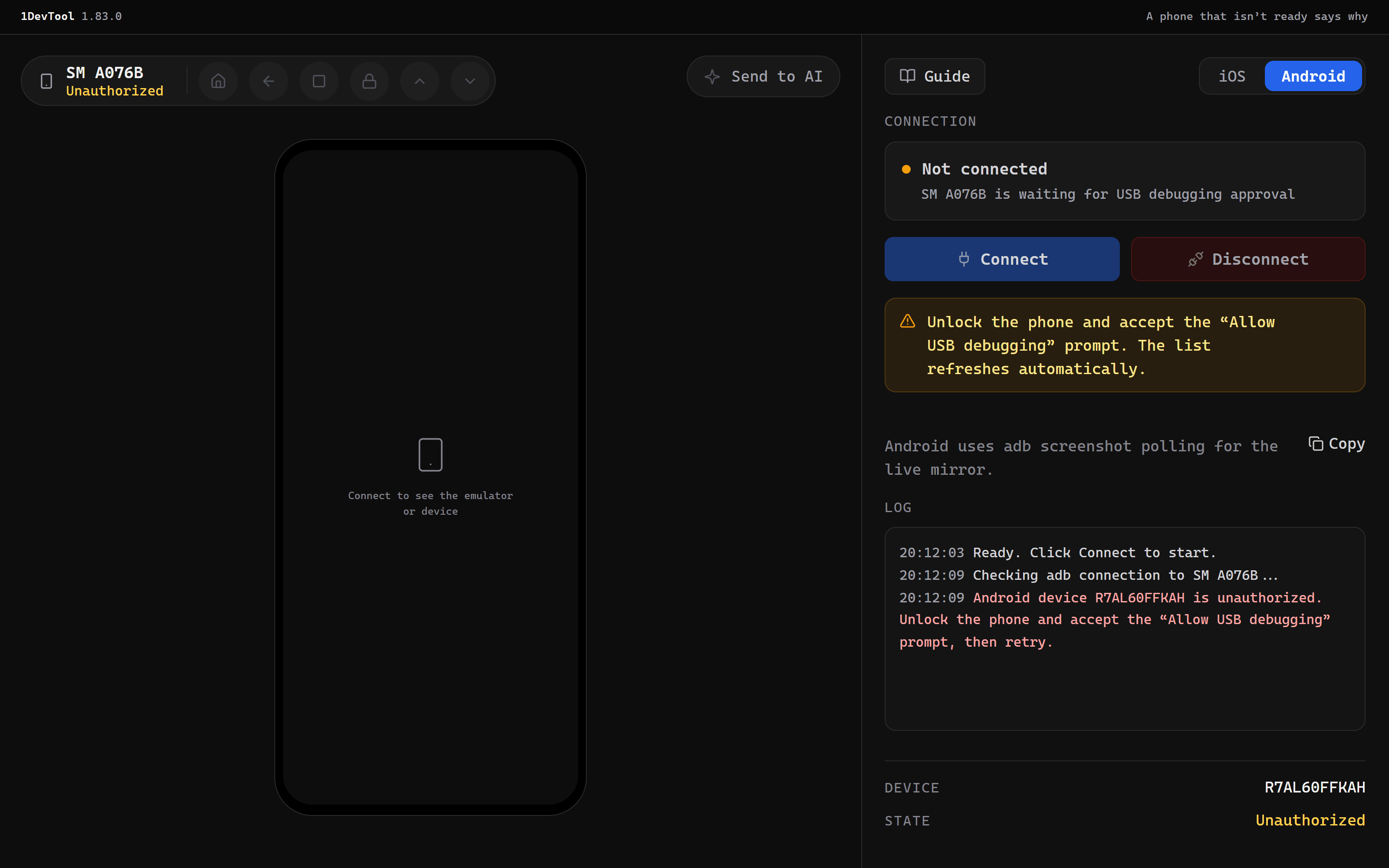
The most common snag is a phone that is plugged in but hasn't been trusted yet. Instead of a silent failure, the picker marks it Unauthorized in amber and the panel says: "Unlock the phone and accept the "Allow USB debugging" prompt. The list refreshes automatically." Connect stays greyed out until the phone is ready. The panel checks again every five seconds, so as soon as you tap Allow on the phone, the state turns green and you can connect.
A phone whose connection dropped shows Offline, with a hint to reconnect the cable (or Wi-Fi) or run adb reconnect. A phone you unplugged is reported as not connected. The panel won't quietly switch you over to whatever emulator happens to be running.
Only adb is required
You don't need the emulator for any of this. If Android SDK Platform-Tools is installed, the panel works with phones even when no emulator is installed, and it tells you which piece is missing: "adb found, emulator missing: only physical devices over adb are available." It no longer hides the Android mode because one half of the SDK isn't there.
Disconnect only stops the mirror. A phone is never powered off from the panel, so the Shutdown emulator button disappears while a phone is selected.
Wireless works too
On Android 11 and later you can leave the cable in the drawer. Turn on Wireless debugging in Developer options, choose to pair with a code, then run adb pair <ip>:<pair-port> and adb connect <ip>:<port>. The phone appears under Connected devices (adb) marked Wi-Fi. The panel's Guide has a new Android phone over adb section that walks through USB debugging and these wireless steps.
Before vs After
| Task | Before | After |
|---|---|---|
| See the phone's screen | Look down at the desk, or install a separate mirroring app | The phone mirrors inside the Mobile panel, next to your terminals |
| Tap through a flow | Pick up the phone | Click, drag and type on the mirror |
| Show an agent the bug | Screenshot on the phone, transfer it, attach it to the prompt | Send to AI with the device context included |
| Install a new build | Run Gradle and adb -s <serial> install yourself | Build & Run onto the selected phone |
| Phone not trusted yet | Connection fails with no explanation | Unauthorized in amber, with the fix and an automatic refresh |
| No emulator installed | Android mode unavailable | Platform-Tools alone is enough for phones |
Also in v1.83.0: Windows keeps up with your agents
Two fixes make 1DevTool on Windows less painful. When agents write a burst of files into a large project, the app no longer goes "Not Responding". Each project is now watched through one recursive handle instead of one handle per file. The faster file-watcher service also restarts on its own if it drops out under load. And Restart & Install no longer stops with "1DevTool cannot be closed. Please close it manually and click Retry". The installer now moves the old program file aside first, so the MCP server and 1devtool-agent helpers that AI clients keep relaunching can't block the update.
The Mobile panel on Windows also stops driving the wrong emulator. A Windows line ending in the emulator's name meant it never matched the one you picked, so the panel used whichever emulator was running. It now matches by name and never swaps in a different device.
Who benefits most
- Android developers testing on budget phones. The phones your users actually own have small screens, big system fonts and aggressive gesture bars. Now you can test on one without looking away from the code.
- Anyone pairing with an AI agent on a mobile app. The agent can see the real device, and each fix is one Build & Run away from being checked.
- Windows users running several agents at once. File-heavy agent work no longer freezes the app, and updates install on the first try.
Try it
Update to 1DevTool v1.83.0, plug in an Android phone with USB debugging on, and open the Mobile panel. The phone is in the list, next to your emulators. You'll spend less time looking down at your desk.