Aug 12, 2026
Tile Your Whole Window, and Share Skills Across Every Project
Mosaic turns the 1DevTool window into tiles you place, split and resize yourself — without restarting a single running agent. And the new Skills Control Plane installs a skill once, then pins a version per project so your whole team shares the same set.
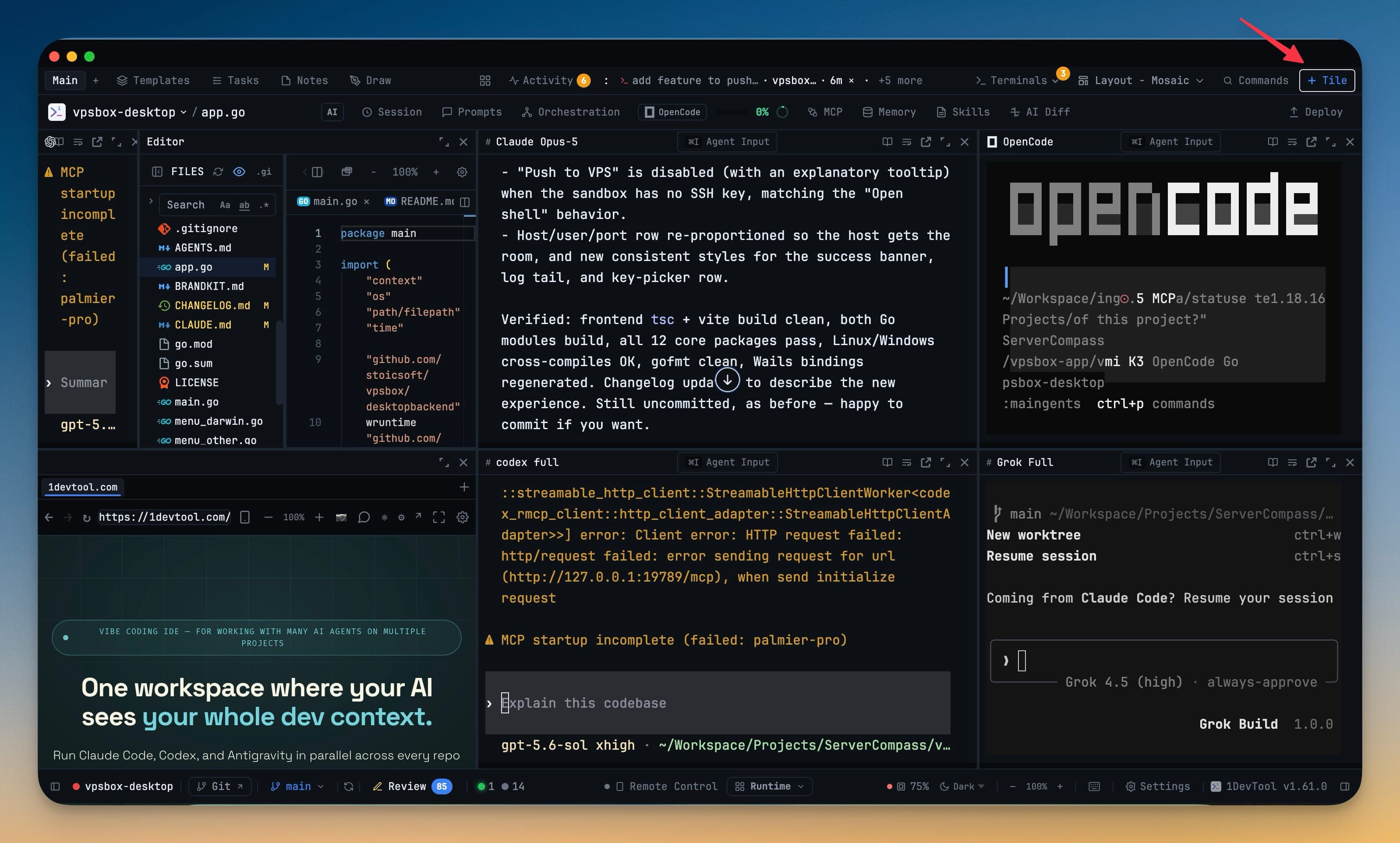
Every layout you have ever used in 1DevTool has had the same quiet assumption baked into it: the sidebars belong on the sides, the terminals belong in the middle, and your job is to pick whichever preset puts them closest to where you actually want them. That works right up until the day it doesn't — the day you want the browser preview beside the agent that is editing the page, the database shell under the terminal running the migration, and nothing else on screen at all.
Until now the honest answer was to pick the least-wrong preset and live with it. And when you found an arrangement that genuinely fit, it fit exactly one project; every other project started over from Default.
What changed
1.62.0 adds Mosaic, a tiling layout with no sidebars at all. Every tool you already have becomes a tile you place, split, resize and magnify wherever you want it — and you can keep more than one arrangement per project instead of settling on one.
The same release does the equivalent for skills: install a skill once into a versioned library on your machine, then pin a version per project instead of copying folders around and hoping they stay in sync.
How it works in practice
Put the tools exactly where you want them
Pick Mosaic in the layout picker and the sidebars disappear. What's left is your window, divided into tiles. Split any tile left, right, up or down; drag one tile onto another to stack them as tabs; drag the seams between tiles to resize. Terminals, the editor, the browser, the database, the HTTP client, Mission Control — they all work as tiles, so nothing you rely on gets left behind in a sidebar that no longer exists.
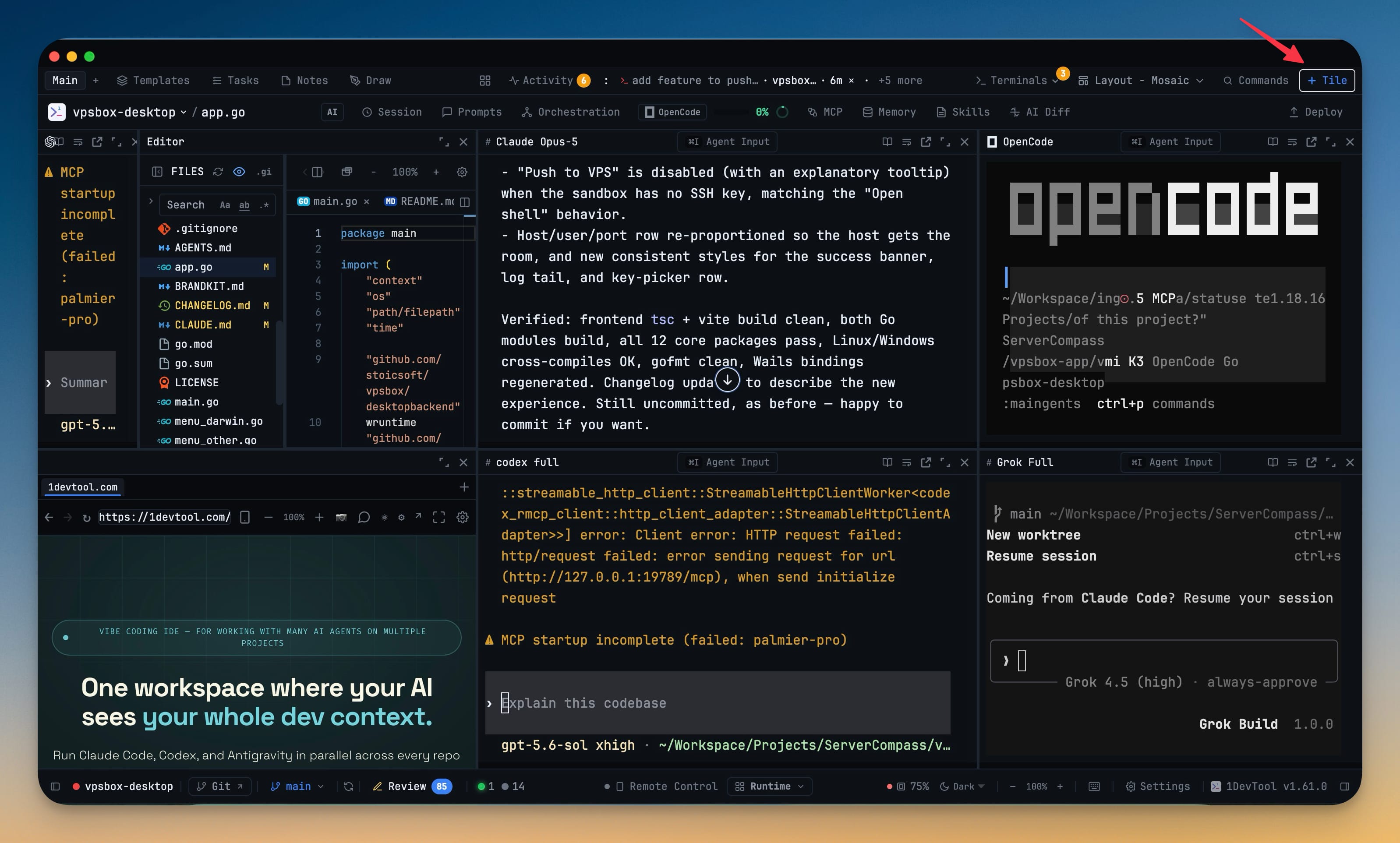
Adding to the arrangement goes through one searchable list. + Tile in the toolbar opens a palette holding three things at once: the tools, the terminals already open in this project that you haven't placed yet, and "New terminal…" if you want a fresh one. Enter splits the focused tile to the right, Shift+Enter splits it down.
The part that matters most is what doesn't happen. Splitting, moving, resizing and magnifying leave running agents, PTYs and scrollback completely untouched. You can rearrange the window around a build that is halfway through and the build never notices.
If you would rather not reach for the mouse, the whole thing is keyboard-driven — add a tile with Cmd+Shift+N, split right or down with Cmd+Alt+→ / Cmd+Alt+↓, magnify the focused tile with Cmd+Ctrl+M, and move focus between tiles with Ctrl+Shift+ arrows. Those shortcuts only bind while Mosaic is the active layout, so they stay free to mean nothing in the panel presets.
Keep more than one arrangement per project
A single project rarely has a single shape. Reviewing a pull request wants the editor and the diff; debugging wants three terminals and the database.
Mosaic lets you name a workspace, add a second one, and switch between them from the tabs at the far left of the toolbar. Double-click a tab to rename it. Both arrangements persist, so switching is a click rather than a rebuild.
Spread a layout you like across every project
Once an arrangement earns its keep, the layout picker will push it everywhere. Apply to all projects broadcasts it in one action — behind a confirmation, because it does replace existing arrangements — and Projects I add later keeps everything you create in future starting from the same place instead of Default.
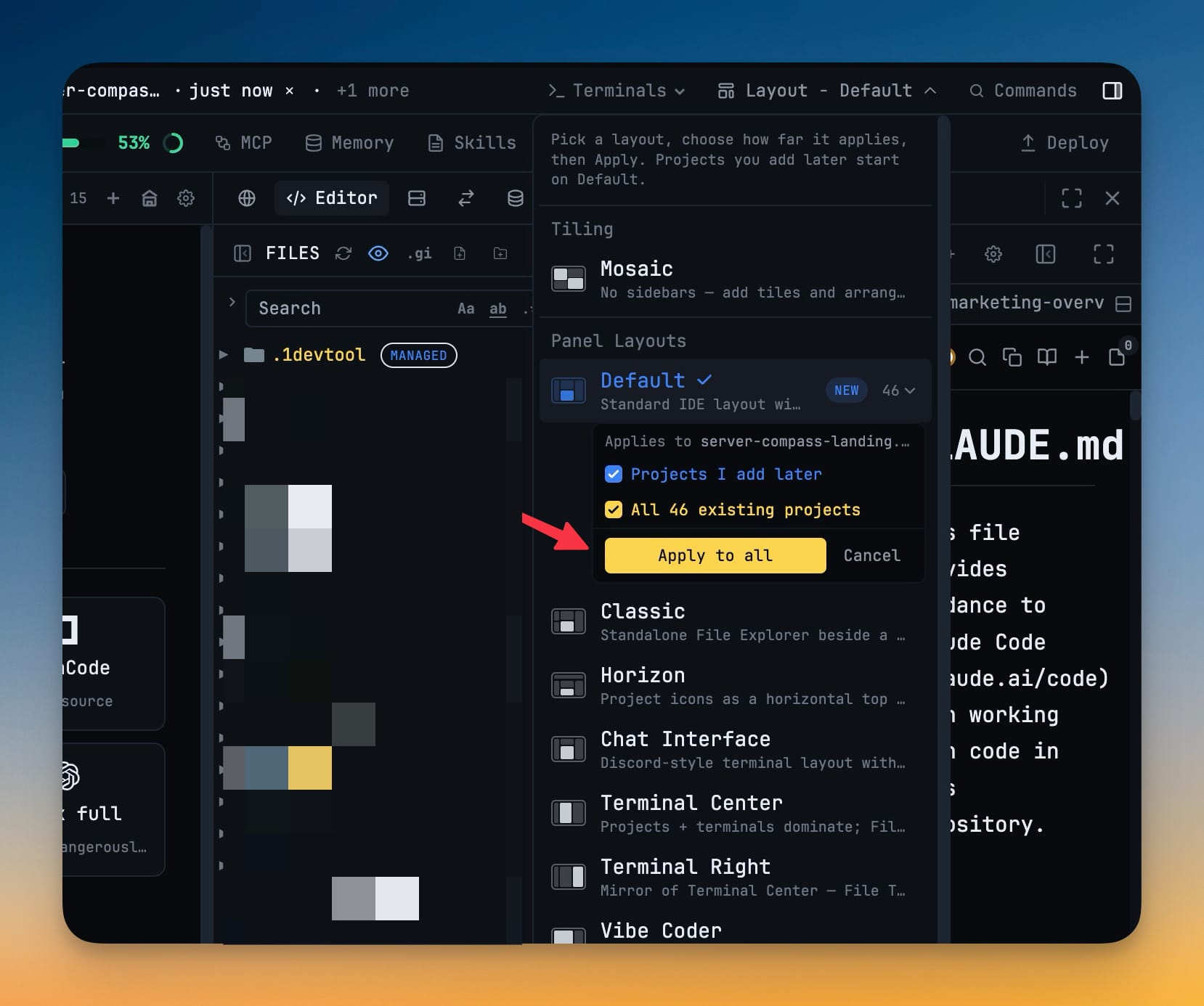
The picker also now separates Tiling from Panel Layouts, so Mosaic reads as the different kind of thing it is rather than another sidebar preset.
Install a skill once, not once per project
Skills had the same copy-per-project problem layouts did. You would install one into a project, improve it three weeks later somewhere else, and end up with four versions of the same skill and no idea which project had which.
The new Control Plane view in the Skills dialog keeps a versioned library on your machine instead. Install a skill once, then pin the version each project gets, and which agent directory it lands in — Claude, Cursor, Codex or Kimi. Applying it links rather than copies.
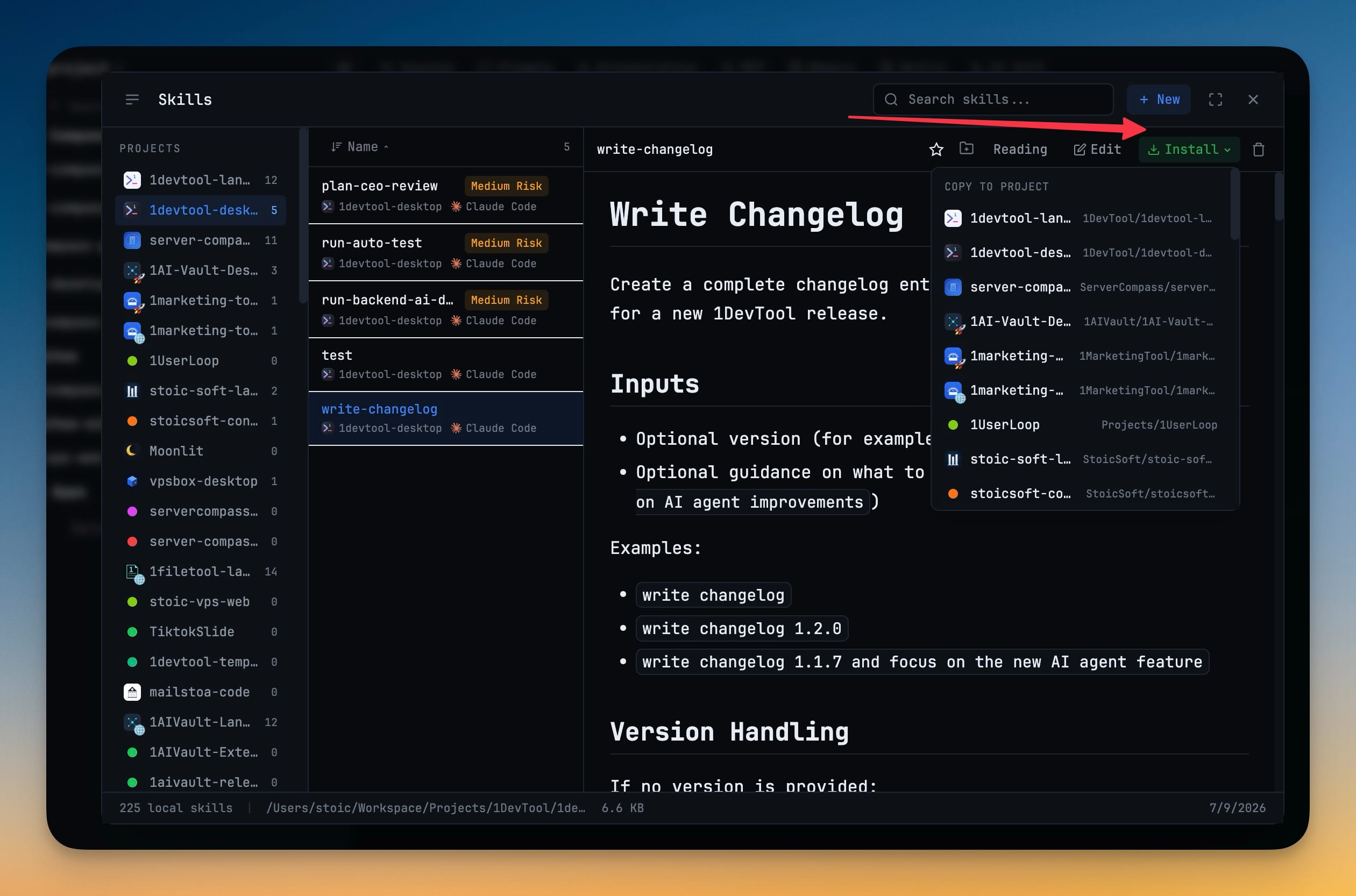
Apply shows you exactly what it will link, switch and remove before it touches anything. A real skill folder — one you copied in by hand — is never overwritten silently; it comes back as a conflict until you say otherwise.
Because versions are kept rather than replaced, moving is reversible in both directions: pick an older version from the row, or repin every outdated skill to the newest in one click. Each skill in the library also lists the projects that pinned it and the version they are on, so "who is still on v2" is a glance rather than an audit.
Share the exact skill set with your team
The manifest lives in your project at .1devtool/skills-manifest.json. Commit it and everyone who clones the repo gets the same skills at the same versions — the skills your project depends on become part of the project, the same way its dependencies already are.
Before vs after
| Before | After | |
|---|---|---|
| Arranging the window | Pick the preset closest to what you wanted | Split, drag and resize tiles into the exact shape |
| Rearranging mid-run | Risk disturbing a running agent | Agents, PTYs and scrollback survive every move |
| Two shapes for one project | Rebuild by hand each time | Named workspaces, one click apart |
| A layout you like | Re-pick it project by project | Apply to all projects, and to ones you add later |
| Installing a skill | A copy per project, drifting apart | One versioned library, pinned per project |
| Updating a skill | Find every copy | Repin outdated skills in one click |
| Onboarding a teammate | "Here are some folders to copy" | Clone the repo — the manifest brings the skills |
Who benefits most
If you run several agents at once, Mosaic is the layout that stops making you choose which one to hide. Six agents can each hold a tile, and the new "N need you" chip beside Activity counts the ones actually waiting on you — a prompt that couldn't be confirmed as submitted, or a finished run you haven't looked at — then jumps you to the first. It renders nothing at zero, so it stays a signal instead of decoration.
If you work across a lot of projects, the pairing of Apply to all projects and the skills manifest removes most of what used to make a new project feel unfurnished.
If you work on a team, the manifest is the piece that has been missing. Skills stop being personal setup and start being part of the repo.
If you use Cursor, its renamed CLI is recognised everywhere now. Cursor ships its command as agent, and 1DevTool accepts that spelling alongside the original cursor-agent across detection, startup commands, resume, model chips and sub-agent badges — while proving the binary really is Cursor first, since agent is a name other CLIs ship too. On Windows, a startup command that bridges into WSL now counts as a real Cursor terminal.
Try it
Update to 1.62.0, open the layout picker, and pick Mosaic. Add a couple of tiles, split one, and drag a seam — then check the terminal that was already running and notice it didn't skip a beat.
If it fits, push it to every project in one click. Then open the Skills dialog, look at the Control Plane, and commit the manifest — the next person to clone your repo gets your setup instead of instructions for rebuilding it.
From across the StoicSoft network
Hand-curated reads on the same topic from sister sites in the StoicSoft family.