Oct 4, 2026
Never lose an unsent prompt: Agent Input drafts now auto-save
Turn on Auto-save draft and the prompt you are still writing, screenshots and files included, is kept in Prompt History until you send or clear it.
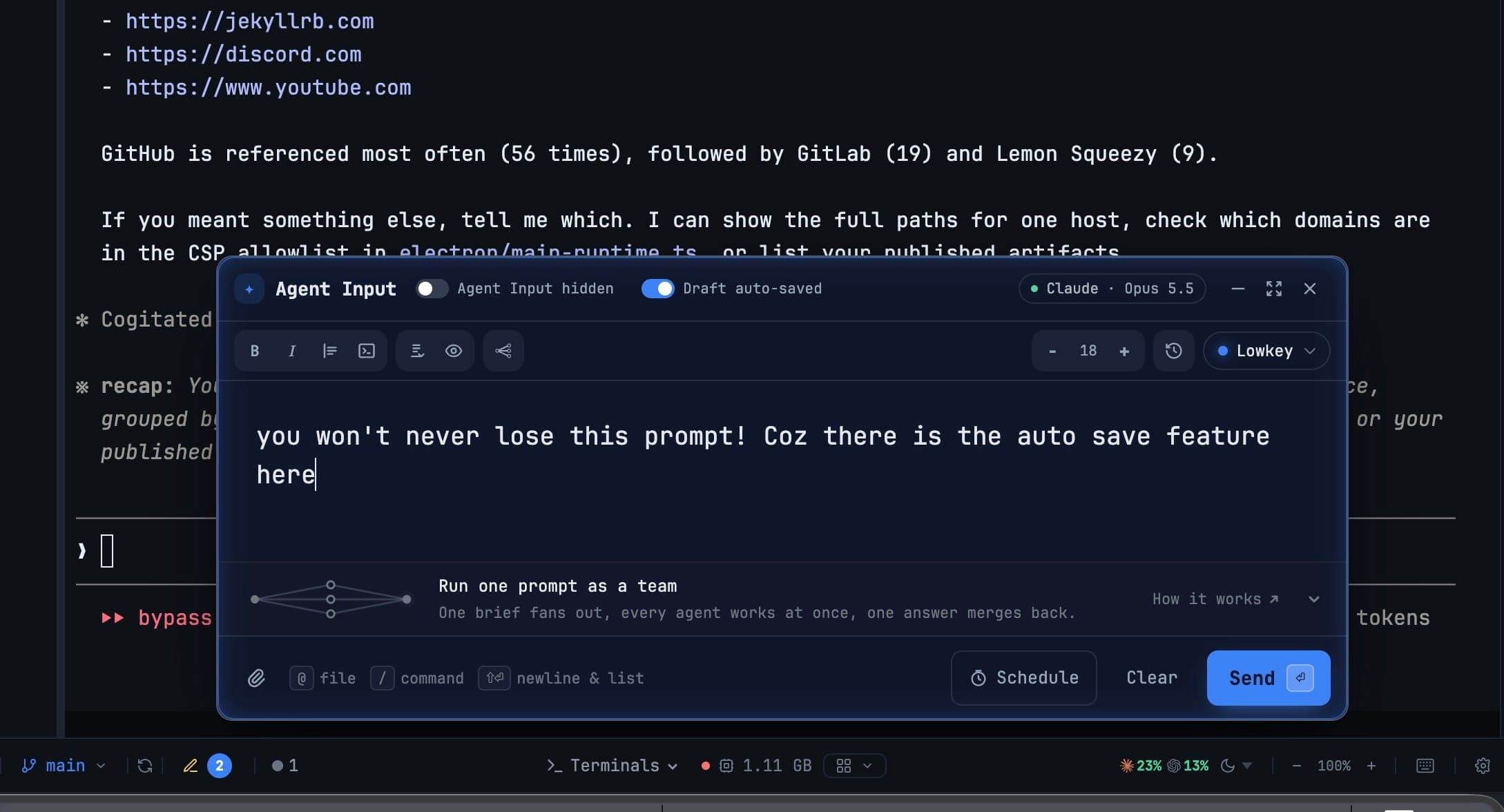
You know the prompt. It is the long one, the one where you finally explained the bug properly: the stack trace pasted in, two screenshots of the broken layout dropped underneath, a note about which file not to touch. You are three paragraphs in when the agent finishes its turn early, or a review comes in, or you switch to another terminal to check something. When you come back, the composer is not where you left it, or you closed the wrong panel, and the whole thing is gone.
Prompt History never helped here, because it only knew about prompts you had already sent. The one you were still writing, the expensive one, was the one thing nothing kept.
What changed
In 1DevTool v1.76.8, Agent Input can keep the prompt you are writing. Turn on Auto-save draft in the Agent Input header and your unsent prompt is saved to Prompt History as a Draft while you type, images and files included. When you want it back, it is one click away, in the same list as every prompt you have sent.
The switch is off by default, so nothing changes until you opt in.
How it works in practice
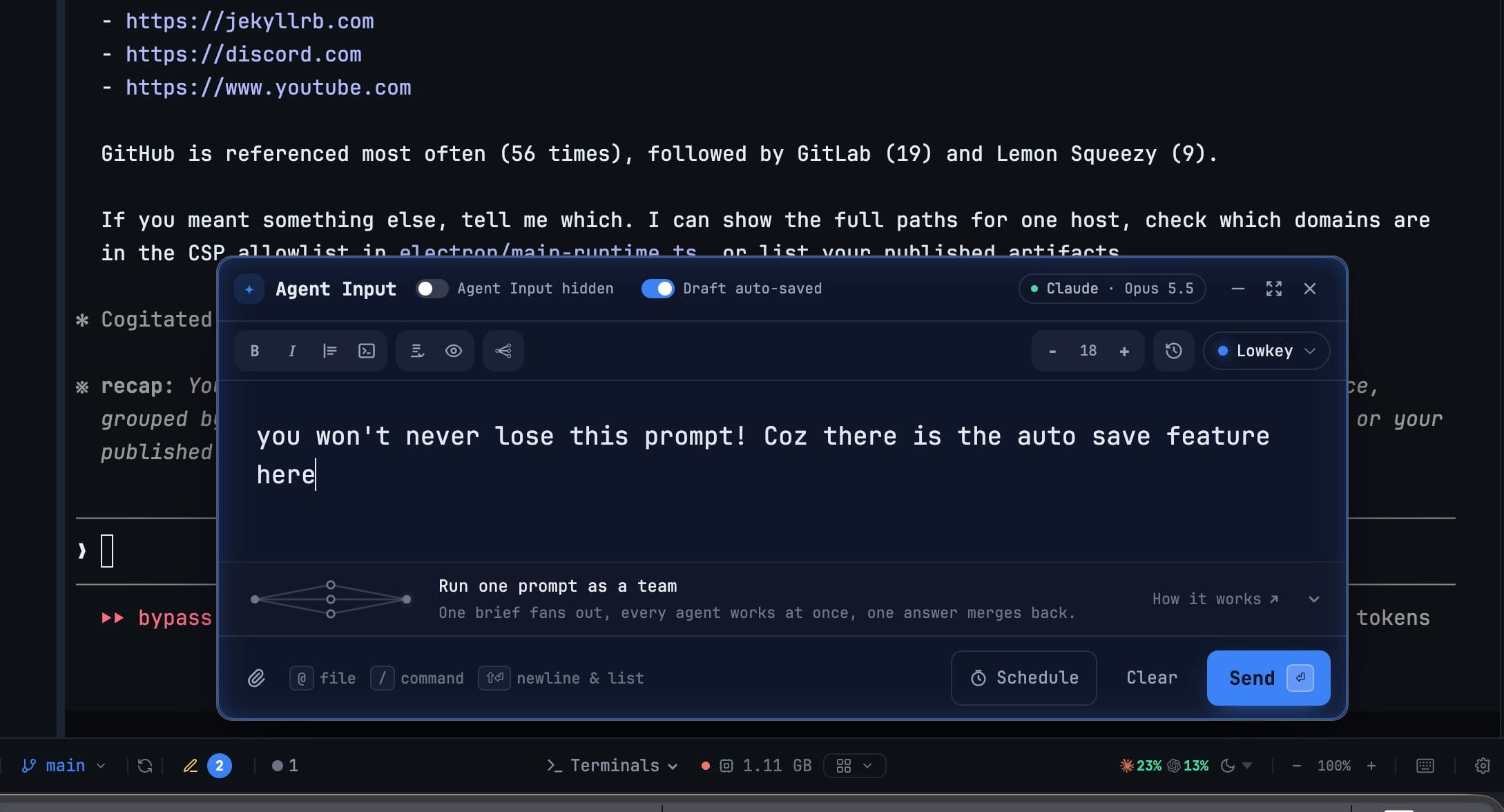
Turn it on once, then forget about it
The switch sits in the Agent Input header next to the agent and model chip. Flip it and its label changes from Auto-save draft to Draft auto-saved, so you can tell at a glance whether this composer is being kept. From then on, every time you pause typing for about a second, the current text is written to Prompt History. There is no save button and no "are you sure". You keep writing and the draft keeps up.
You can reach the same setting from two other places, and all three stay in sync:
- the Prompt History tools menu, as Auto-save Agent Input drafts
- Settings → Agents → Behavior, as Auto-save Agent Input drafts to Prompt History
Screenshots and files are saved with the text
A prompt for a coding agent is rarely just words. You paste a screenshot of the broken page, or drop in the log file and the component you want changed. Those are part of the prompt, so they are part of the draft. On the Prompt History row, each image shows as a thumbnail and each file as a chip, so you can recognise the right draft by what was attached as well as by what it says.
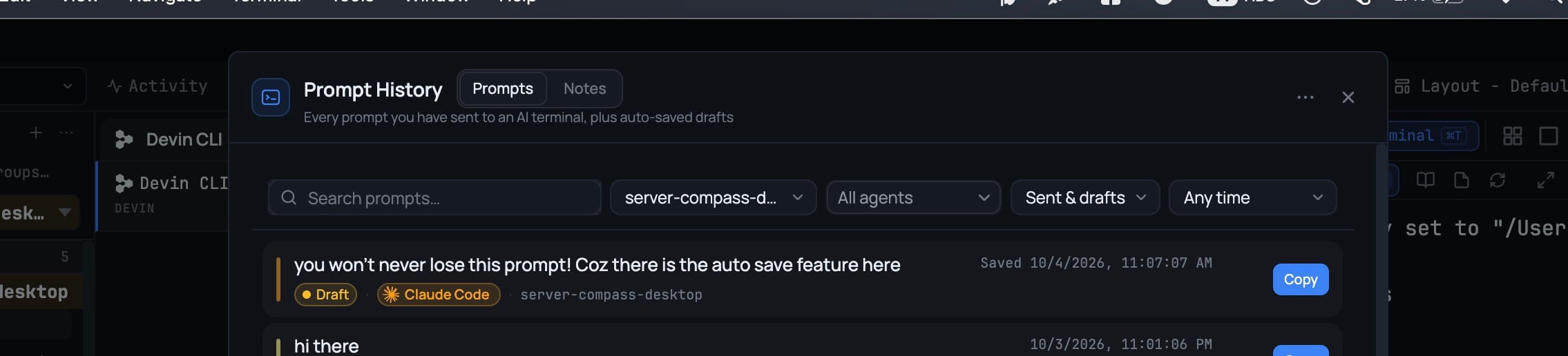
Find it in Prompt History
Open Prompt History and drafts sit in the same list as your sent prompts. A draft row carries an amber Draft tag, the agent it was written for and the project, and its timestamp reads Saved with the time of the last save, so a draft is never mistaken for something that already went out.
The list now has a filter with three settings:
- Sent & drafts — the default, because a draft is usually exactly what you came looking for
- Sent only — the history as it was before drafts existed
- Drafts only — everything you started and have not sent
Search, the project picker, the agent filter and the time range all work on drafts the same way they work on sent prompts. If you export your history, drafts are included.
Use puts the whole thing back
Open Prompt History from the composer and click Use on a draft. The text lands at your caret, the same way Use has worked since prompts could be reused from inside the composer: it replaces a selection if you have one, sits on its own paragraph next to text you have already typed, and never overwrites what is in the box. The images and files come back too, restored as attachment chips in the composer rather than pasted in as raw paths.
This also works for sent prompts. Any past prompt that went out with screenshots or files now restores them the same way when you pick it, so resending last week's bug report with its screenshots no longer means finding the screenshots again.
One draft per terminal, gone once it is sent
A history full of near-identical half-prompts would be worse than no drafts at all, so the rules are strict:
- One draft per terminal. As you edit, the draft for that terminal is replaced, not added to. You never scroll past forty versions of the same paragraph.
- Sending removes it. The moment you send, the draft disappears and the sent prompt takes its place, so the same prompt is never listed twice.
- Clearing removes it. Press Clear and the draft goes with the text.
- Turning the switch off removes it. Nothing stale is left behind when you stop using the feature.
Before vs After
| Before v1.76.8 | With auto-saved drafts | |
|---|---|---|
| A long prompt you have not sent yet | Lives only in the composer | Kept in Prompt History as a Draft |
| Screenshots and files in that prompt | Re-paste and re-drop them by hand | Saved with the draft, shown as thumbnails and chips |
| Getting it back | Retype from memory | Prompt History → Use |
| Reusing a sent prompt that had attachments | A wall of file paths | Text at the caret, attachments restored as chips |
| Duplicate entries | n/a | One draft per terminal, removed when sent or cleared |
| Finding only unfinished work | Not possible | Drafts only filter |
Who benefits most
People who write long prompts for agents. If a typical prompt of yours runs to several paragraphs with screenshots, losing one costs you ten minutes and some accuracy. Auto-save removes that risk for the price of flipping one switch.
Anyone juggling several agent terminals. With a Claude, a Codex and a Cursor terminal running side by side, you start prompts in one, get pulled into another and forget the first. Drafts only gives you a list of every prompt you left unfinished, one per terminal, with the agent and project on each row.
People who resend bug reports. A prompt that went out with screenshots now comes back with them. Retrying a fix on another agent, or rerunning it after a change, no longer starts with digging through your Downloads folder.
Try it
Update to 1DevTool v1.76.8, open Agent Input on any AI terminal and flip Auto-save draft in its header. Then write the way you normally do. Whatever you are halfway through stays in Prompt History until you send it or clear it, with its screenshots and files still attached.