Oct 8, 2026
Accounts & Quota: one home for every AI account you run
Add, pick, re-login and remove every AI account in the panel that also shows its quota and cost, and see which account your next terminal will start on before you open it.
If you run more than one AI subscription, you know the routine. A Claude Max seat for work, a personal one for side projects, a Codex plan the team pays for, maybe Grok on top. Before you start anything long, you want to know one thing: which account still has room? And the answer has never lived in one place.
Quota sat in one panel. Adding or re-logging an account meant a trip to Settings → Agents → Accounts. Spend was under Usage, somewhere else again. And the question that actually decides your next twenty minutes, which account will the next terminal start on?, you had to work out yourself from the pool policy, the rotate threshold and whichever account happened to be cooling down.
What changed
In 1DevTool v1.77.0, the Quota Center becomes Accounts & Quota, and it is now the only place you manage AI accounts. Adding, switching, re-logging in, renaming and removing accounts all happen in the same panel that shows their quota and what they cost. Settings → Agents → Accounts and Usage moved in here. Settings keeps a one-line "Accounts, quota and spend moved to Accounts & Quota" note with an Open button, so muscle memory still gets you there.
Now you can see where your next terminal starts, fix the account that needs attention, and check what the month cost, all without leaving the panel.
How it works in practice
Know where the next terminal starts before you open it
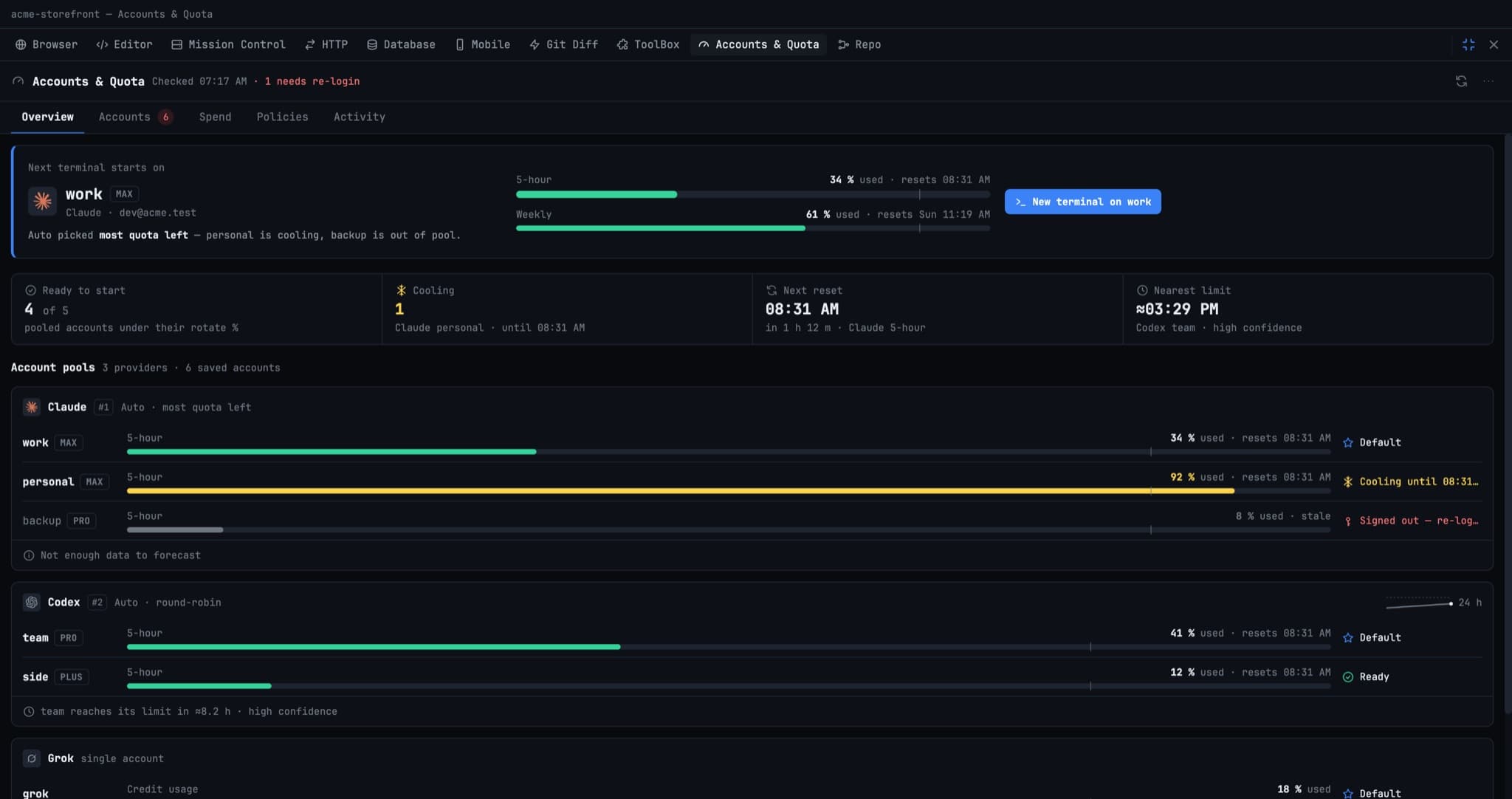
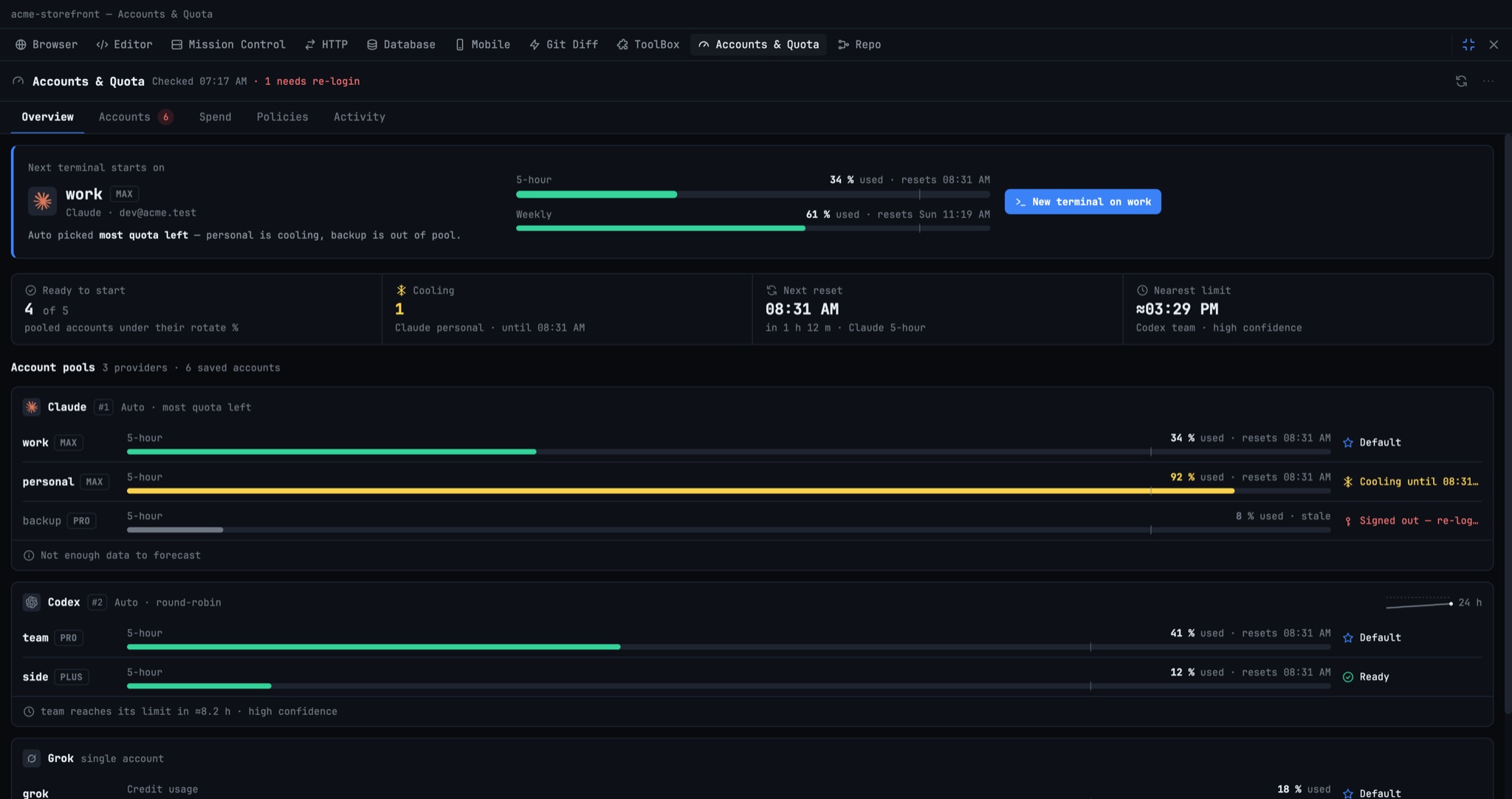
The Overview tab opens on a Next terminal starts on card. It names the account, its plan and email, its 5-hour and weekly usage, and a one-line reason, for example "Auto picked most quota left, personal is cooling, backup is out of pool." The card is worked out the same way the app picks an account when you open a terminal, so what it says is what you get. A New terminal on work button starts one right there.
Under it, four numbers answer the rest of the morning's questions: Ready to start (how many pooled accounts are under their rotate %), Cooling, Next reset and Nearest limit. Then each provider gets a lane with one row per account and one clear status: Default, Ready, Cooling until 08:31, or Signed out. If you have signed into a CLI but never saved that login as an account, the lane offers Save right there. Providers that only report quota, without a pool, get their own section.
Add, fix and retire accounts in one place
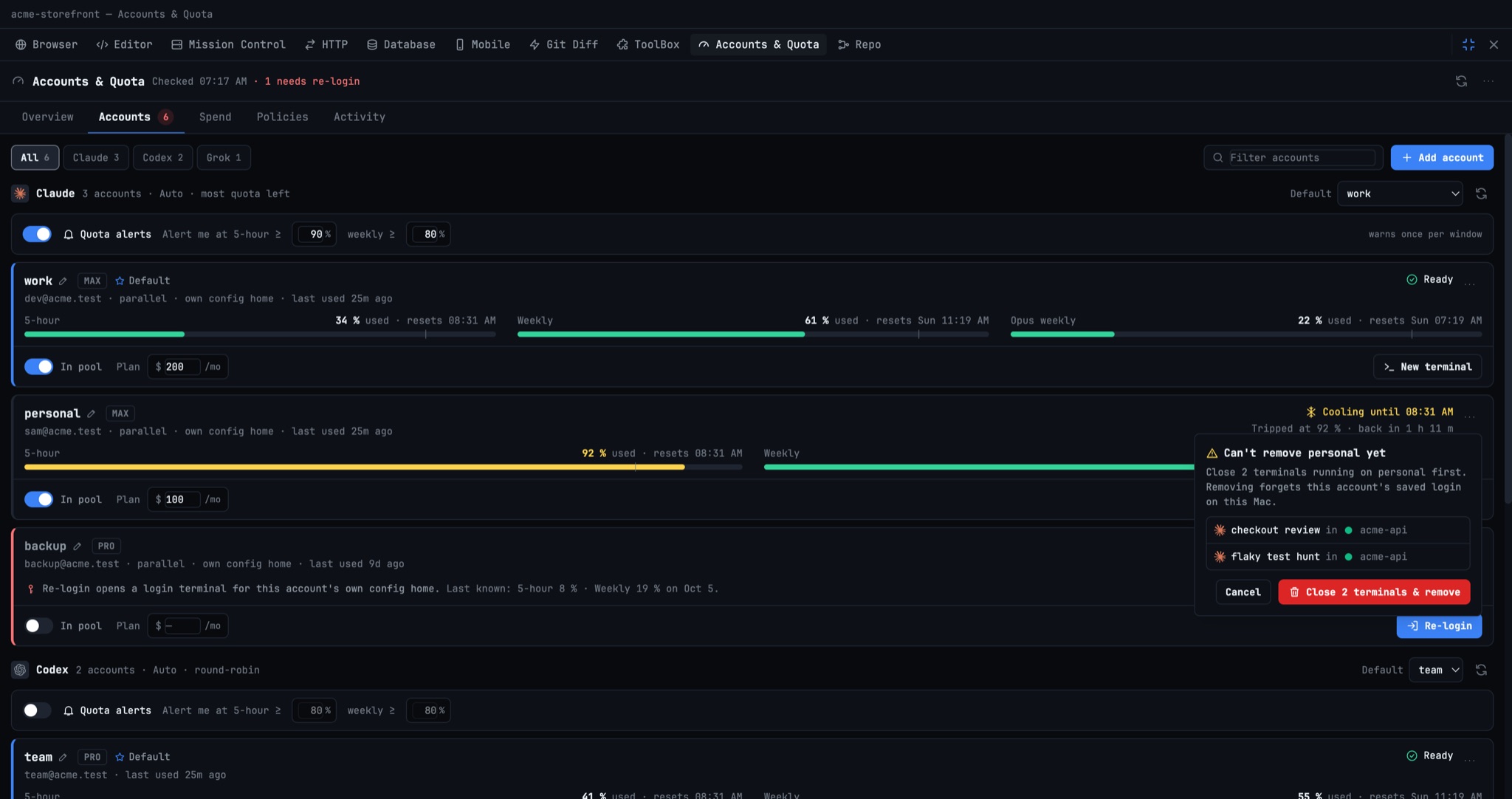
The Accounts tab is the full account manager. Add account walks you through three steps: pick the provider, sign in through a login terminal, and name it. For Claude, a new account signs in inside its own config home, so your current login and every open terminal keep working, and both accounts can run at the same time.
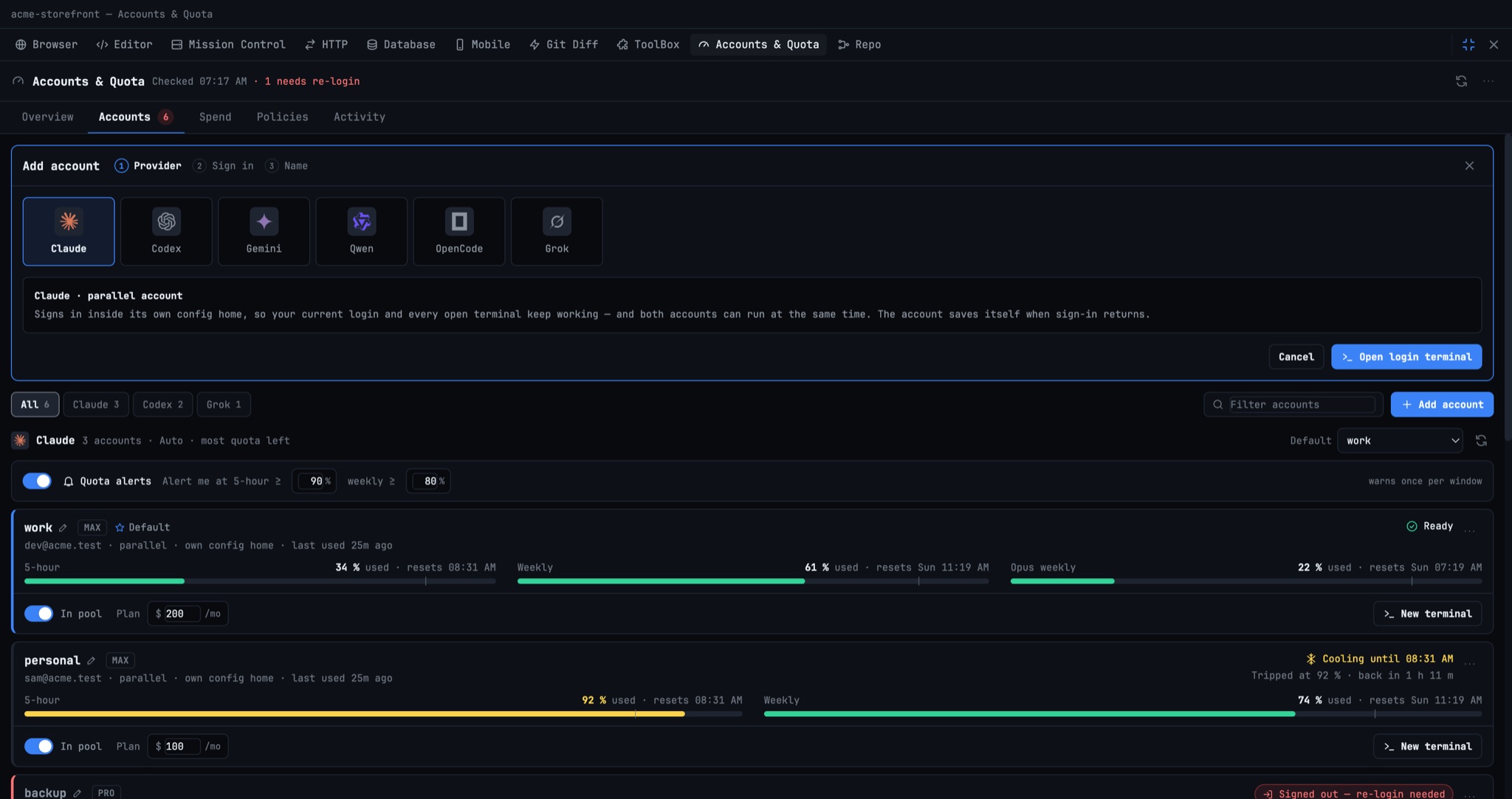
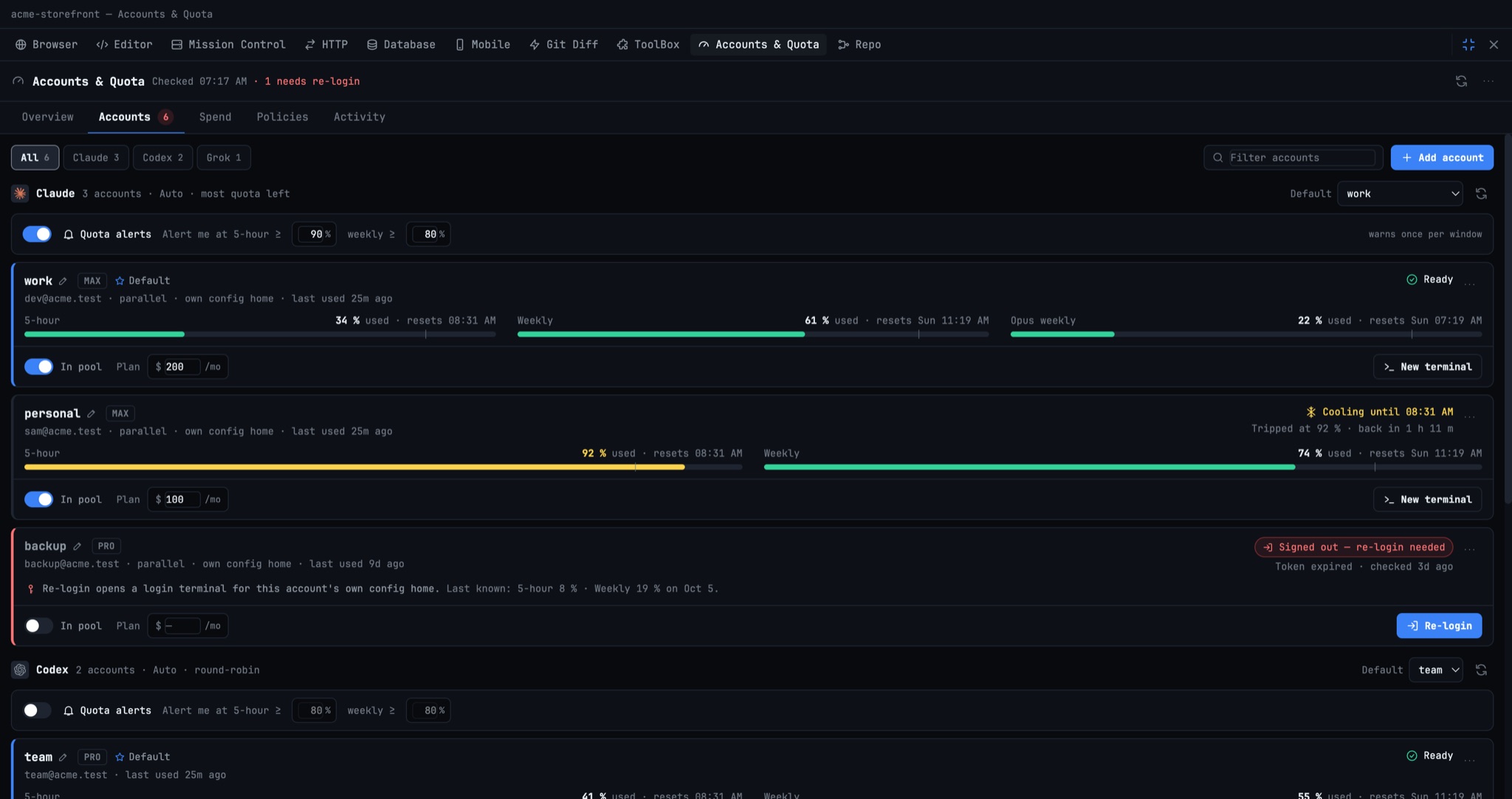
Every account card shows its usage bars with reset times and has an In pool toggle and a plan price field. Each provider has its own quota alerts ("Alert me at 5-hour ≥ 90 %, weekly ≥ 80 %") and a Default picker. The card's menu holds Rename, Copy command for other terminals, Re-login and Diagnostics. When a token expires, the card turns red, says "Signed out, re-login needed", and puts a Re-login button where you will see it.
Remove an account that is still in use
Removing an account that terminals are still running on used to end in an error and a hunt for those terminals. Now Remove… tells you why it can't go yet. "Can't remove personal yet" lists the terminals running on it, by name and project, and offers Close 2 terminals & remove. One click closes them and forgets the saved login on this Mac.
See what the month cost, by model
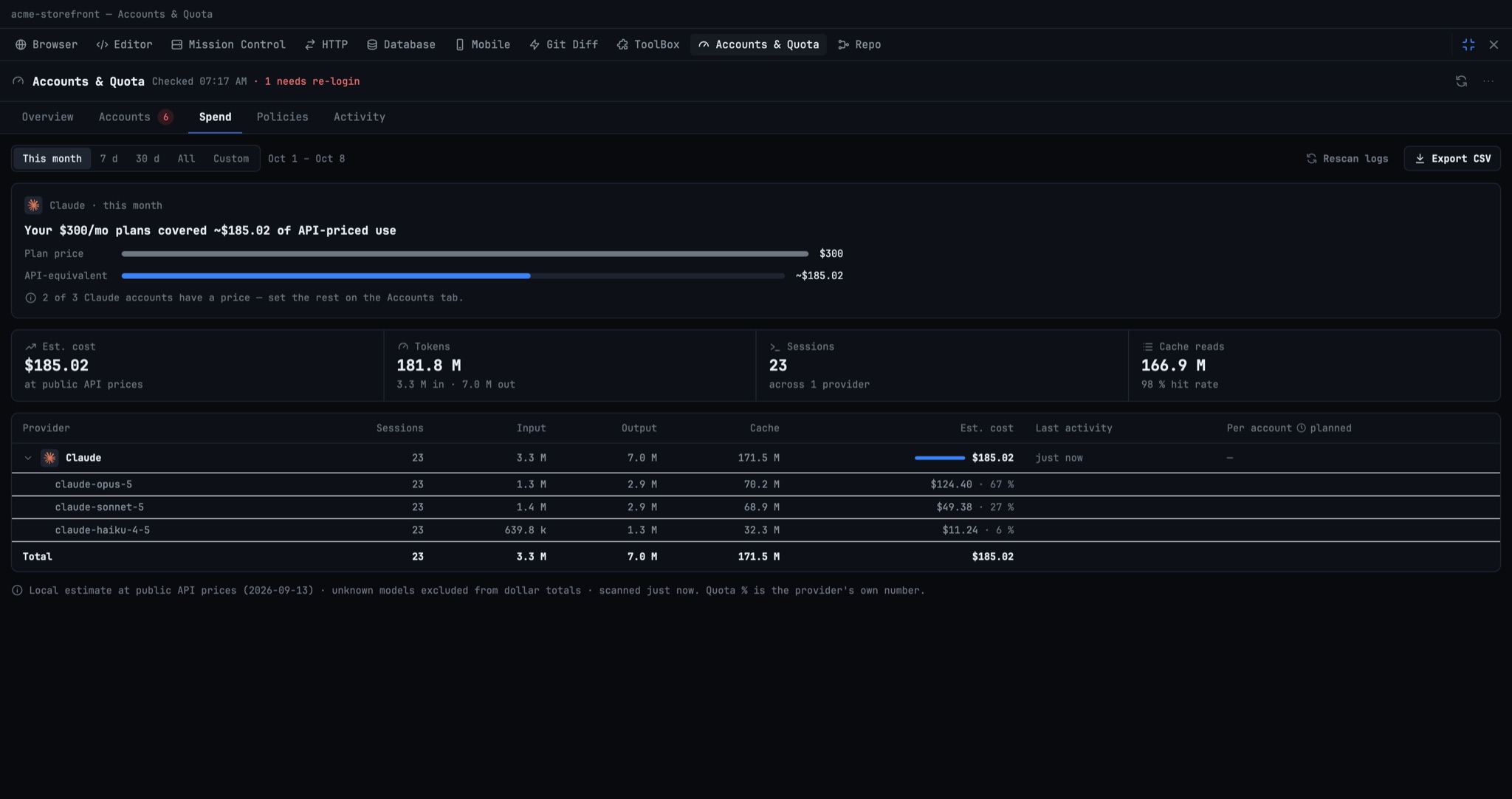
Spend now sits beside the accounts it describes. Pick This month, 7 d, 30 d, All or a Custom from/to range. Rescan logs re-reads every CLI's session files on disk. Expand a provider to see cost broken down by model. A callout compares your plan prices with the API-equivalent cost of the same usage ("Your $300/mo plans covered ~$185.02 of API-priced use"), so you can tell whether a subscription is paying for itself. Set a plan price on an account in the Accounts tab and the comparison includes it.
Tune the pool without guessing
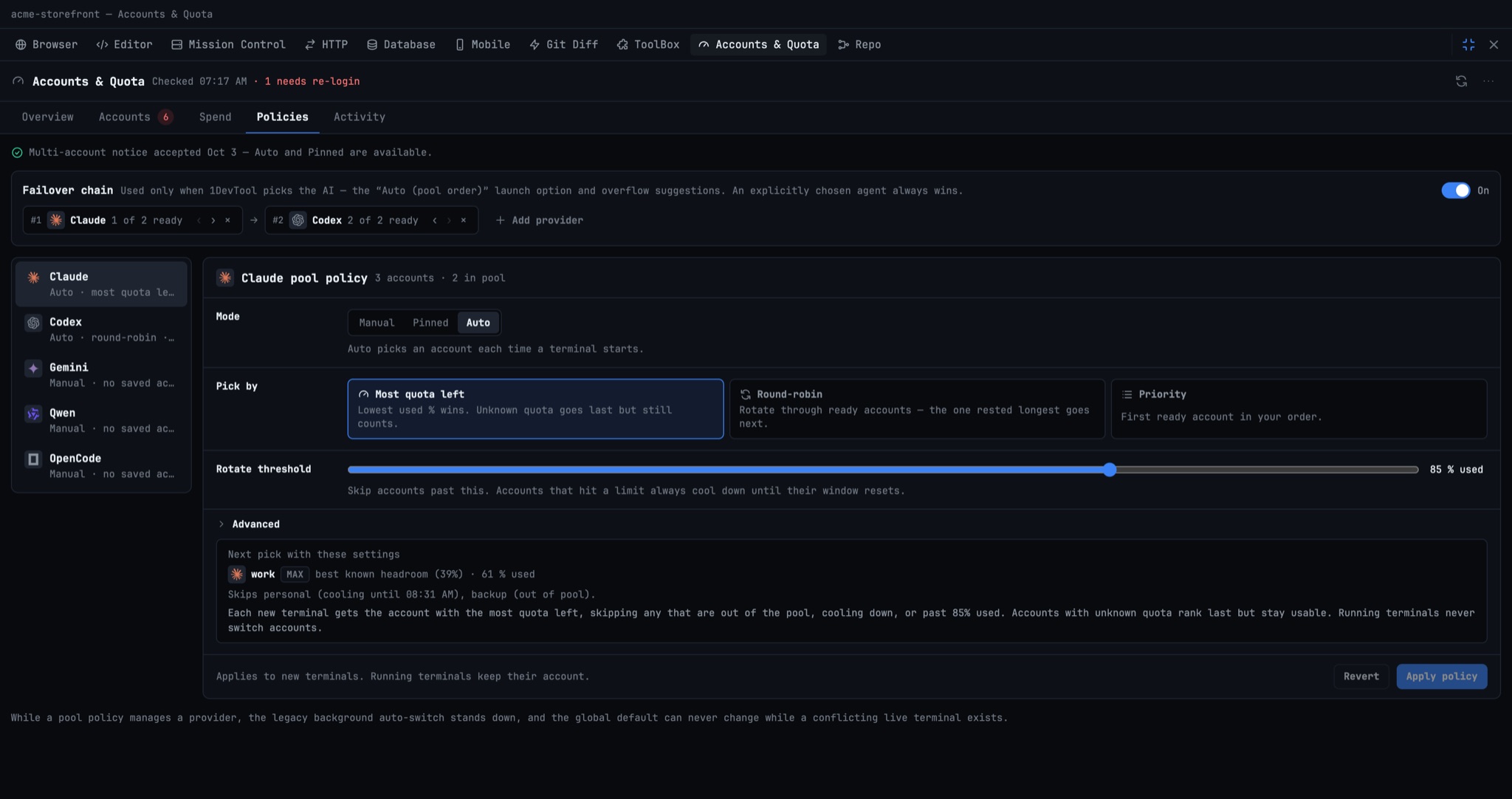
Policies keeps the failover chain and per-provider pool settings, but you no longer have to imagine what they will do. Pick a mode (Manual, Pinned or Auto) and a strategy (Most quota left, Round-robin or Priority), drag the rotate threshold, and Next pick with these settings previews the account the next terminal would get, including which accounts it skips and why. Auto and Pinned ask for your OK once. Warn-at %, max terminals per account and fallback cooldown now sit under Advanced. Running terminals never switch accounts.
Check your accounts before you open a project
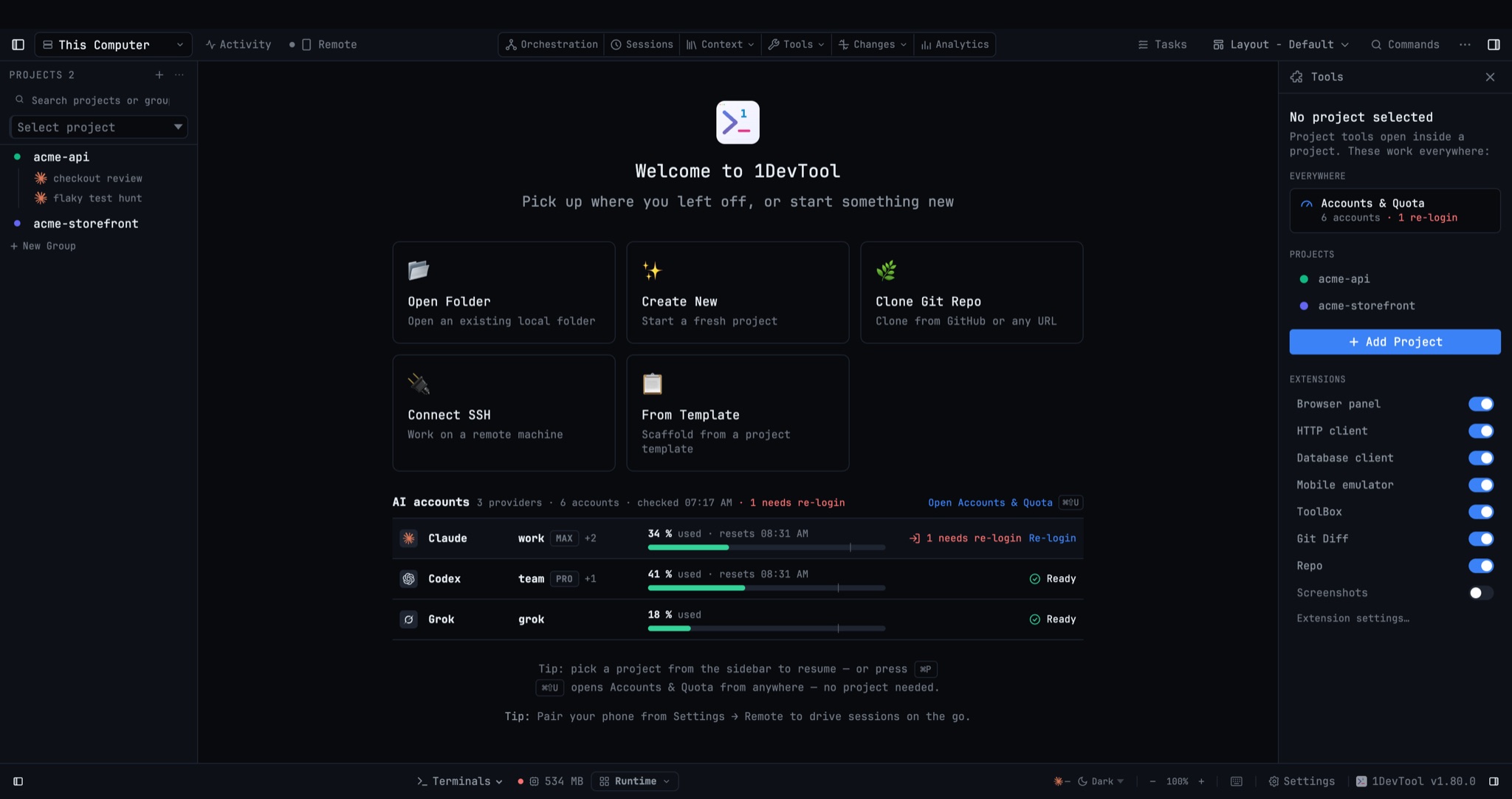
Accounts aren't tied to a project, so you no longer need one open to see them. The Welcome screen has an AI accounts list: each provider, the account its next terminal will start on, a 5-hour usage bar, and one status such as Ready or "1 needs re-login". With no accounts yet, Add an AI account is one click away.
The empty Tools sidebar has a new Everywhere section with an Accounts & Quota entry that shows your account count and any re-logins needed. ⌘⇧U opens the panel from anywhere, with or without a project, and the command palette finds it when you type "accounts", "add account" or "login". Opened without a project, the panel has its own Close. If you then open a project, it moves into that project's layout instead of disappearing.
It opens instantly, and it lets go
The panel now shows your account list in about a tenth of a second. Live quota from slower CLIs (Antigravity, Cursor, Grok, Amp) fills in as it arrives instead of holding everything on "Loading accounts…". This release also fixes accounts that stayed on "cooling down" for hours after their 5-hour window reset, and a quit that could hang if you closed the app within half a second of opening the panel.
Before vs After
| Task | Before | After |
|---|---|---|
| Find which account the next terminal uses | Work it out from the pool policy, rotate % and cooling states | Read the Next terminal starts on card |
| Add or re-login an account | Settings → Agents → Accounts | Add account or Re-login in Accounts & Quota |
| Remove an account terminals are using | Error, then find and close each terminal by hand | Close 2 terminals & remove, one click |
| Check this month's cost by model | Usage in Settings, no per-model view | Spend tab, expand a provider |
| See whether a policy change helps | Apply it and open a terminal to find out | Next pick with these settings preview |
| Check quota before opening a project | Open a project first | Welcome screen or ⌘⇧U |
Who benefits most
Developers juggling a work and a personal Claude seat. You can see at a glance which one the next terminal will burn, and re-login the one whose token expired without opening Settings.
Teams sharing several Codex or Claude plans. Plan price and cost by model on one screen make it clear which subscription is earning its keep this month.
Anyone who starts the day in the Welcome screen. You can check headroom across every provider before you pick a project.
Try it
Update to 1DevTool v1.77.0 and press ⌘⇧U. Your existing accounts, pools and alerts are already there, now in one panel that shows where the next terminal will start, what each account has left, and what the month cost.