Sep 19, 2026
One Prompt, Every Agent — and a Way to Find Any Terminal
Send to many fans a single draft out to every AI terminal you tick, starting cold ones and waiting for them. ⌘L searches every terminal by its last line of output, and the phone remote now opens on the agents that need you.
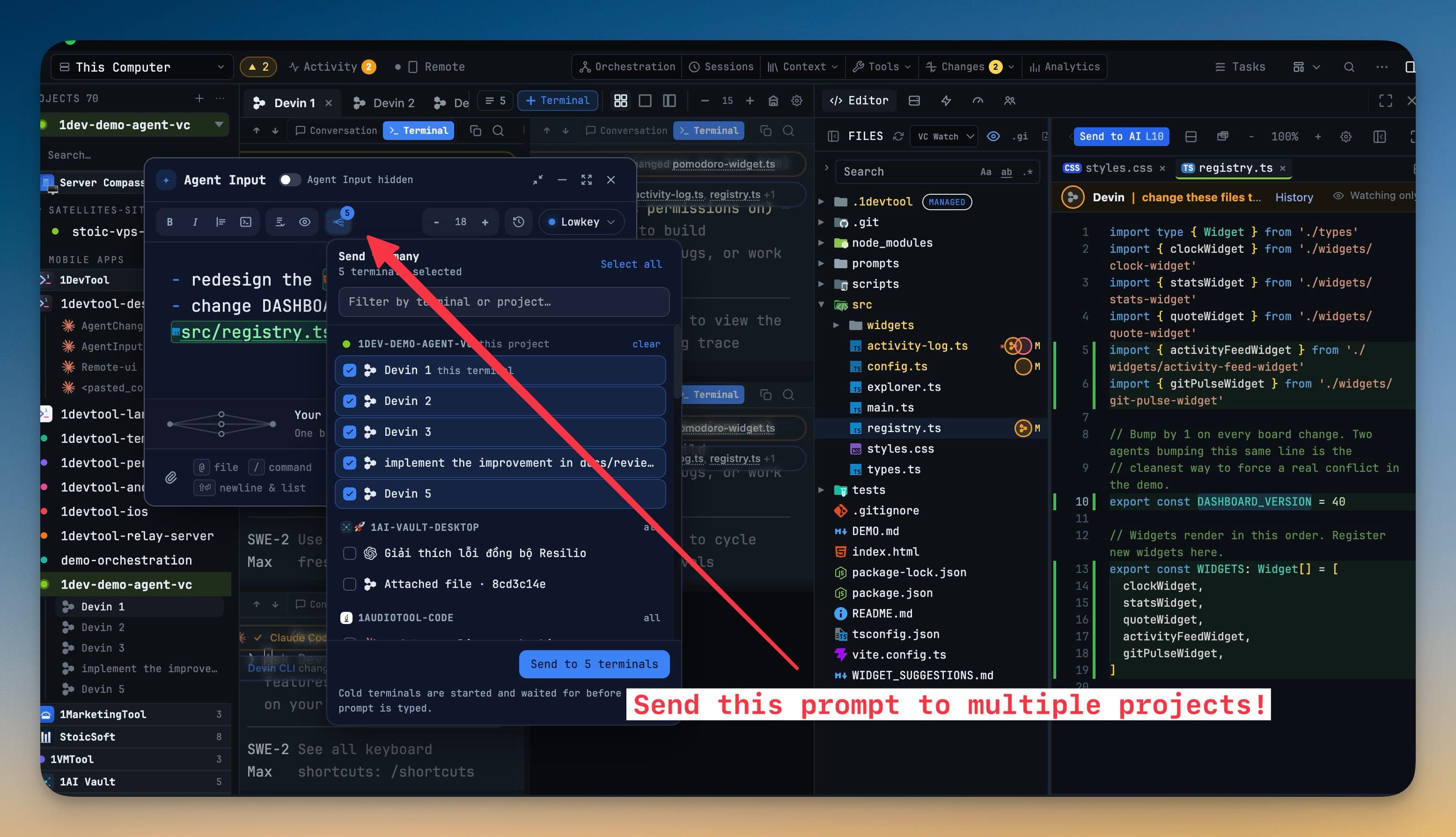
There is a point — somewhere around the twelfth terminal — where your tab strip stops being navigation and becomes a wall. The names are truncated to six characters. You scroll left, scroll right, open three tabs to find the one you meant, and the one you actually wanted turns out to be hidden. Meanwhile the same prompt needs to go to five different agents, so you click a tab, paste, press Enter, click the next one, paste, and lose count somewhere around the fourth.
None of that is agent work. It is tab management, and v1.76.0 is largely about deleting it.
What changed
Three things that, together, mean you stop hunting: Send to many fans one draft out to every agent you tick, ⌘L searches every terminal you have, and the phone remote is rebuilt around agents rather than projects — so the question "which one is stuck?" has an answer whether you are at the desk or not.
How it works in practice
One prompt, every agent you pick
Write the prompt once in Agent Input, then open Send to many. The picker lists every AI terminal across every project in the workspace — not just the one on screen — with a Filter by terminal or project… box, Select all and Clear all.
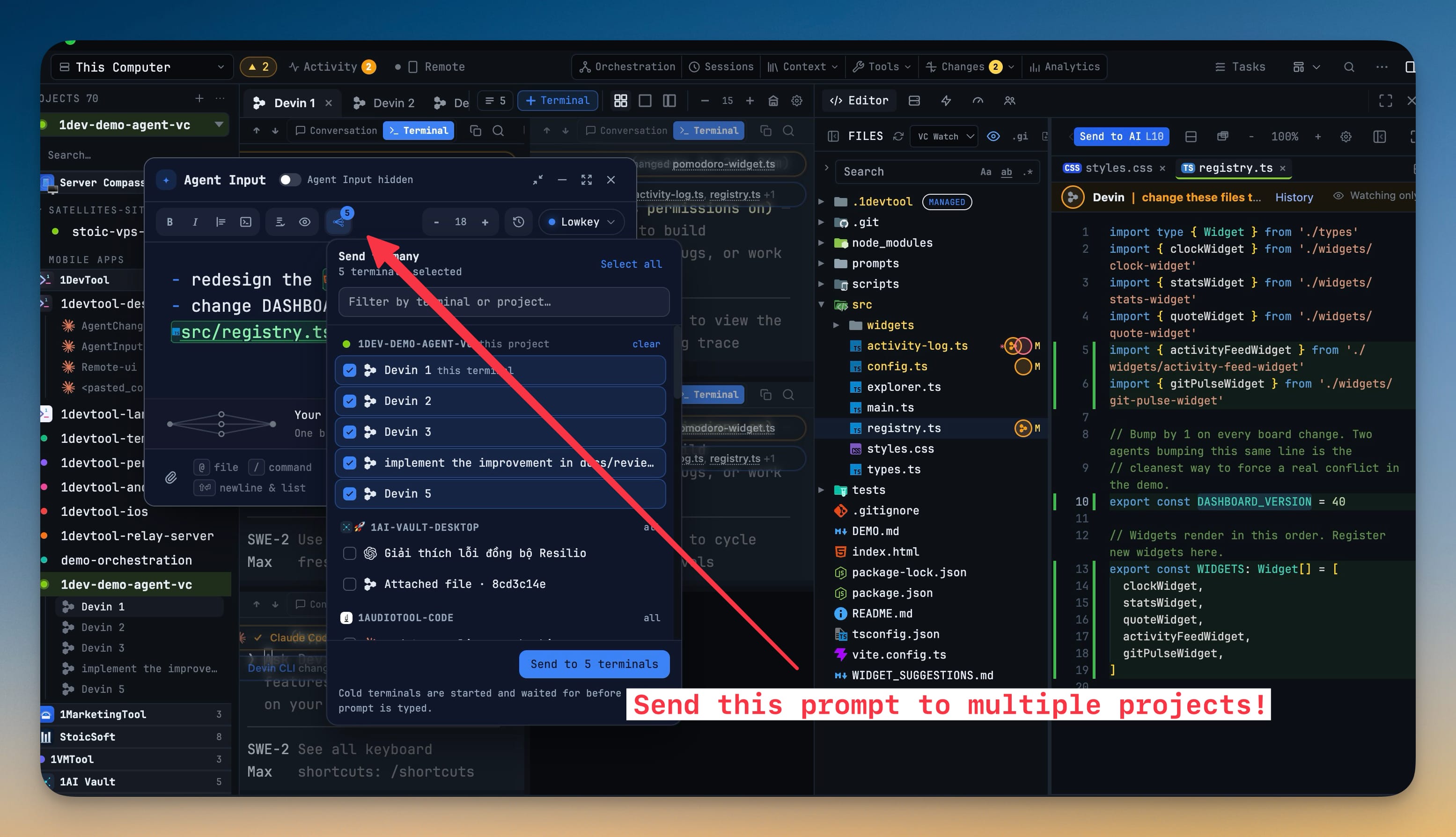
The part that makes it trustworthy is what happens to a terminal that is not running. A tab that was only saved gets launched, waited on until its composer is actually empty, and then typed into — and if readiness never came, it is never reported as sent. No more pasting into a composer that was still booting and watching half your prompt disappear.
A partial send behaves the way you would want it to: only a full success clears the composer, so your draft survives. The retry is scoped to exactly the terminals that missed, which means retrying cannot double-send to the ones that already got it. And your crew is remembered — close the picker and the selection stays on the toolbar badge, so the next broadcast is one click. Throughout, focus stays in the tab you typed in; a fan-out never yanks you into another project.
Find any terminal by anything you remember
Press ⌘L — or click the tab strip's new All N button — and every terminal opens as one searchable list, grouped Running / Done / Idle / Hidden.
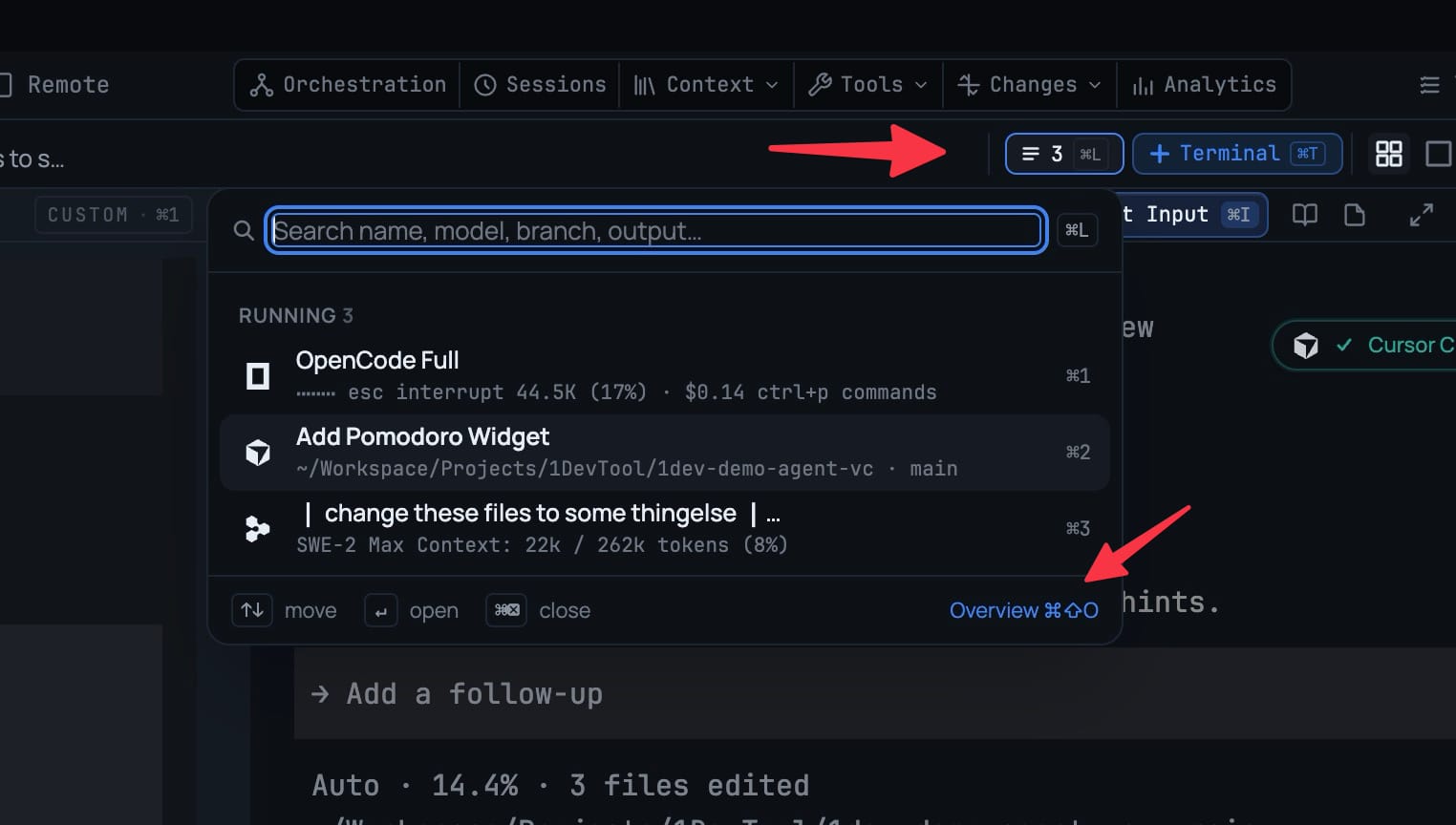
The search field says Search name, model, branch, output… and it means it. You can find a terminal by its agent, its model, its branch, its account — or by the last line it printed, which is usually what you actually remember. Each row carries its agent, worktree or machine, context use and that last line, so you often do not need to open it at all.
Move with ↑↓, open with ↵, close with ⌘⌫. Picking a hidden terminal brings it back.
The survey view, when you want all of them at once
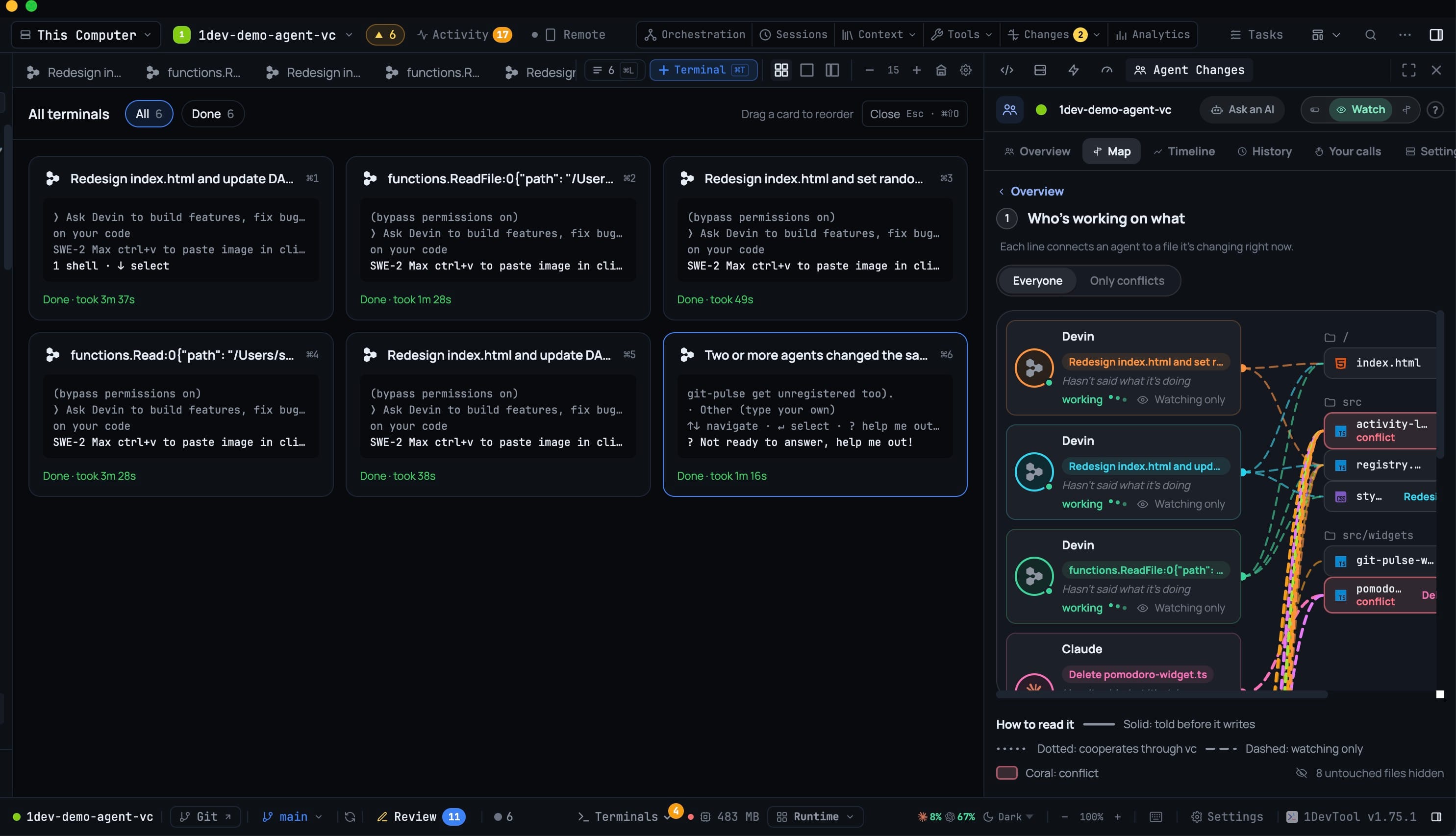
⌘⇧O is the other half: every terminal as a card with its latest output, status, model, worktree, account and context use. Filter by state, click to jump, drag to reorder your tabs.
And for projects rather than terminals: ⌃1–9 (Alt+1–9 on Windows and Linux) switches project by number, following the sidebar exactly as it is displayed — groups and filters included, so the number you see is the number that works. Hold ⌃ to see the numbers, ↑↓ to browse past the ninth, ⌃F to jump into project search.
Your phone opens on the agents, not a menu
The remote used to open on a project list, which meant finding a stuck agent took four taps and a guess. Now it opens on Agents: a kanban of every terminal across every project, grouped Needs you / Working / Idle, each card carrying the agent's mark, the project's avatar and what it is waiting on.
Filter chips for status, agent or project carry live counts and compose with each other; plain shells sit in their own bucket so they do not pad the agent columns. Dismiss a review card and it drops to Idle until that terminal runs again.
The tab bar is four tabs that match how you actually work — Agents, Projects, Team and Inbox. Browser and Tools left the tab bar and moved inside a project's detail screen, where they belong, so opening a project now gives you everything it owns at once: its terminals, Start a team, git, files, resume, prompt history, browser and tools. No more going through a global tab that then asks which project you meant.
You can start an Agent Team from the phone too: write a goal, pick the project, review the plan the desktop authored, drop any members you do not want, then start. Nothing spawns until you approve.
A paired phone starts out able to watch, and nothing else
Which raises the obvious question, and v1.76.0 answers it before you have to ask. A newly paired phone is a Viewer and stays read-only until you choose otherwise. The desktop asks outright:
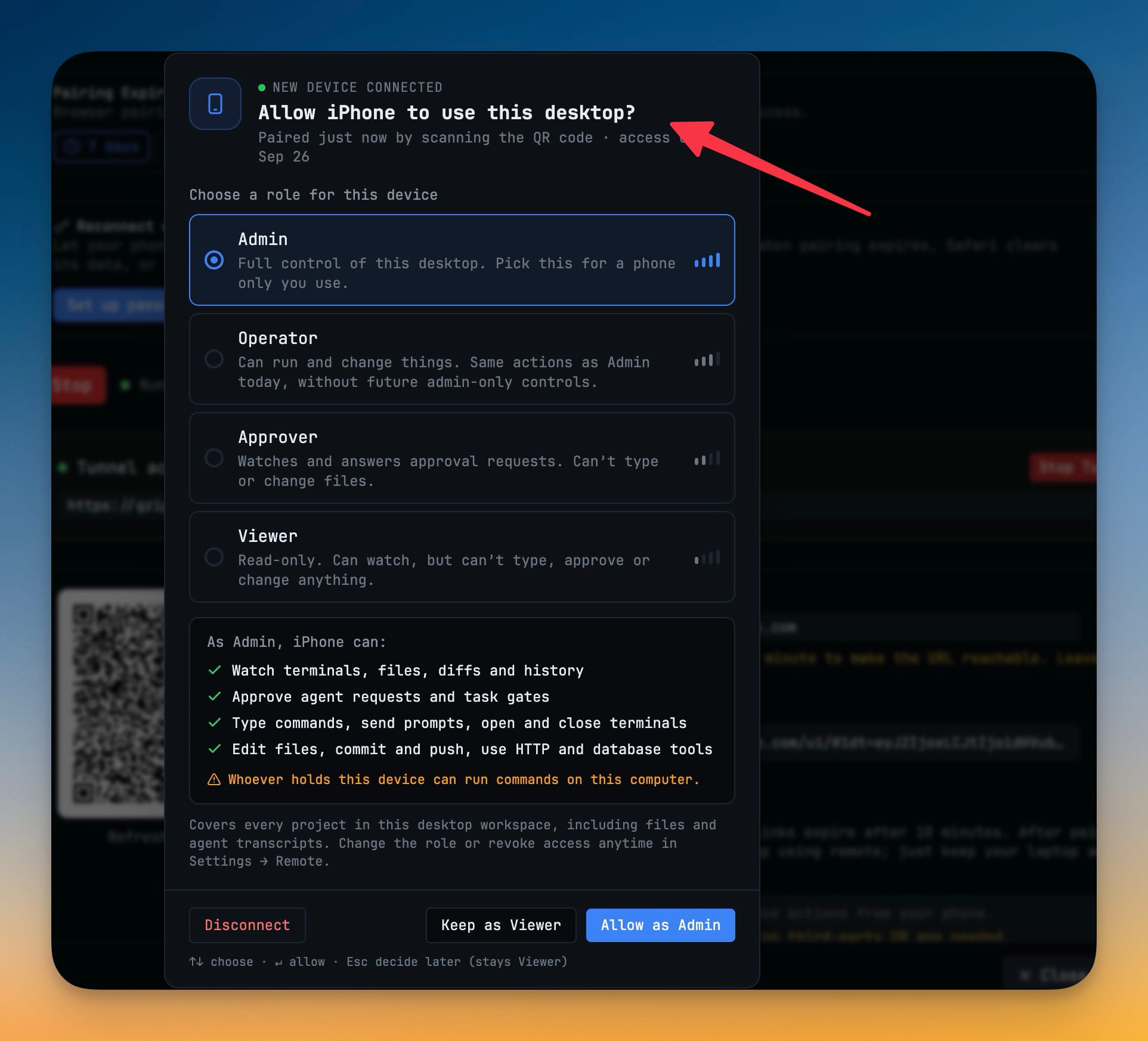
Four roles, each with its powers spelled out rather than implied: Viewer watches terminals, files, diffs and history; Approver also answers agent requests and task gates but cannot type; Operator types commands, sends prompts, opens and closes terminals; Admin additionally edits files, commits and pushes, and uses the HTTP and database tools — with a plain warning that whoever holds the device can run commands on your computer.
Dismissing the prompt, reloading, or simply missing it all leave the phone a Viewer. Several phones at once queue up one at a time. And Settings → Remote explains every paired device in a line, so you can change a role or revoke it later.
Before vs after
| Before v1.76.0 | With v1.76.0 | |
|---|---|---|
| Same prompt to five agents | Click, paste, Enter — five times | Tick five, Send to many, once |
| A cold terminal in the list | Starts empty, prompt lands too early | Started, waited for, then typed into |
| A send that half-worked | Draft cleared, guess who missed | Draft kept, retry scoped to the missed |
| Finding one tab out of eighteen | Scroll the strip, open tabs to check | ⌘L, search the last line of output |
| Seeing everything at once | — | ⌘⇧O cards, filter and reorder |
| Checking a run from your phone | Project list → project → terminals | Opens on Needs you / Working / Idle |
| A phone you just paired | Full access on scan | Viewer until you pick a role |
Who benefits most
If you run a crew of agents on the same task, Send to many turns your broadcast from five careful clicks into one, and the readiness handling means you stop losing prompts to composers that were not ready.
If you keep a dozen-plus terminals open, ⌘L and ⌘⇧O give you back the navigation the tab strip stopped providing somewhere around tab twelve.
If you check on long runs away from the desk, the phone now opens on the only question worth asking — and pairing it no longer means handing over your whole machine.
Try it
Update to v1.76.0 and start with ⌘L. It costs nothing to learn and you will use it within the hour. Then, next time a prompt needs to go to more than one agent, open Send to many instead of clicking through tabs — and check what your paired phone's role actually is in Settings → Remote while you are there.