Jul 19, 2026
Put a Team of Agents on One Job
Start a Team of agents that share a workspace, or a Swarm of headless workers, and coordinate all of them from one live Orchestrations view — instead of babysitting a wall of terminals.
The moment a task gets big enough, you stop handing it to one AI agent and start splitting it up. One agent takes the migration, another writes the tests, a third updates the docs. So you open a terminal for each, paste a prompt into each, and hit go.
Then the babysitting starts. You alt-tab between terminals to see who is still thinking and who has finished. You lose track of which agent was supposed to hand its output to which. When one stalls waiting on a decision, you do not notice until you happen to click back into its tab. And when you need your laptop's fans to stop screaming, you kill the terminals one at a time and hope you did not cut off the one that was almost done.
Running several agents at once has always been possible in 1DevTool. Running them as a group — with one place to watch them, pause them, and see them talk to each other — has not. Until now.
What changed
1DevTool 1.49 introduces Agent Teams and Agent Swarms: you put multiple AI agents on a single job and coordinate all of them from the Orchestration Dashboard, which now opens on a new Orchestrations view of every active team and swarm. Instead of a wall of terminals you have to poll one by one, you get one place that shows every agent working the problem — their status, their handoffs, and the controls to steer the whole pool at once.
How it works in practice
There are two shapes a group of agents can take, and 1DevTool treats them as separate choices so you pick the one that fits the work.
Start a Team that shares a workspace
A Team is a set of agents working in real terminals that share one workspace. Ask an agent to work in Team mode and it brings up teammates alongside itself — each in its own terminal, all pointed at the same project. A small Agent orchestration · Team badge marks the terminals that belong to the team, so even in a busy workspace you can tell the coordinated agents apart from the one-off ones.
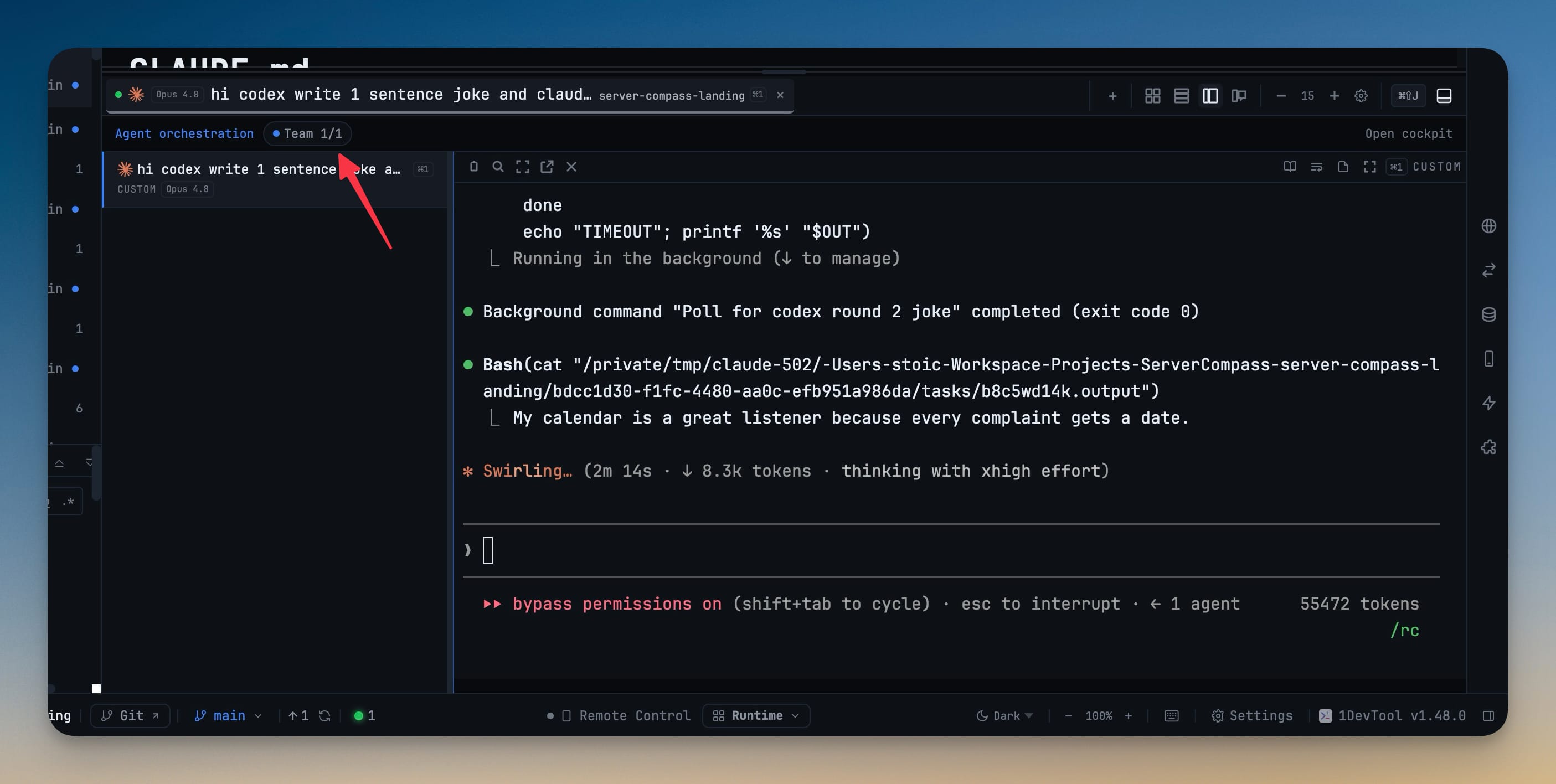
Because the team shares a workspace, the agents see the same files and build on each other's work — one lays down a module, the next writes against it, without you copying anything between windows.
Or a Swarm of headless workers
When you do not need to watch every keystroke, start a Swarm instead. A swarm runs headless workers — no visible terminal per agent — kicked off from the 1devtool-agent CLI. It is the right shape for fan-out work: run the same task across many inputs, or throw a pool of workers at a backlog and let them grind while you do something else. The Orchestrations view labels each run Swarm · headless, so you always know which runs have a workspace to open and which are running in the background.
Watch everything from one view
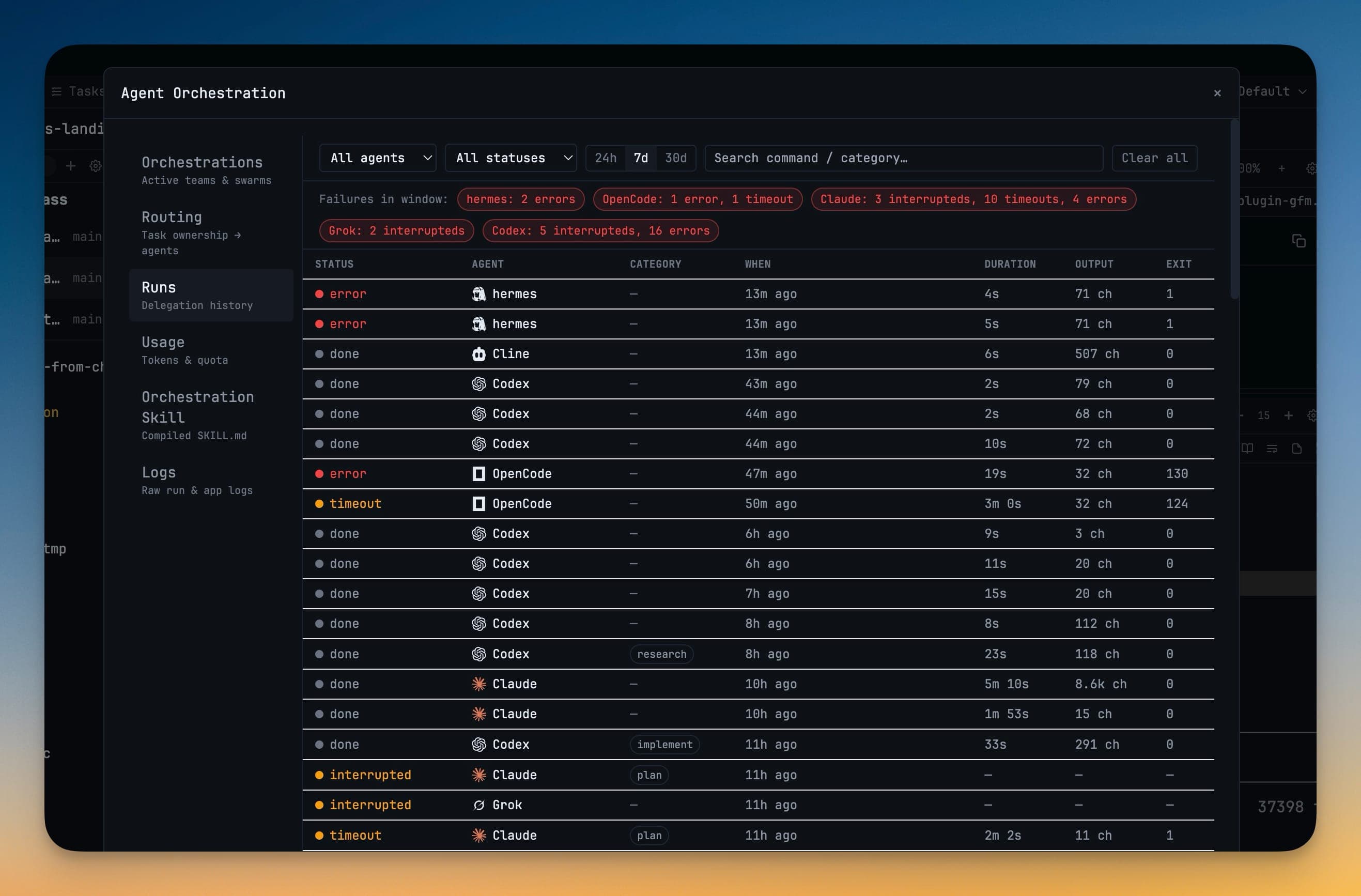
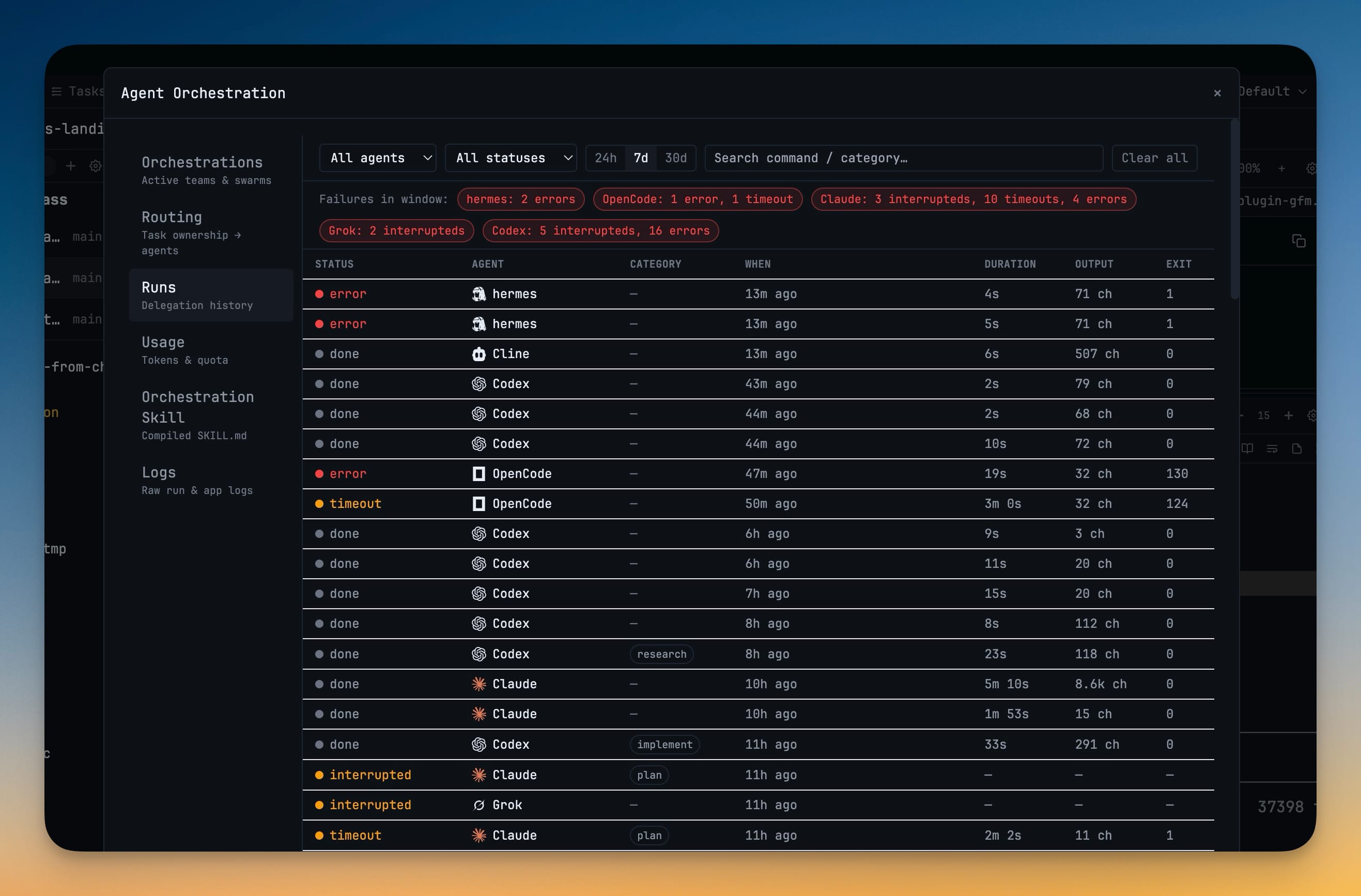
Whichever shape you choose, the Orchestration Dashboard is where you see it. The Orchestrations tab lists every active team and swarm as a row with a live status badge — active, queued, done, failed, or paused — so a glance tells you whether the group is still working or waiting on you. The Runs tab keeps the delegation history: every handoff to every agent, with its duration, output size, and exit code, so a failed or timed-out run is right there instead of buried in a terminal you closed.
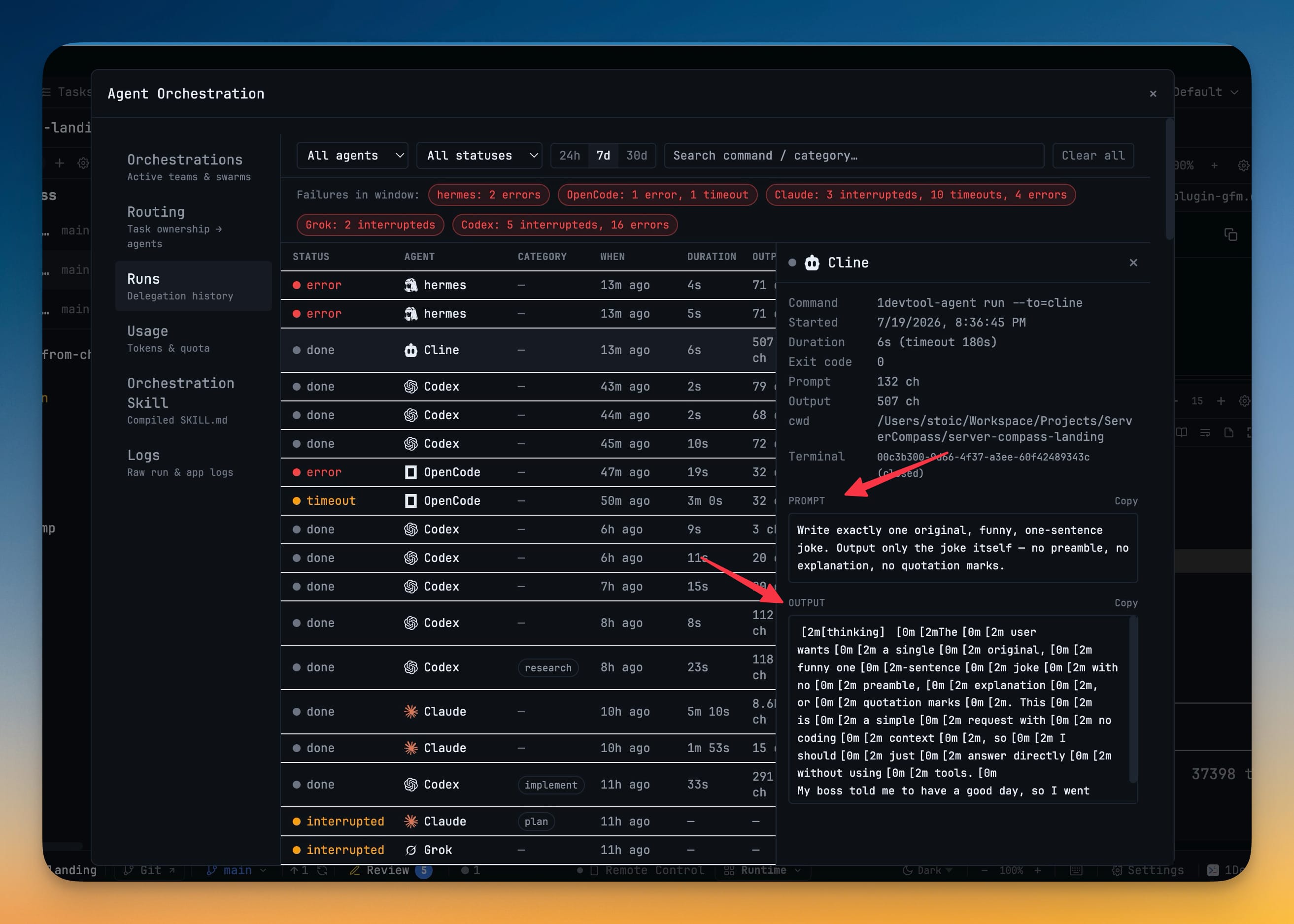
For a closer look, open a run to follow that agent's exact prompt, its 1devtool-agent command, and its full output.
See the agents hand work off
The part that used to be invisible is now a rail. A Team activity feed shows the messages passing between teammates — this agent to that agent — as they hand work off and coordinate. When the tester finishes and pings the agent that owns the fix, you see it. When a worker is blocked waiting on another's output, the rail shows why the job is not moving instead of leaving you to guess.
Stay in control of the pool
Steering the group does not mean touching each agent. From the Orchestrations view you can:
- Pause or resume the whole pool with one button — slow things down or free up your machine without losing the run, then pick it back up where it left off.
- Cancel queued workers while already-running ones finish — trim the backlog without yanking the rug out from under an agent mid-task.
- Open the Team's shared workspace to jump straight into the agents' terminals when you do want to get hands-on.
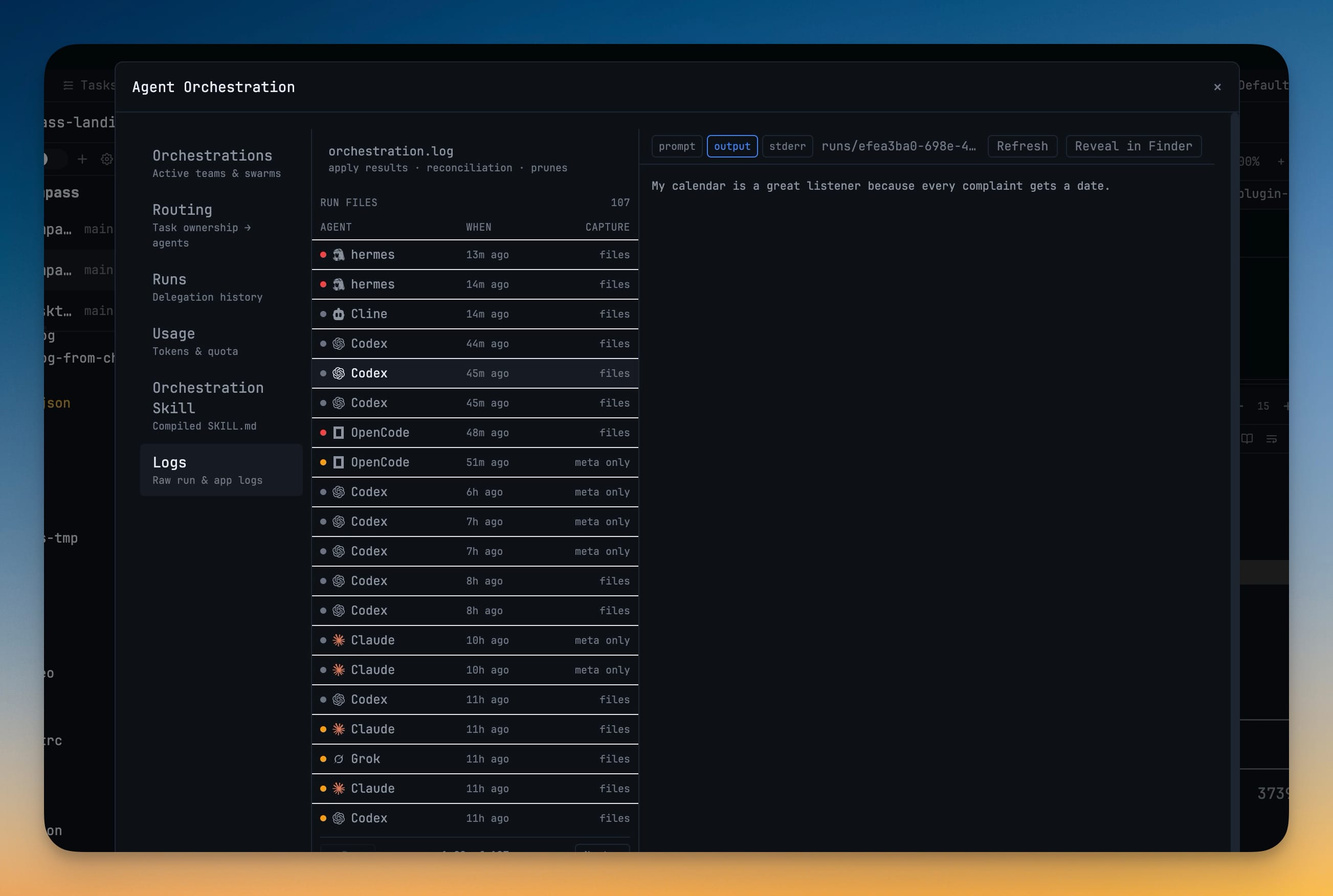
And when something misbehaves, the Logs tab keeps the raw run files — prompt, output, and stderr for each one — so you can read exactly what an agent saw.
Before vs after
| Coordinating several agents | Before | With Agent Teams |
|---|---|---|
| Seeing who is working | Click into each terminal, scroll to the bottom | One row per group with a live status badge |
| Watching handoffs | Invisible — you infer it from output | A live Team activity rail of member-to-member messages |
| Pausing everything | Kill terminals one by one | One Pause pool button, resume where it left off |
| Trimming the backlog | Kill runs and hope you got the right ones | Cancel queued workers, let running ones finish |
| Reading a failed run | Hunt through a closed terminal's scrollback | Open the run in the Runs tab, or its raw files in Logs |
Who benefits most
Anyone running fan-out tasks. If you already throw one prompt at many files — codemods, per-package upgrades, bulk refactors — a Swarm turns that from a shell loop you supervise into a pool you start and monitor.
Developers orchestrating a multi-step job. When one agent's output feeds the next, a Team's shared workspace and activity rail let you watch the chain move instead of stitching it together by hand.
Anyone whose laptop has limits. The Pause pool control means a big run is no longer all-or-nothing: throttle it when you need the CPU back, resume it when you do not.
Also new: Hermes as a first-class agent
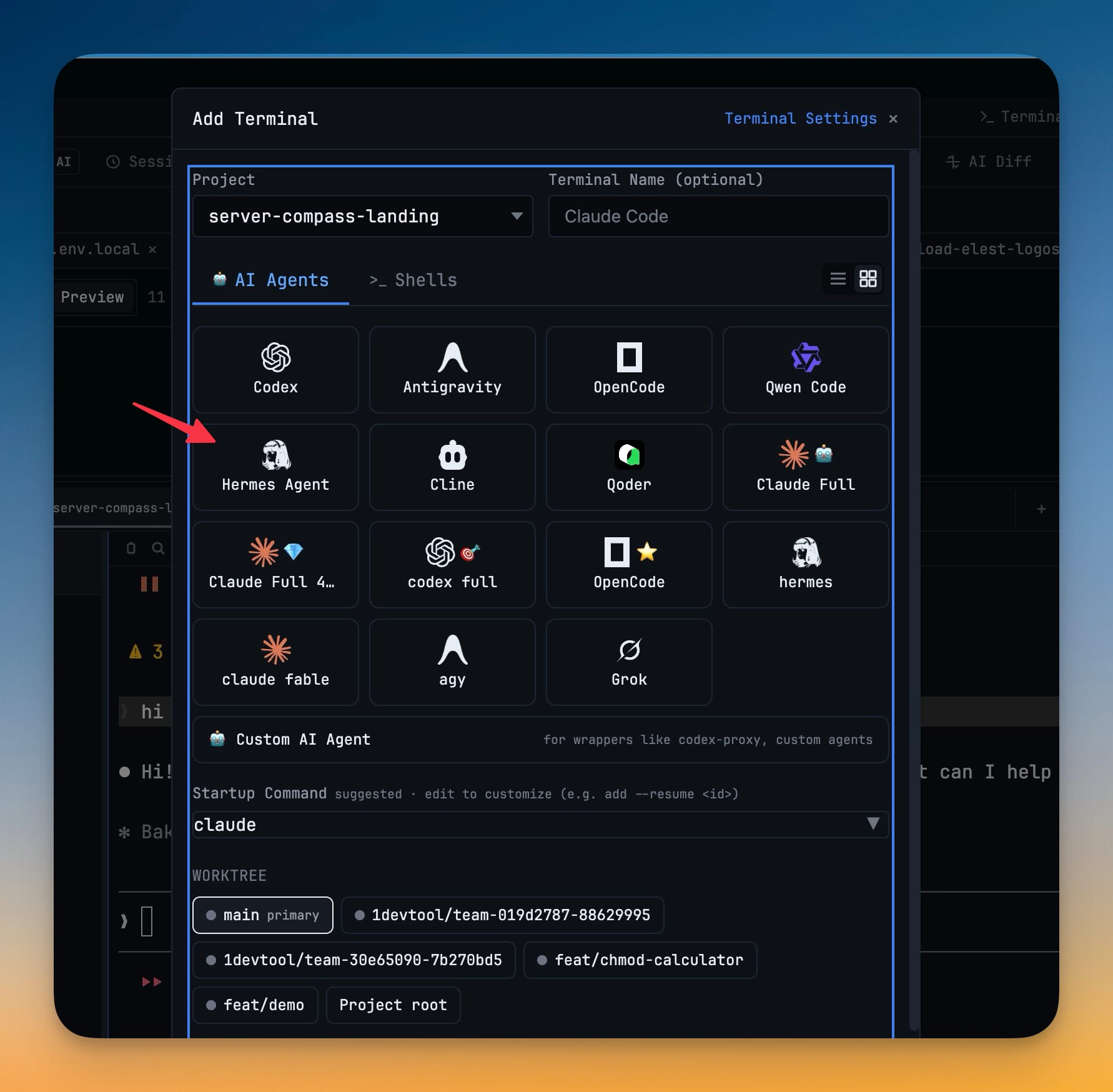
1.49 also adds Hermes to the roster of AI agents you can run. Pick Hermes when adding a terminal and 1DevTool treats it exactly like Claude, Codex, or any other agent — it detects your Hermes install automatically on macOS, Linux, and Windows, tracks its usage in the quota pill, and stores its sessions so you can browse and resume them from the Resume Manager.
Try it
Update to 1DevTool 1.49, ask an agent to run in Team mode — or start a swarm with the 1devtool-agent CLI — and open the Orchestration Dashboard. The first time you watch five agents work a problem from one board instead of five terminals, going back to alt-tabbing will feel like a step backward.