Sep 14, 2026
Run Two Claude Accounts at the Same Time
1DevTool 1.74.1 gives every saved Claude account its own login, so terminals on your Team seat and your personal plan run side by side — with the account on every tab, quota per terminal, and one-click relaunch onto a spare account.
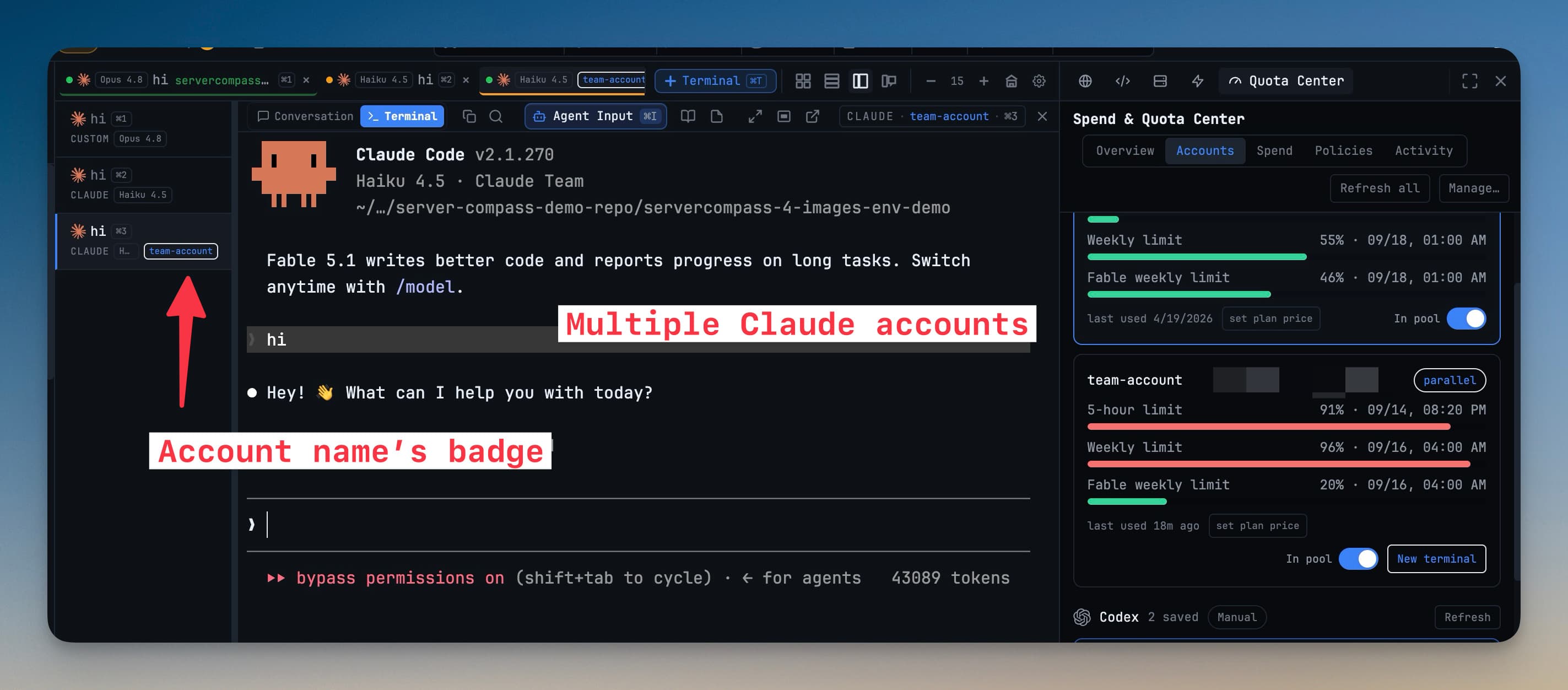
You pay for a personal Claude plan and your company pays for a Team seat. For months, using both meant living with one fact: the machine has one Claude login. Saving both accounts made switching faster, but a switch still changed the login for everything on the computer. The work-repo terminal and the side-project terminal couldn't bill different accounts at the same moment. So you either burned your personal quota on work, or you stopped one agent to start the other.
Hitting a limit made it worse. The five-hour window runs out on one account while the other is barely touched. The fix is obvious, but switching the global login underneath a running agent is exactly how you break the session that was halfway through a refactor.
What changed
1DevTool 1.74.1 gives every saved Claude account its own login. Each account signs in to its own isolated config home, so Claude terminals on different accounts run side by side. Now you can run your Team seat and your personal plan at the same time, in the same window, without logging out or swapping anything underneath running work.
How it works in practice
Add an account once, and it stays signed in
Open Settings → Agents → Accounts and click Add account. 1DevTool opens a terminal called Claude sign-in and runs Claude's own claude auth login inside a fresh config home. Finish the browser sign-in and the account appears in the list, named after your email.
Each config home keeps its own credential. On macOS that means a separate Keychain entry per account, so nothing is copied, exported or written anywhere you don't expect. Your history, projects, skills, plugins, settings.json and CLAUDE.md stay shared, so resuming a session and your usual settings work the same on every account.
The login your Mac already had doesn't move. It shows up as This Mac's Claude login with a System tag, and terminals on it launch exactly as they always have. Parallel accounts need Claude Code 2.1.270 or newer, the first version that keeps logins separate per config home. On anything older, 1DevTool tells you to update rather than failing quietly.
Pick the account when you open the terminal
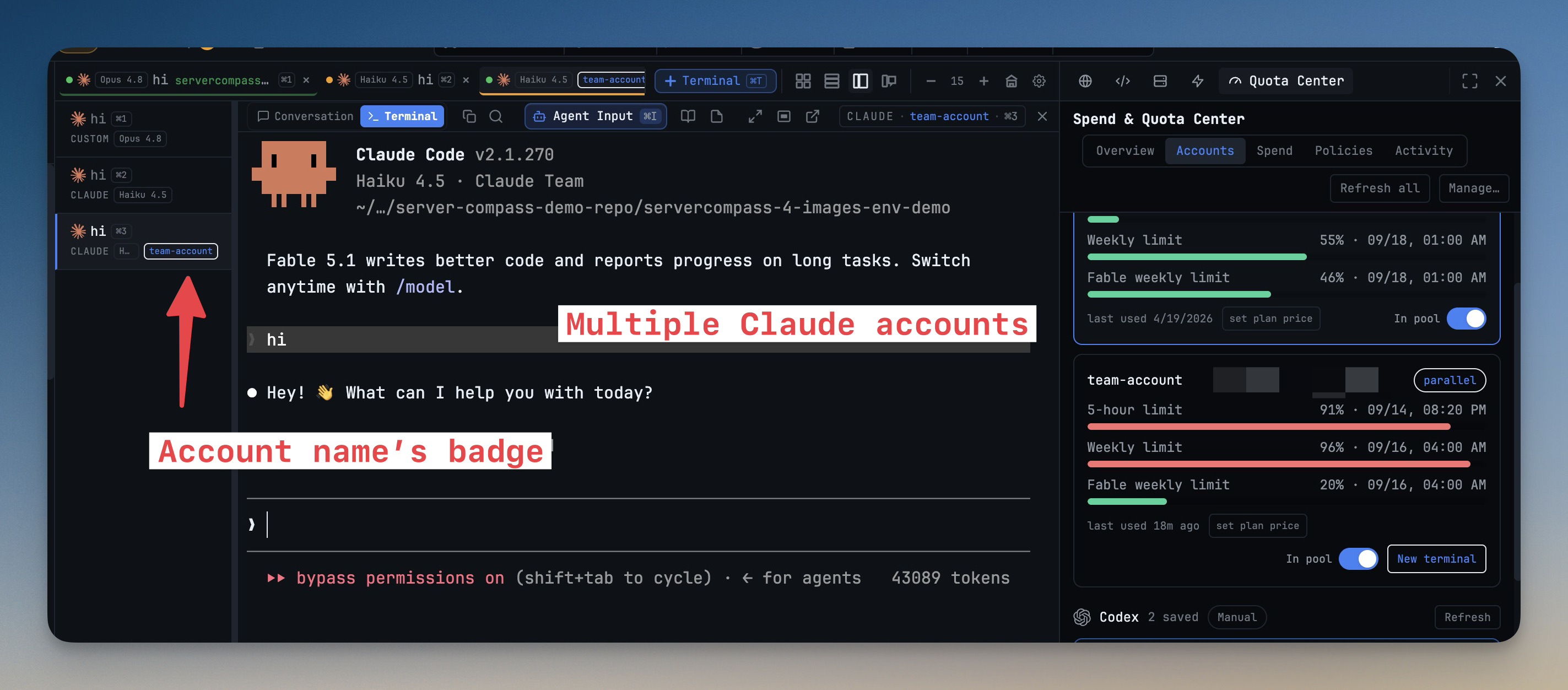
Once you have at least one parallel account, New Terminal shows an Account: field whenever Claude is the agent. Leave it on This Mac's login or pick a saved account. The account name then appears as a badge on the terminal's tab and in its pane header, so you can always tell which login a terminal is spending.
Most of your terminals belong on one account? Set Default for new Claude terminals on the same Accounts tab, and you'll only need the picker for the exceptions.
Quota follows the terminal, not the machine
The quota pill and quota alerts now report the account the focused terminal is actually on. Each account's five-hour and seven-day limits come straight from Claude's own status line, so the numbers stay fresh without extra sign-ins (macOS and Linux). In Spend & Quota Center → Accounts, every account shows its own bars, a parallel tag and a New terminal button that opens a terminal already on that account.
When a quota alert fires and you have a spare account with room, the alert offers Relaunch on that account. One click stops the focused terminal, starts it again on the other account and resumes its session. You pick up the same conversation on a different bill, instead of swapping the global login and hoping nothing else was running.
Repairs and renames happen in place
A refresh token that has expired doesn't mean deleting and re-adding the account. Re-login opens a sign-in terminal on the same config home, keeping the account's label and quota history. To rename an account, hover its name in Quota Center and click the pencil. The new name shows on every terminal using it.
If a terminal ever comes up on a different login than the one it was assigned, you get an attention item: This terminal is running as a different Claude account than assigned. Close and relaunch it on the account to fix billing/quota attribution. The wrong account never gets the bill without you knowing.
Accounts you saved before still work
Accounts saved before 1.74.1 keep working the old way, one live login at a time. They're tagged legacy so you can tell them apart from parallel ones. When you want one to run alongside the others, click Re-login to run in parallel and it moves into its own home.
Before vs After
| Before 1.74.1 | With parallel accounts | |
|---|---|---|
| Work and personal agents at once | One login for the whole machine | Each terminal on its own account |
| Choosing the account | Switch the global login first | Pick it in New Terminal |
| Seeing which account a terminal uses | Guess from the last switch | Badge on the tab and pane header |
| Quota readout | Whatever the machine is logged in as | The focused terminal's account |
| Hitting a limit | Swap logins under running work | Relaunch on a spare account, session resumed |
| Expired token | Remove and re-add the account | Re-login in place |
Who benefits most
- People with a Team seat and a personal plan. Keep company work on the company account and side projects on yours, at the same time, without ever cross-billing.
- Heavy parallel users. Spread several long-running Claude agents across accounts so no single five-hour window becomes the bottleneck.
- Consultants juggling client accounts. The badge on every tab shows which client is paying for which terminal.
Also in 1.74.1
Settings → Terminal → Context Menu puts the terminal's right-click menu under your control. You can turn it off entirely, stop text selection from popping it up, or hide individual items such as Send to AI, Add task or the Copy ID entries. Context Menu Settings… always stays at the bottom, so the way back is never hidden. And if scrollback history ever renders scrambled after a resize, an amber Repair view pill rebuilds it from the terminal's own rows.
Try it
Update to 1DevTool 1.74.1 or later and make sure Claude Code is on 2.1.270 or newer. Then open Settings → Agents → Accounts and click Add account. Your next Claude terminal can bill whichever account you choose, with the rest still running. Download 1DevTool and stop logging out to switch.