Sep 7, 2026
Your agent no longer has to run where your code lives
1DevTool v1.72.0 makes machines real: one roster for every computer your projects live on, an explicit control for where the AI CLI actually runs, and a Repo panel that puts CI pipelines and issues beside your terminals.
You bought the Mac mini so the builds would stop melting your laptop. Or you rented the VPS because the staging database is three hundred gigabytes and your SSD is not. Either way the code now lives somewhere else, and every time you want an AI agent anywhere near it you have to pick which half of your setup to give up.
Run the CLI on the remote box and it is a stranger there: no login, no quota, none of the MCP servers you configured, none of the skills you wrote, a fresh ~/.claude staring at you. Run it locally against a mount and it has everything — but only if the mount is up, and nothing in the app admits which of the two you are actually doing. So you keep a mental map instead: this project is really on the mini, that one is local, the third is over SSH but the agent runs here. The map is wrong roughly once a week, and you find out when a command lands on the wrong computer.
What changed
Machines are now a real thing in 1DevTool, and where the files live and where the agent process runs are two separate, visible decisions you make on purpose.
How it works in practice
One roster instead of a mental map
Settings → Machines is the list of every computer your projects live on — a VPS, a Mac mini, a VM, another computer running 1DevTool — next to This Computer, which is always there and never has to be created.
Each row reports what is actually on that machine rather than what you hope is: whether it is reachable, how far away it is, the OS and shell, which AI CLIs are installed and at what versions, plus git, ripgrep, tmux and Node. That last part is the one that saves an afternoon. "Claude isn't installed on the mini" is a fact you want on a settings row, not a discovery you make sixty seconds into a launch that was never going to work.
You can rename a machine, remove it, point it at a different SSH key, reconnect it, or mount it. Add one from a picker fed by your own ~/.ssh/config, so aliases, ProxyJump and IdentityFile carry over instead of being retyped into a form. A machine that a project still points at refuses to be deleted, rather than quietly orphaning that project.
You choose where the CLI actually runs
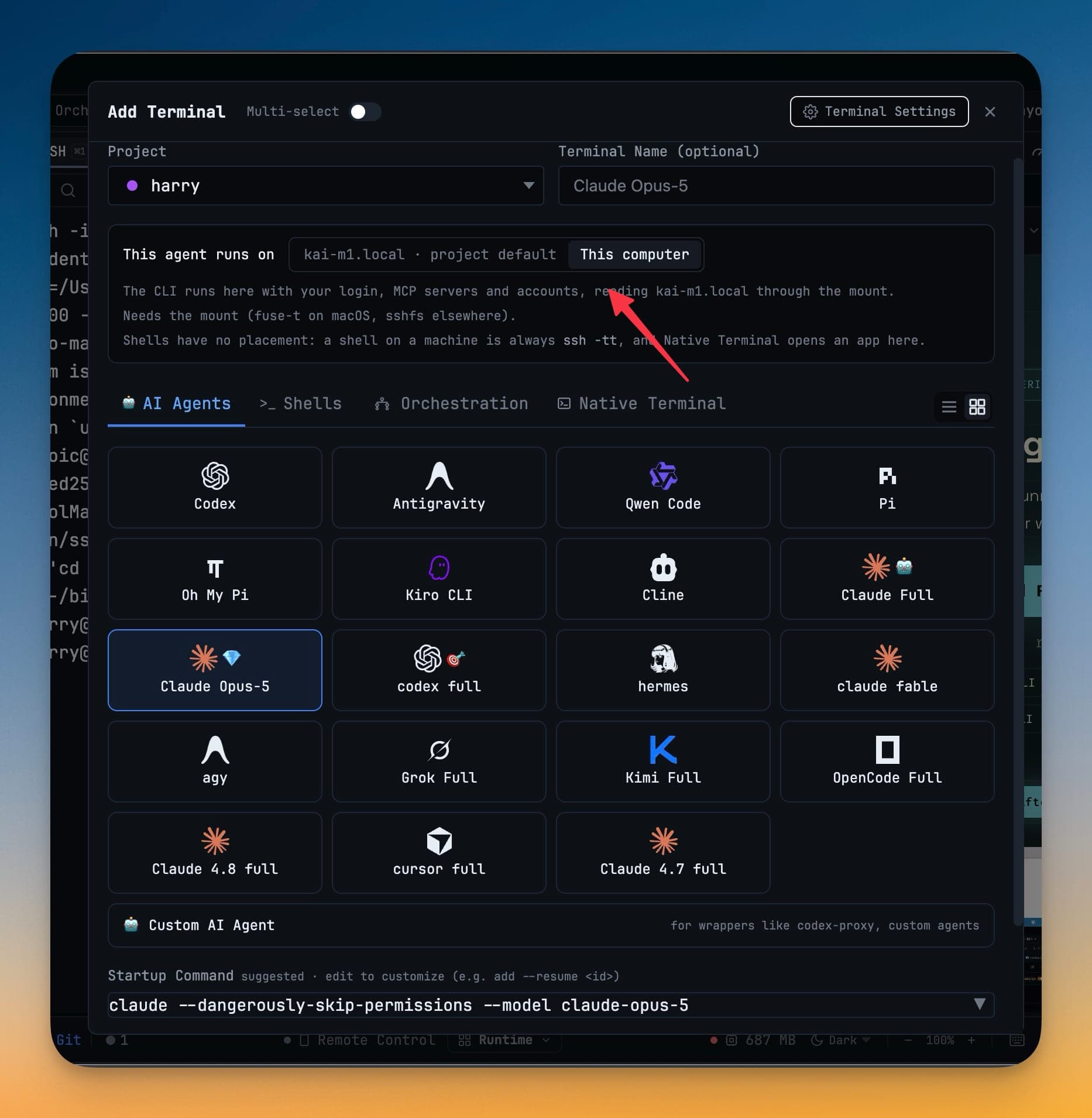
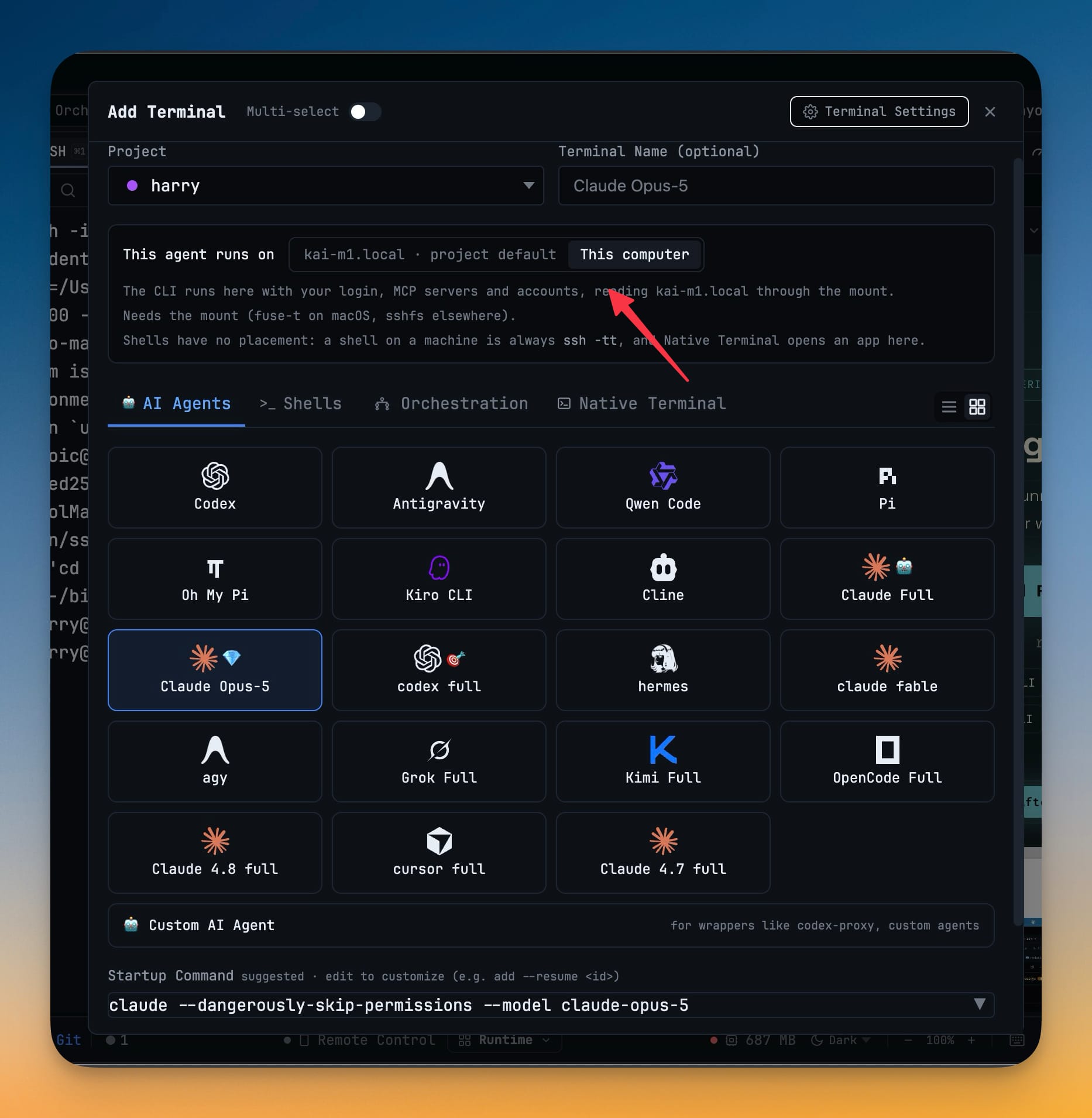
Add Terminal now has a This agent runs on control with two honest options, and the app never switches between them on its own.
This Computer runs the CLI here, with your login, your quota, your memory, your skills and your MCP servers, reading the machine's files through a mount — the way remote projects already worked. On the machine runs the CLI over ssh -tt on the machine itself, with whatever is installed there.
Neither is a fallback for the other, which is the important part. Set it per project, override it per terminal. An agent that is not installed on the target machine is greyed out with a reason, instead of accepting the launch and failing at the prompt.
The workspace stops making you remember
Once a project has a machine, every surface says so: a badge on the project chip in the top bar, project rows grouped by machine in its dropdown, a chip in the sidebar, and a pill in the status bar with a reconnect button.
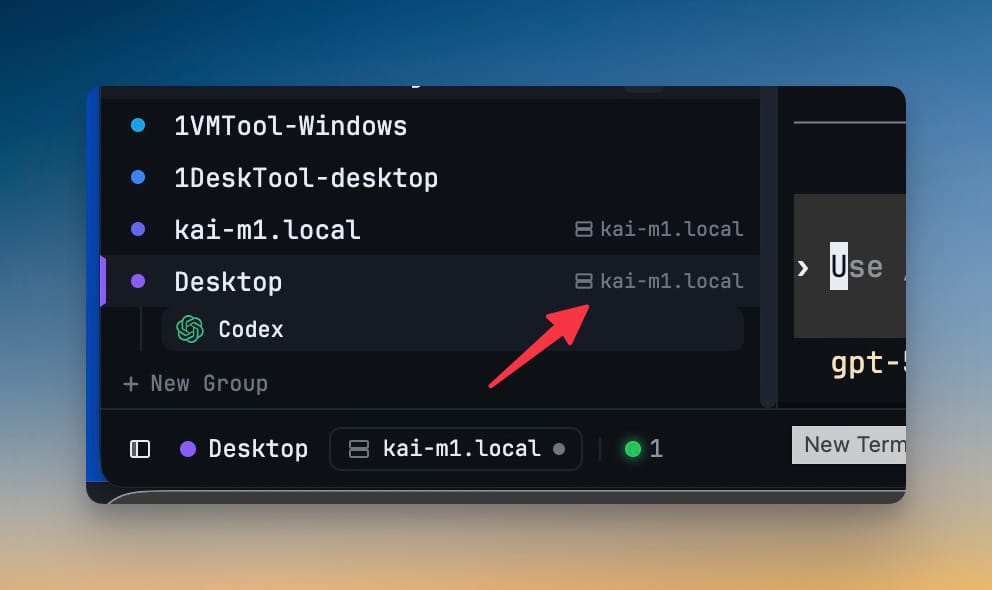
The file tree got the same treatment. An unreachable machine now says it is offline or needs sign-in and offers a Reconnect button, instead of rendering an empty folder that looks exactly like a project you deleted.
Paired computers and SSH hosts are also one list now — the old Devices tab folded into Machines, and Machine Terminal in the Add Terminal menu is called Native Terminal.
CI and issues moved in next to the terminals
The other half of this release is the new Repo panel: Pipelines and Issues, for GitHub and GitLab, resolved automatically from the git remote of whatever project you have open.
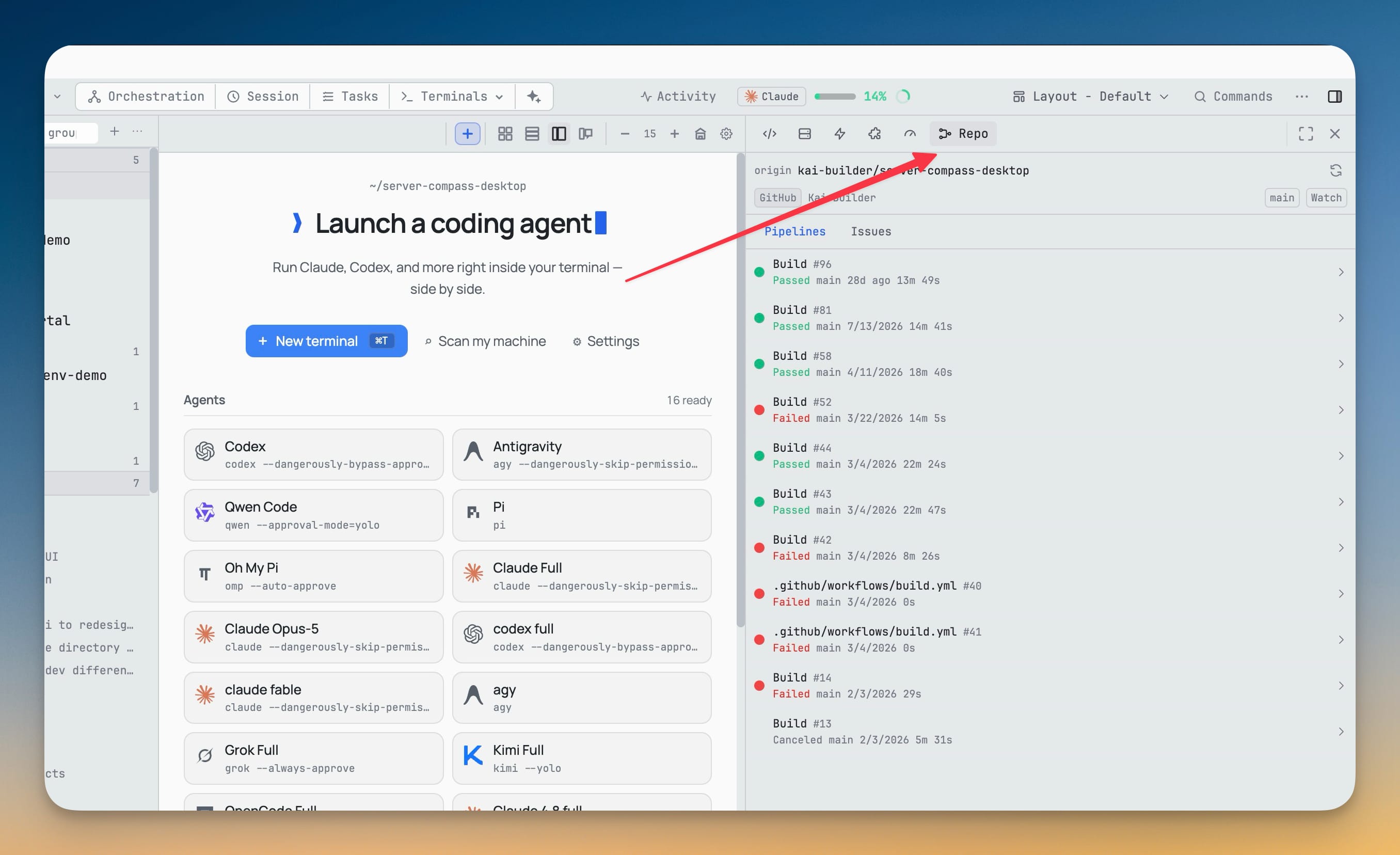
Runs for the current repo and branch, expandable jobs, and the checks on HEAD — refreshed while you are looking at them and paused when you are not. You can Re-run, re-run failed jobs, or cancel, each confirmed inline before it fires. A job's log opens in a searchable viewer with its colors intact.
Issues work the same way: filter by state, open one to read its rendered Markdown and comments, then create, comment, close, reopen, and change labels and assignees.
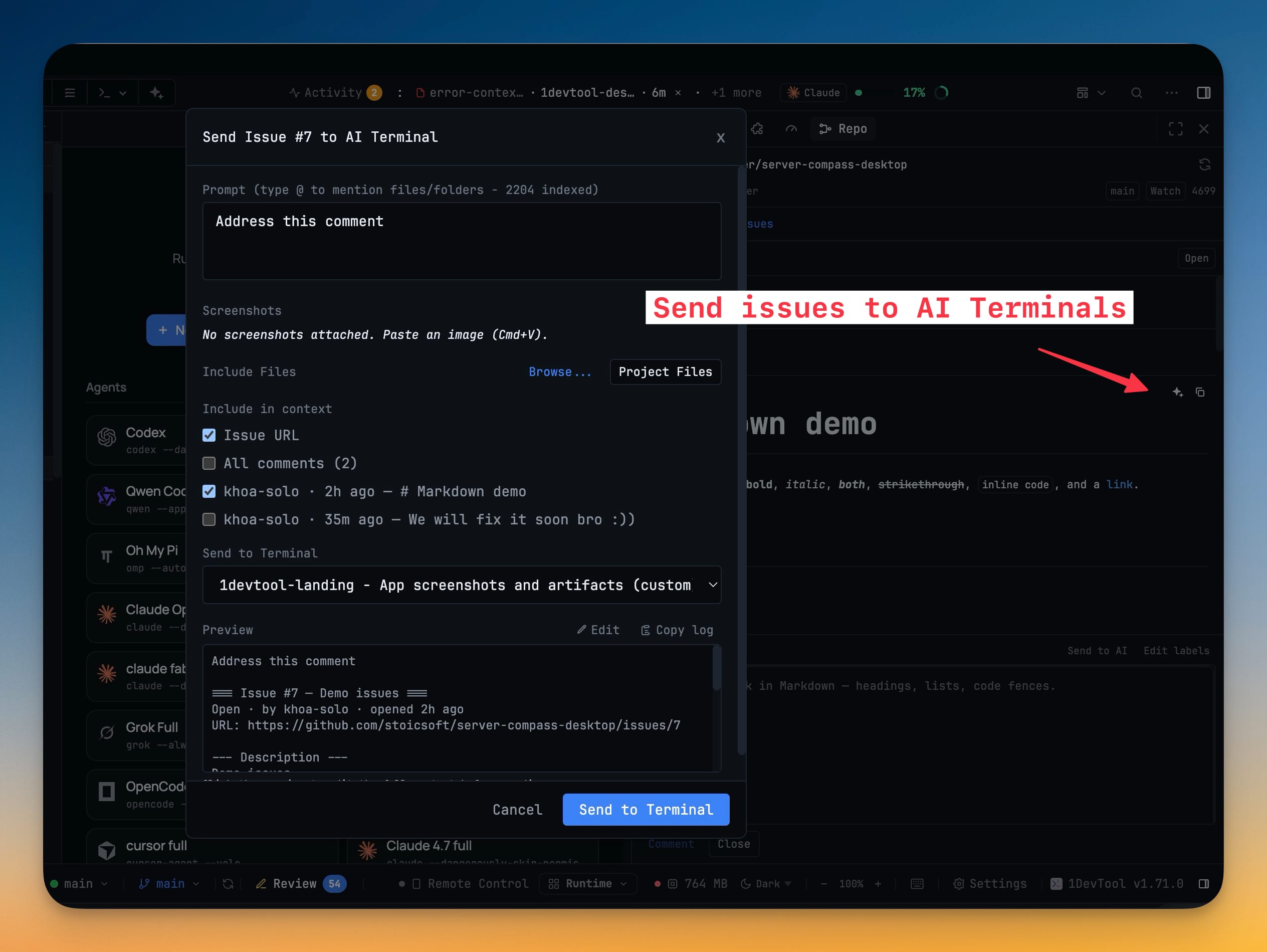
The part that closes the loop is sending one to an agent. Instead of copying an issue into your clipboard and pasting it into a terminal with half the context missing, you pick which comments and whether the issue URL come along, choose the target terminal, and see a preview of exactly what the agent will receive.
You can also opt a project into a background watch: a run that goes from passing to failing raises a desktop notification that focuses that project when clicked. Nothing is watched by default, and a project with no watch costs nothing while the panel is closed.
Turn off the panels you never open
A workspace that does seven things should not charge you for seven things you do not use. Settings → Extensions switches off Browser panel, HTTP client, Database client, Mobile emulator, ToolBox, AI Diff and Repo — removing their panels from every layout and stopping their tools reaching your agents and your phone.
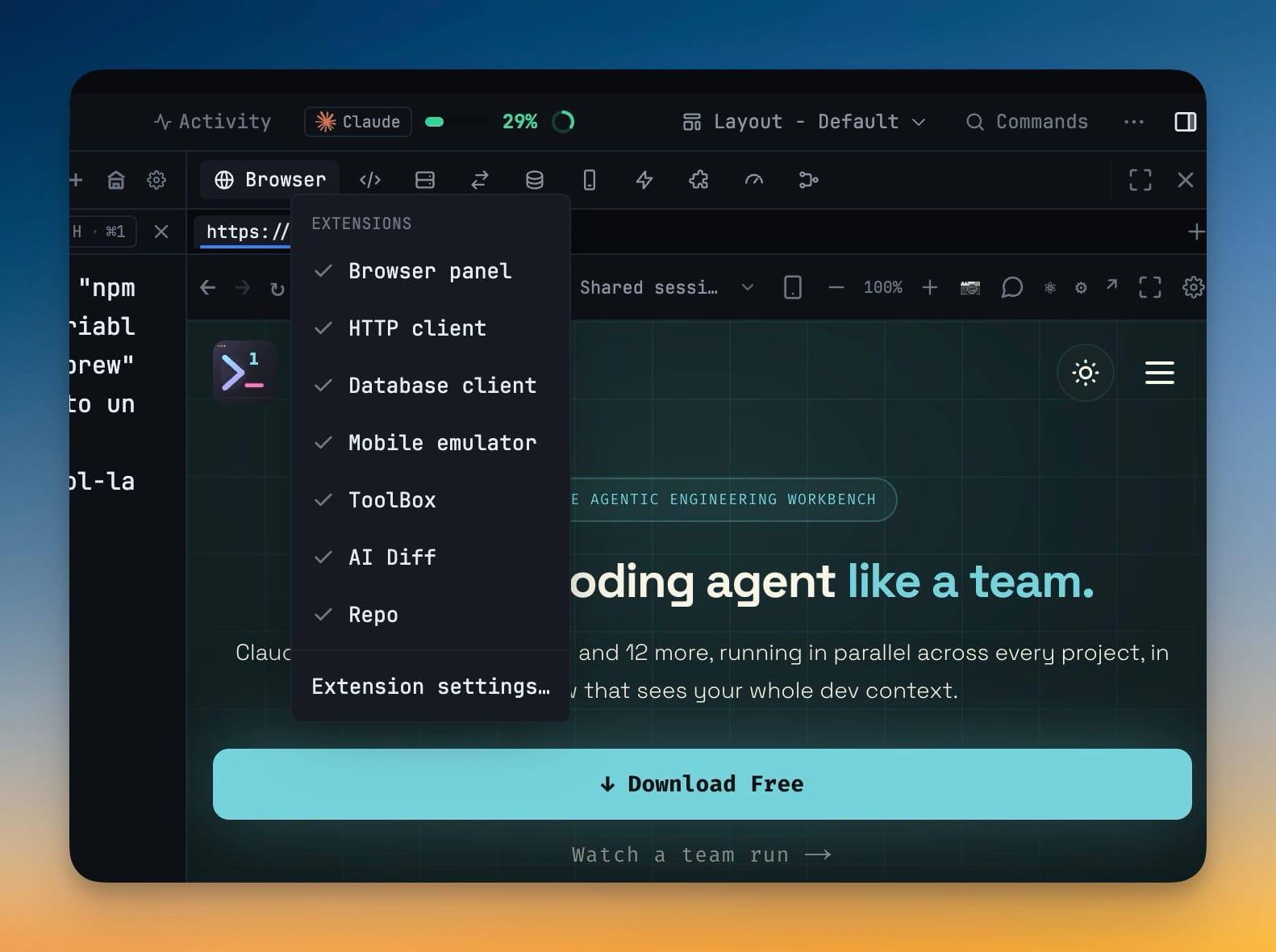
Turning one back on restores your arrangement exactly — saved layouts are never rewritten for a disabled extension, so every panel comes back where it was, with its connections, saved requests and browser tabs intact. Right-click any right-sidebar tab strip for the same switches without opening Settings.
New installs now start lean, with just the browser, instead of seven panels nobody asked for. Existing installs keep everything on. And the SQL Server driver no longer ships inside the app: it downloads on first use (3.5 MB) and is checked against a signature built into the app before anything is installed.
Before vs after
| Working on a remote box | Before | Now |
|---|---|---|
| Knowing where a project lives | Remembered, or re-derived from the path | Badge on the chip, sidebar, and status bar |
| Knowing what is installed there | SSH in and run which claude | On the machine's row, with versions |
| Choosing where the agent runs | Implicit, and not stated anywhere | An explicit control, per project or per terminal |
| An agent that is not installed | Launches, then fails at the prompt | Greyed out with the reason |
| An unreachable machine | An empty file tree | "Offline", with Reconnect |
| Checking CI | Alt-tab to the browser | Pipelines tab, with re-run and cancel |
| Handing an issue to an agent | Copy, paste, re-explain the context | Pick the comments, preview, send |
Who benefits most
Anyone whose real machine is not their laptop. If your builds, your database, or your GPU live on another box, this is the release that stops you tracking two computers in your head.
People running agents against production-shaped data. Placement being explicit means "the CLI ran locally with my login, against a mount" is a thing you can state, not assume.
Teams that live in CI. Pipelines, issues, and an agent to hand them to, all in the window where the code already is.
Try it
Open Settings → Machines, add the box your code actually lives on, and let it tell you what is installed there. Then open Add Terminal and look at This agent runs on — whichever way you set it, it will still be set that way tomorrow, and the app will not have quietly changed its mind.
From across the StoicSoft network
Hand-curated reads on the same topic from sister sites in the StoicSoft family.
 ServerCompass25 min read
Save 5 hours a month: The lazy developer's guide to VPS deployments
Tired of typing ssh user@server and running the same 10 commands every time you deploy? This guide shows how to transform your VPS deployment workflow from terminal chaos to visual simplicity.
Read on servercompass.app ServerCompass5 min read
Stop Blind Pushes to Your GitHub Repos
Server Compass now shows you exactly what files will be committed to your GitHub repository before any deploy push happens — so you never get a surprise commit on the wrong branch again.
Read on servercompass.app