Oct 19, 2026
See which agent needs you without opening a single terminal
Every AI terminal now shows Ready, Working or Draft, every Agent Input chip shows what it will do, and a new Activity tab puts what's waiting on you above everything that happened.
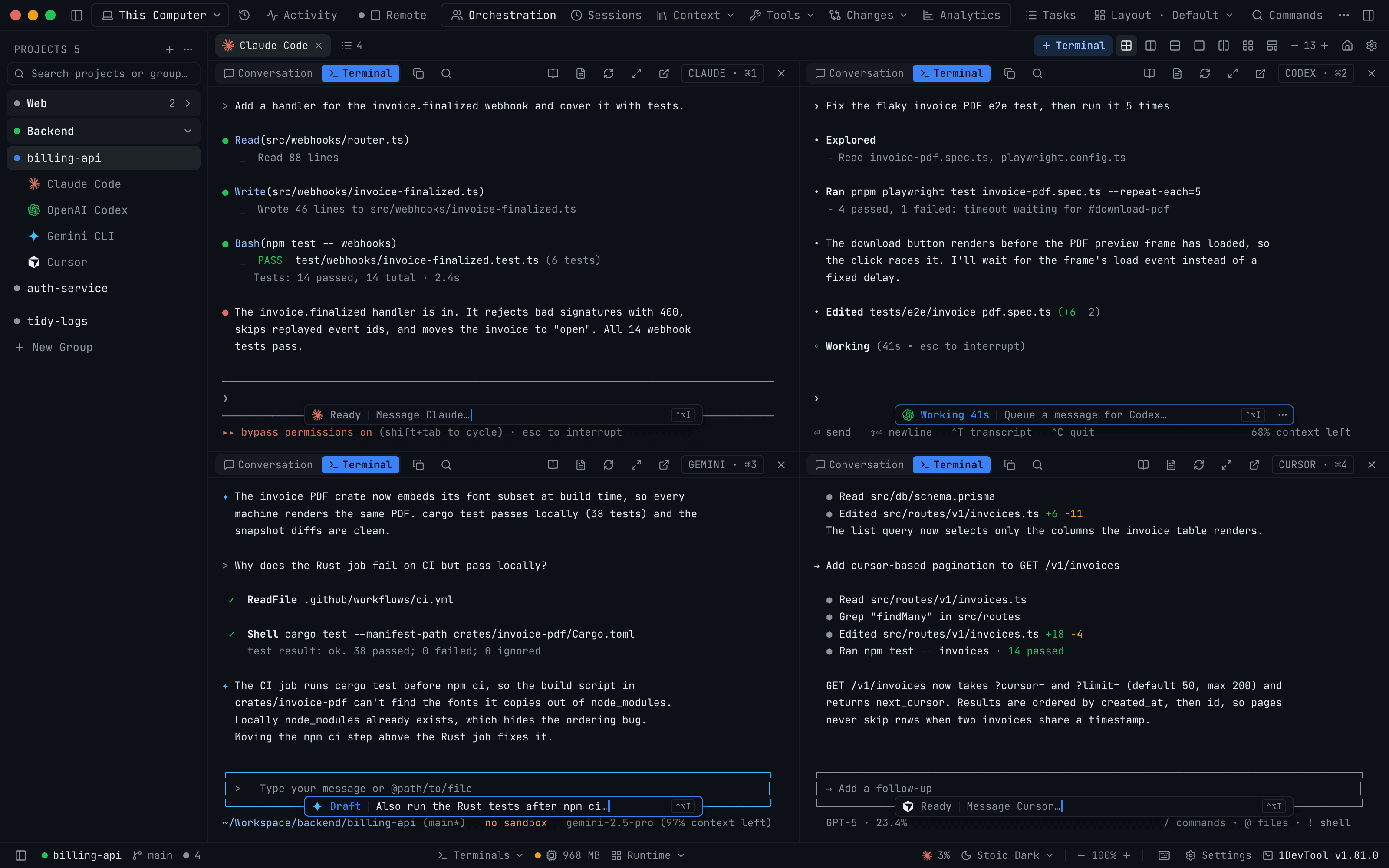
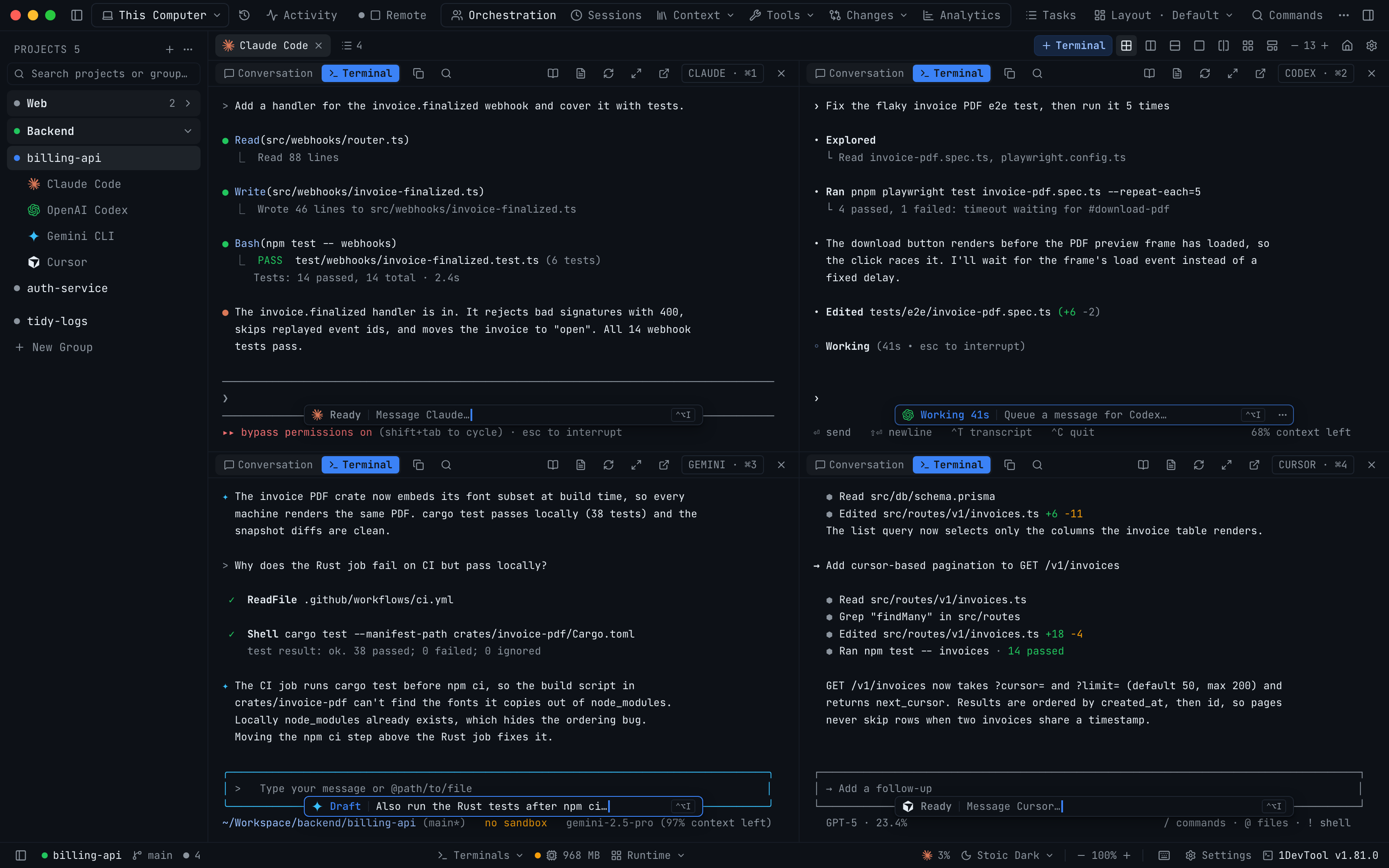
You have four agents in a 2×2 grid. Claude is writing a webhook handler, Codex is chasing a flaky test, Gemini is reading a CI log and Cursor is adding pagination. One of them finished five minutes ago and is waiting for its next instruction. Another is still busy. A third has a half-written prompt of yours sitting in its composer. You can't tell which is which without clicking into each pane and reading the last few lines.
The same thing happens when the agents work as a team. A worker asks to link to its lead so it can report back, and the request sits in a list you haven't opened. A message you queued on a confirm-each link waits for Submit now. Nothing is broken, but everything is waiting on you, and you only find out when you go looking.
What changed
1DevTool v1.81.0 shows you what every agent is doing, and what it needs from you, without opening it. Each AI terminal now has a small status capsule that reads Ready, Working or Draft. Every chip in Agent Input shows what kind of mention it is. The Orchestration dashboard has a new Activity tab that lists what needs you above the timeline of everything that happened.
How it works in practice
Read the state of every terminal from across the grid
When Agent Input is closed, the button that used to sit in the corner of an AI terminal is now a capsule centred on the divider just above the agent's own status line, so it no longer covers the footer you were trying to read. It shows the agent's logo and one word:
- Ready: the agent is idle. The capsule says Message Claude… so you know whose prompt you're about to write.
- Working: the agent is running. The elapsed time counts up beside the word, and the text becomes Queue a message for Codex…, because whatever you type will wait for the current turn to finish.
- Draft: you have an unsent prompt here. The capsule previews it, so a half-written instruction doesn't get forgotten in pane three.
Click the capsule, or use the Agent Input shortcut it shows, to open the composer. In a 2×2 or 3×3 grid it shrinks to fit the pane. First it swaps the word for a status glyph, then it shortens the text, and in a very narrow pane only the logo, the glyph and the shortcut are left. Its ⋯ menu has Hide in this pane (the pane header's Agent Input button takes over) and Turn off in all terminals, which you can undo in Settings → Terminal.
See what a mention will do before you press Send
A prompt in Agent Input can mention a new agent, a terminal that's already running, another project and a terminal on a paired computer, all in the same sentence. Before this release those chips looked alike. Now each kind has its own shape:
- A new agent has a dashed outline and a + on its logo. Sending starts a new terminal for it. Flags such as
--dangerously-skip-permissionsare shown muted, so the agent's name stands out. - A linked open terminal has a solid outline and a live dot. Click it to jump to that terminal.
- A project shows its avatar and emoji under a folder tab. Its context goes with the prompt.
- A terminal on a paired computer shows that computer's name in a shaded segment, with a green presence dot when the computer is online and an amber one when it's offline. The arrow between the two segments tells you whether Send delivers once (→) or starts a conversation (⇄).
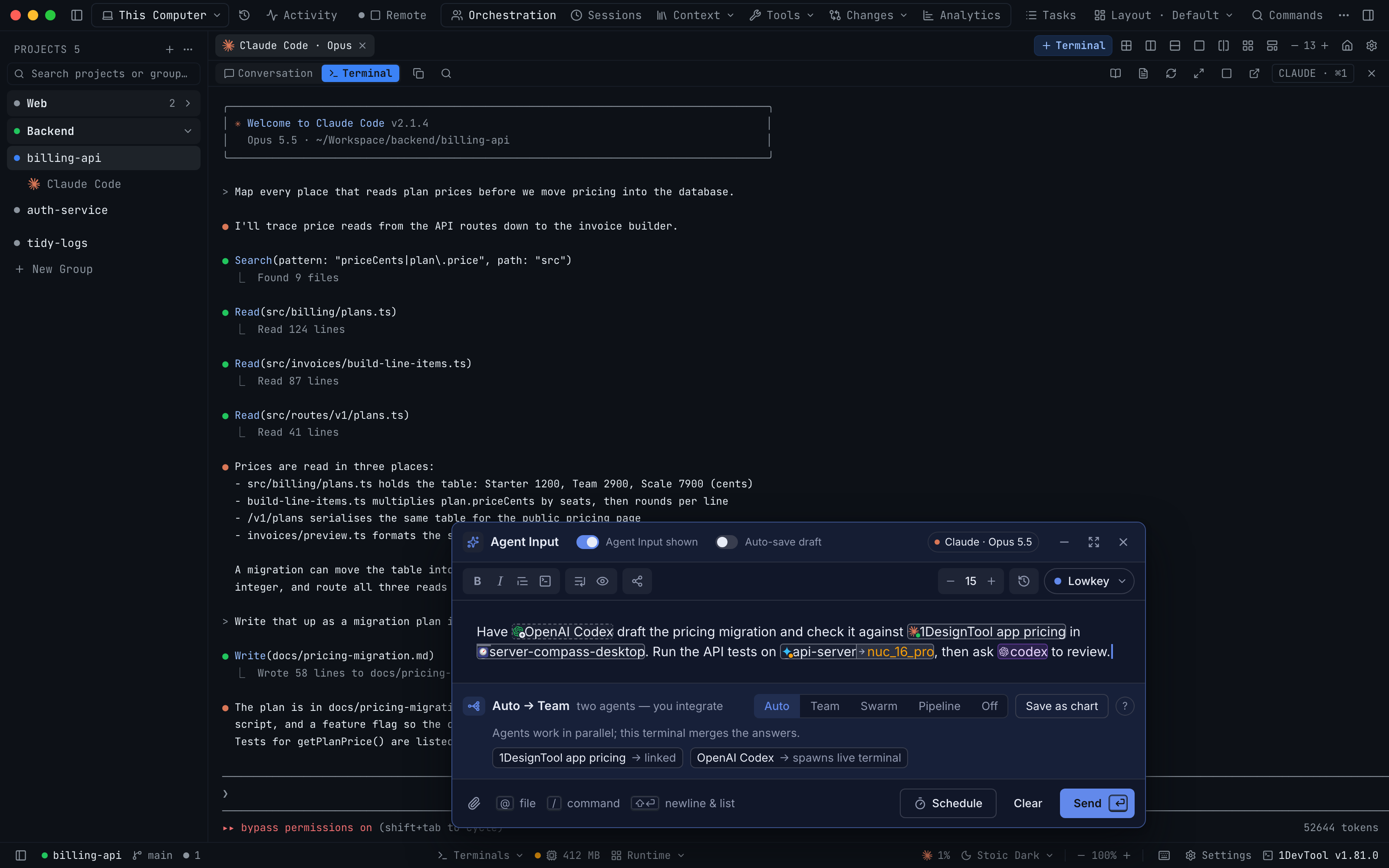
The chip's name stays the size of the text around it, and the brand colour is used only in the logo, so a sentence full of mentions still reads as a sentence. A chip looks the same whether its name is 4 characters or 40. Hover a chip to see exactly what Send will do with it, such as spawns a new Codex terminal when you send.
Dragging a chip to move it, or dropping it on another chip to swap them, had quietly stopped working. It works again, and so does dropping an agent from the palette into the text. Behind the scenes a chip is now written into the draft as @name, the same way a file mention is. What the agent receives when you press Send is unchanged, and drafts saved before this release keep their chips.
Open Activity to see what's waiting on you
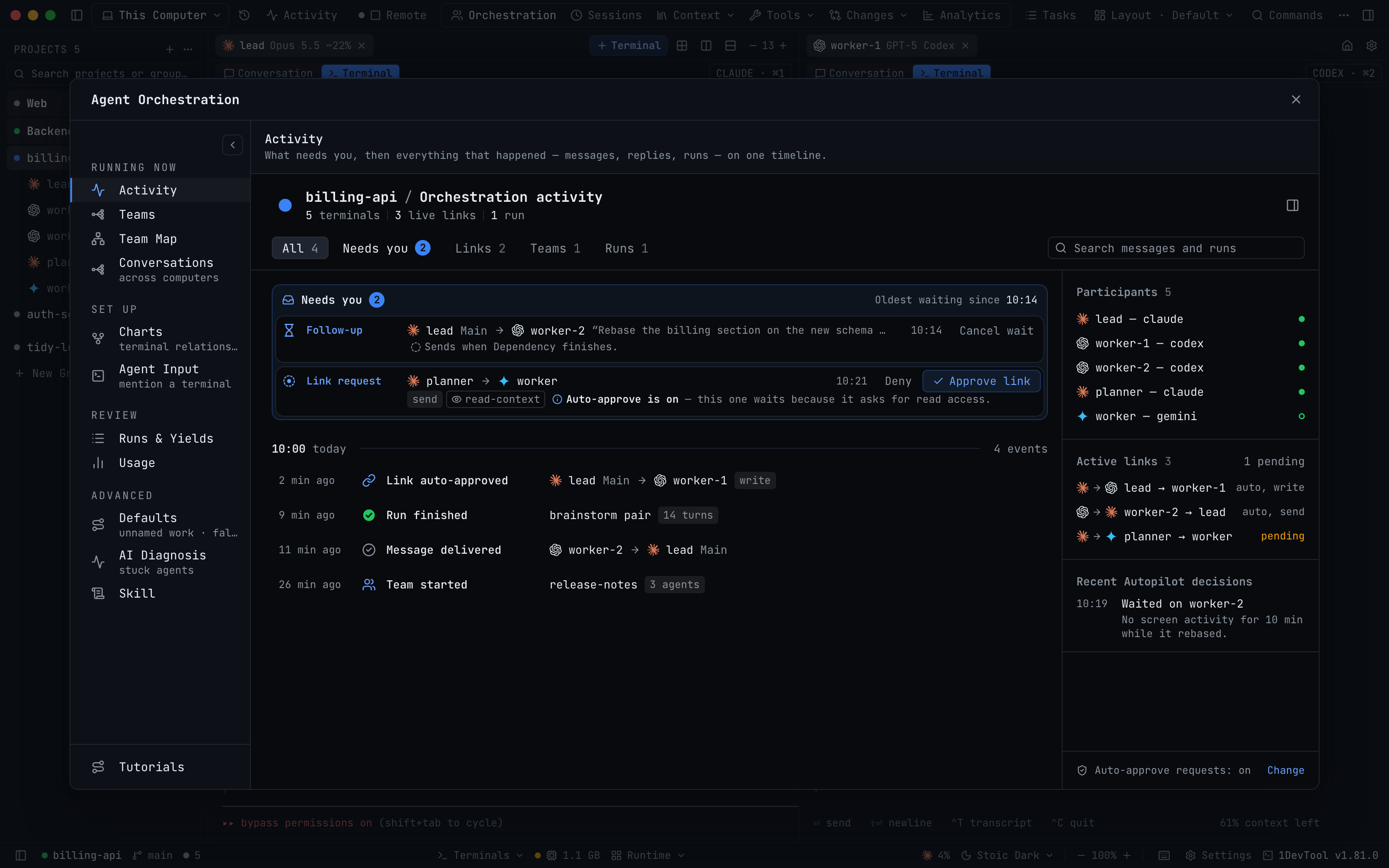
The Orchestration dashboard's rail now starts with Activity. Its header names the project and counts its terminals, live links and runs. Below that, a Needs you box lists everything that's waiting on you, along with how long the oldest item has been waiting:
- a Link request from an agent, with Deny and Approve link
- a request for Read access, with Review scope
- a message held on a confirm-each link, with Submit now
- a decision your agents are waiting on, with Open
Under the box is the timeline, grouped by hour: messages and whether they were delivered or answered, runs with their duration and exit code, and teams starting or stopping. Each row has Jump to terminal or Open run log. Use the filters (All, Needs you, Links, Teams, Runs) or search messages and runs to narrow it down. The rail on the right lists the participants, the active links and Autopilot's recent decisions.
Mission Control, the strip docked above your terminals, opens on the same view the first time. If you have already picked Map, Runs or Logs there, it keeps your choice.
Let routine link requests approve themselves
Most link requests are routine: a worker wants to send its result back to the lead that started it. A new setting, Auto-approve agent link requests, is on by default. It turns a request to send, ask or share an artifact into a live link with auto delivery the moment an agent asks, so nobody has to click Approve link before the worker can report back.
A request for read access still waits for you, and Activity explains why: Auto-approve is on — this one waits because it asks for read access. If you turn the switch on while requests are pending, the ones that were only waiting for it are approved straight away. Switching an existing link to Auto delivery now also releases the messages already queued on it, so you don't have to press Submit now for each one.
The switch is in Settings → AI → Orchestration, which is now one page with five sections: Delegation, Models, Skill install, Links & approvals and Diagnosis & Autopilot. Its pending list shows the same rows as Activity → Needs you.
Before vs After
| Task | Before | After |
|---|---|---|
| Find the agent that finished | Click into each pane and read its last lines | Look for Ready on the capsules |
| Spot an unsent prompt | Remember which pane you typed it in | The capsule reads Draft and previews it |
| Check what a mention will do | Guess from the chip's name | Outline, dot, folder tab or computer segment tells you |
| Let a worker report back to its lead | Open the link list and click Approve link | Approved as soon as the agent asks |
| Find what's blocking a team | Check the link list, then queued messages, then runs | Activity → Needs you, oldest first |
| Release messages queued on a link | Submit now on each one | Switch the link to Auto delivery |
Who benefits most
If you run a grid of agents, the capsules let you read the whole grid at a glance. You can see which pane is ready for its next instruction and which is still working, without clicking into each one.
If you run teams and pipelines, auto-approved links mean workers can report back without you, and Activity gives you one place to check whenever the team seems to have stalled.
If you write long, multi-agent prompts, the chips show you, before you press Send, which mentions will start new terminals, which will reach existing ones and which will go to another computer.
Try it
Update to 1DevTool v1.81.0 and close Agent Input on any AI terminal to see the capsule. Then open Orchestration → Activity on a project with linked agents. The release also adds an Export diagnostics button to the Resource Manager, makes git faster on Windows and fixes prompts sent to paired Windows computers. The full list is on the changelog.