Jul 20, 2026
Stop retyping the same instructions to your AI agents
1DevTool 1.50 adds Prompt Templates — a reusable library of AI instructions you write once and append or insert into any terminal, so you stop retyping the same guardrails every session.
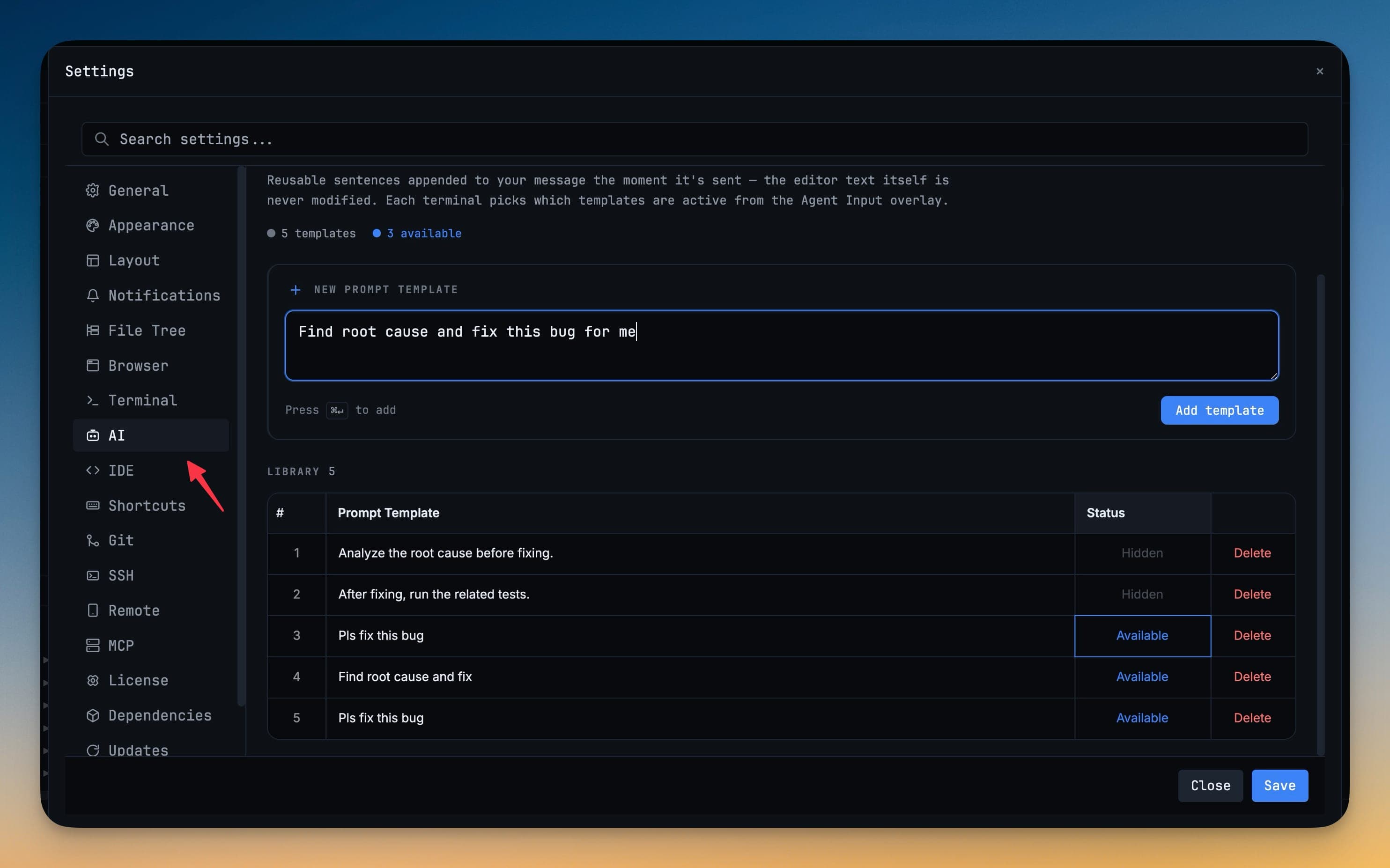
Every time you start a fresh AI terminal, you type the same instructions again. "Find the root cause before you fix it." "Run the related tests when you're done." "Keep the diff small." They aren't part of the task — they're the guardrails you want on every task. So you retype them, or you keep a scratch note open and paste them in, or you just forget and get an answer that skipped the step you cared about.
The instructions never change. Only the task does. Retyping the constant part, session after session, is pure friction.
What changed
1DevTool 1.50 adds Prompt Templates — a small library of reusable instructions you write once and then reuse across your AI terminals without retyping. You build the library in Settings, decide which templates apply to a given terminal, and either let them attach automatically when you send or drop one in at the cursor with an @ mention. The editor text you type stays yours; the template is the part you stop repeating.
How it works in practice
Build the library once
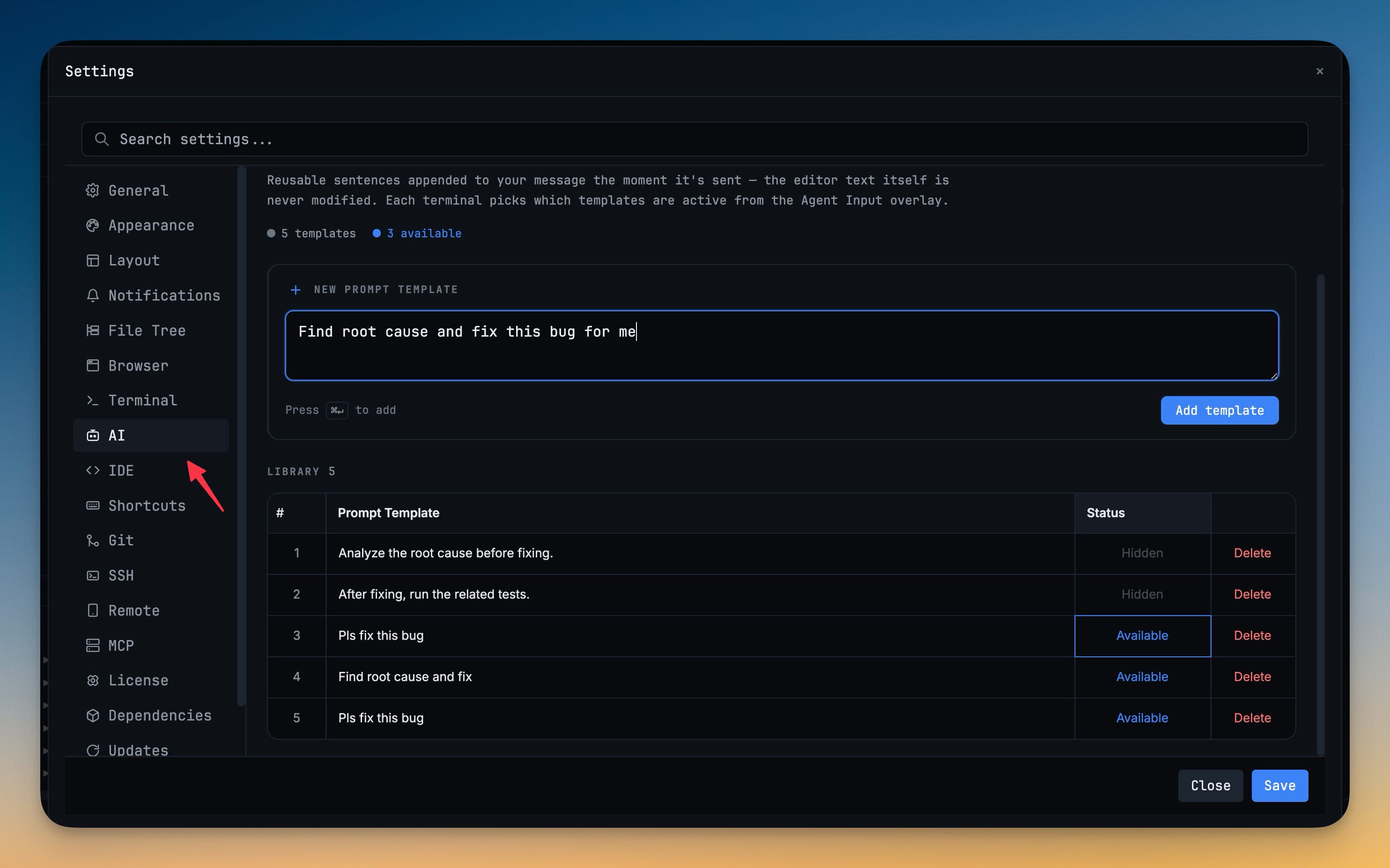
Open Settings → AI → Prompt Templates. Type an instruction into the New prompt template field — "Analyze the root cause before fixing", "After fixing, run the related tests" — and press ⌘↵ or click Add template. Each one lands in your library with a status you control: Available templates are ready to use, Hidden ones stay in the list but out of the way. A counter at the top keeps score — "5 templates · 3 available" — and you can edit or delete any row from the same page.
These are, in the app's own words, "reusable sentences appended to your message the moment it's sent — the editor text itself is never modified." You're building a set of standing instructions, not snippets you paste and clean up.
Turn them on per terminal
A template library is only useful if the right instructions ride along with the right work. So templates are enabled per terminal: from the Agent Input overlay, each AI terminal picks which of your available templates are active. Enable "run the tests after" on the terminal where you're fixing a bug; leave it off on the one where you're just exploring. When you hit Send, the active templates are appended to your message automatically — you write only the task, and the guardrails come along for free.
Drop one in on the fly
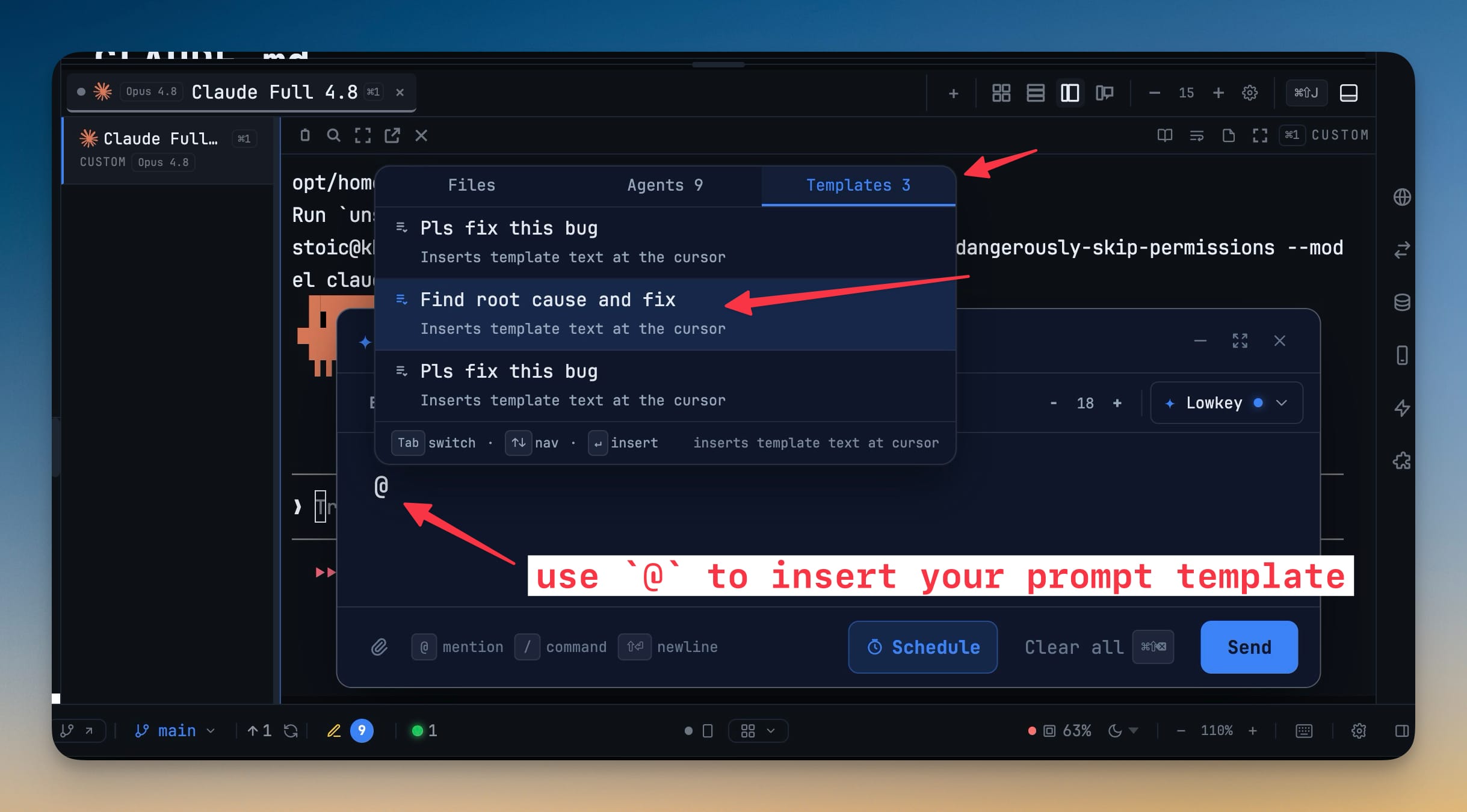
Sometimes you want a template for just this one message, not every message. Type @ in Agent Input and the mention menu opens with a Templates tab right next to Files and Agents. Pick a template and its text is inserted directly at the cursor — ↑↓ to navigate, ↵ to insert, Tab to switch tabs. It's the same library, reachable the moment you need it without opening Settings.
Curate as you go
Your first few templates won't be your final ones. As you learn which instructions actually change an agent's behavior, add the good ones, edit the wording, hide the ones you're testing, and delete the rest — all from the one settings page. The library grows into the set of standing rules you'd otherwise have to remember to type.
Before and after
| Before 1.50 | With 1.50 | |
|---|---|---|
| Standing instructions | Retyped or pasted every session | Written once, stored in a library |
| Applying them | Manual, easy to forget | Enabled per terminal, appended on send |
| One-off use | Dig through notes, copy, paste | Type @, pick from the Templates tab |
| Keeping them tidy | Scattered across notes and docs | Add, edit, hide, or delete in one place |
Who benefits most
Anyone who runs the same review discipline on every task — root-cause-first, tests-after, small-diffs — gets those rules attached automatically instead of relying on memory. People juggling several AI terminals at once can give each one a different standing brief: strict on the bug-fix terminal, loose on the exploration one. And teams standardizing how they prompt agents get a shared vocabulary of instructions that's one click to apply rather than a wiki page nobody opens.
Try it
Update to 1DevTool 1.50, open Settings → AI → Prompt Templates, and add the two or three instructions you already type most. Enable them on your next AI terminal, or reach for them mid-message with @. The task is the only part you should have to write twice.