Mar 19, 2026
Import VS Code Themes & Resume AI Sessions in 1DevTool
Bring your favorite VS Code theme into 1DevTool with one click, and resume past AI conversations across Claude Code, Codex, Gemini CLI, and Amp — even combine multiple sessions.
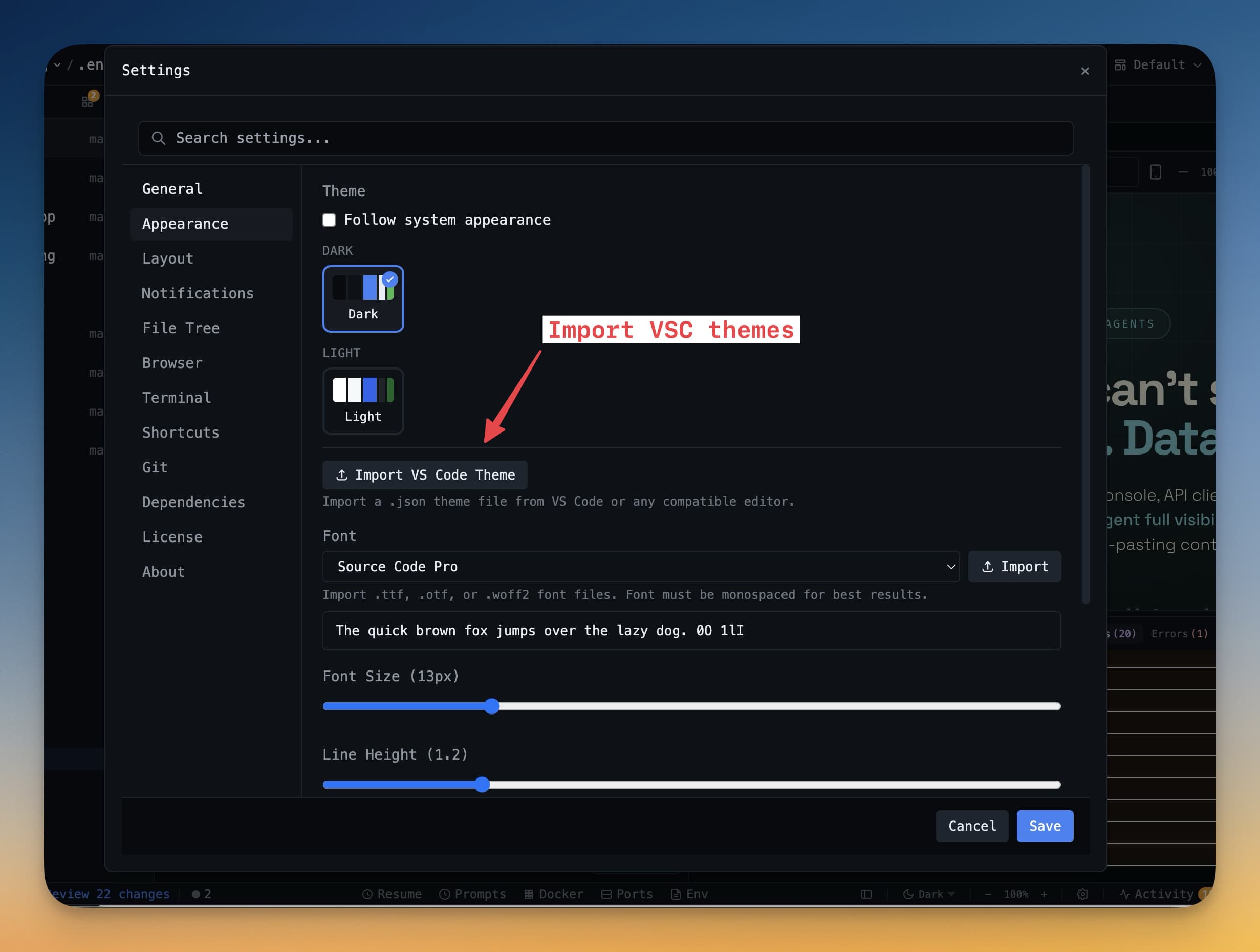
Two common complaints when switching to a new code editor: "I miss my theme" and "I lost my AI conversation." v1.7.2 fixes both. Import your favorite VS Code theme with one click, and resume past AI conversations across Claude Code, Codex, Gemini CLI, and Amp.
Import VS Code Themes
If you've spent time customizing your VS Code color scheme — or you rely on popular themes like Dracula, One Dark Pro, or Catppuccin — you can now bring them directly into 1DevTool. Select any VS Code .json theme file and preview it live before applying. The theme maps VS Code color tokens to 1DevTool's UI, including the editor, terminal, sidebar, and status bar.
A new theme picker in the status bar lets you quick-switch between themes. Themes are grouped by Dark and Light with color swatches, so you can pick at a glance. Hover over any imported theme in Settings to delete it.
Resume Past AI Conversations
AI conversations contain valuable context — debugging sessions, architecture discussions, multi-step refactors. Losing that context when a terminal closes means re-explaining everything from scratch.
The new Resume panel lets you browse, search, and continue previous sessions across all AI agents. Every conversation is listed with the first prompt, timestamp, and agent type. Click Resume to continue exactly where you left off with the correct agent-specific resume command.
Combine Multiple Sessions
Sometimes the context you need is split across several past conversations. Select multiple sessions and merge them into a single new conversation. This is powerful when you're picking up a multi-day task — combine Monday's architecture session with Tuesday's implementation session and continue on Wednesday with full context.
Agent Input Improvements
- Clear All (Cmd+Shift+Backspace) — clears text, images, and file attachments at once
- Smarter clipboard paste — pasted text summaries resolve automatically
- Natural scrolling — textareas and scrollable areas scroll correctly
- Configurable Clear All shortcut in Settings > Terminal
Before vs After
Task
Before
After
Use your VS Code theme
Manually recreate colors
Import .json file, preview live, apply
Switch themes quickly
Open Settings, scroll to themes
Click theme picker in status bar
Resume a past AI conversation
Copy session ID, manually run resume command
Browse, search, click Resume
Combine context from multiple sessions
Not possible
Select multiple sessions, merge into one
Try It Today
VS Code theme import and AI session resume are available in 1DevTool v1.7.2. Bring your theme. Keep your conversations.
Your colors. Your conversations. Nothing lost in the switch.
Related in the StoicSoft network
If you regularly stitch together PDF, image, video, or batch-file workflows like the ones above, 1FileTool is the StoicSoft network's purpose-built desktop app — 245+ local-first tools, pay-once, files never leave the device.