Nov 27, 2026
Work on Every Computer You Own from One Desk
Open a paired computer's projects, files and git, watch and type into its terminals, run agents on it, and push here and pull there in one click, without SSH or a mount.
You have a desktop that does the heavy lifting and a laptop you carry around. Or a Windows box under the desk and a Mac on top of it. Your agents run on both, and your repositories live on both. Until now, working across them meant juggling: remote desktop to check whether an agent finished, SSH to read a file, a push here and a pull there by hand, and a guess about which copy of the repository was current.
1DevTool could already pair two computers, but the paired one was mostly a place to send prompts. You could not see its projects, open its files, or type into its terminals. Because a Windows computer rarely runs an SSH server, the usual route to its files and git was closed as well.
What changed
In 1DevTool 1.88.0, a paired computer becomes a machine you work in. Its own projects, files, git and terminals show up on the computer you are sitting at, over the pairing link you already set up, with no SSH, no mount and nothing to add by hand.
How it works in practice
Open the projects that already live there
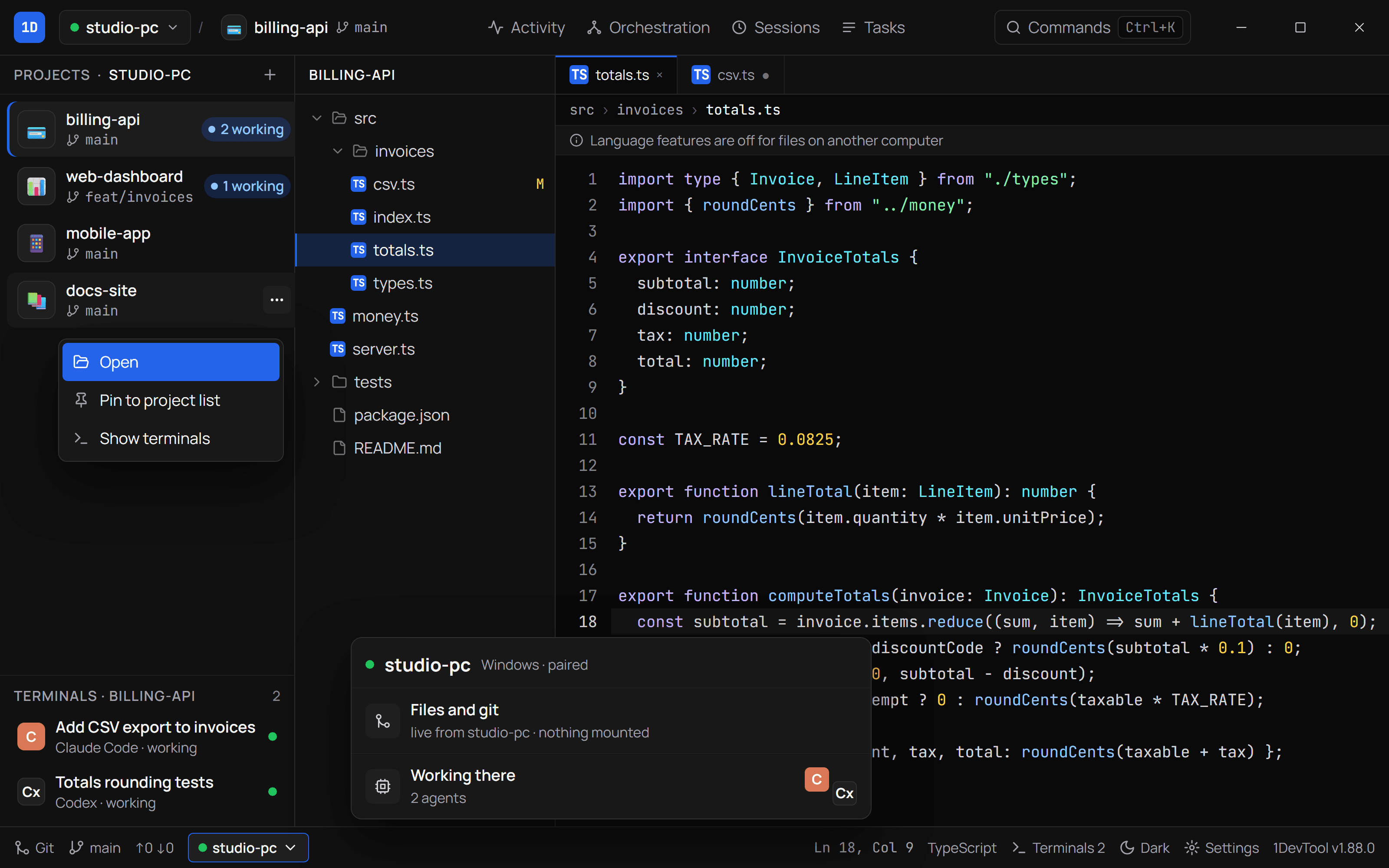
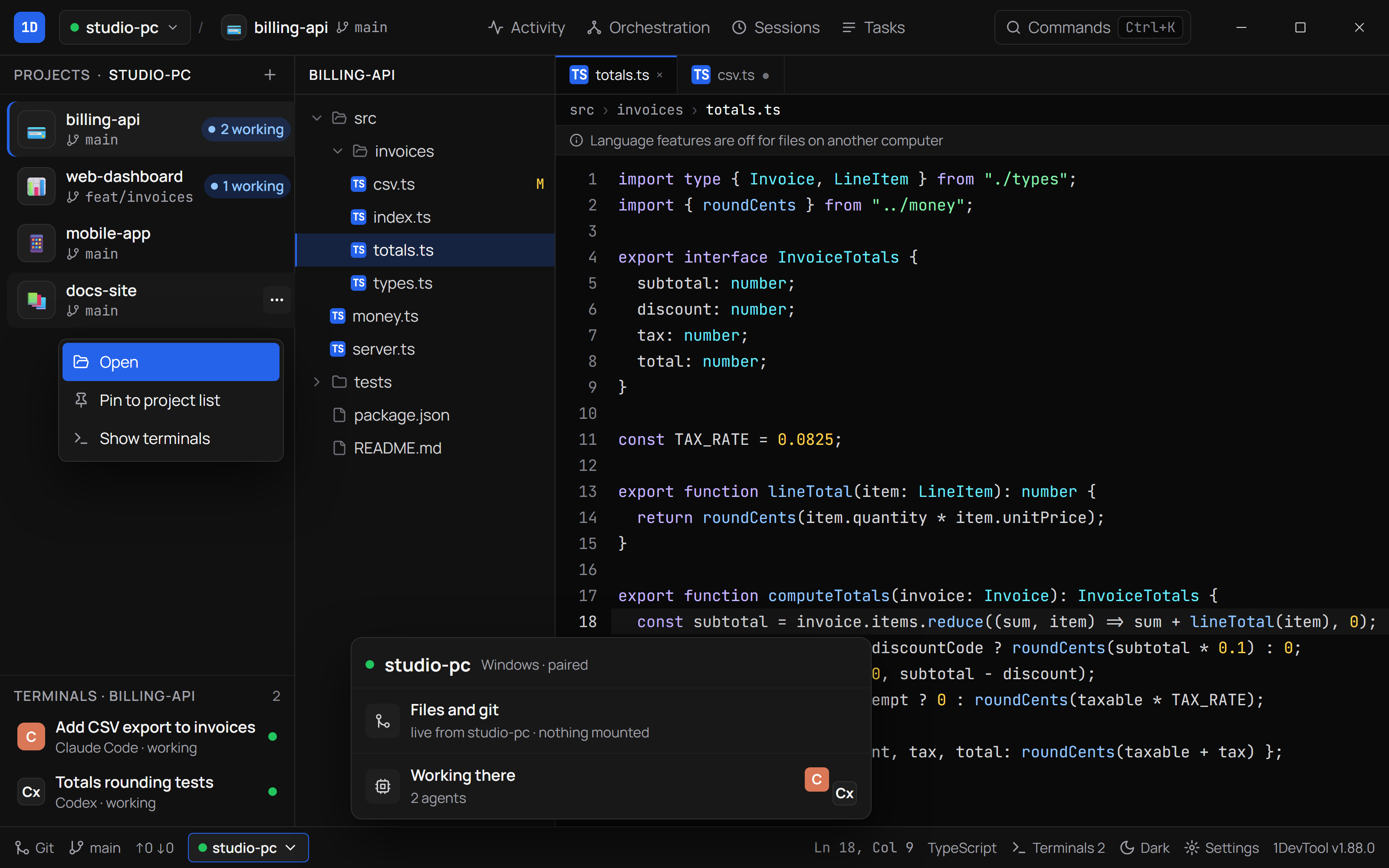
Pick the other computer in the top-bar machine switcher, or open All machines. The sidebar lists the projects that are already on it, each with its branch and how many agents are working in it. Open one and you get its file tree, the editor and search, live from that computer. You can pin a remote project to your project list and show or hide its terminals.
Saving is careful about the other side. If something on that computer changed the file after you opened it, 1DevTool shows you a compare view instead of overwriting the change. When an agent there is editing the same file, the editor tells you. Files over 8 MiB open on their own computer only, and language features are off for remote files.
The Git client works on the remote copy too: status, history and diffs, and, when that computer allows it, staging, committing, switching branches and stashing.
Watch and type into terminals on the other computer
Terminals running on a paired computer show up in the same lists as yours: the sidebar, the Terminal Dashboard and the command palette, where Focus Terminal jumps straight to one. Open it and you watch it live. You can type into it, stop it, or write your next prompt in Agent Input, with templates, attachments and @agent mentions.
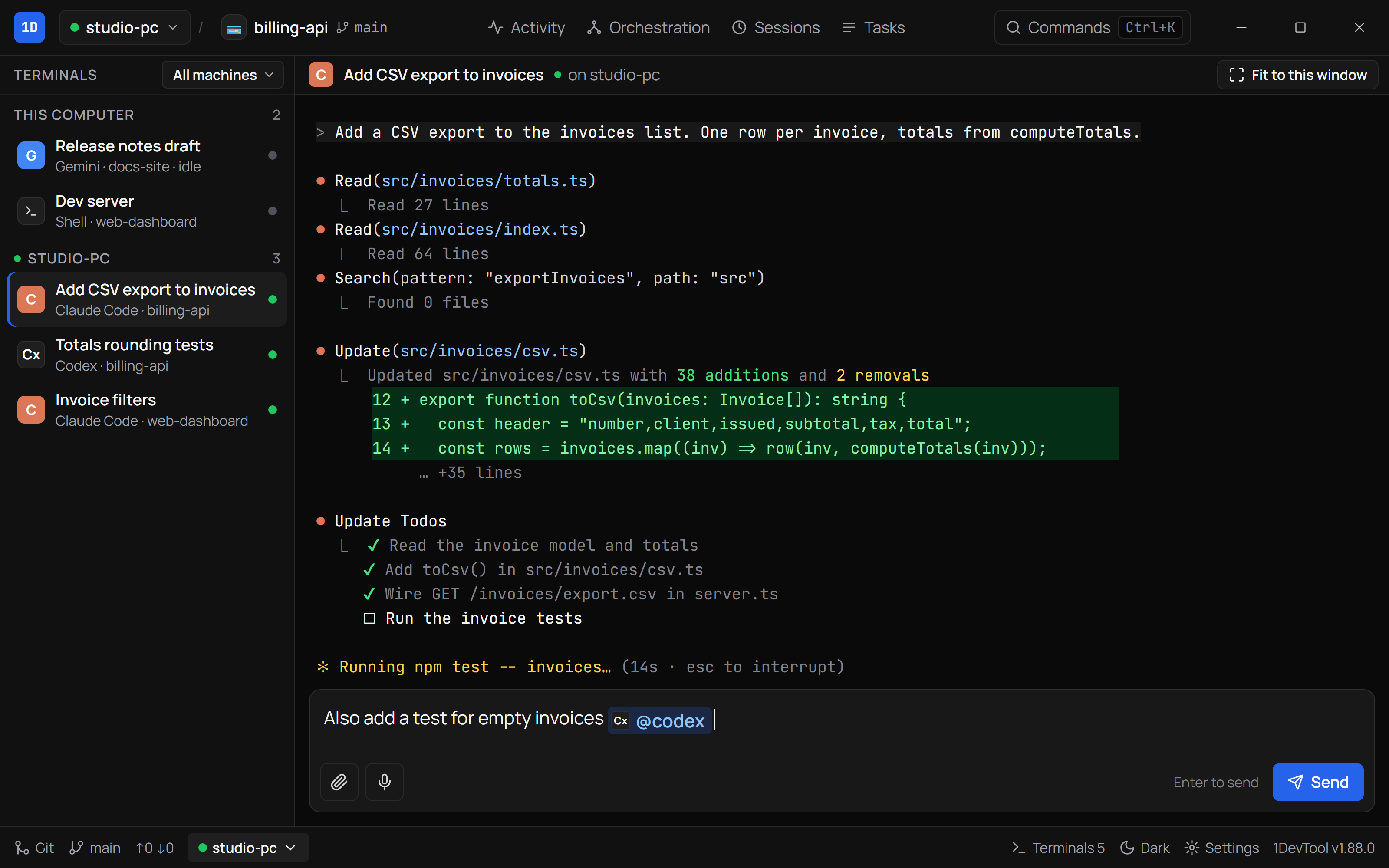
The mirror pane fits any width, follows the other computer's terminal size, and has Fit to this window when you want it sized for your screen. Whoever sits at the other computer is not left guessing either: the terminal there shows Watched from, Typing from or Sized for with your computer's name.
When an agent on another computer finishes, fails or hits a usage limit, you can get a notification for it. Clicking the notification opens that terminal. Turn it on per computer with Notify me when agents on … finish in Settings → Machines.
Pick where an agent runs
Add Terminal now has a Run on list. This Computer uses this computer's accounts. Each paired computer shows its quota, how many agents are working there and how many cores it has. It also tells you when the agent is not installed there or the computer is offline. If its copy of the repository is behind yours, it says so, with a one-click push and pull before you start.
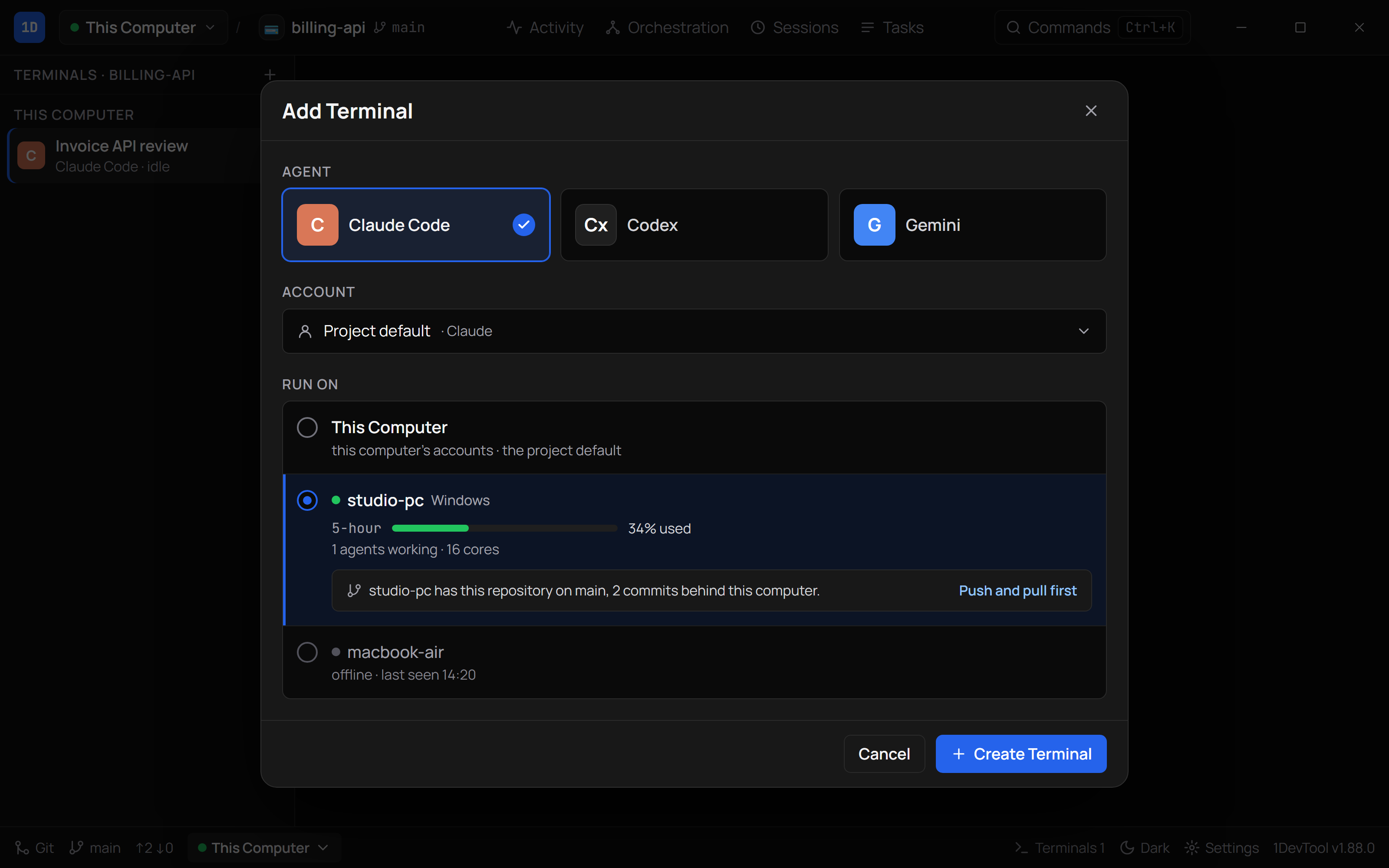
This is the practical way to spend another computer's compute and AI quota from the one in front of you. Your laptop stays cool while the desktop runs the long job.
Push here, pull there
The Git client's Also on strip shows the same repository on your other computers. Each copy is marked in sync, ahead, behind, diverged or offline, and the strip warns when an agent is working in that checkout.
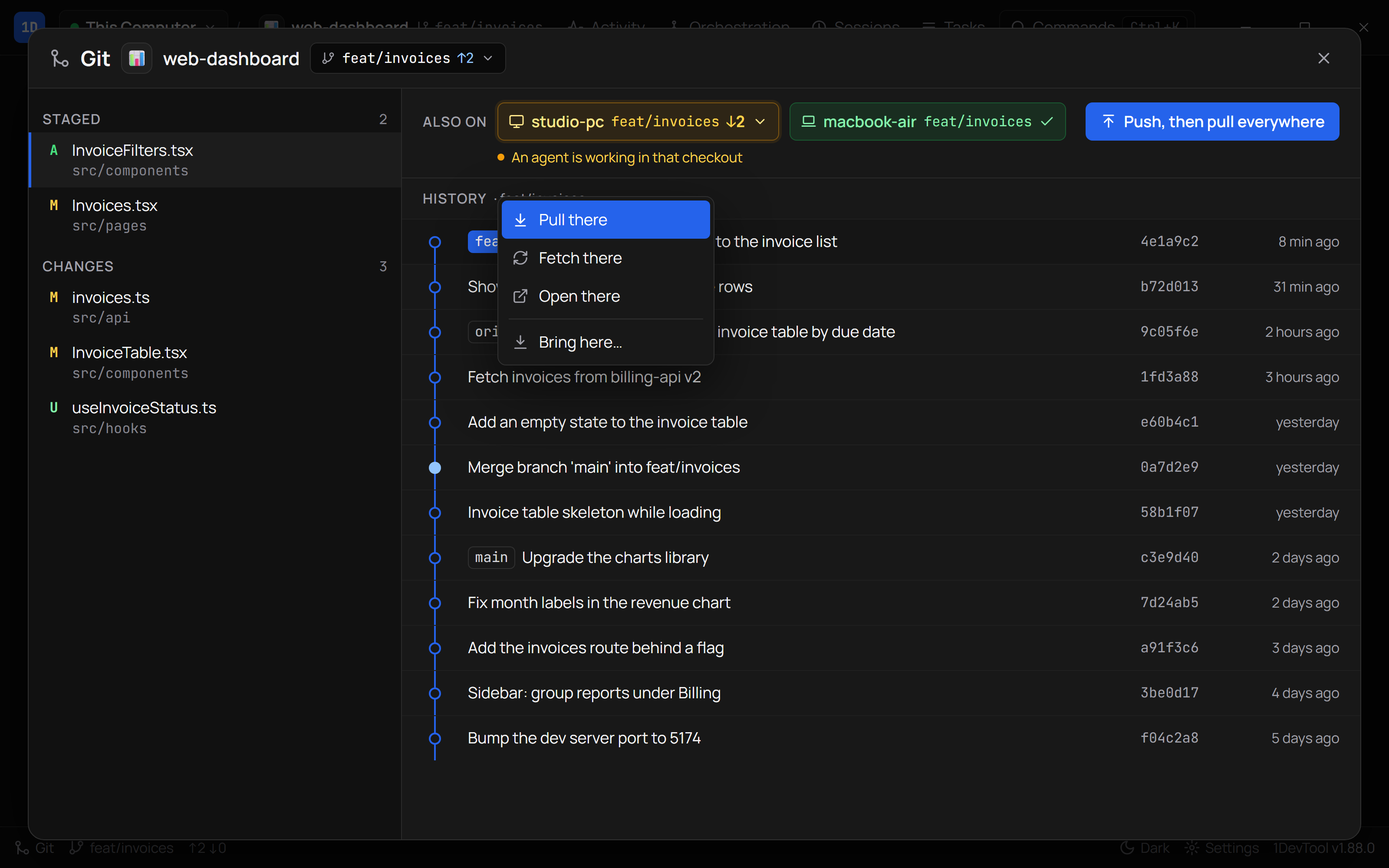
Push, then pull everywhere does the whole round trip in one click. Each copy's menu has Pull there, Fetch there, Open there and Bring here…. The network steps run on that computer with its own git accounts. They never force, and they never touch a checkout with uncommitted changes. A pull on a checkout where an agent is working waits until the agent finishes, unless you choose Pull anyway. Bring here… brings unpublished commits from another computer to this one without checking anything out.
For the bigger picture, the Repo panel has a Machines tab: a grid of your repositories against your computers, with each copy's branch and how far ahead or behind it is. Fetch everywhere fetches on every computer and never merges.
Each computer decides what the others may do
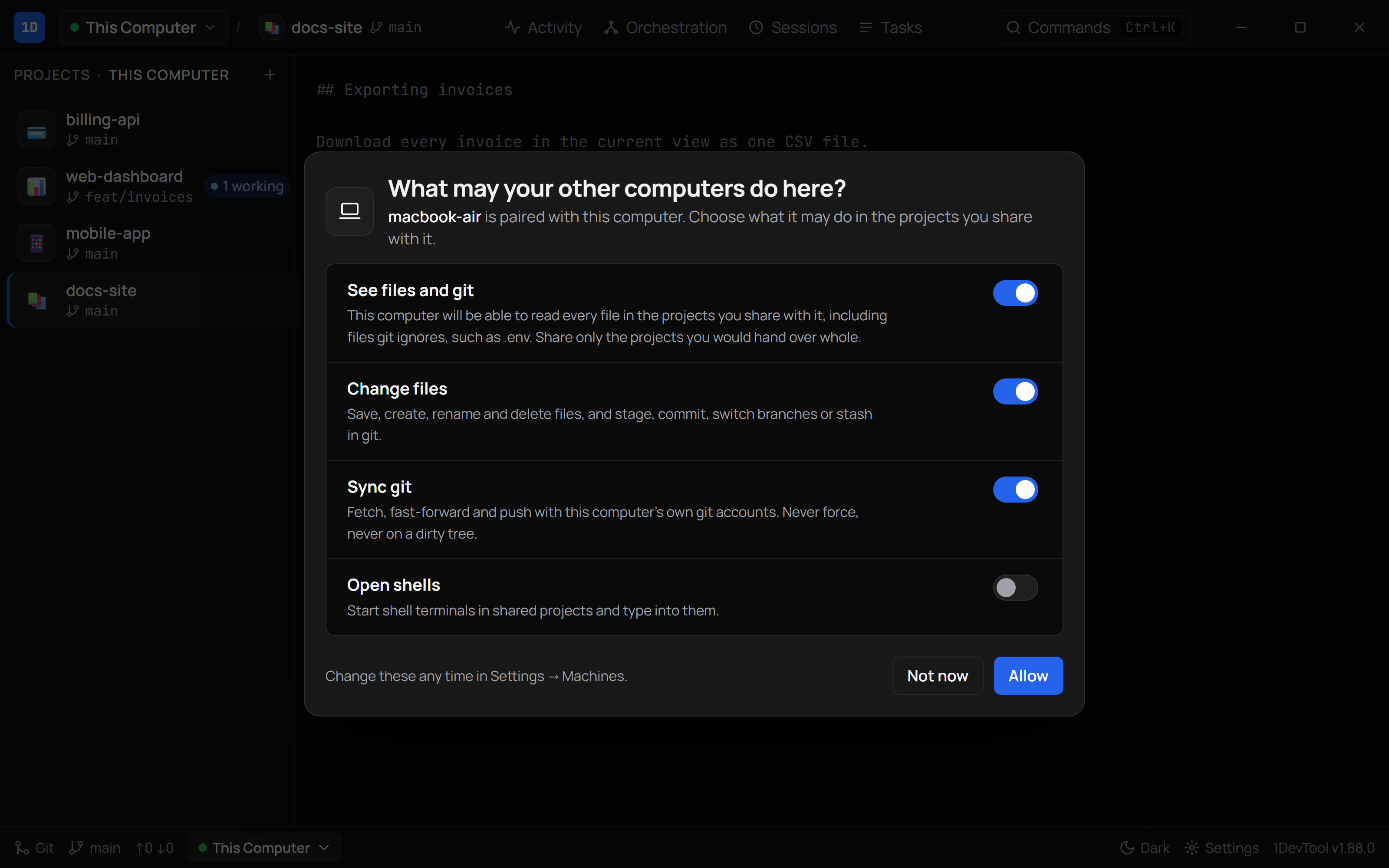
Pairing does not hand over everything. The first time another computer asks, 1DevTool asks you What may your other computers do here? with four switches: See files and git, Change files, Sync git and Open shells. For computers you paired before this version they start off, so nothing changes until you say so. You can change them any time in Settings → Machines.
Each computer also chooses whether to Share what agents are working on. When it does, the machine switcher, the sidebar, the status bar, the Terminal Dashboard and the tray show how many agents are working on each computer. Agents can ask too: the machines.agent_status MCP tool and 1devtool-agent fleet status tell an agent which agents on your other computers are working in the same repository, and on which branch. They are read-only and cannot prompt those agents.
Before vs after
| Task | Before | With 1.88.0 |
|---|---|---|
| See what is on the other computer | Remote desktop or SSH in, then look | Pick it in the machine switcher; its projects are in the sidebar |
| Check whether an agent there finished | Switch screens, or wait and guess | It is in your terminal list; a notification tells you |
| Run a long job on the stronger computer | Walk over, or remote in, and start it there | Run on in Add Terminal |
| Get your commits onto the other copy | Push here, connect there, pull there | Push, then pull everywhere |
| Know which copy is current | Run git status on each computer | Also on shows each copy's state |
| Decide what another computer may do here | No files, git or shells to grant at all | Four switches per computer: files, changes, git sync, shells |
Who benefits most
Anyone with a desktop and a laptop. Start agents on the desktop from the couch, watch them from the laptop, and pull their work over when they finish.
Mixed Windows and Mac setups. A Windows computer no longer needs an SSH server for you to browse its files and use git on it. The pairing link carries it, on your local network, over Tailscale or over the public device link.
People who run many agents at once. One list of every terminal on every computer, with notifications and agent activity, means fewer screens to check.
Try it
Update both computers to 1DevTool 1.88.0 and pair them in Settings → Machines if you have not already. Then open the machine switcher, pick the other computer and open one of its projects. One desk is enough to work on every computer you own.