Aug 4, 2026
Your Accounts, Your Projects, Your Machines
1DevTool 1.59.0 gives you one panel for every AI account you own, workspaces that bind several repositories into one product, and pairing that makes your other computer's agents usable from this window.
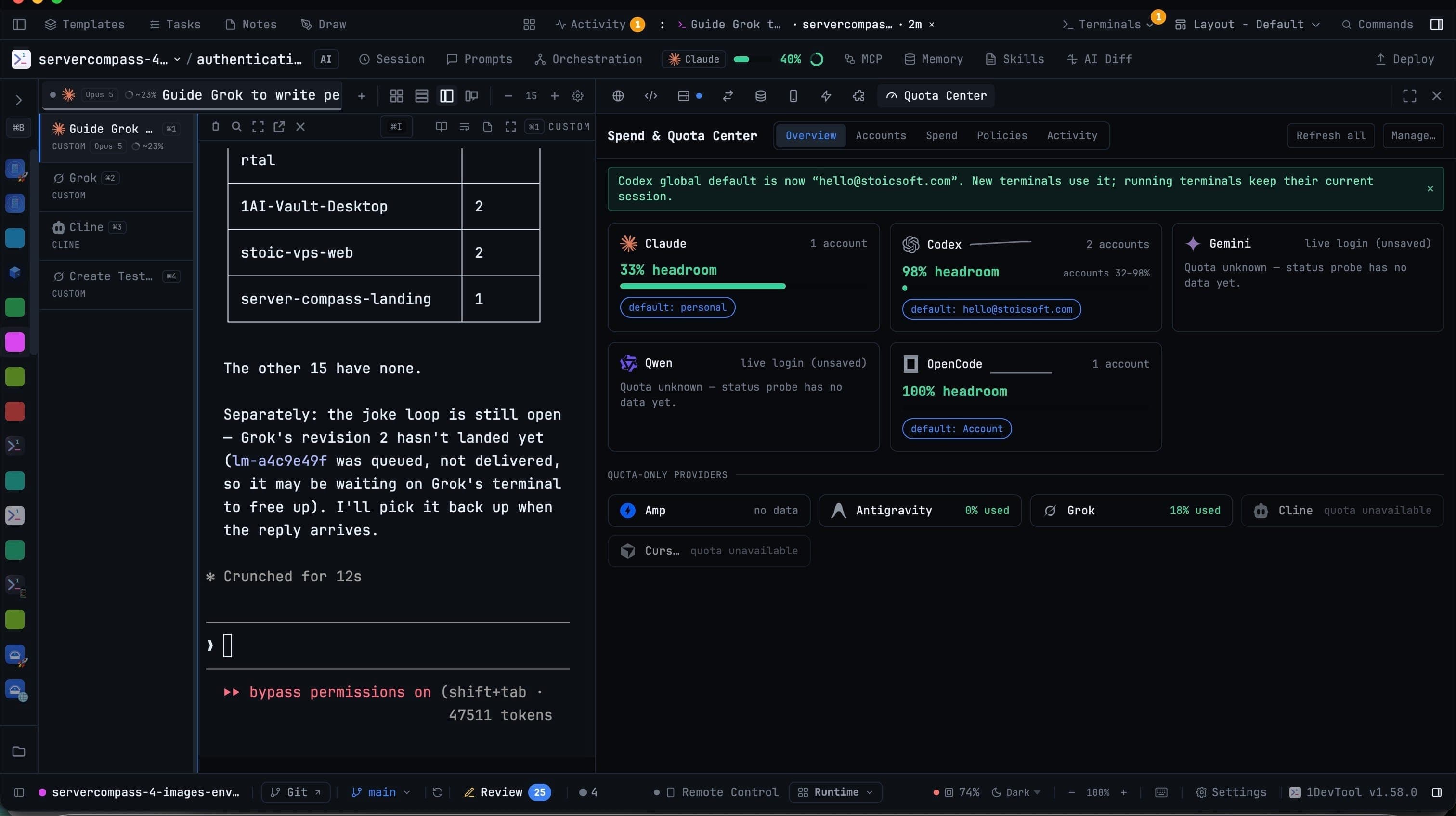
You are twenty minutes into something that is finally going well, and the agent stops. You have hit your limit. Somewhere you have a second Claude account with room on it, and a Codex account you barely touched this week, but finding that out means opening two terminals and reading two different status lines — by which point the thread you were holding is gone.
The same afternoon, the machine under your desk sits idle while your laptop fans spin. And the product you are actually working on is four repositories, so the agent you are talking to can see exactly one quarter of it.
None of those are hard problems. They are just problems nobody gave you a place to look at.
What changed
1DevTool 1.59.0 adds a control plane for the three things you already own and could not see: your accounts, your projects, and your machines. Each one gets a real surface — not a status line, not a guess — and each one answers a question you have been answering by hand.
Know what every account has left
The AI Quota Center is one panel for every AI account you own. Open it with ⌘⇧U, from the Navigate menu, the command palette, the quota pill in the header, or the banner in Settings → Accounts. It opens with no project loaded, which matters more than it sounds — "how much room do I have" is a question you ask before you start work, not after.
The headroom you actually have
Overview puts Claude, Codex, Gemini, Qwen, OpenCode, Amp, Antigravity, Grok, Cline and Cursor on one screen, each with its remaining headroom and a sparkline of the last few hours. Once there is enough signal, it estimates when the account runs dry. Providers that report quota but do not host terminals sit in their own row underneath, so the list of things you can actually launch on stays clean.
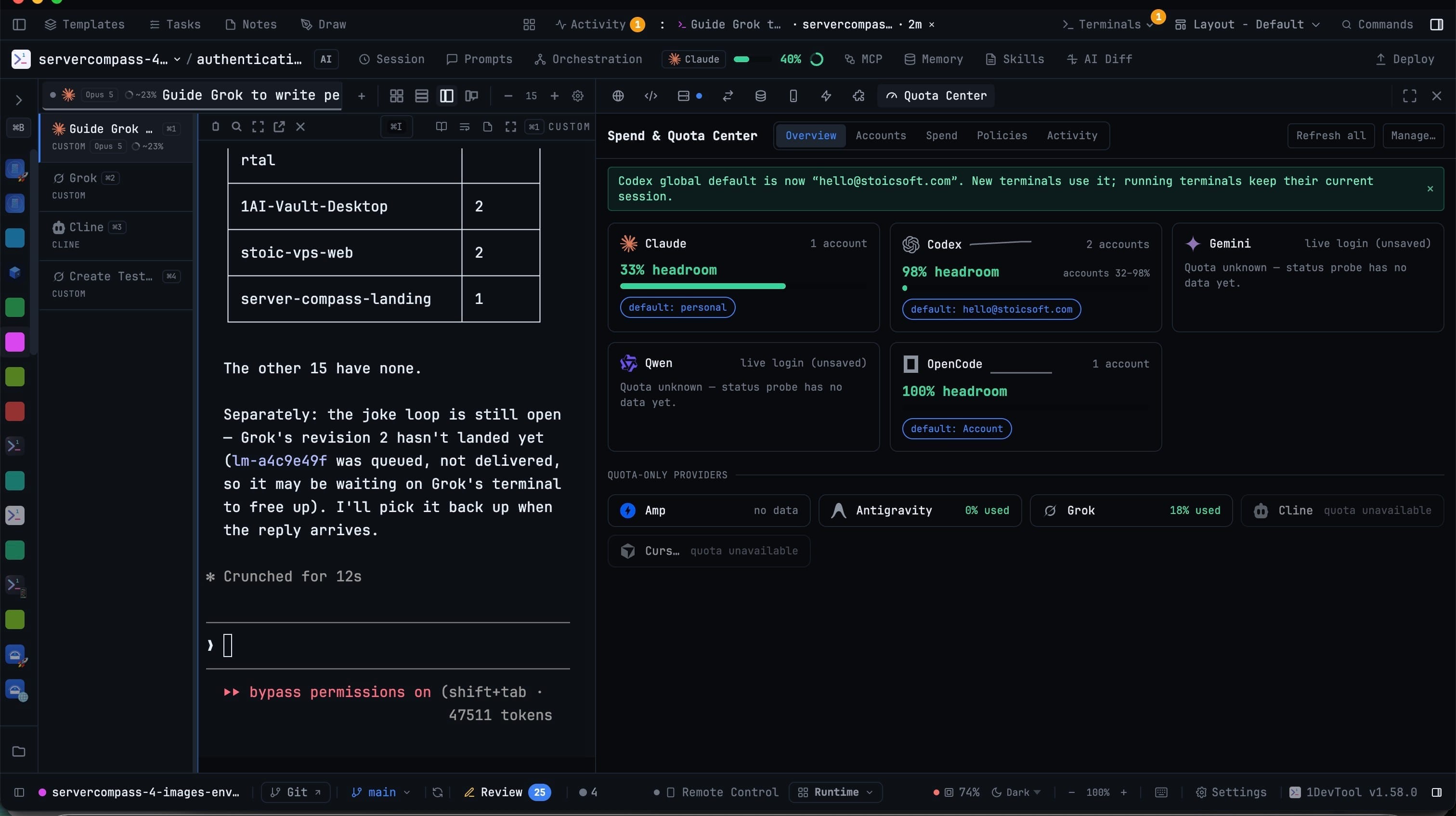
The number on each card is provider truth, not an estimate. When Claude says you are at 40% of your five-hour window, that came from the usage API, and the reset time next to it is the real one.
What the month actually cost
Spend answers the other half. Token cost broken down by agent over this month, seven days, thirty days, or all time, with sessions and cache reads alongside it, and an Export CSV button when you want the table somewhere else.
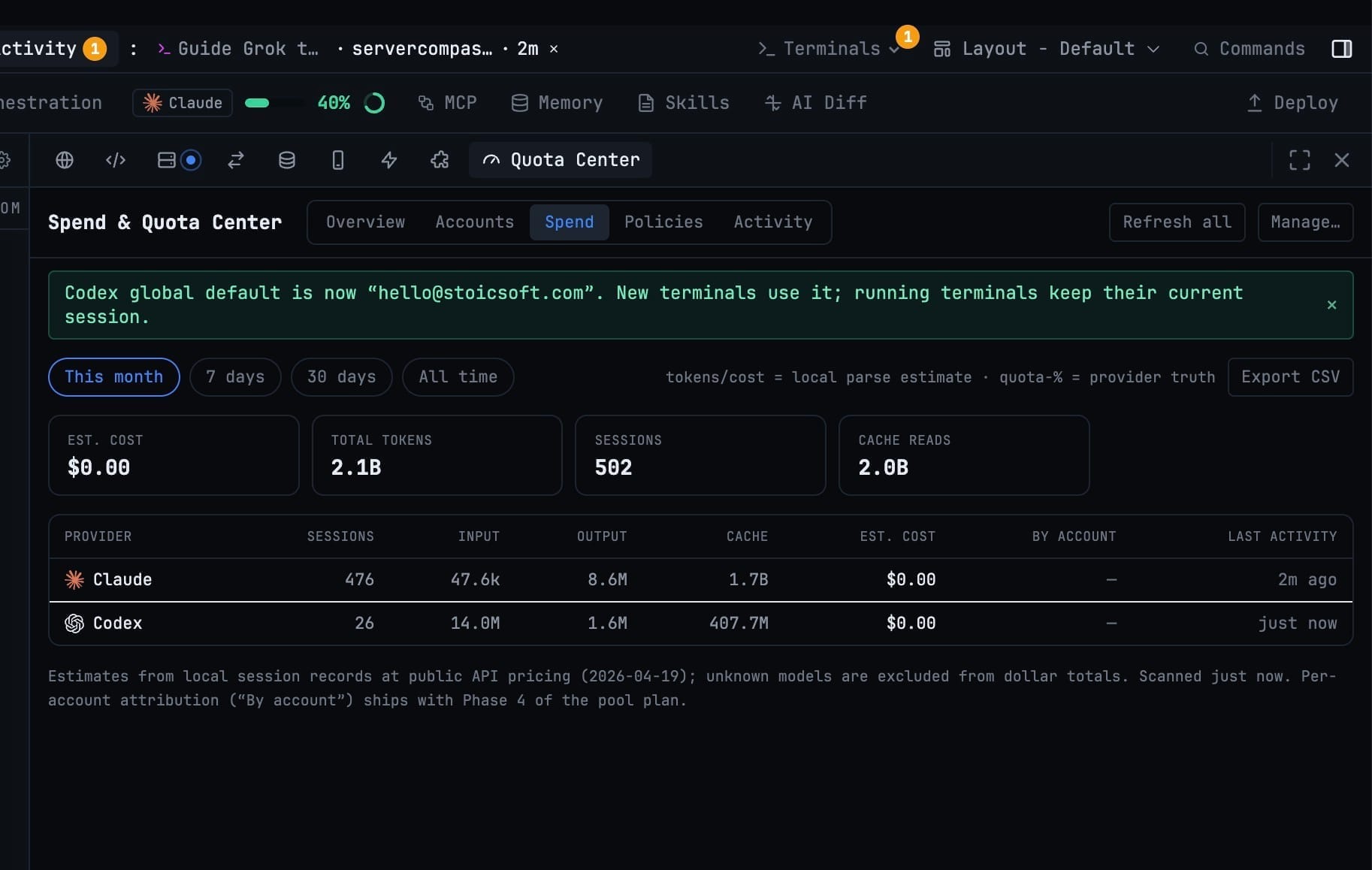
Give an account its monthly plan price and the Center tells you what that month would have cost at API rates. That is the comparison worth having — not "am I using a lot", but "is the subscription still the cheaper side of the trade".
Let the pool pick the account
If you would rather not think about it, ⚡ Auto (pool order) in the Add Terminal dialog walks your provider chain and starts the terminal on the healthiest account of the first pool that can take work.
The rules are deliberately boring, because the alternative is frightening. A terminal keeps the account it started on for its whole life — rotation happens between launches, never mid-conversation. An account is never swapped out from under a running terminal; a launch that would conflict is refused with a reason rather than quietly mixing credentials. And nothing sits on the network path between the CLI and its provider.
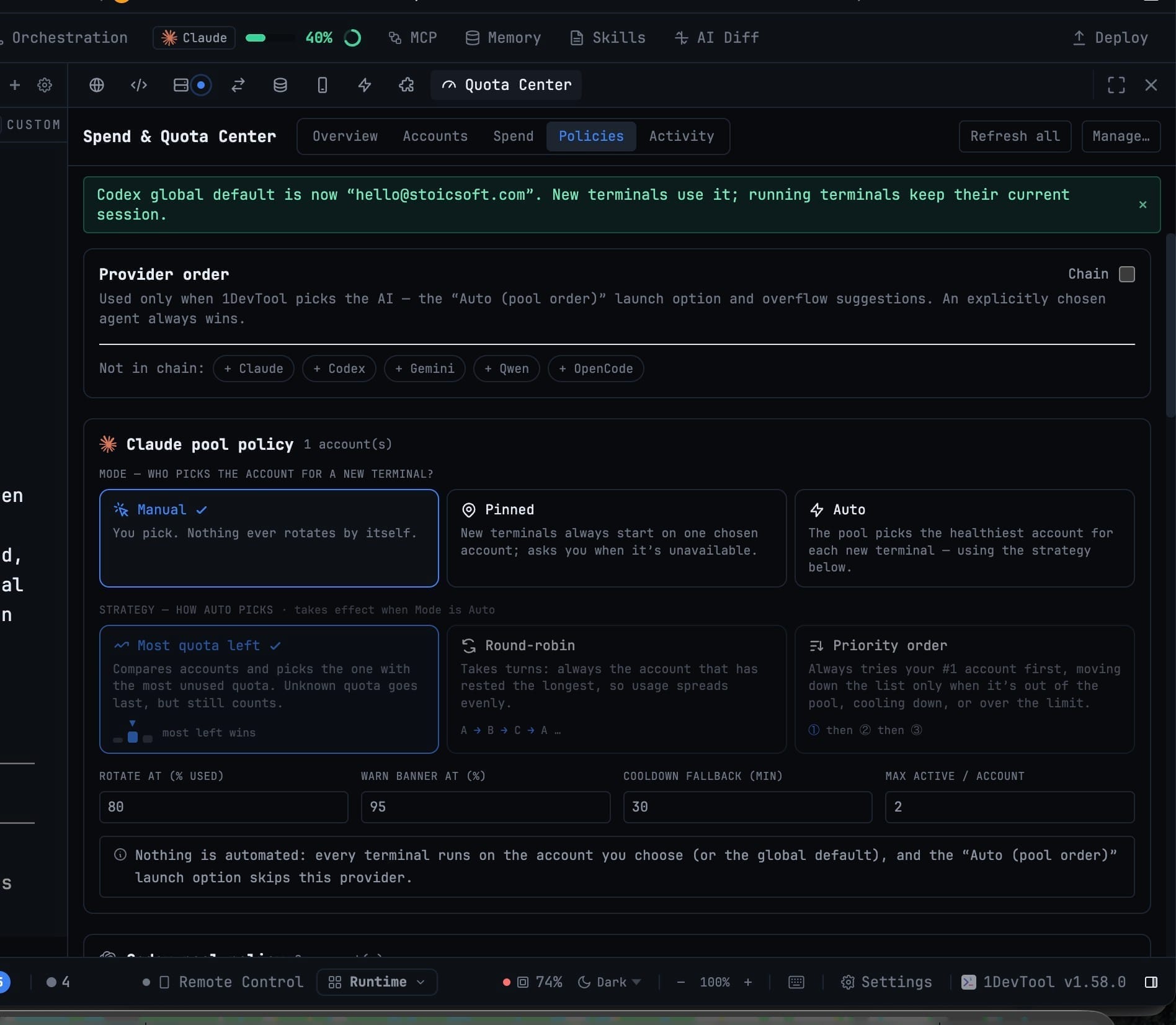
Bench an account to hold it out of rotation and Unbench it when it recovers. An account that hits its limit cools off on its own and says so on its row. The Policies tab holds the chain and the per-pool rules; the Activity tab logs every switch, lease and cooldown, so you can always find out why a terminal got the account it got.
The quota pill in the header carries the same information in miniature, including a threshold you can set per provider so you get a warning before the wall rather than a stop at it. And the Remote dashboard gains an AI Quota section, so the answer is on your phone too.
Several projects, one product
A product is rarely one repository. It is a web app, an API, a mobile client, and some infrastructure — and until now 1DevTool treated those as four unrelated projects that happened to be open at the same time.
Bind them into a workspace
Create a workspace from Settings → Workspaces, or right-click a sidebar group → Create workspace…. Membership can follow a sidebar group as it changes, or freeze today's members as a snapshot. The sheet shows the projects that actually resolve — with their avatars, colours and emoji — before you save, so you find out about a mistake while you can still fix it.
Hand your agent a sibling repo
The @ picker in Agent Input gains a Projects tab. @Backend inserts that project's context without you leaving the terminal you are in. @Acme — the workspace itself — expands to one block per member project at send, with per-project size caps and an honest truncation line when it does not all fit.
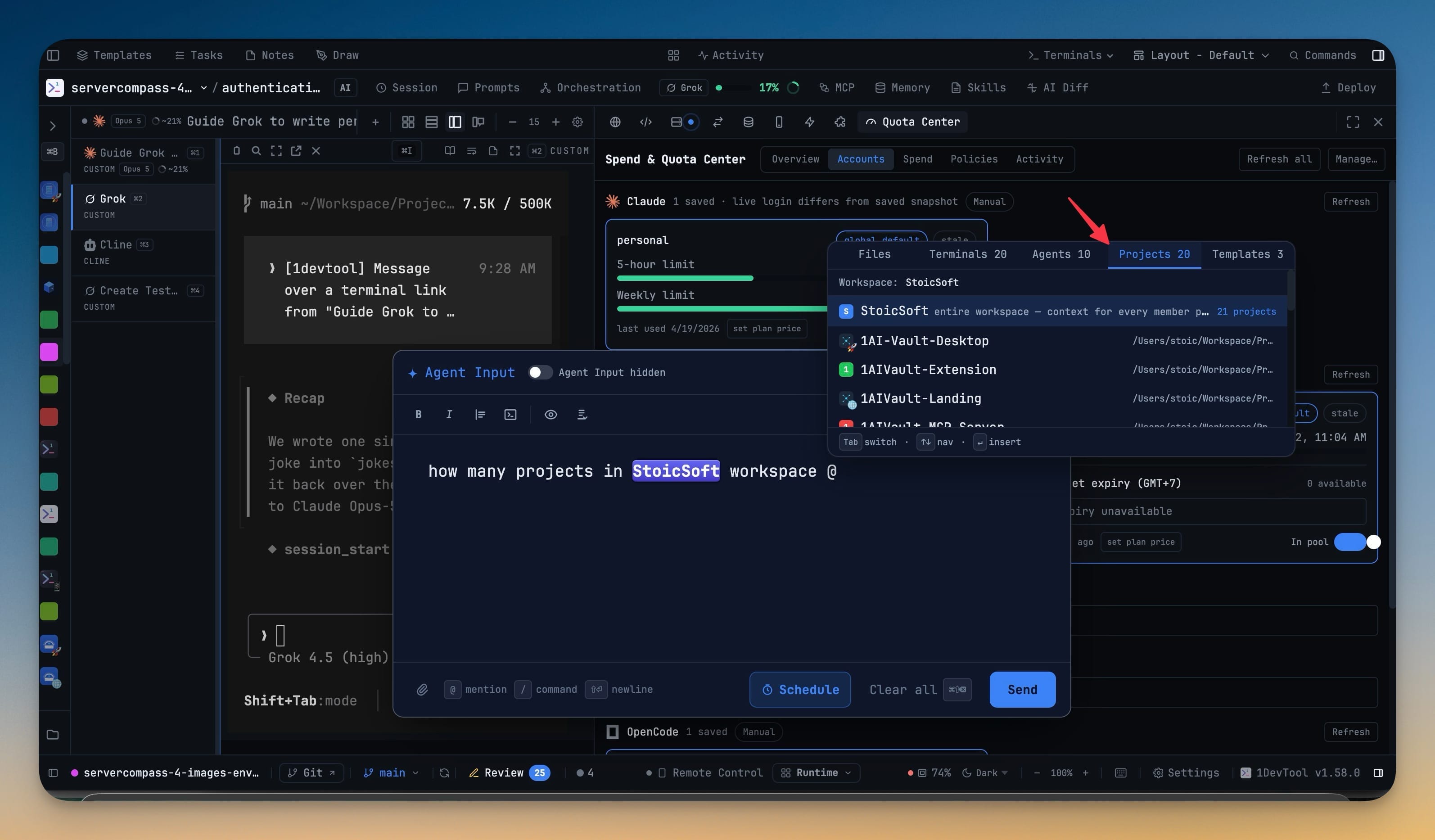
Mentioning a single sibling project also retargets file search to that project's root, so your @ file mentions reach across the repo boundary instead of stopping at it. Agents can address the whole product too — list the roster, send to a peer in another project, broadcast, and collect replies from several terminals at once, all over links you already granted.
One board for the whole product
The Tasks board gains a Workspace view listing every task across member projects, and the assign dialog offers sibling projects' terminals grouped as project · workspace. The Team Map gains a workspace chip and a Show outside toggle for everything beyond it.
Your other computers, in this window
Settings → Devices pairs this machine with another computer running 1DevTool — a Mac mini, an office box, a VPS — so the agents on that machine are usable from here. This is an agent control plane, not a second login and not a file browser; files over SSH stay in the SSH tab where they belong.
Pair once, confirm on both screens
Show a pairing code on one computer and paste it on the other, then confirm the same three-word fingerprint on both screens. A key exchange nobody read aloud never becomes a paired device.
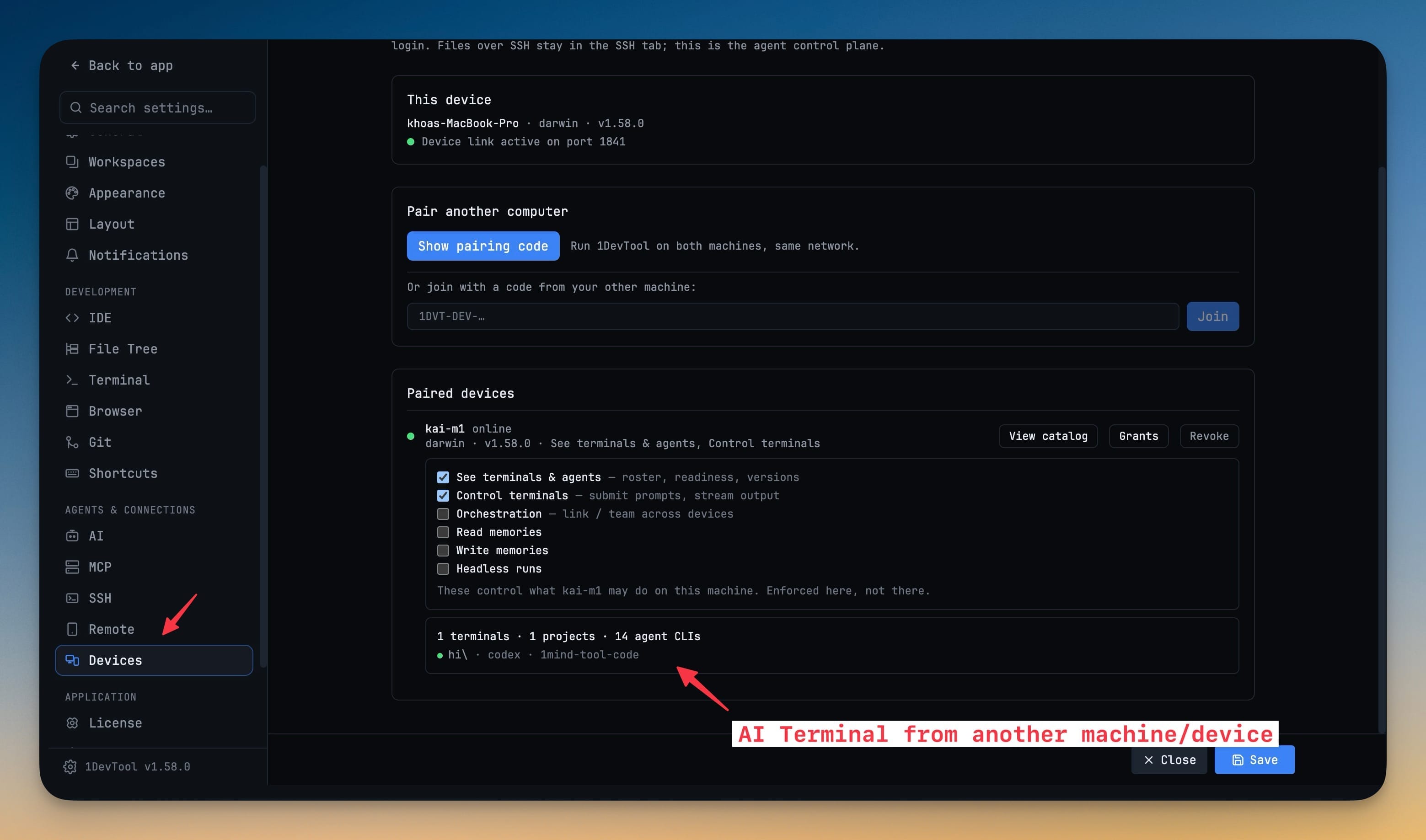
Each peer gets its own permissions — see terminals, control terminals, orchestration, read memories, write memories, headless runs — and they are enforced by the machine that owns the resource, not by the machine asking. Revoke any of them at any time. Connections work over LAN, Tailscale or a VPN: candidate addresses are probed and the route that answered is remembered for next time.
Mention a terminal on another machine
Once paired, a peer's AI terminals show up in the @ picker like local ones, reading as codex · Mini so you always know which machine a mention runs on. Only online peers that granted a catalog are offered at all.
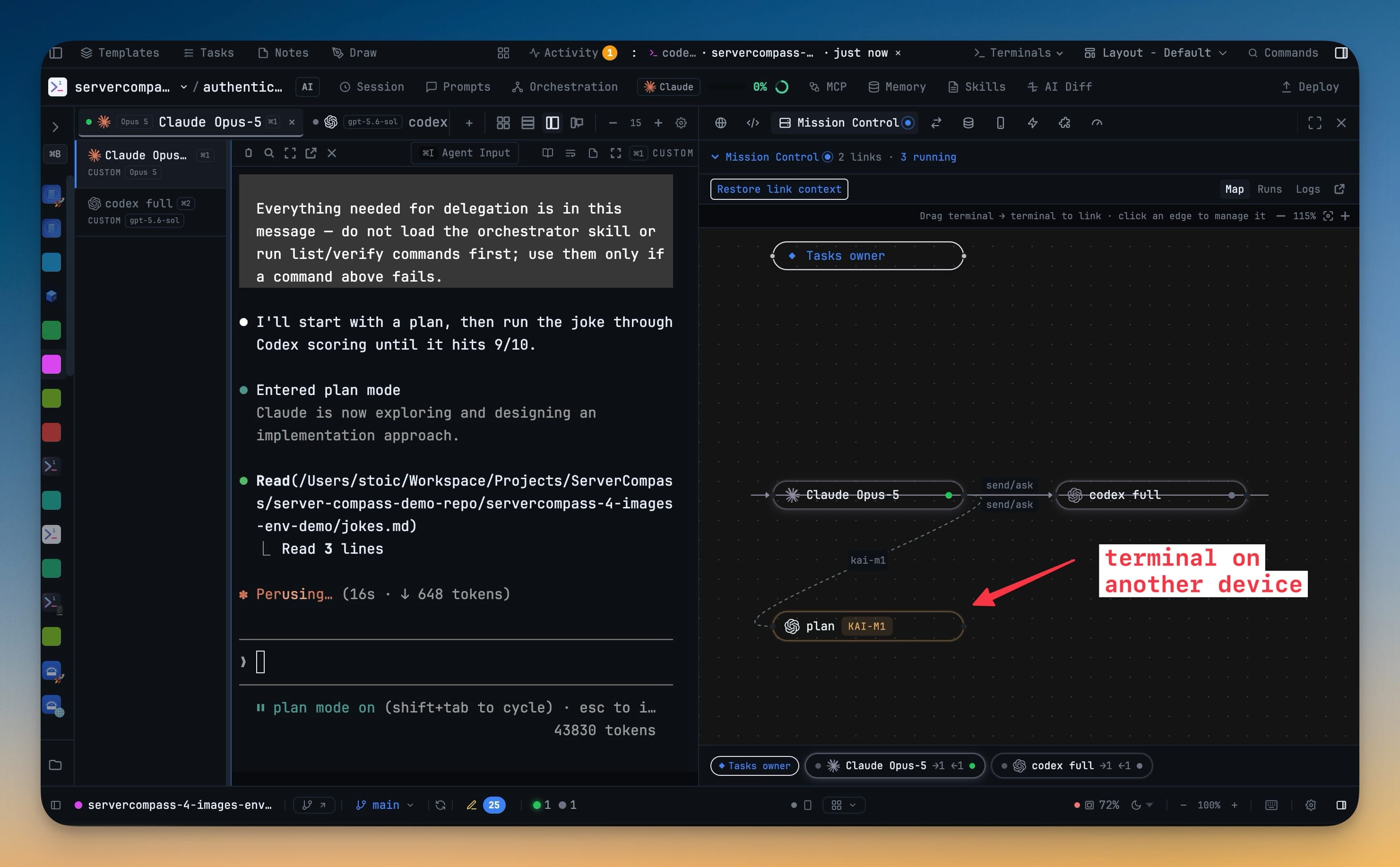
The failure modes are the point here. A prompt to a peer never silently falls back to a local agent. It is never staged into a plain shell. And a dead terminal on the other side reports that instead of swallowing your message.
Pairing needs Pro; managing pairings you already have never does, so an expired licence cannot hold your devices hostage. And with nothing paired there is no server, no device identity and no background work — the Devices tab is the only trace of the feature in the whole app.
Before vs After
| What you wanted to know | Before | Now |
|---|---|---|
| Which account has room left | Open each terminal, read each status line | One panel, headroom per account, ⌘⇧U |
| What this month cost | Guess, or do not ask | Spend tab, by agent, exportable as CSV |
| Which account a new terminal uses | Pick manually, every time | ⚡ Auto (pool order) picks the healthiest |
| Give an agent context from another repo | Copy-paste, or open the other project | @Backend from the terminal you are in |
| Every task across a product | Check four boards | Tasks → Workspace view |
| Use the agent on your other machine | SSH in and run it blind | @mention its terminal from here |
Also in this release
A copy button now appears on fenced code everywhere it renders — Markdown previews, Reader mode, chat messages, sticky notes, Tasks and the skill editor. Orchestration runs can be ticked in Run & Logs and exported as a single zip with the orchestration log included, which is exactly the shape a bug report wants. The Add Project dialog catches a folder you have already added, shows you which project it is, and offers to open it instead of creating a second entry over the same working directory. Links on the Team Map can be inspected in place — see the ends, unlink, review what it can read, or create the counterpart link that makes the conversation two-way. And an AI card on the Canvas (⌘6) now opens the full Agent Input composer in place, taking over the draft from the pane underneath so the message you started is the one you send.
Several things also got faster in the places this release made busier: Resume AI Sessions no longer re-reads every Cursor conversation from disk each time it opens, a File Explorer behind a hidden tab no longer watches your repository until you look at it, and the Quota Center makes one round of account checks when it opens instead of two.
Who benefits most
If you run more than one AI subscription, the Quota Center is the first place that has ever told you the whole truth at once — what is left, what it cost, and which account the next terminal should use.
If your product spans repositories, workspaces stop you from being the integration layer. The agent gets the sibling repo's context because you named it, not because you pasted it.
If you own more than one computer, the second machine stops being a machine you SSH into and starts being capacity you can address from where you already work.
Try it
Open ⌘⇧U and look at what your accounts actually have left — that part takes ten seconds and needs no setup. Workspaces and Devices are both in Settings when you want them.
Download 1DevTool 1.59.0 and stop finding out about your limits from an error message.