Sep 28, 2026
Your Agent Team on a Map, on Your Phone
A list of terminals can't tell you which agent is waiting on you or which link is broken. The phone's new Maps tab shows the whole team by chain of command, and one tap starts a saved chart from wherever you are.
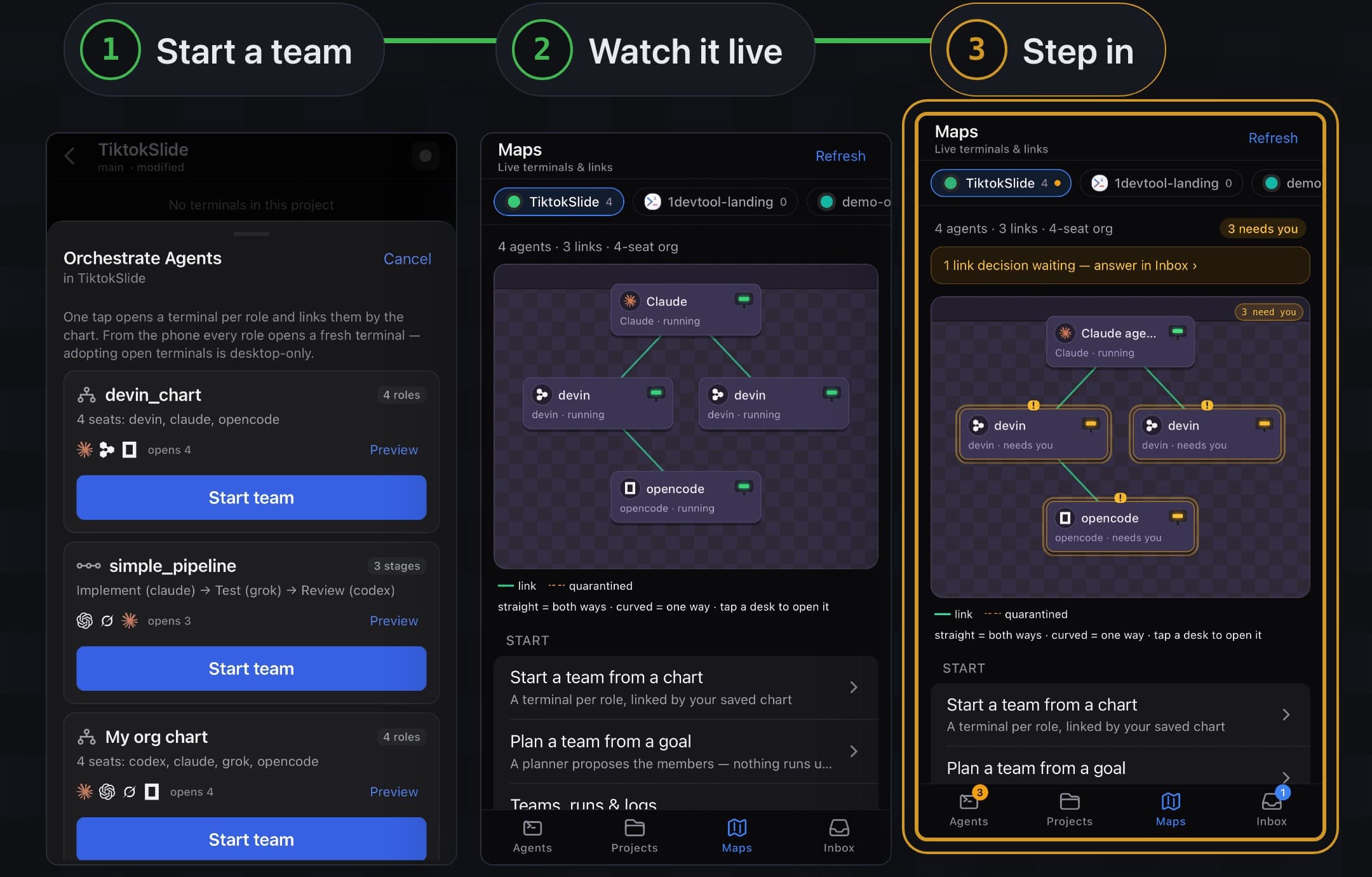
You set a team of agents running before you left the desk. A lead, a couple of implementers, a reviewer at the end of the chain. Now you are on the train, or in the kitchen, or in a meeting that could have been an email, and the question in the back of your mind is simple: is it still moving, or is something waiting on me?
Your phone could already answer part of that. You could scroll a list of terminals, open one, read its output, type a reply. But a list tells you nothing about the shape of the work: which agent reports to which, which link is carrying messages, which member stopped because it needs a decision only you can make. And if the team was not running yet, there was nothing to do from the phone but wait until you were back at the keyboard to start it.
What changed
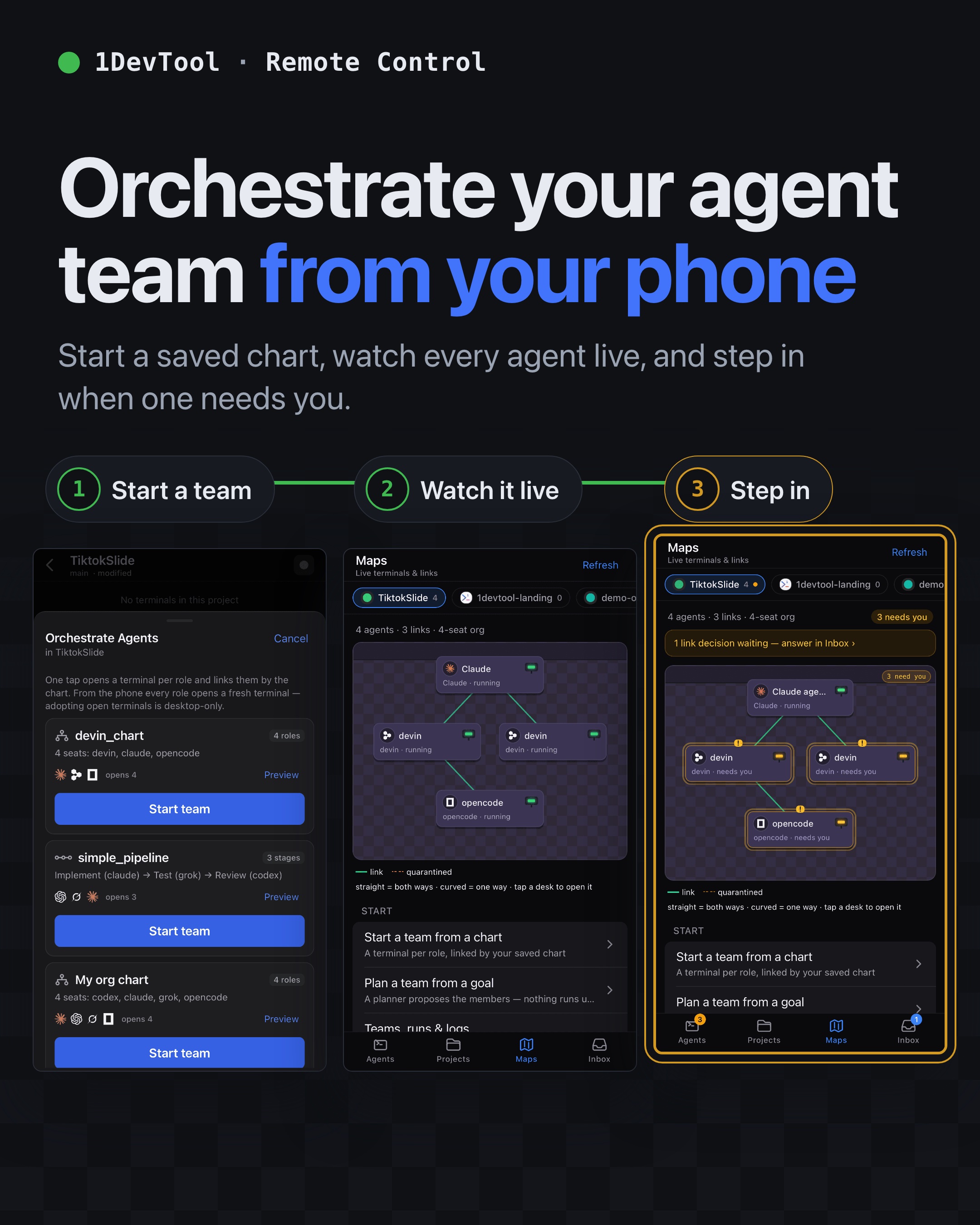
1DevTool v1.76.5 puts your agent team on a map on your phone, and lets you start a saved team from there too. You can now see every agent, every link and everything waiting on you in one view, and open a whole org chart or pipeline with one tap, without sitting down at the desktop.
How it works in practice
See the whole team at a glance
The phone remote gains a Maps tab, next to Agents, Projects and Inbox. It opens on Maps — Live terminals & links, with a chip for each project open on the desktop and a count of its agents.
Pick a project and you get its map. Each agent terminal is a desk. Each link between two agents is a line between their desks. The layout follows the chain of command, not the order the terminals were opened: an org chart keeps its tiers, a team's host sits above its members, and agents that are not linked to anything wait in a Not linked list under the map instead of cluttering it.
A summary line tells you the size of what you are looking at, such as 4 agents · 3 links · 4-seat org, and says how many seats are vacant if any are. The legend is short enough to remember: a solid line is a link, a dashed line is a quarantined link, a straight line carries messages both ways and a curved one carries them one way.
Quarantined is worth a second look when you see it. It means the link was suspended because something underneath it changed: the terminal closed or relaunched, the session was replaced, the agent kind or worktree changed, or the project was removed. The map shows you that link is not carrying anything, instead of drawing it like a healthy one.
Triage without opening every terminal
Each desk carries its role and its state, such as devin · running or Claude · idle. When an agent needs you, the desk says so and gets a warning marker, and the header shows a badge like 3 needs you.
"Needs you" is concrete. A desk gets it when an AI run has just finished and the terminal has gone idle waiting for review, or when a team member has been flagged as needing input. So the map doubles as a triage view: the desks that are marked are the ones worth your next thirty seconds.
Link decisions get the same treatment. When one agent asks to link to another, a banner reads 1 link decision waiting — answer in Inbox, and the Inbox shows the request with Approve and Deny.
Tap a desk to go straight to it
The map is a shortcut, not just a picture. Tap a desk and that terminal opens: the same remote terminal you would reach from the Agents tab, with its output and composer. Read what the agent said, answer it, and go back to the map to see who is next.
The team, run and log views that used to live on their own Team tab are still there. Teams, runs & logs sits in the Start list under the map, one tap away.
Start a saved team with one tap
This is the half that used to require the desktop. The org charts and pipelines you saved in the desktop Builder now show up on the phone in two places: Add Terminal → Orchestration, and a project's new Orchestrate Agents sheet, which you also reach from Start a team from a chart on the map.
Each chart comes as a card with its role or stage count, the agents it will open (opens 4), and a Preview drawn like the Builder canvas: role cards with reporting lines for an org chart, numbered stages for a pipeline. Tap Start team and every seat opens as a fresh terminal, already linked the way the chart says, while the button counts Opening 2/4 terminals….
A few guardrails keep one tap from doing damage:
- A running team is not replaced from the phone. If a chart already has live seats in that project, the start button stands down and names the chart holding it, telling you to stop or replace it from the desktop.
- Seats always open as new terminals. Handing a seat to a terminal that is already open is a desktop-only move, so the phone never takes over something you had running.
- Starting a team needs Operator access on that paired device. A phone paired as a viewer sees the charts but cannot start them.
No chart fits the job? Plan a team from a goal is right below: a planner proposes the members, and nothing runs until you approve it.
Before vs After
| Before v1.76.5 | With v1.76.5 | |
|---|---|---|
| Checking on a running team from your phone | Scroll the terminal list and open terminals one by one | Open Maps and see every desk, link and state in one view |
| Finding the agent that is waiting on you | Guess from the list, open each candidate | Look for the marked desks and the needs you badge |
| Spotting a broken link | Not visible on the phone | Quarantined links are drawn dashed on the map |
| Answering a link request | Wait until you are at the desktop | Answer in Inbox banner, then Approve or Deny |
| Starting a saved org chart or pipeline | Only from the desktop Builder | Start team from Orchestrate Agents on the phone |
| Starting it twice by accident | Easy to double up at the desktop | The start button stands down while the chart has live seats |
Who benefits most
People who start long agent runs and walk away. The map answers "is it still moving?" in one glance, and the marked desks tell you which one to open instead of making you check them all.
Anyone with a repeatable team. If you run the same implement → test → review pipeline on every feature, saving it once in the Builder means you can kick it off from wherever you are, on whichever project is open on the desktop.
Leads running a bigger org chart. With a dozen seats, a list stops being useful. A map arranged by chain of command shows you where the work is stuck, not just that something is.
Try it
Update 1DevTool to v1.76.5, pair your phone from the Remote button in the desktop top bar if you have not already, and open the new Maps tab. Save a chart in the Builder first and you can start the whole team from the phone the next time you are away from your desk. Wherever you are, you can see how the team is doing, and one tap starts the next one.