Oct 22, 2026
Your 1DevTool desktop, on your iPhone
Pair the 1DevTool iPhone app (beta) with a role chosen up front, get end-to-end encrypted notifications while the app is closed, and steer orchestration, tasks and a live browser from your phone.
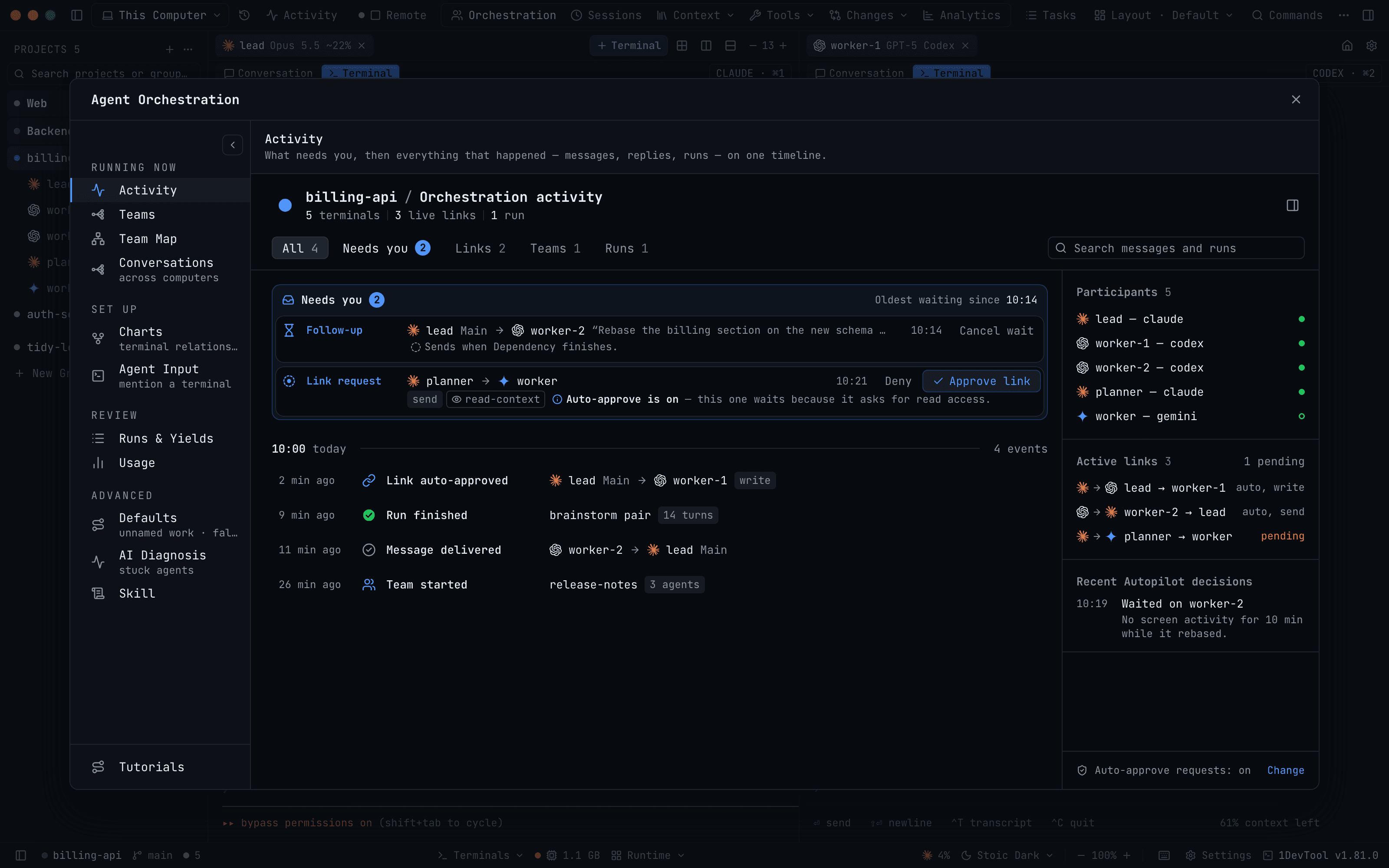
You start three agents before lunch: Claude on a migration, Codex on the failing integration tests, and a small team working through a refactor. Then you leave the desk. Twenty minutes later one of them is waiting on a question, a delegation in the team has stalled, and a link request is sitting unanswered. None of it is urgent, but all of it is stuck until you get back.
You could open a remote session on your phone, but that meant keeping a browser tab alive and finding the right terminal in a layout made for a large screen. If the phone was in your pocket when something happened, you heard nothing about it, and when you opened it again you had no idea what you had missed.
What changed
1DevTool v1.82.0 is the desktop side of the 1DevTool iPhone app, which is in an invite-only beta. Once a phone is paired, your computer can reach it even while the app is closed, the phone shows what it missed as soon as it reconnects, and an Operator phone can do real work: steer an orchestration team, move tasks on the board, drive a page in the browser and combine terminals. Nothing runs on the phone. The agents, the browser and your files stay on your computer, and the phone sends requests and shows the results.
How it works in practice
Pair a phone with the role already decided
The new section is in Settings → Remote → Phone. Turn on the phone-app host switch, which is off by default. The section shows the addresses a phone can reach and a pairing code.
Next to the code is Role for the next device, with Viewer, Approver, Operator and Admin (Admin is the default). You choose before the phone scans, and the phone gets that role without a prompt on the desktop afterwards. The QR code itself grants nothing. 1DevTool reads the role when the code is redeemed, so changing it applies to the code that is already on screen. The roles mean what they say:
- Viewer is read-only. It can watch, but it can't type, approve or change anything.
- Approver watches and answers approval requests, but can't type or change files.
- Operator can run and change things.
- Admin is full control, for a phone only you use.
Show the code full screen fills the window with the QR, in light or dark, so you can scan it from across the desk without holding the phone up to the settings dialog.
Choose how the phone reaches your computer
Connection type has three choices:
- Automatic: this network first, then Tailscale when it is running.
- Local Network: the phone is on the same Wi-Fi as this computer.
- Tailscale: the phone can be anywhere on your tailnet. Tailscale has to be installed on both.
Tailscale addresses appear as the computer's name instead of a raw 100.x IP, and the phone shows the computer's name rather than its pairing address. The link is end-to-end encrypted between the phone and this computer. No relay or tunnel is involved, and the Cloudflare tunnel under Web UI stays the browser client's.
Hear from your computer when the app is closed
iOS suspends an app soon after it leaves the screen, so until now a phone in your pocket missed everything. When a paired iPhone isn't connected, 1DevTool now sends it a push notification that is sealed with a key only that phone and this computer hold. The push server and Apple only see ciphertext, padded to a fixed length so the size gives nothing away. A push only tells you something happened. It never approves or runs anything.
Pushes can still go missing, so the desktop also keeps what it sent to phones, up to the last 200 events from the last 24 hours. When the phone reconnects, because you opened the app, Background App Refresh ran or the network changed, it asks for everything after the last event it saw and shows the missed notifications. It also learns the computer's Tailscale address while it is connected, so it can still reach the computer when you are away from home.
Steer an orchestration team from the phone
The phone shows your teams with their hierarchy, pipeline runs, goals, links and activity. From an Operator phone you can message a seat, remind a delegation or stop waiting on it, continue or abort a goal, approve a link and save a chart you drafted on the phone.
Any consequential action is confirmed on the phone first, and the computer then acts on exactly what the phone showed you. If the team changed in the meantime, or two minutes pass, nothing happens. Drafting a chart on the phone runs next to the Draw canvas on the desktop, so it never cancels a generation you are waiting for at the desk.
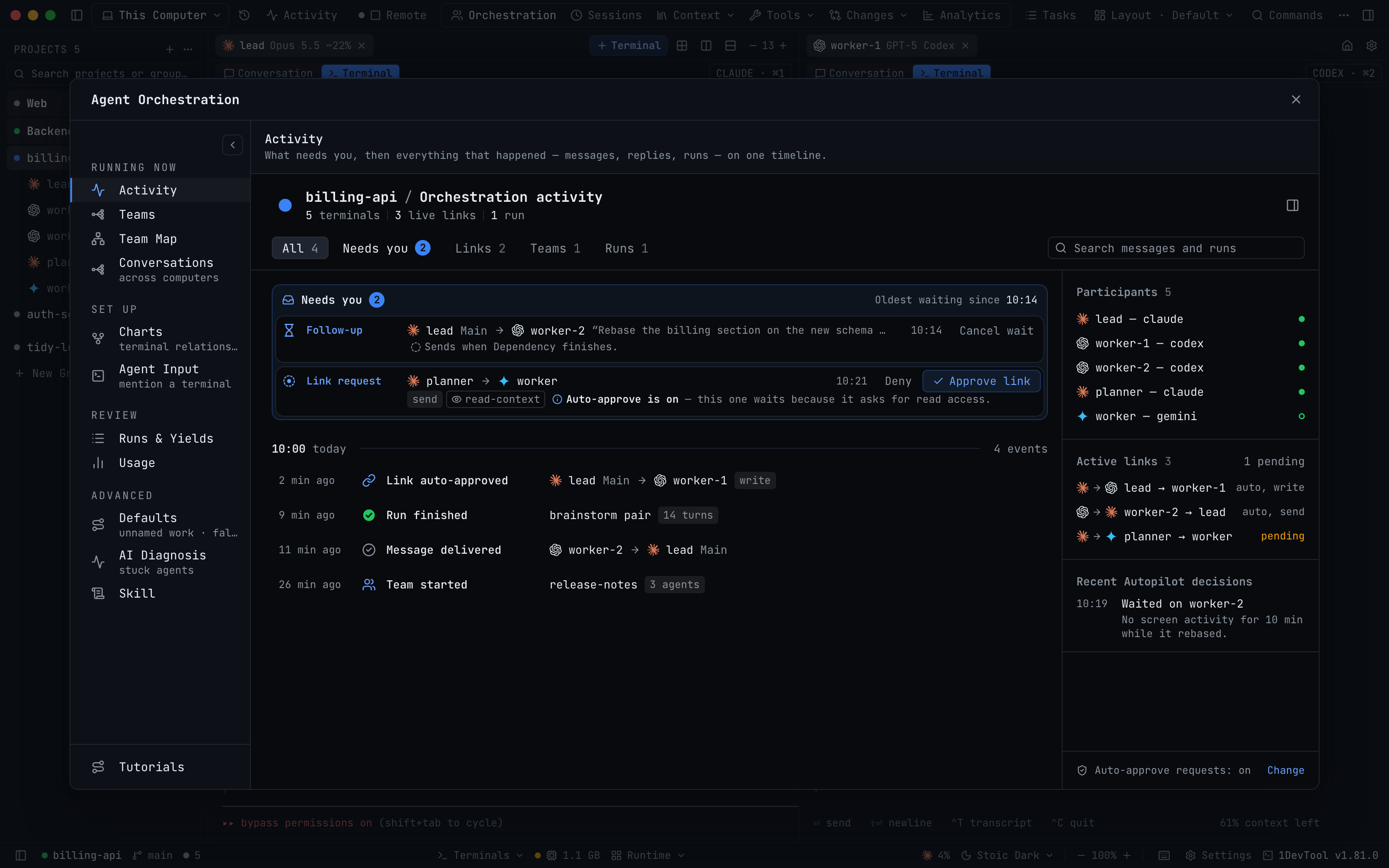
Two switches under Orchestration from phones decide how far this goes. Allow phones to steer orchestration (operator actions) is on by default. Allow phones to grant read access is off by default. When you turn it on, a phone can approve a link that lets one agent read another agent's transcript, after showing you what will be shared. When it is off, phones can only decline those requests.
Tasks, a live browser and combined terminals
- Task board: read a project's tasks, capture a new one when it occurs to you, move it across columns and leave a comment, from an Operator phone.
- Live browser: open a page, including your local dev server, and tap, scroll and type into it from the phone. The page runs on your computer, and only a picture of it reaches the phone. Screenshots are sent as JPEG and scaled to fit the phone link, so long pages no longer fail.
- Combine terminals: merge several agents' transcripts into one agent, the same way the desktop's Merge dialog does.
Fixes for phone sessions
A phone terminal no longer goes silent after you switch from Wi-Fi to Tailscale. Previously, when the old connection timed out it detached the live one too, so output stopped while your typing still went through. The phone's History list loads again, after one session with a fractional timestamp had broken the whole page. Reader Mode also works again when 1DevTool was started from a Claude Code terminal.
Before vs after
| You want to... | Before | Now |
|---|---|---|
| Know an agent needs you while the phone is locked | Only a connected phone heard about it | An encrypted push arrives, readable only on your phone |
| See what happened while the phone slept | Open the desktop and piece it together | Missed notifications appear when the phone reconnects |
| Give a new phone the right access | Pair first, then answer a role prompt on the desktop | Pick the role next to the code before scanning |
| Reach your computer away from home | Set up a tunnel for the browser client | Choose Tailscale, or Automatic to fall back to it |
| Unstick a delegation or approve a link | Walk back to the desk | Act from an Operator phone, confirmed before it runs |
| Check a change on your dev server | Wait until you are back | Open it in the live browser and tap through it |
Who benefits most
- People running long agent sessions. You can leave the desk and still find out when an agent stops, and answer it, without keeping a session open.
- Team leads using orchestration. Stalled delegations, pending links and goals that need a decision can be handled from wherever you are, and the phone only does what its role allows.
- Anyone careful about what a phone can do. Choose the role before pairing, keep read access off, and the phone can watch and approve without being able to type into a terminal.
Try it
Update to 1DevTool v1.82.0, open Settings → Remote → Phone, choose the role and the connection type, and scan the code with the 1DevTool iPhone app (invite-only beta). Your agents keep running on your computer, and you can now follow and steer them from your phone.