v1.20.0May 23, 2026
Code Tasks, new App Layout, and it's faster
Code Tasks, new App Layout, and it's faster. Also in this release: Open Files In Your Preferred External Editor, Unified Activity Feed In The App Toolbar, Collapsible Editor Panel, Collapsed Left Sidebar With Icon Rail.
Download v1.20.0
The download page always has the newest build; installers for this version are on GitHub.
What changed
New features
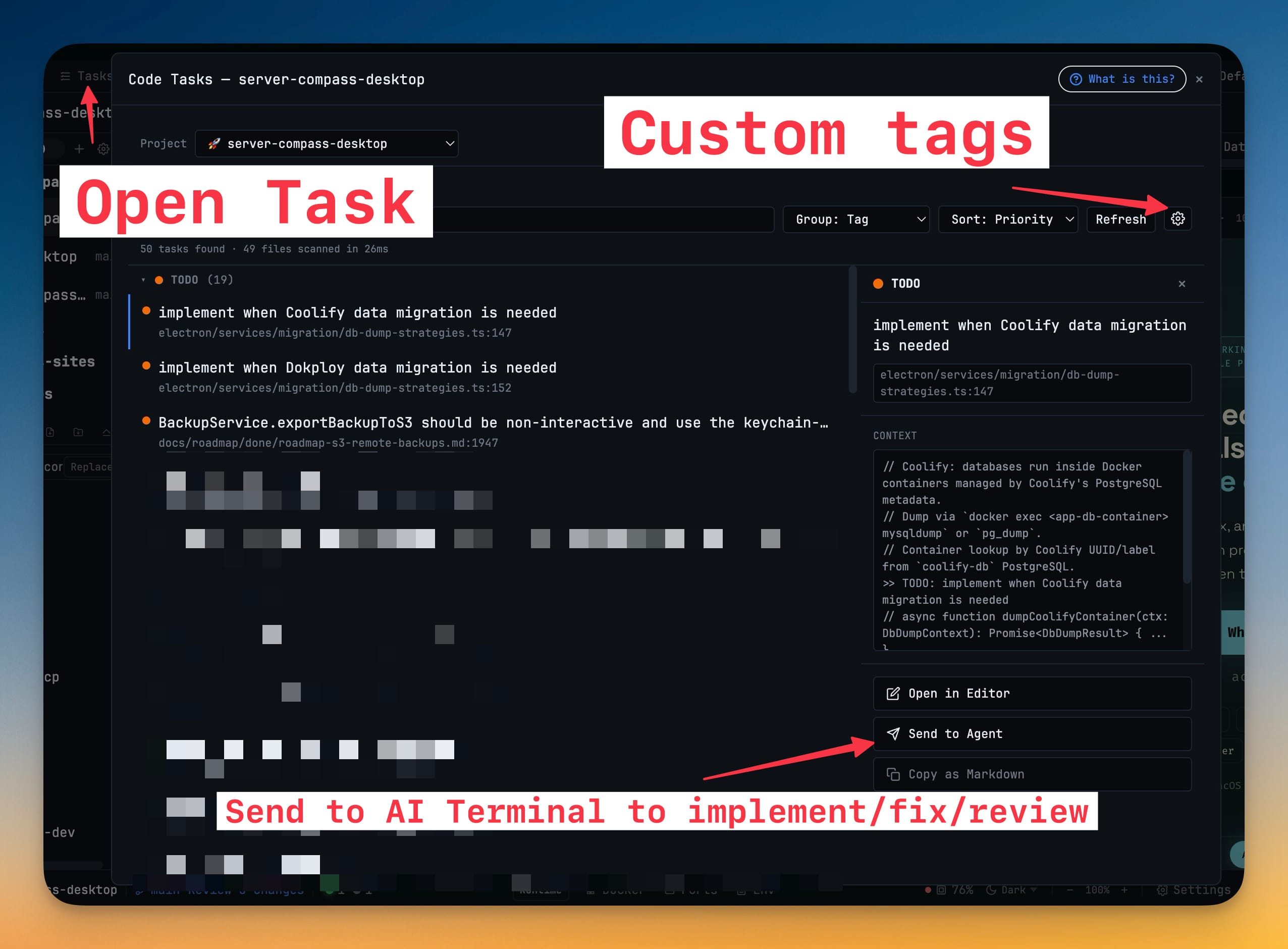
25- Scan your entire codebase for TODO, FIXME, BUG, HACK, XXX, NOTE, and OPTIMIZE comments and see them all in one organized panel
- Group by tag, file, author, or priority — switch views instantly to see what matters most
- Filter by tag, priority level, or search term — zero in on critical items or search across every annotation in the project
- Click any task to jump straight to the line in the built-in editor, or send it to an AI terminal as a prompt to fix it automatically
- Configure which folders and file patterns to scan — exclude node_modules, dist, or any path you don't want cluttering the list
- Configure custom tags with colors — add your own annotation tags beyond the built-in set and assign each one a color
- Priority detection — tasks tagged FIXME, BUG, or marked with ! / !! are flagged as high or critical priority
- Click the "Open in Editor" button on any file to launch it in VS Code, Cursor, Zed, Sublime Text, WebStorm, or whichever editor you have installed
- Auto-detects installed editors — scans your system for known editors and presents a picker when more than one is available
- Remembers your choice per project — once you pick an editor, that project always opens files in it without asking again
- Fallback dialog — if your default editor can't be found or the command fails, you get a chooser with every detected editor instead of a silent failure
- Activity button lives front-and-center in the toolbar with an amber badge showing the count of unread events
- Inline chips show the 2 most recent terminal completions right in the toolbar — each chip shows a type icon (terminal or file), the terminal name, project name, and how long ago it happened
- Click a chip to jump straight to that terminal and dismiss the notification in one gesture; hover to reveal a × for dismiss-without-navigating
- Responsive layout — drops from 2 chips to 1 when the window is narrow or terminal/project names are long, with a +N more button that opens the full popup
- Full activity popup lists every recent event with "Clear All" and per-item dismiss, auto-places above or below the button depending on where it sits on screen
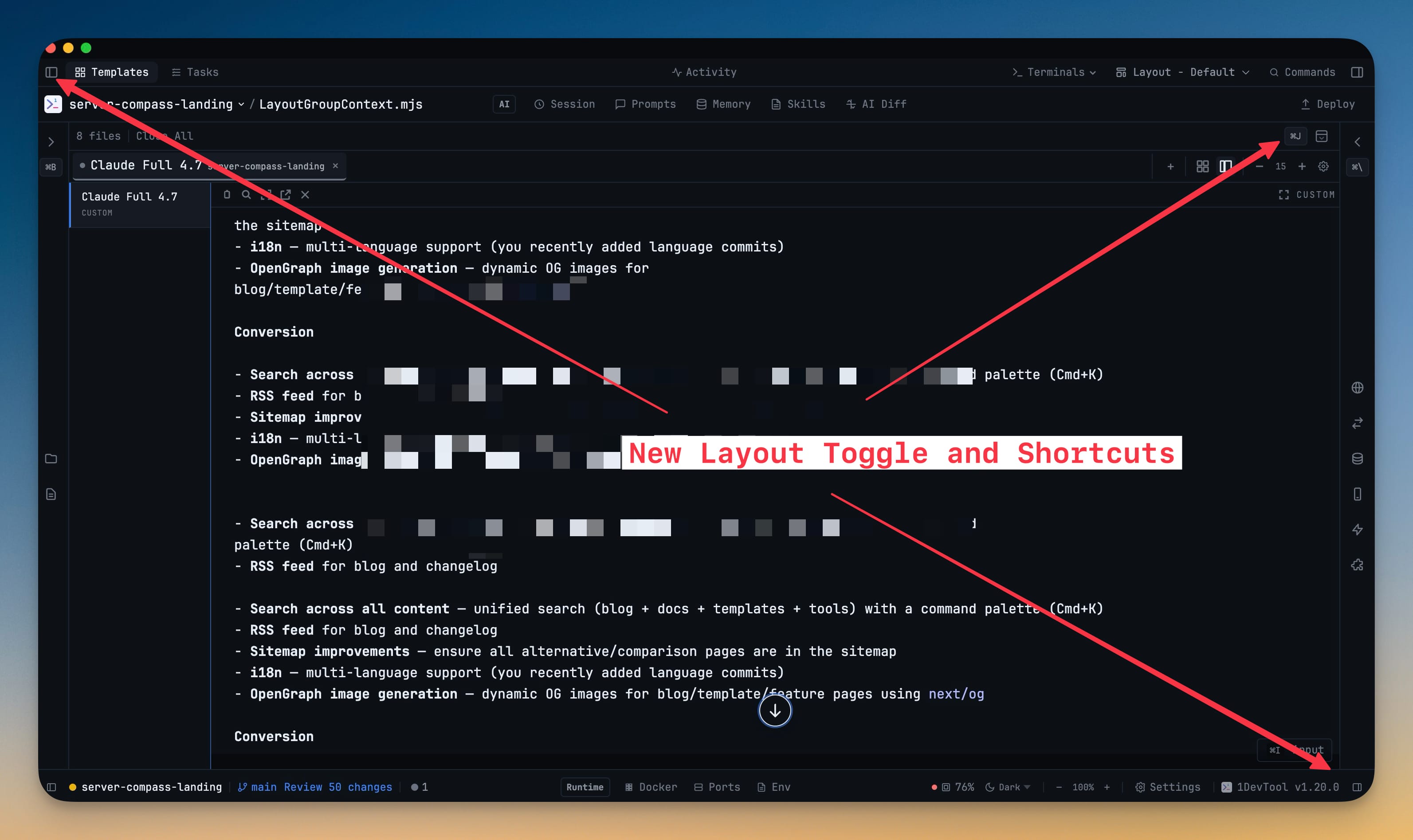
- Hide the editor panel to full-screen your terminals — a new toggle button collapses the editor into a slim status bar showing the keyboard shortcut, open file count, and a "Close All" action
- Click the shortcut hint, file count, or expand icon to bring the editor back instantly — no hunting through menus
- Keyboard shortcut displayed in the collapsed bar so you always know how to toggle it
- When the left sidebar is hidden, a thin icon rail appears showing one icon per panel (File Explorer, Code Tasks, etc.) — click any icon to jump straight to that panel and re-expand the sidebar
- Keyboard shortcut hint displayed below the expand arrow so you always know how to toggle it back
- Remap any keyboard shortcut from Settings > Shortcuts — click a shortcut, press your new key combination, and it's saved instantly
- Shortcuts organized by category — General, Layout, Terminal, Editor, Browser, and Tasks sections so you can find what you're looking for
- Reset individual shortcuts or all at once — modified shortcuts are highlighted so you can see what you've changed
- Pro feature — free users can view all shortcuts but customization requires a Pro license
Improvements
16- All built-in MCP tools are now served from one unified server instead of separate servers for channels, database, HTTP, and design — faster startup, fewer processes, simpler configuration
- MCP settings panel updated to reflect the consolidated server layout
- Deploy button moved next to the Terminals dropdown in the breadcrumb header — closer to the project context it operates on
- Search icon added to the Commands button so it's visually recognizable as a search/palette trigger
- Dashboard icon removed from the project sidebar header — less clutter in the already-dense project list toolbar
- Sidebar toggle buttons in the status bar — left and right sidebar toggles now appear at the edges of the status bar for quick access
- Breadcrumb dropdowns in the toolbar now have inline search — when a dropdown has more than 5 items (terminals, projects, etc.), a search field appears at the top so you can type to filter instead of scrolling
- Git branch and status now show a git icon in the status bar for clearer visual identification
- The built-in Markdown editor and reader mode now use the font you selected in Settings > Appearance > Font — previously it only read the CSS variable once at startup and didn't update when you changed fonts
- Each layout preset in the selector now lists the projects currently using it — see at a glance which projects will be affected before switching presets
- New "What is this?" button in the Templates dialog header — opens a quick explainer of what App Templates does, how the template catalog works, and what you get (search, preview, deep linking)
- New refresh button next to the "Files" label — one click reloads the root directory plus every expanded subfolder, catching files that AI agents created but the file watcher missed
- Useful for SSH-mounted projects and Windows setups where native file watchers can miss external writes
- Running indicator uses one shared timer instead of one setInterval per terminal tab — with 10 AI tabs open, that's 10 timer objects eliminated; the shared timer auto-pauses when no AI terminals are visible
- Transcript scanning is now event-driven — the rich-view and shell-log hooks listen for xterm write/resize events instead of polling the buffer every 250–500ms; idle terminals do zero scans
- Slash-command detection skips AI terminal streams — a fast indexOf('/') check short-circuits the regex scan on every PTY chunk, saving a split + regex pass on the hundreds of KB/s AI agents stream
Bug fixes
4- Fixed terminal scroll not working after resuming an AI session — the corruption detection heuristic was auto-resetting the terminal display when Claude's --resume repainted historical status lines into scrollback, wiping the buffer; auto-recovery is now disabled by default with opt-in via developer tools
- Fixed Channels MCP server failing to start after the feature was removed — the consolidated MCP server no longer attempts to register channel routes that no longer exist
- Fixed editor toggle button not responding after resizing the window — the collapse/expand action now works reliably regardless of window size changes
- Fixed Memory panel loading entries before project selection finished — the panel now waits for project auto-selection to complete before running the first search, preventing a flash of unfiltered results
Screenshots