Agent Pipeline
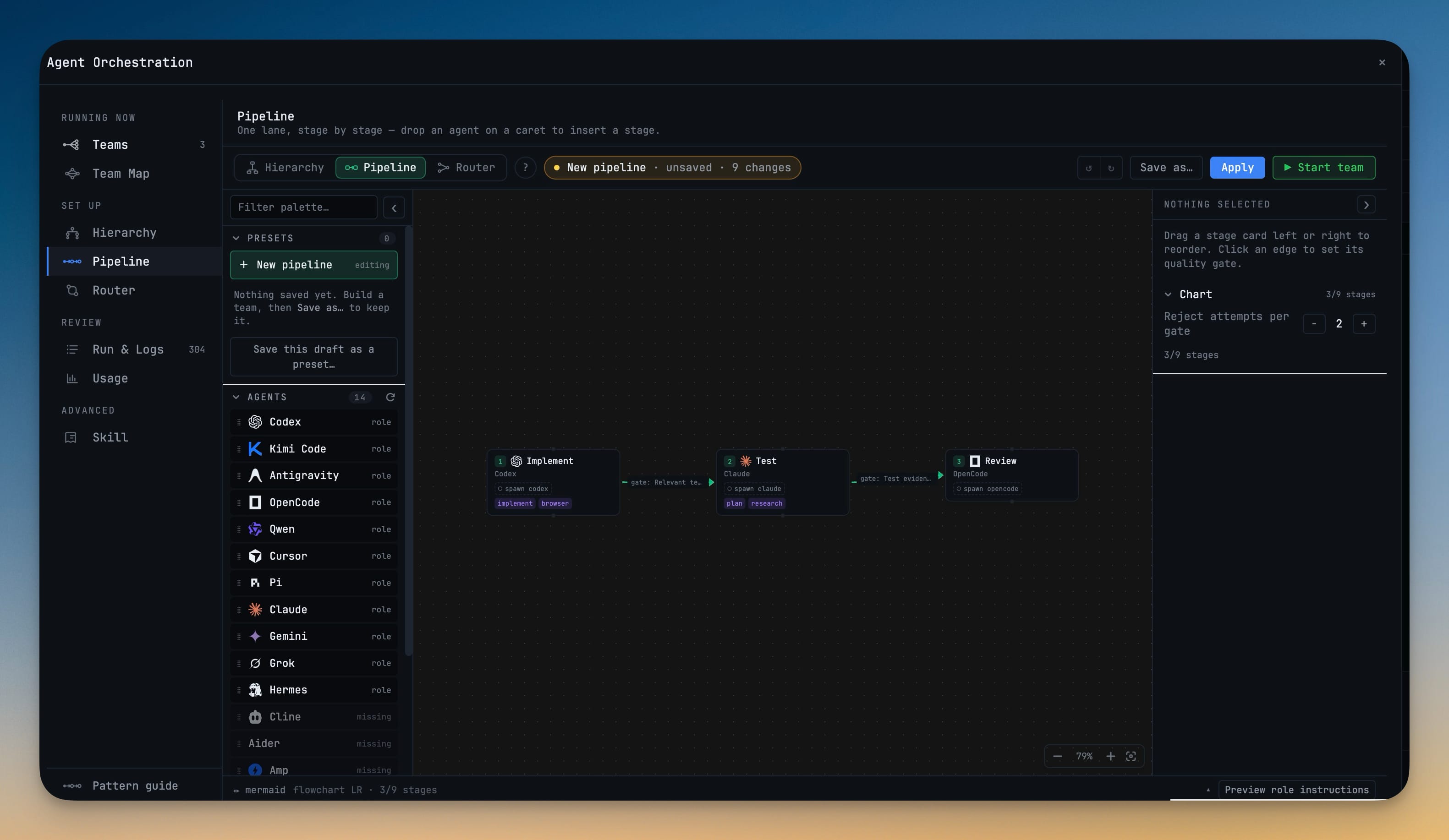
Run your agents as ordered stages that pass work forward — research, then implement, then review — where each stage’s output becomes the next stage’s input. Quality gates let a stage reject the handoff it receives, so a careful review of a broken first draft never happens.
More Screenshots
Click any image to zoom in
Why You Need This
How this feature boosts your daily productivity
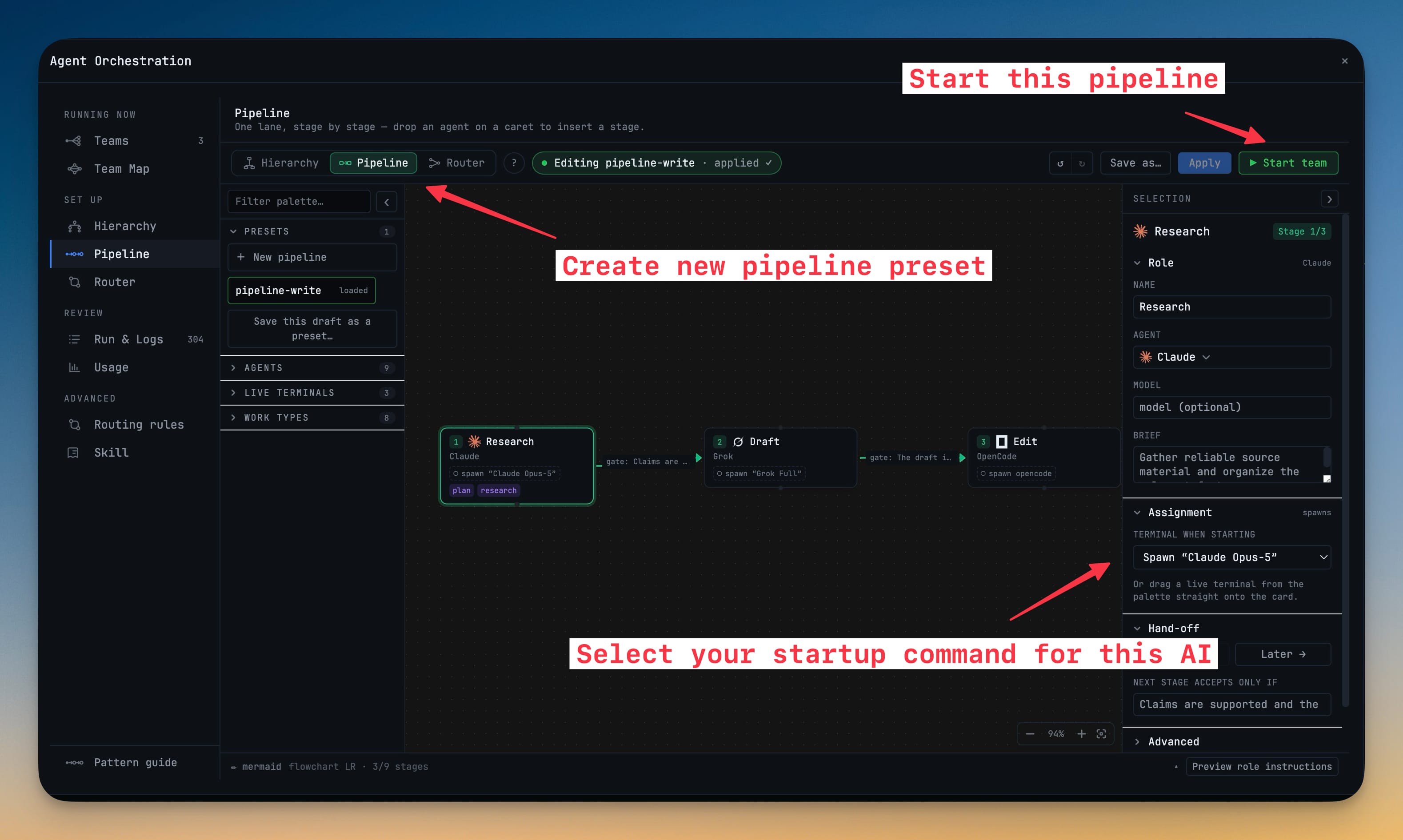
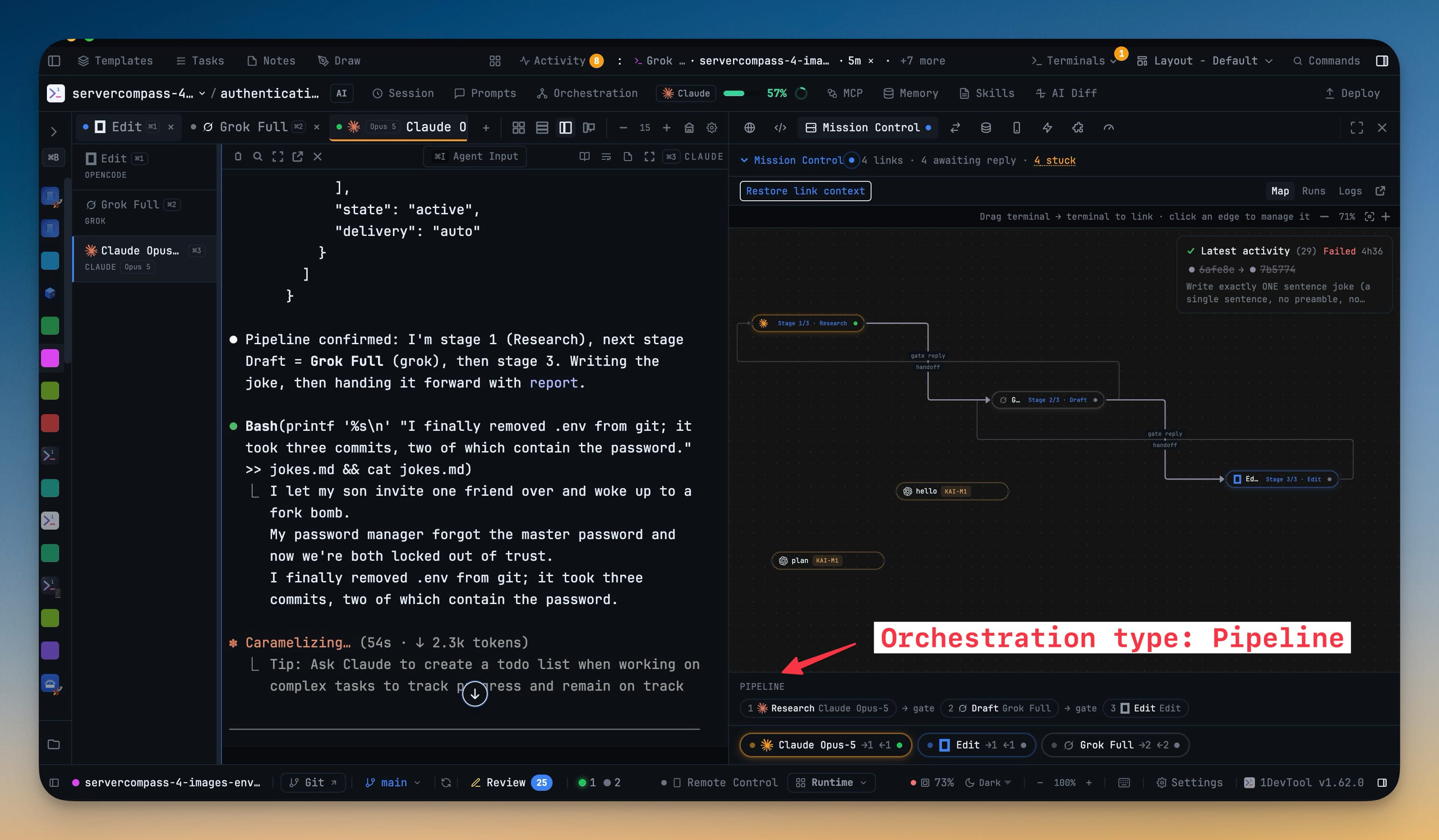
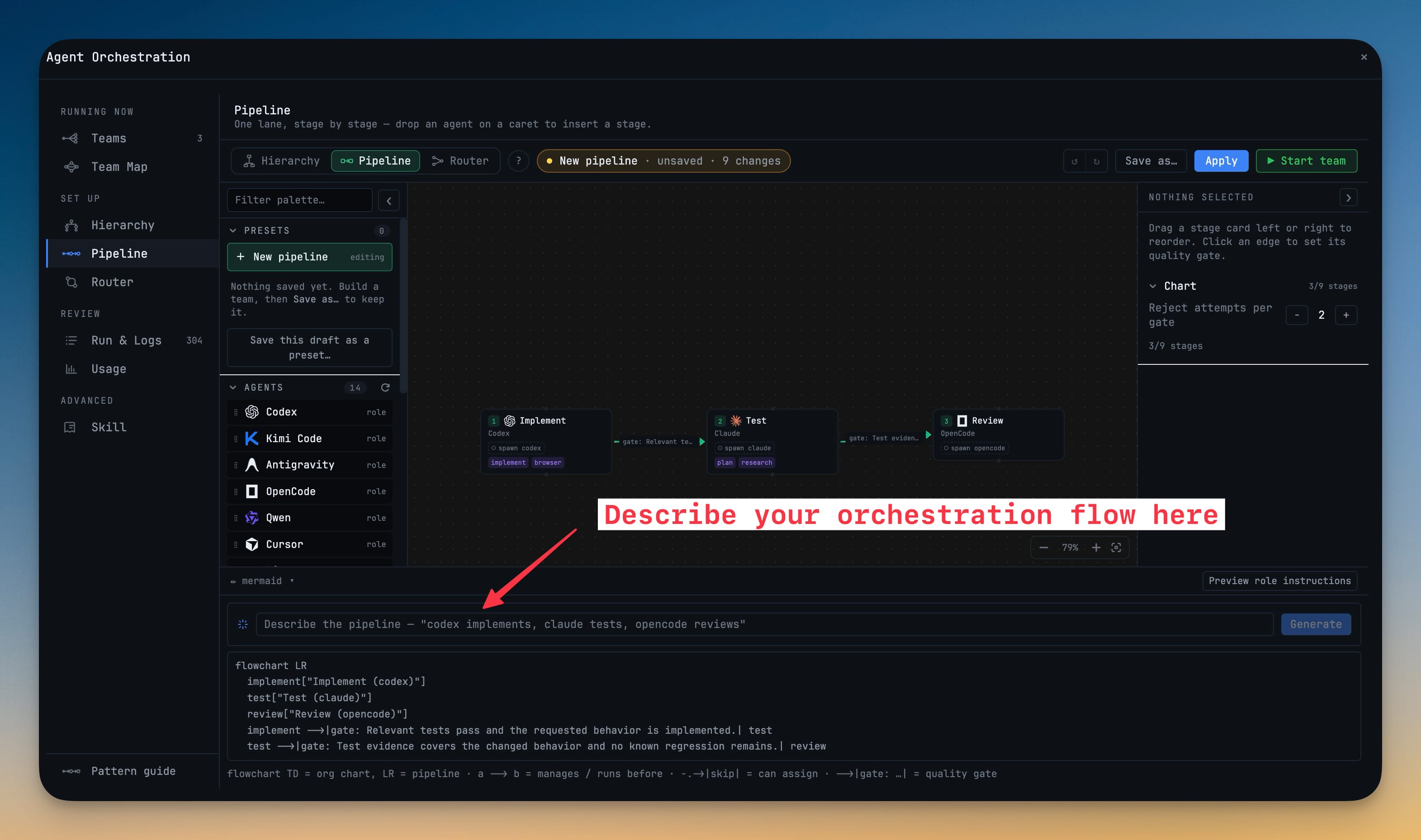
Most coding sessions are not an org chart at all; they are a line. An org chart forces you to express that line as management relationships that do not mean anything, and then debugging a four-stage review looks like debugging a hierarchy. Pipeline is the shape those sessions actually have. Each stage names its agent and its brief, and the gate between two stages is where the value is: a stage can accept or reject what it receives, so a bad first draft goes back before the next agent spends tokens polishing it. Rejects are capped at two rounds by default, and after that the pipeline escalates to you rather than looping until you notice the spend. You can build one on the canvas, describe it in the generate bar, or write it straight into the composer — "research the auth bug, then grok drafts a fix, then opencode reviews it" is recognised as a pipeline with your current terminal as stage 1. While it runs, Mission Control shows the stage strip, so you can see which stage is live, which are queued behind their gates, and where a handoff was sent back.
How It Works
Get started in 4 simple steps
Describe the stages
Research, then implement, then review — each agent’s output becomes the next agent’s input. It is the pattern most coding sessions already follow by hand.
Put a quality gate on each handoff
A stage can accept or reject what it receives, so a polished review of a broken first draft never happens.
Cap the rejections
Rejects are limited to two rounds by default. After that the pipeline escalates to you instead of looping forever.
Start one from the composer
"research the auth bug, then grok drafts a fix, then opencode reviews it" is recognized as a pipeline, with your current terminal as stage 1.
Watch it run
Mission Control shows the stage strip, so debugging a four-stage review does not look like debugging an org chart.
Without 1DevTool
The manual way vs. the 1DevTool way
The Hard Way
The 1DevTool Way
Key Capabilities
Everything included with Agent Pipeline
Why It Matters
The productivity impact of having ai productivity built into your workspace
Searchable Prompt Library
Every prompt you've ever sent is captured and searchable. Find and reuse your best AI interactions.
Visual AI Communication
Annotate screenshots and embed them in prompts. Show your AI agent exactly what you see.
Session Knowledge Base
AI conversations become searchable history. Find how you solved a similar problem last week.
Power Navigation
Command palette gives you instant access to any feature. Navigate 1DevTool at the speed of thought.
More in AI Productivity
Other features in this category you might find useful
Prompt History
Search prompts and sticky notes from Remote Control while away from the desktop. Switch between This project and All projects, filter prompts by agent or notes by source, copy entries, delete with Operator access, and sync local prompt history.
Resume UI
Browse, search, and resume past AI sessions from Claude Code, Codex, and Gemini CLI — or combine multiple sessions into one.
Combine Sessions
Select sessions from Claude Code, Codex, and Gemini CLI and merge them into a single conversation — giving your next agent the full cross-agent context.
AI Diff Review Panel
Track every file modification any AI agent makes — Claude Code, Codex, Gemini, Amp, custom — and review, accept, or revert their work per file from a dedicated panel with inline diff overlays in the editor.
Ready to boost your workflow?
Download 1DevTool for free and experience Agent Pipeline along with 321 other features — all in one app.