Auto-Named AI Terminal Tabs
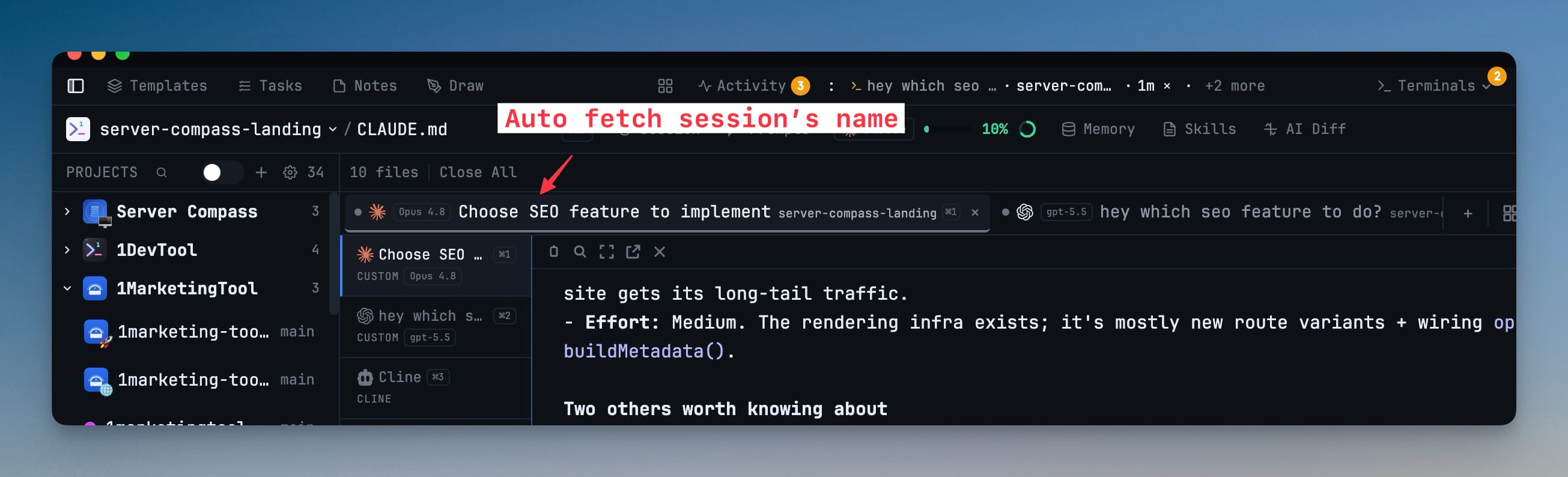
AI terminal tabs rename themselves to the current session title, so a tab working on "Choose SEO feature to implement" says exactly that. Tabs you renamed by hand stay untouched.
Why You Need This
How this feature boosts your daily productivity
Running several AI agents at once leaves you with a row of anonymous "Terminal 2, Terminal 3, Terminal 4" tabs that you have to click into just to remember what each is doing. Auto-naming AI terminal tabs after their session title turns that wall of numbers into a readable list — while still respecting any tab you deliberately named yourself.
How It Works
Get started in 4 simple steps
Start an AI session
Launch an AI agent in a terminal tab and give it a task as usual.
Watch the tab rename itself
The tab updates to the current session title, so it reflects what the agent is actually working on.
Keep your own names
Any tab you renamed by hand stays exactly as you set it — auto-naming only fills in the ones you left unlabeled.
Navigate at a glance
Scan the tab strip and jump straight to the agent you want without opening each one.
Without 1DevTool
The manual way vs. the 1DevTool way
The Hard Way
The 1DevTool Way
Key Capabilities
Everything included with Auto-Named AI Terminal Tabs
Why It Matters
The productivity impact of having terminal & ai agents built into your workspace
No More Terminal 3
Anonymous numbered tabs become a readable list of what each agent is actually doing.
Your Names Stick
Tabs you renamed by hand are never overwritten — auto-naming only fills the blanks.
Navigate at a Glance
Scan the strip and jump straight to the agent you want without opening each one.
Always Current
Tab names follow the session title as the agent's focus shifts.
More in Terminal & AI Agents
Other features in this category you might find useful
Multi-Agent Terminals
Run Claude Code, Codex, Gemini CLI, Amp, OpenCode, Qwen, and custom AI commands in dedicated terminal tabs with recognizable agent logos, custom colors, and status indicators.
Flexible Terminal Layouts
View terminals in 2×2 grid, side-by-side columns, or single fullscreen mode with resizable panes.
Terminal Dashboard
Kanban-style board view of all terminal statuses — Idle, Running, and Review — with real-time polling.
Session Persistence
Terminal sessions persist across app restarts with full scrollback history via tmux integration.
Ready to boost your workflow?
Download 1DevTool for free and experience Auto-Named AI Terminal Tabs along with 324 other features — all in one app.