Browser Profiles
Give any browser tab its own login — a profile with separate cookies, storage, and history — so you can be signed in to the same site as two different accounts at once, and an agent driving a tab acts as the account you chose.
More Screenshots
Click any image to zoom in
Why You Need This
How this feature boosts your daily productivity
A normal browser gives you one cookie jar, so being signed in twice to the same site means an incognito window, a second browser, or logging out of the tab you were just using. Inside 1DevTool that pinch was tighter, because you and the agent shared one session — testing a signed-in flow kept clearing the login you needed a moment later. Profiles fix it at the source: each is a self-contained identity, any tab can point at any profile, and a tab handed to browser automation inherits the exact profile you picked. New tabs follow a default you set, or stay on one Shared session until you decide to split them. Each profile even tells sites whether to Look like Chrome so sign-ins and checkouts behave, and keeps its own history you can browse or wipe.
How It Works
Get started in 4 simple steps
Make a profile in Settings → Browser
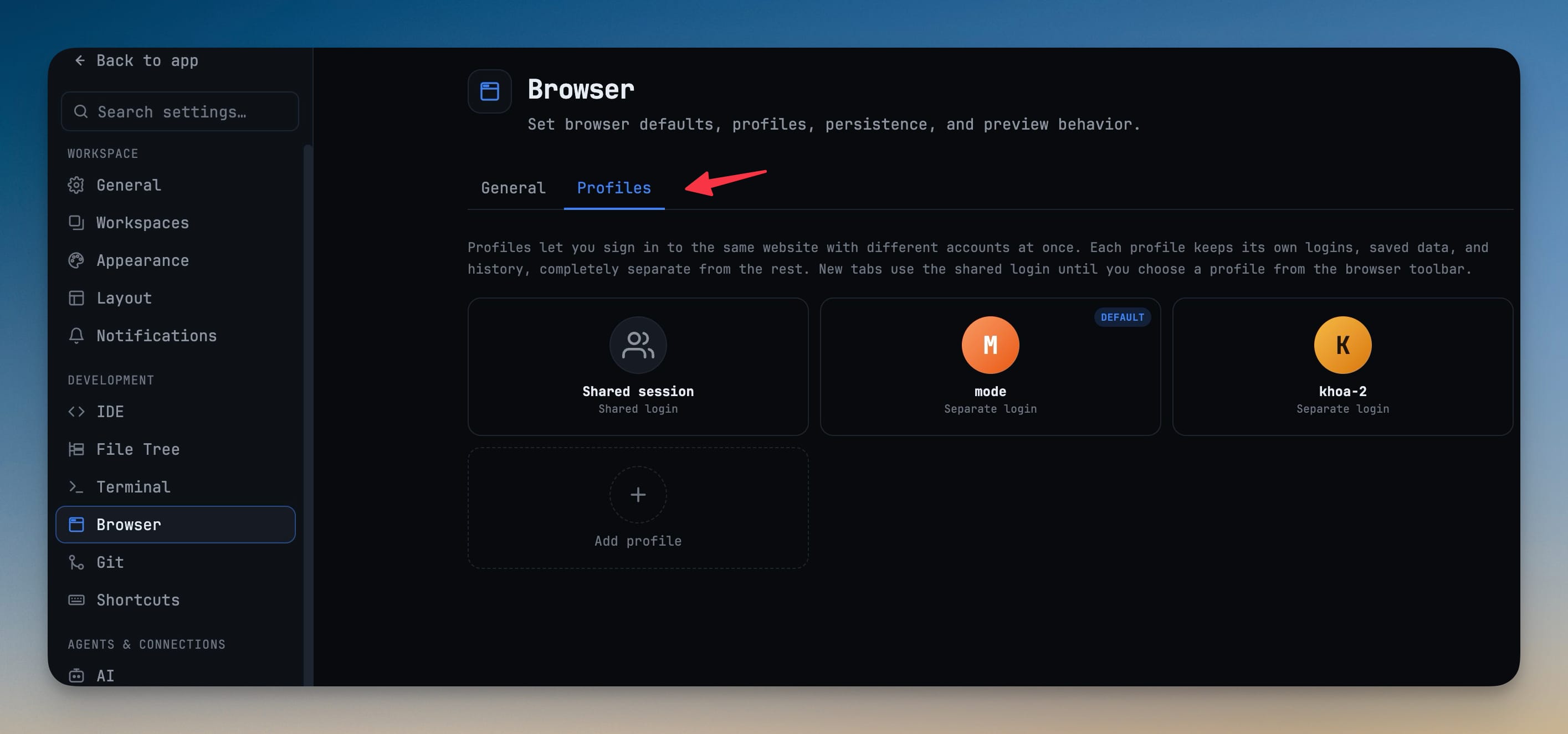
Open Settings → Browser → Profiles and press Add profile. Each one is a self-contained login with its own cookies, storage and history, listed beside the built-in Shared session.
Point a tab at it from the toolbar
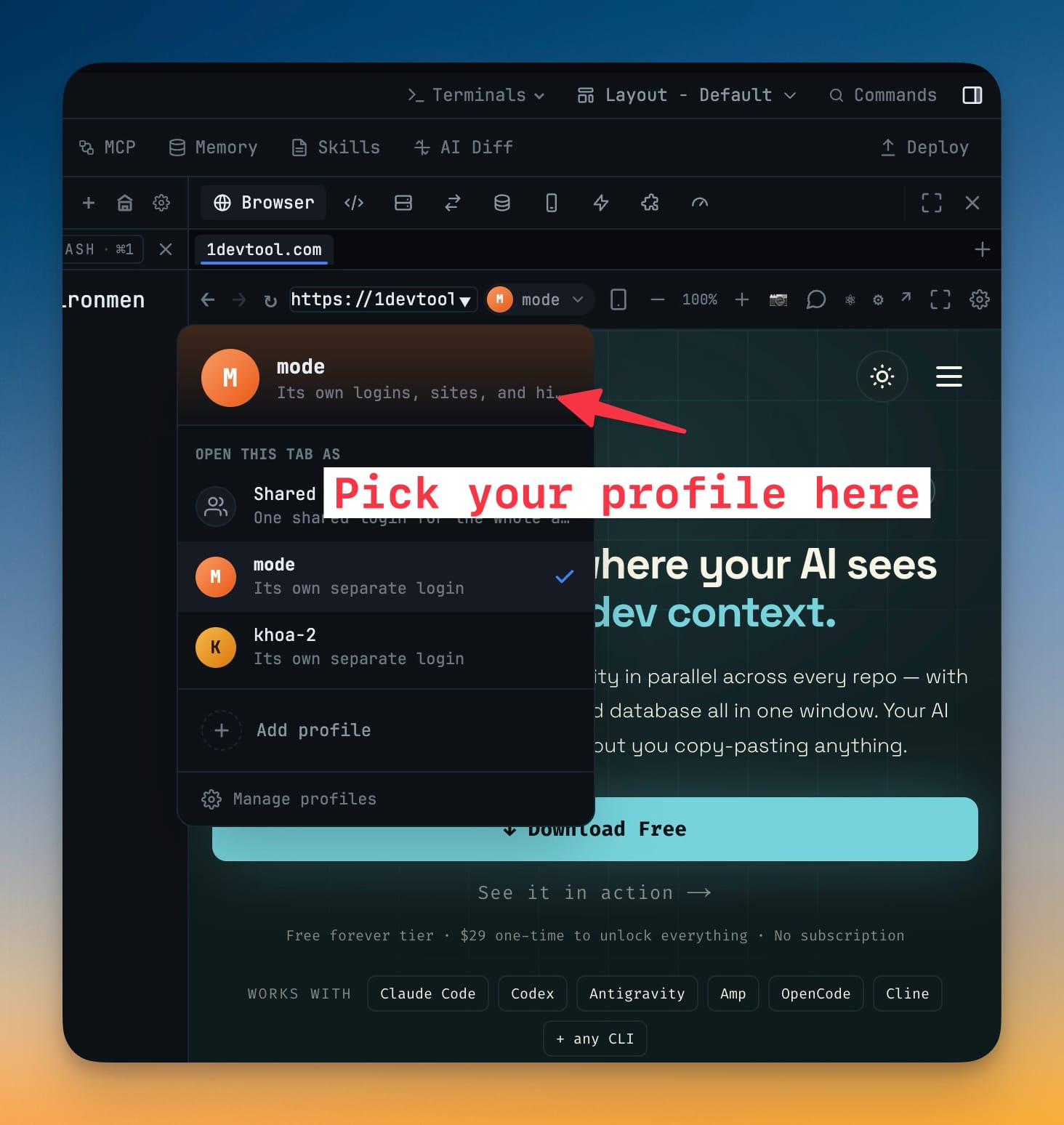
Every tab has a profile picker in its toolbar. Choose Open this tab as and the tab reloads on that profile's cookie jar, while the tab beside it keeps its own.
Set a default, or stay shared
Pick a default profile for new tabs, or leave everything on the one Shared session — a single cookie jar for the whole app — until you want to split logins.
Choose how sites see it
Per profile, choose Look like Chrome so sign-ins and checkouts behave normally, or 1DevTool's native identity for the rare page that needs it. Browse or wipe each profile's history in the same place.
Without 1DevTool
The manual way vs. the 1DevTool way
The Hard Way
The 1DevTool Way
Key Capabilities
Everything included with Browser Profiles
Why It Matters
The productivity impact of having browser preview built into your workspace
Two Accounts, No Incognito
Being signed in twice to one site stops meaning a second browser or a private window. A second tab on a second profile is the whole trick.
The Agent Acts As Who You Chose
A tab driven by browser automation uses the same session you see, so "act as this account" becomes the profile you picked instead of whatever login happened to be active.
Logins That Do Not Bleed
Work, Staging and a throwaway test account keep separate cookie jars, so testing a signed-out flow never clears the signed-in one you needed next.
Sign-Ins That Just Work
Look like Chrome keeps checkouts and OAuth pages behaving normally, so a separate identity does not cost you the pages that care which browser you are.
More in Browser Preview
Other features in this category you might find useful
Embedded Browser
Preview your local dev server with a full browser — URL bar, tabs, back/forward, and refresh controls.
DevTools Access
Open Chrome DevTools for network inspection, console debugging, and element inspection inside 1DevTool.
Live Browser Automation
Let an AI agent drive the Browser panel you already have open — same tabs, same navigation history, same signed-in sessions. Sixteen browser_* MCP tools cover navigating, clicking, typing, reading the page, and screenshotting, all scoped to one project and tab.
Comment On Web Pages And Send To AI
Drop numbered comments directly on any page in the built-in browser, then bundle them into a single AI prompt with element refs, screen position, route, and screenshots attached.
Ready to boost your workflow?
Download 1DevTool for free and experience Browser Profiles along with 322 other features — all in one app.