Live Browser Automation
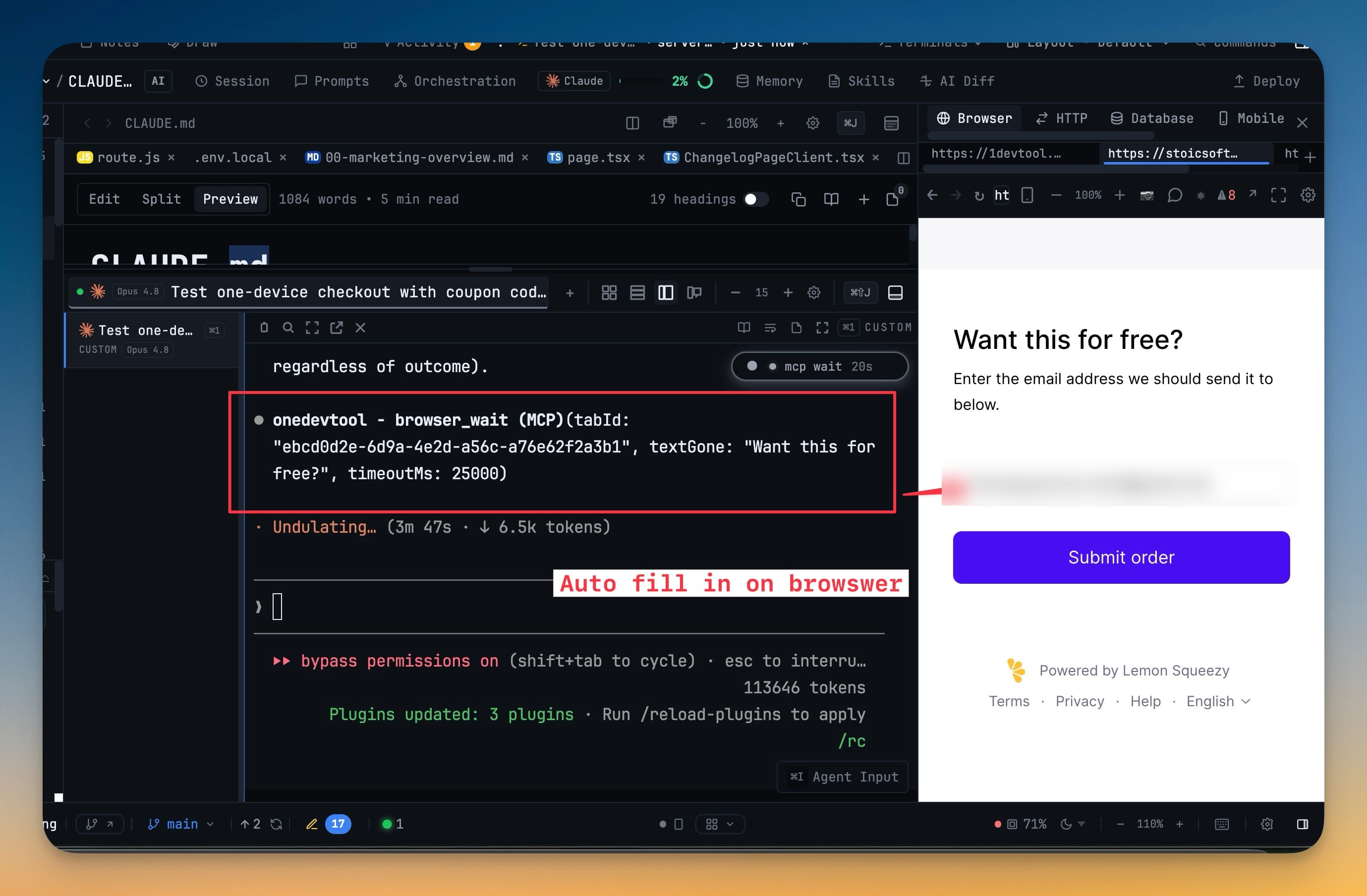
Let an AI agent drive the Browser panel you already have open — same tabs, same navigation history, same signed-in sessions. Sixteen browser_* MCP tools cover navigating, clicking, typing, reading the page, and screenshotting, all scoped to one project and tab.
More Screenshots
Click any image to zoom in
Why You Need This
How this feature boosts your daily productivity
Browser automation normally means a second, empty browser: a fresh Chrome profile with no cookies, no logged-in session, and none of the state you spent the morning setting up. So the agent stalls at a login wall, or you paste credentials into a script. 1DevTool's Browser MCP points the agent at the browser already docked in your workspace. The agent opens a tab you can watch, drives the page you can see, and hands back a snapshot or a real screenshot when it needs to check its work — while typing into password fields stays blocked by policy and automation stays scoped to the project and tab you named.
How It Works
Get started in 4 simple steps
Open the page in the Browser panel
Dock the Browser panel on the page you care about. Your existing tabs, navigation history, and signed-in sessions are what the agent will work with.
Say "1devtool browser mcp" in your prompt
Mentioning 1devtool or onedevtool browser MCP routes the request to the visible Browser panel instead of an external Chrome session or a second agent terminal.
Watch the agent work the page
The agent opens and selects tabs, navigates, snapshots the page structure, clicks, types, selects options, presses keys, and calls browser_wait for text or load states.
Read the run back in Settings → MCP → Activity
Every call is retained with its status, duration, project, terminal, and a truncated input/output preview — searchable, and kept across app restarts.
Without 1DevTool
The manual way vs. the 1DevTool way
The Hard Way
The 1DevTool Way
Key Capabilities
Everything included with Live Browser Automation
Why It Matters
The productivity impact of having browser preview built into your workspace
Already Logged In
The agent inherits the session you have open, so a checkout or admin flow behind a login needs no test account and no pasted credentials.
You Can See It Happen
The page moves in front of you while the agent works, instead of a hidden browser you only learn about from the transcript.
Elements, Not Coordinates
A page snapshot gives the agent a reference for each interactive element, and references refresh after navigation so a stale handle cannot hit the wrong control.
Guardrails By Default
Automation is scoped to one project and tab, typing into password fields is blocked, and sensitive values come back redacted.
More in Browser Preview
Other features in this category you might find useful
Embedded Browser
Preview your local dev server with a full browser — URL bar, tabs, back/forward, and refresh controls.
DevTools Access
Open Chrome DevTools for network inspection, console debugging, and element inspection inside 1DevTool.
Browser Profiles
Give any browser tab its own login — a profile with separate cookies, storage, and history — so you can be signed in to the same site as two different accounts at once, and an agent driving a tab acts as the account you chose.
Comment On Web Pages And Send To AI
Drop numbered comments directly on any page in the built-in browser, then bundle them into a single AI prompt with element refs, screen position, route, and screenshots attached.
Ready to boost your workflow?
Download 1DevTool for free and experience Live Browser Automation along with 345 other features — all in one app.