Drag Files Into the AI Prompt
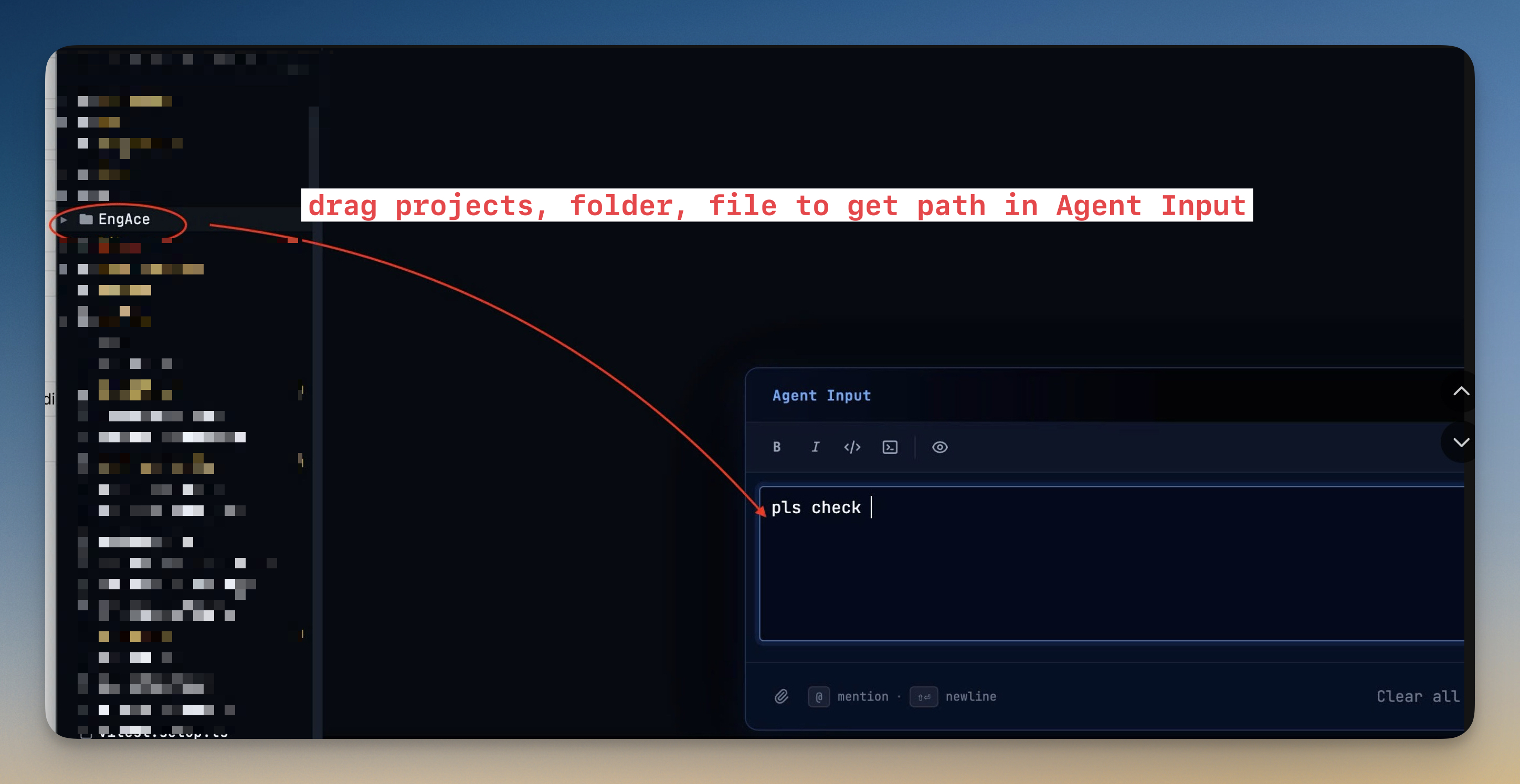
Drag files, folders, or entire projects from the sidebar into the AI prompt box (Cmd+I). Paths drop in as `@mention` insertions at your cursor, image files attach as previews, and multi-line prompt text stays intact instead of duplicating during the drop.
Why You Need This
How this feature boosts your daily productivity
Giving an AI agent the right files is half the work. The old workflow — copy a path, type `@`, paste, retype because the path was wrong, repeat for the next file — is the slowest part of any prompt. Drag-to-Agent-Input cuts it down to a single gesture: drag any file, folder, or even an entire project from the sidebar straight into the AI prompt box, and the path drops in as a proper `@mention` insertion at your cursor. Drag five files in a row and they stack as five mentions. Drag an image file and it automatically attaches as a preview instead, so screenshots and design references skip the copy-paste-encode dance entirely. Dropping files into an AI terminal also avoids duplicating existing multi-line prompt text and keeps selected Codex skills intact, so building a context-rich prompt remains a drag instead of a repair job.
How It Works
Get started in 4 simple steps
Open a Terminal
Click "+" to create a new terminal tab. Choose from Claude Code, Codex, Gemini CLI, Amp, bash, zsh, or custom shells.
Arrange Your Layout
Switch between grid, columns, or fullscreen with one click. Drag dividers to resize panes to your preference.
Run Your Agents
Start your AI agents with pre-configured prompts or type freely. Watch them work in real-time with status indicators.
Monitor & Manage
Use the Terminal Dashboard for a bird's-eye view. Sessions persist across restarts so you never lose context.
Without 1DevTool
The manual way vs. the 1DevTool way
The Hard Way
The 1DevTool Way
Key Capabilities
Everything included with Drag Files Into the AI Prompt
Why It Matters
The productivity impact of having terminal & ai agents built into your workspace
Zero Context Switching
All your AI agents and terminals live in one window. No more alt-tabbing between 5 different terminal apps.
Visual Status Tracking
Color-coded tabs and the Kanban dashboard tell you which agents are done, running, or need attention — at a glance.
Persistent Sessions
Tmux-backed persistence means your terminal state survives crashes and restarts. Never lose scrollback history again.
Flexible Arrangements
One-click layouts adapt to your task: grid for monitoring, columns for comparing, fullscreen for deep focus.
More in Terminal & AI Agents
Other features in this category you might find useful
Multi-Agent Terminals
Run Claude Code, Codex, Gemini CLI, Amp, OpenCode, Qwen, and custom AI commands in dedicated terminal tabs with recognizable agent logos, custom colors, and status indicators.
Flexible Terminal Layouts
View terminals in 2×2 grid, side-by-side columns, or single fullscreen mode with resizable panes.
Terminal Dashboard
Kanban-style board view of all terminal statuses — Idle, Running, and Review — with real-time polling.
Session Persistence
Terminal sessions persist across app restarts with full scrollback history via tmux integration.
Ready to boost your workflow?
Download 1DevTool for free and experience Drag Files Into the AI Prompt along with 322 other features — all in one app.