Guided Startup Commands
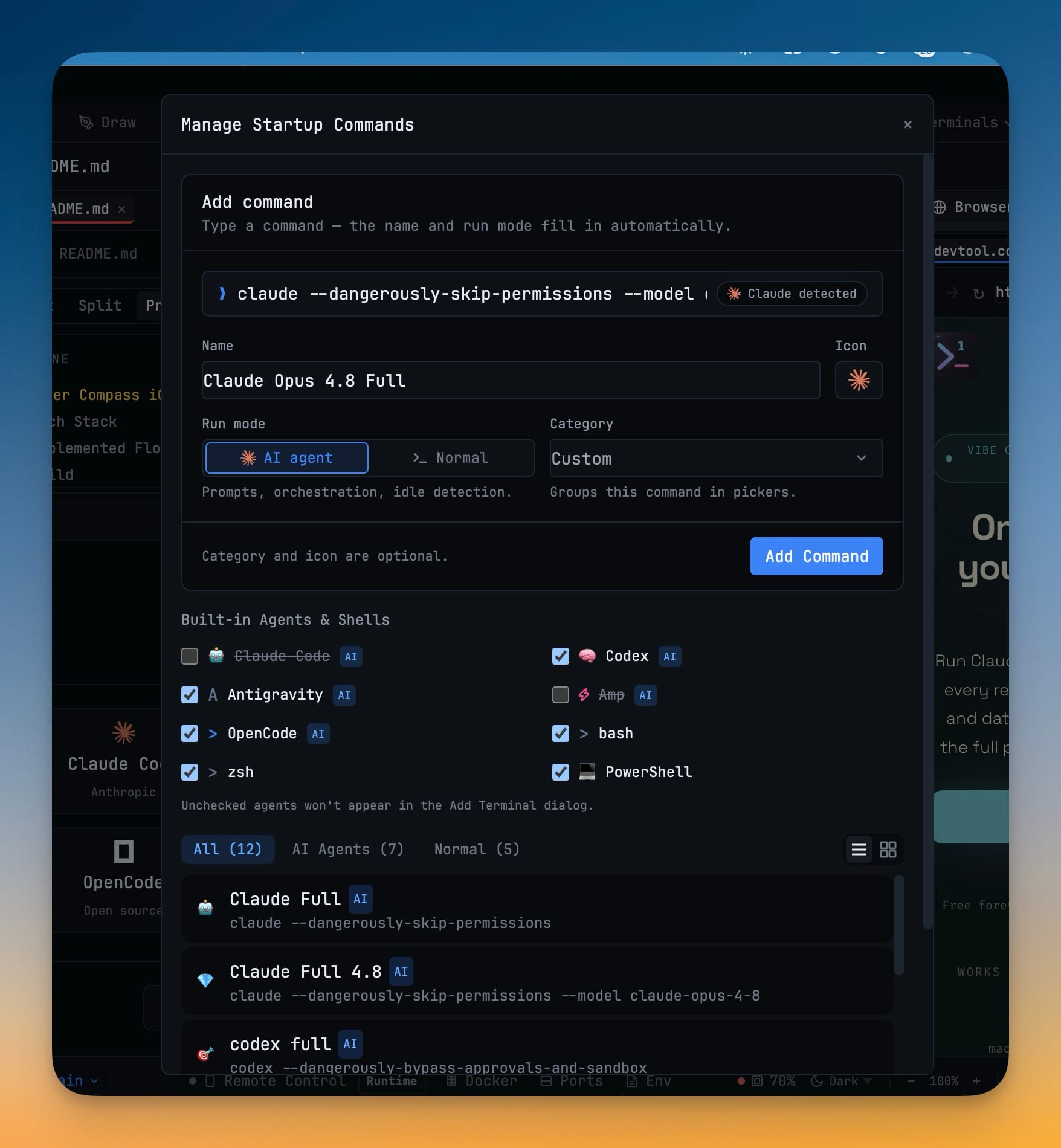
Build custom terminal and AI-agent startup commands with a guided form that fills in the name, run mode, and agent detection as you type — so a new launcher is a paste away instead of a memorized incantation.
More Screenshots
Click any image to zoom in
Why You Need This
How this feature boosts your daily productivity
Adding a startup command used to mean naming it yourself, remembering to mark it as an AI agent, and getting a long chain of flags exactly right. The guided Manage Startup Commands form does that reading for you: paste `claude --dangerously-skip-permissions --model claude-opus-4-8` and it fills the Name "Claude Opus 4.8 Full", flips Run mode to AI agent, and shows a "Claude detected" chip. Known AI CLIs, package scripts, Docker Compose, and package-runner commands all get readable names automatically, with a manual AI agent / Normal switch for wrappers and custom launchers — and you can add one from an empty workspace before your first terminal even exists.
How It Works
Get started in 4 simple steps
Open Manage Startup Commands
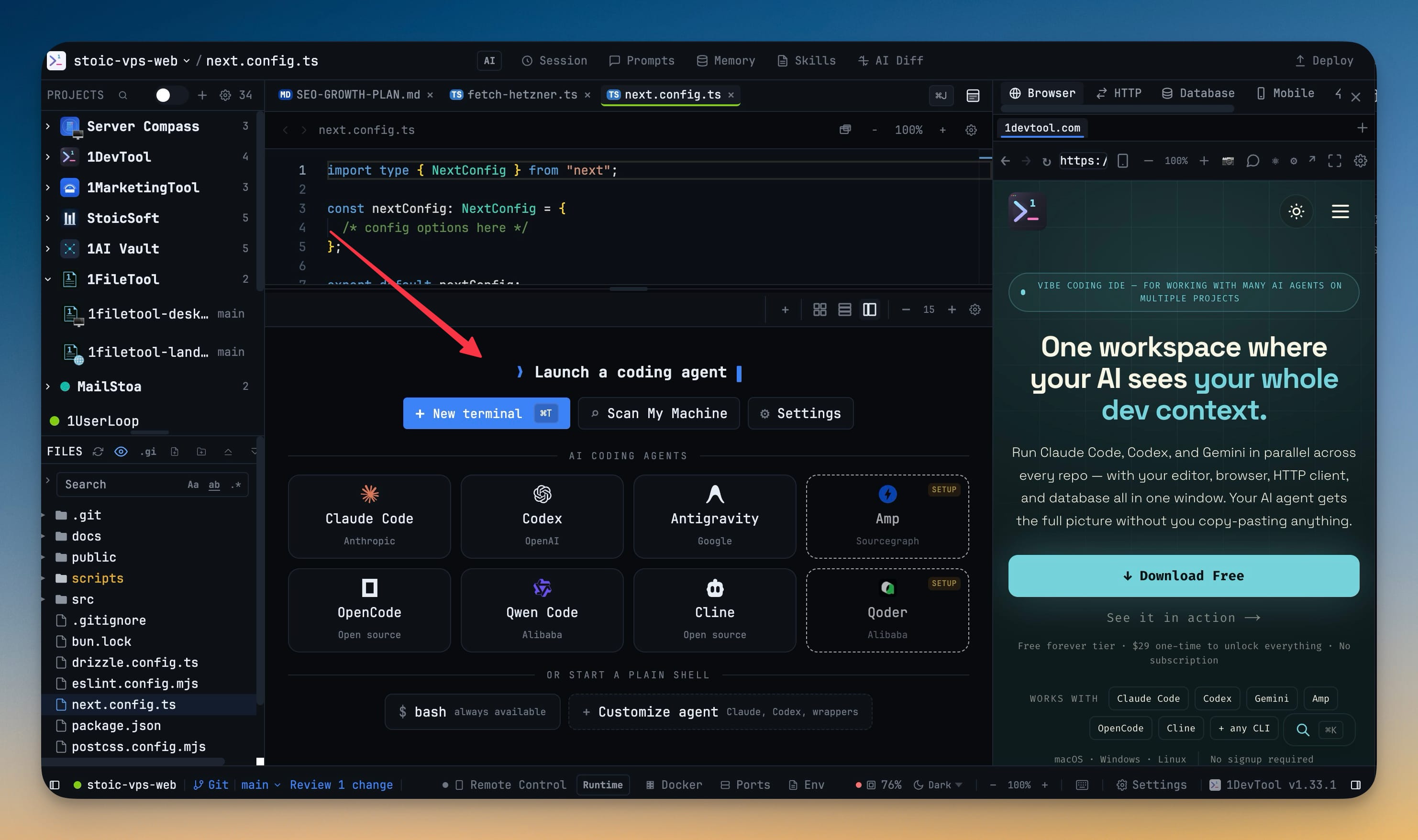
Open it from Terminal Settings, or hit Customize agent on an empty workspace to set one up before your first terminal.
Type or paste a command
Enter something like `npm run dev` or `codex --dangerously-bypass-approvals-and-sandbox`; the detail fields expand as soon as you type.
Let it fill the details
The Name auto-fills, Run mode flips to AI agent when a known CLI is detected, and a detected chip confirms the match. Override the mode for wrappers.
Name, categorize, add
Pick an emoji and a category so it groups cleanly in pickers, then click Add Command — the preset appears in your launchers with an AI badge.
Without 1DevTool
The manual way vs. the 1DevTool way
The Hard Way
The 1DevTool Way
Key Capabilities
Everything included with Guided Startup Commands
Why It Matters
The productivity impact of having terminal & ai agents built into your workspace
No More Flag Memorizing
Paste the command and the form names it, sets the run mode, and detects the agent for you.
Fewer Silent Mistakes
Auto-detected AI agent mode means you don't forget to enable prompt handling and orchestration.
Ready Before Your First Terminal
Customize an agent from an empty workspace, so the launcher is set up the moment you open a project.
Shareable Setup
Named, categorized commands are something you can hand to a teammate instead of a scratch file of flags.
More in Terminal & AI Agents
Other features in this category you might find useful
Multi-Agent Terminals
Run Claude Code, Codex, Gemini CLI, Amp, OpenCode, Qwen, and custom AI commands in dedicated terminal tabs with recognizable agent logos, custom colors, and status indicators.
Flexible Terminal Layouts
View terminals in 2×2 grid, side-by-side columns, or single fullscreen mode with resizable panes.
Terminal Dashboard
Kanban-style board view of all terminal statuses — Idle, Running, and Review — with real-time polling.
Session Persistence
Terminal sessions persist across app restarts with full scrollback history via tmux integration.
Ready to boost your workflow?
Download 1DevTool for free and experience Guided Startup Commands along with 322 other features — all in one app.