Grok Quota Alerts
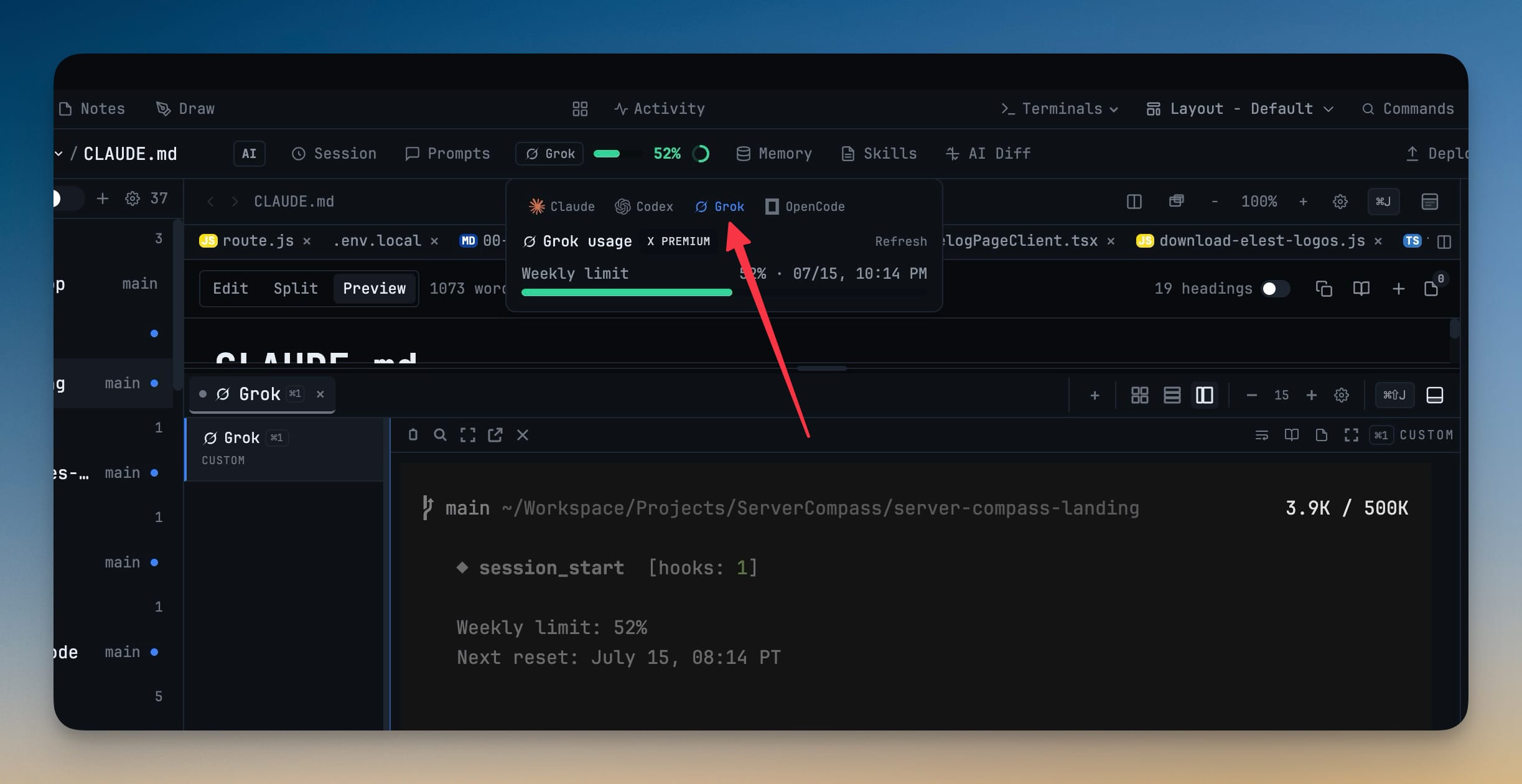
Get one heads-up before your Grok credits run out. Set a threshold in Settings → AI → Accounts and 1DevTool warns you once per billing period, with live Grok usage shown right in the quota pill.
Why You Need This
How this feature boosts your daily productivity
Grok is a CLI-only agent with a single credit window and no account to switch to, so without a warning the first sign you are out of credits is Grok stopping mid-task. Grok Quota Alerts surfaces remaining credits in the same quota pill as your other agents and fires one alert at the threshold you set, so you find out while there is still room to wrap up instead of after the work is blocked.
How It Works
Get started in 4 simple steps
Open Settings → AI → Accounts
Find the Grok section; because Grok is CLI-only it has a single credit window rather than separate session and weekly clocks.
Set your threshold
Turn on "Alert me when quota reaches" and pick a percentage for your Grok credits — 80% is the default, so you can enable it without tuning.
Get one alert per period
When live usage crosses the line, 1DevTool warns you once for that billing period instead of repeating the same alert.
Watch credits in the pill
Grok's remaining credits appear in the quota pill and account switcher, refreshing when you focus a Grok terminal or hit Refresh.
Without 1DevTool
The manual way vs. the 1DevTool way
The Hard Way
The 1DevTool Way
Key Capabilities
Everything included with Grok Quota Alerts
Why It Matters
The productivity impact of having ai productivity built into your workspace
Warned, Not Cut Off
Hear about the limit at the percentage you set, while there is still room to wrap up — not when Grok stops mid-task.
Credits You Can See
Grok usage sits in the same quota pill as your other agents, so you always know where you stand.
Quiet by Design
One alert per billing period keeps the warning meaningful instead of turning into noise.
Matches How Grok Meters
A single credit window mirrors Grok's own billing instead of pretending it has session and weekly clocks.
More in AI Productivity
Other features in this category you might find useful
Prompt History
Search prompts and sticky notes from Remote Control while away from the desktop. Switch between This project and All projects, filter prompts by agent or notes by source, copy entries, delete with Operator access, and sync local prompt history.
Resume UI
Browse, search, and resume past AI sessions from Claude Code, Codex, and Gemini CLI — or combine multiple sessions into one.
Combine Sessions
Select sessions from Claude Code, Codex, and Gemini CLI and merge them into a single conversation — giving your next agent the full cross-agent context.
AI Diff Review Panel
Track every file modification any AI agent makes — Claude Code, Codex, Gemini, Amp, custom — and review, accept, or revert their work per file from a dedicated panel with inline diff overlays in the editor.
Ready to boost your workflow?
Download 1DevTool for free and experience Grok Quota Alerts along with 326 other features — all in one app.