Horizon Layout
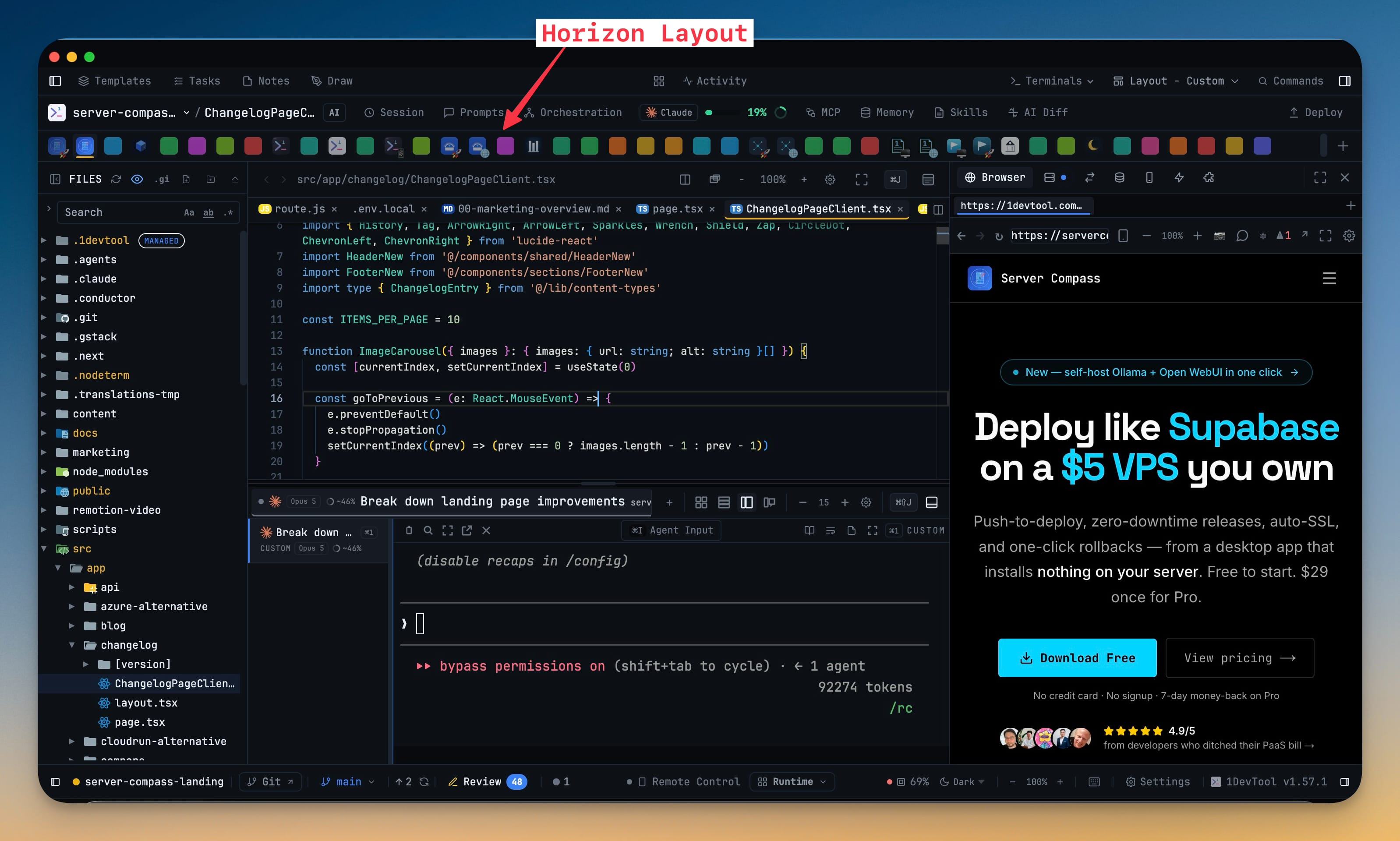
Move your projects to a strip of icons across the top of the window and give the entire left sidebar to the File Explorer. Below the strip it reads like Classic — explorer on the left, Editor over Terminals in the centre, tools on the right.
More Screenshots
Click any image to zoom in
Why You Need This
How this feature boosts your daily productivity
A project list and a file tree want the same column. Stack them and each gets half a sidebar; drop one and you lose the other. Horizon takes the project list out of the vertical fight entirely: projects become a row of icons along the top, each with its avatar, colour and emoji, the active one underlined in its own colour. The left sidebar is then free for the file tree at full height. The strip is not a mode you switch on — it appears in any layout that has no Projects panel placed, so a custom arrangement that drops the panel keeps its projects reachable instead of quietly losing them, and putting the panel back makes the strip step aside. Hover an icon and a card names the project, its git branch and how many terminals it has open.
How It Works
Get started in 4 simple steps
Pick Horizon
Choose Horizon from the layout picker in the header. Your projects lift out of the sidebar and become a strip of icons across the top of the window.
The sidebar becomes the file tree
With no Projects panel in the layout, the File Explorer takes the left column at full height, with the Editor above Terminals in the centre and tools on the right.
Switch by icon
Click any icon to switch project. The active one is underlined in its own colour, and scrolling the strip sideways works with a normal mouse wheel.
Hover for the detail
Pause on an icon and a card shows the project name, its current git branch and its open terminal count. The + at the end adds a project.
Without 1DevTool
The manual way vs. the 1DevTool way
The Hard Way
The 1DevTool Way
Key Capabilities
Everything included with Horizon Layout
Why It Matters
The productivity impact of having project management built into your workspace
The Sidebar Stops Being Shared
A project list and a file tree no longer split one column between them. The tree gets the full height of the sidebar because the projects moved upstairs.
Projects You Read As Icons
Avatar, colour and emoji make a project recognisable at a glance, and the active one is underlined in its own colour rather than hidden in a list.
Detail Only When You Ask
Hovering an icon names the project, its branch and its open terminal count. Nothing is shown until you point at it, so the strip stays a strip.
No Layout Loses Its Projects
The strip appears in any arrangement with no Projects panel placed, so dropping the panel from a custom layout leaves projects reachable instead of gone.
More in Project Management
Other features in this category you might find useful
Multi-Project Workspace
Work on multiple projects simultaneously with instant switching. Entire workspace state is preserved per project.
Smart File Explorer
Real-time file tree with type icons, .gitignore filtering, search, and right-click context menus.
Per-Project Code Intelligence
Spawn real typescript-language-server, gopls, pyright, rust-analyzer, clangd, solargraph, intelephense, or sourcekit-lsp for the projects you opt into — with project-aware errors and zero false positives.
Color-Coded Projects
Assign accent colors to each project for instant visual identification across your workspace.
Ready to boost your workflow?
Download 1DevTool for free and experience Horizon Layout along with 347 other features — all in one app.