Reader Mode on Remote Control
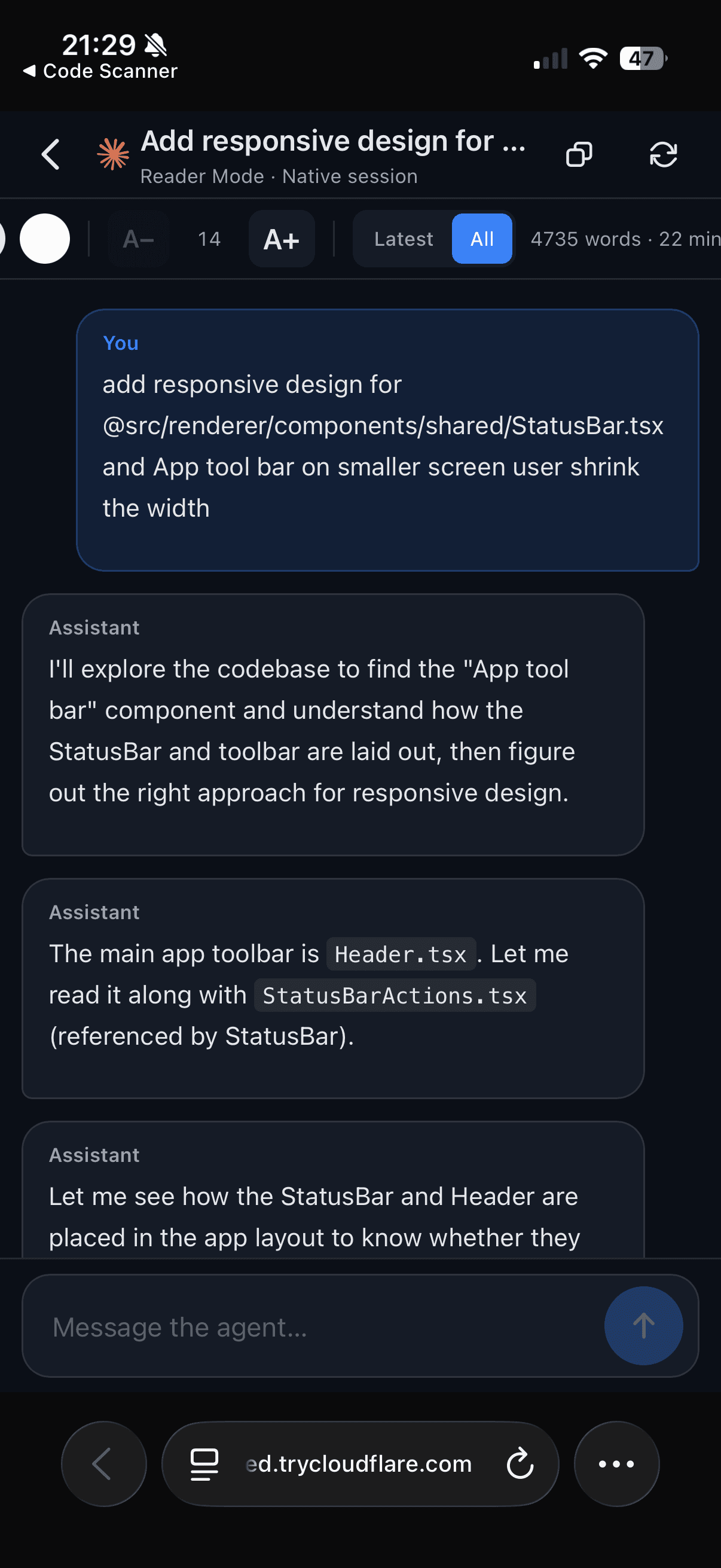
Read an AI agent's full conversation from your phone as a clean, scrollable transcript instead of raw terminal output, with adjustable font size, a reading-time estimate, and a Latest/All switch.
Why You Need This
How this feature boosts your daily productivity
Checking on a long-running agent from your phone used to mean squinting at wrapped terminal text. Reader Mode on Remote Control turns that live terminal into a readable transcript — the same clean view you get on the desktop — with five font sizes, a word count and reading-time estimate, and a Latest/All switch, so you can follow the agent's thinking comfortably from anywhere.
How It Works
Get started in 4 simple steps
Open Remote Control on your phone
Connect to your desktop from Remote Control and open the terminal running your AI agent.
Tap the Reader Mode icon
Tap the Reader Mode (book) icon in the header; the raw terminal becomes a clean transcript of your prompts and the agent's replies.
Tune it for reading
Bump the font through five sizes (14 to 23 pt), switch between Latest and All, and read with a word count and reading-time estimate at the top.
Follow along live
The transcript keeps up as the agent keeps talking, and hiding the on-screen keyboard gives it the full height of the screen.
Without 1DevTool
The manual way vs. the 1DevTool way
The Hard Way
The 1DevTool Way
Key Capabilities
Everything included with Reader Mode on Remote Control
Why It Matters
The productivity impact of having ai productivity built into your workspace
Read, Don't Squint
Your agent's reasoning becomes a laid-out transcript instead of wrapped monospaced terminal text on a palm-sized screen.
Comfortable on Any Screen
Five font sizes and a reading-time estimate let you set it up to read like an article, wherever you are.
Jump Straight to the Latest
The Latest / All switch takes you to the newest reply without scrolling the whole buffer.
Your Desktop Stays Put
Checking in from your phone no longer forces your Mac's layout down to phone width and leaves a gap.
More in AI Productivity
Other features in this category you might find useful
Prompt History
Search prompts and sticky notes from Remote Control while away from the desktop. Switch between This project and All projects, filter prompts by agent or notes by source, copy entries, delete with Operator access, and sync local prompt history.
Resume UI
Browse, search, and resume past AI sessions from Claude Code, Codex, and Gemini CLI — or combine multiple sessions into one.
Combine Sessions
Select sessions from Claude Code, Codex, and Gemini CLI and merge them into a single conversation — giving your next agent the full cross-agent context.
AI Diff Review Panel
Track every file modification any AI agent makes — Claude Code, Codex, Gemini, Amp, custom — and review, accept, or revert their work per file from a dedicated panel with inline diff overlays in the editor.
Ready to boost your workflow?
Download 1DevTool for free and experience Reader Mode on Remote Control along with 326 other features — all in one app.