Save Custom Startup Commands On The Fly
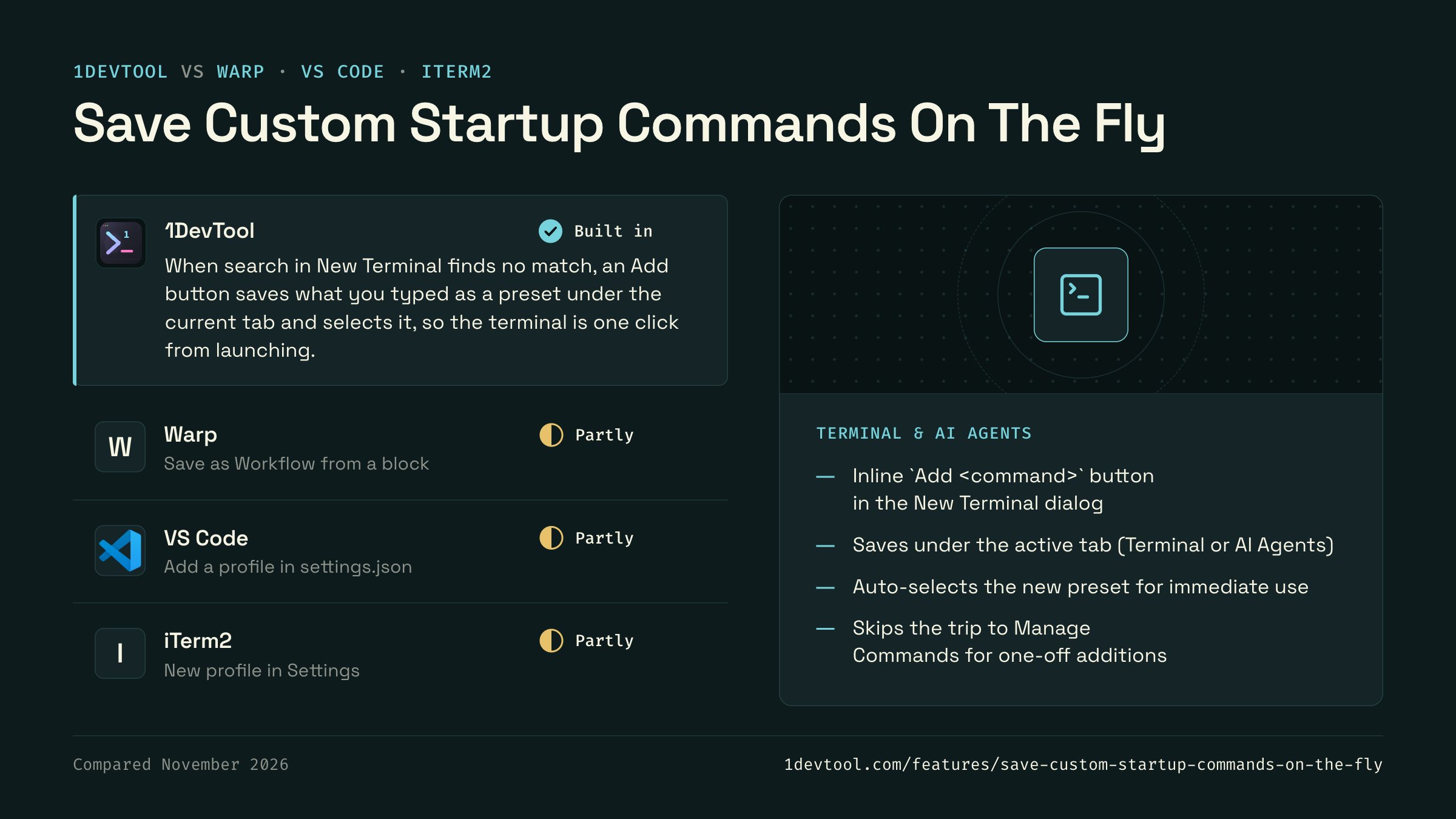
When no preset matches your search in the New Terminal dialog, an Add `<your command>` button appears under the empty results. One click saves it as a custom preset under the current tab (Terminal or AI Agents), selects it for the new terminal, and you're ready to launch.
Why You Need This
How this feature boosts your daily productivity
Until now, adding a one-off custom startup command meant bouncing into the Manage Commands view, filling out the form, saving, and coming back to the New Terminal dialog. The on-the-fly path skips all of that. Type the command you want, click Add, and the preset exists, is selected, and the terminal is one button away from launching.
How It Works
Get started in 4 simple steps
Open a Terminal
Click "+" to create a new terminal tab. Choose from Claude Code, Codex, Gemini CLI, Amp, bash, zsh, or custom shells.
Arrange Your Layout
Switch between grid, columns, or fullscreen with one click. Drag dividers to resize panes to your preference.
Run Your Agents
Start your AI agents with pre-configured prompts or type freely. Watch them work in real-time with status indicators.
Monitor & Manage
Use the Terminal Dashboard for a bird's-eye view. Sessions persist across restarts so you never lose context.
Without 1DevTool
The manual way vs. the 1DevTool way
The Hard Way
The 1DevTool Way
How it compares
Saving a new launch command usually means opening settings or a config file, adding a profile, then going back to open the terminal.
 1DevToolBuilt inBuilt in
When search in New Terminal finds no match, an Add button saves what you typed as a preset under the current tab and selects it, so the terminal is one click from launching.
- Partly
Warp can save a command from a block as a workflow in Warp Drive, which you then run from the command palette or Warp Drive.
- Partly
VS Code terminal profiles live in settings.json. A new command means adding a profile entry, then picking it from the + menu.
- iTerm2PartlyPartly
In iTerm2, a reusable command is a profile you create in Settings > Profiles, with the command set on its General tab.

Checked November 2026 against each app's public docs. These products change quickly. If a row is out of date, tell us at feedback.stoicsoft.com/1devtool.
Key Capabilities
Everything included with Save Custom Startup Commands On The Fly
Why It Matters
The productivity impact of having terminal & ai agents built into your workspace
Zero Context Switching
All your AI agents and terminals live in one window. No more alt-tabbing between 5 different terminal apps.
Visual Status Tracking
Color-coded tabs and the Kanban dashboard tell you which agents are done, running, or need attention — at a glance.
Persistent Sessions
Tmux-backed persistence means your terminal state survives crashes and restarts. Never lose scrollback history again.
Flexible Arrangements
One-click layouts adapt to your task: grid for monitoring, columns for comparing, fullscreen for deep focus.
More in Terminal & AI Agents
Other features in this category you might find useful
Multi-Agent Terminals
Run Claude Code, Codex, Gemini CLI, Amp, OpenCode, Qwen, and custom AI commands in dedicated terminal tabs with recognizable agent logos, custom colors, and status indicators.
Flexible Terminal Layouts
View terminals in 2×2 grid, side-by-side columns, or single fullscreen mode with resizable panes.
Terminal Dashboard
Kanban-style board view of all terminal statuses — Idle, Running, and Review — with real-time polling.
Session Persistence
Terminal sessions persist across app restarts with full scrollback history via tmux integration.
Ready to boost your workflow?
Download 1DevTool for free and experience Save Custom Startup Commands On The Fly along with 345 other features — all in one app.