Team Messages in Conversation
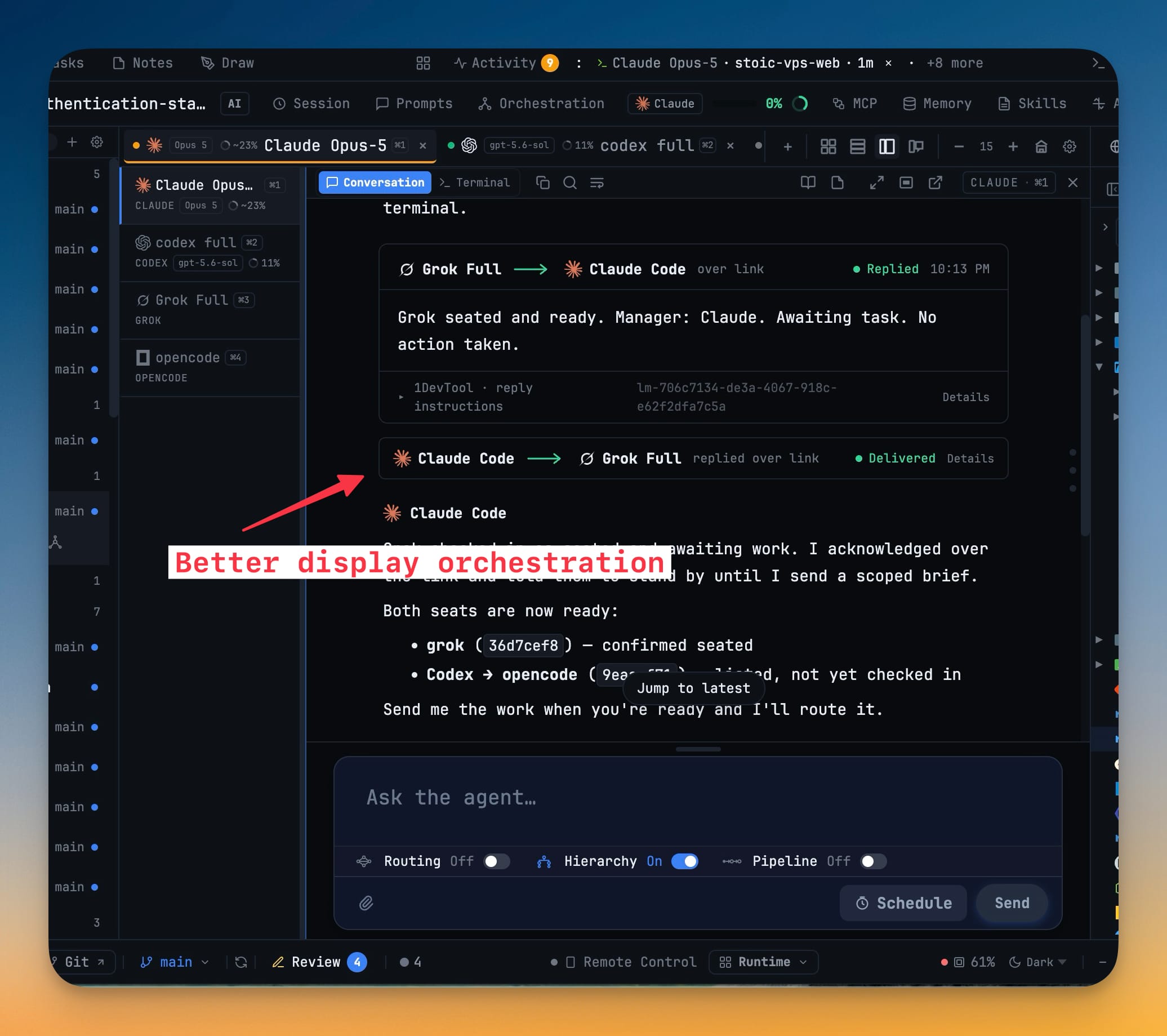
When agents in a team, hierarchy, or pipeline message one another, Conversation shows each hand-off as a tidy row instead of the raw command wrapper the agents use. A link message becomes a card naming who sent it and who it's for, with both agent logos and a live delivery status.
Why You Need This
How this feature boosts your daily productivity
Orchestrated agents coordinate by sending each other messages, and until now that machine-to-machine traffic landed in your chat as the literal [1devtool] command lines they exchanged — impossible to skim. Reading a swarm as rows lets you follow who is waiting on whom without decoding CLI syntax.
How It Works
Get started in 4 simple steps
Run agents that talk to each other
Link agents in a team, hierarchy, or pipeline. As they coordinate they message one another over the link instead of working in isolation.
Read each hand-off as a row
Every message becomes a tidy row in Conversation — a link-message card naming who sent it and who it is for, with both agents' logos, instead of the raw [1devtool] command wrapper.
Expand only what you need
The reply instructions fold away on each card and open on demand; small events show as quiet notice rows like "Linked to Codex" or "You are Backend lead".
Follow the delivery status
Outbound rows report their state — Delivering, Delivered · awaiting reply, Reply received, Waiting for your approval, or Delivery failed — with a line that animates while a message is still in flight.
Without 1DevTool
The manual way vs. the 1DevTool way
The Hard Way
The 1DevTool Way
Key Capabilities
Everything included with Team Messages in Conversation
Why It Matters
The productivity impact of having ai productivity built into your workspace
A Swarm You Can Actually Follow
Inter-agent traffic reads as a timeline of hand-offs instead of a firehose of command lines, so supervising a team stops meaning parsing CLI syntax.
Know Who Is Waiting On Whom
Live delivery status on every outbound row tells you what is delivered, replied, or still in flight at a glance.
Detail Only When You Ask
Reply instructions fold away by default and expand on demand, so the row stays skimmable and the raw command is never lost.
The Small Events Stay Quiet
Links formed, roles assigned and decisions opened appear as unobtrusive notice rows instead of crowding the transcript.
More in AI Productivity
Other features in this category you might find useful
Prompt History
Search prompts and sticky notes from Remote Control while away from the desktop. Switch between This project and All projects, filter prompts by agent or notes by source, copy entries, delete with Operator access, and sync local prompt history.
Resume UI
Browse, search, and resume past AI sessions from Claude Code, Codex, and Gemini CLI — or combine multiple sessions into one.
Combine Sessions
Select sessions from Claude Code, Codex, and Gemini CLI and merge them into a single conversation — giving your next agent the full cross-agent context.
AI Diff Review Panel
Track every file modification any AI agent makes — Claude Code, Codex, Gemini, Amp, custom — and review, accept, or revert their work per file from a dedicated panel with inline diff overlays in the editor.
Ready to boost your workflow?
Download 1DevTool for free and experience Team Messages in Conversation along with 322 other features — all in one app.