Oct 30, 2026
See when each account's quota comes back, and when your agents are done
Hovering a terminal's account chip in 1DevTool now opens a card with every limit, when it resets and whether you are using it faster than time runs. On macOS, the Dock icon animates while any agent is still working.
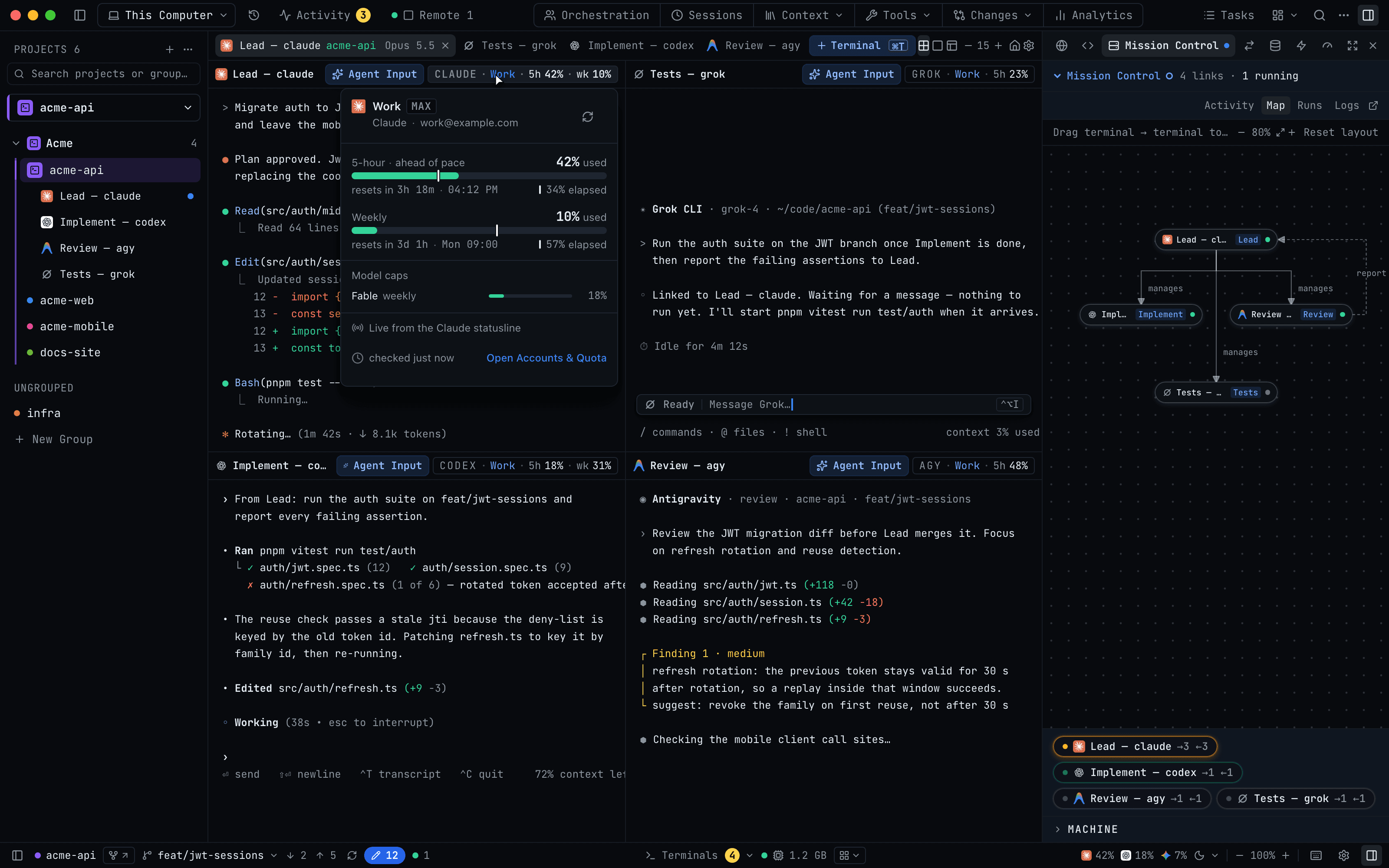
You have three agents running on two Claude accounts and a Codex account. The pane header says the work account is at 42% of its 5-hour limit. That number alone doesn't answer the question you actually have: will it last until this refactor is done? 42% with four hours of the window left is fine. 42% twenty minutes into the window means you hit the wall before lunch.
Then there is the other question you keep asking while agents work: are they finished yet? You start a long run, switch to the browser to read docs, and every few minutes you bring 1DevTool forward to scan the panes. Usually nothing has changed. The check costs more than the answer is worth.
What changed
1DevTool v1.85.2 answers both from where you already are. Hovering the account chip in a terminal's pane header now opens a card with that account's limits, when each one comes back, how much of each window has passed, and whether you are using it faster than that. On macOS, the Dock icon turns into a small animated prompt while any AI agent is working and goes still when the last one is idle.
Now you can tell whether an account will make it, and whether your agents are done, without opening another panel or switching windows.
How it works in practice
Hover the account, read the whole account
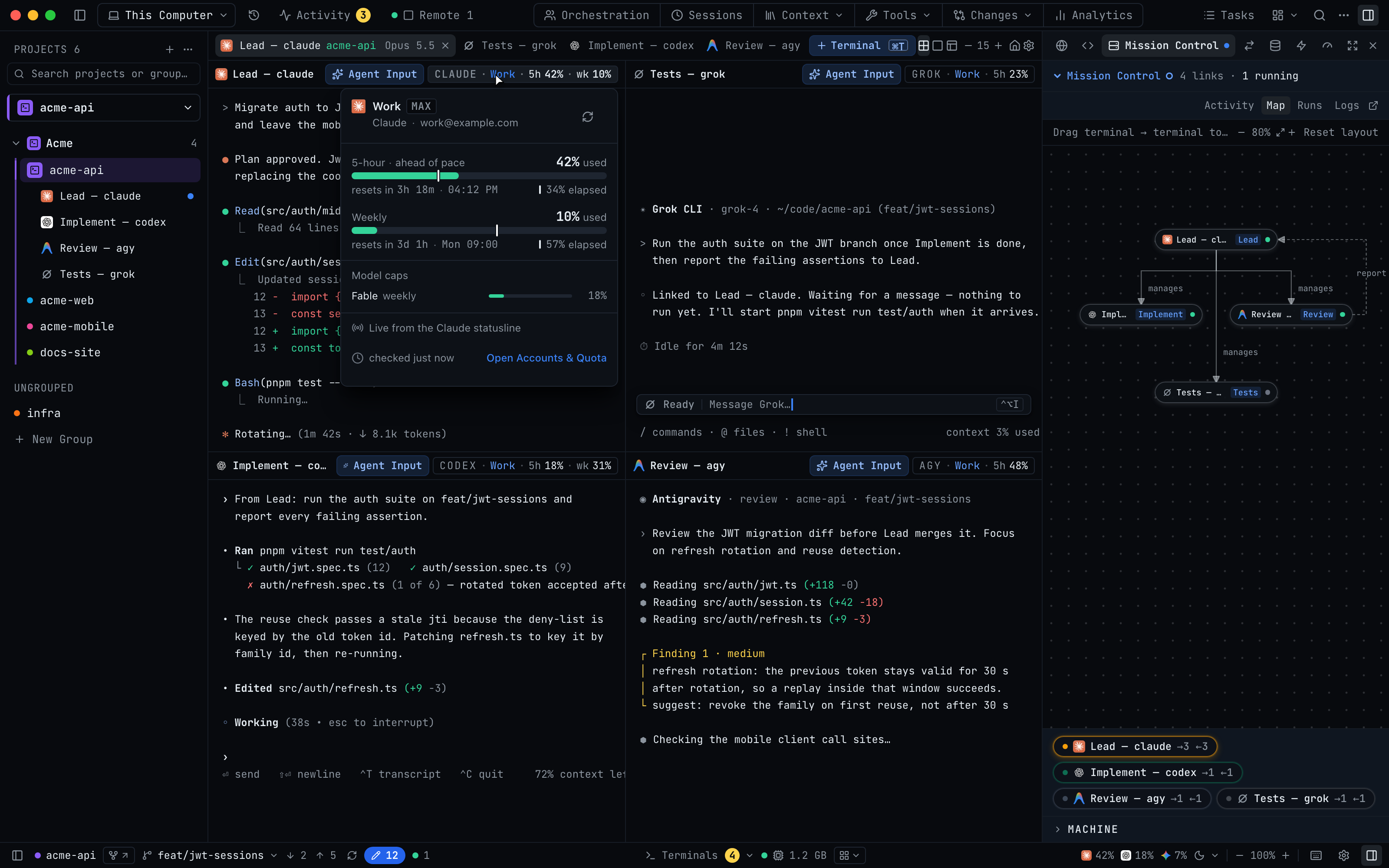
The pane header still shows the short version, CLAUDE · Work · 5h 42% · wk 10%. Rest the pointer on it for a moment and a card opens beneath it. At the top: the account name, its plan badge (for example MAX) and its email when 1DevTool knows it.
Below that is one row per limit, usually 5-hour and Weekly. Each row tells you three things:
- how much is used, such as 42% used;
- when it resets, as a countdown and a clock time, such as resets in 3h 18m · 04:12 PM;
- how much of the window has already passed, as a tick on the bar and a label such as 34% elapsed.
The last one is what makes the first one useful. 42% used with only 34% of the window gone means you are running ahead, and the card marks that row ahead of pace. You see it there long before the number turns amber.
Under the windows, Model caps lists per-model weekly limits, such as Fable weekly, so you can tell when one model is about to run out rather than the account as a whole. For a Codex account, the card also shows its manual reset credits and when they expire.
Current numbers, without asking
The card opens straight away with the last reading it has, so hovering never means watching a spinner. For Claude, Codex, Gemini and Qwen accounts, a reading older than two minutes is refreshed for that one account while a thin line sweeps across the top of the card, and the refresh button fetches a new reading whenever you want one. The bottom of the card says where the number came from and how old it is, for example Live from the Claude statusline and checked just now.
Problems are named, not hidden
A quota display is only worth trusting if it tells you when it can't be trusted. If a Claude account has been signed out, the card keeps its last numbers, greyed out, with a Re-login button that takes you to Accounts & Quota. A refresh that failed reads Refresh failed — showing the last reading. When the provider's usage service is busy, you see its own message instead of a blank. An account you took out of the pool is marked as held out, so you know Auto won't start new terminals on it. Open Accounts & Quota is one click away from all of them.
Watch the Dock instead of the panes
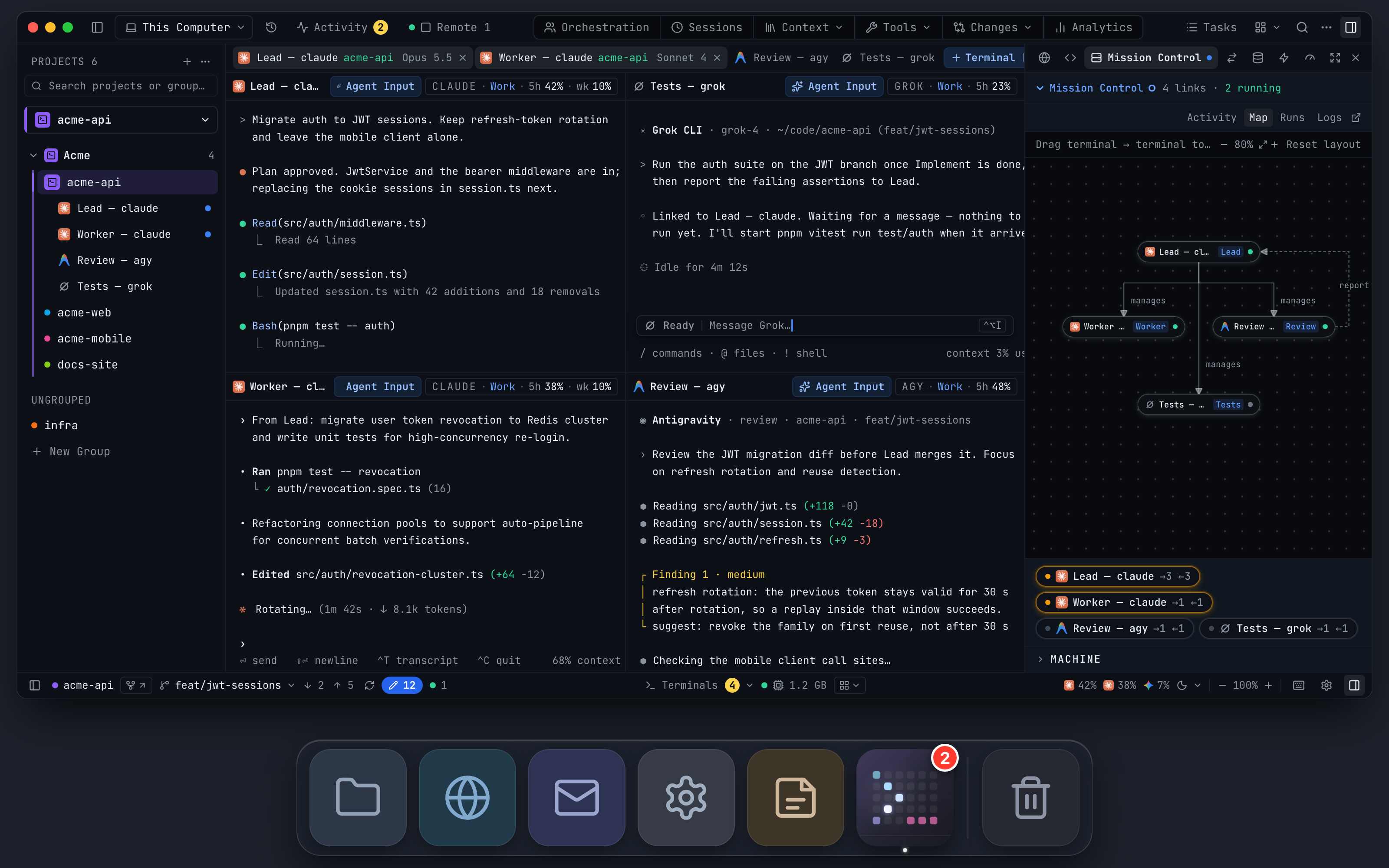
On macOS, while any AI agent is working, the 1DevTool Dock icon becomes a dot-matrix >_ prompt with a light running along it. When the last agent goes idle, it turns back into the normal icon. The badge that counts working agents stays as it was.
This works because the Dock is visible over almost everything else you do. Reading docs, answering a message, reviewing a pull request: a moving icon at the bottom of the screen means something is still running, and a still one means it is time to come back.
It is on by default, under Settings → Notifications → Animate the Dock icon while agents work. With Reduce Motion on, the icon holds a still frame instead of animating, and the animation pauses while your screen is locked.
Your phone reads the agent's own words
One smaller change, for the phone app: a Claude Code or Codex conversation can now be read from the session's own transcript instead of from what is drawn on the terminal screen. The conversation stays readable on your phone even when an agent changes how it draws its interface. Older versions of the phone app keep reading the screen as before.
Before vs After
| Task | Before | After |
|---|---|---|
| Will this account last? | Open Accounts & Quota, find the account, weigh the percentage against the reset time in your head | Hover the chip: used, reset time, elapsed and ahead of pace in one card |
| Per-model limits | Open Accounts & Quota | Model caps in the same card |
| How old is this number? | No way to tell at a glance | Refreshed after two minutes, with checked just now |
| A signed-out account | Its numbers quietly stop moving | Greyed out, with Re-login |
| Are the agents done? | Switch to 1DevTool and scan every pane | Glance at the Dock: moving means working, still means idle |
Who benefits most
People who rotate between accounts. If you spread work across two or three Claude or Codex logins, the pace mark tells you which one to stop sending heavy work to before it stops for you.
People who step away during long runs. The Dock icon replaces the habit of checking back every few minutes with a glance you make without thinking about it.
Anyone who has been surprised by a weekly cap. Model caps and the weekly row sit next to the 5-hour window, so the limit that ends your week is visible on a Tuesday, not discovered on a Thursday.
Try it
Update to 1DevTool v1.85.2 or later from the download page, start a terminal on a saved account, and rest the pointer on the account chip in its pane header. The AI Usage & Quota docs cover every line on the card. Then start a long agent run and switch to something else: the Dock tells you when to come back, and the card tells you whether the account will hold out until you do.