v1.18.7May 21, 2026
Quickstart everywhere: new welcome screen, one-click agent launchers, editor back in the center column
Quickstart everywhere: new welcome screen, one-click agent launchers, editor back in the center column. This release brings One-Click Project Picker on the Welcome Screen, One-Click Agent Launchers on Empty Terminal Grid.
Download v1.18.7
The download page always has the newest build; installers for this version are on GitHub.
What changed
New features
17- Brand-new welcome screen when no project is active — five large tiles let you Open Folder, Create New, Clone Git Repo, Connect SSH, or scaffold From Template in a single click instead of digging through a single "+ Add Project" button and picking a mode after the dialog opens
- Each tile pre-selects its mode in the Add Project dialog, so SSH and Clone flows skip the "which kind of project?" first screen entirely
- Returning-user hint — When you already have projects, the welcome screen reminds you to pick one from the sidebar or hit ⌘P to jump to the command palette, instead of nagging you to add yet another project
- Empty terminal panel now offers six quick-launch buttons — Claude, Codex, Gemini, Amp, OpenCode, and bash — each color-matched to its agent so you can spin up the right CLI without opening the Add Terminal dialog
- "New terminal" button with ⌘T keyboard hint and a one-click Settings shortcut that opens the Terminal Settings tab directly, so customizing your default agent or startup command is one click away
- Works for any project the moment it has zero terminals — your starting point for a new project is now one click, not three
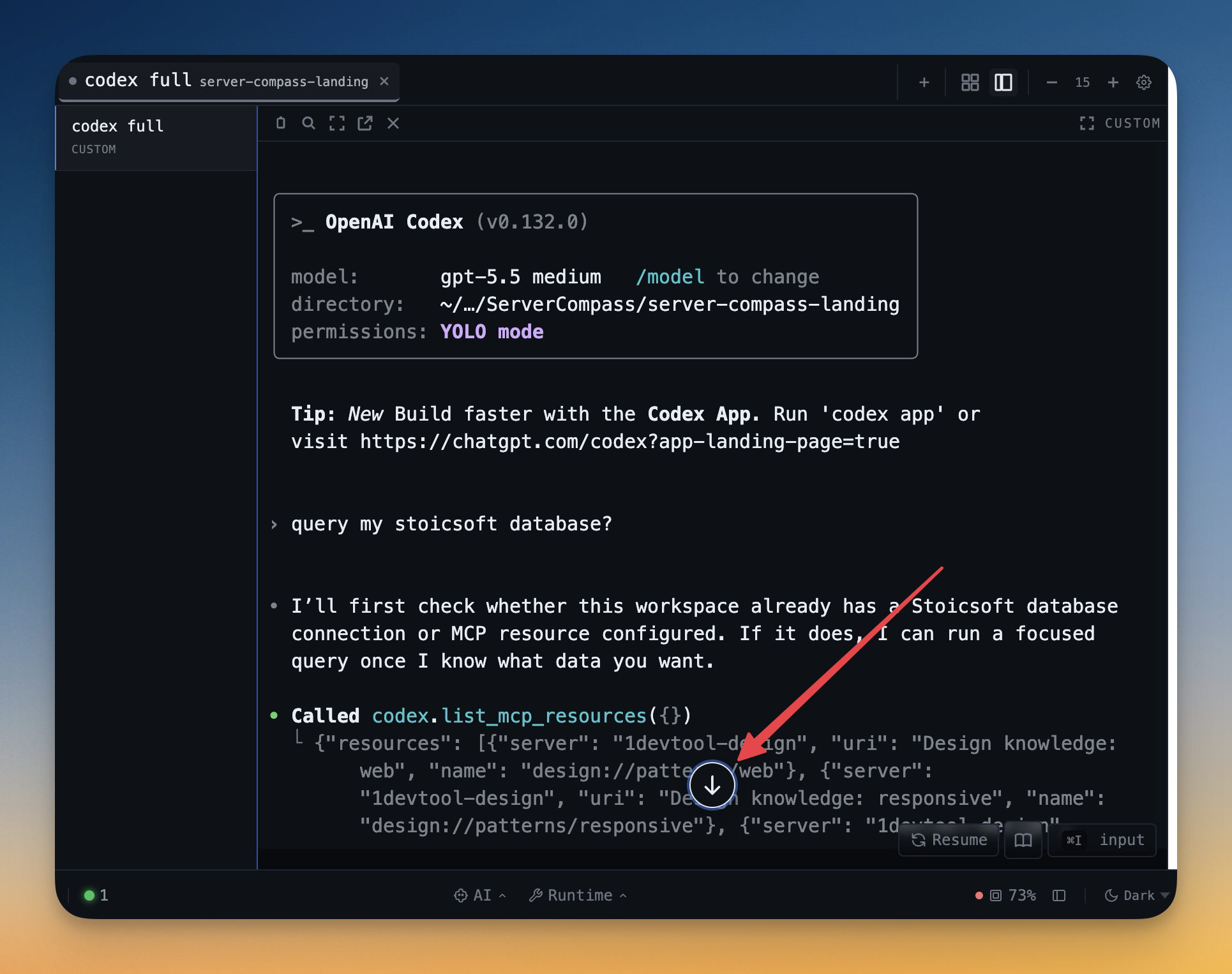
- Floating "jump to bottom" pill appears in any terminal once you scroll up — clearly visible against the terminal background, ringed in your accent color, with a single click to snap back to the live tail
- Only shows when you're actually scrolled up (not when tailing), and hides itself automatically in reader mode and on alt-screen TUI apps so it never overlaps with vim, htop, or tmux
- Works for both AI agent terminals and plain shells
- Click any PID in the Port Manager to expand a process detail panel right under the row — shows parent PID, user, CPU%, memory%, RSS, started-at timestamp, process state, working directory, and the full command line, with the right gathering command per OS (ps + lsof//proc on macOS/Linux, wmic on Windows)
- Per-row "Copy command" button that appears on hover — grab the full launch command of any listed process for pasting into a terminal, ticket, or grep
- Reorder Browser, Editor, HTTP Client, Database, Mobile, AI Diff, and Tool Box tabs by dragging their headers in the right sidebar — your preferred ordering persists per project, with debounced auto-save
- Drop indicator ring + grab cursor make the drag target obvious, and a marker MIME type means unrelated drags (e.g. dropping files into the editor) don't accidentally reorder tabs
- Terminal Center — Project icons on the far left, Terminals filling the center column (chat-style channel sidebar + terminal view), and a split right sidebar with the File Tree always-visible alongside Editor / Browser / HTTP / Database / Mobile / AI Diff / Tool Box tabs. Pick files and tools without leaving your terminals
- Terminal Right — Mirror of Terminal Center: the File Tree + tools split moves to the center, and Terminals fill the entire right column. Lets you scan code on the left while AI agents work on the right without competing for horizontal space
- Both layouts auto-apply the chat-style terminal grid the moment you pick the preset, so the channel sidebar + dedicated terminal view follow the preset instead of needing a separate layout switch
- File Tree stays pinned in its dedicated column in both layouts — drag-reordering the tab strip can't accidentally remove it from view
Improvements
12- The Editor panel now lives in the center column above your terminals by default — the classic IDE layout where code on top and terminal underneath. Previously the editor was pinned to the right sidebar as a tab, which left it cramped next to Browser / HTTP / Database
- Built-in presets pruned to Default, Chat Interface, Terminal Center, and Terminal Right — Focus, Terminal, Web Dev, API Dev, Database, and AI Collab presets have been removed in favor of the more powerful Layout Editor and your own custom presets. Anyone with a removed preset active is automatically migrated to Default; their actual panel arrangement is preserved
- Settings dialog now opens at near-full window width so the Layout Editor, Commands list, and Detected CLIs panel get enough room to render without horizontal scrolling
- The Agent Input @mention picker now searches lazily as you type, instead of listing every project file the moment the overlay opens — a 5,000+ file project no longer stalls the overlay on first open
- Search happens in the main process via execFile instead of execFileSync so the renderer never freezes waiting for ripgrep or the recursive fallback to enumerate huge trees, fixing the Windows "Agent Input takes 3 seconds to type a single @" symptom
- 120ms debounce + 200-result cap keeps keystrokes snappy even on very large monorepos, and results are scored and sorted the same way as before
- The "Auto-paste clipboard content in Agent Input" setting now disables the multi-line-paste-redirect behavior end-to-end — previously pasting multi-line clipboard text into an AI terminal still hijacked the paste and opened the overlay even with the toggle off, because only the secondary "fill on open" code path checked the preference
- Switching projects with a pending layout edit (e.g. a right-sidebar tab reorder) now flushes that change to the project you were editing before propagating the switch, so reorder operations no longer get attributed to whichever project you happen to land on
- New projects open with the Default preset instead of inheriting whatever panel arrangement the previous project had, so per-project layouts stay isolated
- Chat Interface preset and project terminal layout stay in sync — applying the chat preset now also flips the terminal layout to chat (and vice versa for non-chat presets), so the chip you see in Settings always matches what's actually rendered
- In chat mode, the left sidebar becomes a two-column split — a compact project-icon strip on the left and the File Tree on the right — so the same horizontal space that used to fit one panel now gives you both at a glance
- Sidebar auto-widens to 260px when chat mode kicks in with a too-narrow saved width, so the file-tree column actually has room to breathe instead of being clipped
Bug fixes
5- Fixed Agent Input overlay being painfully slow to open on Windows in large projects — the overlay used to enumerate up to 10,000 files synchronously the moment it appeared, which could lock the renderer for several seconds on a typical Windows monorepo
- Fixed right-sidebar tab reorders getting lost when switching projects — the debounced layout save now flushes to the previous project before the active-project change propagates, so your reorder lands in the right project's saved layout
- Fixed per-project layouts bleeding between projects — opening a project without a saved layout now falls back to the Default preset instead of keeping whatever layout the previous project had on screen
- Fixed Settings dialog feeling cramped — the dialog now stretches to near-full window width, giving the Layout Editor, Commands list, and Detected CLIs panel enough room
- Fixed auto-paste toggle being half-disabled — turning off "Auto-paste clipboard content in Agent Input" now blocks every code path that was opening the overlay with clipboard content, not just the on-open branch
Screenshots