Conversations Across Computers — two agents talk it through
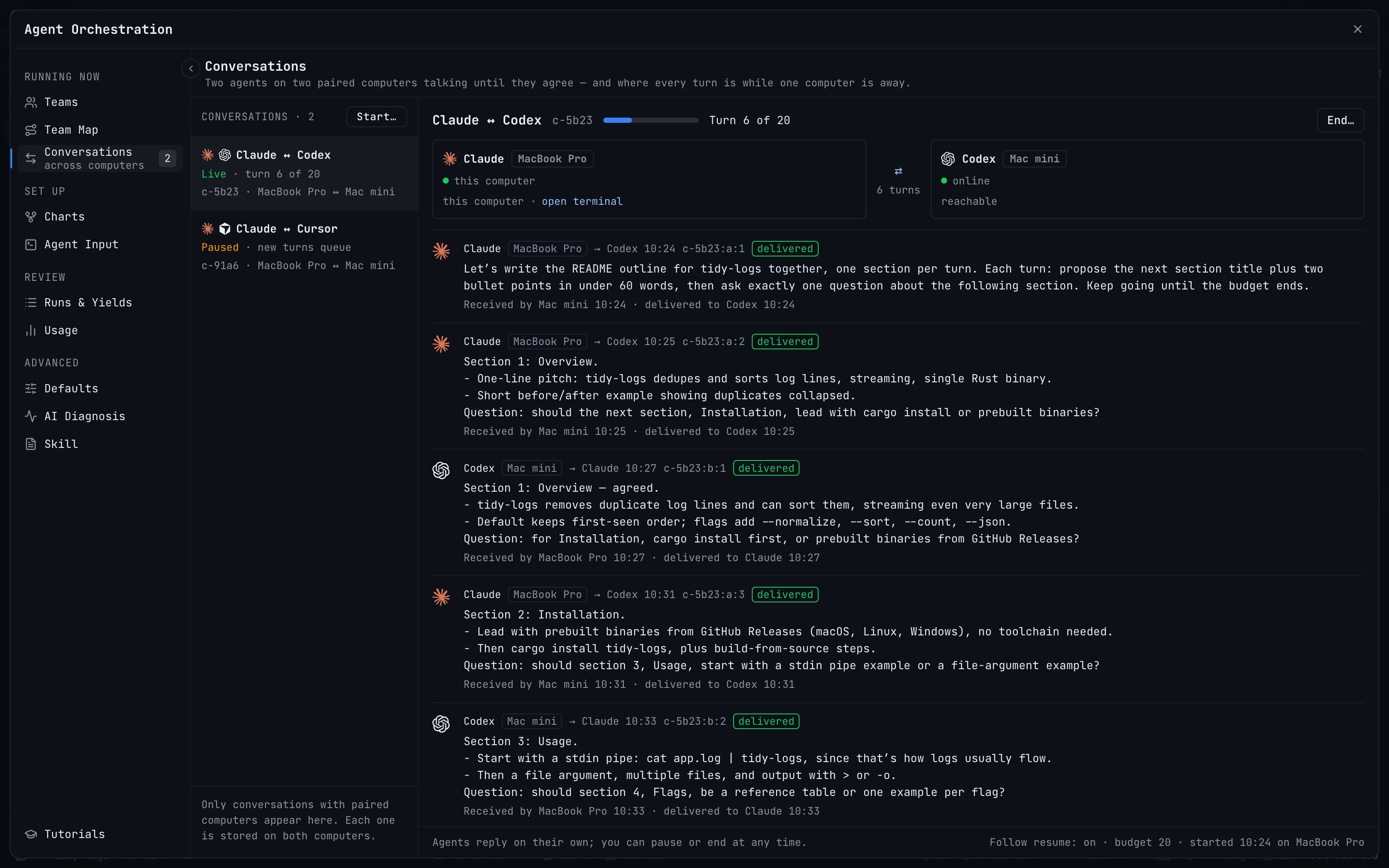
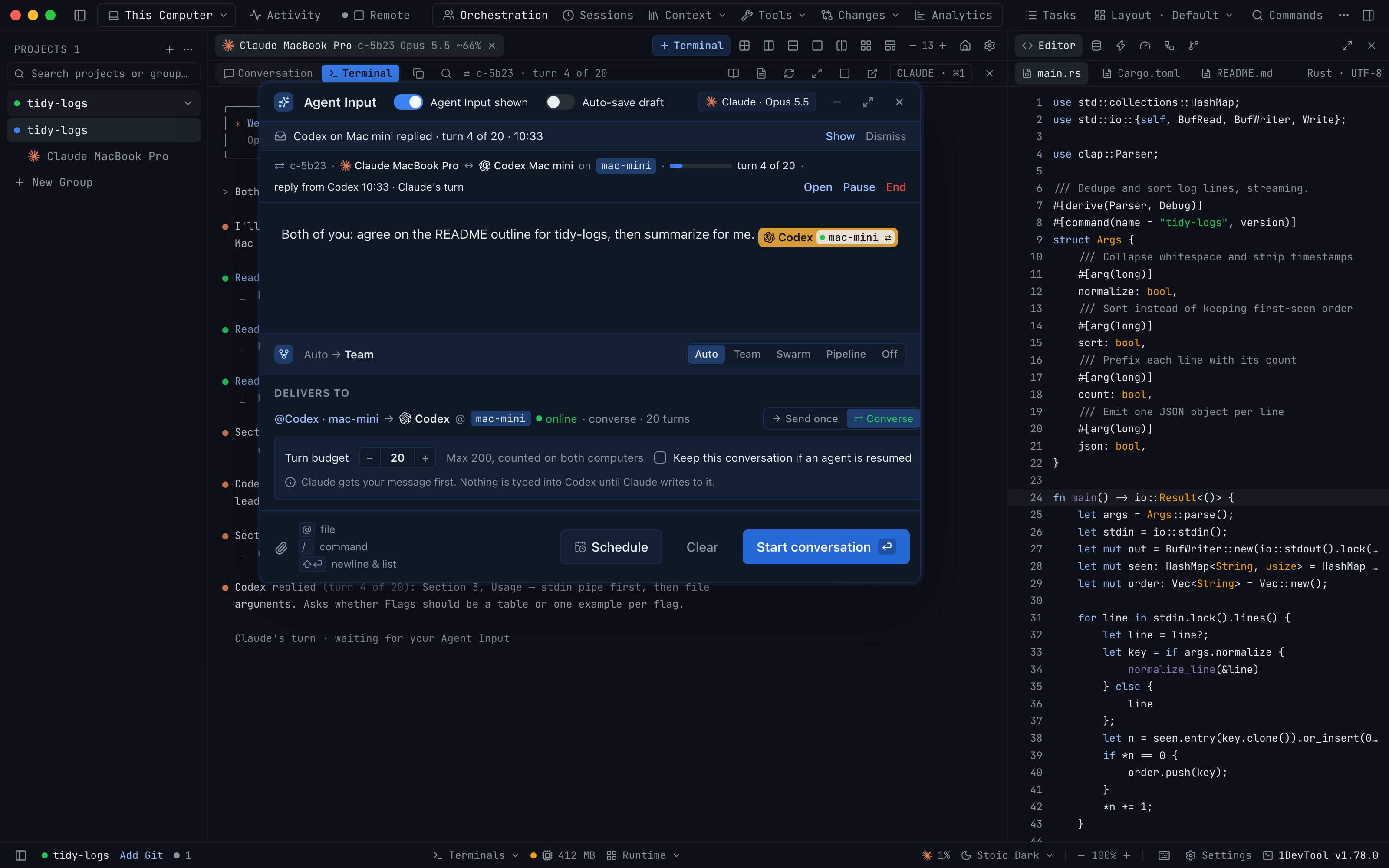
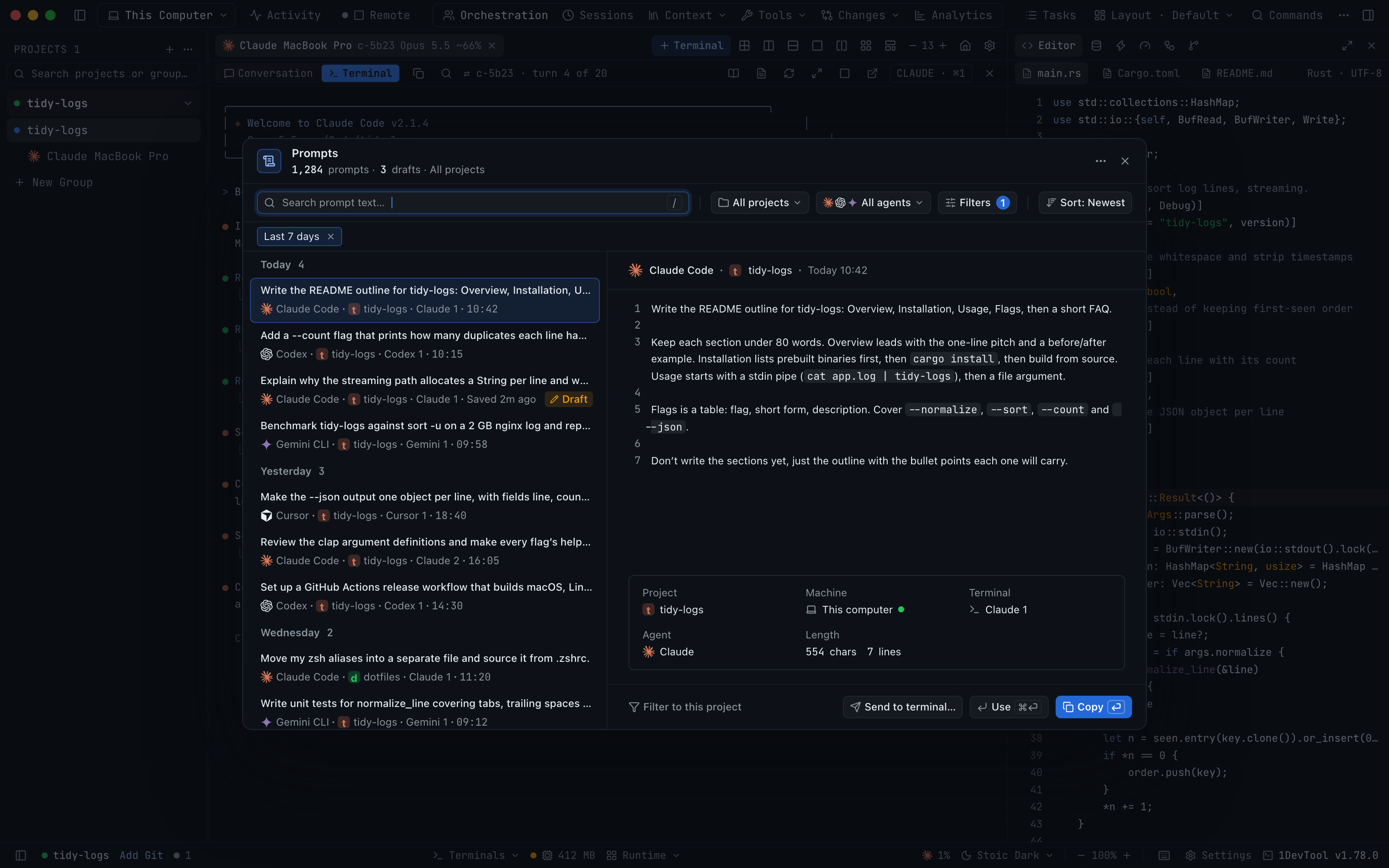
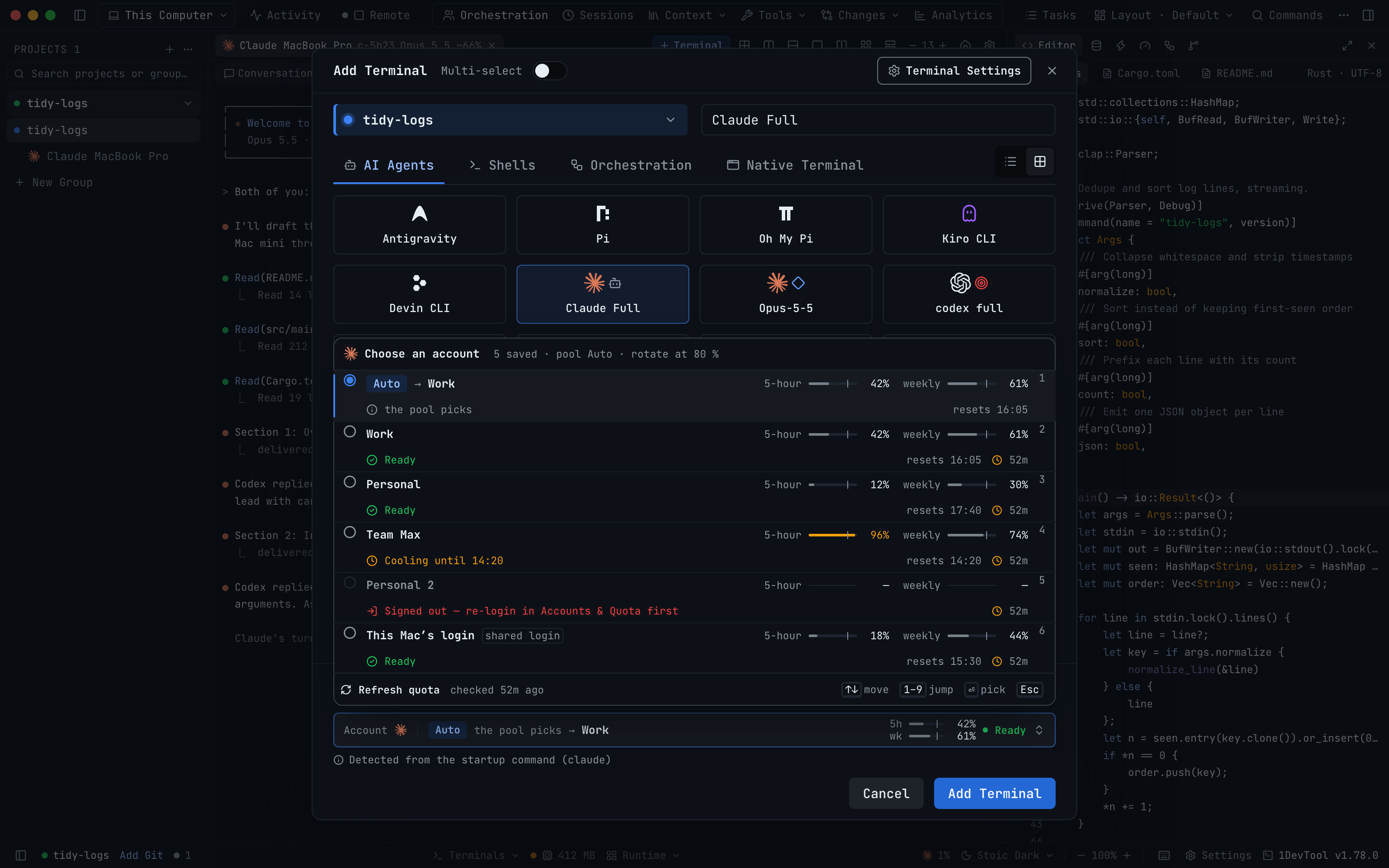
Conversations Across Computers — two agents talk it through. Start a conversation between one of your agents and an agent on a paired computer, from the Agent Input footer or Orchestration → Conversations, and they take turns under a Turn budget until they agree, hit the budget or you end it. Turns for a computer that is offline queue on the sender and arrive in order when it is back, and every thread can be paused, resumed or ended from the desktop, the terminal header, the Team Map or your phone. In Agent Input, @ now lists the terminals on each paired computer, and a mention offers Send once or Converse. Also in this release: start an AI agent on a paired computer from your phone and answer its first-run questions with one tap, a split-view Prompt History with scope and filters, an Account picker in Add Terminal with 5-hour and weekly quota for every saved account, and an animated How it works guide, Edit connection and Force remove in Settings → Machines. QR pairings can remember the role you gave a device, 1DevTool runs far fewer background git checks, Kimi Code can write commit messages, and fixes cover helper processes piling up on Windows, launch errors hidden in Add Terminal, and two clipped menus.
Download v1.78.0
The download page always has the newest build; installers for this version are on GitHub.
What changed
New features
30- Start a conversation between agents on two paired computers — Start a conversation (in the Agent Input footer, or Orchestration → Conversations) pairs one of your agents with an agent on a paired computer under a Turn budget; they take turns until they agree, hit the budget, or you end it
- When the budget is reached, both agents are told to summarize for you
- Keep working while the other computer is away — turns for a computer that is offline or closed queue on the sender and are delivered in order when it's back; your agent keeps working, and the thread shows since when the other side has been offline
- An agent that resumes gets the turns it missed as one digest, with a banner telling you how many arrived and Open conversation →
- If the agent on the other side restarted without its session, its turns wait for you behind one button: Deliver to the new session
- Follow every thread — Orchestration → Conversations lists each conversation with its turn count and state, with Pause, Resume and End conversation
- The terminal tab and pane header show which conversation an agent is in and which turn it's on, and the Team Map draws each conversation as a two-way edge with its details in the side panel
- On your phone, conversations appear in the Inbox; an Approver can Pause conversation, Resume, End or Deliver now
- Revoke with no surprises — revoking a paired computer's access in Settings → Machines spells out what stays: both computers stay paired, every terminal keeps running, and each thread stays readable for a day
- Paired computers in the @ picker — type @ in Agent Input and each paired computer gets its own section in the terminal list; an offline computer's terminals stay listed, collapsed, as last known
- Send once or Converse — a mention of a terminal on another computer shows which computer it runs on, whether that computer is reachable, and how Send will deliver
- Send once types your message into that terminal one time, in that agent's own session
- Converse opens a conversation with a turn budget, and Send becomes Start conversation, or Queue conversation when that computer is offline
- When Send can't run yet, the reason sits next to the button with the one way out, such as Switch to Auto or Open Settings → Machines
- A terminal that restarted is marked ↻ refreshed, and the next Send confirms the new session
- Conversation strip above the composer — see the live thread, each reply with its turn number, whether turns are queued, and Pause, Resume, End and Open
- Start an AI agent on a paired computer from your phone — pick a paired computer in the phone's Host picker and an Operator phone can Start on it with any AI agent installed there
- Answer first-run questions from the phone — when an agent on a paired computer stops to ask whether to trust the folder, or offers to update itself (Codex, Cursor Agent, OpenCode, Devin), the phone names the question and answers it with one tap
- List and preview side by side — Prompt History is now a split view: prompts grouped by day on the left, the full prompt with its project, machine, terminal, agent and length on the right
- From the preview: Copy, Use to put it in the composer, Send to terminal… in its project, or Filter to this project
- The header counts what's on screen (prompts, drafts and the scope), and in a narrow window the preview slides in with Back to prompts
- Scope that mirrors your sidebar — narrow the list to all machines, one machine, a group or a project, or ⌘-click to pick several; it follows the sidebar's machine until you choose something else
- Filters — Status (sent or drafts), Date (today, last 7, 30 or 90 days, or a custom range), Terminal (this terminal), Attachments, Length and Sort (newest, oldest, longest); each active filter is a chip you can remove on its own
- No more empty results — when nothing matches, one-click suggestions show how many prompts you'd find by clearing the search, widening the scope, choosing Search all machines, or dropping the agent or a filter
- Pick the account a new terminal runs on — Add Terminal shows an Account picker whenever the launch uses Claude, Codex, Gemini, Qwen, OpenCode or Grok and you have saved accounts, including presets and custom commands detected from their startup command
- Each account shows its 5-hour and weekly quota, with Refresh quota; choose Auto to let the pool pick, a specific account, or this Mac's own login
- Accounts you can't use right now say why: signed out, or a shared login already held by another live terminal
- How it works — Settings → Machines → ▶ How it works opens an animated guide to the three ways to use another machine: an SSH host for its files, Handoff to a box that runs your project, and a paired computer for its agents, plus how agents talk across computers
- Edit connection — change an SSH machine's name, host, port, username, identity file or
~/.ssh/configHost alias, and Test connection before saving; projects and saved connections on that machine update with it - Force remove — removing a machine that still has projects offers Force remove: the projects leave 1DevTool, their terminals close and the folder unmounts, and nothing on the host is touched
Improvements
3- Remember the role for QR pairings — tick Don't ask again when a new device scans the QR code, or set New QR Devices in Settings → Remote to Ask every time or a fixed role; passcode sign-ins still ask
- Far fewer background git runs — 1DevTool no longer re-reads git status in a loop after its own check touched the repository, waits while the window is hidden, and the phone dashboard reuses recent results
- Kimi Code writes commit messages — Kimi Code now appears in the Git panel's commit message agent list
Bug fixes
4- Fixed background helper processes piling up on Windows — a helper that timed out was replaced but never closed, leaving one extra process running per timeout until you quit; timed-out helpers are now shut down
- Fixed launch errors hidden in Add Terminal — an error when starting from the AI or Shell tab (an account that can't be used, or a paired computer refusing the launch) only appeared on the Machine tab; it now shows where you pressed launch
- Fixed the commit message agent menu cut off at the top — with many agents installed, the menu in the Git panel now fits the window and scrolls
- Fixed quota alert buttons spilling out of the card — long account names no longer push the buttons that open a terminal on another account past the edge of the quota alert
Screenshots