v1.88.0November 27, 2026
Work on your paired computers' projects, files, git and terminals from one desk
A paired computer is now a machine you work in: its own projects, files, git and terminals appear on the computer you are sitting at, with per-computer permissions. Repositories show where every copy stands and sync with that computer's own git accounts, Add Terminal can run an agent on another computer, and the Send to AI dialog is redesigned.
What changed
New features
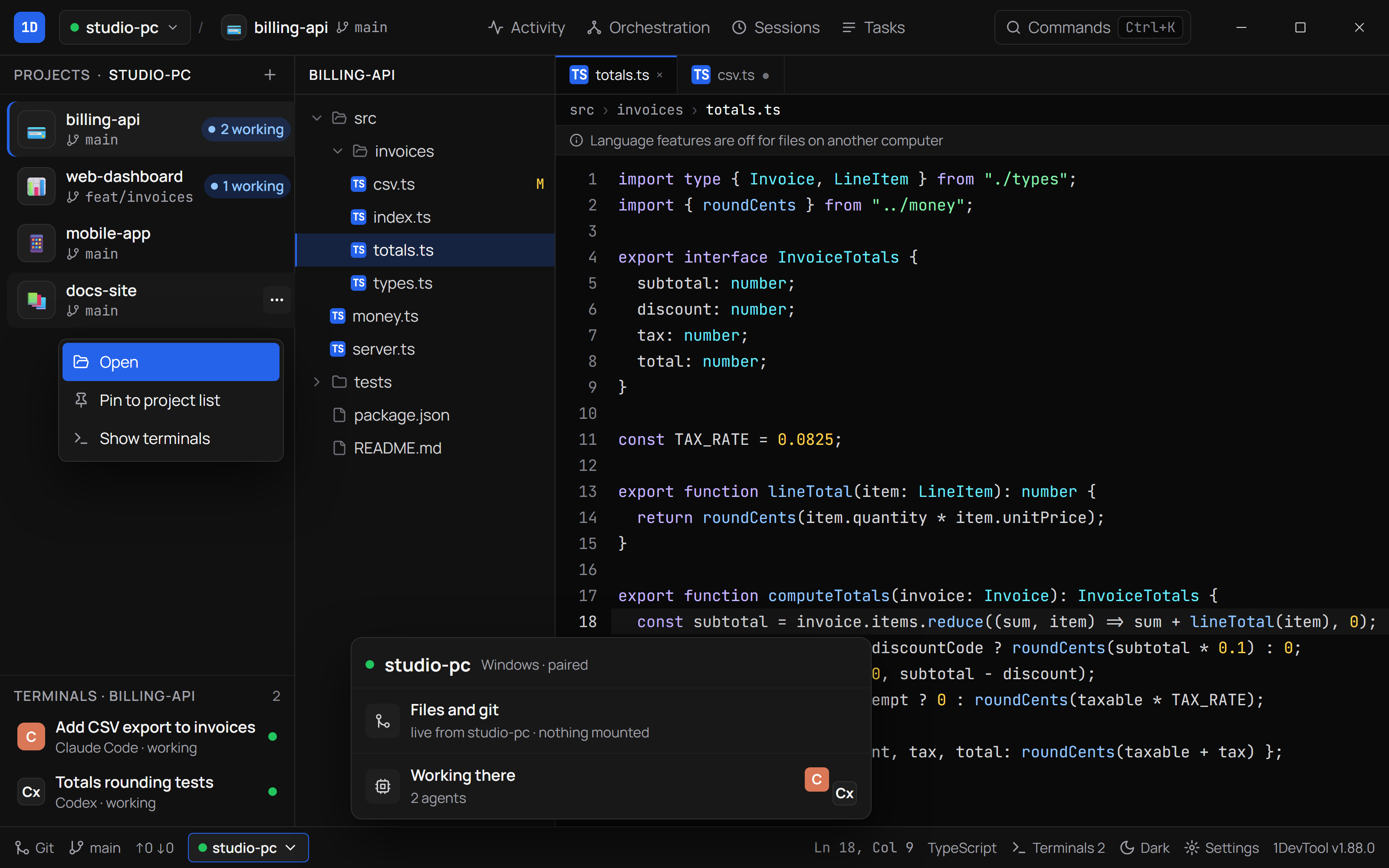
23- See a paired computer's own projects — pick it in the top-bar machine switcher, or open All machines, and the sidebar lists the projects that already live there, with how many agents are working in each; no SSH, no mount and nothing to add by hand
- Pin a remote project to your project list, show or hide its terminals, and see when a computer is offline and what it last reported
- Works with Windows, macOS and Linux computers paired in Settings → Machines, in both directions, on your local network, over Tailscale or over the public device link
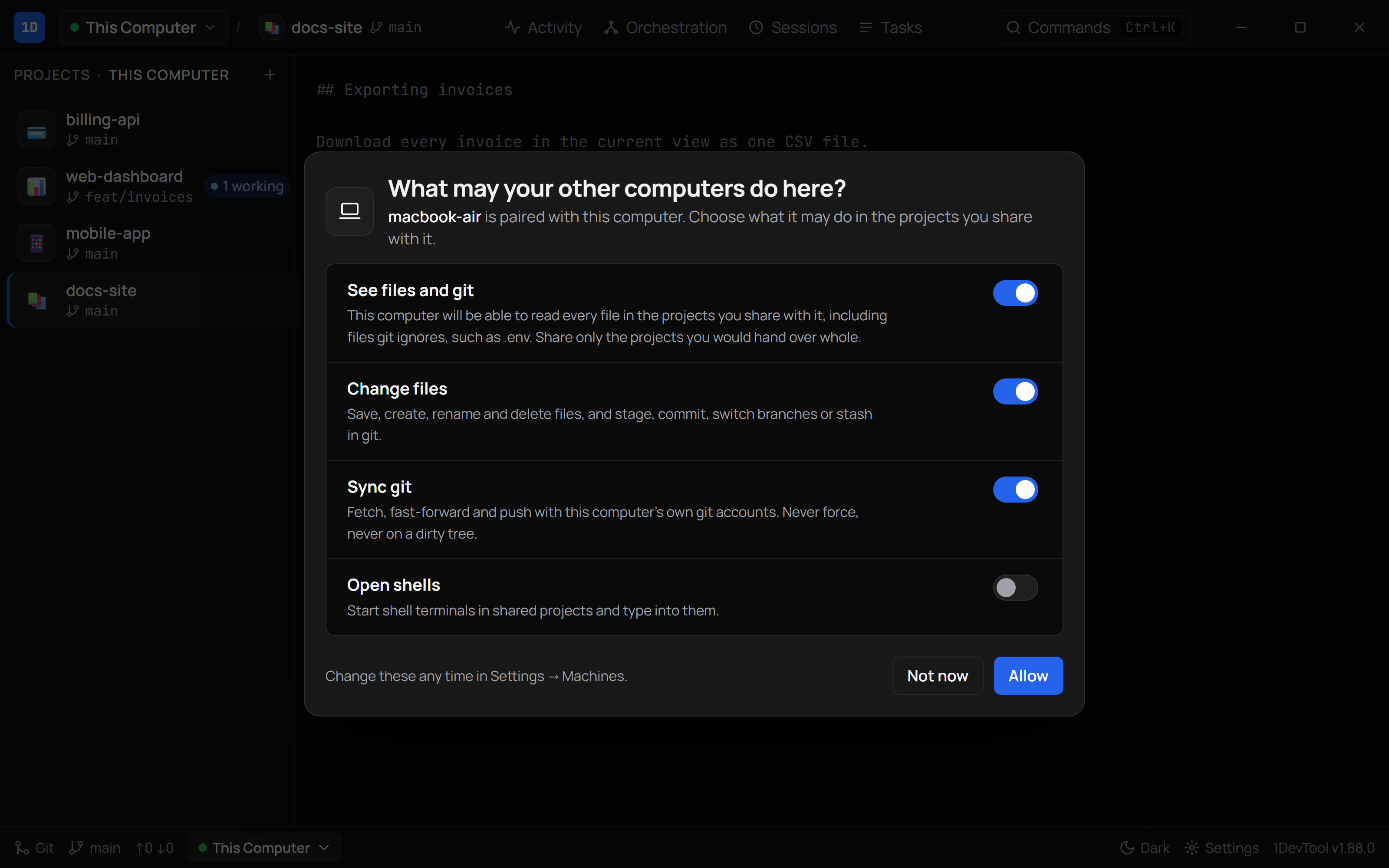
- Choose what your other computers may do here — the first time a computer asks, What may your other computers do here? offers four switches: See files and git, Change files, Sync git and Open shells; they are off for computers you paired before this version, and you can change them any time in Settings → Machines
- Browse, edit and save files on another computer — open a remote project to get its file tree, the editor and search, live from that computer
- A save never overwrites a change made there in the meantime: you get a compare view instead
- The editor warns when an agent on that computer is editing the same file
- Files over 8 MiB open on their own computer only, and language features are off for remote files
- Use git on another computer's copy — the Git client shows a remote project's status, history and diffs, and with Change files allowed you can stage, commit, switch branches and stash there
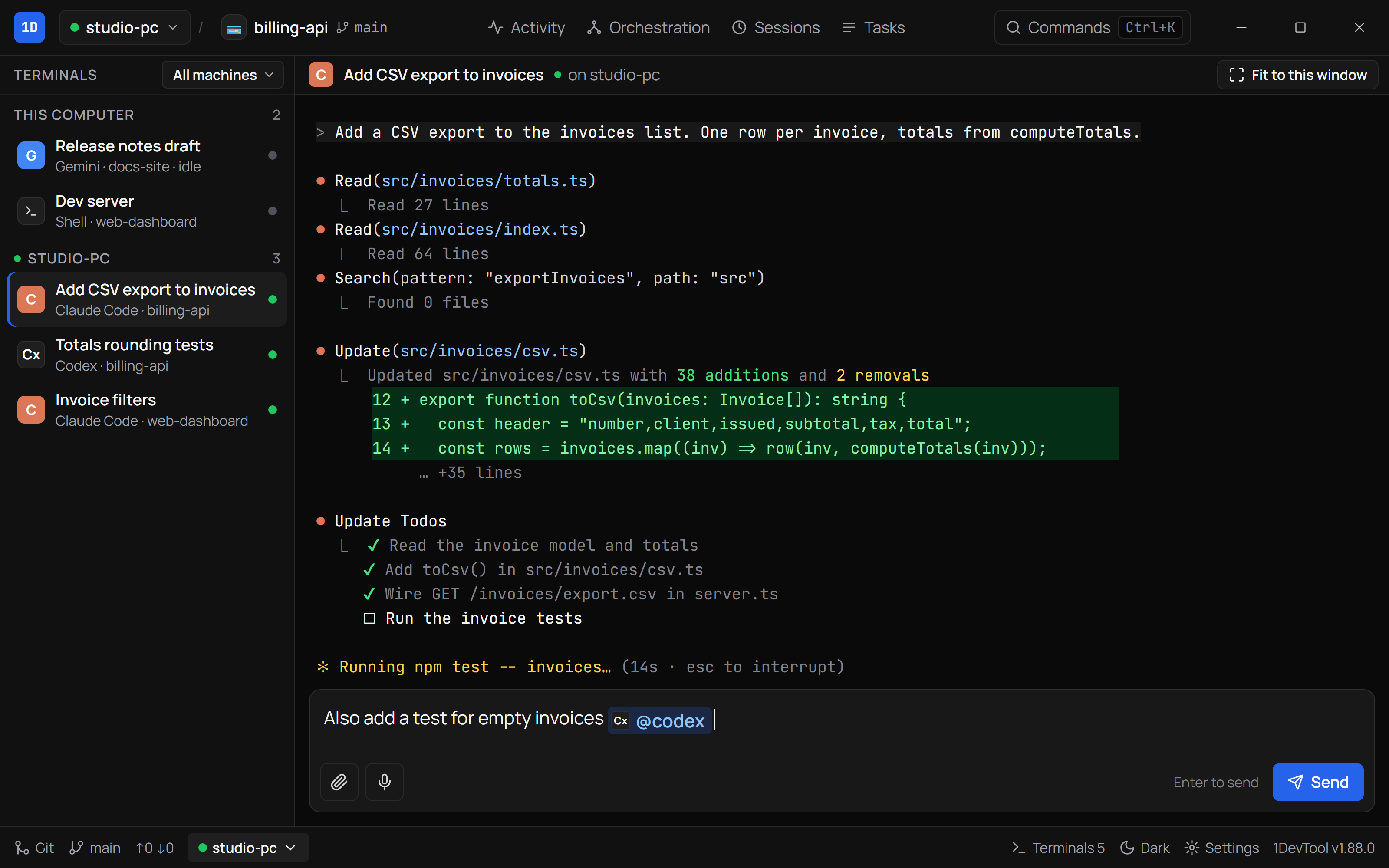
- Watch and type into terminals on your other computers — terminals running on a paired computer show up in the sidebar, the Terminal Dashboard and the command palette (Focus Terminal); open one to watch it live, type into it, use Agent Input with templates, attachments and
@agentmentions, or stop it - The mirror pane fits any width, follows the other computer's terminal size, and offers Fit to this window
- On the computer being watched, the terminal shows Watched from, Typing from or Sized for with the other computer's name
- Open a shell on the other computer from Add Terminal when it allows Open shells
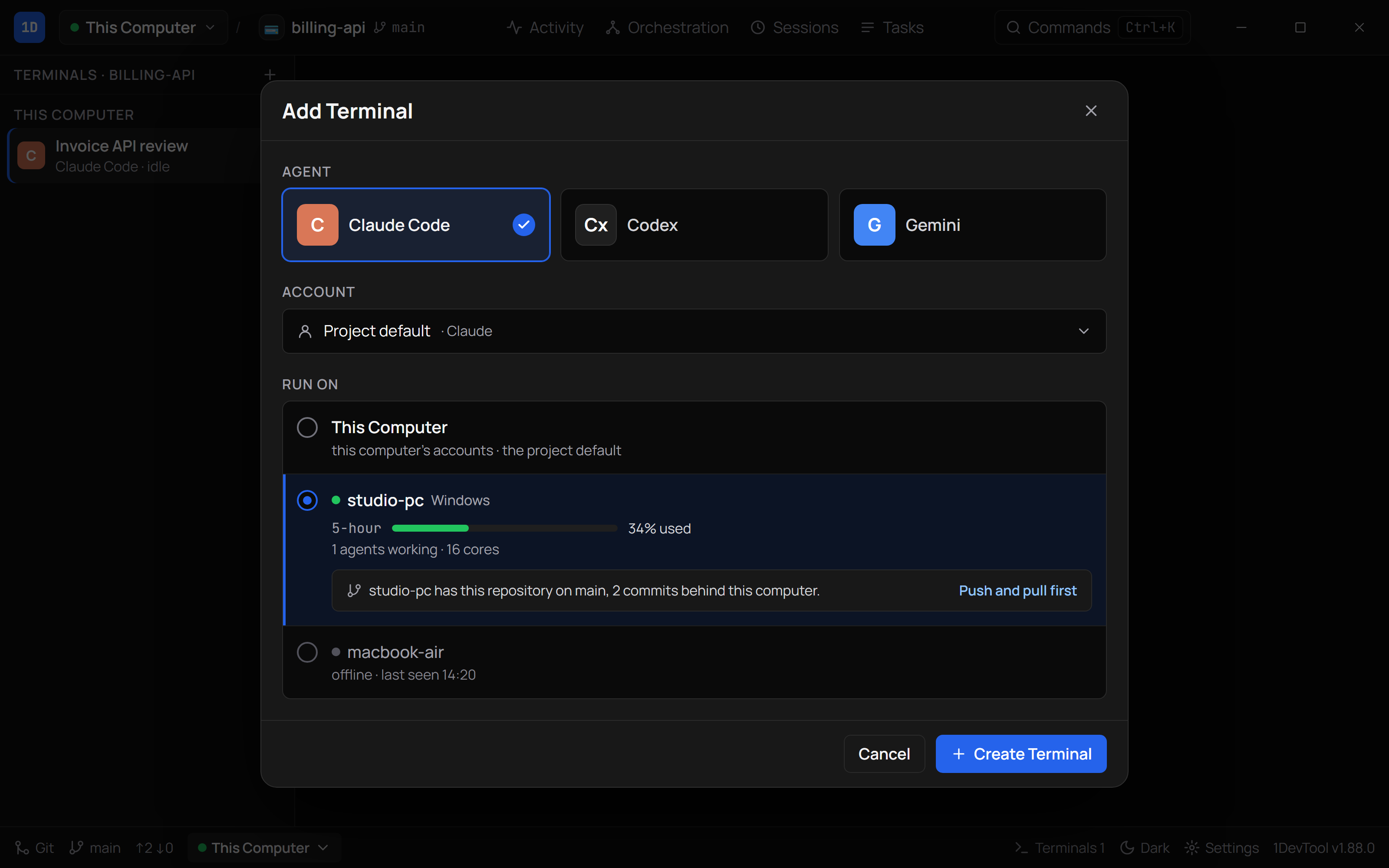
- Pick where an agent runs — Add Terminal has a Run on list: this computer or a paired one, each with its accounts and quota, how many agents are working there and its cores; it says when the agent isn't installed there, the computer is offline, or its copy of the repository is behind, with a one-click push and pull first
- Know when agents elsewhere finish — a notification says when an agent on another computer finishes, fails or hits a usage limit, and clicking it opens that terminal; turn it on per computer with Notify me when agents on … finish in Settings → Machines
- Accounts on other computers in Accounts & Quota — the Overview lists the AI accounts signed in on each paired computer with their quota, and flags one that needs signing in there
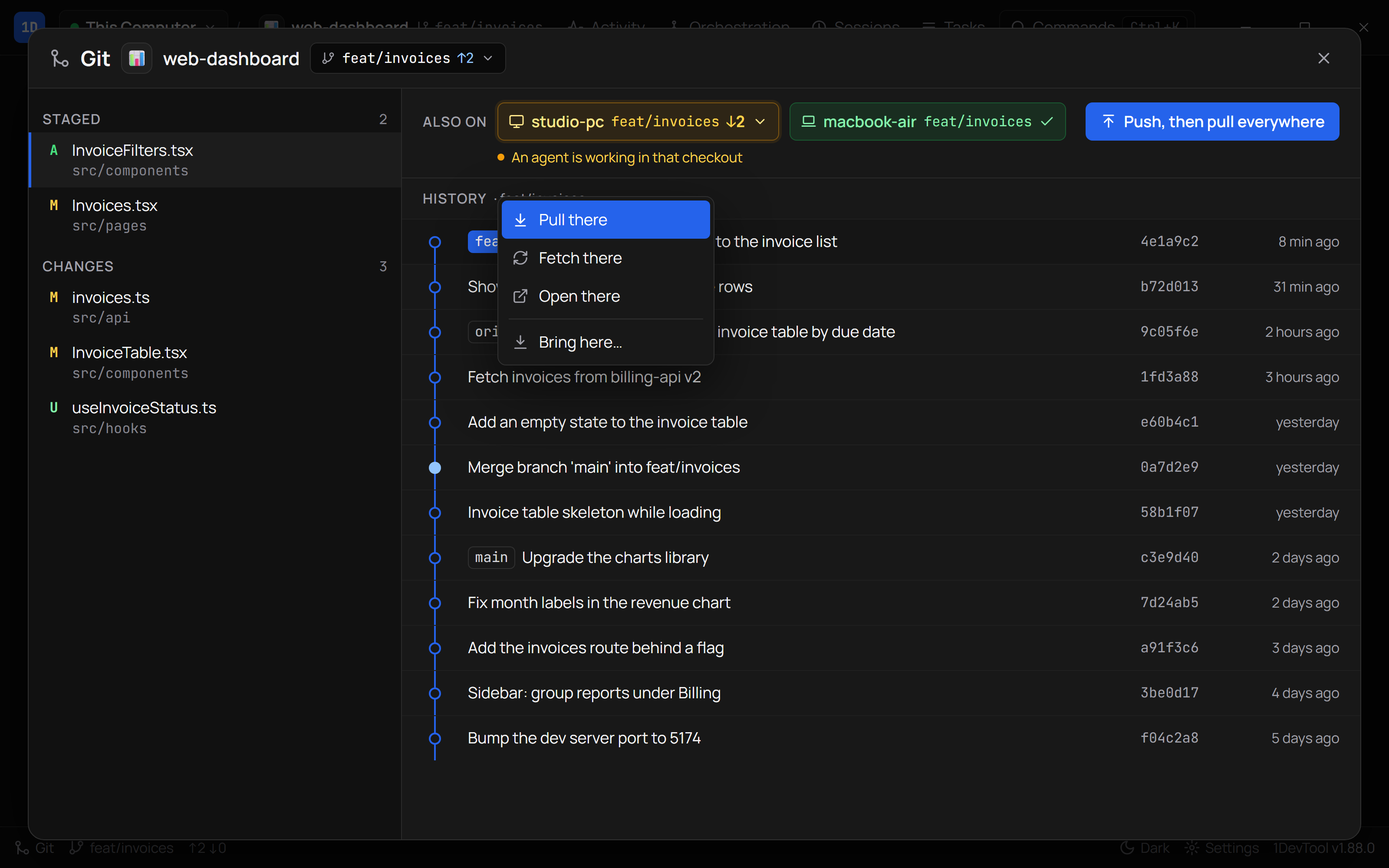
- See where every copy of a repository stands — the Git client's Also on strip shows the same repository on your other computers: in sync, ahead, behind, diverged or offline, and whether an agent is working in that checkout
- Sync in one click — Push, then pull everywhere, Pull there, Fetch there and Open there; network steps run with that computer's own git accounts, never force, and never touch a checkout with uncommitted changes
- A pull on a checkout where an agent is working waits until the agent finishes, unless you choose Pull anyway
- Bring here… sends unpublished commits from another computer to this one without checking anything out
- A Machines tab in the Repo panel — a grid of your repositories against your computers, with each copy's branch and how far ahead or behind it is, and Fetch everywhere, which fetches and never merges
- Agent activity from every computer — the machine switcher, sidebar, status bar, Terminal Dashboard and tray show how many agents are working on each paired computer; each computer chooses whether to Share what agents are working on, including each terminal's title
- Agents can check too — the
machines.agent_statusMCP tool and1devtool-agent fleet statustell an agent which agents on your other computers are working in the same repository, and on which branch; it is read-only and cannot prompt them
Improvements
3- A redesigned Send to AI dialog — the dialog behind every Send to AI button has a composer with attachments inline, an agent picker with each agent's logo grouped by This project and Other projects, a step-by-step send panel (Preparing, Starting terminal, Waiting for agent, Sending), an error banner with Retry, Ctrl/⌘+Enter to send and Esc to cancel
- Each quota window shows its own reset time — the account picker in Add Terminal puts the reset time under each bar, so the 5-hour and weekly resets can be told apart
- Less disk reading while agents finish turns — settings are read from a cached copy instead of the whole settings file on every lookup
Bug fixes
1- Fixed Reader Mode listing hook messages as your prompts — on Claude sessions using
/goal, skills or screenshots, the Prompts rail filled with "Stop hook feedback", skill text and image notes; it now lists only what you typed, including the/goalyou ran
Screenshots