Edit a Task
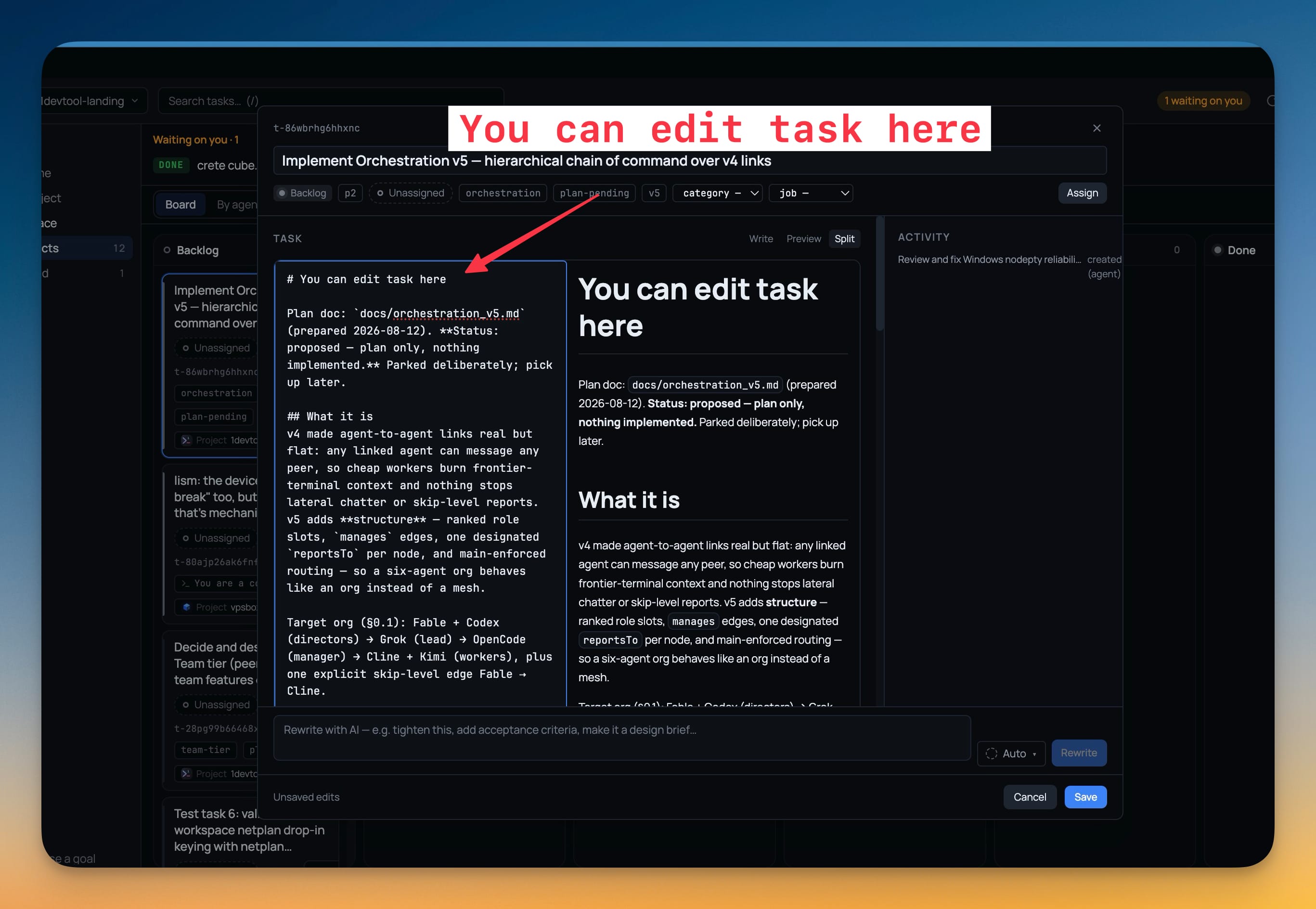
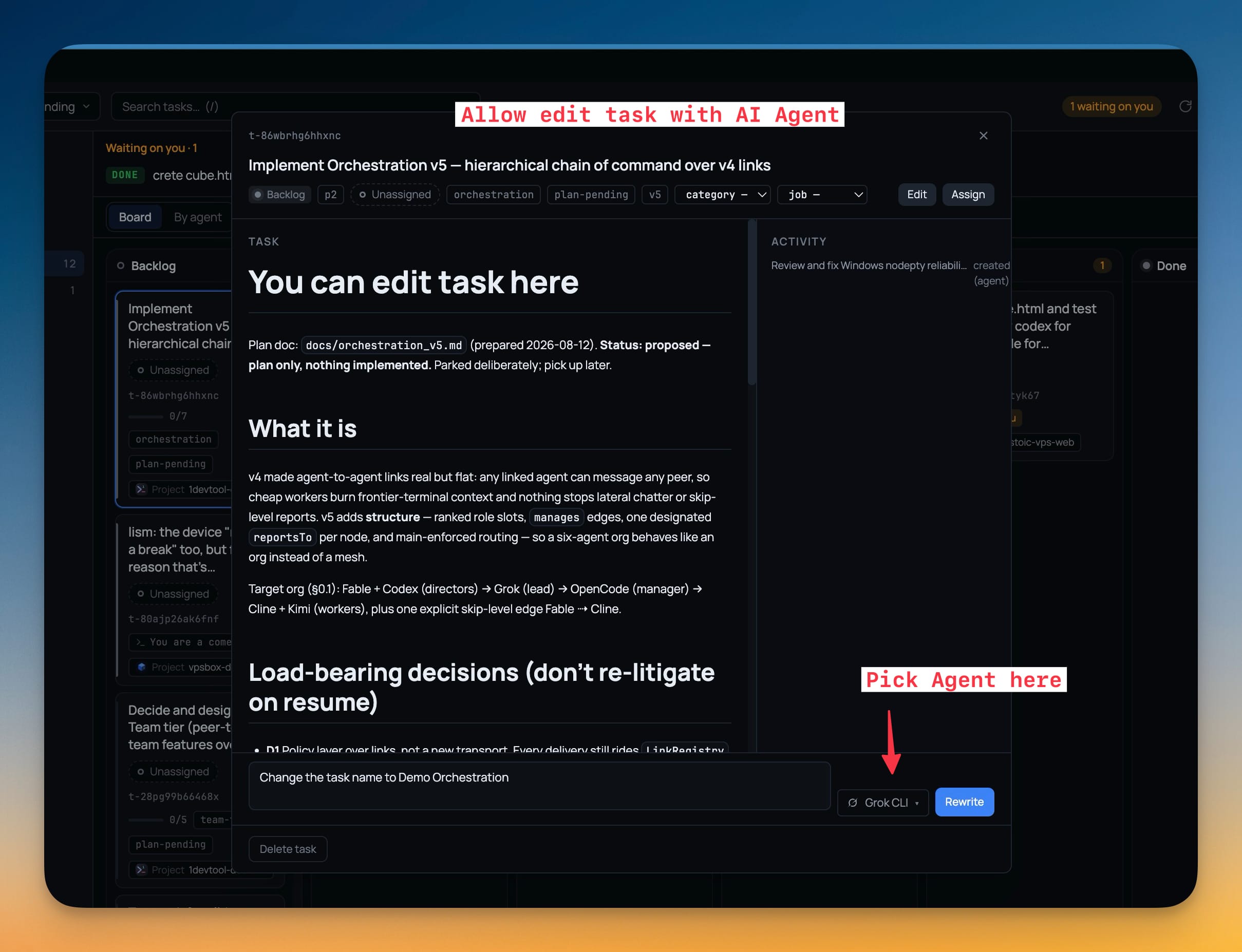
Edit a task's title, body and acceptance criteria right in its detail dialog, with the body in Markdown across Write, Preview and Split. A Rewrite with AI bar drafts changes from a plain instruction and lands them in the editor for you to read and Save.
More Screenshots
Click any image to zoom in
Why You Need This
How this feature boosts your daily productivity
Tasks used to be write-once: a typo in the title or a brief that turned out too vague meant deleting the card and starting over. Now the detail dialog is an editor — fix the title, expand the acceptance criteria, or hand the whole thing to an AI with an instruction like “tighten this”. Every AI rewrite arrives as a draft you read before it is saved, so nothing changes behind your back.
How It Works
Get started in 4 simple steps
Open the task's detail dialog
Open a task and press Edit — or the Edit button on the task card, which opens straight into the editor.
Write in Markdown
The body is Markdown with Write / Preview / Split. Split shows the source and the rendered task side by side.
Ask an AI to rewrite it
The Rewrite with AI bar takes an instruction like tighten this or add acceptance criteria; a Rewrite with picker chooses which CLI does it.
Read the draft, then Save
The reply lands in the editor as a draft. Nothing is written until you press Save, so you always read it first.
Without 1DevTool
The manual way vs. the 1DevTool way
The Hard Way
The 1DevTool Way
Key Capabilities
Everything included with Edit a Task
Why It Matters
The productivity impact of having project management built into your workspace
Instant Project Switching
Switch between projects in one click with complete state restoration. No more 5-minute setup rituals.
Visual Organization
Color-coded projects, file type icons, and layout presets keep your workspace organized and recognizable.
Smart File Navigation
.gitignore-aware filtering, instant search, and context menus make finding and opening files effortless.
Workspace Memory
Every project remembers its terminals, open files, database connections, and layout. Pick up exactly where you left off.
More in Project Management
Other features in this category you might find useful
Multi-Project Workspace
Work on multiple projects simultaneously with instant switching. Entire workspace state is preserved per project.
Smart File Explorer
Real-time file tree with type icons, .gitignore filtering, search, and right-click context menus.
Per-Project Code Intelligence
Spawn real typescript-language-server, gopls, pyright, rust-analyzer, clangd, solargraph, intelephense, or sourcekit-lsp for the projects you opt into — with project-aware errors and zero false positives.
Color-Coded Projects
Assign accent colors to each project for instant visual identification across your workspace.
Ready to boost your workflow?
Download 1DevTool for free and experience Edit a Task along with 327 other features — all in one app.