Machine Terminals
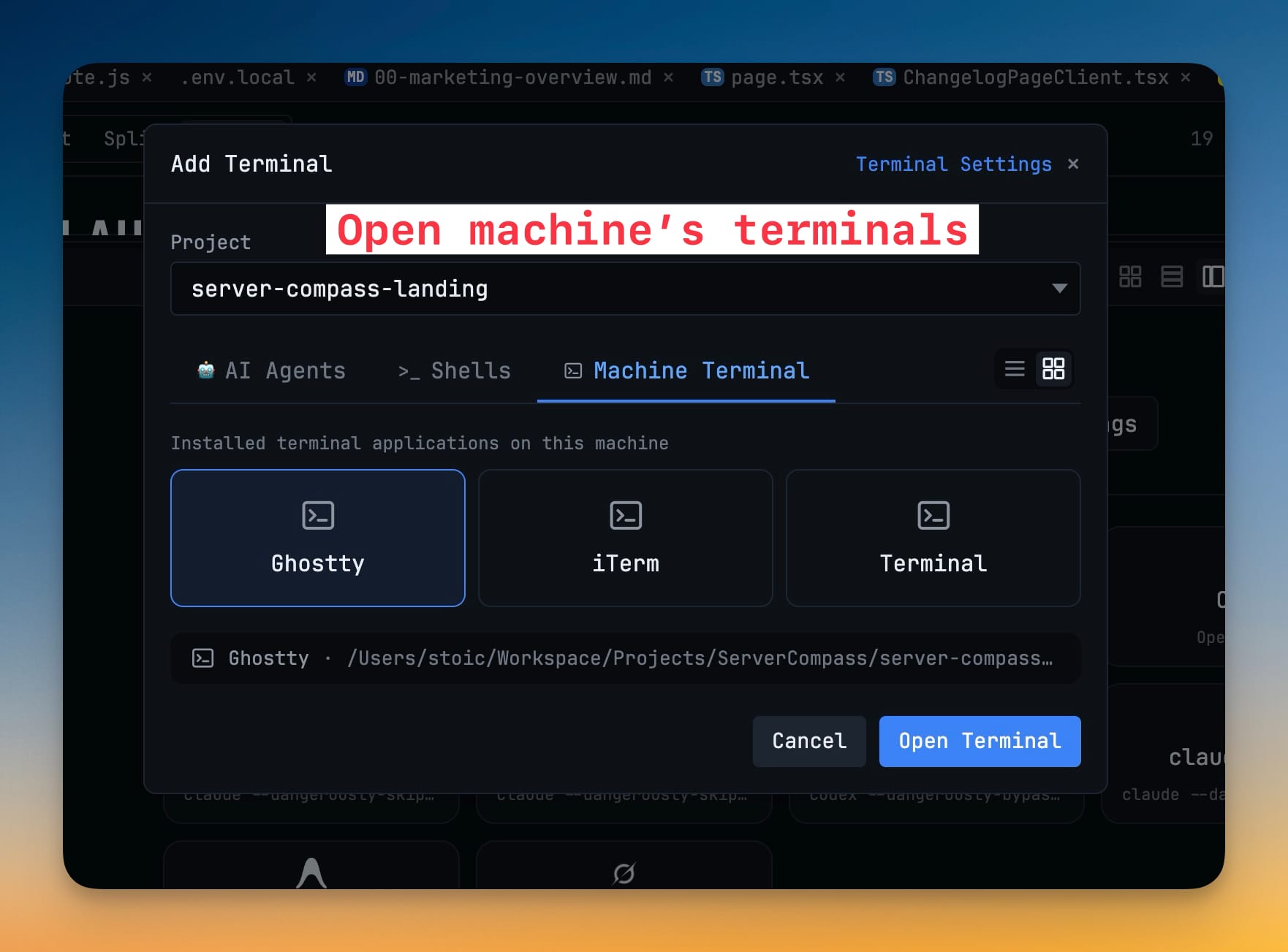
Launch the terminal app you already use — Ghostty, iTerm, or macOS Terminal — straight into the current project folder. The Add Terminal dialog discovers what's installed on your machine and opens your pick already cd'd to the right directory. You can also arm one of your startup commands before it opens, so the app lands at the project root, runs the command, then drops to a normal shell.
More Screenshots
Click any image to zoom in
Why You Need This
How this feature boosts your daily productivity
Some jobs want your own terminal: a full-screen TUI, a tool that needs your shell's exact setup, or simply muscle memory built over years. Getting there used to mean opening the app, then retyping or pasting the project path. The Machine Terminal tab in Add Terminal lists the terminal apps actually installed on this machine, and opening one drops you into the selected project's folder — the same project picker used for every other terminal type.
How It Works
Get started in 4 simple steps
Open Add Terminal
Start from the same Add Terminal dialog you use for AI Agents and Shells, and pick the project you want the terminal to open in.
Switch to the Machine Terminal tab
The tab lists the terminal applications actually installed on this machine — Ghostty, iTerm, and macOS Terminal — instead of a fixed list.
Pick your terminal
Selecting one shows the app and the full project path it will open, so you can confirm the target folder before launching.
Click Open Terminal
Your own terminal app opens already in the project folder — no retyping or pasting the path to get there.
Without 1DevTool
The manual way vs. the 1DevTool way
The Hard Way
The 1DevTool Way
Key Capabilities
Everything included with Machine Terminals
Why It Matters
The productivity impact of having terminal & ai agents built into your workspace
Your Terminal, Right Folder
The app you already know opens directly in the project, so nothing has to be retyped or pasted to get there.
Whatever You Installed
The list comes from the terminal applications actually present on this machine rather than a fixed set of assumptions.
One Dialog For Everything
Machine terminals sit beside AI Agents and Shells in Add Terminal, using the same project picker you already use.
More in Terminal & AI Agents
Other features in this category you might find useful
Multi-Agent Terminals
Run Claude Code, Codex, Gemini CLI, Amp, OpenCode, Qwen, and custom AI commands in dedicated terminal tabs with recognizable agent logos, custom colors, and status indicators.
Flexible Terminal Layouts
View terminals in 2×2 grid, side-by-side columns, or single fullscreen mode with resizable panes.
Terminal Dashboard
Kanban-style board view of all terminal statuses — Idle, Running, and Review — with real-time polling.
Session Persistence
Terminal sessions persist across app restarts with full scrollback history via tmux integration.
Ready to boost your workflow?
Download 1DevTool for free and experience Machine Terminals along with 345 other features — all in one app.